One Cool Tip Newsletter

June 17, 2026

Your daily dose of tech-savvy brilliance!

😀Greetings! Happy Windows Wednesday, Cool Tipper!


Get ready to streamline your digital life with simple, actionable tips delivered straight to your inbox.


Cool Tip Theme: Windows Printers


New here? Subscribe to the One Cool Tip Newsletter for daily updates. It's FREE!

3️⃣

If you enjoy the One Cool Tip newsletter, please forward this newsletter to THREE friends or colleagues or share it on social media using the links below.


Leave a $$$ Tip!


Share this One Cool Tip Newsletter!

X Share This Email
LinkedIn Share This Email
Pinterest Share This Email


🚨 124 Million Stolen Passwords 🚨


A newly uncovered trove of stolen credentials is raising fresh cybersecurity concerns.


More than 124 million passwords tied to over 56 million email addresses have been added to the popular breach‑checking service “Have I Been Pwned.”


What’s Different This Time?


Unlike typical data breaches that target a single company, these passwords were harvested directly from infected personal devices using “infostealer” malware: malicious software that quietly collects saved passwords, cookies, and login data without users realizing it.


Why It Matters


Because this data comes from individuals’ own computers, it means:


  • You may be affected even if your favorite services haven’t been hacked.
  • Stolen passwords could be used to access multiple accounts (especially if reused) .


What You Should Do Now


  • Check your email exposure at haveibeenpwned.com.
  • Update passwords immediately, especially for email, banking, and social media if your accounts are affected.
  • Turn on multi‑factor authentication (MFA) wherever available.
  • Stop reusing passwords; use a password manager to keep them unique.


Bottom Line


This alert is a reminder that today’s biggest risks often come not from big company hacks, but from compromised personal devices silently leaking sensitive data over time.


And in Other News...


  • Windows 11 June Update Makes PCs Feel Faster


Microsoft’s latest Windows 11 update, released June 9, focuses on something users have been asking for: speed you can actually notice.


This update is designed to reduce everyday lag and make the system feel more responsive.


What’s New and Why It Matters:


  • Faster performance: A new “Low Latency Profile” gives your PC short bursts of extra processing power when opening apps or menus, helping reduce delays during common tasks.
  • Audio sharing: Two people can now listen to audio from the same PC at the same time using Bluetooth headphones.
  • Improved multitasking: Multiple apps can access your webcam at once, making it easier to switch between calls, recordings, or streaming tools.
  • Quicker search: Windows Search now starts finding files with just two characters, speeding up everyday lookups.
  • AI hardware visibility: Task Manager now shows how your PC’s AI processor is being used, if your device supports it.


Why You Should Care


This update is not about a major redesign.


It focuses on small improvements that add up over time, such as faster clicks, quicker app launches, and smoother multitasking.


How to Install It


  • Open Settings, go to Windows Update, and click Check for updates.


If the June update is available, select Download and install, then restart your PC when prompted.


Bottom Line


If your PC sometimes feels slow or hesitant, this update is aimed directly at fixing those moments. It is worth installing to get a smoother, faster experience.


Cool Deals of the Day

Help support One Cool Tip. Use this Amazon link when you shop online.


Check out these Cool Deals:

🖨️ HP DeskJet 2923 Wireless Printer: Great for everyday home printing with simple setup and reliable wireless printing. $89.99. Check it out on Amazon!


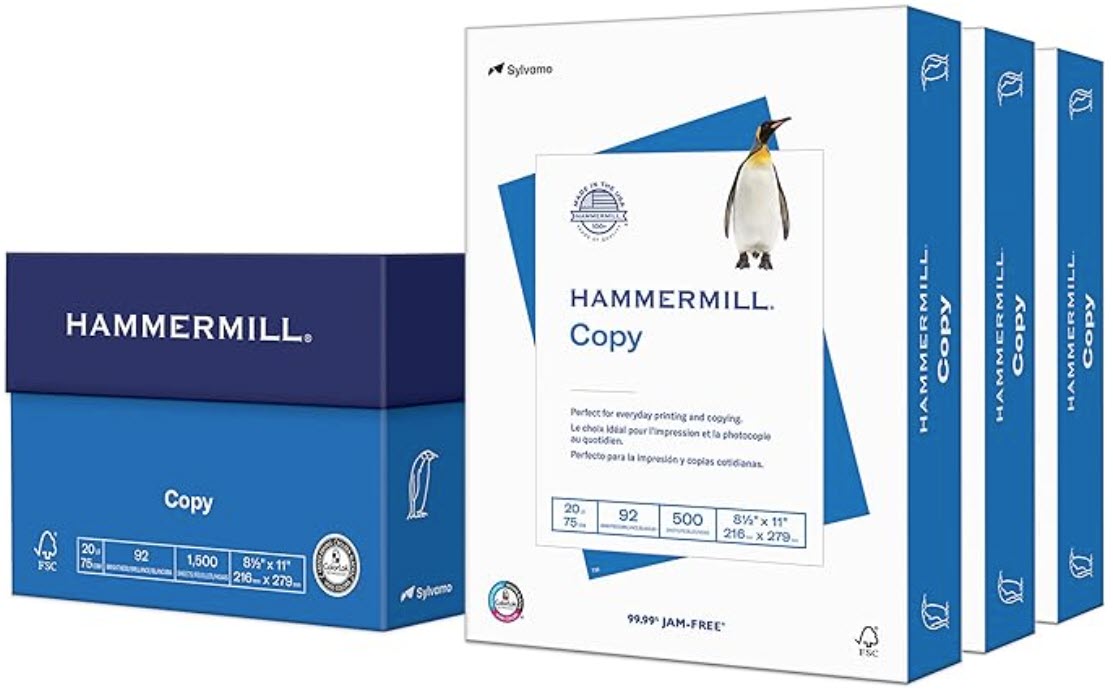
📄 Hammermill 20lb Copy Paper: Smooth copy paper that works well with all printers. $23.20. Check it out on Amazon!


🔌 TP-Link Smart Plug (for printer reset): Quickly power-cycle your printer remotely when it freezes. Now $12.98. Check it out on Amazon!


*Prices accurate when originally published.

One Cool Tip may earn a commission from qualifying purchases.

Fuel Your Adventure

Try Big Mike's Jerky!


bigmikesjerky.com


Now on TikTok!


Today's Cool Tip

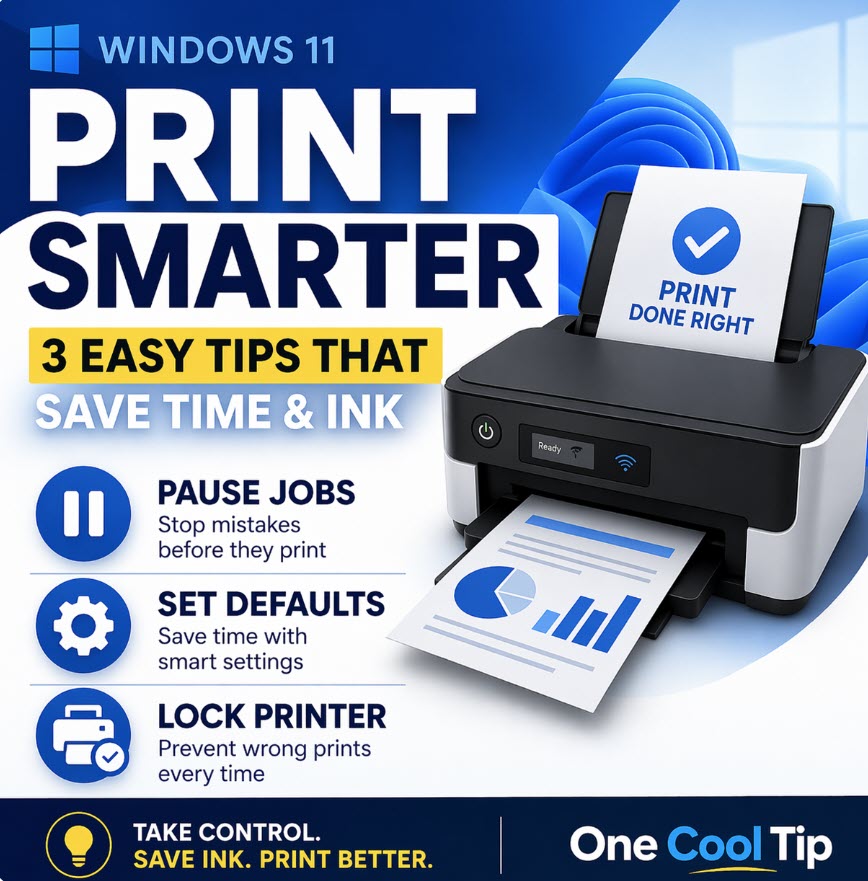
3 Smart Windows 11 Printer Tricks That Save Time and Ink


Printing mistakes and repetitive settings can quietly waste time, ink, and paper. These three Windows 11 printer tips help you take control and keep things running smoothly.


You only meant to print one page, but the printer starts churning through an entire document in full color.


That’s a quick way to burn through ink and patience.


Here’s a Cool Tip: Take Control of Printing Before It Wastes Your Time and Money.


Windows 11 includes useful printer tools most people never touch.


Once you know where they are, you can stop mistakes instantly, automate your settings, and manage printers with far more control.


Feature Explanation


1. Pause Your Print Jobs Like a Pro


Windows 11 uses a print queue system that lets you manage documents before they reach the printer.


Every print job is temporarily stored and sent in order.


You can pause individual jobs or the entire queue directly from Settings or the taskbar.


Why It Matters:


  • Stop incorrect prints immediately.
  • Pause jobs to fix paper or ink issues.
  • Resume printing without restarting everything.


2. Set Default Printing Preferences Once


Windows 11 allows you to define how each printer behaves by default.


These preferences include color mode, duplex printing, paper size, and print quality.


Once set, these options automatically apply to every document, eliminating repeated adjustments.


Why It Matters:


  • Consistent results across apps.
  • Fewer manual steps.
  • Reduced ink and paper waste.


3. Control Your Default Printer (and Stop Surprise Switches)


Windows 11 can automatically switch your default printer based on what you used last. That sounds helpful, but it often leads to printing to the wrong device.


You can turn this off and lock in your preferred printer so every job goes exactly where you expect.


Why It Matters:


  • Prevent printing to the wrong printer.
  • Avoid sending jobs to old or offline devices.
  • Stay consistent across work and home setups.


What You’ll Gain


  • Save time on every print job.
  • Avoid costly printing mistakes.
  • Reduce paper and ink waste.
  • Improve everyday workflow efficiency.


Step-by-Step Instructions


Here’s how to do it.


Windows 11


Tip 1: Pause or Resume Print Jobs


  1. Press Win + I → open Settings.
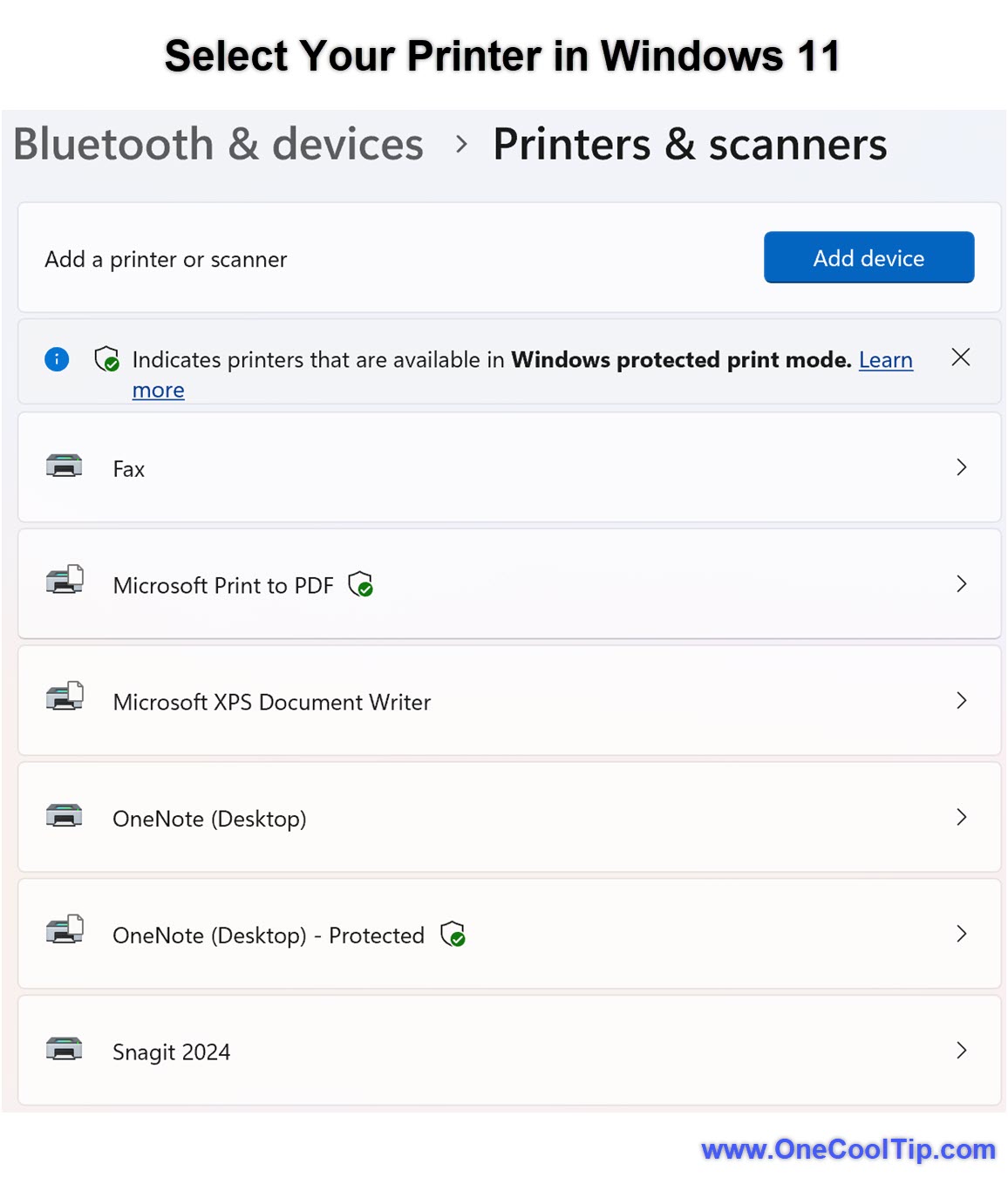
  2. Go to Bluetooth & devices → Printers & scanners.
  3. Select your printer.
  4. Click Open print queue.
  5. Right-click a job → choose Pause, Resume, or Cancel.


fig. 1 - Windows 11 Printer Settings

Tip 2: Set Default Printing Preferences


  1. Open Settings → Bluetooth & devices → Printers & scanners.
  2. Select your printer.
  3. Click Printing preferences.
  4. Adjust settings such as:
  • Black & white vs color
  • Duplex printing
  • Paper size

    5. Click OK to save.


Tip 3: Lock Your Default Printer


  1. Open Settings → Bluetooth & devices → Printers & scanners.
  2. Turn OFF “Let Windows manage my default printer.”
  3. Select your preferred printer.
  4. Click Set as default.


Pros and Cons


Pros:


  • Stops wasteful printing for home and office users.
  • Saves time for frequent printing tasks.
  • Easy to use with built-in tools.
  • Works on all Windows 11 devices.


Cons:


  • Multiple menus can be confusing at first.
  • Some features depend on printer drivers.


Feature Access


  • Platform: Windows 11.
  • Availability: Built-in features.
  • Requirements: Compatible printer drivers.
  • Status: Available to all users.


Score

Criterion | Score (0–10) | Justification
Value | 9
Prevents common printing mistakes and saves resources
Usability | 8
Easy to use once discovered, with familiar controls
Wow Factor | 6
Practical improvements rather than flashy features
Total: 23/30 | 👍 Good 
Small tweaks that make everyday printing smoother and more predictable.


Key Takeaways


  • Windows 11 offers more control over printing than most people realize.
  • By pausing jobs, setting smart defaults, and locking your printer, you can save time, reduce waste, and avoid frustration.


Cool Tip Snapshot


  • Feature Name: Windows 11 Printer Controls
  • Platform(s): Windows 11
  • Quick Benefit: Prevent mistakes and improve consistency
  • Best For: Home users, students, business users
  • Access Type: Free
  • Difficulty: Easy


Try It Yourself


Open your printer settings today and lock your default printer. 


Share your favorite tip in the comments, subscribe to the One Cool Tip newsletter, and pass this along to friends and coworkers.


READ MORE


Read the Cool Tip on OneCoolTip.com.

Check Out These Cool Tips & Tricks


  • Pause Fast: Stop bad prints immediately. Open the print queue and pause the job before it starts printing.


  • Print Preview: Catch mistakes early. Always review your document using Print Preview before hitting print.


  • Black & White: Save ink automatically. Set your printer to grayscale in Printing Preferences.


  • Duplex Mode: Cut paper use in half. Enable double-sided printing in your default settings.


  • Default Lock: Prevent wrong prints. Turn off “Let Windows manage my default printer.”


  • Queue Check: Avoid pileups. Open the print queue to monitor stuck or duplicate jobs.


  • Driver Update: Fix weird issues fast. Update printer drivers from Device Manager.


  • Draft Mode: Save ink on rough prints. Turn on Draft quality for everyday documents.


  • Cancel Quickly: Fix mistakes instantly. Right-click and cancel jobs from the queue.


  • Restart Printer: Clear stubborn problems. Power cycle your printer when jobs get stuck.


ICYMI - In Case You Missed It ...

AirDrop Goes the Distance in iOS 26 with Internet Handoff and New AirDrop Codes


AirDrop in iOS 26 keeps transfers moving even after you leave Bluetooth or Wi-Fi range by securely switching to the internet. A new AirDrop Code also makes fast, private sharing easy.


Read the Full Cool Tip.


Read the Newsletter Version.

Looking for your next adventure?


Call Denise at Travel For You.

314.660.3039


Sign Up for the Monthly Newsletter


http://www.travelforyouvacations.com/


https://www.facebook.com/TRAVEL.FOR.U/


See You Tomorrow

Tomorrow's Cool Tip is waiting to amaze you.


Until then, go forth and conquer the tech world with your newfound knowledge!


Be sure to visit www.OneCoolTip.com for Cool Tech Tips for a Cooler Life!


And if you Like One Cool Tip, please support with TipJar!


Enjoy!


Rodger

Chief Cool Tipper

onecooltip.com@gmail.com


What Do You Think?

What do you think of today's OneCoolTip newsletter?
Positive        Neutral        Negative
X Share This Email
LinkedIn Share This Email

Connect with One Cool Tip!!

Facebook  X  Instagram  Web  Pinterest  YouTube  LinkedIn
 

As an Amazon Associate, One Cool Tip may earn a small commission from qualifying purchases.


Our media content is intended solely for informational purposes only. Please do not construe anything here as legal, tax, investment, financial, marital or other advice.


Copyright © 2026 | www.OneCoolTip.com | All Rights Reserved