|
ChatGPT Images 2: Master the Next Generation of AI Visuals
Transform your creative workflow with precision control and hyper-realistic image generation directly inside your chat. OpenAI has released a massive upgrade to its image generation capabilities within ChatGPT, offering users unprecedented control over detail and style.
Have you ever spent twenty minutes arguing with an AI because it kept putting three legs on a dog or ignored your request for a specific art style?
Creating the perfect image used to feel like a game of telephone where the AI only heard every third word.
Those days of "prompt engineering" frustration are fading.
Here's a Cool Tip: Use the New ChatGPT Images 2 feature.
With the rollout of ChatGPT Images 2, the barrier between what you imagine and what appears on your screen has officially thinned.
Whether you are a small business owner needing a quick logo or a teacher building a visual lesson plan, the latest updates turn ChatGPT from a simple sketch artist into a high-end digital studio.
Feature Explanation
ChatGPT Images 2 represents a fundamental shift in how the model understands visual concepts.
Built on the latest iterations technology, this update focuses on three core pillars: semantic accuracy, textural realism, and iterative editing.
In plain terms, the AI now understands complex spatial relationships.
If you ask for a "blue coffee mug to the left of a steaming croissant on a marble table," it actually places them correctly rather than jumbling the objects.
The introduction of "In-painting" or selective editing allows you to highlight a specific area of a generated image and change just that part.
This means you no longer have to throw away a great image just because one small detail is off.
What You’ll Gain
-
Precision Editing: Modify specific parts of an image without regenerating the entire prompt.
-
Text Integrity: Finally generate images with readable, accurate text for signs and posters.
-
Style Consistency: Maintain the same character or aesthetic across multiple different images.
Step-by-Step Instructions
Here's how to do it.
Microsoft Web/Desktop
-
Open ChatGPT, www.chatGPT.com in your browser.
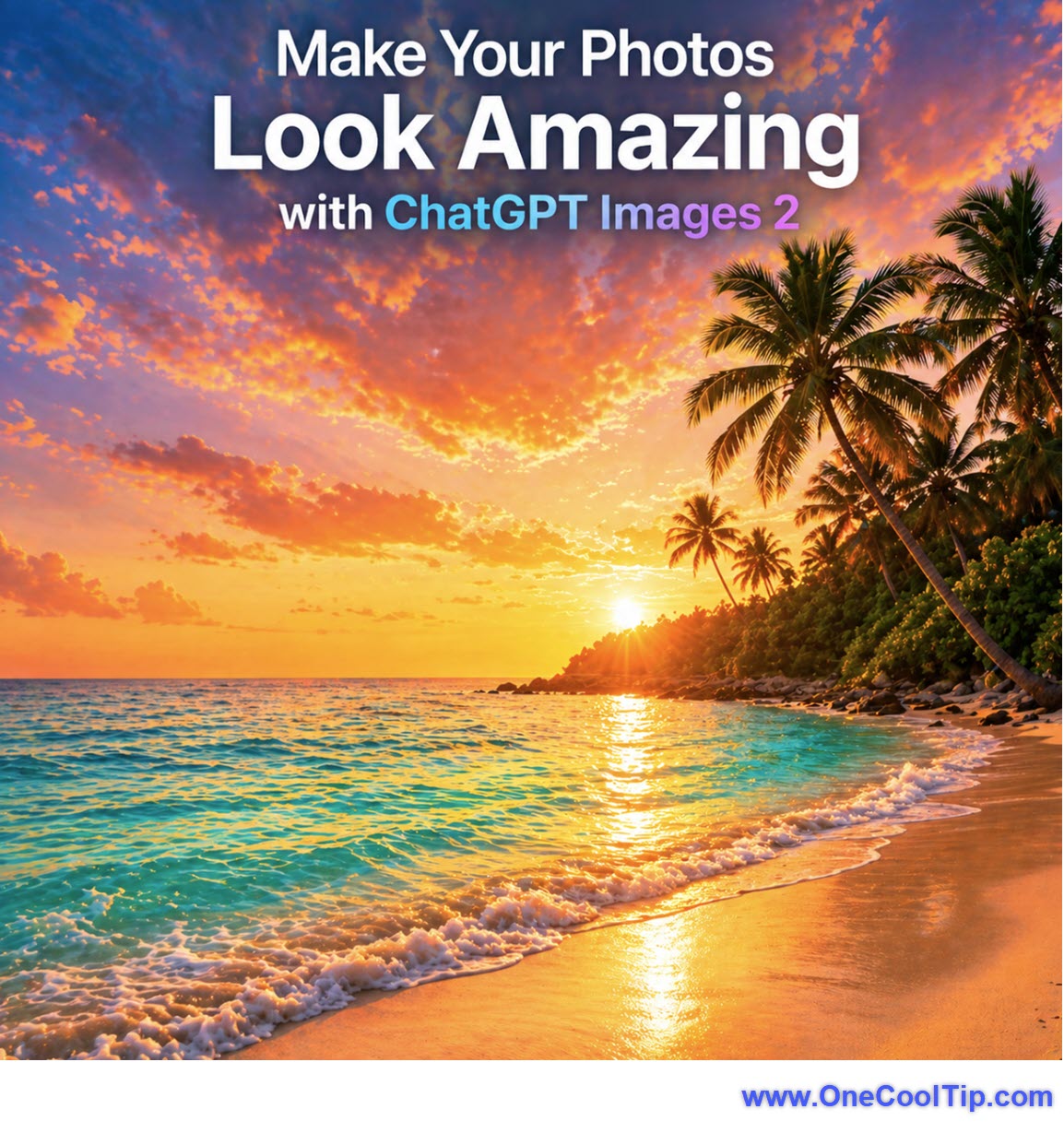
- Type a descriptive prompt for your image. Example: "Create a stunning, photorealistic tropical beach scene at sunset".
- Once the image appears, click on it to open the editor view.
- Select the Select (brush) tool from the top menu.
- Highlight the area you want to change, such as the palm tree.
- In the chat box on the side, type the change. Example: "add coconuts to the palm tree."
|