|
One Cool Tip Newsletter
July 1, 2026
| Your daily dose of tech-savvy brilliance! | | |
😀Greetings!, Happy Wednesday, Cool Tipper!
Get ready to streamline your digital life with simple, actionable tips delivered straight to your inbox.
Today's Cool Tip Theme: Edge Journeys
IN THIS ISSUE
- 🛡️ Military Scam Awareness.
- 🤖 Anthropic Fable 5 Returns.
- 🏆 Top Cool Tips.
- 🎨 Nostalgic AI Prompt.
- 🌐 Microsoft Edge Journeys.
- 🔗 Quick Website Navigation in Edge.
- 🧮 Instant Edge Calculations.
- 📑 Edge Vertical Tabs.
New here? Subscribe to the One Cool Tip Newsletter for daily updates. It's FREE!
-
😂 Laugh with Us! Enjoy our Tech Joke of the Day, Haiku and Cool Tip Comics.
-
🌐 Stay Informed! Check out ICYMI, and our One Cool Tip Video.
| | |
3️⃣
If you enjoy the One Cool Tip newsletter, please forward this newsletter to THREE friends or colleagues or share it on social media using the links below.
Leave a $$$ Tip!
Share this One Cool Tip Newsletter!
| | |
Today's Tech Trivia
What browser engine is the current Microsoft Edge based on?
A) Gecko
B) WebKit
C) Chromium
D) Trident
Answer at the end of this newsletter.
| | |
⚠️Scamming Military Members and Veterans⚠️
The FTC is spotlighting scams this July for Military Consumer Month, warning that service members, veterans, and their families are frequent targets for fraud.
A key message this year is simple: talk about scams.
Open conversations can help people recognize warning signs and avoid losing money or personal information.
Scammers often go after military communities to steal benefits, cash, and sensitive data.
Sharing real stories and experiences can make scams easier to spot and harder for criminals to pull off.
- Anyone can be scammed, so there is no shame in speaking up.
- Talking through what happened can help others avoid the same trap.
- Keep a list of trusted people and businesses to contact if something feels off.
-
Report fraud at ReportFraud.ftc.gov and identity theft at IdentityTheft.gov.
The FTC also encourages consumers to stay informed by following scam alerts and using trusted government resources to learn about common schemes.
Bottom Line
Start the conversation.
A quick discussion today could prevent a costly scam tomorrow.
And in Other News...
Anthropic Reintroduces Fable 5 AI After Safety Update
Anthropic is bringing its Claude Fable 5 AI model back online after a brief shutdown tied to U.S. government security concerns.
The consumer-facing tool will again be available globally across apps like Claude.ai starting July 1, now with stronger safeguards designed to block risky or harmful uses.
For everyday users, this means access to one of the newest, most advanced AI assistants is returning with added protections behind the scenes.
The episode highlights how quickly cutting-edge AI tools can change due to safety and regulatory issues, and why features you rely on may evolve suddenly.
Top Cool Tips
In June, the most popular new Cool Tip was about setting Ziggy Marley as your assistant in the Waze app: How to Let Ziggy Marley Guide Your Next Drive
The most popular Cool Tip so far in 2026 explains how to play 20 Questions: Play 20 Questions With The Mind-Reading Genie of the Internet
And the top Cool Tip of All Time? God Mode. Here's the Cool Tip for Windows 10 and another one for Windows 11.
| | |
Try this Cool AI prompt. Copy and paste to ChatGPT, Gemini, Claude or Copilot.
- Turn this photo into a deliberately messy 1990s MS Paint doodle. Use wobbly outlines, flat bright colors, awkward proportions, simple brush strokes, and charmingly bad shading. Keep the subject recognizable, but make it look like it was drawn quickly by someone having fun on an old Windows computer.
- Upload an image.
| | |
Use Edge Journeys to Resume Tasks Instantly Anywhere
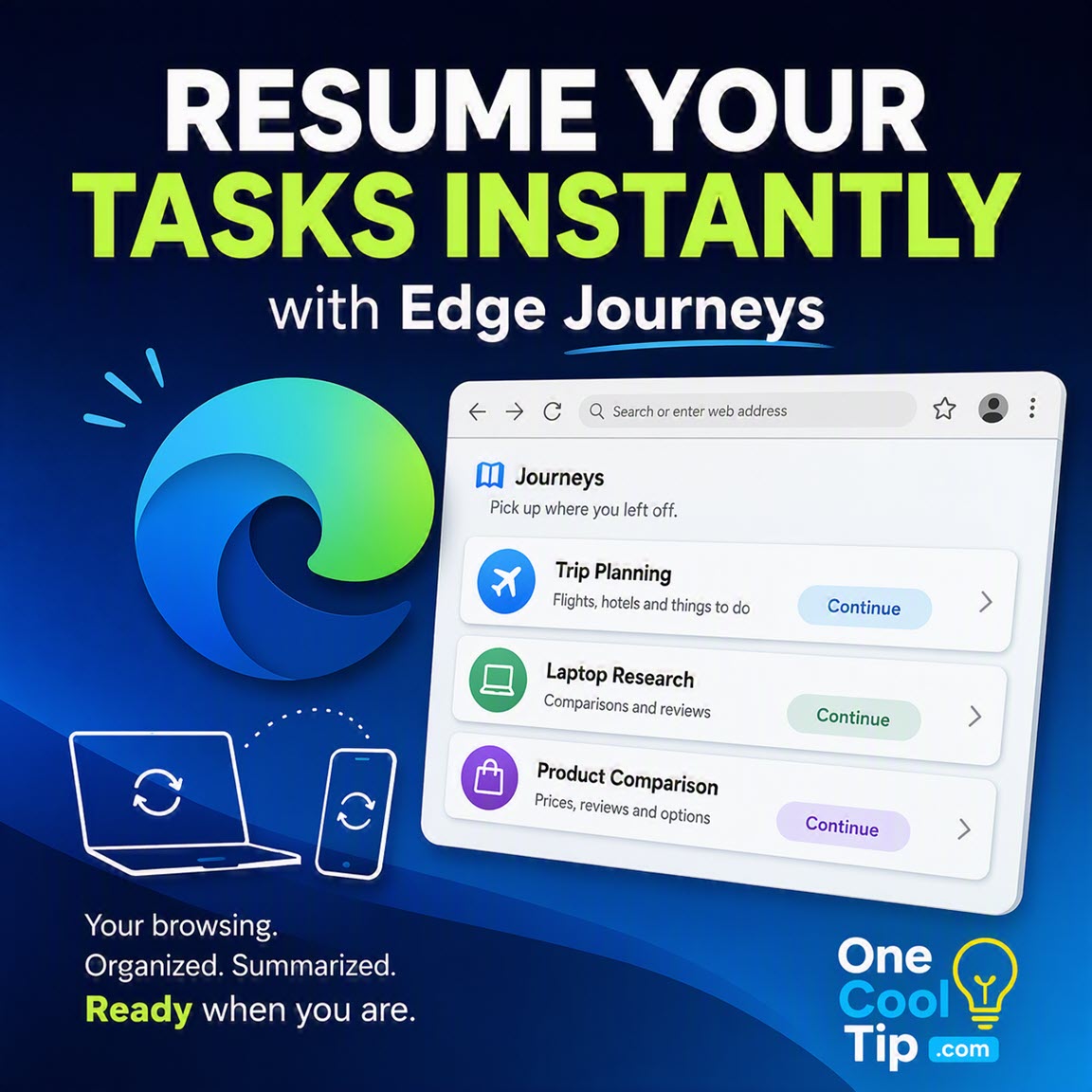
Microsoft Edge Journeys organizes your browsing into task-based summaries so you can quickly pick up where you left off. It’s a simple way to resume projects across desktop and mobile without digging through tabs or history.
You open your browser to finish something important, then spend five minutes figuring out where you left off.
Was it a product comparison?
A set of travel tabs? Or an article you meant to revisit?
Modern browsing creates clutter. Tabs pile up, history gets buried, and resuming work often takes longer than starting over.
Here’s a Cool Tip: Let Edge organize your browsing into “Journeys”.
Microsoft is addressing that problem with Journeys in Edge, now available on both desktop and mobile.
Feature Explanation
Edge Journeys is an AI-powered feature that automatically groups your browsing activity into task-based collections.
Instead of manually saving bookmarks or organizing tabs, Edge detects patterns in your activity and bundles related pages into a “Journey.”
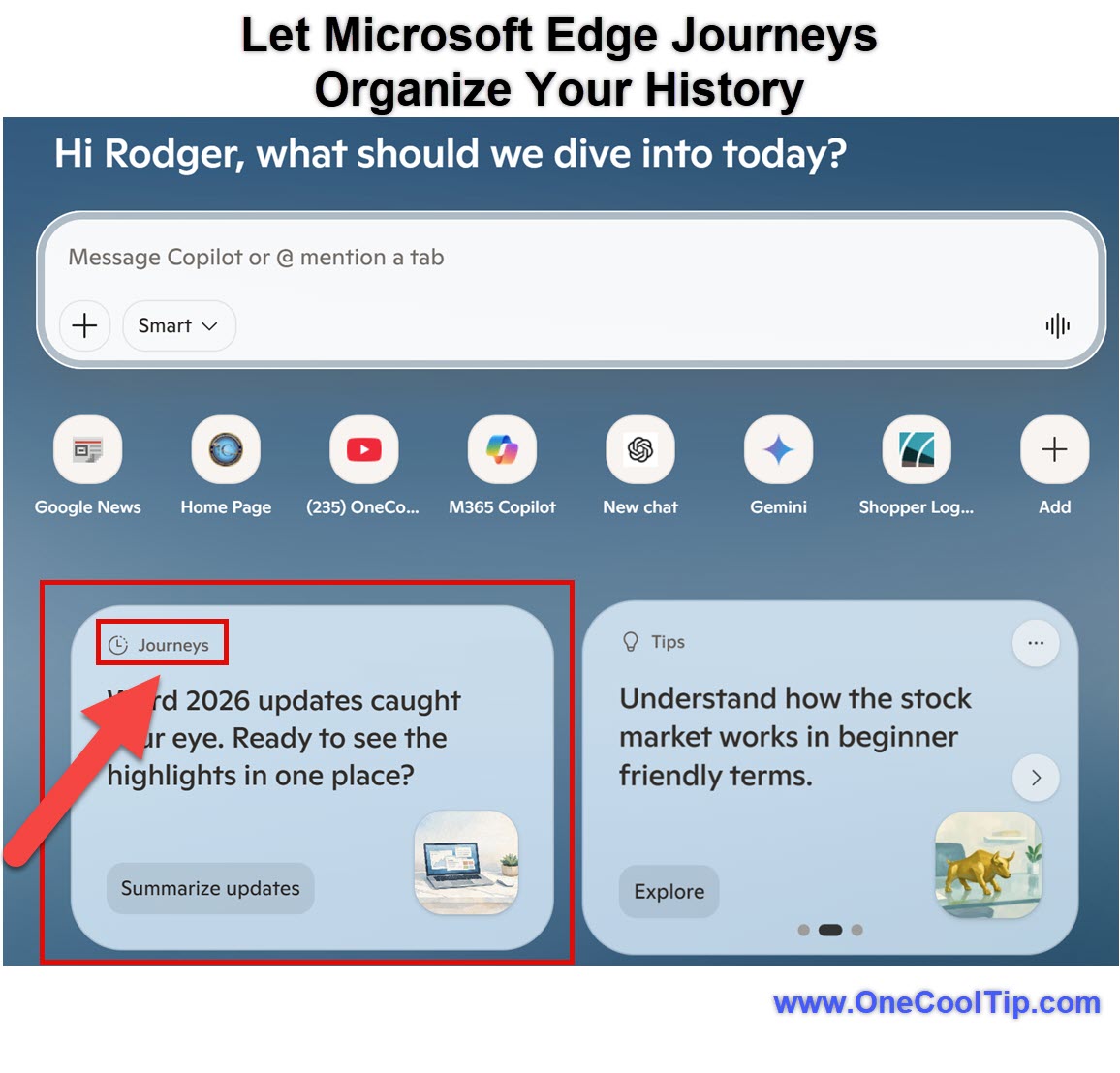
These appear as cards on your New Tab page, with summaries and suggested next steps.
Examples include:
- Researching laptops becomes a “Laptop research” Journey.
- Planning a trip becomes a “Trip planning” Journey.
- Shopping across sites becomes a “Product comparison” Journey.
Each Journey includes:
- A short summary of your activity.
- Links to related pages and tabs.
- Suggestions to continue what you started.
Journeys is a way to help you “pick up where you left off and resume your projects” by organizing browsing history into meaningful topics with summaries and next steps.
Why It Matters
Journeys helps solve common pain points:
- Too many open tabs.
- Lost context between sessions.
- Repeated searches for the same information.
Instead of retracing your steps, you can resume your workflow instantly.
What’s New
- Journeys is now available on Edge mobile apps, expanding beyond desktop.
- It integrates with Copilot for summaries and suggestions.
- It appears in the redesigned New Tab experience.
What You’ll Gain
- Resume tasks without reopening dozens of tabs.
- Stay organized without manual effort.
- Spend less time searching for past work.
- Move between desktop and mobile more easily.
Step-by-Step Instructions
Here's how to do it.
Web/Desktop (Windows, macOS)
-
Open Microsoft Edge.
-
Click the three-dot menu (top right).
-
Select Settings.
-
Go to Copilot and AI (if available).
-
Enable relevant Copilot or AI features.
-
Open a New Tab page.
-
Look for Journey cards.
| | fig. 1 - Let Microsoft Edge Journeys Organize Your History | |
Mobile (iOS / Android)
-
Open the Edge app (iOS / Android).
-
Sign in with your Microsoft account.
-
Browse normally.
-
Open a new tab.
-
Look for Journey summaries.
Pros and Cons
Pros:
- Automatically organizes browsing without extra work.
- Saves time for multitaskers and heavy browser users.
- Works across desktop and mobile.
- Combines history, context, and suggestions in one place.
- Useful for shopping, research, and planning.
Cons:
- Requires Copilot features and permissions.
- Availability may vary by account or region.
- Depends on browsing history being enabled.
- Less useful for users who prefer manual organization.
Feature Access
- Available in Microsoft Edge on desktop and mobile, in supported English markets.
- Recently expanded to include mobile support (US only).
- Requires a Microsoft account for cross-device syncing.
- Availability may vary by region, account, device, or version.
- Some capabilities depend on Copilot integration.
Score
Criterion | Score (0–10) | Justification
Value | 9
Saves time by restoring context across sessions and devices.
Usability | 7
Mostly automatic, but settings and visibility may vary.
Wow Factor | 8
Smart grouping and summaries feel modern and genuinely useful.
Total: 24/30 | 👍 Good
A practical productivity upgrade that makes browsing feel more organized and less repetitive. Compared to bookmarks or collections, Journeys requires far less effort to maintain.
Key Takeaways
Edge Journeys reduces tab overload by automatically grouping related browsing into tasks.
It makes it easier to resume work without retracing steps.
For anyone who juggles multiple tabs or devices, it adds useful context back into browsing.
Cool Tip Snapshot
-
Feature Name: Edge Journeys.
-
Platform(s): Windows, macOS, iOS, Android.
-
Quick Benefit: Resume browsing tasks instantly.
-
Best For: Researchers, shoppers, multitaskers.
-
Access Type: Rolling Out.
-
Difficulty: Easy.
Try It Yourself
Turn on Journeys in Edge and see how quickly you can pick up unfinished tasks.
Share your experience in the comments, subscribe to the OneCoolTip newsletter, and pass this Cool Tip along to someone who constantly juggles too many tabs.
READ MORE
Read the Cool Tip on One Cool Tip.com.
| | Help support One Cool Tip. Use this Amazon link when you shop online. | |
💻 Microsoft Surface Pro 2-in-1 Laptop/Tablet (2024): A premium device perfect for utilizing Windows 11 and Microsoft Edge AI features.
Save 20% Now $1,199.99. 4.4 Stars. Check it out on Amazon!
🖱️ Logitech MX Master 3S Wireless Mouse: Navigate your tabs and task cards with smooth, customizable precision.
$89.99. 4.5 Stars. Check it out on Amazon!
🔋 Anker Laptop Power Bank: Keep your laptop charged so you can continue your research anywhere.
$119.99. 4.5 Stars. Check it out on Amazon!
Prices accurate at time of publication
One Cool Tip may earn a commission from qualifying purchases.
| | |
🆒Tell Me More
- Edge Journeys automatically groups your browsing into topic-based “cards” with summaries and suggested next steps.
- Clicking a Journey opens a Copilot chat that continues your task with summaries and comparisons.
- Journeys works in the background. You don’t have to save or organize anything manually.
- Your browsing sessions can span multiple days and devices while staying connected.
⏩Quick Tips
-
🧭 Turn It On: Go to Settings > Copilot and AI > Journeys and toggle it on to start organizing your browsing.
-
🔄 Resume Faster: Open a Journey card on your new tab page to jump back into a project instantly.
-
📱 Use Mobile Sync: Sign in with the same account on your phone to continue tasks seamlessly.
-
🧠 Ask Copilot: Click a Journey card and ask questions to summarize or compare your research.
-
🧹 Reduce Tab Clutter: Let Journeys track your work so you can close extra tabs with confidence.
| | ✅ More Must-Read Tech Tips | | |
👀 How Do I Quickly Go to a Website in Edge?
Are you tired of copying and pasting URLs from web pages to your browser’s address bar?
Most websites will hyperlink a web address so that readers can just click.
But when you see just plain text, use this Cool Tip.
Here's how to do it.
- Open Microsoft Edge browser.
- Highlight the text you want to open as a website.
- Right-click on the highlighted text and select “Go to” option.
- The highlighted text will be automatically copied into the address bar and you will be taken to that website.
Discover more HERE.
| | |
🤔 Have You Ever Wondered How to Perform Calculations, Unit Conversions, and Currency Conversions in Edge?
Have you ever found yourself needing to quickly convert units or calculate currency exchange rates while browsing the web?
This Cool Tip shows how to leverage the Edge address bar for instant calculations, unit conversions, and currency conversions, making your online experience smoother and more efficient.
Performing Calculations
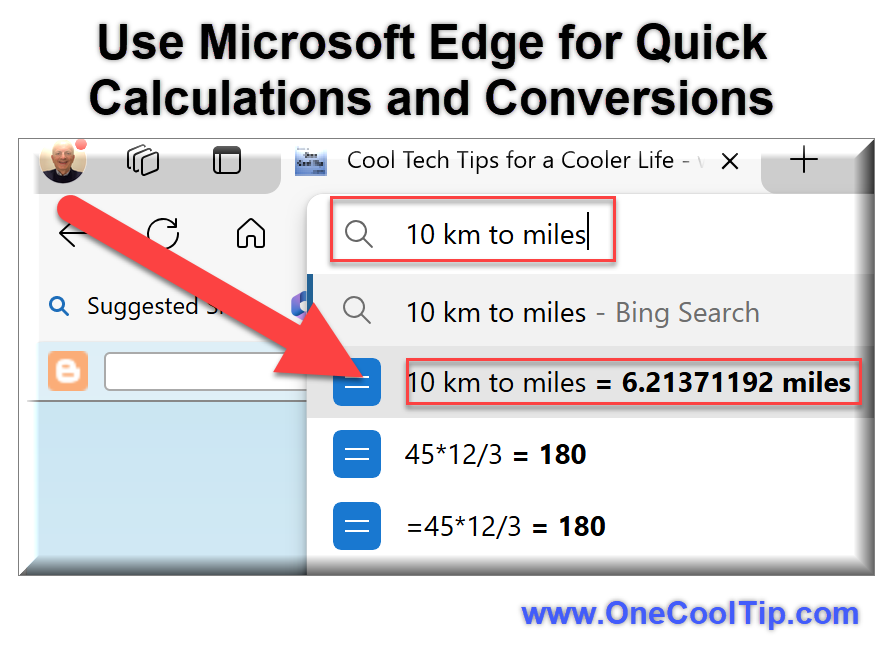
- Type your mathematical expression directly into the Edge address bar (e.g., 45*12/3).
- The result appears instantly below the address bar.
Unit Conversions
- Type the conversion you need (e.g., 10 km to miles).
- Edge displays the converted value immediately.
Currency Conversions
- Enter the amount and currency you want to convert (e.g., 100 USD to EUR).
- The conversion result shows up right below the address bar.
By utilizing the Microsoft Edge address bar for calculations, unit conversions, and currency conversions, you can significantly enhance your productivity and streamline your online activities.
Find out more HERE.
| | |
🙋♂️ Here's How to Use Microsoft Edge’s Vertical Tab Feature.
Are you tired of tab overload in your web browser?
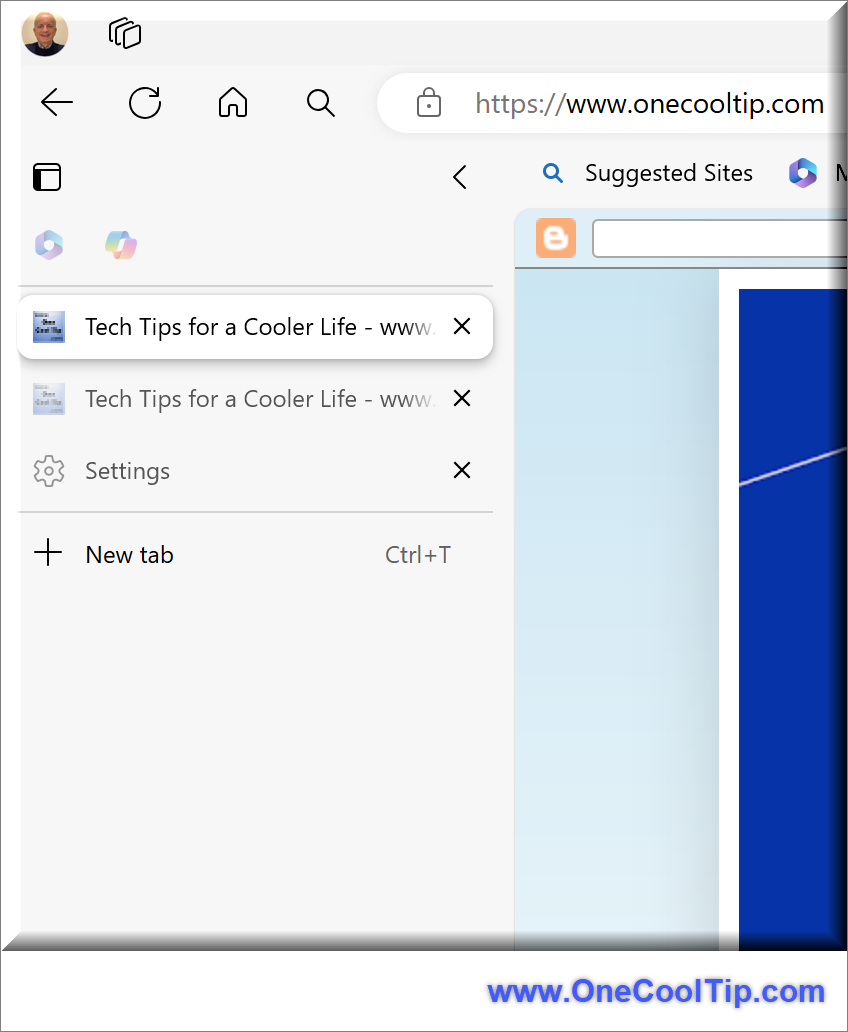
Microsoft Edge’s vertical tabs feature provides a refreshing solution.
Here's how to do it.
Enable Vertical Tabs
- Open Microsoft Edge.
- Click the three horizontal dots at the top-right corner of the window.
- Select Settings and then click Appearance.
- Toggle the Show Vertical Tabs button to the On position.
- Your tab listing now appears on the left side of the window.
Navigate with Ease
- Hover over the vertical tab pane to see all your tab titles.
- Scroll through the list and select the tab you want to switch to.
- Click the Collapse pane (<) button to save screen space when needed.
- Pin Your Favorite Tabs.
-
Right-click (or press and hold) an open tab.
- Select Pin tab to have it automatically load when you open your browser.
Vertical tabs offers the benefits of longer site icons and titles that make it easier to quickly identify and switch to the right tab.
Learn more HERE.
| | |
❓Did you share this newsletter with three friends yet?
😎 Cool Facts
-
7: Edge Journeys on desktop is available only in US, GB, CA, AU, NZ, IN, and SG. Source.
-
1: Edge Journeys on mobile is available in the U.S. only. Source.
-
🗓️ May 13, 2026: Microsoft announced the Edge desktop and mobile updates that included broader Journeys availability. Source.
-
🌐 9.85 percent: StatCounter listed Microsoft Edge at 9.94 percent of worldwide desktop browser market share for May 2026. Source.
⌨️Today's Cool Shortcuts
-
🪟 Windows / Edge: Ctrl + Shift + T: Reopen a closed tab.
-
🌐 Edge: Ctrl + L: Jump to the address bar.
-
📑 Edge: Ctrl + Tab: Switch between open tabs.
-
📂 Edge: Ctrl + H: Open browsing history.
-
🔍 Edge: Ctrl + E: Search directly from the address bar.
😜 Tech Joke of the Day 😅
How many programmers does it take to change a lightbulb?
None, that is a hardware problem.
🔎 Do you have a Cool Tip or tech question? Email us at onecooltip.com@gmail.com.
| | |
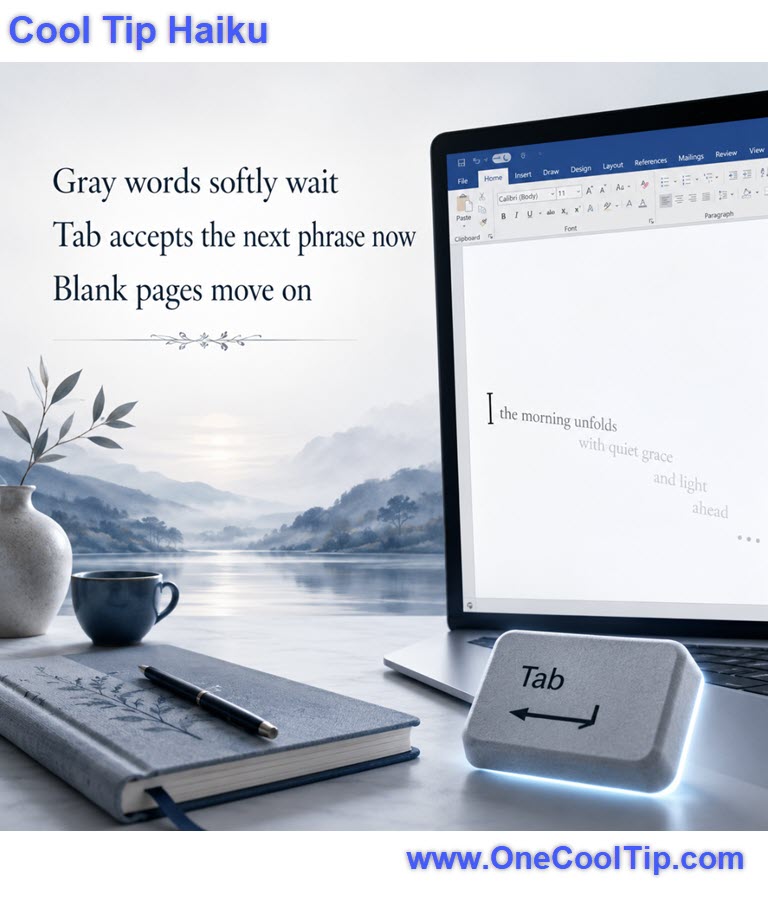
Old tabs fade away
Topic cards gather lost paths
Research wakes again
| |
| 🤔 How do you manage too many browser tabs? | | | | Did You See These Cool Tips This Week? | | | | Get Faster Answers With Google Gemini 3.5 AI Search | |
Google recently upgraded its search experience with Gemini 3.5 Flash, an advanced model that provides incredibly fast and interactive answers. This upgrade transforms how you find information by handling complex, multi-step queries directly within your browser or mobile app.
Read the Newsletter Version.
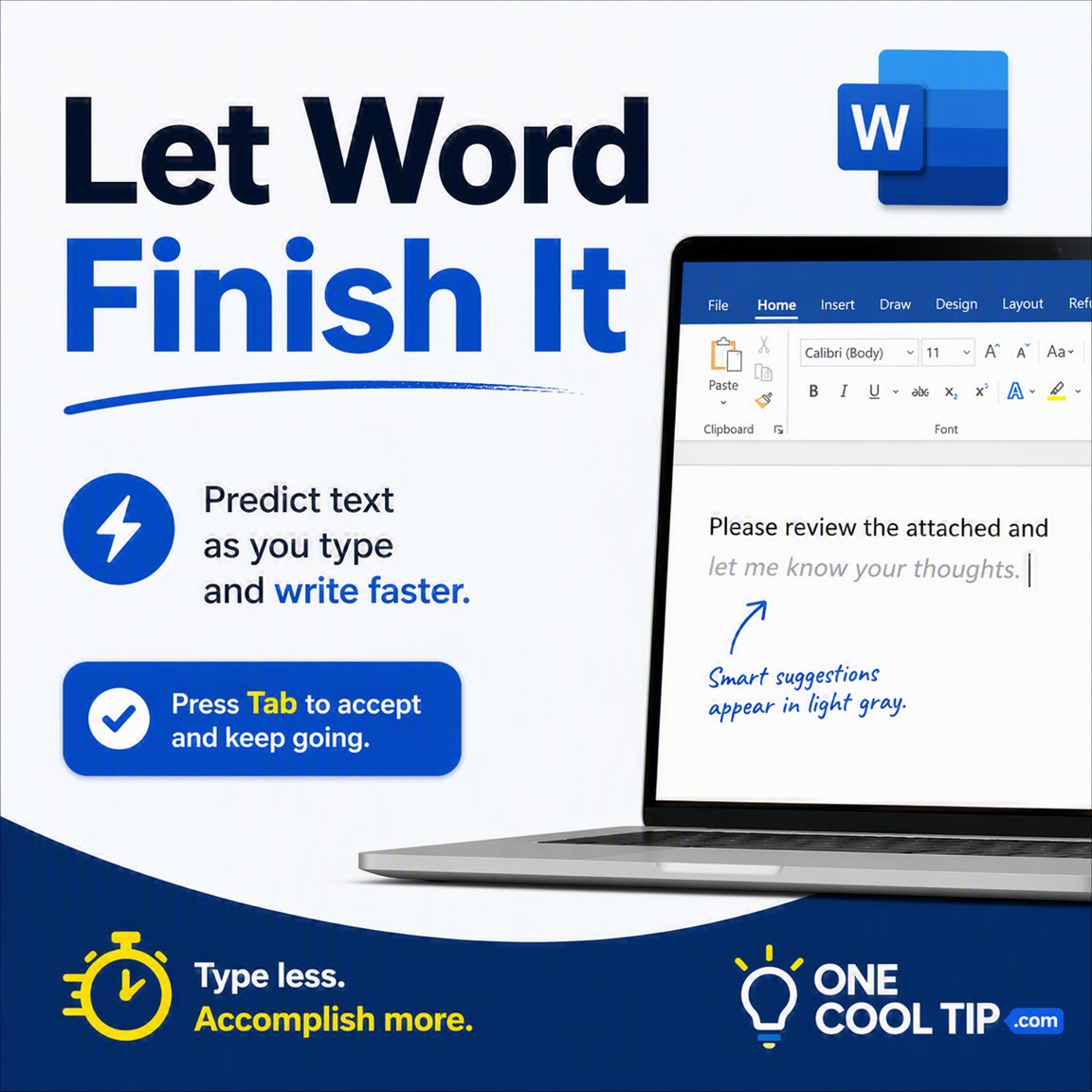
| | | | Make Word Finish Your Sentences Faster | |
Microsoft Word can anticipate what you’re about to type and suggest text in real time. Used well, it helps you write faster, cut repetition, and keep your momentum.
Read the Newsletter Version.
| |
ICYMI - In Case You Missed It ...
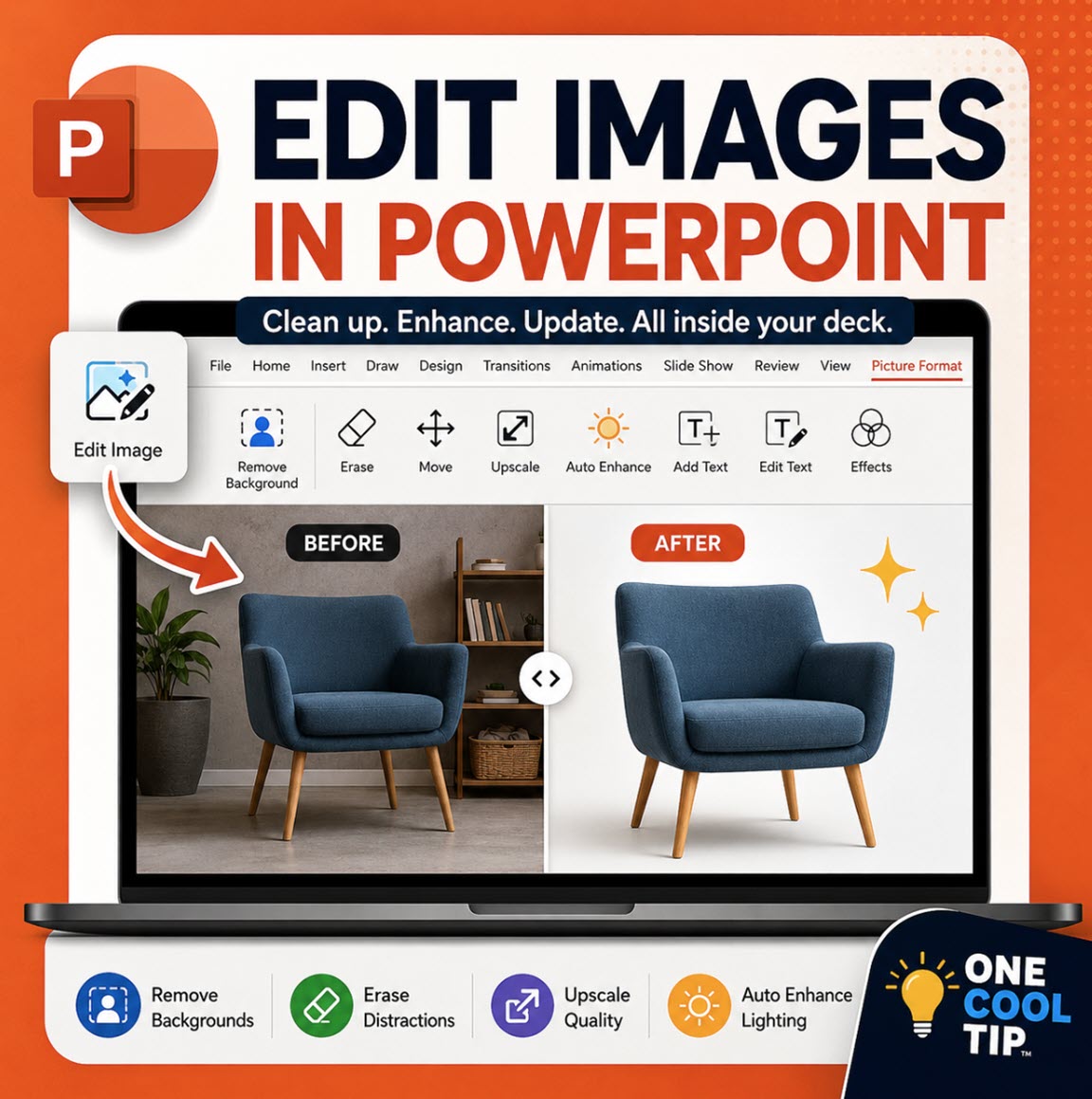
| | | | Edit PowerPoint Images Without Leaving Your Deck | |
PowerPoint now includes a stronger built-in image editor that helps you clean up photos, screenshots, and slide visuals without switching apps. Use Edit Image to remove backgrounds, erase objects, upscale low-resolution pictures, enhance lighting, and update the image directly on your slide.
Read the Newsletter Version.
| | |
Unleash the Power of Microsoft Edge’s Task Manager
Ever wondered why your Microsoft Edge browser is running slow?
Or which tab is consuming most of your system’s resources?
What if you could have a built-in tool within your browser that could answer all these questions?
Watch
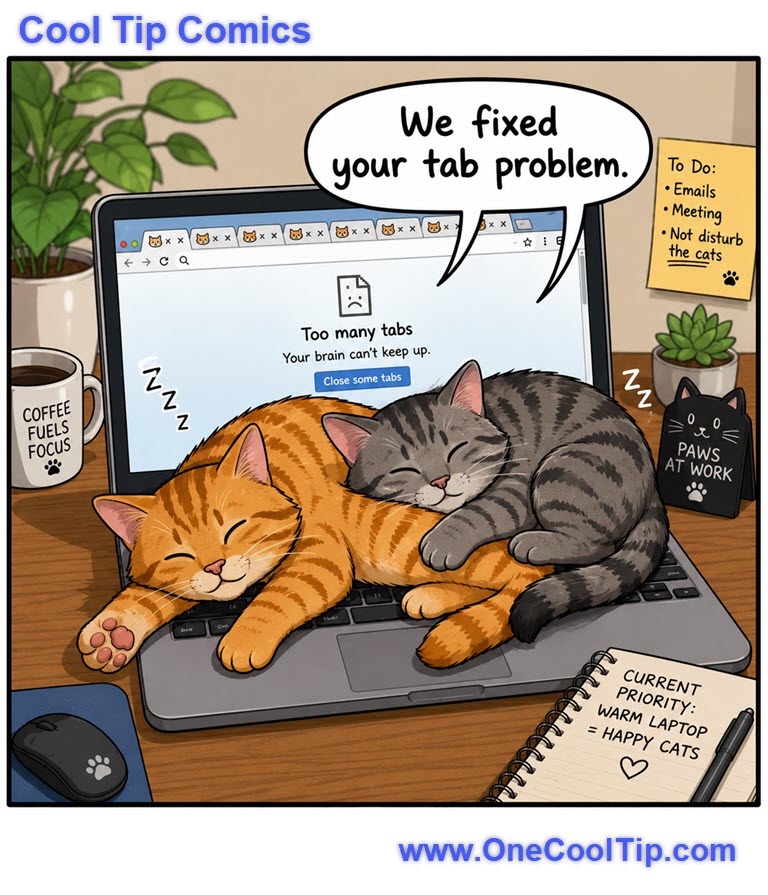
| | Finally, a browser cleanup tool powered entirely by purr-crastination. | | |
Trivia Answer: C) Chromium
The current Microsoft Edge is based on Chromium, the open-source browser project also used by Google Chrome and several other browsers.
Microsoft’s support page says the new Chromium-based Edge was released on January 15, 2020, while Microsoft Edge Legacy was the HTML-based browser that launched with Windows 10 in July 2015.
That switch mattered because it improved website compatibility and extension support.
It also means some browser security updates affect multiple Chromium-based browsers, not just Chrome.
----------
Tomorrow's Cool Tip is waiting to amaze you.
Until then, go forth and conquer the tech world with your newfound knowledge!
Be sure to visit www.OneCoolTip.com for Cool Tech Tips for a Cooler Life!
And if you Like One Cool Tip, please support with TipJar!
Enjoy!
Rodger
Chief Cool Tipper
onecooltip.com@gmail.com
| |
| What do you think of today's OneCoolTip newsletter? | | | |
Please Share the One Cool Tip Newsletter!
You asked for it. You got it. There is now a One Cool Tip Newsletter archive. Did you delete a newsletter and want to read it again? Check it out HERE.
Want to help One Cool Tip grow? Please forward this email using the link above. And if you see an OCT social media post, please LIKE, COMMENT and SHARE!
Have you subscribed to the One Cool Tip YouTube channel? Subscribe HERE.
| | Connect with One Cool Tip!! | | |
|
As an Amazon Associate, One Cool Tip may earn a small commission from qualifying purchases.
Our media content is intended solely for informational purposes only. Please do not construe anything here as legal, tax, investment, financial, marital or other advice.
Copyright © 2026 | www.OneCoolTip.com | All Rights Reserved
|
| | | |