|
One Cool Tip Newsletter
November 19, 2025
| Your daily dose of tech-savvy brilliance! | |
😀Greetings!, Happy Windows Wednesday, Cool Tipper!
Get ready to streamline your digital life with simple, actionable tips delivered straight to your inbox.
Today's Cool Tip Theme: Snipping Tool's Quick Markup
IN THIS ISSUE
- 🚨 Scam Action Plan.
- 🧠 Google Debuts Gemini 3.
- 📅 AI Holiday Prompt.
- 🦃 Cool Microsoft Copilot AI Prompt: Thanksgiving Dinner Menu.
- ✂️ Snipping Tool Quick Markup.
- 🎥 Capture Video in Windows.
- 🎤 Record Audio in Screen Recordings.
- 📁 Find Your Saved Screenshots.
New here? Subscribe to the One Cool Tip Newsletter for daily updates. It's FREE!
-
😂 Laugh with Us! Enjoy our Tech Joke of the Day, Haiku and Cool Tip Comics.
-
🌐 Stay Informed! Check out ICYMI, and our One Cool Tip Video.
Today's Tech Trivia
Answer at the end of this newsletter.
| |
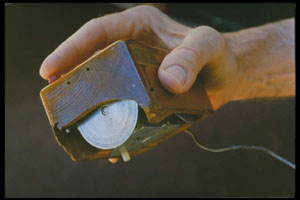
| Who invented the first graphical computer mouse, and what material was the prototype made from? | | | |
🚨Use the FTC’s Scam Action Plan to Stay Safe🚨
Don’t wait until you’re targeted; build your scam defense now. The FTC’s new tool, “How I’ll Avoid a Scam: My Action Plan (pdf),” helps you prepare before fraudsters strike.
What It Does
- Lists trusted contacts you can call if something feels off.
- Stores key company info (banks, credit cards, shopping sites) so you can verify claims fast.
- Encourages conversation; talking it through can stop a scam in its tracks.
How to Use It
- Fill out your plan and keep it near your phone or computer.
- Share copies with family, friends, and neighbors.
- Distribute at work, school, or community centers.
- Order free copies from the FTC to share widely.
Why It Matters
Scammers rely on panic and urgency. This plan gives you a moment to pause, verify, and protect yourself.
if you spot a scam, tell the FTC: ReportFraud.ftc.gov.
And in Other News...
Google has released Gemini 3, its most advanced AI model yet, built for deeper reasoning and multimodal tasks.
-
Gemini 3 Pro: Stronger performance in reasoning, coding, and multimodal benchmarks
-
Powerful: Handles text, images, audio, video, and code
-
Everyday use: Integrated into Search, the Gemini app, and enterprise tools
-
Safety upgrades: Better defenses against misuse and prompt injection
Why It Matters
Gemini 3 is designed as a thought partner, helping users learn, plan, and build with more reliable reasoning.
| | |
🚀 Make It a Great Week!
Copy/Paste this AI-powered prompt. Try it in the One Cool Tip AI Companion (free ChatGPT account required) or Copilot, Gemini or ChatGPT:
“Help me organize my work and home tasks for the upcoming holidays. First, ask me for the key things I need to finish at work, the personal tasks I need to handle at home, any events or travel coming up, and anything I’m worried I might forget. Then create a clear plan that includes:
• a prioritized task list
• two quick wins I can finish today
• a simple weekly schedule
• reminders for deadlines or errands
• one tip to reduce holiday stress
Format it so I can save or print it.”
| | | |
🖼️ Cool Microsoft Copilot AI Prompt of the Day
Try this Microsoft Copilot prompt:
**“Help me plan my Thanksgiving dinner. First ask me:
- how many guests I’m expecting,
- their dietary needs or allergies,
- my budget,
- what I want to cook vs. buy,
- any timing constraints for the day.
Then create:
• a full menu with appetizers, main dishes, sides, and desserts
• a grocery shopping list grouped by store section
• a cooking schedule for the day before and the day of Thanksgiving
• two backup ideas in case something goes wrong
• a simple cleanup plan.
Format everything so I can save or print it.”
Want to see how it looks, ask "create an image of this dinner on the table."
| | |
Snipping Tool Quick Markup: Faster Screenshots, Smarter Notes
Take a screenshot, add instant markup, and share without leaving the Snipping Tool.
How many times have you captured a screenshot only to fumble with another app just to circle a detail or add a quick note?
That extra step slows down productivity.
Here's a Cool Tip: Use Quick Markup in Windows 11 Snipping Tool.
Microsoft’s Snipping Tool now includes Quick Markup, a built-in editing layer that lets you annotate screenshots immediately.
It’s a small change with outsized impact for business users, educators, and anyone who shares visuals daily.
Feature Explanation
Quick Markup integrates lightweight drawing and text tools directly into the Snipping Tool.
After you capture a screenshot, you can highlight, underline, or add arrows without exporting to Paint or another editor.
This matters because it reduces friction: fewer clicks, faster communication, and no need to juggle apps.
What You’ll Gain
- Highlight key details in seconds.
- Add context with arrows or text.
- Share annotated screenshots instantly.
- Reduce workflow interruptions.
Step-by-Step Instructions
Here's how to do it.
Windows 11 Desktop
-
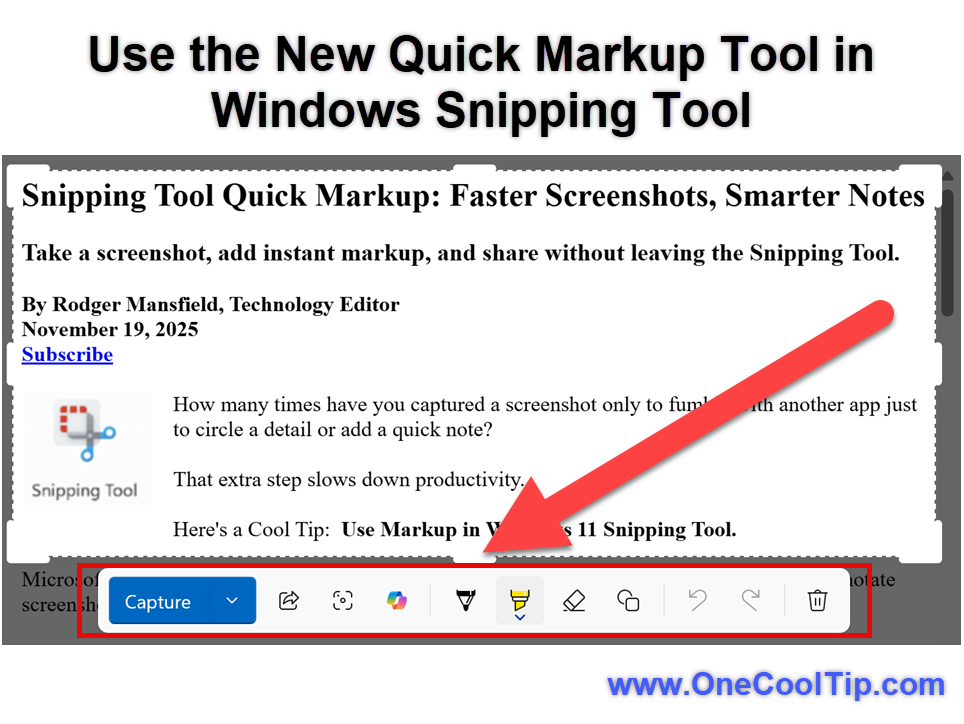
Press Win + Shift + S to open Snipping Tool.
- Click the "Quick Markup" button on the top toolbar before you make your selection.
- Capture your desired area.
- Use the markup tools:
-
Pen and Highlighter: Draw and highlight on the screen. You can change colors and thickness.
-
Eraser: Remove parts of your markup.
-
Shapes: Add shapes like rectangles and arrows.
-
Undo: Undo your last action.
-
Capture and save: Click the "Capture" button to finish and take the snip, or continue marking up.
| | fig. 1 - Use the New Quick Markup Tool in Windows Snipping Tool | | |
Pros and Cons
Pros:
- Integrated workflow, no extra apps
- Lightweight tools for quick edits
- Ideal for business and classroom communication
Cons:
- Limited compared to full editors like Paint
- Rollout still in preview, not universal
- Advanced features (layers, shapes) missing
Configuration Guide
Quick Markup is enabled by default in the updated Snipping Tool.
Feature Access
This feature is currently rolling out to all Windows 11 versions.
Score
Criterion | Score (0–10) | Justification
Value 9
Saves time and reduces app switching.
Usability 8
Simple tools, but limited compared to full editors.
Wow Factor 7
Useful, though not groundbreaking.
Total: 24/30 👍 18–24 Good
A practical upgrade, comparable to Apple’s built-in screenshot markup but now native to Windows.
Key Takeaways
Quick Markup makes screenshots actionable without leaving Snipping Tool.
It’s efficient, intuitive, and rolling out now.
For everyday communication, this feature trims minutes off repetitive tasks.
Cool Tip Snapshot
-
Feature Name: Quick Markup
-
Platform(s): Windows 11
-
Quick Benefit: Annotate screenshots instantly
-
Access Type: Free, currently rolling out
Try It Yourself
Capture a screenshot today and test Quick Markup.
Share your annotated screenshot with a colleague or friend, then spread the word.
READ MORE
Read the Full Cool Tip
| | |
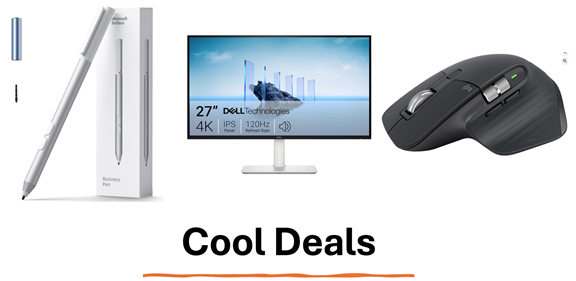
Help support One Cool Tip. Use this Amazon link when you shop online.
Look at these Cool Products:
| |
Prices accurate at time of publication
| | |
🆒Tell Me More
- Quick Markup appears automatically immediately after you capture a snip in Windows 11.
- You can choose between pen, highlighter, and shapes for instant callouts.
- The Snipping Tool can now record your screen, making markup even more useful.
- Microsoft is integrating more lightweight editing tools into inbox apps to speed up workflows.
⏩Quick Tips
-
🖊️ Use the Highlighter: Perfect for emphasizing text in screenshots. Select the highlighter in the Quick Markup bar as soon as your snip appears.
-
🔵 Circle Key Areas: Choose a pen color that contrasts strongly with your screenshot. Select the pen and draw around the important part.
-
📤 Share Immediately: Use the built-in Share button to send annotated images to email, Teams, or chat apps. Tap Share in the lower toolbar after marking the image.
-
🧹 Erase Cleanly: The eraser tool removes only what you drew, not the underlying screenshot. Tap the eraser and brush over any stray marks.
-
💾 Save As Needed: If you want multiple versions, save each variation manually. Select Save As instead of overwriting your file.
| | ✅ More Must-Read Tech Tips | |
|
📄 Check out these Snipping Tool Cool Tips:
-
Shortcut Keys: Use Win+Shift+S for instant snips. Press keys together to launch Snipping Tool.
-
Quick Save: Save annotated snips directly. Click save icon after markup.
-
Highlight Tool: Emphasize text with yellow marker. Select highlighter from toolbar.
-
Text Notes: Add context with text boxes. Click text tool and type.
-
Crop Fast: Trim screenshots quickly. Use crop option in toolbar.
-
Undo Action: Fix mistakes instantly. Press Ctrl+Z or undo button.
-
Share Direct: Send snips without saving. Use share option in toolbar.
-
Color Picker: Customize pen colors. Select pen tool and choose color.
-
Pin Shortcut: Pin the tool to your Taskbar. For faster access without the keyboard shortcut, right-click the Snipping Tool icon and select "Pin to Taskbar."
| |
👀 How Do I Capture Video in Windows?
Have you ever wondered how to capture a video of your screen without downloading any additional software?
Windows 11 Snipping Tool comes with a built-in video capture feature that’s easy to use and incredibly handy.
Here's how to do it.
-
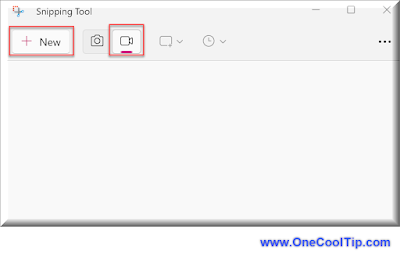
Open the Snipping Tool.
-
Click on the 'Record' icon
-
Select '+ New'
-
Choose your Capture Area:
- Click and drag your cursor to create a rectangle around the area you want to capture.
-
Click the ‘Record’ button to start capturing video.
- Everything within your selected area will be recorded.
-
When you’re done, click the ‘Stop’ button.
-
Your video will automatically be saved in your Videos folder.
- Navigate to your Videos folder to view your recording. From here, you can rename it, move it, or share it with others.
Remember to turn off any notifications or other potential interruptions before you start recording to ensure a clean video capture.
Also, consider closing any unnecessary applications or browser tabs for smoother performance.
Discover more HERE.
| |
🤔 Have You Ever Wondered How to Record Audio in Screen Recordings?
Have you ever needed to capture a video tutorial or a gaming victory, complete with all the in-game sounds and commentary?
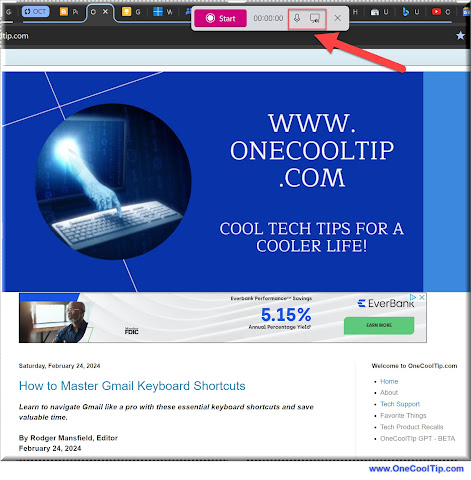
Here's how to do it.
Configuration Tips: Include system audio by default:
-
Open Snipping Tool settings from the three dot icon at the top right corner of the tool.
-
Under ‘Screen recording’, toggle 'Include Microphone input by default' and ‘Include system audio by default’.
Record Screen video with Audio:
-
Open the Windows Snipping Tool from the Start menu.
-
Click the ‘Record’ button in the top toolbar, then select ‘New’.
-
Drag to select the screen area you wish to record.
-
Ensure your microphone is unmuted to include voiceovers.
-
Hit ‘Start’ to begin recording after the countdown.
-
Press ‘Stop’ to end the recording, which saves in MP4 format.
This feature means there is no need for additional software.
Embrace the simplicity and efficiency of the Windows Snipping Tool for your screen recording needs.
With audio integration, your content will be more dynamic and immersive than ever before.
Find our more HERE.
| | |
🙋♂️ Here's How to Find Your Saved Screenshots.
Have you ever taken a screenshot, only to scramble trying to find where it was saved?
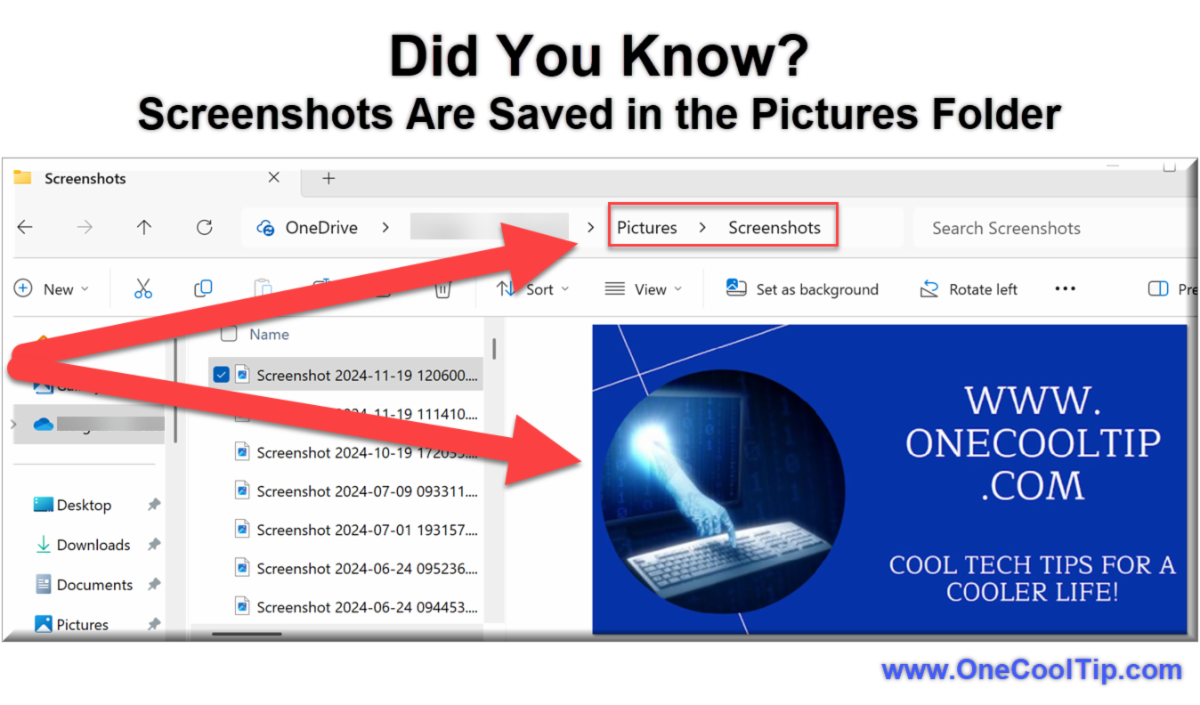
Windows 11 has introduced a nifty feature that automatically saves your screenshots in the Pictures folder.
By automatically saving screenshots in a specified location, users no longer need to manually search or remember to save their captures, reducing the risk of losing important information.
Here's how to do it.
-
Press Windows + Shift + S.
- Capture a screenshot.
-
Open File Explorer.
-
Navigate to the Pictures folder.
-
Find the Screenshots subfolder.
-
That's it! Your screenshot is automatically saved in the Screenshots subfolder within your Pictures directory.
Incorporating the automatic screenshot-saving feature in Windows 11 can significantly enhance your productivity and organization.
Learn more HERE.
| | |
❓Did you share this newsletter with three friends yet?
😎 Cool Facts
-
2007: Snipping Tool was first introduced in Windows Vista (2007), after an earlier version in XP Tablet PC Edition (2005). Source.
-
55.17%: Windows 11 accounts for 55.17% of desktop Windows usage worldwide (October 2025). Source.
-
2022: Snipping Tool gained video recording in Windows 11 starting in late 2022. Users can now capture not just static screenshots but also record part of their screen as a video clip. This built-in feature is useful for tutorials, bug reports, or quick demos; no third-party software required. Source.
⌨️Today's Cool Keyboard Shortcuts
-
Win + Shift + S: Open Snipping Tool capture.
-
Ctrl + S (while in the Quick Markup window): Immediately open the Save As dialog box to save your annotated image locally.
-
Ctrl + Z (while in the Quick Markup window): Immediately undo the last annotation action, perfect for correcting a shaky line.
😜 Tech Joke of the Day 😅
Why do programmers prefer dark mode?
Because light attracts bugs.
🔎 Do you have a Cool Tip or tech question? Email us at onecooltip.com@gmail.com.
| | |
Snip, circle, highlight,
Notes bloom on frozen pixels,
Quick thoughts captured fast.
| |
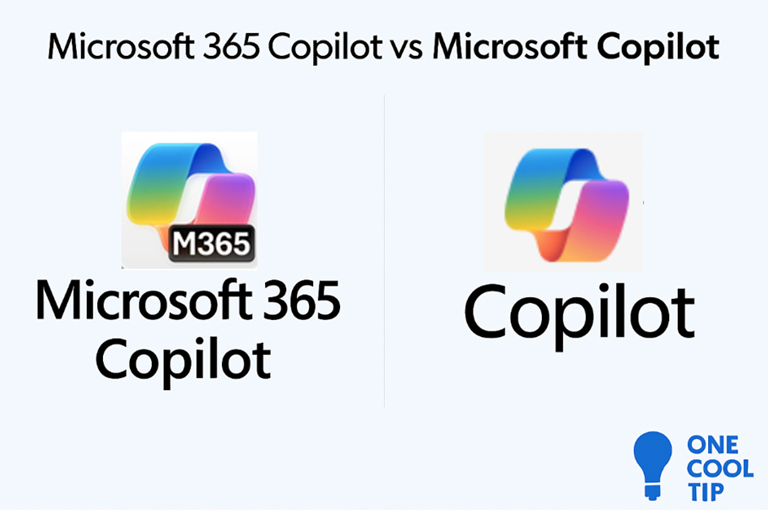
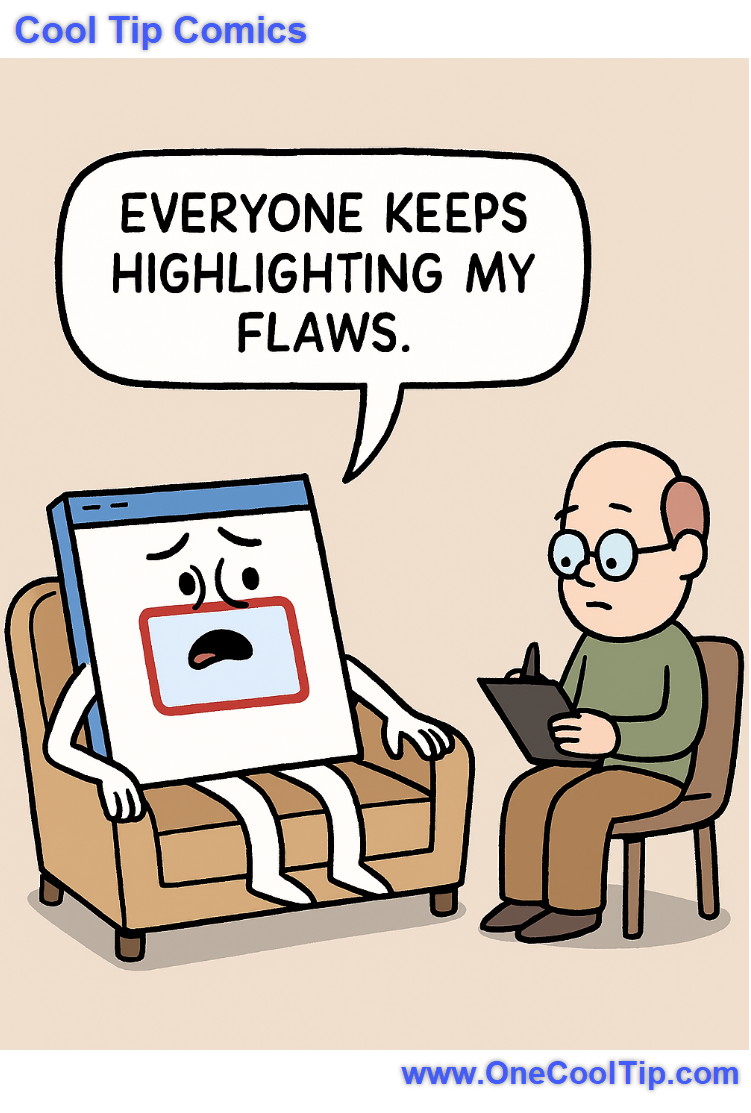
| 🤔 How do you use screenshots most often? | | | | Did You See These Cool Tips This Week? | | | | Stop Typing What Chrome Can Autofill for You | Chrome’s new enhanced autofill now handles passports, driver’s licenses, and vehicle information across your devices. It saves time, improves accuracy, and removes the pain of hunting for documents when you need them most. | | | | Microsoft 365 Copilot vs Microsoft Copilot: What’s the Difference? | Two Copilots, one name, and a lot of confusion. Here’s how to tell them apart and why it matters for your workflow. | | ICYMI - In Case You Missed It ... | | | | Unlocking Creativity (and Chaos): How Sora 2 Brings AI-Generated Video to Your Fingertips | The new Sora 2 model from OpenAI transforms text prompts into surprisingly realistic, physically accurate video and audio. For business users, educators and productivity pros, it opens fresh possibilities and fresh headaches. | | Even screenshots need someone to circle back with. | | |
Trivia Answer: C) Douglas Engelbart – wood
Engelbart demonstrated the mouse in 1968 during “The Mother of All Demos.”
The original prototype really was carved from wood with two metal wheels underneath.
That simple block kicked off the entire point-and-click era we still live in today.
----------
Tomorrow's Cool Tip is waiting to amaze you.
Until then, go forth and conquer the tech world with your newfound knowledge!
Be sure to visit www.OneCoolTip.com for Cool Tech Tips for a Cooler Life!
And if you Like One Cool Tip, please support with TipJar!
Enjoy!
Rodger
Chief Cool Tipper
onecooltip.com@gmail.com
| | |
3️⃣
If you enjoy the One Cool Tip newsletter, please forward this newsletter to THREE friends or colleagues or share it on social media using the links below.
Leave a Tip!
Share this One Cool Tip Newsletter!
| |
| What do you think of today's OneCoolTip newsletter? | | | |
Please Share the One Cool Tip Newsletter!
You asked for it. You got it. There is now a One Cool Tip Newsletter archive. Did you delete a newsletter and want to read it again? Check it out HERE.
Want to help One Cool Tip grow? Please forward this email using the link above. And if you see an OCT social media post, please LIKE, COMMENT and SHARE!
Have you subscribed to the One Cool Tip YouTube channel? Subscribe HERE.
| | Connect with One Cool Tip!! | | |
|
As an Amazon Associate, One Cool Tip may earn a small commission from qualifying purchases.
Our media content is intended solely for informational purposes only. Please do not construe anything here as legal, tax, investment, financial, marital or other advice.
Copyright © 2025 | www.OneCoolTip.com | All Rights Reserved
|
| | | |