|
One Cool Tip Newsletter
December 10, 2025
| Your daily dose of tech-savvy brilliance! | |
😀Greetings!, Happy Windows Wednesday, Cool Tipper!
Get ready to streamline your digital life with simple, actionable tips delivered straight to your inbox.
Today's Cool Tip Theme: 'Hey, Copilot' in Windows 11
IN THIS ISSUE
- 🚨 Petco Security Alert.
- 🛡️ Windows 11 Critical Update.
- 🚀 Wednesday Productivity Prompt.
- 🧲 Creative Knolling Gemini Prompt.
- 🎙️ "Hey Copilot".
- 📝 Notepad AI Rewrite.
- 🌐 Edge "Copilot Mode".
- 🎨 Paint Background Removal.
New here? Subscribe to the One Cool Tip Newsletter for daily updates. It's FREE!
-
😂 Laugh with Us! Enjoy our Tech Joke of the Day, Haiku and Cool Tip Comics.
-
🌐 Stay Informed! Check out ICYMI, and our One Cool Tip Video.
| | |
3️⃣
If you enjoy the One Cool Tip newsletter, please forward this newsletter to THREE friends or colleagues or share it on social media using the links below.
Leave a Tip!
Share this One Cool Tip Newsletter!
| | |
Today's Tech Trivia
Answer at the end of this newsletter.
| |
| Which digital voice assistant, launched by Microsoft in '14, was the predecessor to Copilot? | | | | |
🚨Petco Security Lapse🚨
Petco has confirmed a security misstep that left some customer data exposed online.
The issue stemmed from a misconfigured software setting, which the company says has now been fixed.
What happened:
- Petco discovered the problem internally and quickly removed the exposed files.
- At least 500 California residents were affected, along with customers in Massachusetts and Montana.
- The company has not detailed exactly what personal information was exposed.
- Free credit and identity theft monitoring is being offered to those impacted.
- New technical safeguards have been added to prevent future lapses.
What you can do:
- Monitor your accounts for unusual activity.
- Turn on alerts for logins and transactions.
- Enroll in Petco’s free monitoring service if you’re notified.
- Update your passwords
And in Other News...
- Windows 11 December Update: Patch Tuesday Alert
Microsoft has rolled out its final Patch Tuesday of 2025 with update KB5072033, now live for all Windows 11 users. This release is more than routine; it fixes 57 security issues, including three actively exploited zero‑days.
What’s new:
-
Security first: Critical fixes for privilege escalation and remote code execution vulnerabilities.
-
Copilot stability: Ask Copilot now launches correctly without glitches.
-
File Explorer polish: No more flashing when switching pages; dialogs align with dark mode.
-
Networking reliability: External virtual switch bindings restore properly after host restarts.
-
PowerShell safety: New confirmation prompts reduce script execution risks.
-
Gaming boost: Full‑screen mode expands to more handheld devices for smoother play.
Why it matters:
With exploits already in the wild, this update is essential. Skipping it leaves your system exposed.
Action step:
Head to Settings > Windows Update and install KB5072033 today.
After updating, confirm your build number (Open Settings → Go to System > About. Scroll to “Windows specifications” → You’ll see Edition, Version, and OS Build listed):
- 25H2 → Build 26200.7462
- 24H2 → Build 26100.7462
| | |
🚀 Make It a Great Week!
Copy/Paste this AI-powered prompt. Try it in the One Cool Tip AI Companion (free ChatGPT account required) or Copilot, Gemini or ChatGPT:
“I want to stay productive today at work and at home.
Ask me for the tasks I need to handle in both areas.
Then, organize them into three sections: Work, Home, and Personal.
Prioritize them based on urgency and effort, add realistic time estimates, and suggest two shortcuts or tools that will make the day easier.”
| | | |
Try this Cool Gemini prompt:
"Present a clear, directly top-down photograph of landmarks as 3D magnets, arranged neatly in parallel lines and right angles, knolling.
The objects are realistic miniatures.
At the top-center, place the city name as a souvenir magnet, and a handwritten post-it note for the temperature and weather conditions.
Incorporate items necessary for today's weather into the knolling. No repeats."
| | |
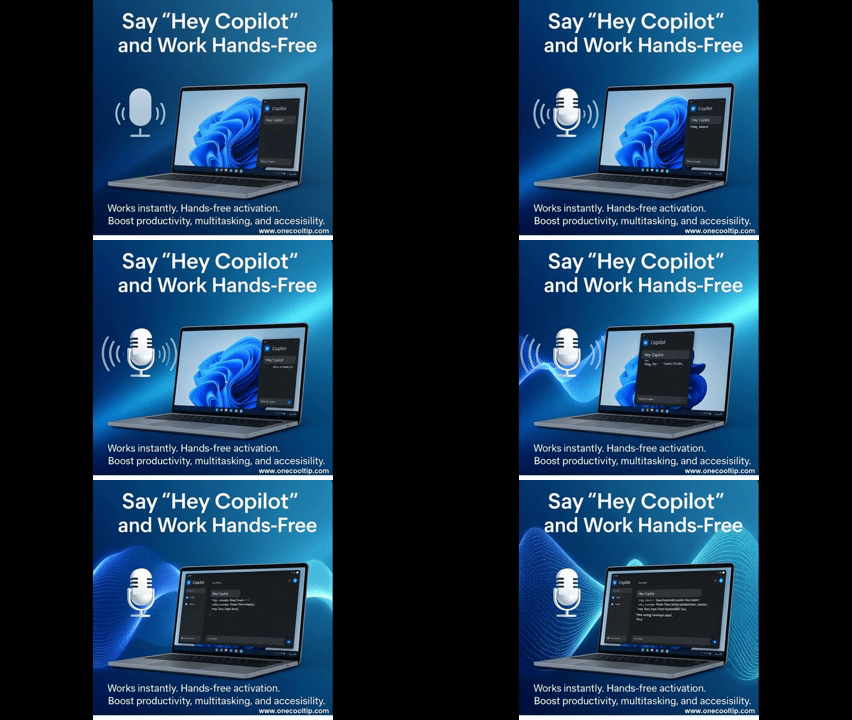
“Hey Copilot” on Windows 11: Hands-Free Help That Actually Saves Time
Get quick answers, launch apps, and draft content by saying “Hey Copilot.” Here’s how to turn it on and use it well.
Have you ever wished you could ask your PC to do something while your hands are busy?
Here's a Cool Tip: Enable and Use "Hey Copilot" in Windows 11.
“Hey Copilot” brings voice wake-up to Windows 11 so you can summon Copilot without clicking.
If you’ve been waiting for a faster way to get help, this hands-free trigger is a small feature with big productivity impact.
Feature Explanation
“Hey Copilot” is a wake word for Windows 11 that listens for the phrase and opens Copilot’s voice interface.
Think of it as a verbal shortcut: speak the cue, then ask a question or issue a command.
It uses your device’s microphone, respects system privacy controls, and aims to reduce friction when you’re multitasking or working away from the keyboard.
Why it matters: voice triggers shave seconds off routine tasks and remove a mental barrier to using AI.
For busy users, that’s the difference between “I’ll do it later” and getting it done now.
What You’ll Gain
-
Hands-free launch: Call Copilot while typing, presenting, or cooking.
-
Faster follow-ups: Ask for edits, restatements, or next steps without breaking flow.
-
Accessibility boost: Reduce reliance on mouse or touch interactions.
-
Context-friendly assistance: Keep your head in the task while Copilot handles the sidework.
Step-by-Step Instructions
Windows 11 (Copilot for Windows)
-
Ensure you have the latest Windows Update.
-
Open the Windows Copilot App.
-
Select your Profile photo.
-
Select 'Settings'.
-
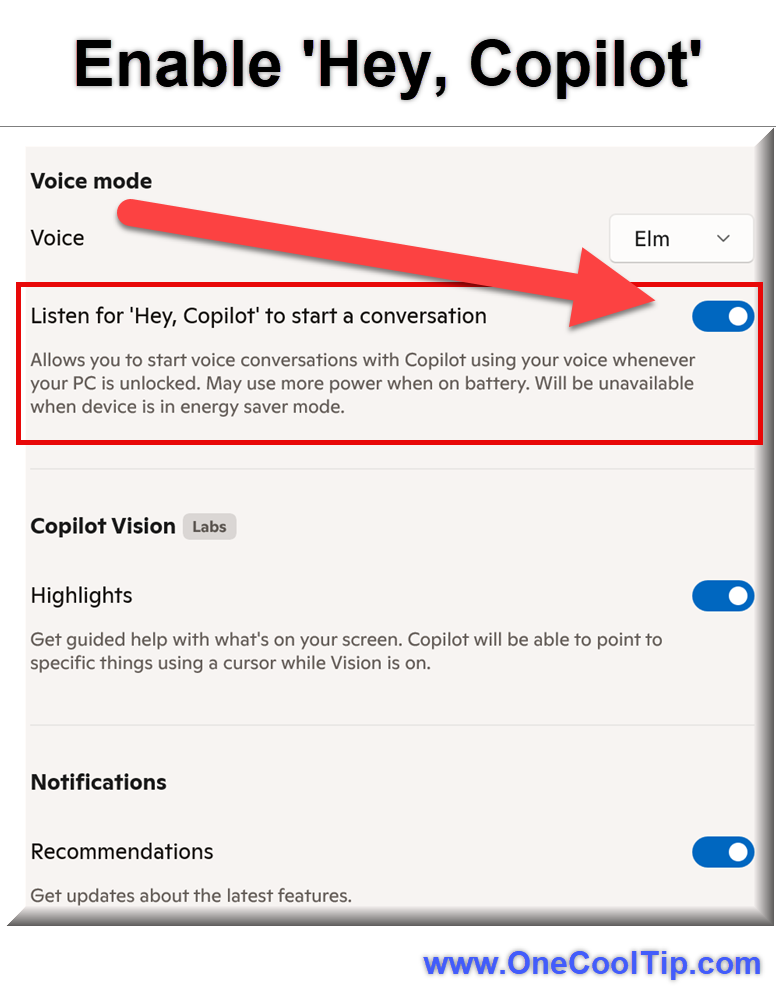
Toggle On "Listen for 'Hey Copilot.'"
-
Say “Hey Copilot” then “Summarize this document,” with the window open for context.
| | fig. 1 - Enable 'Hey, Copilot' | | |
Mobile note:
On iOS and Android, Copilot supports voice input through the microphone button, but the “Hey Copilot” wake word is not available.
Mobile users should tap the mic icon instead.
Pros and Cons
Pros:
-
Hands-free speed: Cut clicks and cognitive load; ideal during presentations or note-taking.
-
Accessibility: Helpful for users with mobility or repetitive strain concerns.
-
Flow-friendly: Keep attention on the primary task while Copilot handles support work.
Cons:
-
Environment noise: Open offices and busy homes can trigger misfires. Use a headset for better accuracy.
-
Privacy context: Voice activation can feel sensitive in shared spaces; toggle off when needed.
-
Availability variance: If you don’t see the option, it may be “currently rolling out.”
Feature Access
“Hey Copilot” wake word is for Windows 11 and is currently rolling out.
If you don’t see it, update Windows and check Settings again.
Availability can vary by region and device configuration.
Score
Criterion | Score (0–10) | Justification
Value 9
Hands-free access saves time across meetings, teaching, and everyday tasks.
Usability 8
Setup is simple, but background noise and rollout variance can limit experience.
Wow Factor 7
Voice wake words are familiar, yet integrating them with Copilot feels genuinely useful.
Total: 24/30 👍 Good.
Strong productivity boost for Windows users; compared to classic voice triggers, Copilot’s AI responses make the hands-free workflow more capable.
Key Takeaways
Turn on “Hey Copilot” to cut friction and get AI help without touching your keyboard. Keep your mic and permissions in good shape, and expect capabilities to improve as the rollout continues.
Cool Tip Snapshot
-
Feature Name: “Hey Copilot” Wake Word.
-
Platform(s): Windows 11.
-
Quick Benefit: Launch Copilot by voice for faster help.
-
Access Type (Free, Subscription, Beta): Free with Windows 11; currently rolling out.
Try It Yourself
Say “Hey Copilot” and ask it to summarize the page you’re working on, then reply with your results in the comments.
Share this tip with your team, family, and friends.
READ MORE
Read the Full Cool Tip.
| | |
Help support One Cool Tip. Use this Amazon link when you shop online.
Look at these Cool Products:
|
-
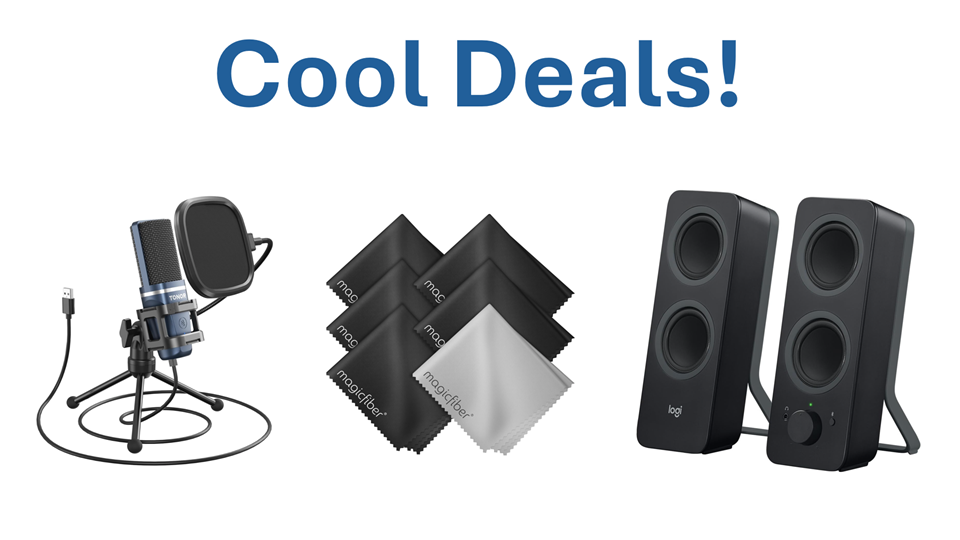
🎤 TONOR TC-777 USB Microphone: Clear voice pickup improves wake-word recognition on laptops. Amazon Choice! $19.99 👉 Check it out on Amazon!
-
🧼 MagicFiber Microfiber Cleaning Cloth, 6 Pack: Useful if you interact with Copilot sidebar while working. Save 38% $9.23 👉 Check it out on Amazon!
-
🔊 Logitech Bluetooth Desktop Speakers: Good for productivity when Copilot reads results aloud. Save 14% $59.99 👉 Check it out on Amazon!
Prices accurate at time of publication
| | |
🆒Tell Me More
- Wake word detection runs locally on your PC.
- You can disable "Hey Copilot" anytime in Copilot Settings.
- Works only when Copilot is running.
- Requires microphone access and Windows updates.
⏩Quick Tips
- 🗣️ Enable Wake Word: Go to Settings > Copilot > Toggle "Listen for 'Hey, Copilot' to start a conversation".
- 🎙️ Test Your Mic: Use Sound settings to check input levels.
- 🧠 Be Specific: Clear commands yield better results.
- 🛑 Turn Off When Needed: Disable in shared spaces.
- 🔄 Update Often: Keep Windows current for feature access.
| | ✅ More Must-Read Tech Tips | |
|
📄 Try these Cool Copilot Tips:
-
Clear Commands: Speak clearly and specifically to get accurate responses. Avoid vague phrases for best results.
-
Task Summaries: Ask Copilot to summarize long documents or emails. Say, "Summarize this document in 3 points."
-
Quick Calculations: Use Copilot for math or conversions without opening a calculator. Just say, "What is 15% of 200?"
-
Document Rewrite: Refresh wording for clarity or tone. Paste text and ask for a concise rewrite.
-
Research Help: Get short explanations of terms or concepts. Ask “explain ransomware in simple terms.”
| |
👀 How Do I Use the AI Rewrite in Windows Notepad?
Ever wished you could quickly rephrase a paragraph without opening another app?
Microsoft's latest AI integration into Notepad transforms the humble text editor into a smart writing assistant.
This tool allows users to rewrite content and summarize lengthy passages—all within the Notepad application.
Using 'Rewrite':
-
Highlight the text you want to modify.
-
Right-click and select 'Rewrite', or
-
Choose from options like 'Make shorter', 'Make longer', or 'Change tone'.
Summarizing Text:
-
Highlight the text to summarize.
-
Right-click and select 'Summarize', or
-
Use the shortcut Ctrl + M.
Microsoft's integration of AI into Notepad transforms it from a basic text editor into a powerful writing assistant.
Discover more HERE.
| | |
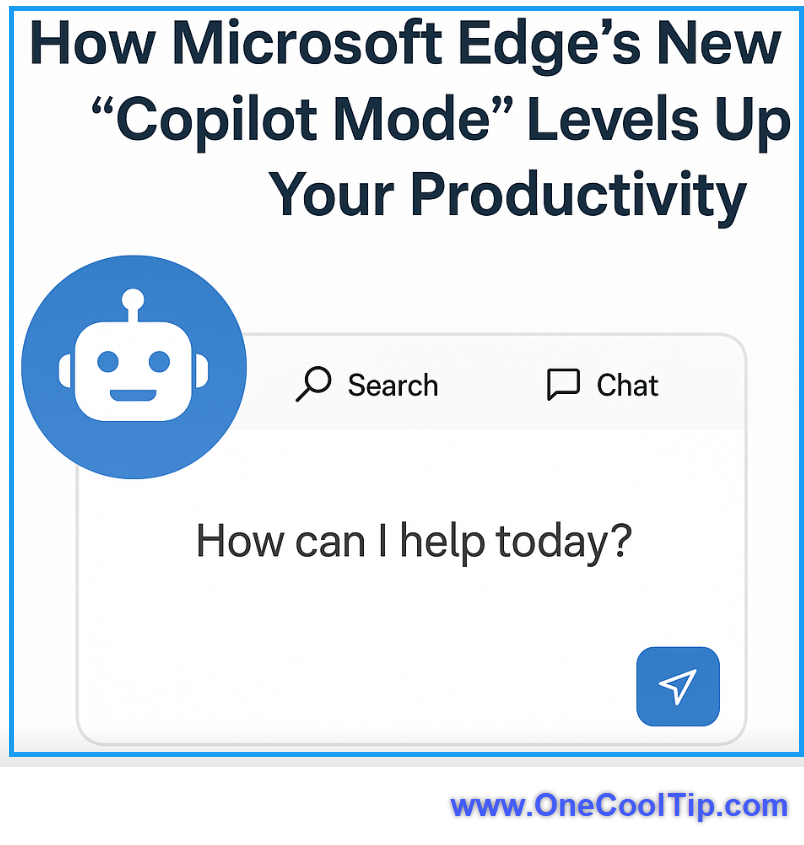
🤔 Have You Ever Wondered How to Use Microsoft Edge’s New 'Copilot Mode'?
Ever opened a new tab and wished you could ask for help right away, without typing a search or navigating menus?
Microsoft is rolling out a "Copilot Mode" toggle in Edge’s new‑tab experience, replacing the usual clutter, news feeds, and widgets with a clean prompt: "How can I help today?"
On Desktop (Windows/macOS)
-
Toggle the Copilot Mode button in Menu > Settings > Copilot Mode.
-
Click your avatar and select Copilot Mode.
- If not yet available to you, try this:
-
In Edge, type edge://flags in the address bar.
-
Find 'Edge Copilot Mode' and 'Allow Copilot Search', toggle both on.
-
Restart the browser.
-
Click your user avatar, select Copilot Mode.
- Open a new tab.
-
Use the prompt to Search and Chat.
Copilot Mode transforms your new‑tab into a fast AI command center, merging search and context into one place.
It’s clean, clever, and speeds up everyday tasks—if you’re comfortable enabling experimental flags.
Find out more HERE.
| | |
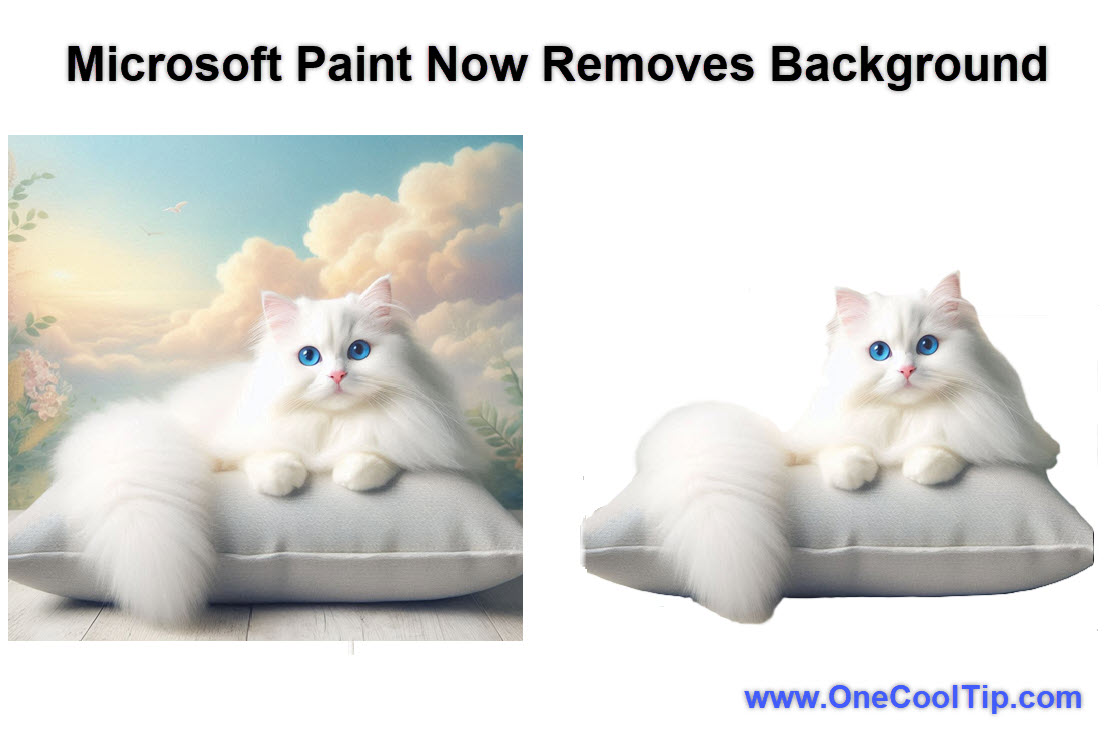
🙋♂️ Here's How to Remove Backgrounds in Microsoft Paint.
Have you ever struggled with removing the background from an image, only to end up with jagged edges and unsatisfactory results?
Microsoft Paint's latest update introduces the Copilot Remove Background feature, promising to make this task a breeze.
Microsoft Paint, a staple of Windows for decades, has received a significant upgrade with the introduction of the Copilot button.
This button consolidates various AI-powered tools, including the new Remove Background feature.
The Remove Background tool allows users to effortlessly isolate subjects from their backgrounds, making image editing more accessible and efficient.
Here's how to do it.
-
Ensure you have the latest version of Paint installed from the Microsoft Store.
-
Open the image you want to edit.
-
Select the Copilot button on the menu bar.
-
Select "Remove background" from the drop-down menu.
-
Paint removes the background. You can make any necessary adjustments to refine the result.
The AI-powered tool saves time and effort by automating the background removal process.
Learn more HERE.
| | |
❓Did you share this newsletter with three friends yet?
😎 Cool Facts
-
70%: Around 70% of Windows 11 users have tried Microsoft Copilot features, with 50% using it regularly for light tasks and day-to-day activities. Source
-
30%: Voice activation can reduce task completion time by up to 30%, improving productivity and hands-free convenience. Source
⌨️Today's Cool Keyboard Shortcuts
- 🪟 Ctrl + Shift + Esc: Open Task Manager.
- 🪟 Win + A: Open Quick Settings.
😜 Tech Joke of the Day 😅
Tried “Hey Copilot, make me sound smarter in this email.”
It rewrote the whole thing in Comic Sans.
🔎 Do you have a Cool Tip or tech question? Email us at onecooltip.com@gmail.com.
| | |
Words drift into air
Windows listens faithfully
Tasks unfold in voice
| |
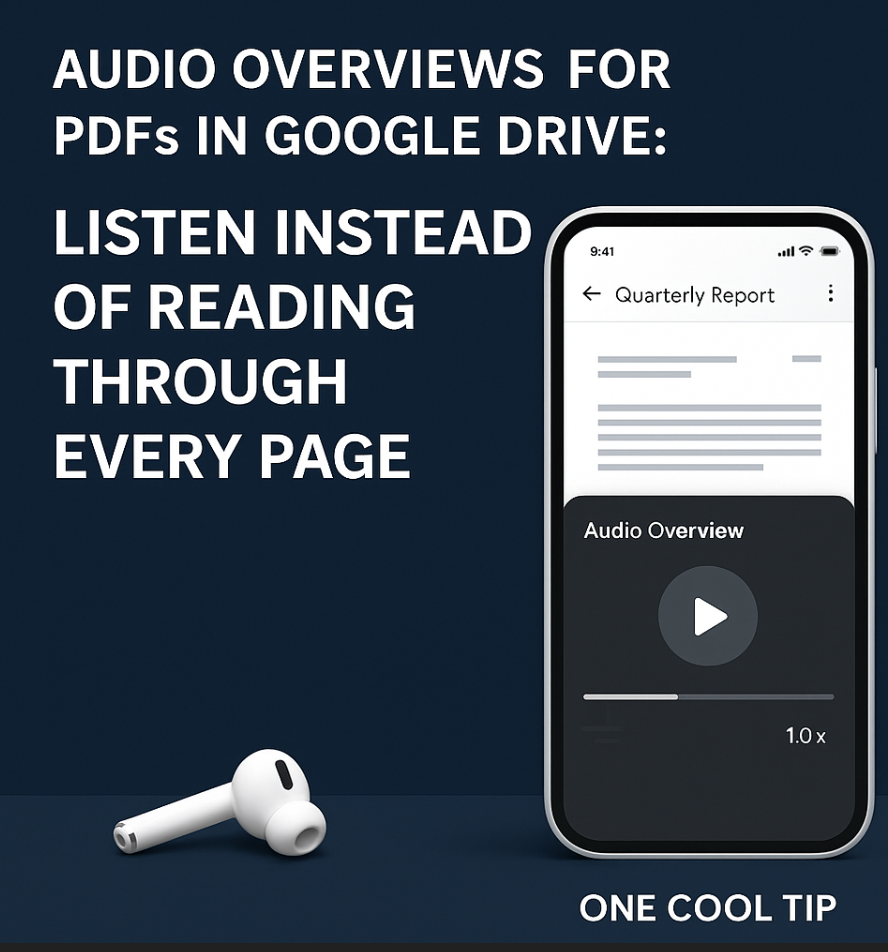
| 🤔 How often would you actually use “Hey Copilot”? | | | | Did You See These Cool Tips This Week? | | | | Skip the Reading: Google Drive’s New Audio Overviews Summarize Lengthy PDFs | |
Google Drive is integrating a powerful new AI feature that generates an audio summary of lengthy PDF documents. This capability allows you to absorb the core ideas of big files hands-free, turning dead reading time into productive listening.
Read the Newsletter Version
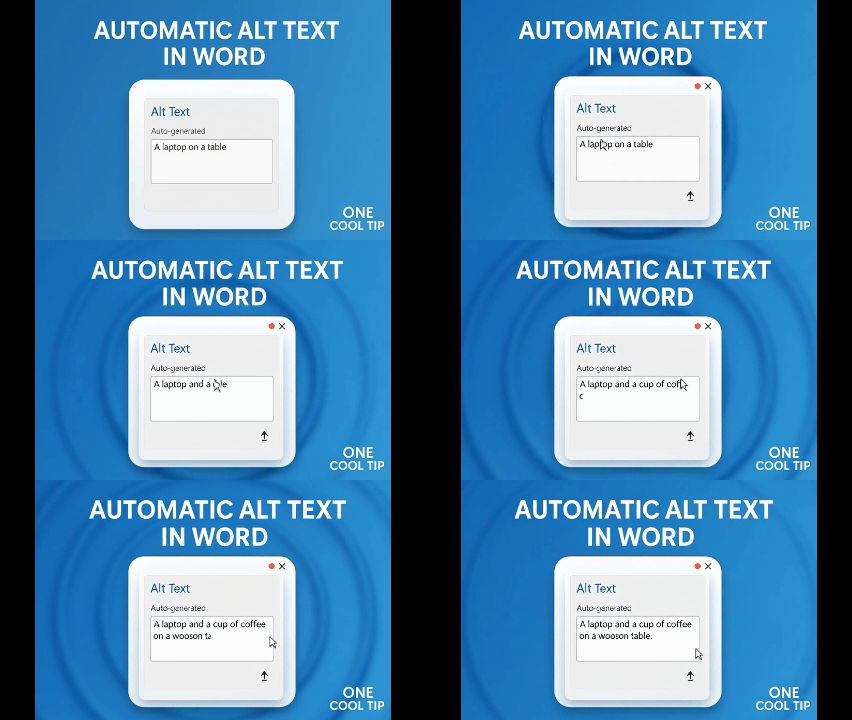
| | | | How to Add Automatic Alt Text to Microsoft Word Images | |
Adding images to a Word document is easy, but making them accessible is just as important. Microsoft Word’s Automatic Alt Text feature instantly generates descriptions for your pictures, helping business and home users save time while ensuring inclusivity.
Read the Newsletter Version
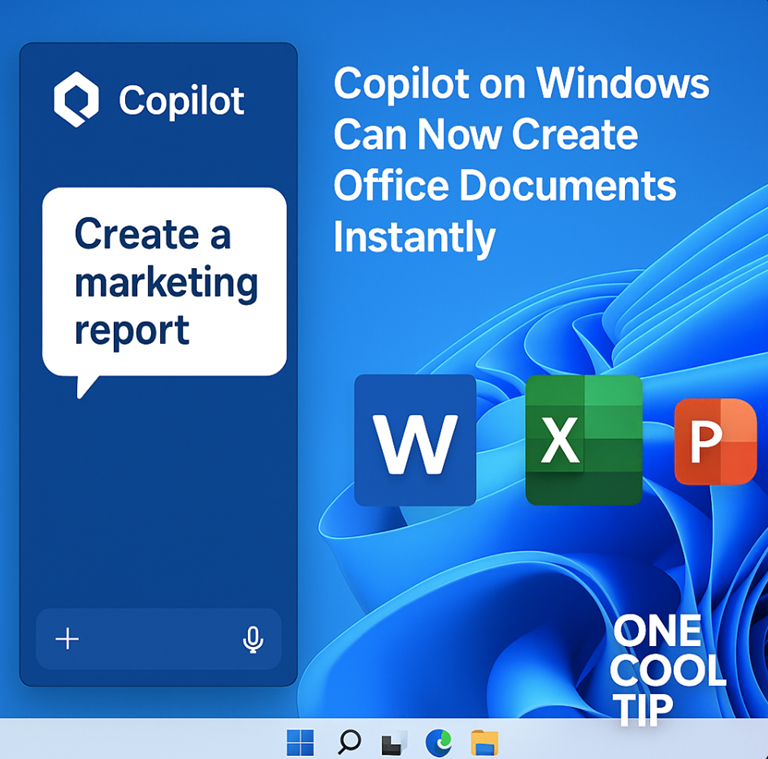
| | ICYMI - In Case You Missed It ... | | | | Copilot on Windows Can Now Export Office Docs | |
Create Word, Excel, PowerPoint, or PDF files right from your desktop using a simple prompt.
Read the Newsletter Version.
| | |
How to Enable Dark Mode in Microsoft Paint
Do you find yourself squinting at your screen at night while using Microsoft Paint?
If so, you're not alone.
The light-colored interface can be harsh on the eyes, especially in low-light conditions.
Watch
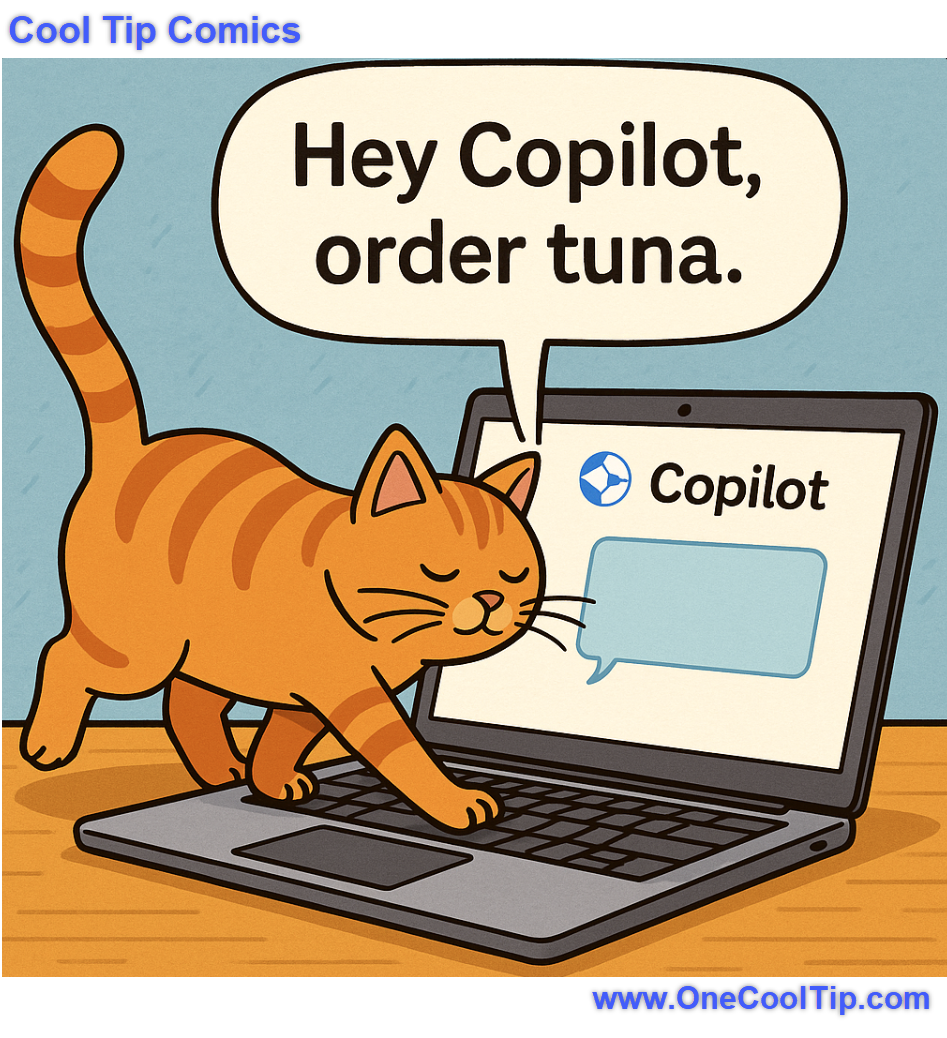
| | Proof that even the household princess knows how to automate her snack orders. | | |
Trivia Answer: D. Cortana
Cortana was Microsoft’s original attempt at a widespread personal digital assistant, named after the AI character from the Halo video game series.
It was integrated into Windows Phone, Windows 10, and even smart speakers. While ambitious, Cortana struggled to gain the same traction as competitors like Alexa and Siri.
Microsoft officially shut down the Cortana mobile app and eventually the Windows app, paving the way for the more powerful, large language model-based Copilot to take over the role of the primary Windows AI.
----------
Tomorrow's Cool Tip is waiting to amaze you.
Until then, go forth and conquer the tech world with your newfound knowledge!
Be sure to visit www.OneCoolTip.com for Cool Tech Tips for a Cooler Life!
And if you Like One Cool Tip, please support with TipJar!
Enjoy!
Rodger
Chief Cool Tipper
onecooltip.com@gmail.com
| |
| What do you think of today's OneCoolTip newsletter? | | | |
Please Share the One Cool Tip Newsletter!
You asked for it. You got it. There is now a One Cool Tip Newsletter archive. Did you delete a newsletter and want to read it again? Check it out HERE.
Want to help One Cool Tip grow? Please forward this email using the link above. And if you see an OCT social media post, please LIKE, COMMENT and SHARE!
Have you subscribed to the One Cool Tip YouTube channel? Subscribe HERE.
| | Connect with One Cool Tip!! | | |
|
As an Amazon Associate, One Cool Tip may earn a small commission from qualifying purchases.
Our media content is intended solely for informational purposes only. Please do not construe anything here as legal, tax, investment, financial, marital or other advice.
Copyright © 2025 | www.OneCoolTip.com | All Rights Reserved
|
| | | |