One Cool Tip Newsletter

November 15, 2026

Your daily dose of tech-savvy brilliance!

😀 Greetings! Happy Sunday, Cool Tipper!


Get ready to streamline your digital life with simple, actionable tips delivered straight to your inbox.


Cool Tip Theme: Muse AI's New Voice Mode


Try Muse AI voice mode to rehearse an interview, talk through a plan or turn rough ideas into next steps. See how to start and who can access it.


New here? Subscribe to the One Cool Tip Newsletter for daily updates. It's FREE!

3️⃣

If you enjoy the One Cool Tip Newsletter, please forward this newsletter to THREE friends or colleagues or share it on social media using the links below.


Leave a $$$ Tip!


Share this One Cool Tip Newsletter!

X Share This Email
LinkedIn Share This Email
Pinterest Share This Email

🚨 Check the Address Before You Trust It. 🚨


Scammers are creating fake websites that copy the name, logo, design and content of the Federal Trade Commission to trick people into sharing personal information.


The FTC warns that fraudulent sites may use addresses ending in .com, .org, .us or .online, while legitimate FTC websites always end in .gov.


Scammers may also pose as FTC employees through phone calls, texts, emails and social media messages.


A real FTC employee will never tell you to protect your money by transferring it or handing someone cash.


If you encounter an FTC impersonator or another scam, report it at the official ReportFraud.ftc.gov website.


The Cool Tip:


Before entering personal information on an FTC website, check the address and make sure it ends in .gov


And in Other News...


  • Meta Hit With €805 Million Fine Over Access to Users’ Photos


Italian regulators have fined Meta €805 million in a case involving the company's access to users' photos.


The decision puts another spotlight on the amount of personal content people share through major social media platforms.


For consumers, it is a good reminder that photos stored or shared through online services are still valuable personal information.


Take a few minutes to review which apps and services have permission to access your photo library.


Remove access for apps you no longer use or don't recognize, and choose limited photo access when that option meets your needs.


The Cool Tip:


Make photo permissions part of your regular privacy checkup and give apps access only to the pictures they actually need

Cool Tip Poll

🤔 What would you try first in a Muse voice chat?

Cool Deals of the Day

  • Have you tried the Upside app? Everyday cash back on gas, groceries and dining.


Help support One Cool Tip. Use this Amazon link when you shop online.


Check out these Cool Deals:

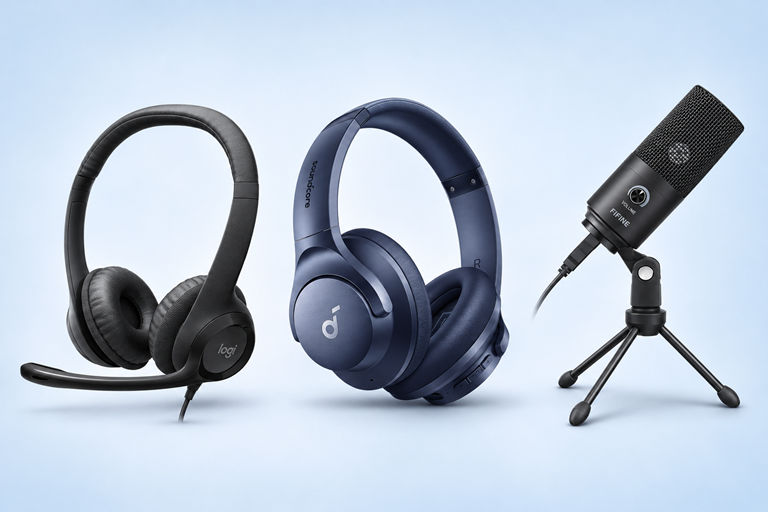
🎧 Logitech H390 Wired USB-A Headset: A wired boom mic and headphones make a practical desk setup for speaking and listening in a shared room.

Save 16%. Now $20.99. 4.3 Stars. Check it out on Amazon!


🔇 Soundcore Q20i Wireless Headphones: Noise cancellation can help you hear follow-up questions over steady background noise.

Save 39%. Now $42.69. 4.5 Stars. Check it out on Amazon!


🎤 FIFINE K669B USB Microphone: A desktop mic with a gain knob is handy if you use your own headphones for calls and recording.

👀Look! Now $36.99. 4.5 Stars. Check it out on Amazon!


*Prices accurate when originally published.

One Cool Tip may earn a commission from qualifying purchases.

Fuel Your Adventure

Try Big Mike's Jerky!


bigmikesjerky.com


Today's Cool Tip

Talk It Through With Muse AI’s New Voice Mode

With Muse voice mode, you can rehearse an interview or talk through a plan and hear the AI respond.


If the feature has reached your account, look for the phone icon to start a conversation.

By Rodger Mansfield, Technology Editor

November 15, 2026

Subscribe


Your answer to “Tell me about yourself” looks fine on paper. 


Then you say it out loud and realize you’ve spent most of it explaining a job you left years ago. 


It helps to have someone ask the next question before you get too comfortable with the script.


Meta is rolling out real-time voice conversations and expressive avatars for Muse, its personal AI assistant. 


The rollout starts in the U.S. and includes the mobile app, web and Mac.


Here’s a Cool Tip: Ask Muse to interview you out loud and press you for a concrete example.


Feature Explanation


Muse answers aloud and lets you interrupt. 


If it starts giving you a list when you wanted a follow-up question, cut in and ask for the question. 


An optional animated avatar moves and reacts during the exchange. 


You can use voice alone, show the avatar beside the conversation or make the avatar fill the screen. 


For a pitch rehearsal, ask Muse to play a skeptical customer. 


When you finish the pitch, ask which objection you handled least convincingly, then try answering it again.


What You’ll Gain


  • Practice answering questions before someone asks them for real.
  • Change course as soon as an answer veers away from your goal.
  • Finish a brainstorm with a short list of decisions and next steps.


Step-by-Step Instructions


Here's how to do it.


Web / Mobile


  1. Open Muse on your device (Muse from Meta: iPhone / Android) or sign in to muse.ai in a browser. 
  2. Open a conversation and look in the upper-right corner for the phone icon.
  3. If your device or browser asks for microphone access, allow it to use voice mode. 
  4. Say, “Can you hear me?” and listen for a spoken reply.
  5. Try saying, “Interview me for a project manager role."
  6. Ask one question at a time. 
  7. If you see avatar controls, try the display option that suits the task. 
  8. For interview practice, put the avatar beside the conversation. 
  9. For a brainstorm, try voice alone.

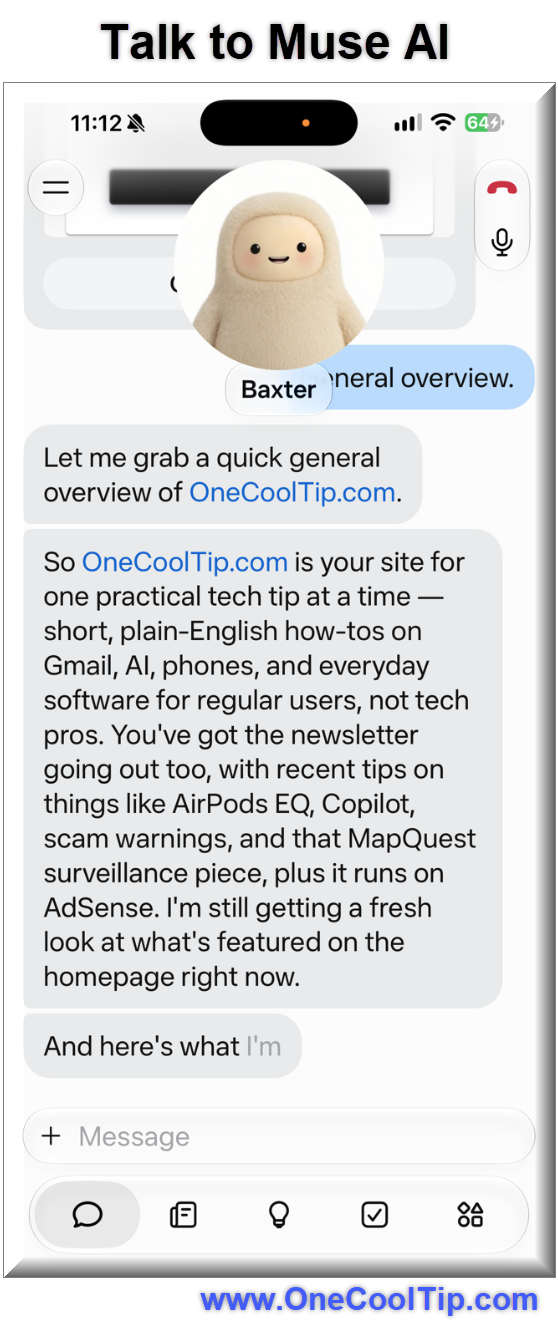
fig. 1 - Talk to Muse AI Example

Pros and Cons


Pros:


  • Spoken follow-ups make rehearsal feel closer to a live conversation.
  • Interruptions let you correct a misunderstood name or constraint right away.
  • Voice-only mode lets you keep your eyes on your own notes.


Cons:


  • You may be able to use Muse text chat before voice reaches your account.
  • A polished delivery can make a shaky suggestion sound more certain than it is.
  • Speaking aloud limits what’s practical in a shared office or crowded room.


Who Should Skip This


Stick with text if you need to paste exact wording, compare revisions line by line or work quietly in a shared room.


If workplace rules restrict what you can put into an AI tool, practice with a fictional project or skip the exercise.


Troubleshooting and Limitations

Problem: The phone icon is missing.


  • Why It Happens: Access may still be rolling out to your account.
  • Fix or Workaround: Open Muse on the web or in the app and check again. Use text chat if the icon is still missing.


Problem: Muse can’t hear you.


  • Why It Happens: Microphone access may be blocked, or your device may be using another mic.
  • Fix or Workaround: Check your permissions and selected input, then reopen the conversation.


Problem: The avatar is distracting.


  • Why It Happens: The on-screen motion can compete with your notes.
  • Fix or Workaround: Switch to voice only if the avatar controls are visible. 


Privacy and Data Notes


  • Meta may use Muse interactions to train its AI models. 
  • You can opt out in Muse settings. 
  • Meta excludes Muse conversations and data in your Muse cloud environment from its ad systems. 
  • How long Muse keeps raw voice recordings remains unconfirmed. 
  • Use fictional details for practice when you’d prefer to keep personal information out of the conversation. 


Feature Access


  • Mobile, web and Mac in the U.S. voice rollout. 
  • iOS 18.0 or later for iPhone and iPadOS 18.0 or later for iPad. 


Score

Criterion |  Score (0–10) |  Justification
Value |  8
Back-and-forth practice makes it easier to spot an evasive answer or a weak explanation.
Usability |  7
The phone icon provides a short path into a call when available. Rollout limits make access less predictable.
Wow Factor |  7
The responsive avatar adds presence. Being able to interrupt matters more in everyday use.
Total: 22/30 | 👍 Good
Good for practicing answers and talking through decisions you’d struggle to put into a single prompt.
ChatGPT Live also supports interruptions. Muse offers a choice of how prominently to display its animated avatar. 


Key Takeaways


Ask Muse for one piece of feedback you can act on. 


Then give the answer again and see whether you can make the point more clearly.


Cool Tip Snapshot


  • Feature Name: Muse voice and expressive avatars
  • Platform(s): Mobile, web and Mac
  • Quick Benefit: Rehearse or refine a plan in a spoken conversation
  • Best For: Interview practice, brainstorming and planning
  • Access Type: Rolling Out in the U.S.
  • Difficulty: Easy


Learn More


Try It Yourself


Try a practice interview question and tell us in the comments how it went. 


Subscribe to the FREE One Cool Tip Newsletter and share the tip with family, friends and coworkers.


READ MORE


Read the Full Cool Tip!

Check Out These Cool Tips & Tricks


  • Set the Role: Give Muse a specific person to play so its first question suits the exercise. Say, “You’re a hiring manager interviewing me for a project manager role.”


  • Ask One: Keep your practice session conversational by working through questions individually. Say, “Ask one question at a time and wait for my answer.”


  • Ask for Evidence: Have Muse push for evidence when you give a broad answer. Say, “If I make a general claim, ask me for an example.”


  • Cut In: Redirect the conversation as soon as a reply goes off course. Interrupt with, “Focus on the budget and leave the schedule for later.”


  • Change the View: Choose a display that suits the way you want to work. Try voice only for a brainstorm or an avatar view for face-to-face practice when those controls are available.


  • Rehearse an Objection: Rehearse the objection you’re most likely to hear. Ask Muse to role-play a customer who thinks your proposal is too expensive.


  • Name the Limits: Put your constraints first so the ideas fit your situation. For a trip brainstorm, state the dates, starting point and most you’re willing to spend.


  • Use Stand-In Details: Practice a real scenario without speaking confidential information into the microphone. Replace names, addresses and figures with made-up details.


  • Request a Recap: Turn the conversation into something you can act on. Ask Muse to summarize the decisions, open questions and first action to take.


  • Verify Before Booking: Use the conversation to narrow down options and check details at the source. Open the venue or carrier site to confirm hours, availability and terms before you commit.

ICYMI - In Case You Missed It ...

Save the Perfect Photo Hiding in Your iPhone Video


Your favorite photo might be hiding inside a video you already recorded.


Apple Photos lets you save that moment as a separate picture, making it easier to share a smile, a travel memory, or a useful detail.


Read the Full Version.


Read the Newsletter Version.

Looking for your next adventure?


Call Denise at Travel For You.

314.660.3039


Sign Up for the Monthly Newsletter


http://www.travelforyouvacations.com/


https://www.facebook.com/TRAVEL.FOR.U/


See You Tomorrow

Tomorrow's Cool Tip is waiting to amaze you.


Until then, go forth and conquer the tech world with your newfound knowledge!


Be sure to visit www.OneCoolTip.com for Cool Tech Tips for a Cooler Life!


And if you Like One Cool Tip, please support with TipJar!


Enjoy!


Rodger

Chief Cool Tipper

onecooltip.com@gmail.com


What Do You Think?

What do you think of today's One Cool Tip Newsletter?
Positive        Neutral        Negative
X Share This Email
LinkedIn Share This Email

Connect with One Cool Tip!

Facebook  X  Instagram  Web  Pinterest  YouTube  LinkedIn
 

As an Amazon Associate, One Cool Tip may earn a small commission from qualifying purchases.


Our media content is intended solely for informational purposes. Please do not construe anything here as legal, tax, investment, financial, marital or other advice.


Copyright © 2026 | www.OneCoolTip.com | All Rights Reserved