|
One Cool Tip Newsletter
November 16, 2026
| Your daily dose of tech-savvy brilliance! | | |
😀 Greetings!, Happy Back-to-Work Monday, Cool Tipper!
Get ready to streamline your digital life with simple, actionable tips delivered straight to your inbox.
Today's Cool Tip Theme: Arrange and Modify Images With Copilot in Word
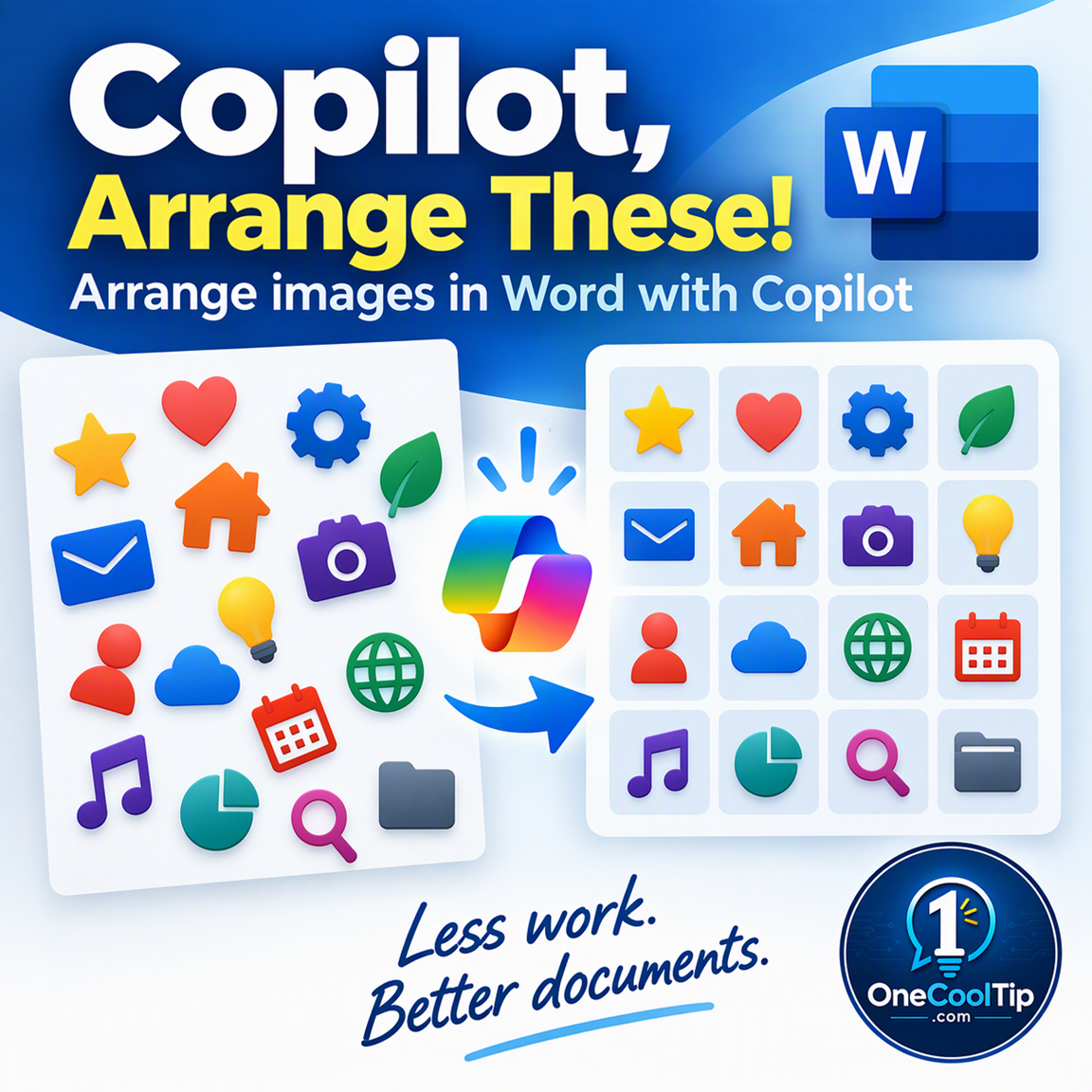
See how Copilot in Word can help arrange images with a simple prompt, including organizing 16 icons into a clean 4-by-4 grid.
IN THIS ISSUE
- 🎖️ FTC Warning for Veterans: Scammers are using new tricks to target VA benefits, including fake numbers and phony savings programs.
- ☁️ Microsoft 365 Outage: Microsoft explains the combination of a software defect and server overload that caused the massive November 12 disruption.
- 🤖 Cool AI Prompt: Use today's prompt to generate a visual flowchart for your next project.
- 🖼️ Copilot in Word: Learn how to turn a mess of scattered images into an organized, evenly spaced grid using a simple natural language request.
- 🔗 Word for Web Link Previews: Check the content behind hyperlinks without switching browser tabs using the Link Preview tool.
- 🧹 Unclutter Word Documents: Strip away chaotic formatting instantly with a quick keyboard shortcut.
- 📄 Delete a Stubborn Page: Discover the easiest way to remove an unwanted page in Microsoft Word using the "Go To" command.
New here? Subscribe to the One Cool Tip Newsletter for daily updates. It's FREE!
-
😂 Laugh with Us! Enjoy our Tech Joke of the Day, Haiku, and Cool Tip Comics.
-
🌐 Stay Informed! Check out ICYMI and our One Cool Tip Video.
| | |
3️⃣
If you enjoy the One Cool Tip newsletter, please forward this newsletter to THREE friends or colleagues or share it on social media using the links below.
Leave a $$$ Tip!
Share this One Cool Tip Newsletter!
| | |
Today's Tech Trivia
What Does WYSIWYG Stand For?
A) Write Your Software In Windows, You Go
B) What You See Is What You Get
C) Windows Yield System With Integrated Graphics
D) Words You Save Instantly Without Your Guessing
Answer at the end of this newsletter.
| | |
⚠️ Veterans, Watch Out: Scammers Have New Tricks to Steal Your VA Benefits ⚠️
The Federal Trade Commission is warning veterans about new scams designed to steal money, personal information, and VA benefits.
Scammers are using phone numbers that closely resemble real Department of Veterans Affairs numbers, social media ads promoting fake veterans grants, and mailers advertising a phony “Veterans Savings Program.”
Some schemes try to collect direct deposit information, Social Security numbers, or bank account details, while others demand upfront fees for benefits assistance.
The FTC recommends applying for benefits only through VA.gov or at a VA regional office and verifying anyone helping with a claim through the VA’s Accreditation Search Tool.
VA-accredited Veterans Service Organizations, agents, and attorneys will not charge you to file a VA benefits claim.
The Cool Tip:
Before sharing information or paying anyone who claims to help with VA benefits, verify them directly through the official VA website.
And in Other News...
- Microsoft Explains What Really Caused the Massive Microsoft 365 Outage
Microsoft has explained what went wrong during the November 12 global outage that disrupted several Microsoft 365 services.
According to Charles Lamanna, Microsoft executive vice president of Copilot, Agents and Platform, three problems combined to trigger the failure: a previously undetected software defect, increased network load, and reduced server capacity.
The software issue dated back to a change that began deploying in July and had operated for more than three months without causing problems.
When the three conditions came together, servers began becoming unresponsive and traffic was redirected to other servers, contributing to a cascading failure that eventually left more than 80% of the network gateway servers unresponsive.
Microsoft apologized to customers and says a final Post-Incident Review will provide additional details.
The Cool Tip:
When Microsoft 365 suddenly stops working across several apps, check Microsoft’s service status before troubleshooting your own computer or network.
| | |
Try this Cool AI prompt. Copy and paste to ChatGPT, Gemini, Claude or Copilot.
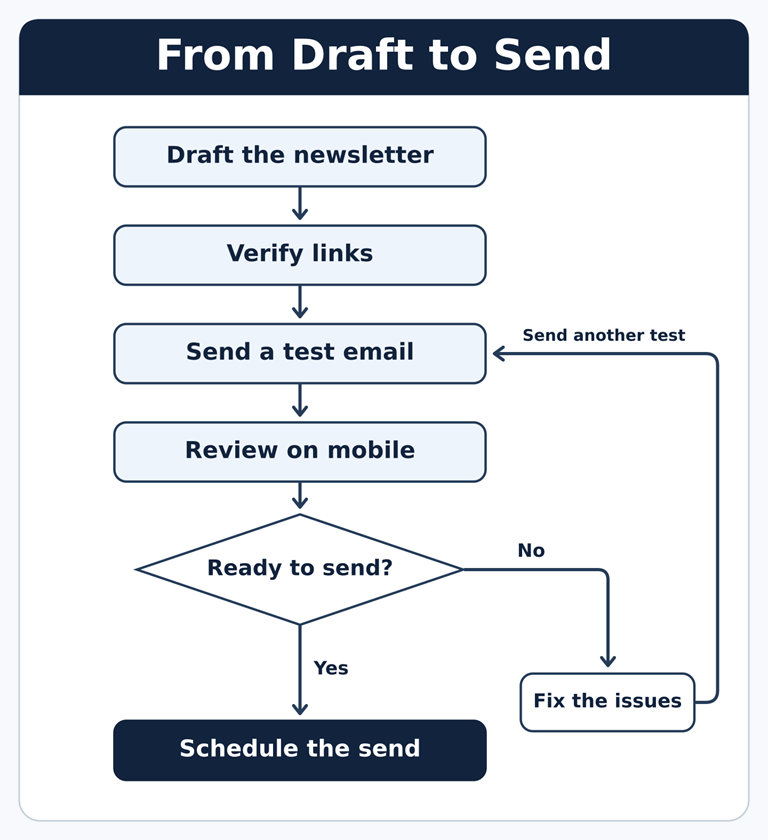
Turn this checklist into a one-page flowchart titled “From Draft to Send.”
Lay it out vertically with short labels in boxes and arrows between them: Draft the newsletter → Verify links → Send a test email → Review on mobile → Schedule the send.
After “Review on mobile,” add a decision labeled “Ready to send?” The Yes path goes to “Schedule the send.”
The No path goes to “Fix the issues” and loops back to “Send a test email.” Keep the visual readable in black and white.
If you can’t insert a flowchart directly, create an editable table in Word that shows the steps and both decision paths.
| | Turn a Mess of Word Images Into an Organized Grid With Copilot | | |
Arranging a large group of images in Microsoft Word can involve a lot of selecting, dragging, aligning and resizing. Copilot offers a more conversational approach by letting you describe how you want the images arranged. For this Cool Tip, we'll put it to a practical test: Can Copilot take 16 scattered icons and organize them into a clean 4-by-4 grid?
| | |
By Rodger Mansfield, Technology Editor
November 16, 2026
Subscribe
Drop 16 icons onto a Word page, and you quickly learn that inserting images is the easy part.
Making them look organized is another matter.
Word has long included controls for aligning objects and distributing several objects evenly.
Microsoft documents commands such as Align Left, Align Center, Align Top, Distribute Horizontally and Distribute Vertically.
But those tools require several manual steps, especially when you're working with a large group of pictures.
That's what makes the newer Copilot approach interesting.
Instead of adjusting every object yourself, you can describe the arrangement you want and see whether Copilot can do the visual housekeeping for you.
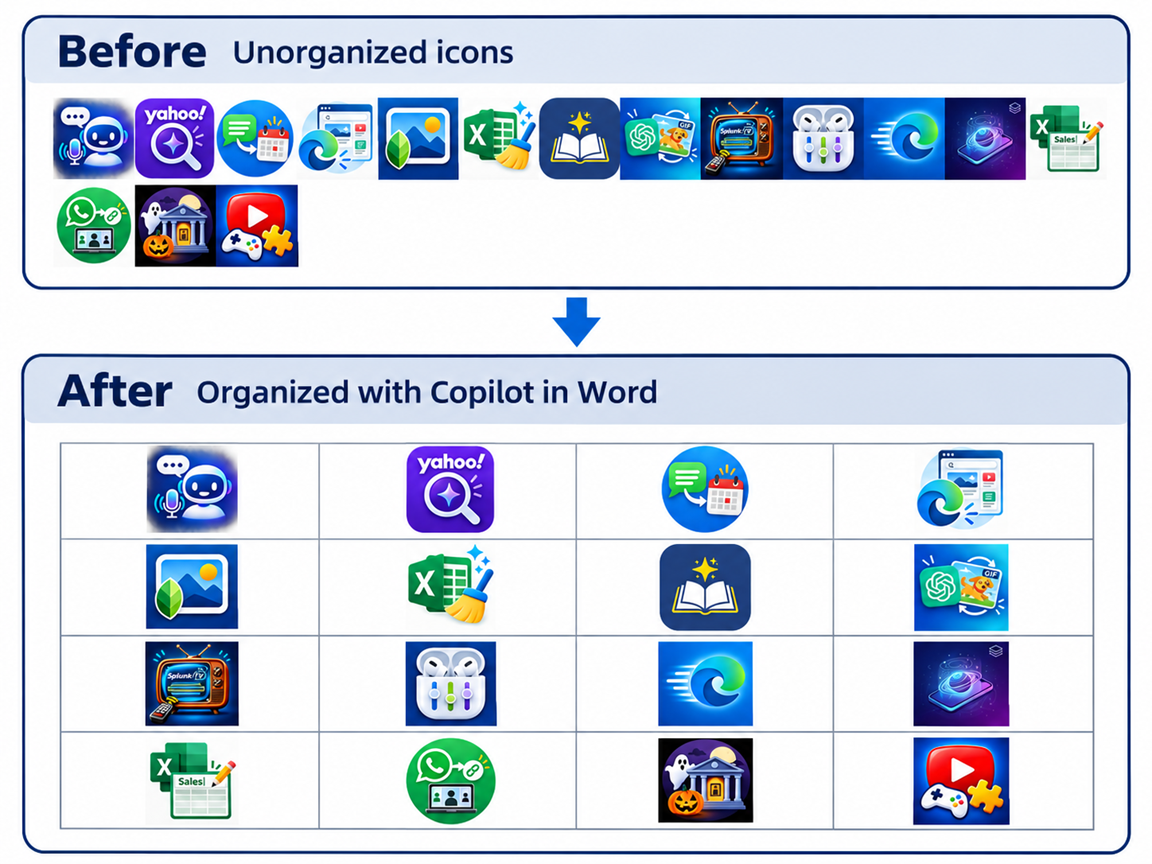
My test is deliberately simple and easy to see: 16 icons that I want arranged in four rows and four columns.
Here’s a Cool Tip: Ask Copilot to organize your images for you.
Feature Explanation
Copilot in Word is expanding beyond helping with the words in your document.
Microsoft already officially documents Copilot image features in Word, although Microsoft cautions that image features can vary by platform, subscription and an organization's configuration.
The image-arranging capability takes a different approach from Word's traditional formatting tools.
Normally, arranging pictures can require selecting several objects, opening Picture Format, choosing Align, and then using alignment or distribution commands.
Word can distribute three or more selected objects horizontally or vertically.
Copilot introduces natural-language assistance to that workflow.
For example, imagine inserting 16 icons for a project, product catalog, classroom worksheet or reference sheet.
Rather than manually constructing the entire layout, you can ask Copilot to arrange the icons into a 4-by-4 grid.
That is the important distinction.
You are describing the finished layout rather than figuring out every formatting command required to get there.
It could be particularly useful when a document contains many graphics that need to follow an obvious visual pattern.
What You’ll Gain
-
Save time: Ask Copilot to handle an image-arranging task that might otherwise require several formatting steps.
-
Create consistency: Turn scattered graphics into a more organized visual layout.
-
Reduce menu hunting: Describe the arrangement you want instead of immediately reaching for several formatting commands.
-
Keep control: Review Copilot's result and use Word's regular formatting tools for any final adjustments.
Step-by-Step Instructions
Here's how to do it.
Microsoft Word
For this Cool Tip, we'll use 16 icons and ask Copilot to arrange them into a four-column, four-row grid.
-
Open your document in Microsoft Word.
-
Add the 16 icons or images you want to organize.
-
Open Copilot in Word.
-
Enter: “Arrange these 16 icons into an evenly spaced 4-by-4 grid.”
-
Submit the prompt.
-
Examine the resulting layout.
-
If necessary, follow up with a more specific request or use Word's standard Picture Format controls to make final adjustments.
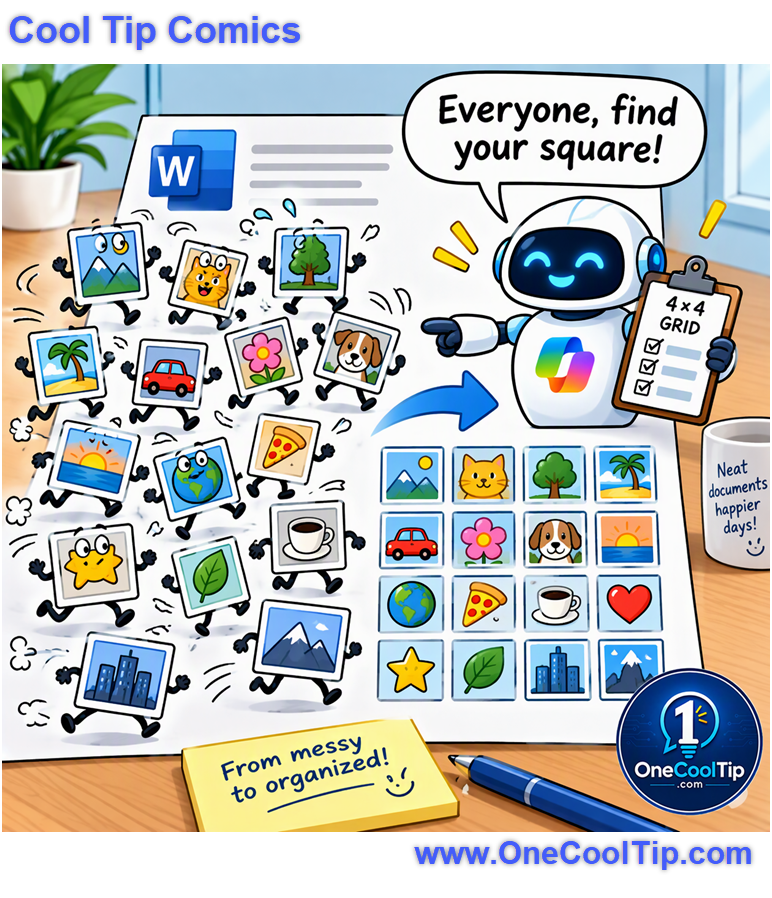
| | fig. 1 - Before and After Arranging Icons With Copilot in Microsoft Word | |
Why This Is a Good Test
A 16-icon example gives Copilot an unambiguous goal.
There are exactly 16 objects and exactly 16 positions in a 4-by-4 arrangement. Readers can also judge the result themselves. Are the icons aligned? Is the spacing consistent? Did Copilot understand the request?
If it gets close but not quite right, that is useful information, too. AI-assisted formatting should still receive a visual inspection before you consider the document finished.
Pros and Cons
Pros:
-
Fewer manual steps: A prompt may replace several individual formatting actions.
-
Easy to understand: “Arrange these into a 4-by-4 grid” describes the desired result plainly.
-
Useful with many graphics: The advantage becomes more noticeable as the number of objects grows.
-
Good starting point: Copilot can handle the initial arrangement while you remain responsible for final appearance.
-
Existing tools remain available: You can continue editing with Word's regular Picture Format commands afterward.
Cons:
-
Availability may vary: Copilot image capabilities vary by platform, subscription and organizational configuration.
-
Results still need review: A Copilot-produced layout should not automatically be considered finished.
-
Word's layout rules still apply: Text wrapping affects how pictures can be positioned and grouped.
-
Manual tools may offer more precision: Word provides specific controls for alignment and positioning when exact placement matters.
Who Should Skip This
Copilot may be unnecessary when your document contains only one or two pictures or when you already know exactly how to use Word's Align, Distribute, Position and Wrap Text controls.
Graphic designers and users creating precision layouts may also prefer direct control over every object's position.
And, of course, if Copilot does not appear in your version of Word or this particular capability has not reached your account, Word's existing image-arrangement tools remain a solid alternative.
Troubleshooting and Limitations
Problem: Copilot Does Not Appear in Word
-
Why it happens: Copilot availability can depend on your Microsoft 365 subscription or organizational settings.
-
Fix or workaround: Confirm that you're signed in with the correct account and that your account provides access to Copilot in Word. If you're using a managed work or school account, check with your administrator.
Problem: Copilot Appears, but You Cannot Arrange the Icons
-
Why it happens: Image features vary by platform, subscription and organizational configuration, and some features aren't available in every version of Word.
-
Fix or workaround: Try the feature in an updated version of Word where Copilot is available. If it still doesn't appear, use Word's standard alignment controls instead.
Problem: The Icons Do Not Move Properly
-
Why it happens: The pictures may use "In Line with Text" wrapping. Microsoft notes that pictures may need another text-wrapping option when you want to move or group them.
-
Fix or workaround: Select the picture, choose Layout Options, and select an appropriate text-wrapping option other than In Line with Text when the layout requires freely positioned objects.
Problem: Copilot's Grid Is Not Even
-
Why it happens: Your prompt may not have produced the exact visual result you wanted.
-
Fix or workaround: Try a more specific follow-up instruction, such as “Make all 16 icons the same size and arrange them into four evenly spaced rows and four evenly spaced columns.” If necessary, finish the job with Word's manual Align and Distribute tools.
Problem: You Need More Precise Alignment
-
Why it happens: AI assistance may not be the best tool when exact positioning is essential.
-
Fix or workaround: Word's regular controls provide precise alignment and positioning options. Microsoft also provides grid and snapping controls under Picture Format > Align Objects > Grid Settings.
Privacy and Data Notes
Copilot is an AI service, so company, school and other sensitive documents should be handled according to your organization's policies.
This becomes especially important when the pictures or surrounding document contain confidential, proprietary or personal information.
Copilot features can be affected by organizational configuration.
Users of managed work and school accounts should follow their organization's approved practices when using Copilot with sensitive documents.
Feature Access
Availability deserves an important caution.
Copilot image capabilities in Word vary by platform, subscription and organizational configuration.
Some image features may not be available in all versions of Word.
Score
Criterion | Score (0–10) | Justification
Value | 8
Arranging many graphics is a real Word formatting chore. The benefit becomes especially clear with an example such as organizing 16 icons.
Usability | 7
Describing the desired layout is easier than learning several formatting commands, but results may still require adjustment.
Wow Factor | 7
Word has long been able to align and distribute objects, but asking Copilot to handle the arrangement conversationally makes an old task more approachable.
Total: 22/30 | 👍 Good
This is a practical Copilot feature that turns one of Word's more tedious visual formatting jobs into a simple request.
Word's traditional Align and Distribute tools provide more direct control, while Copilot's advantage is that you can describe the result you want in ordinary language.
Key Takeaways
Copilot's biggest advantage here isn't that Word suddenly learned how to arrange pictures.
Word has had powerful image-positioning tools for years.
The improvement is the interface.
Asking Copilot to “Arrange these 16 icons into an evenly spaced 4-by-4 grid” can be much more approachable than manually formatting each object.
Cool Tip Snapshot
-
Feature Name: Arrange and Modify Images With Copilot in Word
-
Platform(s): Microsoft Word for Microsoft 365; availability of this specific capability may vary
-
Quick Benefit: Organize multiple images using a natural-language request
-
Best For: Reports, reference sheets, proposals, newsletters and image-heavy documents
-
Access Type: Subscription / Availability Varies
-
Difficulty: Easy
Learn More
Microsoft explains Word's standard tools for aligning pictures and other objects, including alignment and horizontal and vertical distribution.
It's a useful companion reference when you need to refine Copilot's results manually.
Try It Yourself
Give Copilot 16 icons and ask it to arrange them into a 4-by-4 grid, then see how much manual formatting it saves you.
Tell us how well it worked in the comments, subscribe to the One Cool Tip Newsletter, and share this Cool Tip with family, friends and coworkers.
READ MORE
Read the Cool Tip on One Cool Tip.com.
| | Help support One Cool Tip. Use this Amazon link when you shop online. | |
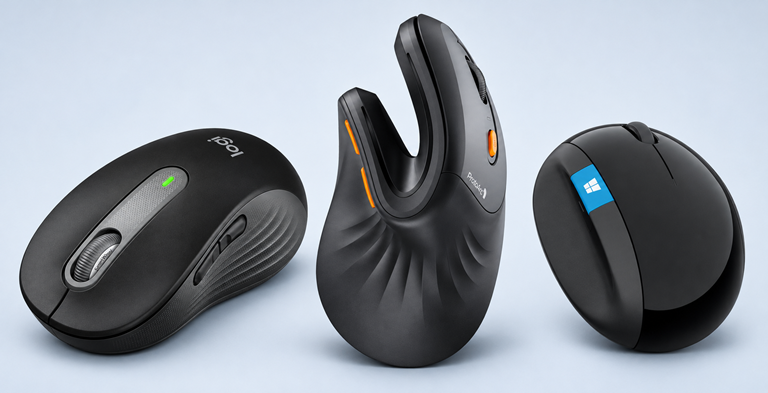
🖱️ Logitech Signature M650 Silent Wireless Mouse: Its conventional wireless design makes it a practical everyday choice for Word and Microsoft 365 work.
Amazon's Choice! $39.99. 4.5 Stars. Check it out on Amazon!
🖐️ ProtoArc Wireless Vertical Ergonomic Mouse: The vertical ergonomic design offers an alternative for users who spend long periods editing documents.
👉Look! $26.99. 4.4 Stars. Check it out on Amazon!
🪟 Microsoft Sculpt Ergonomic Mouse L6V: Its ergonomic shape and four-way scrolling make it an interesting Microsoft-branded option for document work.
👀Wow! $75.70. 4.4 Stars. Check it out on Amazon!
Prices accurate at time of publication
One Cool Tip may earn a commission from qualifying purchases.
| | |
🆒Tell Me More
- 🖼️ Word already has manual alignment tools. Pictures can be aligned left, center, right, top, middle or bottom using Word's Picture Format > Align commands.
- ↔️ Word can distribute objects evenly. Select at least three objects and Word can distribute those objects horizontally or vertically.
- 📄 Wrapping matters. If Align is unavailable, Microsoft notes that the picture's Wrap Text setting may be set to In Line with Text.
- 🤖 Copilot access isn't identical for everyone. A specific Copilot capability may depend on your Microsoft 365 subscription or your organization's settings.
- 🎨 Copilot's Word image tools extend beyond arranging existing pictures. Microsoft also documents generating images from prompts directly in Word.
⏩Quick Tips
-
🎯 Be Specific: Give Copilot a measurable layout goal. For my test, I'll try: “Arrange these 16 icons into an evenly spaced 4-by-4 grid.”
-
🖼️ Check Wrapping: An image's text-wrapping option can affect how Word aligns it. If alignment controls aren't working, inspect Wrap Text.
-
↔️ Use Distribute: Need a manual fallback? Select at least three pictures, open Picture Format > Align, then choose Distribute Horizontally or Distribute Vertically.
-
↩️ Undo Freely: If an edit doesn't produce the result you want, Ctrl + Z undoes the previous action in Word.
-
👀 Check the Result: Treat Copilot's arrangement as a starting point rather than blindly accepting it. Examine spacing, positioning and page layout before sharing the document.
| | ✅ More Must-Read Tech Tips | | |
👀 How Do I Use Link Preview Feature in Word for Web?
Have you ever been frustrated by the constant switching between your document and browser tabs?
The Link Preview feature in Microsoft 365 Word for Web is a convenient tool that enhances your document editing and reading experience.
It allows you to see a sneak peek of the content behind hyperlinks directly within your Word document, without the need to open the link in a separate browser tab.
Here's how to do it.
- Open your document in Microsoft 365 Word for Web.
- Highlight the text you want to link.
- Right-click and select ‘Link’ or use the shortcut Ctrl + K.
- Insert the URL and click ‘OK’.
-
Hover over the hyperlink to see the preview pane.
This new feature saves time, keeps focus intact, and provides immediate reference without leaving Microsoft Word.
Discover more HERE.
| | |
🤔 Have You Ever Wondered How To Unclutter Your Word Documents?
Have you ever found yourself wrestling with a stubbornly formatted document, wishing for a magic wand to strip away the chaos and start fresh?
Here's how to do it.
-
Click and drag your mouse over the text from which you want to remove formatting.
-
Press Control + Space on your keyboard. The selected text will revert to the default formatting.
- Ensure that all unwanted formatting is removed.
-
If not, repeat the process or use additional shortcuts like Control + Shift + N for normal style.
This shortcut saves time by removing formatting with a single keystroke and helps maintain a uniform look throughout your document.
Find out more HERE.
| | |
🙋♂️ Here's How to Delete a Page in Microsoft Word.
Have you ever found yourself struggling to delete an unwanted page in Microsoft Word?
Use the Control + G keyboard shortcut.
This method can be particularly useful when dealing with stubborn blank pages or when you want to delete a page without manually selecting all the content.
Here's how to do it.
-
Click anywhere on the page you want to delete.
-
Press Ctrl + G on your keyboard to open the “Go To” tab.
-
On a Mac, use Option + Command + G.
-
In the “Enter page number” box, type “\page”.
-
Press the Go To button.
-
Press the Close button.
-
Press the Delete key to remove the page.
Knowing how to delete a page in Microsoft Word is a valuable skill that can save you time and frustration.
Learn more HERE.
| | |
❓Did you share this newsletter with three friends yet?
😎 Cool Facts
-
📅 1983: Microsoft Word 1.0 arrived on Oct. 25, 1983. Source.
-
🪟 1989: Word did not become available for Windows users until 1989. Source.
-
🖼️ 3 objects: You need to select at least three objects when you want Word to distribute them equally. Source.
-
↩️ 100 actions: Microsoft says Office saves the last 100 undoable actions by default. Source.
⌨️Today's Cool Shortcuts
-
Ctrl + Z: Undo the previous action.
-
Ctrl + Y: Redo the previous action when possible.
-
Ctrl + A: Select all document content.
-
Ctrl + S: Save the document.
-
Esc: Cancel a command.
😜 Tech Joke of the Day 😅
Why did the Word image refuse to move?
It was too wrapped up in the text.
🔎 Do you have a Cool Tip or tech question? Email us at onecooltip.com@gmail.com.
| | |
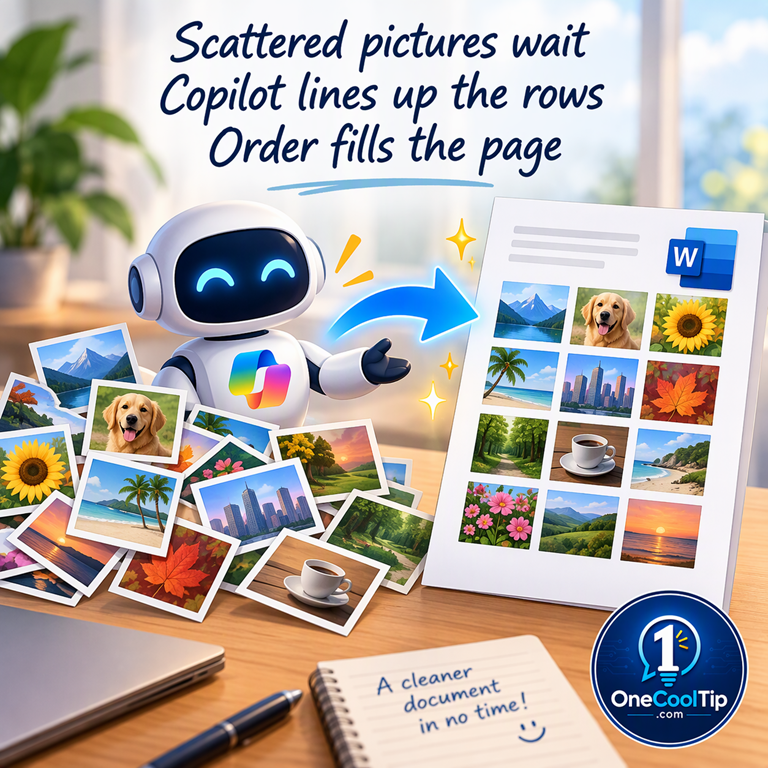
Scattered pictures wait
Copilot lines up the rows
Order fills the page
| |
| 🤔 Would you let Copilot arrange pictures in your Word document? | | | | Did You See These Cool Tips This Week? | | | | Talk It Through With Muse AI’s New Voice Mode | |
With Muse voice mode, you can rehearse an interview or talk through a plan and hear the AI respond. If the feature has reached your account, look for the phone icon to start a conversation.
Read the Newsletter Version.
| | | | Yahoo Scout Is Out of Beta. Here’s When to Use It | |
Yahoo Scout brings AI answers and regular search results together in Yahoo Search. Learn when to ask Scout, how to check its sources and where to go when all you need is a link.
Read the Newsletter Version.
| |
ICYMI - In Case You Missed It ...
| | | | Find Fascinating Websites You Never Knew Existed | |
Cloudhiker introduces you to unusual websites that a human has reviewed and selected. Explore a favorite subject, save useful discoveries, and take a more interesting break from your usual feeds.
Read the Newsletter Version.
| | Copilot can get 16 pictures to line up. I’d like to see it try that at a family reunion. | | |
Trivia Answer: B) What You See Is What You Get
Word's graphical interface and WYSIWYG approach helped distinguish the early word processor from competing writing and typing software.
----------
Tomorrow's Cool Tip is waiting to amaze you.
Until then, go forth and conquer the tech world with your newfound knowledge!
Be sure to visit www.OneCoolTip.com for Cool Tech Tips for a Cooler Life!
And if you like One Cool Tip, please support with TipJar!
Enjoy!
Rodger
Chief Cool Tipper
onecooltip.com@gmail.com
| |
| What do you think of today's OneCoolTip newsletter? | | | |
Please Share the One Cool Tip Newsletter!
You asked for it. You got it. There is now a One Cool Tip Newsletter archive. Did you delete a newsletter and want to read it again? Check it out HERE.
Want to help One Cool Tip grow? Please forward this email using the link above. And if you see an OCT social media post, please LIKE, COMMENT and SHARE!
Have you subscribed to the One Cool Tip YouTube channel? Subscribe HERE.
| | Connect with One Cool Tip!! | | |
|
As an Amazon Associate, One Cool Tip may earn a small commission from qualifying purchases.
Our media content is intended solely for informational purposes. Please do not construe anything here as legal, tax, investment, financial, marital, or other advice.
Copyright © 2026 | www.OneCoolTip.com | All Rights Reserved
|
| | | |