β€Š

One Cool Tip Newsletter

October 24, 2026

Your daily dose of tech-savvy brilliance!

πŸ˜€ Greetings! Happy Saturday, Cool Tipper!


Get ready to streamline your digital life with simple, actionable tips delivered straight to your inbox.


Cool Tip Theme: Chrome Enhanced Protection and AI Scam Detection

ο»Ώ

Google Chrome uses AI to spot suspicious websites, fake virus warnings, and dangerous commands. Learn how to enable Enhanced Protection against scams.


New here? Subscribe to the One Cool Tip Newsletter for daily updates. It's FREE!

3️⃣

If you enjoy the One Cool Tip Newsletter, please forward this newsletter to THREE friends or colleagues or share it on social media using the links below.


Leave a $$$ Tip!


Share this One Cool Tip Newsletter!

X Share This Email
LinkedIn Share This Email
Pinterest Share This Email

🚨 FBI Warning: Update Your Website Software Now 🚨


The FBI Internet Crime Complaint Center (IC3) is warning about two critical vulnerabilities in PHP, a programming language widely used to power websites and web applications.


The flaws, identified as CVE-2026-109618 and CVE-2026-109619, could allow attackers to remotely execute code and potentially compromise sensitive data and networks.


Security updates are available, and the FBI recommends applying them immediately to affected systems.


If an immediate update is not possible, the agency recommends taking the affected system offline until the vulnerability can be fully addressed.


This warning is especially important for business owners and website operators who should check whether their systems use an affected version of PHP.


The Cool Tip:


If someone else manages your website, contact your hosting company or web administrator and ask whether your PHP installation has been updated against these vulnerabilities.


And in Other News...


  • Still Need a Halloween Costume? Let Google Pick One

If you are stuck for a Halloween costume idea, Google Frightgeist can show you what is trending right now.


The annual Google Trends experiment highlights popular searches for costumes, movies, and other Halloween favorites.


This year’s top trending costume is Buddy the Unicorn, followed by NeeDoh, with characters from movies, games, and TV also filling the list.


You can also explore trending costumes for kids, pets, and couples, plus see what costume ideas are popular around the country.


It is a fun way to discover costume ideas or check whether everyone else is planning to wear the same thing.


The Cool Tip:


Before buying that last-minute costume, check Frightgeist for a little data-powered Halloween inspiration.

Cool Tip Poll

πŸ€” Have you ever encountered a website telling you to copy and run a code snippet?

Cool Deals of the Day

  • Have you tried the Upside app? Everyday cash back on gas, groceries and dining.ο»Ώ


Help support One Cool Tip. Use this Amazon link when you shop online.


Check out these Cool Deals:

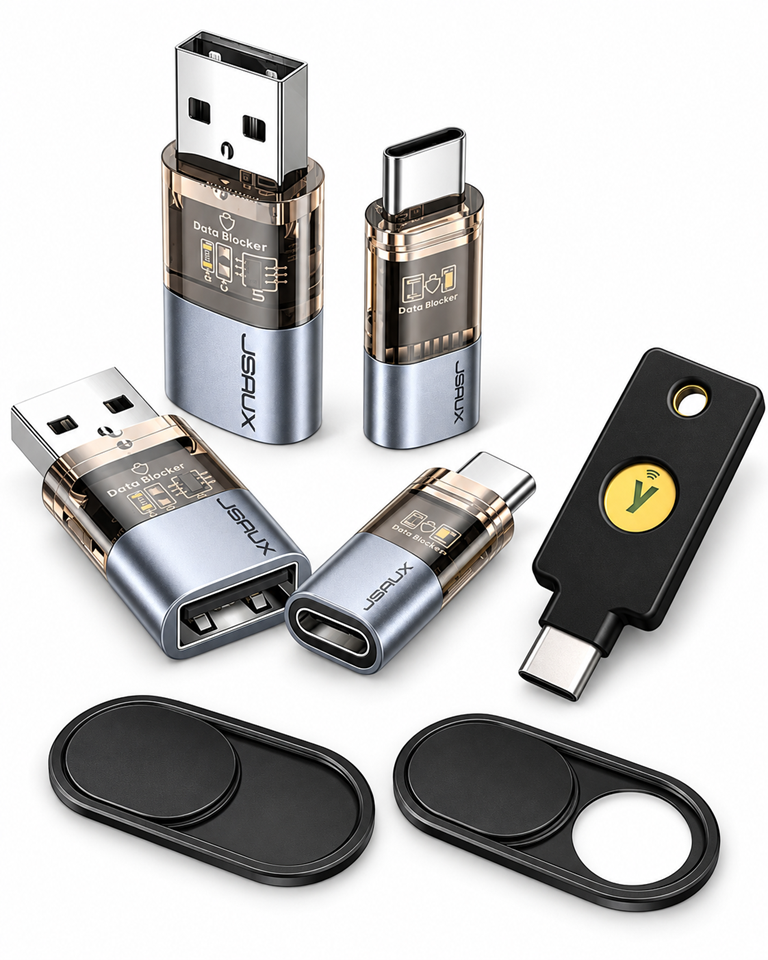
πŸ’» JSAUX USB-C Data Blocker (4-Pack): Cuts off data pins physically when charging at public kiosks or hotel stations to eliminate juice-jacking risks.

Overall Pick. Now $9.99. 4.4 Stars. Check it out on Amazon!


πŸ”’ CloudValley Laptop Webcam Cover (2-Pack): A simple, durable mechanical slide that guarantees total visual privacy on laptops and monitors.

Overall Pick. Now $6.99. 4.5 Stars. Check it out on Amazon!


πŸ”‘ Yubico YubiKey 5C NFC Security Key: Provides unphishable hardware-backed two-factor authentication to stop account takeovers even if an attacker tricks you into visiting a spoofed login page.

Overall Pick. Now $58. 4.5 Stars. Check it out on Amazon!


ο»Ώ*Prices accurate when originally published.

One Cool Tip may earn a commission from qualifying purchases.

Fuel Your Adventure

Try Big Mike's Jerky!ο»Ώ


bigmikesjerky.com


Today's Cool Tipο»Ώ

Google Chrome's New AI Protection Helps Stop Online Scams

Google Chrome is getting smarter about detecting online scams, including fake virus warnings and dangerous instructions hidden on websites.


ο»ΏLearn how its improved AI-powered protection works and the simple setting that can help you browse more safely.

By Rodger Mansfield, Technology Editor

October 24, 2026

Subscribe


You're browsing the web when a frightening warning appears. 


Your computer is infected, your browser needs an urgent update, or you must run a special command to fix a problem.


It looks convincing. 


But is it real?


Google Chrome is strengthening its defenses against these increasingly sophisticated online scams, and artificial intelligence is playing a bigger role.


Google made several improvements to Chrome's scam detection, including suspicious website warnings, expanded Gemini AI analysis, and protection against a deceptive technique called ClickFix.


These improvements help Chrome recognize potential threats before you fall for a scam.


Here's a Cool Tip: Turn on Chrome's Enhanced Protection to help protect yourself against the latest online scams.


Feature Explanation


Chrome has long used Google Safe Browsing to warn users about dangerous websites, suspicious downloads, and phishing attempts.


What's changing is how Chrome identifies newer threats, including websites that haven't already been classified as dangerous.


1. Smarter Warnings for Suspicious Websites


Chrome's Enhanced Protection now distinguishes between two categories of risky websites:


  • Suspicious sites: Websites displaying deceptive behavior that suggests a possible scam, even when Google has less confidence that the site is harmful.
  • Dangerous sites: Websites identified as presenting a high risk, which continue to trigger Chrome's familiar full-page red warning.


The distinction matters because scammers regularly create new websites that may not appear on existing lists of dangerous sites.


The newer suspicious-site warnings use different wording, colors, and icons to help users understand the potential risk.


Instead of waiting for a website to be classified as dangerous, Chrome can warn users about suspicious behavior earlier.


2. Gemini AI Helps Spot Scams


Google is also expanding Chrome's use of Gemini artificial intelligence.


In 2025, Chrome introduced on-device Gemini technology to help detect certain tech support scams on supported devices.


Google has since moved to a more powerful server-side Gemini model, allowing it to extend scam detection to users with Enhanced Protection enabled.


The expanded system can examine indicators such as:


  • The brand or organization a website claims to represent.
  • The purpose of the website's content.
  • Patterns suggesting the page may be attempting a scam.


Chrome combines Gemini's analysis with other security signals, including the website's reputation, before determining whether to display a warning.


This approach helps identify deceptive websites that imitate antivirus companies, browser-update notices, and technical support services.


3. Chrome Fights Dangerous ClickFix Scams


One of the most interesting improvements targets a scam technique called ClickFix.


Here's how it works.


You visit a website that claims something is wrong with your computer or browser. 


The page displays instructions telling you to copy a command and paste it into Windows PowerShell, Command Prompt, or another system utility.


The command supposedly fixes the problem.


In reality, it may download malware or perform other harmful actions.


Because the user runs the command outside the browser, traditional browser download protections may not detect the attack.


Chrome's newer protection looks for certain suspicious commands copied from websites when Enhanced Protection is enabled.


If Chrome detects a potentially dangerous command, it can send the clipboard content to Google Safe Browsing for analysis after removing personally identifiable information. 


If the command is judged dangerous, Chrome displays a warning.


Remember: 


  • Chrome will not ask you to repair a browser problem by copying commands from an unfamiliar website into your computer's terminal.


4. How Much Safer Is Enhanced Protection?


Google reports that Enhanced Protection users are ten times safer from certain web threats than users relying on Standard Protection.


That's an impressive claim, but there's an important distinction.


Google calculated the figure by comparing the average number of safety warnings shown to users of Enhanced Protection and Standard Protection.


It does not directly measure how many people avoided becoming scam victims or how much money was saved.


The comparison indicates that Enhanced Protection delivers substantially more security warnings, but no browser can guarantee protection against every scam.


What You'll Gain


  • Earlier warnings: Identify suspicious websites that may not yet appear on traditional threat lists.
  • Improved scam detection: Get additional protection against fake antivirus, tech support, and browser-update scams.
  • Safer browsing: Receive alerts about certain dangerous commands associated with ClickFix attacks.
  • Less guesswork: Let Chrome help identify suspicious activity before you take action.


Step-by-Step Instructions


Here's how to do it.


Cool Notes:


  • Chrome uses Standard Protection by default.
  • Switching to Enhanced Protection is easy and does not require a separate subscription.
  • You don't have to manually start an AI scan. 
  • Chrome performs these security checks as part of its browsing protection.


Windows, macOS, and ChromeOS


  1. Open Google Chrome.
  2. Click the three-dot More menu in the upper-right corner.
  3. Select Settings.
  4. Click Privacy and security.
  5. Select Security.
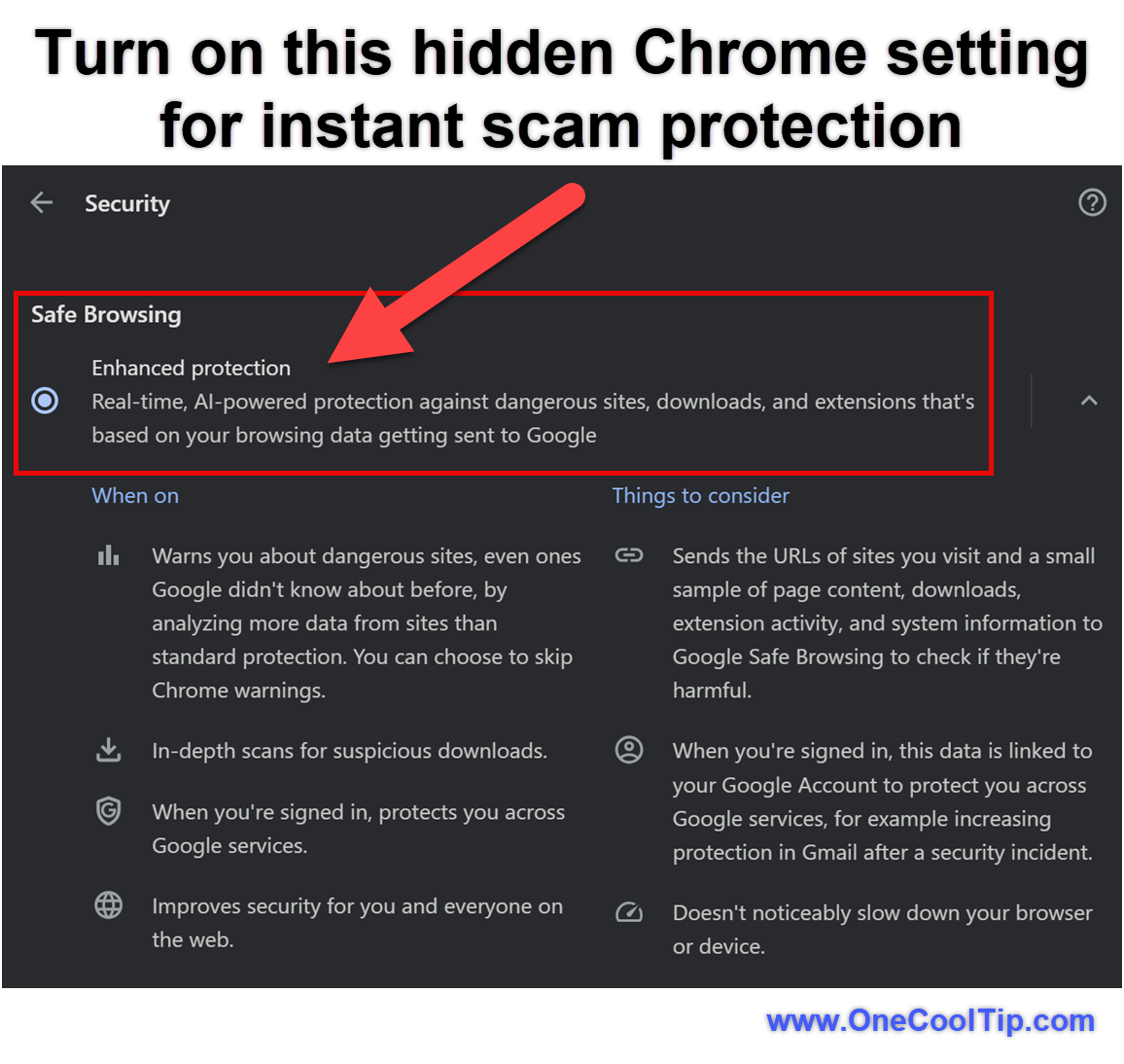
  6. Under Safe Browsing, choose Enhanced protection.
  7. Shortcut: Enter chrome://settings/security in Chrome's address bar to open the security settings directly.

fig. 1 - Turn on this hidden Chrome setting for instant scam protection

iPhone and iPad


  1. Open the Chrome app.
  2. Tap the three-dot More menu.
  3. Select Settings.
  4. Tap Privacy and security.
  5. Select Safe Browsing.
  6. Choose Enhanced protection.


Android


  1. Open the Chrome app.
  2. Tap the three-dot More menu.
  3. Select Settings.
  4. Tap Privacy and security.
  5. Select Safe Browsing.
  6. Choose Enhanced protection.


Once enabled, Chrome uses the selected protection level during subsequent browsing.


Pros and Cons


Pros:


  • Detects more potentially new threats than Standard Protection.
  • Uses Gemini AI to help identify deceptive websites.
  • Adds protection against certain ClickFix attacks.
  • Works within Chrome without requiring another browser extension.
  • Runs automatically once Enhanced Protection is enabled.


Cons:


  • Shares additional security-related browsing information with Google.
  • Cannot identify every malicious website or scam.
  • May occasionally warn about legitimate websites or commands.
  • Some advanced protections may vary by platform or implementation.


Who Should Skip This?


Enhanced Protection is a good choice for most everyday Chrome users.


However, people who prefer to minimize browsing information shared with Google may prefer Standard Protection.


Business and school users should also check whether their organization's IT department manages Chrome's security settings.


Developers who frequently copy and run terminal commands should review warnings carefully, since some legitimate activity may resemble suspicious behavior.


Real-World Examples


  • Family Computer: A relative encounters a flashing warning claiming their computer has a virus. Chrome may recognize suspicious page behavior and warn them before they call a fraudulent support number.
  • Small Business: An employee visits a website offering an urgent browser update. Enhanced Protection may flag deceptive content before the employee downloads malicious software.
  • Travel Planning: A traveler searching for hotel reservations encounters a counterfeit booking website. Chrome may identify phishing signals and display a warning, although travelers should still verify website addresses independently.


These are examples of situations where the protection may help. Detection is not guaranteed.


Troubleshooting and Limitations


Problem: Enhanced Protection doesn't appear.


  • Why it happens: Your browser may be outdated, or your organization may manage the setting.
  • Fix: Update Chrome, restart it, and check again. If you're using a managed computer, contact your IT administrator.


Problem: Chrome doesn't warn about a suspicious website.


  • Why it happens: Browser security systems cannot identify every scam.
  • Fix: Leave the suspicious page and independently visit the organization's official website.


Problem: Chrome warns about a website you believe is safe.


  • Why it happens: Automated security systems can occasionally generate false positives.
  • Fix: Verify the website address and its legitimacy before proceeding.


Problem: A website asks you to run a PowerShell command.


  • Why it happens: The website may be attempting a ClickFix scam.
  • Fix: Do not run the command. Close the page.


Privacy and Data Notes


Enhanced Protection provides additional security checks, but it also involves sharing more browsing-related information with Google.


Depending on the security check, Chrome may send website URLs, samples of page content, extension activity, download information, and system information to Google Safe Browsing.


The newer Gemini-based scam analysis limits the page text sent for evaluation to websites showing high-confidence scam indicators.


Page content submitted for this specific Gemini analysis is processed temporarily and is not logged, retained, or used to train AI models.


That assurance applies to the Gemini page-content analysis described in Google's announcement and should not be interpreted as a blanket statement about every category of data handled by Enhanced Protection.


If you prefer less routine data sharing, Standard Protection remains available.


Feature Access


  • Feature Name: Google Chrome Enhanced Protection with AI-Powered Scam Detection.
  • Platforms: Chrome on Windows, macOS, ChromeOS, Android, and iOS supports Safe Browsing protection settings.
  • Cost: No separate subscription required.
  • Account Requirements: A Google Account is not required to select Chrome's local Enhanced Protection setting.
  • Availability: Google's October 20 announcement describes protections introduced or expanded during 2026. It does not provide separate minimum version numbers or rollout dates for each new detection method.
  • Business and Education: Organization-managed browsers may restrict security settings.


Score

Criterion | Score (0–10) |  Justification
Value |  9
Addresses consequential online threats, including deceptive websites and malicious commands.
Usability |  9
Easy to enable, with automatic detection and warnings during normal browsing.
Wow Factor |  8
Gemini-powered scam analysis and clipboard-related ClickFix detection provide meaningful technical improvements.
Total: 26/30 | πŸŒŸ Excellent
Chrome's Enhanced Protection provides a worthwhile security upgrade with very little effort required from the user.
Compared with Standard Protection, its biggest advantage is the ability to identify more potentially new threats before they appear on established lists of dangerous websites.


Key Takeaways


Google Chrome's improved scam protection uses AI and other security signals to help detect deceptive websites, fake security alerts, and certain dangerous commands.


Enabling Enhanced Protection gives Chrome more opportunities to warn you before a scam succeeds, although it involves sharing additional security-related browsing information with Google.


Cool Tip Snapshot


  • Feature Name: Chrome Enhanced Protection and AI Scam Detection.
  • Platform(s): Windows, macOS, ChromeOS, Android, iOS.
  • Quick Benefit: Smarter warnings about potentially dangerous websites and online scams.
  • Best For: Home users, small businesses, families, students, and travelers.
  • Access Type: Free.
  • Difficulty: Easy.


Learn More


Google's official security announcement explains the new suspicious-site warnings, Gemini scam detection, and ClickFix protection. 


Chrome's support documentation explains how to change Safe Browsing settings.


Try It Yourself


Open Chrome's security settings and check whether Enhanced Protection is enabled. 


It's a simple change that could help you avoid a costly online scam.


Have you encountered a convincing fake security warning? 


Tell us about your experience in the comments, subscribe to the One Cool Tip Newsletter for FREE, and share this Cool Tip with family, friends, and coworkers.


READ MORE


Read the Full Cool Tip!

Check Out These Cool Tips & Tricks


  • Safety Check: Scan your browser instantly for compromised passwords, bad extensions, and pending security patches. Open Settings, navigate to Privacy and security, and click Check now under Safety Check.


  • Tab Groups: Declutter your browser window by bundling related research into color-coded folders. Right-click any open tab, select Add tab to group, and assign a group title.


  • Search Tabs: Locate any misplaced web page across dozens of open tabs in seconds. Click the downward arrow icon in the extreme upper corner of the title bar or press Ctrl + Shift + A to search.


  • Mute Noisy Tabs: Silence loud background media without hunting for the offending page. Right-click the tab playing unwanted sound and click Mute site.


  • Clear Browsing Shortcuts: Clear cached files and cookies quickly without navigating complex submenus. Press Ctrl + Shift + Delete on Windows or Command + Shift + Delete on Mac to open the deletion prompt directly.


  • Reopen Closed Tabs: Restore an accidentally closed browser window or article instantly. Press Ctrl + Shift + T on a PC or Command + Shift + T on a Mac to restore tabs in reverse order.


  • Custom Search Engines: Search your favorite databases directly from the address bar without visiting their homepages first. Go to Settings, click Search engine, choose Manage search engines and site search, and create custom shortcuts.


  • Pin Vital Tabs: Keep critical web mail and calendar portals locked to the left side of your bar. Right-click the tab you need constantly and select Pin.


  • Built-in Task Manager: Identify and kill individual background pages that are draining battery or memory. Press Shift + Esc on your keyboard to launch Chrome's internal task monitor and end heavy processes.


  • Name Separate Windows: Organize distinct client projects or personal research across clearly labeled windows. Right-click an empty space in the top tab strip, select Name window, and enter a project title.

ICYMI - In Case You Missed It ...

Stop Refreshing Webpages: Let Safari Notify You


Safari Notify Me can watch a webpage for a change you care about, such as a restock or price drop. Describe what you want Safari to find, choose how often it checks, and receive an alert when it detects an update.


Read the Full Version.


Read the Newsletter Version.

Looking for your next adventure?


Call Denise at Travel For You.

314.660.3039


Sign Up for the Monthly Newsletter


http://www.travelforyouvacations.com/


https://www.facebook.com/TRAVEL.FOR.U/


See You Tomorrow

Tomorrow's Cool Tip is waiting to amaze you.


Until then, go forth and conquer the tech world with your newfound knowledge!


Be sure to visit www.OneCoolTip.com for Cool Tech Tips for a Cooler Life!


And if you Like One Cool Tip, please support with TipJar!


Enjoy!

ο»Ώ


Rodger

Chief Cool Tipper

onecooltip.com@gmail.com


What Do You Think?

What do you think of today's One Cool Tip Newsletter?
Positive        Neutral        Negative
X Share This Email
LinkedIn Share This Email

Connect with One Cool Tip!

Facebook  X  Instagram  Web  Pinterest  YouTube  LinkedIn
β€Š

As an Amazon Associate, One Cool Tip may earn a small commission from qualifying purchases.


Our media content is intended solely for informational purposes. Please do not construe anything here as legal, tax, investment, financial, marital or other advice.


Copyright Β© 2026 | www.OneCoolTip.com | All Rights Reserved


β€Š