|
By Rodger Mansfield, Technology Editor
October 14, 2026
Subscribe
Open an app.
Click Maximize.
Open another app.
Click Maximize again.
If that's part of your daily Windows routine, Microsoft has added a simple setting that can eliminate those extra clicks.
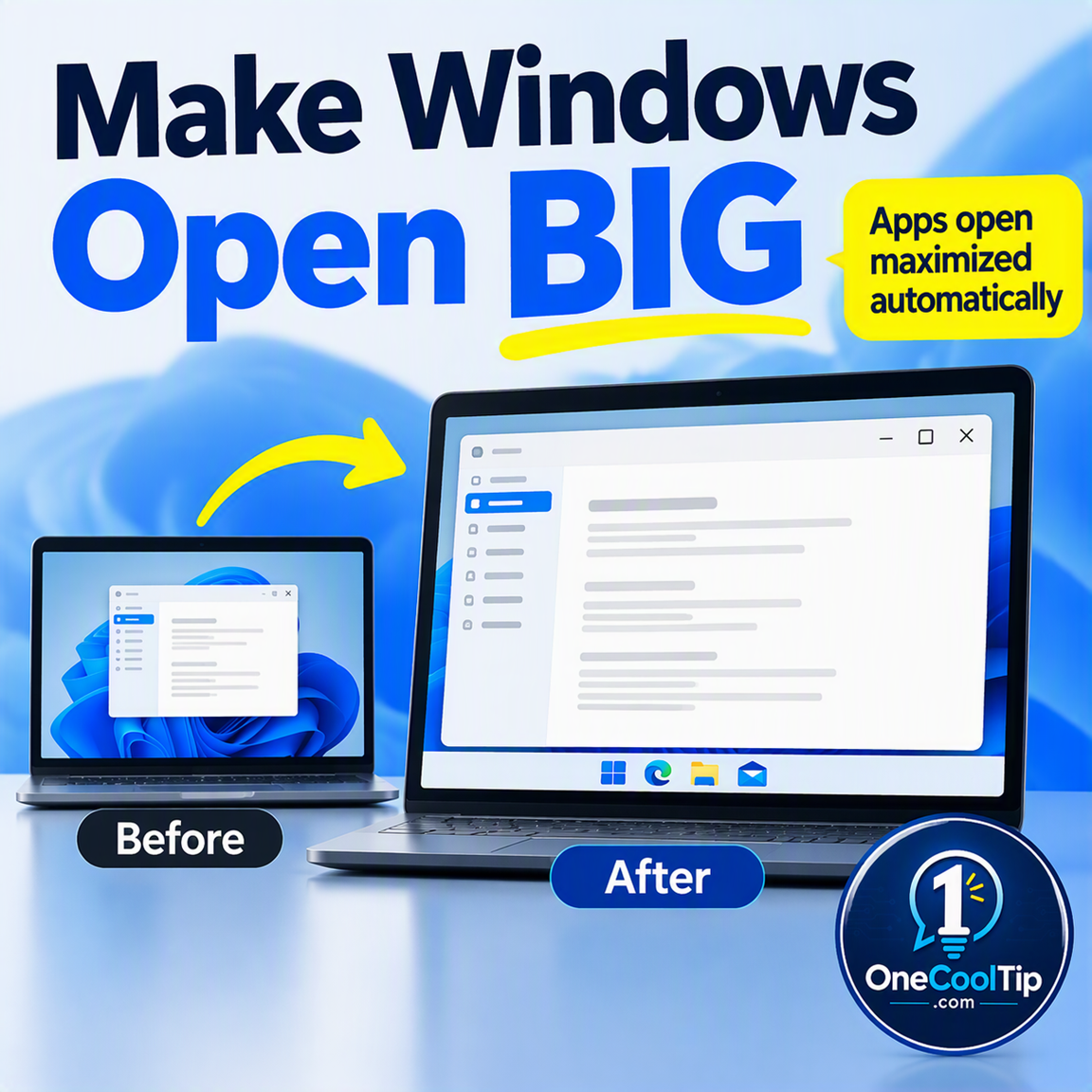
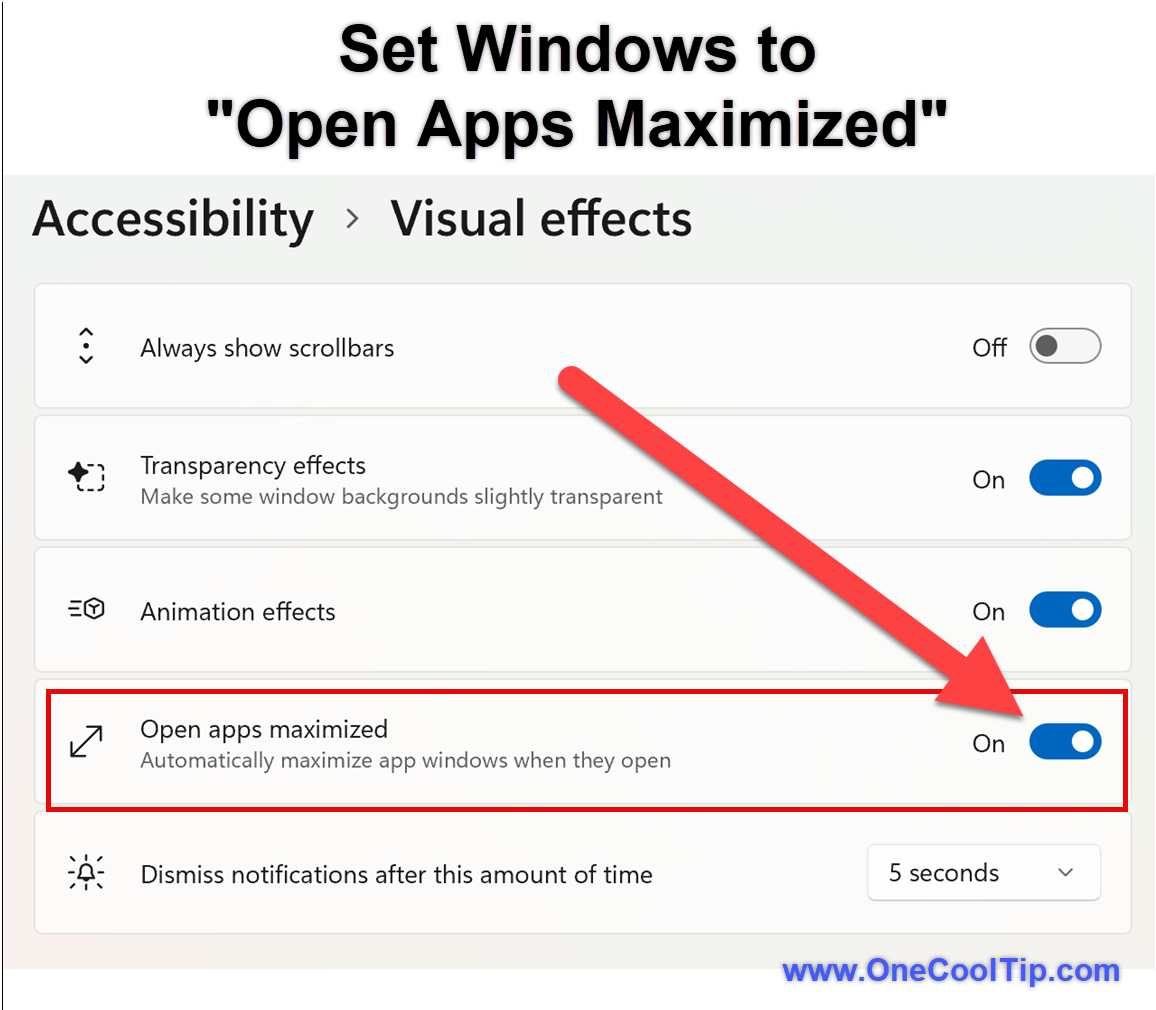
Called "Open apps maximized," the new Windows 11 accessibility option automatically maximizes app windows when they open.
Microsoft introduced it in the September 22, 2026 optional preview update, KB5124010, for Windows 11 versions 24H2, 25H2, and 26H2.
The feature is also part of the improvements carried forward into Microsoft's October 13, 2026 security update, KB5127648.
There's one catch.
Microsoft is delivering Open apps maximized through a gradual rollout, which means it may reach different PCs at different times.
Feature availability depends on the device and market.
For people who prefer working with a large app window, particularly on laptops or smaller displays, this is the kind of tiny Windows improvement that could quietly make everyday computing easier.
Here’s a Cool Tip: Let Windows maximize your apps automatically.
What Is Open Apps Maximized?
Open apps maximized is an accessibility setting that tells Windows 11 to automatically maximize application windows as they open.
Think about how often you open your browser, File Explorer, Word, Outlook, or another application and immediately click the Maximize button.
If you almost always want your apps using the available workspace, Windows can now take care of that step.
Microsoft positions the feature as an accessibility improvement.
It can reduce everyday friction for people who use a screen reader or magnification, work in tablet mode, or simply prefer a consistent larger workspace.
But you don't need to use accessibility tools to benefit.
Anyone who routinely maximizes apps may find it useful.
That could include laptop owners working on smaller screens, older adults who prefer larger app windows, students concentrating on one application at a time, or business users who spend much of their day inside one primary program.
It isn't a dramatic Windows makeover.
It's simply Windows remembering how you'd prefer your applications to open.
And sometimes that's exactly what makes a good Cool Tip.
What You’ll Gain
- Save clicks: Stop repeatedly pressing the Maximize button.
- See more: Start applications using more of the available workspace.
- Reduce window fuss: Spend less time resizing applications.
- Improve accessibility: Automatically use larger application windows.
Step-by-Step Instructions
Here's how to do it.
Windows 11
-
Open Settings.
-
Select Accessibility.
-
Select Visual effects.
-
Find Open apps maximized.
-
Turn Open apps maximized On.
-
Open an application to try the new behavior.
|