One Cool Tip Newsletter

September 30, 2026

Your daily dose of tech-savvy brilliance!

😀Greetings! Happy Windows Wednesday, Cool Tipper!


Get ready to streamline your digital life with simple, actionable tips delivered straight to your inbox.


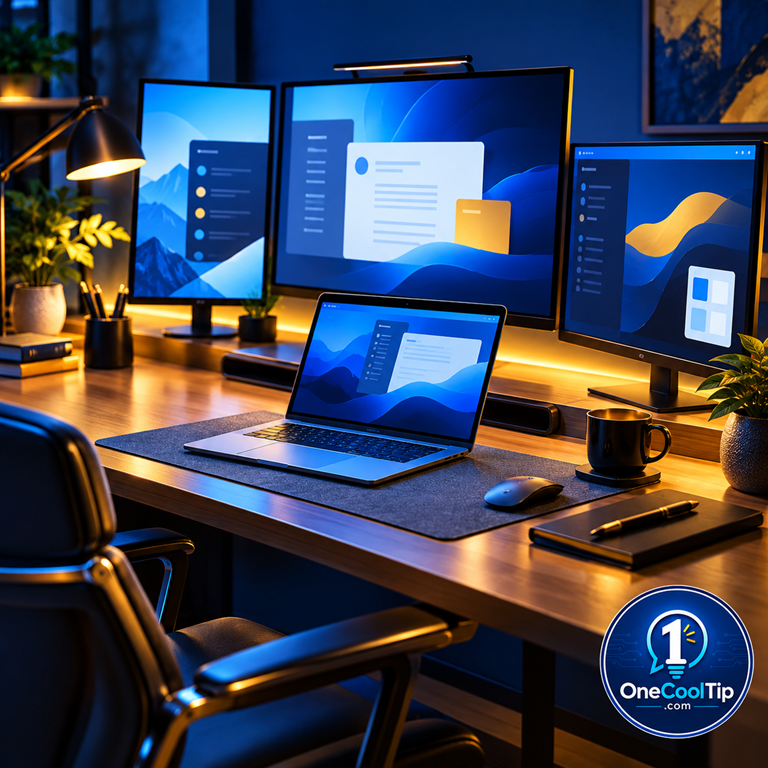
Cool Tip Theme: Remember Window Locations Based on Monitor Connection


Keep apps and windows where you left them when reconnecting monitors in Windows 11. A simple setting can save time and reduce frustration.


New here? Subscribe to the One Cool Tip Newsletter for daily updates. It's FREE!

3️⃣

If you enjoy the One Cool Tip newsletter, please forward this newsletter to THREE friends or colleagues or share it on social media using the links below.


Leave a $$$ Tip!


Share this One Cool Tip Newsletter!

X Share This Email
LinkedIn Share This Email
Pinterest Share This Email

🚨 Is That Microsoft Security Alert Real? 🚨


Have you ever received an email from Microsoft warning about a suspicious sign-in?


Before you ignore it, take a closer look.


Microsoft may notify you when it detects an unusual sign-in attempt, such as a login from a new device, unfamiliar location, or activity that doesn't match your normal behavior.


If you receive one of these alerts, review your recent account activity and verify whether the sign-in was actually yours.


If it wasn't, update your password immediately and review your security settings to protect your account.


The good news is that these alerts can help stop unauthorized access before real damage occurs.


Taking a minute to investigate an unexpected security notification could prevent a much bigger problem later.


And in Other News...


  • Windows 11's Biggest Update Yet? Here's How to Get 26H2


Good news for Windows users: Windows 11 version 26H2 is rolling out, and it is designed to be a predictable, low-disruption update with minimal compatibility concerns.


That means most users should be able to upgrade without worrying about major software or hardware issues.


New or improved features include:


  • Movable taskbar
  • Smaller taskbar
  • Better Windows Search
  • Faster File Explorer
  • New Start menu customization
  • Improved recovery tools


To check whether it is available for your PC, open Settings > Windows Update and select Check for updates.


If your device is eligible, look for Windows 11, version 26H2 and choose Download and install.


Once the update is ready, simply restart your PC to complete the upgrade.


As always, back up important files before installing any major update.


A few minutes of preparation can help ensure a smooth transition and let you enjoy the latest Windows features with confidence.


  • Microsoft Is Removing a Windows 11 Feature Many Users Didn't Want


Sometimes the best software update is the one that removes a feature.


Microsoft has decided to retire Windows 11's "Drop Tray" file-sharing experience after more than a year of testing and feedback from users.


The feature appeared when you dragged a file toward the top of the screen and offered sharing options, but many people found it distracting and said it often got in the way of normal drag-and-drop tasks.


The decision was based on user feedback and that it is exploring better ways to improve file sharing in Windows.


The takeaway is encouraging: when enough users provide feedback, Microsoft sometimes listens.


If a Windows feature frustrates you, sending feedback through the Feedback Hub (Windows logo key + F) can help shape future updates.

Cool Tip Poll

🤔 How many monitors do you regularly use with your computer?

Cool Deals of the Day

Help support One Cool Tip. Use this Amazon link when you shop online.


Check out these Cool Deals:

🖱️ Logitech MX Master 3S Wireless Mouse: Excellent for navigating multiple displays and boosting productivity.

Save 10%. Now $89.99. 4.6 Stars. Check it out on Amazon!


⌨️ Logitech MX Keys S Keyboard: Comfortable, professional keyboard designed for multi-device workflows.

Look! 👉👉👉 Now $129.99. 4.4 Stars. Check it out on Amazon!


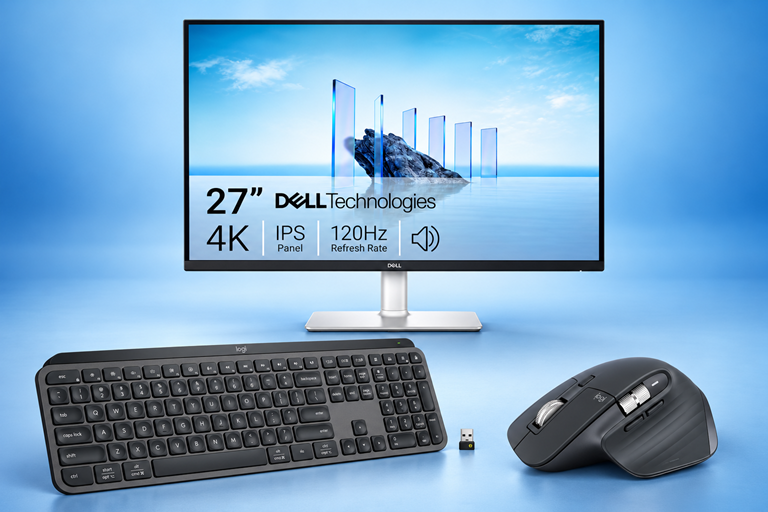
🖥️ Dell 27-Inch UHD Monitor: Popular business monitor with excellent display quality and connectivity options.

Save 10%. Now $268.99. 4.4 Stars. Check it out on Amazon!


*Prices accurate when originally published.

One Cool Tip may earn a commission from qualifying purchases.

Fuel Your Adventure

Try Big Mike's Jerky!


bigmikesjerky.com


Now on TikTok!


Today's Cool Tip

Stop Losing Your Windows Every Time You Reconnect a Monitor


If you use a laptop with an external monitor, you've probably experienced windows scattered across the wrong screens after reconnecting your setup. Windows 11 includes a built-in feature that can automatically restore many windows to their previous locations, helping you get back to work faster.


You disconnect your laptop from a docking station, head to a meeting, and later reconnect everything at your desk. 


Instead of jumping right back into work, you spend several minutes dragging Outlook, Excel, Teams, and browser windows back to the monitors where they belong.


Here's a Cool Tip: Turn on Remember Window Locations and let Windows put your apps back where they belong.


That annoyance is common among Windows users who work with multiple displays. Fortunately, Windows 11 includes a setting designed to reduce this frustration. 


When enabled, Windows can remember where your application windows were placed before a monitor was disconnected and attempt to restore them when the display is reconnected.


Microsoft includes this capability within Windows 11's Multiple Displays settings, giving users a simple way to maintain a more consistent workspace when moving between desk setups, docking stations, and portable work environments. 


Windows can remember window locations based on monitor connections and restore them after reconnecting external displays.


Feature Explanation


The Remember Window Locations Based on Monitor Connection setting helps Windows 11 keep track of where open application windows were positioned across multiple displays.


When you disconnect an external monitor, Windows may temporarily minimize or relocate windows that were displayed on that screen. 


With this setting enabled, Windows attempts to restore those windows to their previous locations when the monitor is reconnected. Microsoft documents this feature as part of its multiple-monitor support options in Windows.


The feature is particularly useful for people who:


  • Work from a docking station during the day.
  • Alternate between home and office setups.
  • Travel with a laptop but use external monitors at a desk.
  • Manage several applications simultaneously.


Many Windows users never discover the setting because it is tucked away under Display settings. 


Yet for anyone who uses two or more monitors regularly, it can eliminate a surprisingly common productivity headache.


Instead of rebuilding your workspace every morning, your apps can return to familiar locations, making your desktop feel more organized and predictable.


What You'll Gain


  • Save time by restoring your workspace after reconnecting monitors.
  • Reduce frustration when moving between a desk, conference room, and home office.
  • Stay productive by keeping Outlook, Teams, browsers, and documents in familiar locations.
  • Create a more organized multi-monitor experience with less manual window management.


Step-by-Step Instructions


Here's how to do it.


Windows 11


  1. Open Settings by pressing Windows + I.
  2. Select System from the left navigation pane.
  3. Click Display.
  4. Scroll down and expand Multiple displays.
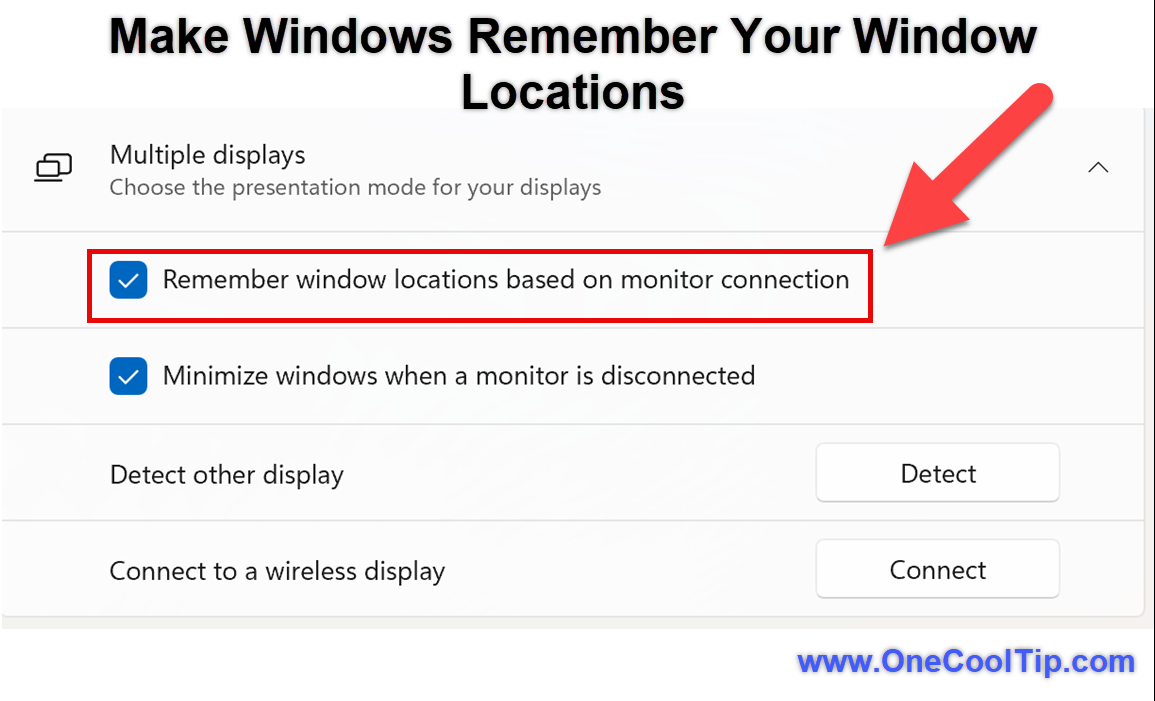
  5. Turn on Remember window locations based on monitor connection.


fig. 1 - Make Windows Remember Your Window Locations

Cool Tip:


Also enable Minimize windows when a monitor is disconnected if available on your device.


This helps prevent windows from unexpectedly moving when you unplug a display.


Pros and Cons


Pros:


  • Reduces the time spent reorganizing windows after reconnecting displays.
  • Particularly useful for laptop users who frequently dock and undock.
  • Works with many common productivity applications.
  • Helps maintain a consistent workspace across sessions.
  • Easy to enable through a simple Windows setting.


Cons:


  • Some applications may not always restore to the exact previous location.
  • Most beneficial for users with multiple monitors, offering little value on single-screen setups.
  • Behavior can vary depending on monitor configurations and hardware.
  • Certain enterprise IT policies may affect display-management settings.


Feature Access


The Remember Window Locations feature is part of Windows 11's multiple-display functionality.


Score

Criterion | Score (0–10) | Justification
Value | 8
Multi-monitor users can save time and avoid daily frustration when reconnecting displays.
Usability |  9
The setting is easy to enable and generally works automatically once configured.
Wow Factor |  5
It is not flashy, but many users are surprised to discover Windows can remember their workspace layout.
Total: 22/30 |  👍 Good
A small but highly practical Windows 11 feature that quietly improves everyday productivity for multi-monitor users.
Similar to workspace-restoration features found in some docking and monitor-management utilities, but built directly into Windows 11.


Key Takeaways


If you regularly connect and disconnect external monitors, Windows 11 can help preserve your workspace by remembering where many application windows were previously located. 


The feature takes only a few seconds to enable and can eliminate one of the most common frustrations associated with multi-monitor setups. 


For laptop users, hybrid workers, and travelers, it is an easy productivity win.


Cool Tip Snapshot


  • Feature Name: Remember Window Locations Based on Monitor Connection
  • Platform(s): Windows 11
  • Quick Benefit: Restores many application windows to their previous monitor locations after reconnecting displays.
  • Best For: Hybrid workers, travelers, power users, and anyone using multiple monitors.
  • Access Type: Free
  • Difficulty: Easy


Try It Yourself


If you use a laptop with an external monitor, turn on Remember Window Locations today and see whether it saves you time during your next dock-and-undock cycle. 


If the tip helps, leave a comment, subscribe to the One Cool Tip newsletter for FREE!, and share this Cool Tip with friends, family members, and coworkers who use multiple screens.


READ MORE


Read the Full Cool Tip.

Check Out These Cool Tips & Tricks


  • Dock Faster: Save time when reconnecting your workspace. Connect your docking station before launching all your applications.


  • Identify Displays: Make sure Windows knows which monitor is which. Go to Settings → System → Display → Identify.


  • Use Snap Layouts: Organize apps more efficiently across monitors. Hover over the maximize button and choose a Snap Layout.


  • Keep Apps Open: Restoration works best when apps remain open between disconnects. Avoid closing everything before unplugging.


  • Check Cables: Monitor detection problems often start with hardware connections. Verify all display cables are firmly connected.


  • Update Drivers: Newer display drivers can improve monitor behavior. Run Windows Update and install available driver updates.


  • Display Numbers: Learn how Windows sees your monitors. Open Settings → System → Display and select Identify.


  • Use Keyboard Shortcuts: Move windows between displays quickly. Press Windows + Shift + Left Arrow or Right Arrow.


  • Arrange Monitors: Correct monitor placement helps Windows behave predictably. Drag monitor icons into their real-world positions in Display settings.


  • Minimize Disconnected Apps: Reduce desktop clutter when disconnecting monitors. Enable Minimize windows when a monitor is disconnected in the Multiple Displays settings.

ICYMI - In Case You Missed It ...

Turn Spoken Ideas into Finished Tasks with Gemini Live


Google added major voice-driven productivity upgrades to Gemini Live, letting you organize emails, compile daily briefings, and complete multi-step tasks across Google Workspace. Here is how you can use natural conversation to clear your daily to-do list without touching your screen.


Read the Full Version.


Read the Newsletter Version.

Looking for your next adventure?


Call Denise at Travel For You.

314.660.3039


Sign Up for the Monthly Newsletter


http://www.travelforyouvacations.com/


https://www.facebook.com/TRAVEL.FOR.U/


See You Tomorrow

Tomorrow's Cool Tip is waiting to amaze you.


Until then, go forth and conquer the tech world with your newfound knowledge!


Be sure to visit www.OneCoolTip.com for Cool Tech Tips for a Cooler Life!


And if you Like One Cool Tip, please support with TipJar!


Enjoy!


Rodger

Chief Cool Tipper

onecooltip.com@gmail.com


What Do You Think?

What do you think of today's OneCoolTip newsletter?
Positive        Neutral        Negative
X Share This Email
LinkedIn Share This Email

Connect with One Cool Tip!

Facebook  X  Instagram  Web  Pinterest  YouTube  LinkedIn
 

As an Amazon Associate, One Cool Tip may earn a small commission from qualifying purchases.


Our media content is intended solely for informational purposes. Please do not construe anything here as legal, tax, investment, financial, marital or other advice.


Copyright © 2026 | www.OneCoolTip.com | All Rights Reserved