|
One Cool Tip Newsletter
September 9, 2026
| Your daily dose of tech-savvy brilliance! | | |
😀Greetings!, Happy Windows Wednesday, Cool Tipper!
Get ready to streamline your digital life with simple, actionable tips delivered straight to your inbox.
Today's Cool Tip Theme: Windows 11 August Preview Update
Windows 11 KB5120998 adds taskbar positioning, Start menu controls, Search improvements, and faster File Explorer performance.
IN THIS ISSUE
- 🚨 Carhartt Data Breach Alert: Protect your personal information and stay vigilant against phishing scams following reports of a significant customer data leak.
- 🛡️ September 2026 Windows 11 Security Update: Patch critical vulnerabilities and resolve desktop glitches, custom mouse cursor errors, and Arm-based app crashes.
- 📱 Apple’s Foldable iPhone Showcase: Watch Apple’s major keynote led by new CEO John Ternus on September 9 at 10 AM PT, featuring expected debuts of a foldable iPhone, updated wearables, and Siri AI upgrades.
- 🤖 Personalized Charger and Cable AI Prompt: Use this ready-to-copy AI prompt to generate a custom visual guide and packing list for your tech gear.
- 🪟 Restored Taskbar and Start Menu Flexibility: Explore the optional August preview update (KB5120998) to reposition your taskbar, adjust menu sizing, and improve File Explorer responsiveness.
- 🏷️ Edit Windows 11 File Properties and Metadata: Organize your digital workspace, speed up file searches, and strip personal data before sharing.
- ⚡ Optimize Performance with Task Manager Efficiency Mode: Lower process priorities manually to free up system resources without buying new hardware.
- 📺 Secret Wireless Screen-Sharing Shortcut: Tap Windows Key + K to project displays and stream media to nearby screens instantly.
New here? Subscribe to the One Cool Tip Newsletter for daily updates. It's FREE!
-
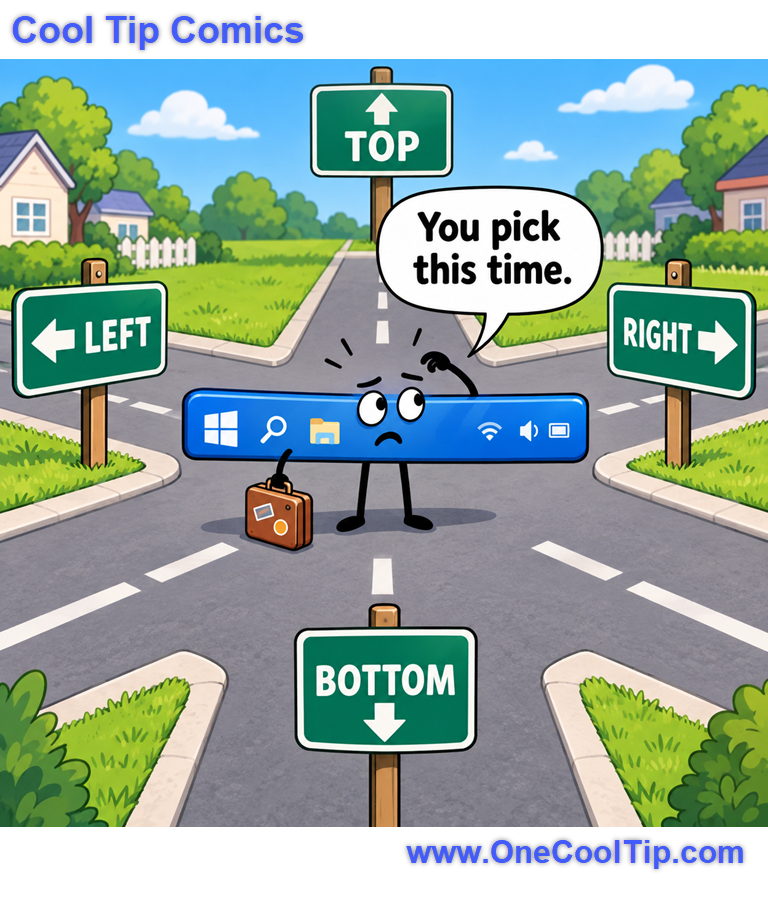
😂 Laugh with Us! Enjoy our Tech Joke of the Day, Haiku and Cool Tip Comics.
-
🌐 Stay Informed! Check out ICYMI, and our One Cool Tip Video.
| | |
3️⃣
If you enjoy the One Cool Tip newsletter, please forward this newsletter to THREE friends or colleagues or share it on social media using the links below.
Leave a $$$ Tip!
Share this One Cool Tip Newsletter!
| | |
Today's Tech Trivia
Which version of Windows first introduced the taskbar and Start button?
A) Windows 3.1
B) Windows 95
C) Windows 98
D) Windows XP
Answer at the end of this newsletter.
| | |
⚠️Carhartt Breach Is a Reminder to Stay Alert After Any Data Leak⚠️
Reports indicate that information tied to millions of Carhartt customer accounts may have been exposed in a data breach, including names, email addresses, phone numbers, and physical addresses.
While investigators continue to analyze the incident, security experts warn that exposed contact information is often used in phishing scams and identity theft attempts.
Even if you have never shopped at Carhartt, the lesson applies to every consumer.
When a company reports a data breach, be extra cautious about unexpected emails, text messages, or phone calls that appear to come from that organization.
Avoid clicking links in unsolicited messages, use strong unique passwords, and enable multi-factor authentication whenever possible.
Monitoring your financial accounts and credit reports regularly can also help you spot suspicious activity before it becomes a bigger problem.
And in Other News...
- Don’t Skip This Important Windows 11 Update
Microsoft has released the September 2026 security update for Windows 11 versions 24H2 and 25H2.
In addition to security improvements, the update fixes problems that could cause black desktop backgrounds, incorrect custom mouse cursors, and unexpected crashes in Teams and Outlook on some Arm-based PCs.
The update should download and install automatically through Windows Update.
To check manually, open Settings, select Windows Update, and click Check for updates.
Installing security updates promptly is one of the easiest ways to keep your computer and personal information protected.
- Is Apple About to Reinvent the iPhone?
Apple is expected to unveil its first foldable iPhone at a major product event, marking one of the biggest iPhone design changes in years.
You can watch Sept 9, 2026 10 am PT online at Apple Events or YouTube.
The event is also notable because it will be the first major Apple product launch led by new CEO John Ternus.
Apple will reportedly showcase a foldable device alongside updated iPhone, Apple Watch, and AirPods models, while also highlighting new AI features and enhancements to Siri.
For consumers, the foldable iPhone could signal the start of a new category of Apple devices that blend the portability of a phone with the larger screen experience of a tablet.
If you're planning to upgrade your iPhone soon, it may be worth watching the announcements before making a purchase.
New product launches often introduce new features while also creating discounts on previous-generation devices.
| | |
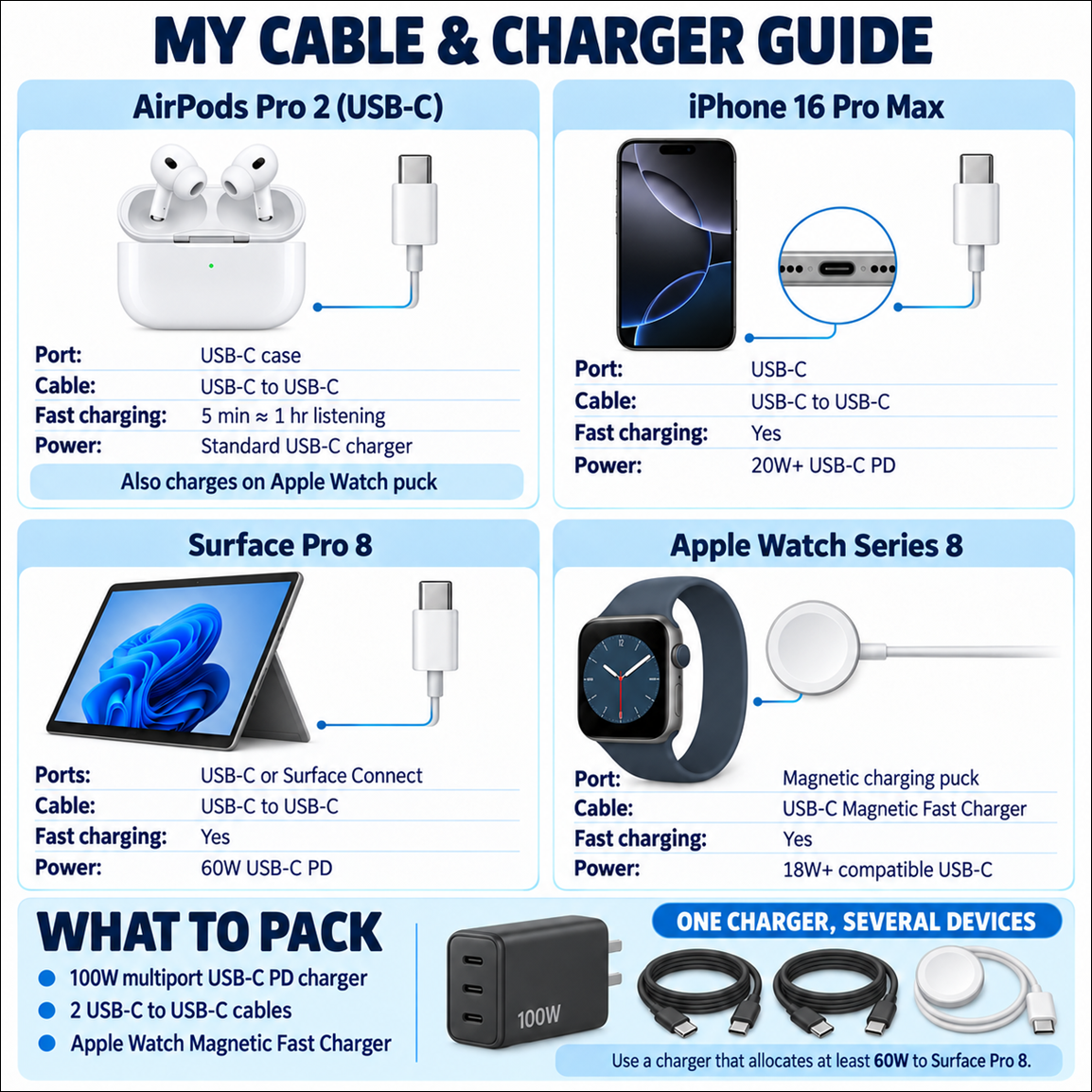
Try this Cool AI prompt. Copy and paste to ChatGPT, Gemini, Claude or Copilot.
Create a personalized visual guide showing which cables and chargers work with my technology.
My devices are:
[LIST EACH DEVICE AND MODEL, SUCH AS IPHONE 16, IPAD AIR, WINDOWS LAPTOP, KINDLE, EARBUDS, OR CAMERA]
For each device, identify:
- The charging-port type
- The cable needed
- Whether it supports fast charging
- A suitable charger wattage
- Whether one charger can safely power several of my devices
Create a clean infographic with an illustration of each device beside its matching cable and charger. Use connecting lines, recognizable connector shapes, large labels, and color coding.
Include a section titled “What to Pack” showing the smallest practical combination of chargers and cables for all my listed devices.
Do not invent compatibility details.
Clearly mark anything that cannot be confirmed from the device model I provided.
| | |
Windows 11 Adds Long-Requested Taskbar and Start Controls
Microsoft’s latest Windows 11 preview update gives users more control over the taskbar, Start menu, Search, and File Explorer. The improvements are practical, but known issues mean you may want to wait before installing the update on an essential PC.
One of the most common complaints about Windows 11 has been its limited customization. Microsoft’s August 2026 preview update addresses several of those frustrations by restoring flexible taskbar positioning and adding more control over the Start menu.
Here’s a Cool Tip: Wait for the wider rollout unless you need the new controls now.
The optional KB5120998 update applies to Windows 11 versions 24H2 and 25H2.
It advances those systems to OS builds 26100.9278 and 26200.9278, respectively.
Microsoft released the update on August 27, 2026, and identifies it as a non-security preview containing quality improvements.
The main attractions are a taskbar that can move to any edge of the screen, a smaller taskbar option, adjustable Start menu sizes, clearer Search results, and a more responsive File Explorer Home.
Some features are being released gradually, so two eligible PCs may not receive every change at the same time.
Feature Explanation
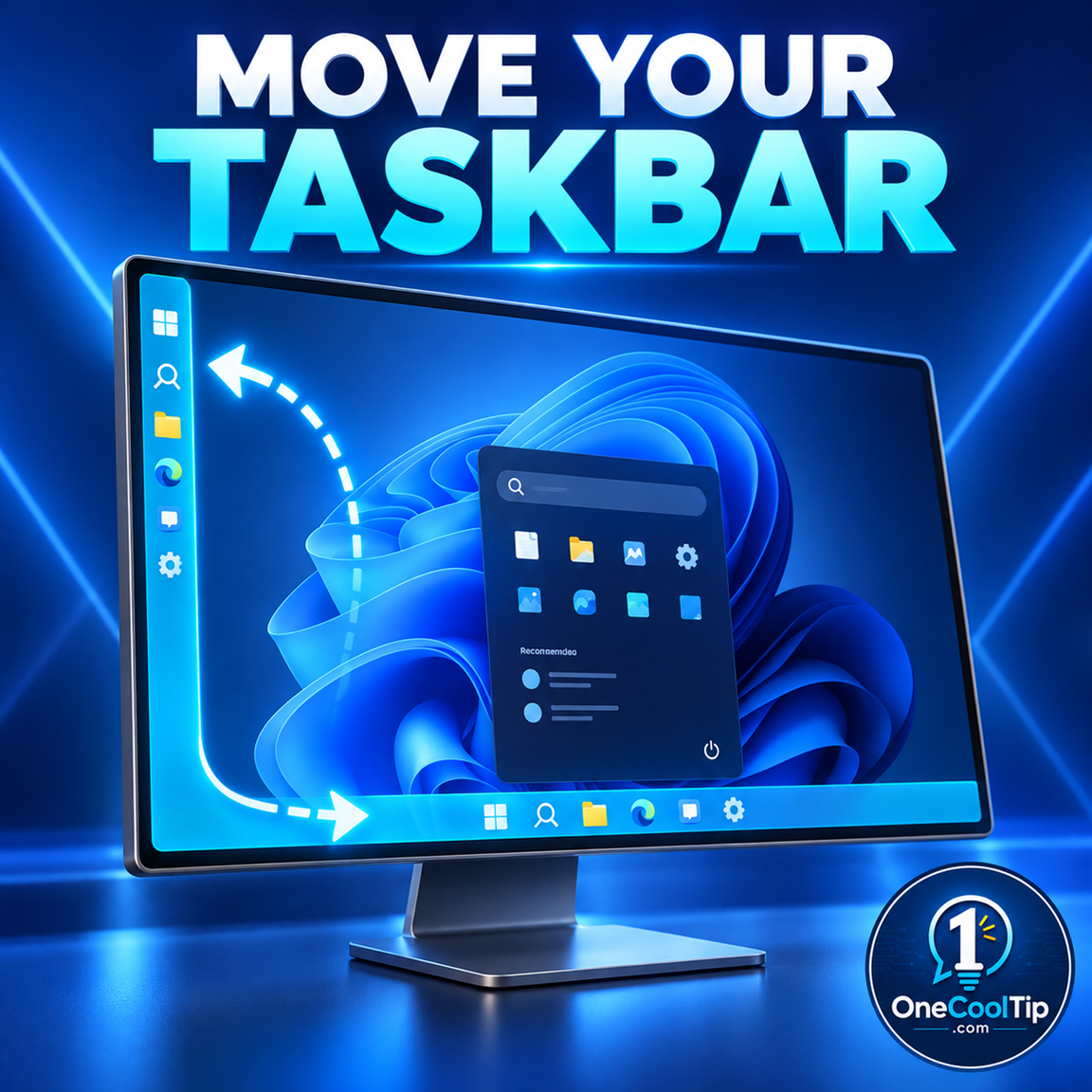
The biggest change is the return of flexible taskbar positioning.
Users can place the Windows 11 taskbar at the top, bottom, left, or right side of the display.
Most customization options continue to work in each position, including the option to keep taskbar buttons from combining.
Search and the smaller taskbar setting currently work only when the taskbar is at the top or bottom.
A new small taskbar size reduces the height of the bar and its icons.
That can provide extra working space on compact laptops or any display where vertical room is limited.
The Start button, Search, and system tray remain available in the smaller layout.
The Start menu also receives more useful controls.
Users can select Small, Large, or Automatic sizing, hide their account name and profile image, and manage the visibility of the Pinned, Recent, and All sections independently.
Microsoft is also renaming the Recommended section to Recent.
Windows Search receives a cleaner home screen and clearer source labels.
Results can identify whether an item is an app, setting, file, web result, or Microsoft Store suggestion.
A privacy option can hide web and Store suggestions, while another setting allows Windows to find and index additional commonly used locations automatically.
File Explorer Home should open faster and respond more quickly after the update.
Its Recommended carousel also supports touch scrolling on compatible devices.
What You’ll Gain
- Reclaim screen space with a smaller taskbar.
- Position the taskbar to suit your monitor and workflow.
- Reduce Start menu clutter by hiding sections you do not use.
- Understand Search results faster through clearer source labels.
Step-by-Step Instructions
Here's how to do it.
Windows
Install the Optional Preview Update
-
Open Start and select Settings.
-
Go to Windows Update.
-
Select Advanced options.
-
Choose Optional updates.
-
Look for KB5120998 under Optional updates available.
-
Select the available download and installation option.
-
Restart the PC if Windows requests it.
Microsoft also provides KB5120998 through the Microsoft Update Catalog for users and administrators who need a standalone installation package.
Choose the package that matches the PC’s Windows version and x64 or Arm64 architecture.
Move the Taskbar
-
Open Settings.
-
Select Personalization.
-
Choose Taskbar.
-
Expand Taskbar behaviors.
-
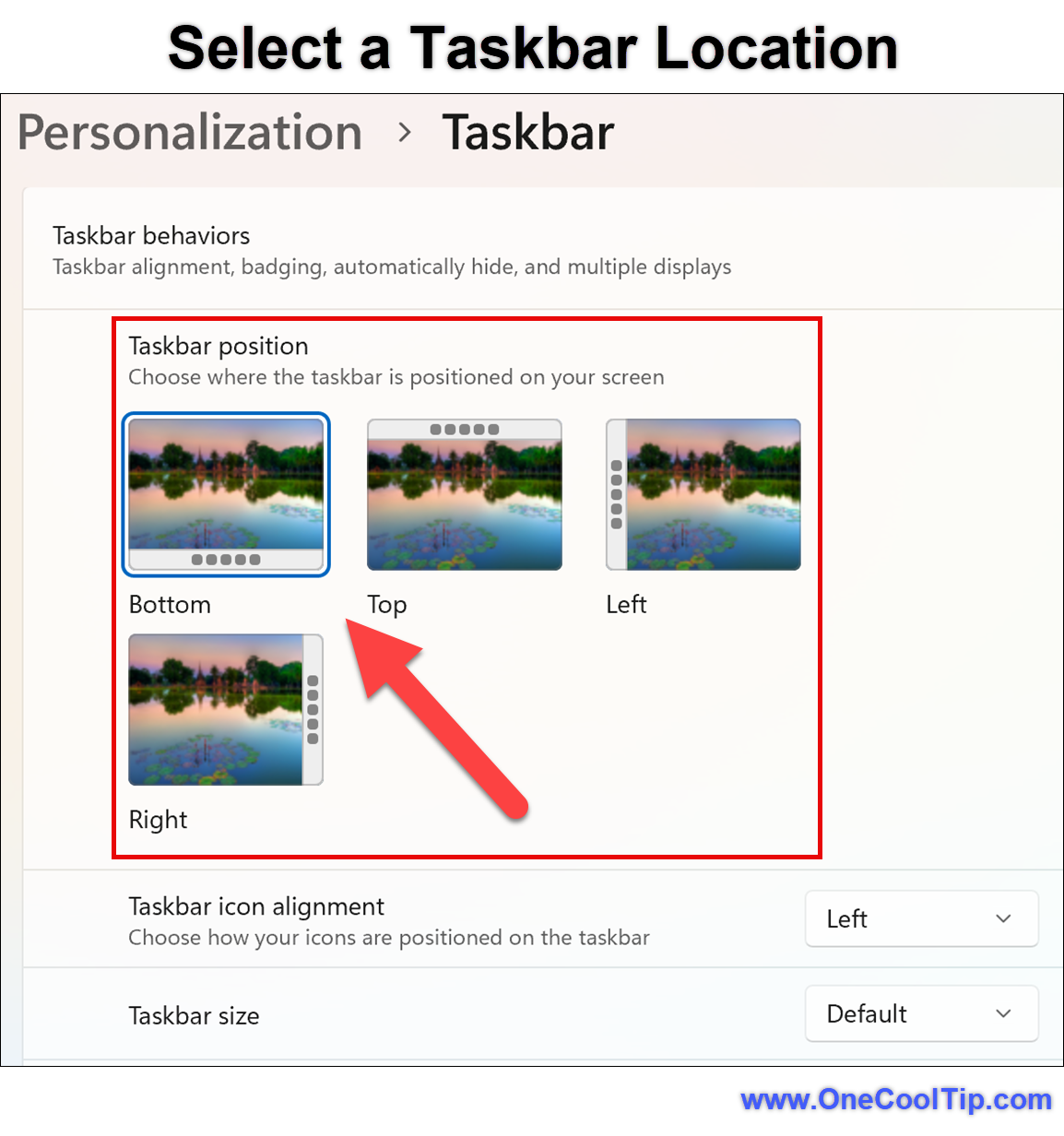
Open Taskbar position.
-
Select Top, Bottom, Left, or Right.
| | fig. 1 - Select a Taskbar Location | |
Change the Taskbar Size
-
Open Settings > Personalization > Taskbar.
-
Expand Taskbar behaviors.
-
Select Taskbar size.
-
Choose the available size that fits your display.
Customize the Start Menu
-
Open Settings.
-
Select Personalization.
-
Choose Start.
-
Open Start menu size.
-
Select Small, Large, or Automatic.
-
Review the controls for the Pinned, Recent, and All sections.
-
Adjust the option for displaying your account name and profile picture.
Adjust Windows Search
-
Open Settings.
-
Go to Privacy & security.
-
Select Search.
-
Review the setting for web and Microsoft Store suggestions.
-
Review Automatically find additional relevant locations and choose whether Windows may index more frequently used folders.
Cool Example:
An employee searching for a quarterly spreadsheet can identify local file results more easily instead of confusing them with web pages or Microsoft Store suggestions.
Pros and Cons
Pros:
- Restores taskbar placement options that many Windows users missed.
- Provides more working room on smaller laptop displays.
- Makes the Start menu easier to simplify and personalize.
- Adds clearer labels to Windows Search results.
- Improves the responsiveness of File Explorer Home.
Cons:
- KB5120998 is an optional preview, not a security update.
- Some features use a gradual rollout and may not appear immediately.
- Search and small taskbar options have placement limitations.
- Microsoft lists known issues involving mouse customization, desktop settings, and some Arm-based devices.
Feature Access
-
KB5120998 applies to Windows 11 versions 24H2 and 25H2 and produces OS builds 26100.9278 and 26200.9278.
-
Microsoft released it on August 27, 2026, as an optional, non-security preview update.
-
Some improvements use a gradual rollout, which means availability varies by device.
-
Platform: Windows 11.
-
Supported Versions: 24H2 and 25H2.
-
Subscription: No separate subscription specified.
-
Release Status: Optional preview.
-
Rollout: Combination of gradual and normal rollout.
-
Business Access: May be managed or restricted by organizational update policies.
Score
Criterion | Score (0–10) | Justification
Value | 8
Taskbar placement and Start menu controls solve genuine usability frustrations. The smaller taskbar can also make a meaningful difference on compact displays.
Usability | 8
The controls use familiar Windows Settings paths, although gradual availability may confuse users who do not see them immediately.
Wow Factor | 6
These changes are welcome and overdue, but they refine Windows rather than transform it.
Total: 22/30 | 👍 Good
KB5120998 adds useful customization, but the known issues make waiting the sensible choice for many users.
Compared with earlier Windows 11 releases, this update restores some of the interface flexibility that users previously had in Windows 10.
Key Takeaways
KB5120998 gives Windows 11 users more control over the taskbar, Start menu, Search, and File Explorer.
The changes are useful, especially for people with small or ultrawide displays, but the current known issues make this preview better suited to nonessential PCs.
Cool Tip Snapshot
-
Feature Name: Windows 11 KB5120998 Preview Update.
-
Platform(s): Windows 11.
-
Quick Benefit: More taskbar, Start menu, and Search control.
-
Best For: Power users, business users, students, and multitaskers.
-
Access Type: Preview, Rolling Out.
-
Difficulty: Easy.
Try It Yourself
If you have a nonessential Windows 11 PC, try the new taskbar and Start menu controls and tell us which layout works best for you.
Subscribe to the One Cool Tip newsletter, leave a comment, and share this article with family, friends, and coworkers.
READ MORE
Read the Cool Tip on One Cool Tip.com.
| | Help support One Cool Tip. Use this Amazon link when you shop online. | |
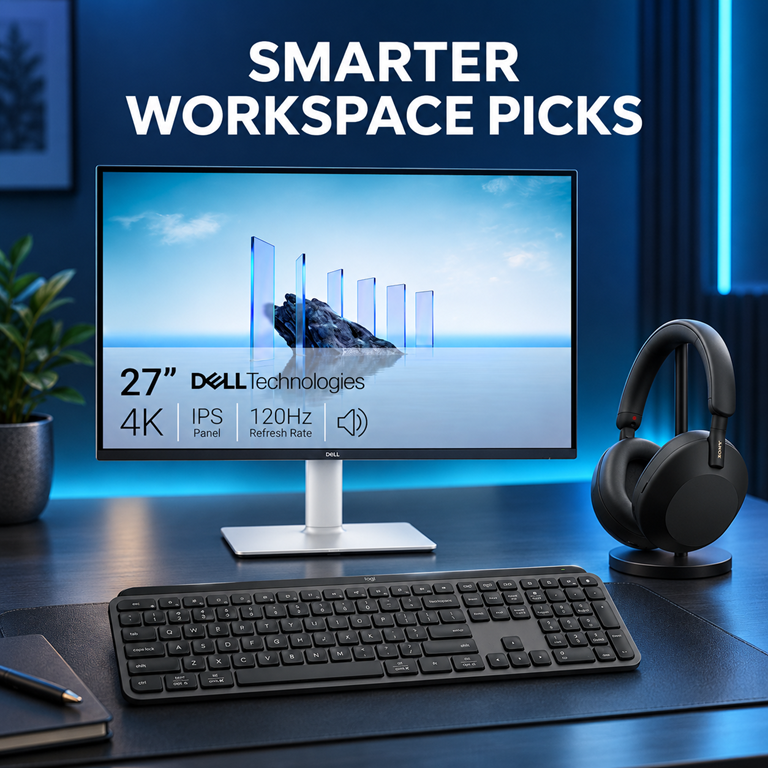
🖥️ Dell 4K 27-Inch Monitor: Extra screen space makes new taskbar positioning options even more useful.
Save 17%. $249.99. 4.4 Stars. Check it out on Amazon!
⌨️ Logitech MX Keys S Keyboard: Excellent companion keyboard for Windows power users.
Save 8%. $119.99. 4.4 Stars. Check it out on Amazon!
🎧 Sony WH-1000XM5 Headphones: Ideal for focused work sessions and remote work productivity.
Save 25%. $298. 4.2 Stars. Check it out on Amazon!
Prices accurate at time of publication
One Cool Tip may earn a commission from qualifying purchases.
| | |
🆒Tell Me More
- The August preview is KB5120998 for Windows 11 versions 24H2 and 25H2. Its headline features rolled out gradually, so availability initially varied by device.
- Taskbar placement now includes the top, bottom, left, and right edges. The Search box and smaller taskbar remain limited to top and bottom placement.
- Start can use a small, automatic, or large layout. Users can also control its Pinned, Recent, and All sections independently.
- Windows Search can label results by source and exclude web and Microsoft Store suggestions from local searches.
- Microsoft removed the WMIC command-line utility from Windows 11 24H2 and 25H2. Windows Management Instrumentation remains supported, but older scripts may need PowerShell replacements.
⏩Quick Tips
-
↔️ Move the Taskbar: Open Settings > Personalization > Taskbar > Taskbar behaviors > Taskbar position, then choose the edge you prefer.
-
🔬 Shrink the Bar: Go to Settings > Personalization > Taskbar > Taskbar behaviors > Taskbar size and choose Small. This size currently works only with top or bottom placement.
-
🧹 Simplify Start: Visit Settings > Personalization > Start and turn off sections you do not use.
-
🔎 Clean Up Search: Open Settings > Privacy & security > Search and disable web and Microsoft Store suggestions if you prefer local results.
-
🛡️ Get the Fixes: Open Settings > Windows Update, check for updates, and install the current September security update rather than seeking out the older August preview.
| | ✅ More Must-Read Tech Tips | | |
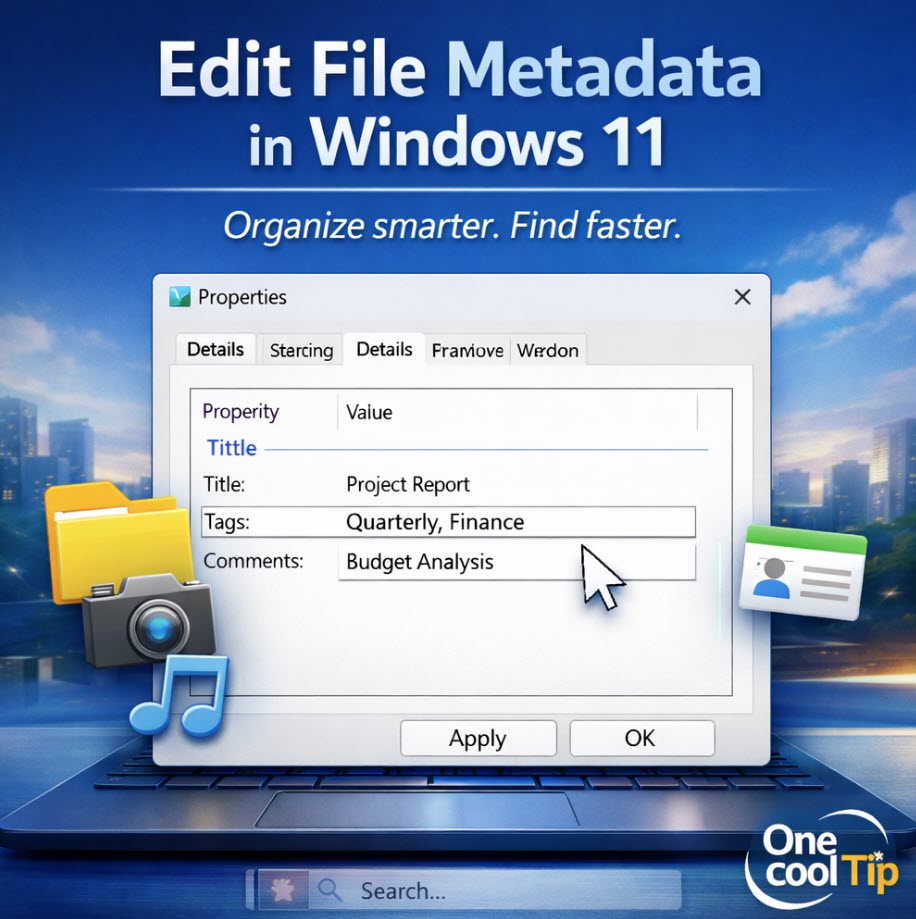
👀 How Do I Edit File Properties in Windows 11?
Have you ever struggled to keep your digital files organized?
Editing file metadata in Windows 11 allows users to add valuable context to their documents, images, and videos, making organization effortless and more intuitive.
Metadata refers to the information embedded in a file that describes its properties, such as title, author, tags, and more.
Here's how to do it.
Editing Metadata Using File Explorer:
-
Open File Explorer and navigate to the file you want to edit.
-
Right-click on the file and select "Properties."
-
In the "Details" tab, you'll find editable metadata fields such as Title, Tags, and Comments.
-
Click on a field, type in your desired value, and click "Apply" or "OK" to save changes.
Types of Metadata
1. For Images:
- Metadata includes details like the camera used, date taken, and resolution.
-
You can edit fields like title, tags, and comments in the Details tab of the file properties.
2. For Music Files:
- Metadata might include album name, artist, genre, and track number.
3. For Videos:
- Metadata can include codec information, frame rate, and descriptions.
Adding Tags to Multiple Files:
-
Select multiple files in File Explorer by holding down the Ctrl key.
-
Right-click and choose "Properties."
-
Go to the "Details" tab and add tags that apply to all selected files.
Super Cool Tip: Select 'Remove Properties and Personal Information' when you are sharing a file to remove personal data!
There are several advantages to editing Metadata:
-
Enhanced searchability: Metadata allows users to locate files instantly via keywords in File Explorer’s search bar.
-
Improved organization: Categorize files by project, subject, or context using custom tags.
-
Compatibility: Edited metadata carries over when files are shared, ensuring consistent information.
Mastering metadata editing in Windows 11 empowers users to unlock the full potential of file organization, improving productivity and workflow efficiency.
Discover more HERE.
| | |
🤔 Have You Ever Wondered How to Use Windows 11 Task Manager's Efficiency Mode?
Ever wondered how to squeeze the most out of your computer’s performance without resorting to hardware upgrades?
Windows 11’s Efficiency Mode is a game-changer for anyone looking to optimize system performance.
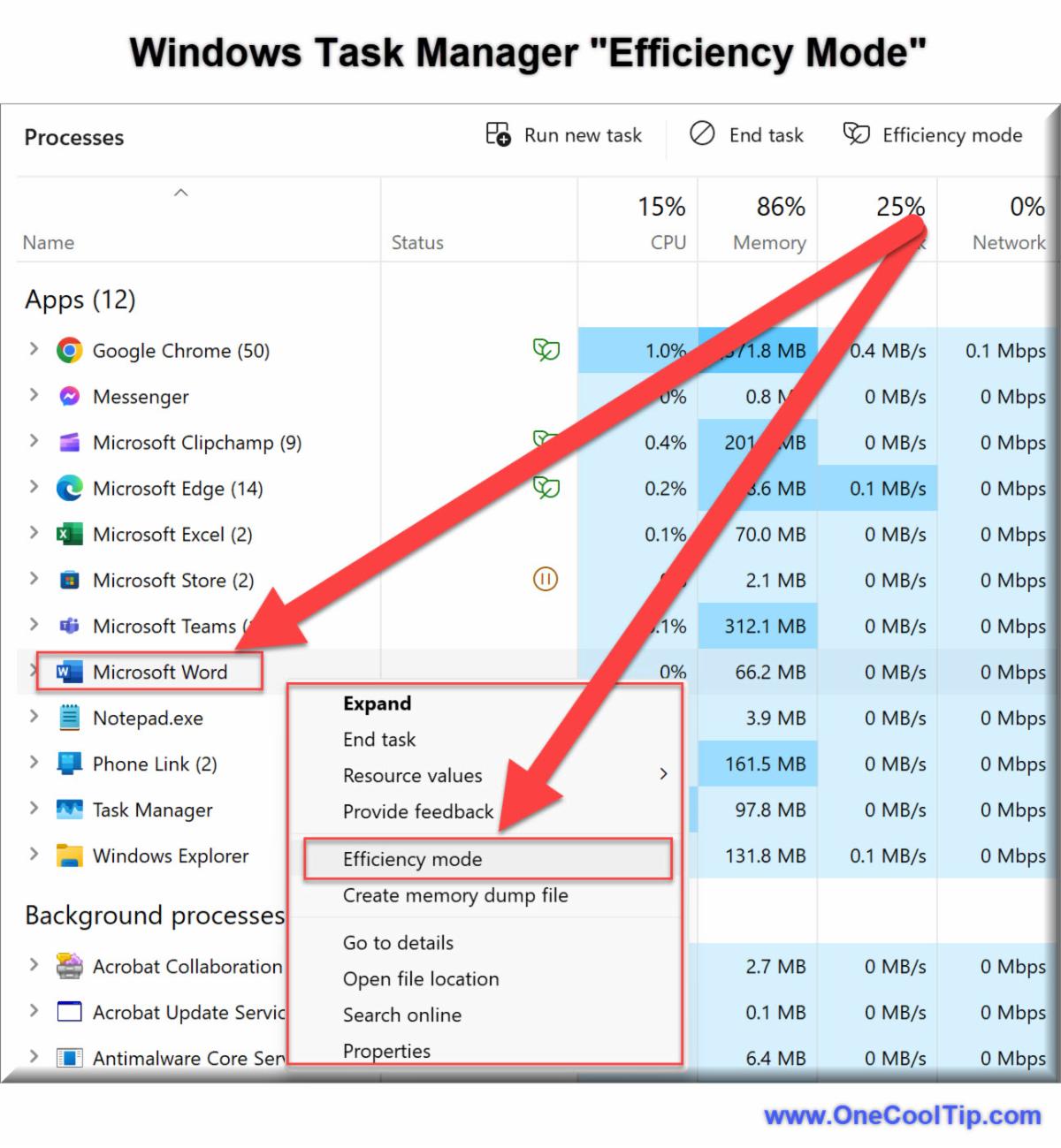
Efficiency Mode allows you to manually lower the priority of a running process.
Here's how to do it.
-
Press Ctrl + Shift + Esc (keyboard shortcut) to open the Task Manager.
-
Navigate to the “Processes” tab.
-
Select the process you want to enable Efficiency Mode for.
-
Right-click on the selected process and click “Efficiency mode”.
Windows 11’s Efficiency Mode is a powerful tool to help users optimize their systems without additional hardware.
Find out more HERE.
| | |
🙋♂️ Here's How To Use The Secret Windows Shortcut for Effortless Screen Sharing.
Have you ever found yourself juggling multiple devices, trying to present or share media seamlessly?
The Windows Key + K shortcut is your gateway to a streamlined media-sharing experience.
Here's how to do it.
-
Ensure your PC and the target device are connected to the same Wi-Fi network.
-
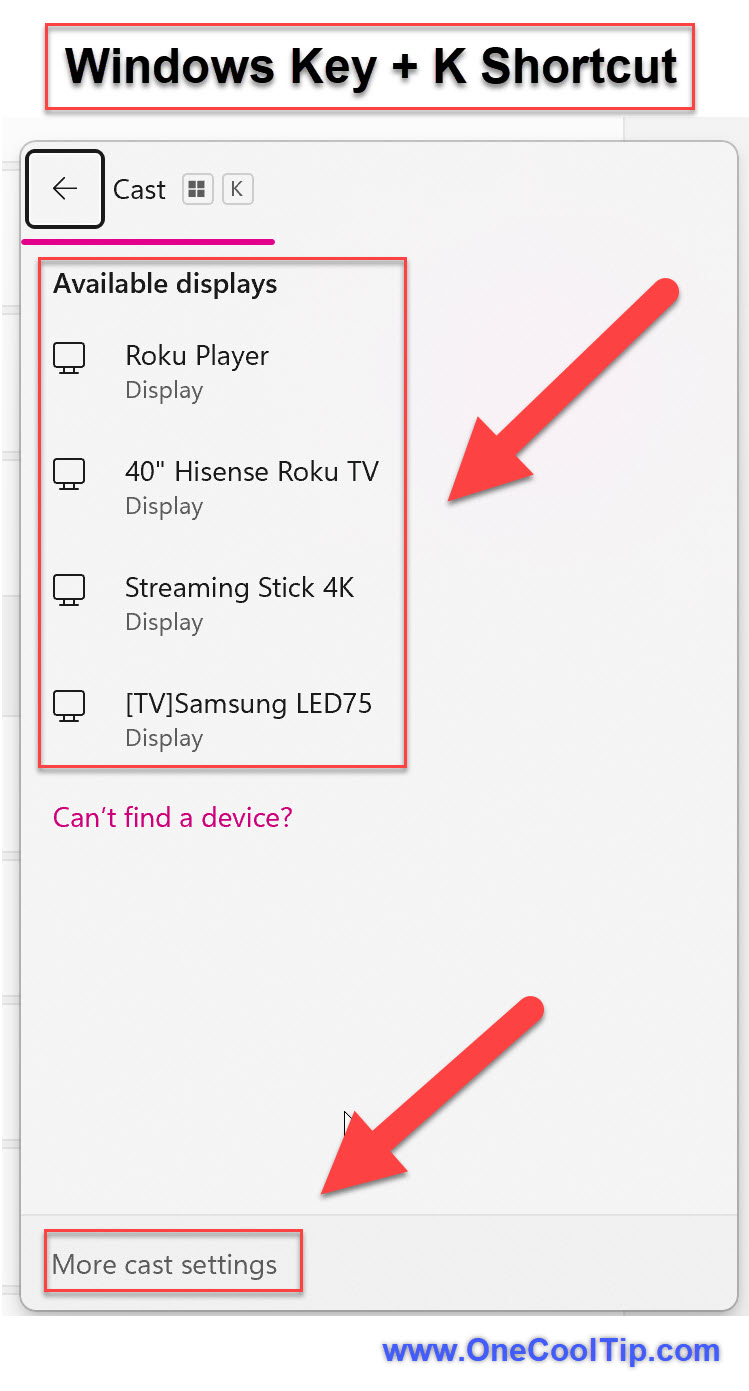
Press the Windows Key + K to open the Connect pane.
-
Your PC will search for wireless displays and audio devices.
-
Select the device you want to cast to from the list.
-
Follow any on-screen instructions to complete the connection.
-
Once connected, your media will be displayed on the chosen device.
-
Click "More Cast Settings" to open the Settings > System > Display screen for more Display settings.
Pro Cool Tip
- In the Settings app (System > Display), you can customize your projection settings – choose whether to extend your display, duplicate it, or show content on only the second screen.
The Windows Key + K shortcut is your key to a more streamlined and connected Windows experience.
Learn more HERE.
| | |
❓Did you share this newsletter with three friends yet?
😎 Cool Facts
-
4 taskbar locations: Windows 11 supports bottom, top, left, and right taskbar placement through KB5120998. The Search box and smaller taskbar currently work only in the top and bottom positions. Source.
-
3 Start sizes: Windows 11 lets users choose a Small, Automatic, or Large Start menu. Source.
-
2 applicable Windows releases: KB5120998 applies to Windows 11 versions 24H2 and 25H2. Source.
-
3 documented problems resolved: Microsoft’s September 8, 2026, KB5124008 update fixes mouse-customization problems, Teams and Outlook crashes on Arm64 PCs, and desktop-background failures. Source.
-
October 13, 2026: Windows 11 version 24H2 Home and Pro editions reach the end of updates on this date. Users should upgrade to a supported Windows version. Source.
⌨️Today's Cool Shortcuts
-
Windows key + I: opens Settings.
-
Windows key + E: opens File Explorer.
-
Windows key + S: opens Search.
-
Windows key + Tab: opens Task View and virtual desktops.
-
Windows key + F: opens Feedback Hub and prepares a screenshot.
😜 Tech Joke of the Day 😅
Why do computer programmers prefer dark mode?
Because light attracts bugs.
🔎 Do you have a Cool Tip or tech question? Email us at onecooltip.com@gmail.com.
| | |
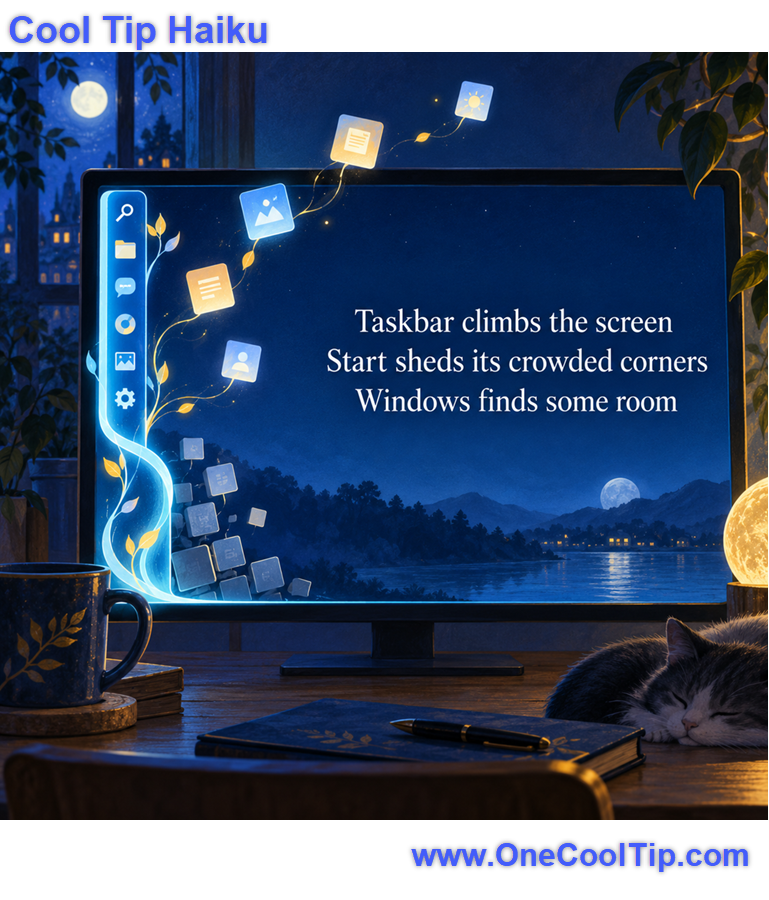
Taskbar climbs the screen
Start sheds its crowded corners
Windows finds some room
| |
| 🤔 Where does your Windows taskbar belong? | | | | Did You See These Cool Tips This Week? | | | | Build and Publish a Website With ChatGPT Sites | |
ChatGPT Sites can turn a written description into a hosted website, dashboard, web app, or game without requiring a separate deployment service. You can preview the result, request changes in plain language, control who can see it, and publish it from ChatGPT.
Read the Newsletter Version.
| | | | Stop Paying for Forgotten Streaming Subscriptions | |
Summer may be ending, but streaming services added for vacation or binge-watching can keep billing well into fall. A quick subscription audit can expose forgotten trials, duplicate services, and premium add-ons before the next renewal.
Read the Newsletter Version.
| |
ICYMI - In Case You Missed It ...
| | | | ChatGPT Removes Text Chat Limits for Free Users | |
ChatGPT Free users will soon be able to continue ordinary text conversations without hitting a standard usage limit. The update also makes GPT-5.6 Luna the default model for Free and Go accounts and adds a Think button for more difficult questions.
Read the Newsletter Version.
| | After years of sitting at the bottom, the Windows taskbar is finally asking for directions. | | |
Microsoft introduced the Start button and taskbar with Windows 95 in 1995. That desktop pattern became so familiar that changes to either element still spark strong reactions more than three decades later.
Windows 11 refreshed both features, but its original taskbar offered fewer placement choices than previous versions. KB5120998 restores the ability to position it on any screen edge.
----------
Tomorrow's Cool Tip is waiting to amaze you.
Until then, go forth and conquer the tech world with your newfound knowledge!
Be sure to visit www.OneCoolTip.com for Cool Tech Tips for a Cooler Life!
And if you like One Cool Tip, please support with TipJar!
Enjoy!
Rodger
Chief Cool Tipper
onecooltip.com@gmail.com
| |
| What do you think of today's OneCoolTip newsletter? | | | |
Please Share the One Cool Tip Newsletter!
You asked for it. You got it. There is now a One Cool Tip Newsletter archive. Did you delete a newsletter and want to read it again? Check it out HERE.
Want to help One Cool Tip grow? Please forward this email using the link above. And if you see an OCT social media post, please LIKE, COMMENT and SHARE!
Have you subscribed to the One Cool Tip YouTube channel? Subscribe HERE.
| | Connect with One Cool Tip!! | | |
|
As an Amazon Associate, One Cool Tip may earn a small commission from qualifying purchases.
Our media content is intended solely for informational purposes only. Please do not construe anything here as legal, tax, investment, financial, marital or other advice.
Copyright © 2026 | www.OneCoolTip.com | All Rights Reserved
|
| | | |