|
One Cool Tip Newsletter
May 20, 2026
| Your daily dose of tech-savvy brilliance! | | |
😀Greetings!, Happy Windows Wednesday, Cool Tipper!
Get ready to streamline your digital life with simple, actionable tips delivered straight to your inbox.
Today's Cool Tip Theme: Windows 11 Drop Tray
IN THIS ISSUE
- ⚠️ Fake “Police Fine” Texts Scam.
- 🚀 Google I/O 2026 AI Upgrades.
- 🖱️ Windows 11 Drop Tray.
- 👀 Check Screen Time on Windows 11.
- 💬 Windows 11 Live Captions.
- ⚡ Faster Windows Shutdown.
New here? Subscribe to the One Cool Tip Newsletter for daily updates. It's FREE!
-
😂 Laugh with Us! Enjoy our Tech Joke of the Day, Haiku and Cool Tip Comics.
-
🌐 Stay Informed! Check out ICYMI, and our One Cool Tip Video.
| | |
3️⃣
If you enjoy the One Cool Tip newsletter, please forward this newsletter to THREE friends or colleagues or share it on social media using the links below.
Leave a $$$ Tip!
Share this One Cool Tip Newsletter!
| | |
Today's Tech Trivia
In what year did Microsoft release Windows 3.1, the version that popularized drag-and-drop file management on the personal computer?
A) 1990
B) 1992
C) 1995
D) 1998
Answer at the end of this newsletter.
| | |
⚠️ Fake “Police Fine” Texts Are Spreading⚠️
Scammers are sending text messages that appear to come from law enforcement, motor vehicle agencies, or toll authorities, claiming you owe money for a traffic ticket, unpaid toll, parking fine, or legal violation.
These messages often use urgent language, threaten late fees or penalties, and include a link to “pay now.”
Don’t click.
Real police agencies and state departments generally do not collect surprise fines by text message through random payment links.
The goal is to steal your credit card number, personal information, or login credentials.
The FTC says unwanted scam texts should be reported by forwarding the message to 7726, using your phone’s Report Junk option, and filing a report at ReportFraud.ftc.gov.
Cool Tip:
If you receive a scary text about a fine, ticket, toll, or police matter, do not reply and do not tap the link.
Go directly to your state police, DMV, tollway, court, or city website by typing the address yourself, or call the agency using a verified phone number.
And in Other News...
The Big AI Upgrades From Google I/O 2026
Google’s annual I/O developer keynote rolled out major shifts for its ecosystem, moving heavily into autonomous AI agents and multimodal creations.
-
Reimagined Search Box: Google is deploying an intelligent, AI-powered search box. Instead of typing basic keyword queries, you can input combinations of text, images, files, videos, and even open Chrome tabs to help the system anticipate your intent and build dynamic results.
-
Gemini Omni and Flow: The new Gemini Omni model brings multimodal editing to life, allowing users to generate and modify video content naturally using casual, conversational language prompts. It pairs alongside Google Flow, an updated suite built for producing music tracks and animated clips.
-
Google Pics and Workspace Agents: Google Workspace is expanding its productivity footprint with a new design tool called Google Pics. This rolls out alongside voice upgrades like Docs Live, which can listen to a spoken train of thought and automatically structure it into an edited article complete with citations.
-
Smart Glasses and Agent Shopping: Google showcased its incoming Android XR smart glasses platform, featuring frames styled by Warby Parker and Gentle Monster. The integrated Gemini AI can track objects in your field of view or automatically bundle cross-retailer items into a new Universal Cart to find deals and manage orders.
The new features reflect a deliberate pivot from responsive chat boxes to predictive assistants that manage background tasks across your favorite apps.
| | |
Try this Cool AI prompt. Copy and paste to ChatGPT, Gemini or Copilot.
Act as a Windows productivity coach. Help me improve how I organize, share, and move files on my Windows 11 PC. Ask me five questions about how I use File Explorer, OneDrive, email, Teams, and external drives. Then recommend a simple workflow using Windows shortcuts, folders, sharing options, and drag-and-drop habits. Keep the advice practical and easy to follow.
| | |
Stop Right-Clicking: Windows 11 Drop Tray Puts File Sharing at the Top of Your Screen
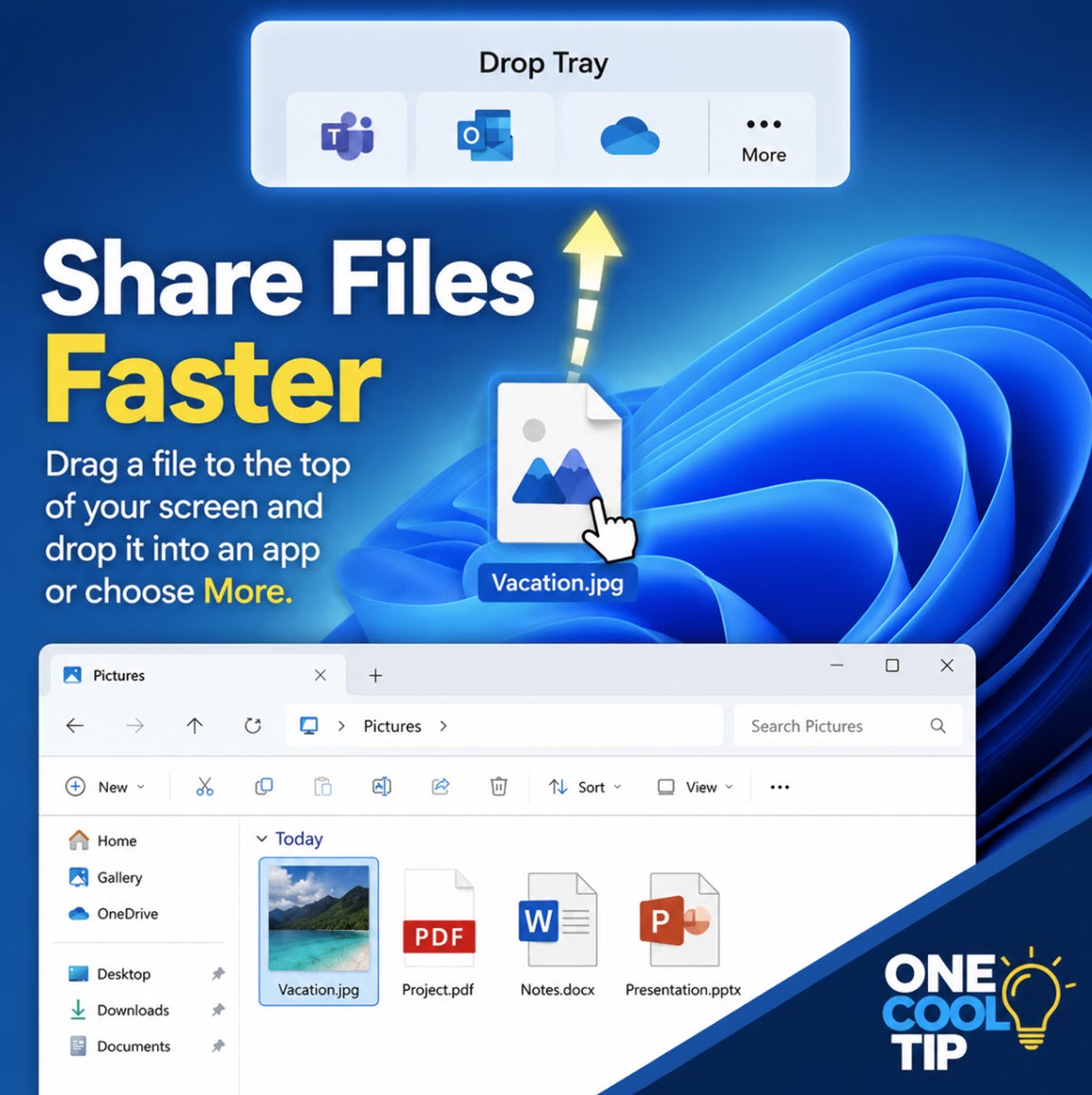
Dragging files in Windows 11 just got smarter. Drop Tray appears the moment you start dragging, offering a fast lane to open apps, email, Teams, a connected phone, and more. No extra clicks. No menu hunting. Drag up, choose your destination, and let go.
If you have ever dragged a file across your screen only to fumble through a right-click menu, or opened three windows just to share one document, you are not alone.
Windows has always made copying files easy.
Sharing, though, has lagged behind.
Here's a Cool Tip: Drop Tray.
Feature Explanation
Drop Tray is a Windows 11 sharing shortcut that appears near the top of the screen when you drag a local file from File Explorer or the desktop.
Instead of right-clicking a file, choosing Share, selecting an app, or opening another destination first, you can drag the file upward and drop it into the tray.
Microsoft has made two important changes.
First, the feature has been renamed from Drag Tray to Drop Tray.
Second, its settings have moved from Nearby Sharing to Settings > System > Multitasking.
Microsoft also says the updated Drop Tray uses a smaller peek view to reduce accidental openings and make it easier to dismiss near the top of the screen.
That matters because the original top-screen behavior could feel intrusive.
Users often drag files near the top of the display to move windows, organize desktop items, or work in File Explorer tabs.
A smaller peek view helps make Drop Tray feel more like a helpful target and less like an accidental interruption.
The feature is most useful for Windows users who frequently move files into apps, share documents, send images, or open files in another workflow.
It is a small feature, but it solves a real friction point.
What You'll Gain
- Skip the right-click menu entirely when sharing files.
- Attach files to Outlook, Teams, or other apps in one drag.
- Let the tray learn your favorite destinations and surface them first.
- Turn the feature off anytime if it does not fit your workflow.
- Zero cost: built into Windows 11 on all supported builds.
Step-By-Step Instructions
Here's how to do it.
- Open File Explorer or go to your desktop.
- Select a local file you want to share, move, or open.
- Click and hold the file with your mouse or touch input.
- Drag the file toward the top edge of the screen.
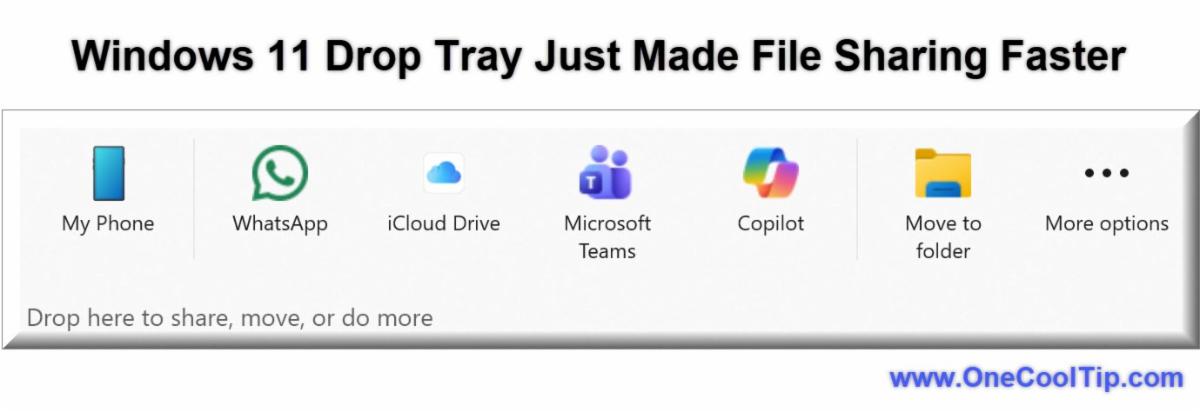
- When Drop Tray appears, move the file over the available target.
- Drop the file onto an app or choose More to open the Windows share window.
| | fig. 1 - Windows 11 Drop Tray Just Made File Sharing Faster | |
Pros and Cons
Pros:
- Built into Windows 11 at no extra cost.
- Works with both mouse and touchscreen input.
- Supports dragging and sharing multiple files at once.
- Cuts sharing steps significantly compared to the traditional right-click workflow.
Cons:
- Cannot share folders or compressed containers such as ZIP or RAR files.
- The tray can appear unintentionally when dragging files near the top of the screen.
- Only running apps appear in the tray; the app must be open before you drag.
- May suggest apps that are not installed on your PC, triggering unwanted install prompts.
- Not available on Windows 10 or any earlier version of Windows.
- Touch users on smaller screens may find it harder to target tray icons precisely.
Feature Access
-
Feature Name: Drop Tray (formerly Drag Tray).
-
Platform: Windows 11 only.
-
Minimum Build: (23H2) 22631.5413. Also available in 24H2 and 25H2 qualifying builds.
-
Cost: Free; built-in feature.
Score
Category | Score (out of 10) | Justification
Value 8
Drop Tray solves a real workflow problem for users who frequently share or move files. It is especially useful because it reduces extra clicks.
Usability 7
The drag-and-drop interaction is easy to understand, and the updated smaller peek view improves the experience. Availability and discoverability may still confuse some users.
Wow Factor 6
It is clever and practical, but not transformative. This is a refinement feature rather than a headline Windows upgrade.
Total: 21/30 👍 Good
Key Takeaways
- Drop Tray slides down automatically when you drag a file toward the top of your Windows 11 screen.
- No setup required.
- It surfaces open apps, connected phones, and the full Windows Share sheet in one place.
- You can disable or re-enable the tray anytime via Settings > System > Multitasking.
Cool Tip Snapshot
-
Feature Name: Windows 11 Drop Tray
-
Platform(s): Windows 11
-
Quick Benefit: Drag files to the top of the screen to share or open them faster
-
Best For: Business users, students, creators, and frequent file sharers
-
Access Type: Rolling Out
Try It Yourself
Ready to stop fumbling through share menus?
Open File Explorer, grab any individual file, and drag it slowly toward the very top of your screen. Watch the Drop Tray slide into view.
Once you try it, the old workflow will feel like a long detour.
Be sure to share this Cool Tip with family, friends, and coworkers!
READ MORE
Read the Cool Tip on One Cool Tip.com.
| | Help support One Cool Tip. Use this Amazon link when you shop online. |
-
💻 Logitech MX Master 3S Mouse. Precision scrolling and app switching make navigating Drop Tray smoother. Save 11% $79.99 Check it out on Amazon!
-
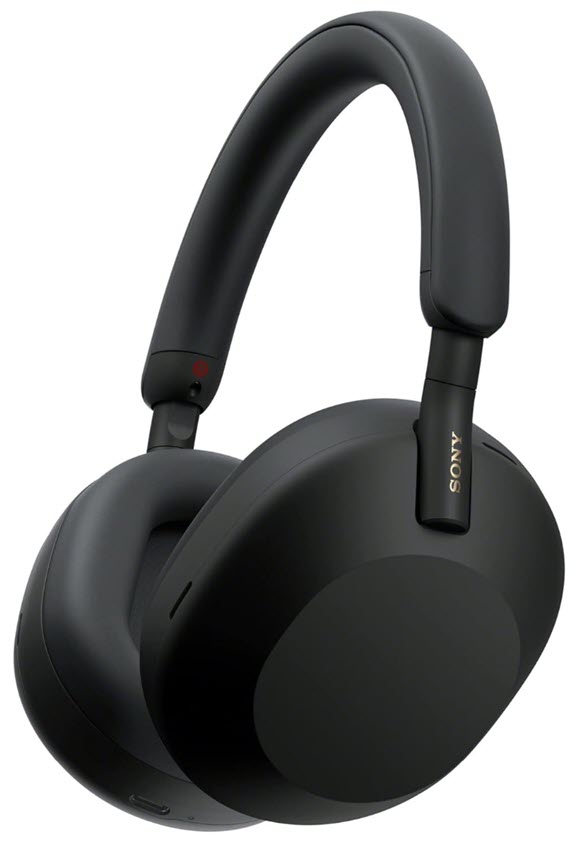
🎧 Sony WH-1000XM5 Headphones. Focus while using Drop Tray with immersive sound. Save 38% $248. Check it out on Amazon!
Prices accurate at time of publication
One Cool Tip may earn a commission from qualifying purchases.
| | |
🆒Tell Me More
-
📁 Drop Tray started as Drag Tray: Microsoft previously referred to the feature as Drag Tray, but later renamed it Drop Tray in Release Preview notes.
-
🧭 The setting moved: Microsoft says Drop Tray settings moved from Nearby sharing to Settings > System > Multitasking, which is a more logical home for a drag-and-window behavior.
-
👀 The new peek is smaller: The updated Drop Tray uses a smaller peek view to help prevent accidental openings when users work near the top of the screen.
-
🖱️ It is about local files: Microsoft described the feature as appearing when users drag a local file from File Explorer or the desktop.
-
🚧 Availability may vary: Because Microsoft documented Drop Tray in Insider and Release Preview materials, you should treat it as rolling out rather than universally available to every Windows 11 PC today.
⏩Quick Tips
-
🖱️ Drag Up: Try dragging a harmless file toward the top edge of your screen. If Drop Tray is available on your PC, a small tray should appear.
-
⚙️ Check Settings: Look for Drop Tray controls under Settings > System > Multitasking. Microsoft moved the setting there from Nearby sharing in newer builds.
-
📁 Start Local: Use a file saved on your desktop or in File Explorer. Drop Tray is described for local file dragging, not every file-like object inside every app.
-
🔎 Use More: If you do not see the app you want, look for More in the tray. That should open broader Windows sharing options when available.
-
🔄 Update First: If Drop Tray does not appear, check Windows Update. Insider and Release Preview features may depend on your Windows build and rollout status.
| | ✅ More Must-Read Tech Tips | | |
👀 How Do I Check Screen Time on Windows 11?
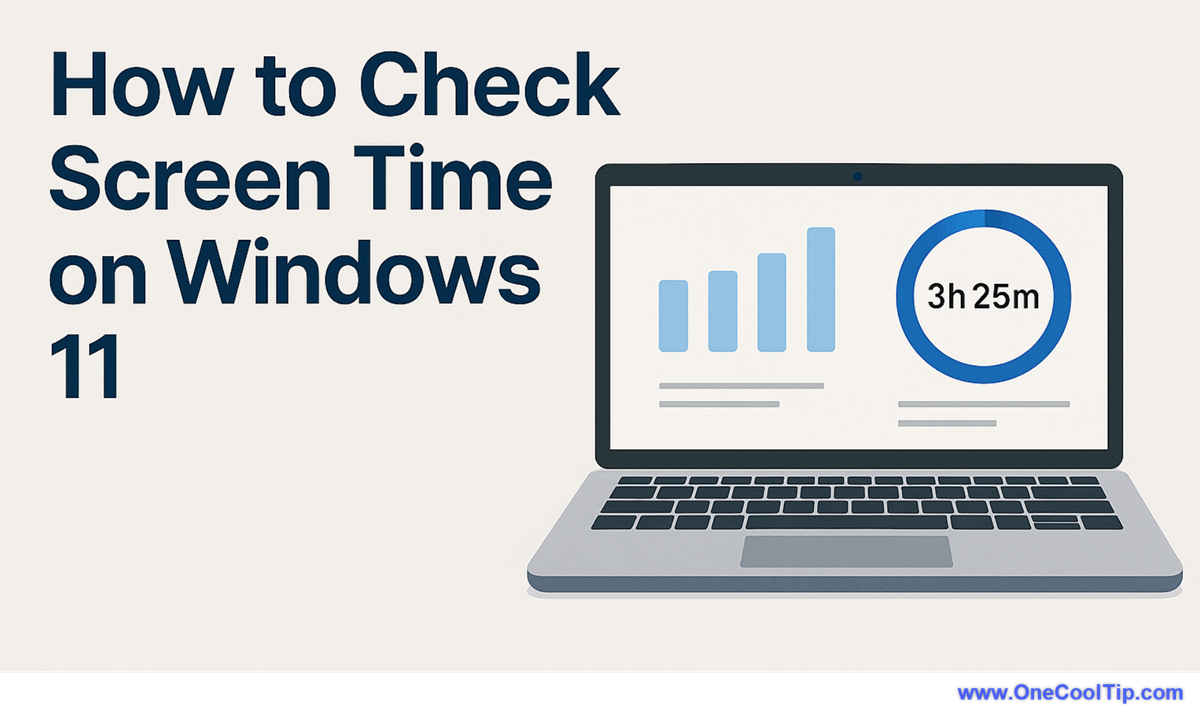
Windows 11 makes it easy to check how long your display has been active.
Windows 11 (Laptop Users)
-
Click the Start menu.
-
Select Settings.
-
Navigate to System > Power & battery in the left panel.
-
Scroll down and click Battery usage to view a detailed breakdown.
-
Below the battery level graph, you'll see screen on time, screen off time, and sleep time for the past 24 hours.
-
Switch to the Last 7 days option to check your average screen-on time for the week.
For Windows 11 (Desktop Users)
For desktop users, try this:
-
Open Task Manager app.
-
Select Performance > CPU to see how long your system has been running.
Note: This doesn’t reflect active screen time, but rather total system uptime since the last restart.
Discover more HERE.
| | |
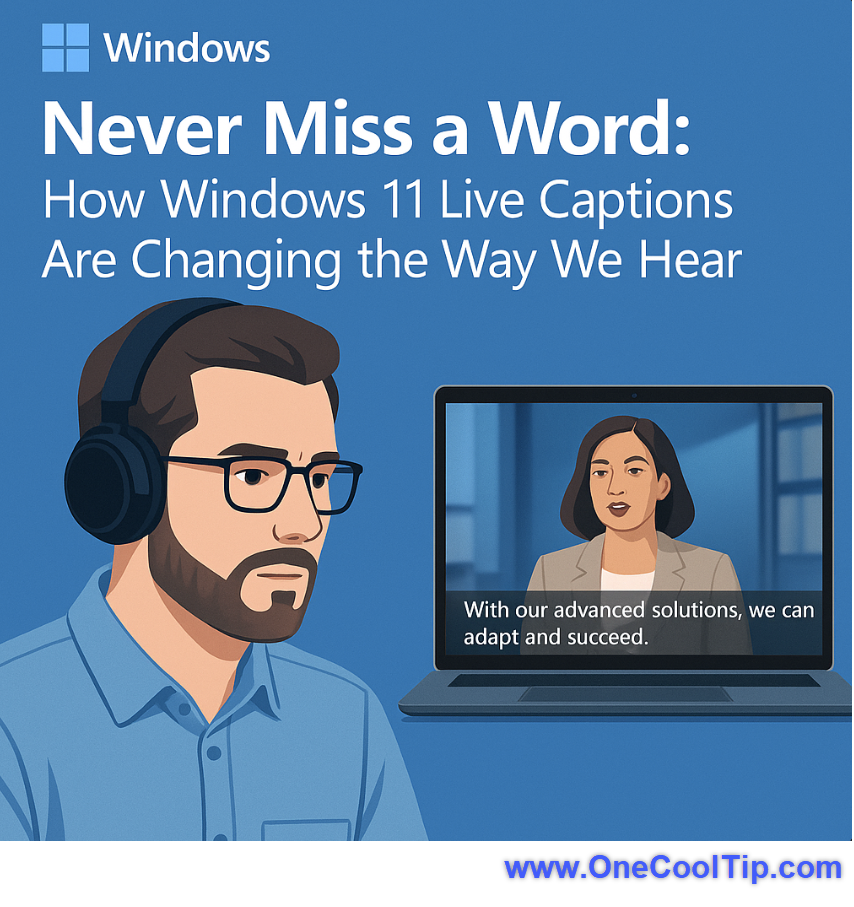
🤔 Have You Ever Wondered How to Use Windows 11 Live Captions?
Have you ever struggled to catch every word in a video, webinar, or live meeting?
Windows 11's Live Captions feature addresses these challenges by providing real-time, on-screen captions for any audio source on your PC.
This tool is not just for those with hearing impairments; it's a game-changer for anyone seeking to enhance their comprehension and productivity.
For Windows 11 (version 22H2 and later):
Via Settings:
-
Go to Settings > Accessibility > Captions.
-
Toggle on Live Captions.
Using Keyboard Shortcut:
-
Press Windows logo key + Ctrl + L.
Through Quick Settings:
-
Click on the Network, Volume, or Battery icon on the taskbar to open Quick Settings.
-
Select Accessibility, then toggle on Live Captions.
Upon first activation, you'll be prompted to download the necessary language files.
Once downloaded, Live Captions will be ready to use offline.
Experience the benefits of Live Captions today. Enable the feature on your Windows 11 device and discover how it can enhance your interaction with audio content.
Find out more HERE.
| | |
🙋♂️ Here's How to Efficiently Shutdown Windows
Ever wished there was a quicker, more efficient way to shut down your Windows computer?
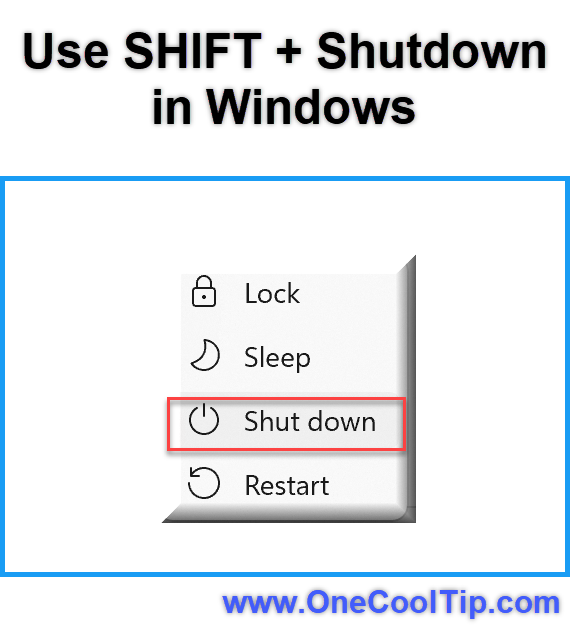
Shift+Shutdown is a powerful method to shut down your Windows computer.
By holding the Shift key while selecting shutdown, Windows skips the hibernation data writing process, resulting in a faster and cleaner shutdown.
This feature is crucial as it ensures a complete shutdown, preventing potential issues with system performance and stability.
It can be particularly helpful in resolving certain system glitches and ensuring that all background processes are fully terminated.
Here's how to do it.
-
Make sure all your work is saved.
-
Click on the Start menu or press Ctrl + Alt + Del to bring up shutdown options.
-
While holding the Shift key, click on the Shutdown button.
-
Your computer will shut down more quickly and completely than with a regular shutdown.
This reduces shutdown time by bypassing the hibernation data writing process and ensures all background tasks and processes are properly closed.
The Shift+Shutdown method is a simple yet powerful technique for Windows users looking to improve their shutdown experience.
Learn more HERE.
| | |
❓Did you share this newsletter with three friends yet?
😎 Cool Facts
-
1 Year: Microsoft spent approximately twelve months collecting telemetry and user feedback on the initial, larger "Drag Tray" layout before scaling down its interface, refining the gesture triggers, and officially renaming it. Source.
-
100%: The primary file tracking and edge-hover animations perform 100% of their computations locally on the PC, meaning no file data is transmitted over cloud servers simply by waking up the top peek bar. Source.
-
April 2026: The updated Drop Tray interface and its new Multitasking configuration path made its consumer rollout debut inside the April 30, 2026, Windows 11 Cumulative Preview Update package under Build 26200.8328. Source.
⌨️Today's Cool Shortcuts
-
Windows key + E: Opens File Explorer.
-
Ctrl + C: Copies the selected file.
-
Ctrl + V: Pastes the copied file.
-
Alt + P: Toggles the File Explorer preview pane.
-
Windows key + V: Opens clipboard history if enabled.
😜 Tech Joke of the Day 😅
Why did the file drag itself to the top of the screen?
It wanted to rise above its folder drama.
🔎 Do you have a Cool Tip or tech question? Email us at onecooltip.com@gmail.com.
| | |
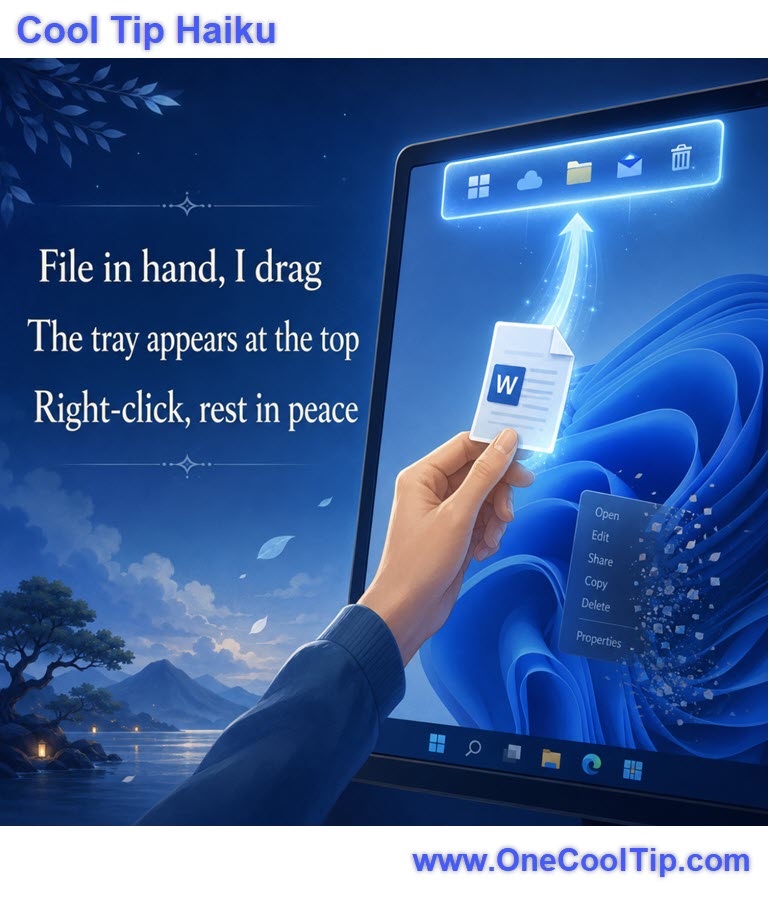
File in hand, I drag
The tray appears at the top
Right-click, rest in peace
| |
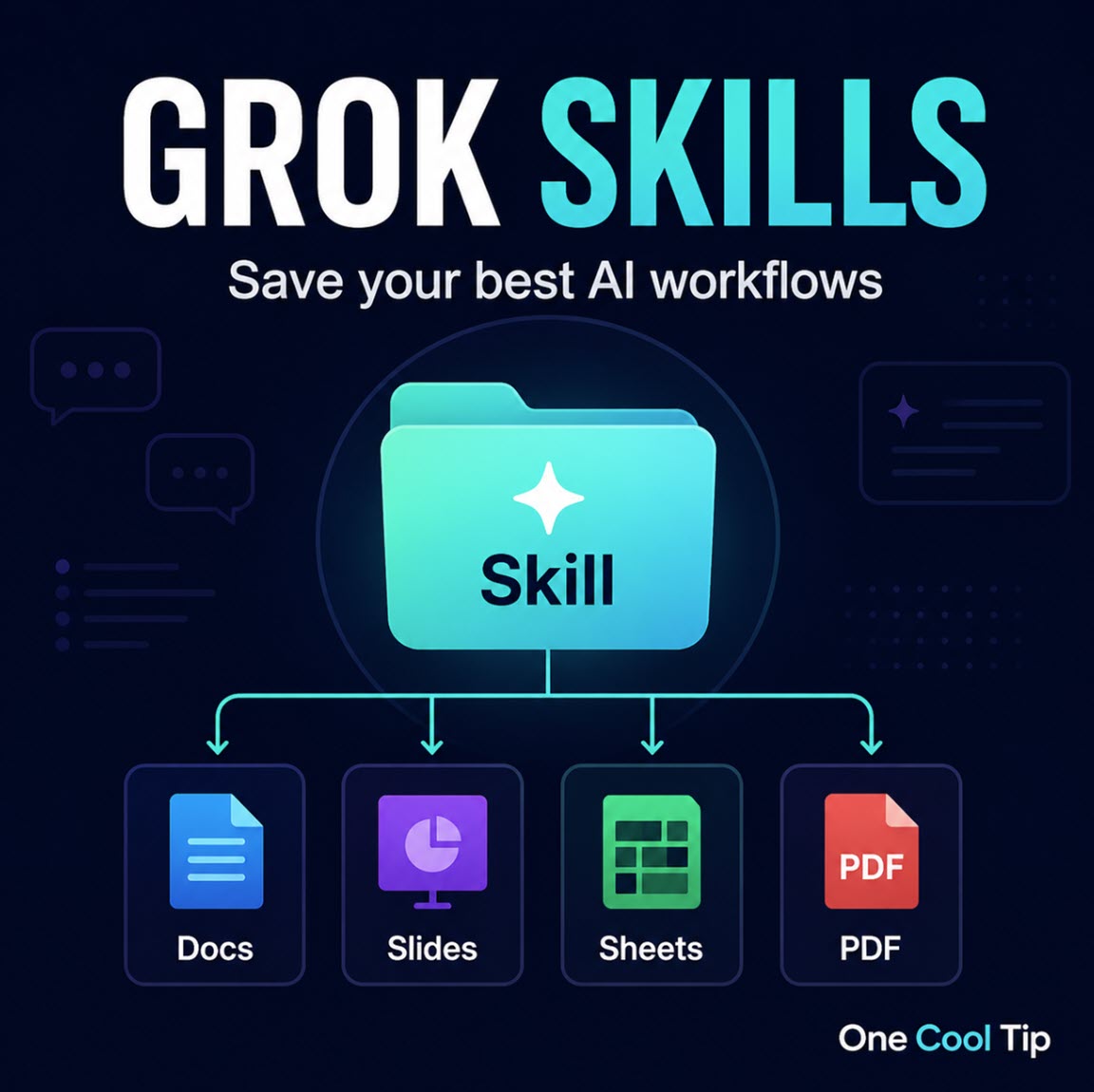
| 🤔 How do you usually share files on your Windows PC? | | | | Did You See These Cool Tips This Week? | | | | Grok Skills: Teach Grok Once and Reuse Your Expertise Forever | |
Grok Skills turn one-time instructions into reusable expertise that Grok remembers across conversations. You can now generate polished documents and automate workflows without repeating your preferences every time.
Read the Newsletter Version.
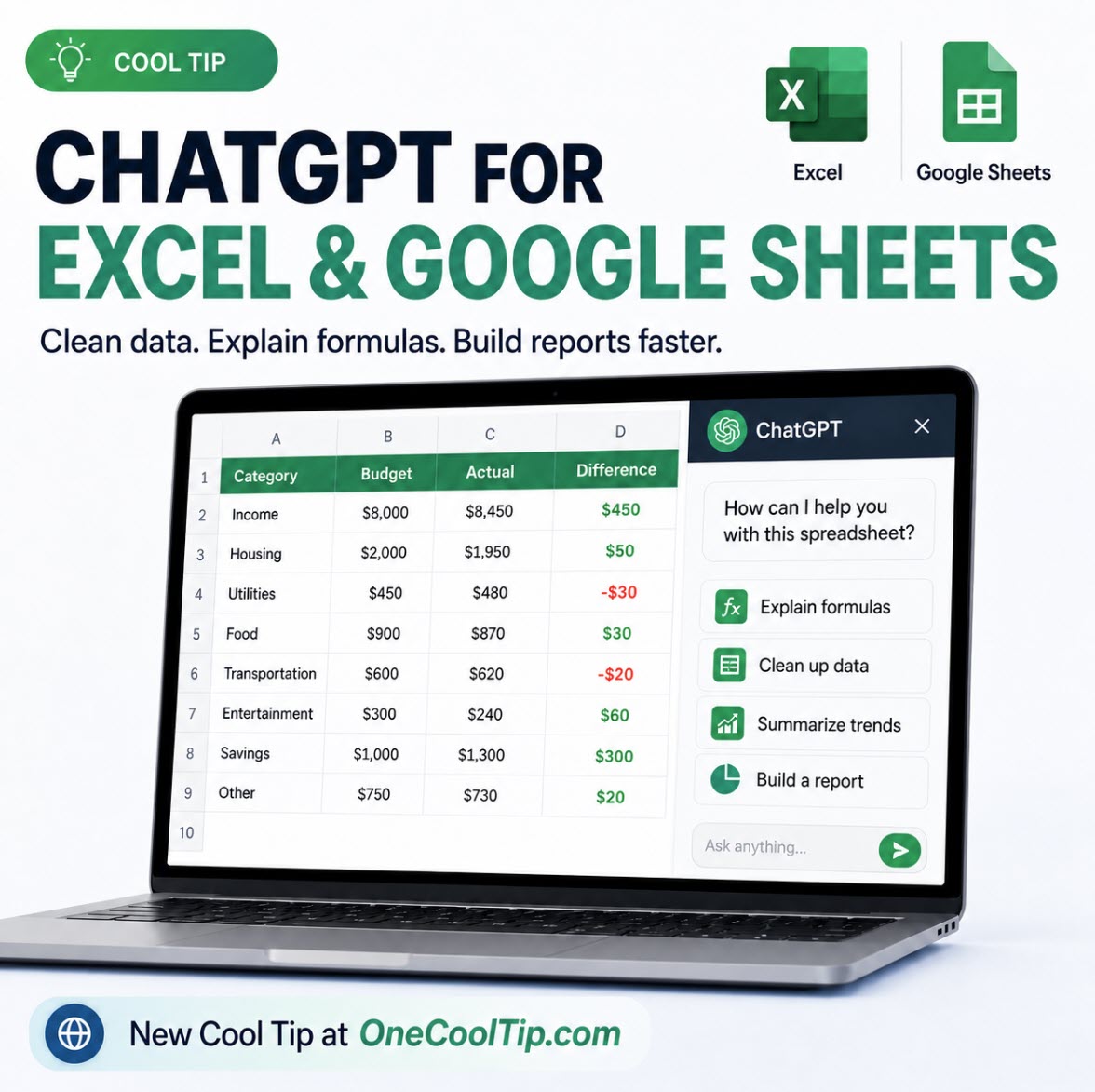
| | | | Let ChatGPT Do the Spreadsheet Heavy Lifting | |
ChatGPT can now work directly inside Excel and Google Sheets, helping users build, clean, explain, and update spreadsheets without leaving the workbook. It is especially useful for budgets, reports, trackers, financial models, messy data, and formulas that need a second look.
Read the Newsletter Version.
| |
ICYMI - In Case You Missed It ...
| | | | AI Image Editing in PowerPoint | |
PowerPoint now includes a full AI image editor that can clean up photos, remove objects, and enhance slides without leaving the app. It’s one of the most useful upgrades Microsoft has shipped in years.
Read the Newsletter Version.
| | |
How to Unlock the Power of the Windows Character Map
Have you ever needed to type a special character, such as the British pound sign (£), but didn’t know how to do it on your keyboard?
What about other special characters?
How to do you insert characters that don't appear on the regular keyboard?
Watch
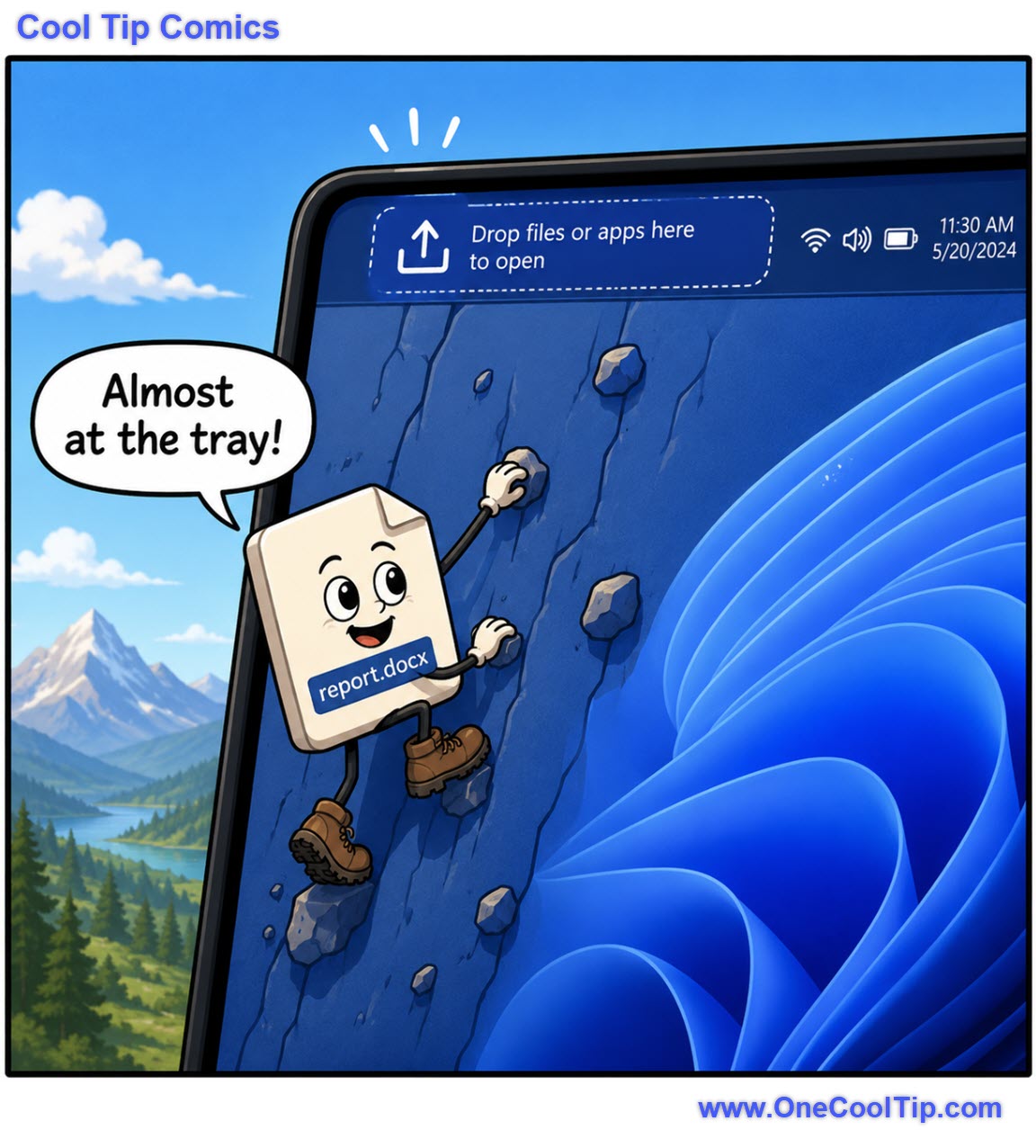
| | Even the file icon is learning that in Windows 11, success is all about reaching the top tray. | | |
Trivia Answer: B) 1992
Windows 3.1 launched on April 6, 1992, and it changed the way everyday users interacted with their files.
Before drag-and-drop, moving a file from one location to another meant typing command-line instructions or navigating menus carefully.
Windows 3.1 made the drag gesture intuitive enough that it became second nature within a generation of PC users.
That heritage makes Drop Tray feel like a natural next step.
Drag-and-drop is still the core action.
The destination is just smarter now. Instead of dragging a file to another folder, you drag it into a sharing layer that puts apps, devices, and contacts within reach in one motion.
----------
Tomorrow's Cool Tip is waiting to amaze you.
Until then, go forth and conquer the tech world with your newfound knowledge!
Be sure to visit www.OneCoolTip.com for Cool Tech Tips for a Cooler Life!
And if you Like One Cool Tip, please support with TipJar!
Enjoy!
Rodger
Chief Cool Tipper
onecooltip.com@gmail.com
| |
| What do you think of today's OneCoolTip newsletter? | | | |
Please Share the One Cool Tip Newsletter!
You asked for it. You got it. There is now a One Cool Tip Newsletter archive. Did you delete a newsletter and want to read it again? Check it out HERE.
Want to help One Cool Tip grow? Please forward this email using the link above. And if you see an OCT social media post, please LIKE, COMMENT and SHARE!
Have you subscribed to the One Cool Tip YouTube channel? Subscribe HERE.
| | Connect with One Cool Tip!! | | |
|
As an Amazon Associate, One Cool Tip may earn a small commission from qualifying purchases.
Our media content is intended solely for informational purposes only. Please do not construe anything here as legal, tax, investment, financial, marital or other advice.
Copyright © 2026 | www.OneCoolTip.com | All Rights Reserved
|
| | | |