|
One Cool Tip Newsletter
December 8, 2025
| Your daily dose of tech-savvy brilliance! | |
😀Greetings!, Happy Back-to-Work Monday, Cool Tipper!
Get ready to streamline your digital life with simple, actionable tips delivered straight to your inbox.
Today's Cool Tip Theme: Microsoft Word Automatic Alt Text
IN THIS ISSUE
- 🚨 Fake “Proof-of-Life” Kidnapping Scams.
- 📰 Microsoft 365 Update: New Capabilities + Pricing Change.
- 🚀 AI Prompt: Weekly Planner.
- 💡 AI Word Cloud Prompt.
- 🖼️ Add Automatic Alt Text to Microsoft Word Images.
- 👀 Document Mode in Microsoft Word.
- 🤔 Boost Your Writing Efficiency.
- 🙋♂️ Accessibility Checker.
New here? Subscribe to the One Cool Tip Newsletter for daily updates. It's FREE!
-
😂 Laugh with Us! Enjoy our Tech Joke of the Day, Haiku and Cool Tip Comics.
-
🌐 Stay Informed! Check out ICYMI, and our One Cool Tip Video.
Today's Tech Trivia
Answer at the end of this newsletter.
| |
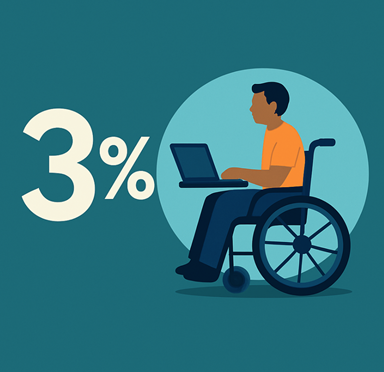
| How much of the web is considered accessible to people with disabilities? | | | | |
🚨Fake “Proof‑of‑Life” Kidnapping Scams🚨
The FBI has issued a new warning: criminals are exploiting social media photos and videos to stage virtual kidnappings. They send altered “proof‑of‑life” images to pressure victims into paying ransom.
What You Need to Know
-
Manipulated media: Scammers digitally alter publicly available photos to make them look like hostage images.
-
Urgency tactics: Threats arrive via text or call, demanding immediate payment before you can verify.
-
Emotional leverage: Messages are designed to panic recipients into acting without thinking.
How to Stay Safe
-
Establish a family code word: A simple phrase only you and loved ones know.
-
Pause before reacting: Ask yourself if the claims make sense.
-
Save evidence: Screenshot suspicious texts and images.
Verify directly
Contact your loved one before considering ransom.
Report It
If you receive one of these threats, file a complaint at IC3.gov. Include phone numbers, payment instructions, and any images or recordings.
And in Other News...
- Microsoft 365 Update: New Capabilities + Pricing Change
Microsoft has announced major enhancements to Microsoft 365 for business and Enterprise rolling out in 2026, alongside a pricing update effective July 1, 2026.
-
Copilot everywhere: Expanded integration across Word, Excel, PowerPoint, Outlook, and OneNote, with new Agent Mode for iterative document creation.
-
Stronger security: Defender for Office Plan 1 features added to E3 suites; URL protection extended to E1, Business Basic, and Business Standard.
-
Advanced management tools: Intune Remote Help, Advanced Analytics, and Intune Plan 2 included in E3/E5; E5 gains Endpoint Privilege Management and Cloud PKI.
-
Security Copilot agents: Embedded in Defender, Entra, Intune, and Purview workflows for all E5 customers.
| | |
🚀 Make It a Great Week!
Copy/Paste this AI-powered prompt. Try it in the One Cool Tip AI Companion (free ChatGPT account required) or Copilot, Gemini or ChatGPT:
AI Prompt: Weekly Planner
Plan my week for both personal and business tasks.
First ask me:
- My top 3 business goals
- My top 3 personal goals
- Any deadlines or appointments already scheduled
Then create a day-by-day plan that includes:
- My three priorities each day
- A few quick wins I can finish fast
- One long-term progress task
- A short weekend wrap-up checklist
Finish by recommending one motivational focus phrase and a few tasks I should delegate or postpone.
| | | |
Try this Cool Gemini prompt:
"Use the text I provide below to create a word cloud. Only include words that appear more than once. Please list the top 10 most frequent, relevant words (excluding common terms like 'a', 'the', 'is') and their counts in a table format."
How to Use It:
- Copy the prompt above.
- Paste it into the Gemini AI chat window.
- Immediately follow the prompt by pasting the full text of the article or document you want analyzed.
- Hit Send.
| | |
How to Add Automatic Alt Text to Microsoft Word Images
Adding images to a Word document is easy, but making them accessible is just as important. Microsoft Word’s Automatic Alt Text feature instantly generates descriptions for your pictures, helping business and home users save time while ensuring inclusivity.
Ever dropped an image into a Word document and wondered how someone using a screen reader would interpret it?
Accessibility is not just a compliance checkbox, it’s a way to make your work usable by everyone.
Here's a Cool Tip: Use Word's Automatic Alt Text feature.
Microsoft Word’s Automatic Alt Text feature takes the guesswork out of writing descriptions, offering instant suggestions that you can refine.
Feature Explanation
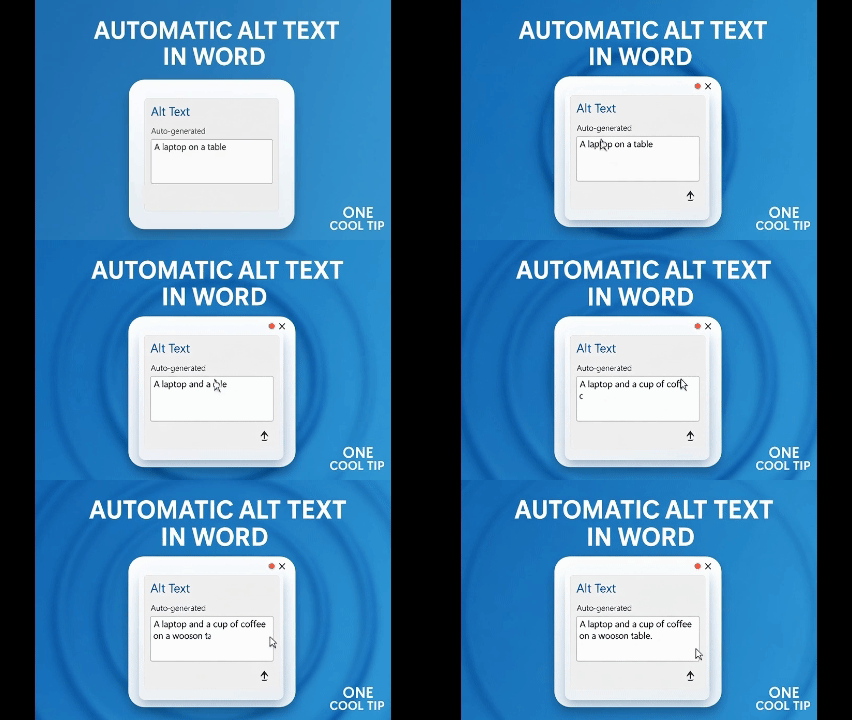
Automatic Alt Text uses Microsoft’s AI to scan an image and generate a short description.
For example, if you insert a photo of a laptop on a desk, Word might suggest “A computer on a table.”
You can accept, edit, or replace this text.
The feature matters because alt text is essential for screen readers, search indexing, and inclusive communication.
What You’ll Gain
-
Accessibility compliance: Meet standards without manual effort.
-
Time savings: Skip repetitive writing for common images.
-
Better communication: Ensure your visuals make sense to all readers.
-
Search benefits: Alt text improves discoverability in cloud environments.
Step-by-Step Instructions
Here's how to do it.
Microsoft Word (Windows/Web)
-
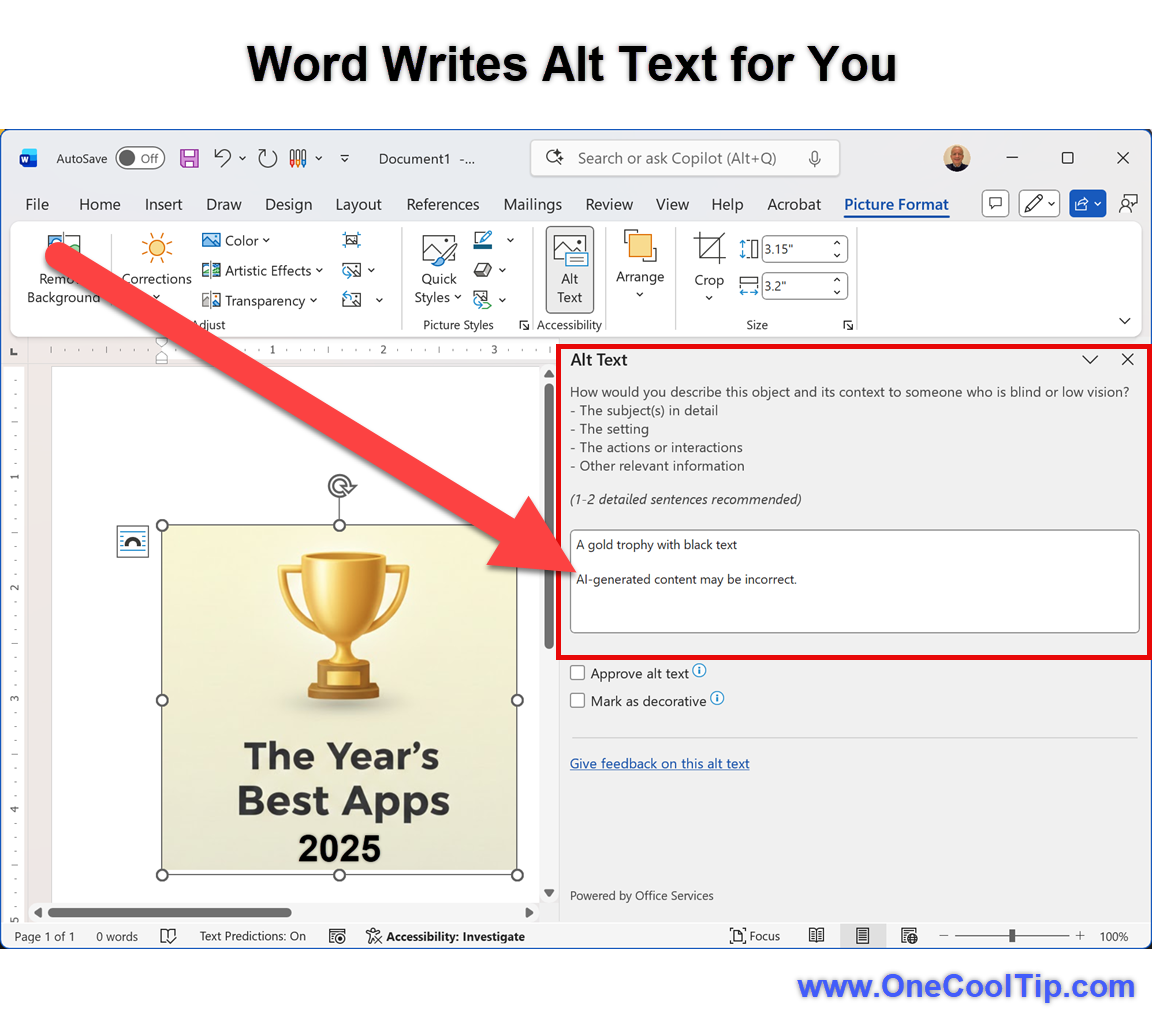
Insert an image into your document.
-
Right-click the image and select Edit Alt Text.
-
Word automatically generates a description.
-
Review and edit for accuracy.
| | fig. 1 - Word Writes Alt Text Example | | |
Note:
- “Mark as decorative” tells Microsoft Word that an image doesn’t need alt text because it’s purely visual and not essential to understanding the document. When this box is checked, screen readers will skip the image entirely.
iOS
-
Tap the image in your Word document.
-
Select Alt Text from the menu.
-
Review the suggested description.
-
Edit or replace as needed.
Android
-
Tap the image.
-
Choose Alt Text.
-
Word provides a suggestion.
-
Adjust for clarity.
Pros and Cons
Pros
- Speeds accessibility workflows.
- Good baseline descriptions.
- Helps teams avoid legal accessibility failures.
- Works in web, desktop, and mobile versions.
Cons
- Lacks context (e.g., why the image matters).
- Charts and diagrams are often interpreted generically.
- Longer captions often require a rewrite.
Configuration Guide
To enable or disable Automatic Alt Text generation:
- File → Options → Accessibility → Automatic Alt Text
Feature Access
Available in Microsoft Word for Microsoft 365 subscriptions.
Microsoft notes this feature is currently rolling out across platforms.
Score
Criterion Score (0–10) Justification
Value 9
Accessibility is critical, and automation adds strong value.
Usability 8
Easy to access, but editing is still required for precision.
Wow Factor 7
Helpful but not groundbreaking; AI descriptions are basic.
Total: 24/30 👍 Good
A practical feature that compares favorably to Google Docs’ manual-only alt text.
Key Takeaways
Automatic Alt Text in Word saves time, improves accessibility, and ensures inclusivity.
While AI suggestions aren’t perfect, they provide a strong starting point for better communication.
Cool Tip Snapshot
-
Feature Name: Automatic Alt Text.
-
Platform(s): Windows, iOS, Android, Web.
-
Quick Benefit: Instant image descriptions for accessibility.
-
Access Type: Free with Microsoft 365 subscription.
Try It Yourself
Add an image to your next Word document and check the Alt Text pane.
Try editing the AI suggestion, then share this tip with your team.
Read the Full Cool Tip.
| | |
Help support One Cool Tip. Use this Amazon link when you shop online.
Look at these Cool Products:
| |
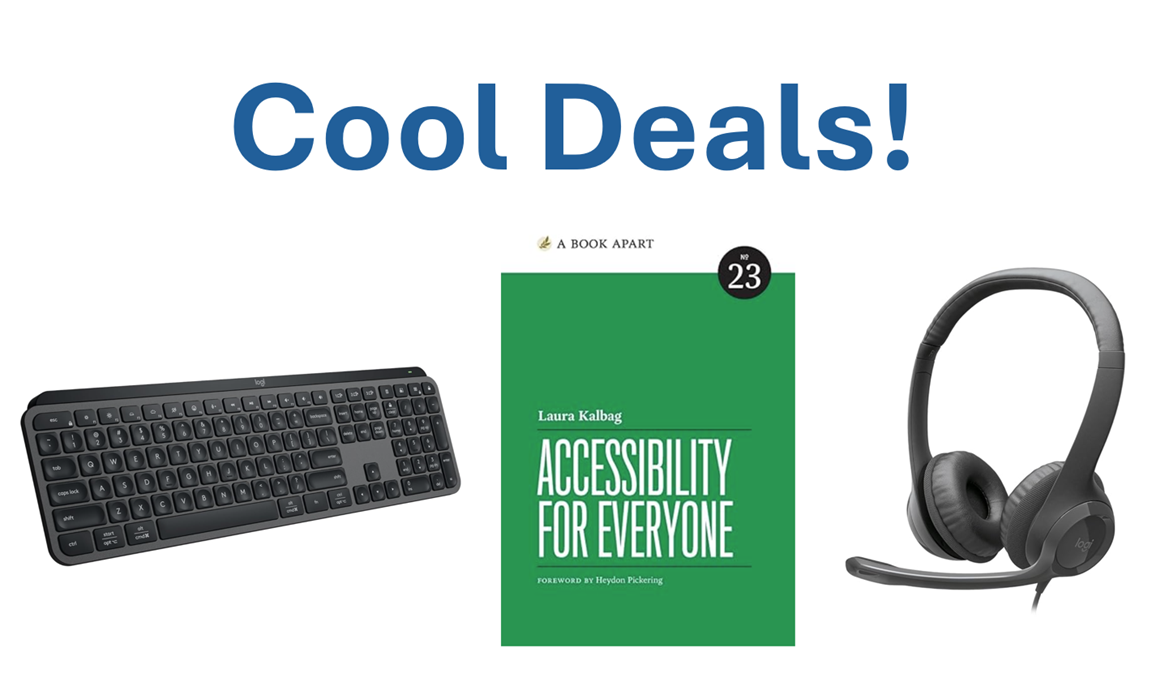
⌨️ Logitech MX Keys S Wireless Keyboard: Low profile, backlit keys and a comfortable layout make long editing sessions easier on the hands, especially when reviewing accessibility details line by line. Smart backlighting and multi-device pairing fit perfectly in a modern Word-heavy workflow. Overall Pick $129.99 Check it out on Amazon!
📘 Accessibility for Everyone - Laura Kalbag: Short, practical guide to designing inclusive digital content, with clear principles your readers can apply directly to documents, slides, and web pages. A good companion to Microsoft’s own accessibility documentation. $68.99 Check it out on Amazon!
🎧 Logitech USB C Headset With Noise Canceling Microphone:
A simple wired USB C headset that plays nicely with screen readers, dictation, and online meetings. Clear audio and an inline control panel help anyone who spends time listening to spoken content or recording tutorials. Overall Pick. Save 8% $22.99 Check it out on Amazon!
Prices accurate at time of publication
| | |
🆒Tell Me More
-
Automatic alt text in Word depends on Microsoft 365 intelligent services, which must be enabled in Options before the feature works consistently.
-
In Office 2019, Word does not generate alt text automatically, but users can still click “Generate a description for me” in the Alt Text pane to get an AI suggestion.
-
Accessibility Assistant in newer Word builds tracks issues such as missing alt text as you type, instead of waiting for a separate checker run.
-
Good alt text is usually short. Microsoft suggests one or two sentences or even a few well chosen words, focused on content and purpose, not on phrases like “graphic of.”
-
You can turn automatic alt text off entirely if your workflow involves many decorative or confidential images, then use the manual Generate button only when needed.
⏩Quick Tips
-
🧠 Keep it purposeful: Describe what the image means in the document, not every pixel. In the Alt Text pane, rewrite the suggested description so it explains why the image is there.
-
✂️ Trim the fluff: Skip phrases like “image of” or “picture showing.” They waste listener time without adding information. Just write the meaningful part in one short sentence.
-
🏷️ Mark decorations correctly: Borders, abstract backgrounds, or repeated logos can be marked as decorative so screen readers skip them. In the Alt Text panel, check “Mark as decorative” instead of writing text.
-
🔍 Use Accessibility Checker: Before sending a report or proposal, run Accessibility Checker to find any images that are still missing alt text. In Word, go to Review, then Check Accessibility.
-
🚀 Turn on intelligent services: If Word does not generate descriptions, check whether Microsoft 365 intelligent services are enabled. In Word, open File, Options, General, and enable the services option.
| | ✅ More Must-Read Tech Tips | |
|
📄 Try these Microsoft Word Cool Tips:
-
Track Changes On: Keep edits organized and visible. Turn it on by selecting Review, then Track Changes.
-
Replace Faster: Fix recurring mistakes instantly. Press Ctrl+H and enter what to find and replace.
-
Smart Styles: Format headings consistently in one click. Highlight text, choose a Style from the Home tab, and modify if desired.
-
PDF Export: Preserve layout when sharing. Go to File, Save As, and choose PDF from the dropdown.
-
Quick Screenshot: Insert screen captures directly into your file. Use Insert, Screenshot, or Screen Clipping.
-
Reuse Files: Import text from other documents neatly. Select Insert, then Object, then Text from File.
-
Word Count Bar: Keep writing goals on track. Click the word count in the bottom bar to see full stats.
-
Navigation Pane: Jump between sections instantly. Press Ctrl+F and click Headings to browse.
-
Format Painter: Copy formatting without redoing everything. Select formatted text, click Format Painter, and apply it to other text.
-
Auto Save: Never lose a draft again. Store your file in OneDrive, and Word will save changes
| |
👀 How Do I use Document Mode in Microsoft Word?
Have you ever found yourself toggling between different tasks in Microsoft Word, wishing for a more tailored environment?
Microsoft Word’s Document Modes offer a versatile solution, allowing you to switch between different modes to optimize your workflow.
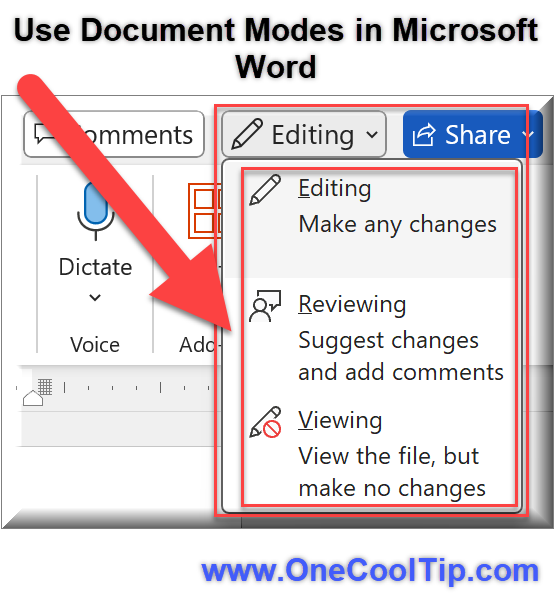
Document Modes in Microsoft Word include Viewing, Reviewing, and Editing modes.
Each mode is designed to cater to different stages of document creation and collaboration.
-
Viewing Mode allows you to read documents without the distraction of editing tools.
-
Reviewing Mode enables you to track changes and add comments, facilitating collaborative efforts.
-
Editing Mode, as the name suggests, grants full access to all editing tools, making it ideal for drafting and revising content.
By switching between modes, you can focus better on the task at hand—whether it's reading, reviewing, or editing a document.
This feature is particularly useful for writers, editors, and teams collaborating on shared documents.
Here's how to do it.
-
Launch the Word application and open your document.
-
Locate the mode-selection button in the ribbon at the top-right by the Share button.
-
The mode-selection name reflects the current mode.
-
Click the Switcher drop-down menu to change your working mode.
-
Confirm your selection in the revised name of the menu button in the ribbon.
Document Modes in Microsoft Word provide a powerful way to optimize your workflow.
By understanding and utilizing Viewing, Reviewing, and Editing modes, you can tailor your work environment to better suit your needs, whether you're reading, collaborating, or editing.
Discover more HERE.
| | |
🤔 Have You Ever Wondered How to Boost Your Writing Efficiency?
Have you ever wished you could write faster and with fewer errors?
Text Predictions in Microsoft Word is a game-changing feature for anyone looking to enhance their productivity.
Text Predictions is an AI-powered feature in Microsoft Word that suggests words and phrases as you type.
Here's how to do it.
-
Open Microsoft Word.
-
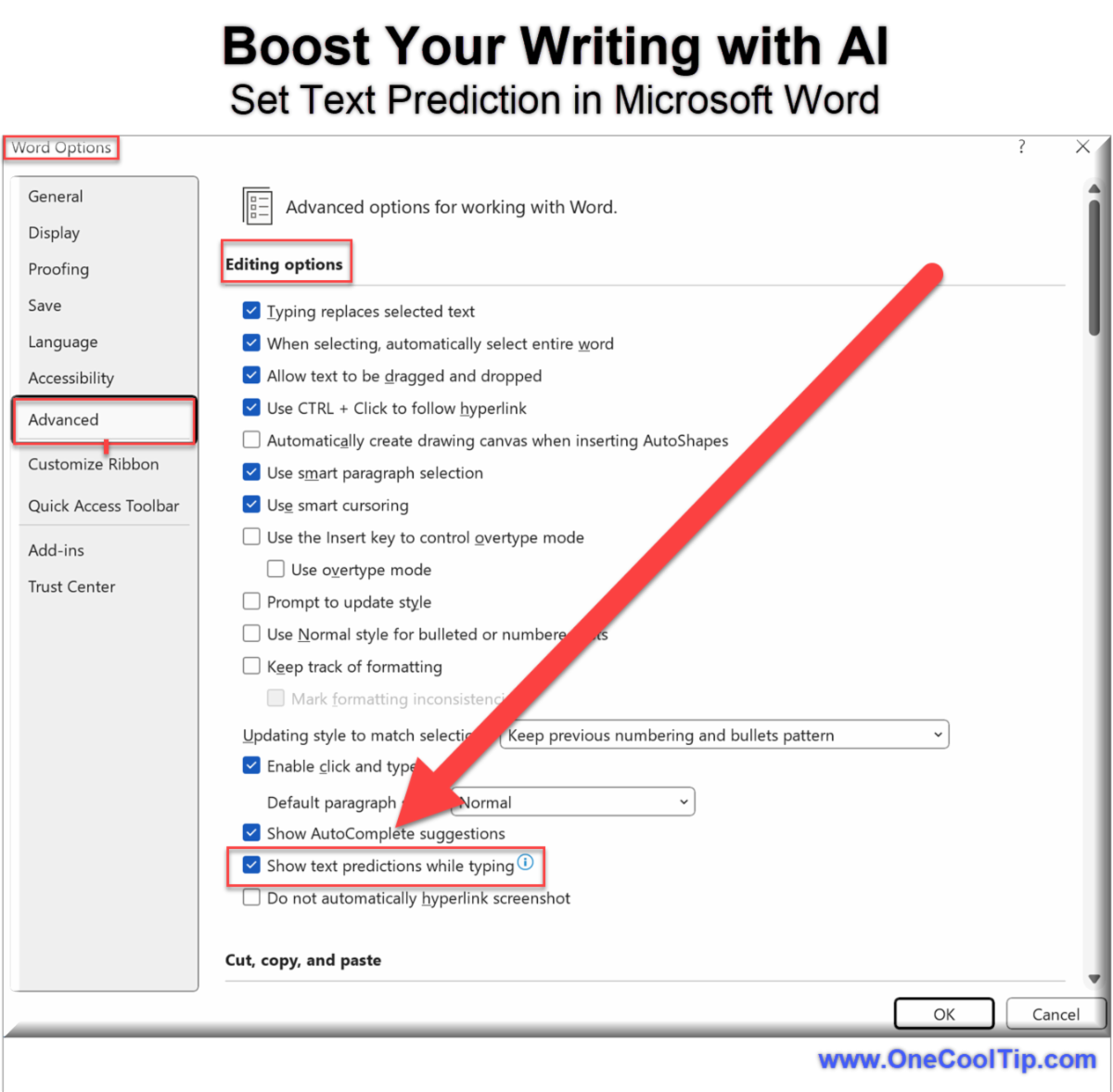
Go to File > Options > Advanced.
-
Under the Editing options section, check the box for "Show text predictions while typing".
-
Start typing in your document.
-
As you type, Word suggests the next words or phrases.
-
To accept a suggestion, press the Tab key or the Right Arrow key.
-
To ignore it, just keep typing.
Using Text Predictions in Microsoft Word can significantly boost your writing efficiency by allowing you to write faster through the acceptance of suggested words and phrases.
Find out more HERE.
| | |
🙋♂️ Here's How to Use the Accessibility Checker.
Ever wondered if your documents, spreadsheets, or presentations are accessible to all users?
Accessibility isn't just a buzzword; it's a crucial aspect of creating inclusive content that everyone can use, regardless of their abilities.
With Microsoft 365's Accessibility Checker, you can ensure your content meets accessibility standards and provides a seamless experience for all users.
The Accessibility Checker in Microsoft 365 apps like Word, Excel, PowerPoint, Outlook and OneNote is designed to help users create content that is accessible to everyone, including people with disabilities.
Here's how to do it.
-
Open your document in Word, Excel, PowerPoint or OneNote.
-
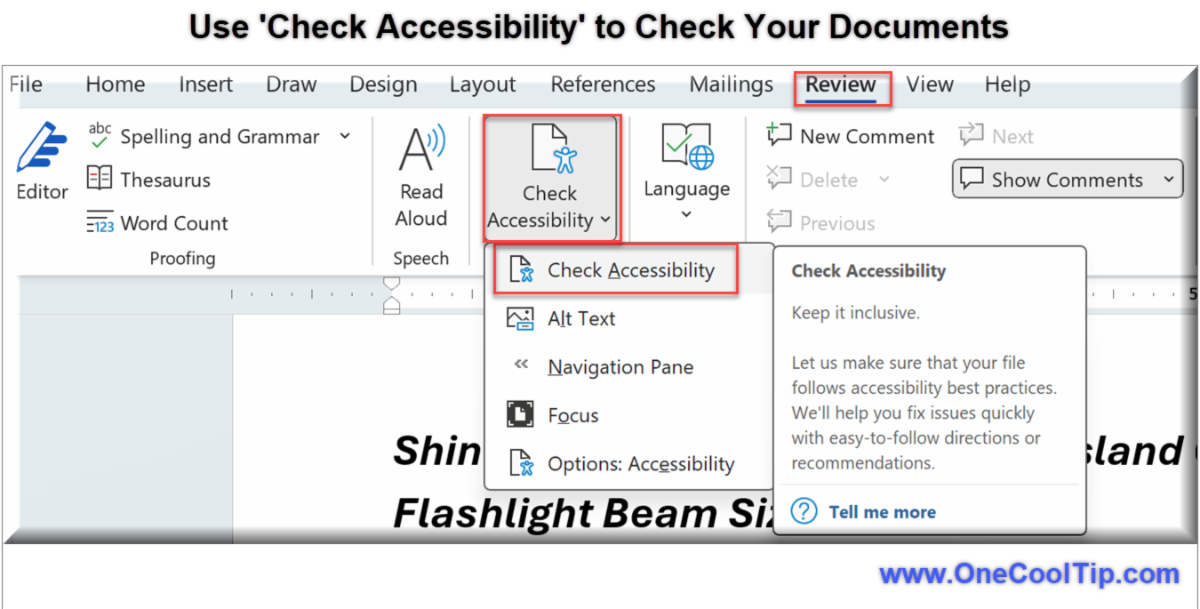
Go to the Review tab.
-
Click on Check Accessibility. This will open the Accessibility Checker pane on the right side of the screen.
-
Review the findings under Inspection Results. The checker lists any errors and warnings, along with recommendations on how to fix them.
-
Apply the recommended actions to address each issue. Select an issue, view the recommended actions, and apply the fix directly from the pane.
By ensuring that your documents, spreadsheets, and presentations are accessible to everyone, you can provide a better user experience and meet accessibility standards.
Learn more HERE.
| | |
❓Did you share this newsletter with three friends yet?
😎 Cool Facts
-
28.7%: ~28.7% of U.S. adults report having a disability (about one in four). Source.
-
95.9%: In the 2024 WebAIM “Million” study of a million home-pages, 95.9% had at least one detectable accessibility error. Source.
-
3.2%: A 2024 analysis of 20,000 scholarly PDFs found fewer than 3.2% met basic accessibility criteria, including presence of alt-text for images. Source.
⌨️Today's Cool Keyboard Shortcuts
-
🪟 Windows 11: Windows key + Ctrl + Enter - Toggle Narrator on or off so users can hear how their alt text sounds when read aloud.
-
🅆 Word (Windows): Alt + Q, then type “Alt Text” - Jump to Word’s search box, type “Alt Text,” and press Enter to open the Alt Text pane without hunting through ribbons.
-
🅆 Word (Windows): Alt + R, then A, then 1 - Open the Review tab, then run Accessibility Checker, which will list images that still need alt text.
-
🅆 Word (Windows): F6 - Cycle focus between the document, task panes such as Alt Text, and the ribbon, which helps keyboard users move quickly while editing alt text.
😜 Tech Joke of the Day 😅
How many programmers does it take to change a light bulb?
None, that's a hardware problem.
🔎 Do you have a Cool Tip or tech question? Email us at onecooltip.com@gmail.com.
| | |
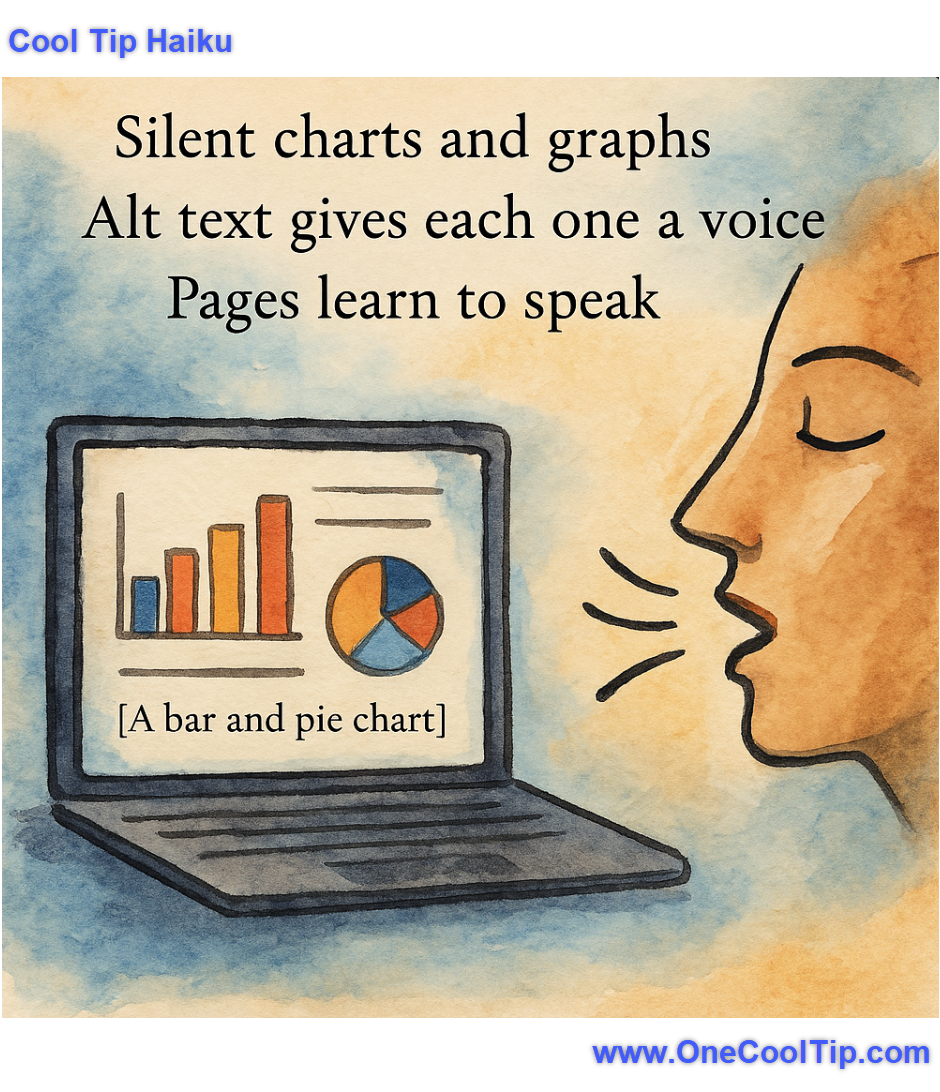
Silent charts and graphs
Alt text gives each one a voice
Pages learn to speak
| |
| 🤔 How often do you add alt text to images in your documents? | | | | Did You See These Cool Tips This Week? | | | | ChatGPT Voice Is Now Built Directly Into the Main Chat Window | |
A more natural way to interact, without switching modes ChatGPT now lets you talk, listen, and type in the same window. There’s no separate voice interface anymore, giving users a more fluid way to chat hands-free.
Read the Newsletter Version
| | | | The 2025 'Must Install' Apps From Apple and Google Play | |
The 2025 App Store Awards and Google Play Best of 2025 lists are out, and they are a shortcut to the handful of apps that are actually worth your time. Here is a practical guide to the standout winners on both platforms and how to put them to work in your day, not just admire them from a press release.
Read the Newsletter Version
| | ICYMI - In Case You Missed It ... | | | | Personalize Your Chat in NotebookLM with Custom Goals | |
Set a clear goal for your chat in NotebookLM and watch how the AI adapts to behave like a strategist, researcher or storyteller. The latest upgrade unlocks deeper context, longer memory and smarter responses tied to your defined intent.
Read the Newsletter Version.
| | |
How to Unlock the Power of the Windows Character Map
Have you ever needed to type a special character, such as the British pound sign (£), but didn’t know how to do it on your keyboard?
What about other special characters?
How to do you insert characters that don't appear on the regular keyboard?
Watch
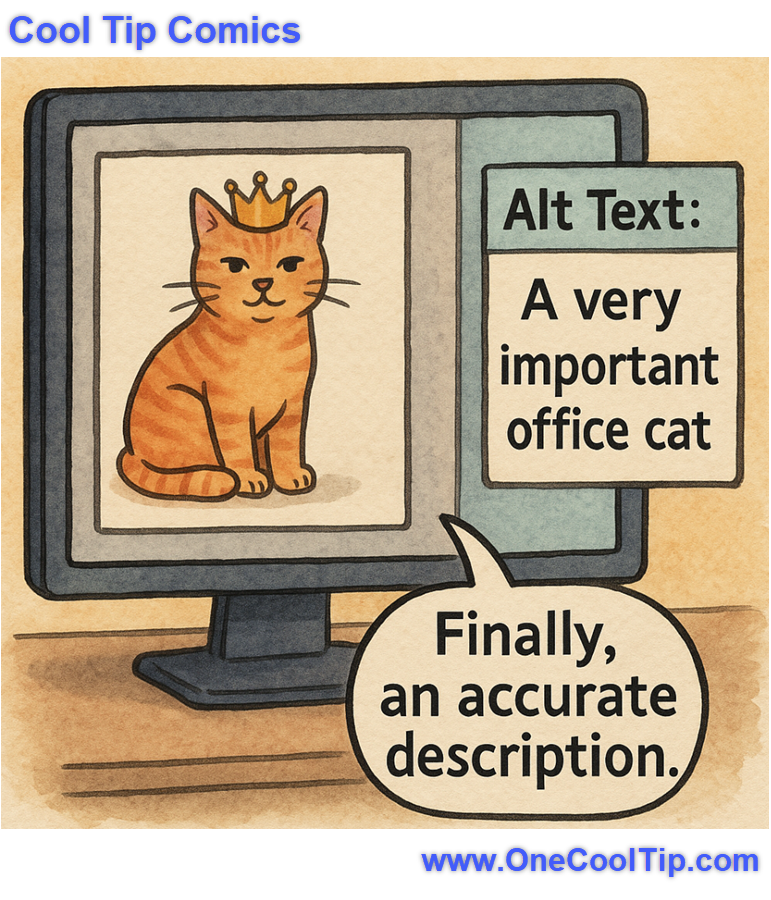
| | That’s the moment when the office finally recognized who’s really running the place. HR just updated the org chart to include “Chief Nap Strategist.” | | |
Trivia Answer: D) 3 percent
Researchers reviewing millions of pages found that only about 3 percent of the web meets basic accessibility standards.
That number is a reminder that accessibility work in tools like Word is not a niche concern.
It is a core part of making digital information usable for a very large audience, including the one in four adults in the United States who live with a disability.
----------
Tomorrow's Cool Tip is waiting to amaze you.
Until then, go forth and conquer the tech world with your newfound knowledge!
Be sure to visit www.OneCoolTip.com for Cool Tech Tips for a Cooler Life!
And if you Like One Cool Tip, please support with TipJar!
Enjoy!
Rodger
Chief Cool Tipper
onecooltip.com@gmail.com
| | |
3️⃣
If you enjoy the One Cool Tip newsletter, please forward this newsletter to THREE friends or colleagues or share it on social media using the links below.
Leave a Tip!
Share this One Cool Tip Newsletter!
| |
| What do you think of today's OneCoolTip newsletter? | | | |
Please Share the One Cool Tip Newsletter!
You asked for it. You got it. There is now a One Cool Tip Newsletter archive. Did you delete a newsletter and want to read it again? Check it out HERE.
Want to help One Cool Tip grow? Please forward this email using the link above. And if you see an OCT social media post, please LIKE, COMMENT and SHARE!
Have you subscribed to the One Cool Tip YouTube channel? Subscribe HERE.
| | Connect with One Cool Tip!! | | |
|
As an Amazon Associate, One Cool Tip may earn a small commission from qualifying purchases.
Our media content is intended solely for informational purposes only. Please do not construe anything here as legal, tax, investment, financial, marital or other advice.
Copyright © 2025 | www.OneCoolTip.com | All Rights Reserved
|
| | | |