β€Š

One Cool Tip Newsletter

October 29, 2026

Your daily dose of tech-savvy brilliance!

πŸ˜€ Greetings! Happy Techy Thursday, Cool Tipper!


Get ready to streamline your digital life with simple, actionable tips delivered straight to your inbox.


Cool Tip Theme: iPhone Impersonation Detection

ο»Ώ

Discover how iPhone Impersonation Risk Detection in iOS 27 helps participating apps recognize potential scams and protect sensitive account activity.


New here? Subscribe to the One Cool Tip Newsletter for daily updates. It's FREE!

3️⃣

If you enjoy the One Cool Tip Newsletter, please forward this newsletter to THREE friends or colleagues or share it on social media using the links below.


Leave a $$$ Tip!


Share this One Cool Tip Newsletter!

X Share This Email
LinkedIn Share This Email
Pinterest Share This Email

🚨 That Urgent Apple Pay Alert Could Be a Costly Scam 🚨


A convincing scam text is impersonating Apple Pay and claiming that a large charge has hit your account, with another transaction supposedly coming within minutes.


The alarming dollar amounts and countdown are designed to make you panic and call the phone number provided by the scammer.


Instead, open Apple Wallet or your bank’s official app and check recent transactions yourself.


If something looks wrong, call the number printed on the back of your payment card rather than any number in the suspicious message.


Never give an unexpected caller your verification codes, passwords, or remote access to your device.


The Cool Tip:


When a financial warning gives you a frightening deadline, slow down and verify the claim through a trusted source before taking action.


And in Other News...


  • πŸ“± iOS 27.2 Is Here! Discover What's New on Your iPhone


Apple released iOS 27.2 on October 26, 2026, bringing useful new features, smarter Siri AI capabilities, and important security fixes to compatible iPhones.


Siri AI can now remember previous conversations and use additional information from your messages, calendar, and other apps to provide more personalized answers on supported devices.


Apple has also added new Siri AI languages, including Spanish, French, Japanese, Korean, and Portuguese, although the feature remains unavailable in some regions.


Other improvements include helpful suggestions in Messages, enhanced Shared Albums in Photos, and a redesigned Podcasts Home tab.


The update also introduces new privacy controls for Siri and improvements to Apple Music and Apple TV.


To get the update, open Settings > General > Software Update and tap Update Now if iOS 27.2 is available.


The Cool Tip:


After updating, take a few minutes to explore the new Siri and Messages features because some of the most useful improvements are easy to overlook.

ο»Ώ


  • Apple Finally Offers a Touchscreen on the MacBook Pro


After years of sticking with keyboards and trackpads, Apple has introduced its first touchscreen MacBook Pro.


The redesigned 14-inch and 16-inch models feature a new PROLED XDR tandem OLED display, letting users swipe, pinch to zoom, drag items, and interact directly with compatible apps.


Apple is also bringing the Dynamic Island to the Mac for Spotlight, Live Activities, and Siri AI. New M5 Pro and M5 Max chips power the laptops, while battery life reaches up to 24 hours.


Prices start at $2,899, with availability beginning November 6.


The Cool Tip:


If you have been waiting for a MacBook that combines the familiar Mac experience with direct touch controls, this is the biggest change to MacBook Pro in years.

Cool Tip Poll

πŸ€” Would you enable Apple's Impersonation Risk Detection on your iPhone?

Cool Deals of the Day

  • Have you tried the Upside app? Everyday cash back on gas, groceries and dining.ο»Ώ


Help support One Cool Tip. Use this Amazon link when you shop online.


Check out these Cool Deals:

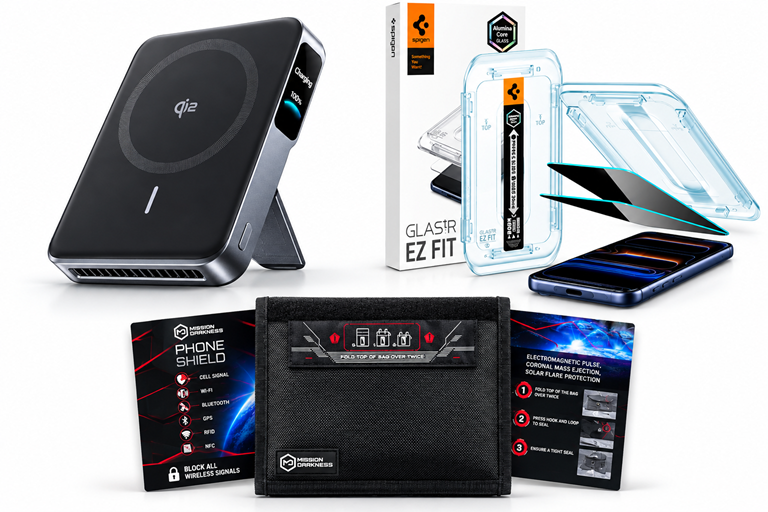
πŸ”‹ Anker MagGo Qi2.2 Ultra-Slim Power Bank: Keeps your iPhone charged on the go so critical safety and location alert features never run out of battery during emergencies.

πŸ‘€Look! $109.99. 4.3 Stars. Check it out on Amazon!


πŸ›‘οΈ Spigen Tempered Glass Privacy Screen Protector for iPhone: Prevents shoulder surfers in coffee shops and airports from viewing one-time passcodes and financial account balances.

Overall Pick! Now $22.99. 4.2 Stars. Check it out on Amazon!


πŸ“΅ Mission Darkness Non-Window Faraday Bag for Phones: Stops remote GPS tracking, cellular intrusion, and unauthorized wireless signals by completely isolating your device inside.

Save 8%. Now $23.00. 4.6 Stars. Check it out on Amazon!


ο»Ώ*Prices accurate when originally published.

One Cool Tip may earn a commission from qualifying purchases.

Fuel Your Adventure

Try Big Mike's Jerky!ο»Ώ


bigmikesjerky.com


Today's Cool Tipο»Ώ

Your iPhone Has a New Way to Spot Scams

Your iPhone has a new security feature designed to recognize signs of scams before you make a payment or change sensitive account information.


ο»ΏLearn how Apple's Impersonation Risk Detection works, where to turn it on, and why it could provide another layer of protection.

By Rodger Mansfield, Technology Editor

October 29, 2026

Subscribe


Imagine receiving an urgent phone call from someone claiming to represent your bank. They know your name, sound professional, and insist that someone is trying to steal your money.


Their solution? Transfer your savings immediately to a supposedly secure account.


You open your banking app and prepare to send the money. Everything looks legitimate, except for one important detail: The caller is a scammer.


Traditional security features might not catch this situation because you're the person authorizing the transaction.


Apple is addressing this problem with Impersonation Risk Detection, a security feature introduced in iOS 27 and iPadOS 27.


The feature helps participating apps recognize suspicious activity associated with scams, potentially giving you an opportunity to reconsider before making a costly mistake.


Here's a Cool Tip: Enable Impersonation Risk Detection to help supported apps recognize suspicious activity before you complete sensitive transactions.


What Is Impersonation Risk Detection?


Impersonation Risk Detection is designed to identify warning signs associated with social engineering scams.


Social engineering occurs when criminals manipulate people into revealing information, transferring money, or changing account settings.


Instead of breaking into your account, a scammer might convince you to use your legitimate credentials to perform an action that benefits them.


That's why these scams can be especially difficult to detect. Even two-factor authentication may not help when the account owner has been tricked into approving the transaction.


Apple's feature takes a different approach.


When you perform a sensitive action in a participating third-party app, such as making a payment or changing your password, the app can request a risk assessment.


Your iPhone analyzes certain device activity and contextual information. Apple combines an on-device assessment with Apple Account-related information to generate a risk level.


The app receives one of three results:

Risk Level | What It Means
  • Unknown
No suspicious activity was detected, but the action is not necessarily safe.
  • Medium
Some signs of suspicious activity were detected.
  • High
Significant signs of suspicious activity were detected.


The app then decides how to respond.


For example, it might display a warning, request additional identity verification, or temporarily delay an action.


Apple does not control the app's response, and the feature does not automatically block fraudulent transactions.


It also does not function as a general-purpose scam-call detector.


Instead, it gives participating apps additional information to help protect you when a potentially risky action occurs.


What You'll Gain


  • Extra Scam Protection: Help supported apps recognize potentially suspicious account activity.
  • Safer Transactions: Give participating financial apps another opportunity to evaluate risky payments.
  • Privacy Controls: Choose whether apps can receive risk assessments.
  • Greater Transparency: Review which apps request assessments and the reasons for those requests.


Step-by-Step Instructions


Here's how to do it.


For iPhone and iPad running iOS 27 or iPadOS 27 or later:


  1. Open Settings. 
  2. Select Privacy & Security, scroll down, and tap Impersonation Risk Detection.
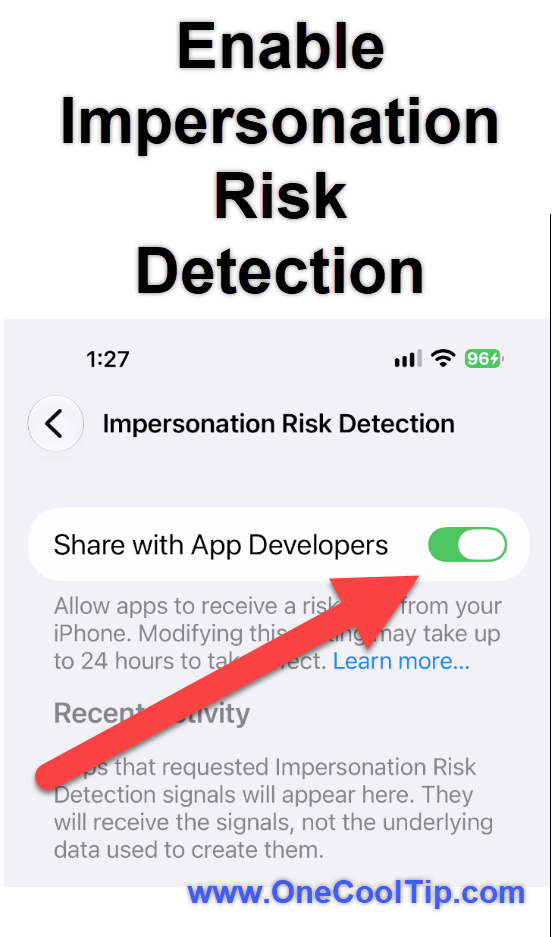
  3. Turn on Share with App Developers. You may need to sign in to the App Store with your Apple Account.


Participating apps can now request risk assessments when you perform certain sensitive actions.


You do not need to open Impersonation Risk Detection each time you make a payment.


Review Which Apps Use the Feature


You can also manage access for individual apps.


  1. Return to Settings > Privacy & Security > Impersonation Risk Detection.
  2. Under Recent Activity, review apps that have requested risk assessments.
  3. Check Reasons for Access to see which actions prompted the requests.
  4. To disable access for a particular app, tap the app and turn off its toggle.


Cool Notes: 


  • Changes to the main setting or individual app permissions may take up to 24 hours to take effect. 
  • Apple uses this possible delay to make it harder for scammers to pressure someone into immediately disabling their protection.

fig. 1 - Enable Impersonation Risk Detection

Pros and Cons


Pros:


  • Addresses a Real Threat: Helps detect situations where scammers manipulate people into authorizing legitimate account actions.
  • Works During Sensitive Activities: Participating apps can request assessments when users make payments or change important account information.
  • Protects Underlying Information: Apps receive a risk level rather than the raw device information used to generate it.
  • Offers Individual App Controls: Users can review requests and manage access.


Cons:


  • Requires Developer Support: Apps must implement the feature before they can use it.
  • Cannot Guarantee Protection: A scam might still succeed even when the feature is enabled.
  • Requires iOS 27 or iPadOS 27: Older operating systems do not support it.
  • Responses Vary: Each participating app decides how to act on the risk information.


Who Should Skip This?


Most eligible iPhone and iPad users who regularly access financial or other sensitive accounts could benefit from enabling this feature.


However, users who prefer not to share risk assessments with third-party apps can leave it disabled.


You may also see little immediate benefit if none of your frequently used apps supports Impersonation Risk Detection.


The feature is optional, and disabling it does not remove your device's other security protections.


Privacy and Data Notes


Impersonation Risk Detection evaluates information such as interaction patterns, timing, context, and basic sensor data.


The underlying device information is analyzed locally on your iPhone.


An on-device assessment, rather than the raw device information, is sent to Apple and combined with relevant Apple Account information to generate the risk signals.


The feature does not analyze the contents of your Photos, Messages, or Mail.


You can turn off sharing at any time through the feature's Settings screen, although changes may take up to 24 hours to take effect.


Troubleshooting and Limitations


Problem: Impersonation Risk Detection is missing from Settings.


  • Why it happens: Your device may not be running iOS 27 or iPadOS 27 or later.
  • Fix: Open Settings > General > About to check your software version. Then visit Settings > General > Software Update to check for an available update.


Problem: No apps appear under Recent Activity.


  • Why it happens: You may not have used a participating app that requested an assessment.
  • Fix: Confirm that Share with App Developers is enabled. Apple has not provided a comprehensive list of participating apps in its referenced documentation.


Problem: I enabled the feature but never see warnings.


  • Why it happens: Not every app supports the feature, and participating developers determine how to use risk assessments.
  • Fix: Continue using normal scam precautions. The absence of a warning does not mean a transaction is safe.


Problem: My settings change is not immediately effective.


  • Why it happens: Apple may delay permission changes for security reasons.
  • Fix: Allow up to 24 hours for the change to take effect.


Problem: Someone tells me to disable Impersonation Risk Detection.


  • Why it happens: A scammer may be attempting to remove an additional security measure.
  • Fix: Stop the conversation and independently contact the organization through a trusted phone number, website, or app.


Feature Access


  • Impersonation Risk Detection is available beginning with iOS 27 and iPadOS 27.
  • It works only with third-party apps that have implemented support for the feature.
  • No subscription required.
  • Installing iOS 27 or iPadOS 27 does not guarantee that your banking, payment, or other apps will use the feature.


Score

Criterion | Score (0–10) |  Justification 
Value |  9
Targets social engineering scams that can bypass traditional account protections by manipulating legitimate users.
Usability |  7
Easy to enable and manage, but its practical usefulness depends on participating apps.
Wow Factor |  8
Provides a clever way to evaluate the circumstances surrounding sensitive account actions.
Total: 24/30 |  πŸ‘ Good
A promising security feature that addresses an important fraud problem, although widespread usefulness depends on developer adoption.
Unlike two-factor authentication, which helps verify that an account action is authorized, Impersonation Risk Detection helps participating apps assess whether the circumstances surrounding that action appear suspicious.


Key Takeaways


Impersonation Risk Detection gives participating iPhone and iPad apps another way to recognize potentially fraudulent activity during sensitive transactions and account changes.


It's easy to enable, provides privacy controls, and addresses an important weakness in traditional account security: scammers who persuade people to authorize actions against their own interests.


While it cannot eliminate fraud, it could provide a valuable additional warning when one matters most.


Cool Tip Snapshot


  • Feature Name: Impersonation Risk Detection
  • Platform(s): iPhone (iOS 27), iPad (iPadOS 27)
  • Quick Benefit: Helps supported apps recognize potential social engineering scams.
  • Best For: Banking, payments, account security, and fraud prevention
  • Access Type: Free built-in feature, requires participating third-party apps
  • Difficulty: Easy


Learn More


Apple explains how Impersonation Risk Detection works, how to enable it, and what information is used to assess suspicious activity.


You can also find detailed instructions in the official iPhone User Guide.


Try It Yourself


Running iOS 27?


Open Settings and check whether Impersonation Risk Detection is enabled on your iPhone. 


It's a simple way to offer participating apps another layer of scam protection. 


Have you noticed this setting yet? 


Share your experience in the comments, subscribe to the One Cool Tip newsletter, and pass this Cool Tip along to family, friends, and coworkers who could benefit from added protection against scams.


READ MORE


Read the Full Cool Tip!

Check Out These Cool Tips & Tricks


  • Scam Detection: Give participating apps another way to recognize suspicious activity. Go to Settings > Privacy & Security > Impersonation Risk Detection and enable Share with App Developers.

ο»Ώ

  • Review Activity: See which participating apps have requested risk assessments. Open Impersonation Risk Detection in Settings and check Recent Activity.


  • Control Access: Decide which participating apps can use Impersonation Risk Detection. Open the feature's settings, select an app, and adjust its access toggle.


  • Update iOS: Keep your iPhone updated to receive available security fixes and improvements. Open Settings > General > Software Update to check for updates.


  • Secure Passwords: Reused or compromised passwords can put multiple accounts at risk. Open the Passwords app and review the Security section for recommendations.


  • Enable Two-Factor Authentication: Add another layer of protection to your Apple Account. Open Settings, tap your name, and select Sign-In & Security to review your authentication settings.


  • Use Passkeys: Passkeys provide phishing-resistant sign-in for compatible websites and apps. When a supported service offers passkey registration, follow its instructions to create one.


  • Verify Callers: Scammers can impersonate legitimate businesses and government agencies. Hang up and contact the organization using a phone number from its official website or app.


  • Stop Screen Sharing: Scammers may ask to see your screen while you access financial information. End unexpected screen-sharing sessions before opening sensitive apps or entering account information.


  • Report Scams: Reporting suspected fraud can help authorities identify patterns and warn consumers. Visit ReportFraud.ftc.gov to report a scam to the Federal Trade Commission.

ICYMI - In Case You Missed It ...

Improve Study Habits with Google Chrome AI Features


Google Chrome recently introduced powerful new features to organize coursework, test knowledge with AI, and sync progress across devices. These updates help students and professionals focus better and retain information longer.


Read the Full Version.


Read the Newsletter Version.

Looking for your next adventure?


Call Denise at Travel For You.

314.660.3039


Sign Up for the Monthly Newsletter


http://www.travelforyouvacations.com/


https://www.facebook.com/TRAVEL.FOR.U/


See You Tomorrow

Tomorrow's Cool Tip is waiting to amaze you.


Until then, go forth and conquer the tech world with your newfound knowledge!


Be sure to visit www.OneCoolTip.com for Cool Tech Tips for a Cooler Life!


And if you Like One Cool Tip, please support with TipJar!


Enjoy!

ο»Ώ


Rodger

Chief Cool Tipper

onecooltip.com@gmail.com


What Do You Think?

What do you think of today's One Cool Tip Newsletter?
Positive        Neutral        Negative
X Share This Email
LinkedIn Share This Email

Connect with One Cool Tip!

Facebook  X  Instagram  Web  Pinterest  YouTube  LinkedIn
β€Š

As an Amazon Associate, One Cool Tip may earn a small commission from qualifying purchases.


Our media content is intended solely for informational purposes. Please do not construe anything here as legal, tax, investment, financial, marital or other advice.


Copyright Β© 2026 | www.OneCoolTip.com | All Rights Reserved


β€Š