|
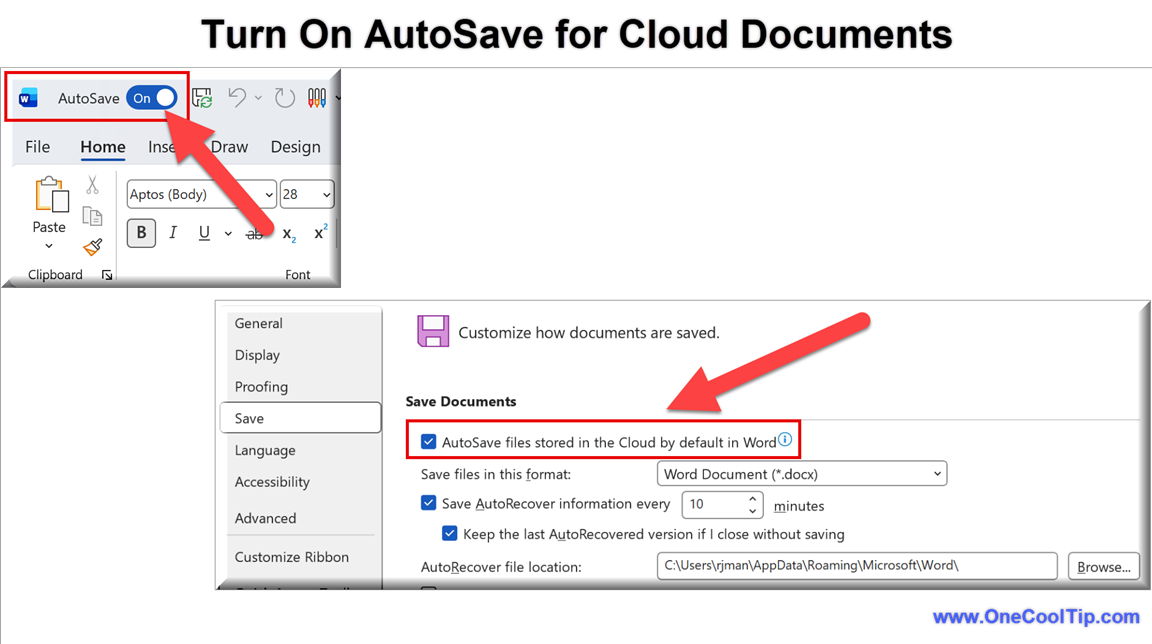
AutoSave applies to supported files stored in OneDrive or SharePoint libraries.
With AutoSave enabled for a supported cloud document, Word automatically saves changes as you work.
2. Show Formatting Marks
-
Select File > Options > Display.
-
Find Always show these formatting marks on the screen.
-
Choose the marks you want Word to display, including paragraph marks, spaces or tab characters.
-
Select OK.
Microsoft Word also lets you quickly show or hide formatting marks from Home > Paragraph > Show/Hide ¶.
What you'll see: Hidden document structure becomes visible, including the formatting marks you've chosen.
3. Review AutoCorrect
-
Select File > Options > Proofing.
-
Select AutoCorrect Options.
-
Open the AutoCorrect tab.
-
Review Replace text as you type and the available AutoCorrect choices.
-
Keep the options that help you and disable those that get in your way.
Microsoft Word also lets you create your own AutoCorrect replacements, which can be handy for text you type repeatedly.
What you'll see: Word will use the AutoCorrect preferences you've chosen while you type.
4. Change Your Default Paste Behavior
-
Select File > Options > Advanced.
-
Scroll to Cut, copy, and paste.
-
Locate Pasting from other programs.
-
Open its drop-down menu.
-
Choose Keep Source Formatting, Merge Formatting or Keep Text Only.
-
Select OK.
Word normally preserves the original formatting when pasted content comes into a document.
Its paste settings let you choose among source formatting, merged formatting and text-only behavior.
Try Keep Text Only for Pasting from other programs if you frequently copy material from websites and don't want their fonts, colors and formatting tagging along.
That is my recommendation, not Microsoft's required or preferred setting.
5. Choose Where Word Saves Files
-
Select File > Options > Save.
-
Decide whether you want Word to save files to your computer by default.
-
If you prefer local storage, review Save to Computer by default.
-
Set Default local file location to your preferred folder.
-
Select OK.
You can still choose a different location when saving an individual file.
For regular modern Word documents, .docx is Word's XML-based document format.
A Realistic Example
Suppose you're writing a newsletter in Word and regularly copy research from webpages.
Ordinarily, pasted material can carry its original formatting into the document.
Setting Pasting from other programs to Keep Text Only lets Word discard that source formatting so you can apply your document's own formatting instead.
That's a small change that can eliminate a surprisingly repetitive cleanup job.
Pros and Cons
Pros:
- AutoSave can protect recent changes in supported documents stored online.
- Formatting marks make invisible document structure easier to diagnose.
- Custom paste settings can reduce unwanted formatting.
- AutoCorrect can better match your writing habits.
- Save preferences give you more control over where locally saved documents go.
Cons:
- AutoSave requires a supported online storage location such as OneDrive or SharePoint for the scenario described here.
- Displaying every formatting mark can make a document look busy.
- Keep Text Only deliberately discards source formatting.
- Settings and menu paths can differ among Windows, Mac and Word for the web.
Who Should Skip This
Don't change a setting simply because somebody says you should.
If you routinely need to preserve formatting from other documents, Keep Source Formatting may make more sense than Keep Text Only.
Likewise, if you don't use OneDrive or SharePoint, cloud-based AutoSave won't provide the same benefit.
And if your computer is managed by a business or school, follow your organization's policies before changing storage-related settings.
Troubleshooting and Limitations
Problem: AutoSave Isn't Available
-
Why it happens: Microsoft's AutoSave instructions apply to supported documents stored in OneDrive or SharePoint libraries.
-
Fix or workaround: Save the document to a supported OneDrive or SharePoint location and check AutoSave again.
Problem: Formatting Marks Won't Go Away
-
Why it happens: Individual marks may be selected under Always show these formatting marks on the screen.
-
Fix or workaround: Return to File > Options > Display and clear the marks you don't want displayed all the time.
Problem: Pasted Text Loses Too Much Formatting
-
Why it happens: Keep Text Only is designed to discard source formatting.
-
Fix or workaround: Try Merge Formatting or Keep Source Formatting instead.
Problem: You Can't Find the Same Settings in Word for the Web
-
Why it happens: Not every desktop setting has an identical web counterpart. Word for the web has a more limited set of AutoCorrect options.
-
Fix or workaround: Use desktop Word when you need a setting that Microsoft doesn't provide in the web version.
Privacy and Data Notes
The main data consideration in this tip involves where you keep your documents.
When you choose OneDrive, its Windows app can synchronize files between the computer and OneDrive, making the files accessible on other devices.
If you'd rather save a document locally, Word for Windows provides options for using your computer as the default save destination and specifying a default local folder.
Choose the storage option that fits your needs and, on a managed work or school computer, your organization's requirements.
Feature Access
AutoSave is available on Word for Microsoft 365 (Windows and macOS) for users with an active Microsoft 365 personal, family, business or education subscription who store files in OneDrive or SharePoint.
Formatting marks, AutoCorrect options, default paste behavior and default save settings are available across Microsoft 365 and standalone desktop versions of Word (including Word 2021 and Word 2024) on Windows and macOS.
Availability of specific cloud or policy-managed options may vary by organization or IT administrator settings. AutoCorrect.
Score
Criterion | Score (0–10) | Justification
Value | 9
The settings address common saving, pasting and formatting frustrations.
Usability | 8
Most require only a one-time visit to Word Options.
Wow Factor | 6
They're not flashy, but several are surprisingly useful.
Total: 23/30 | 👍 Good
These aren't exciting new Word features, but reviewing them can make everyday writing and editing noticeably easier.
Unlike an add-in or separate productivity tool, these controls are already built into Word.
Key Takeaways
A few minutes spent reviewing Word's settings can prevent countless little annoyances later.
Pay particular attention to AutoSave and paste behavior, then remember formatting marks the next time a stubborn document doesn't behave as expected.
Cool Tip Snapshot
-
Feature Name: Five Microsoft Word Settings to Review
-
Platform(s): Primarily Microsoft Word for Windows; selected settings are also available on Mac or the web
-
Quick Benefit: Better saving, cleaner pasting and easier formatting
-
Best For: Home, business, education and productivity users
-
Access Type: Included with supported versions of Microsoft Word
-
Difficulty: Easy
Learn More
Microsoft's official Word documentation explains how to control pasted formatting, including changing the default behavior for text copied from another program.
Try It Yourself
Open Word and spend five minutes reviewing these settings before you start your next document.
Then tell us which setting you changed, subscribe to the FREE One Cool Tip Newsletter, and share this Cool Tip with family, friends and coworkers who spend their days working in Word.
READ MORE
Read the Full Cool Tip!
|