ā€Š

One Cool Tip Newsletter

August 27, 2026

Your daily dose of tech-savvy brilliance!

šŸ˜€Greetings! Happy Thursday, Cool Tipper!


Get ready to streamline your digital life with simple, actionable tips delivered straight to your inbox.


Cool Tip Theme: Recover a Locked Apple Account


Learn how to recover a locked, inactive, or disabled Apple Account, reset your password, and select the correct Apple recovery process.


New here? Subscribe to the One Cool Tip Newsletter for daily updates. It's FREE!

3ļøāƒ£

If you enjoy the One Cool Tip newsletter, please forward this newsletter to THREE friends or colleagues or share it on social media using the links below.


Leave a $$$ Tip!


Share this One Cool Tip Newsletter!

X Share This Email
LinkedIn Share This Email
Pinterest Share This Email

🚨Before You Donate, Make Sure Your Generosity Reaches the Right Place🚨


When disasters strike, many people want to help, but scammers often try to take advantage of that generosity.


The FTC warns that fraudsters may create fake charities or impersonate well-known organizations to collect donations meant for people in need.


Before giving, take a few minutes to research the charity and verify that it is a legitimate organization.


Be especially cautious of donation requests that arrive through social media, text messages, or unexpected emails.


Never donate to anyone who insists on payment by gift card, wire transfer, cash, or cryptocurrency.


A little research can help ensure your donation supports real recovery efforts instead of ending up in a scammer's pocket.


And in Other News...


  • Thinking About an iPhone 18? Here's When to Be Ready


Apple has officially scheduled its next iPhone event for September 9, when the company is expected to unveil the new iPhone 18 lineup and possibly its first foldable iPhone.


Preorders could begin shortly after the announcement, making it a good time to start planning if you are considering an upgrade.


Before rushing to preorder, compare your current phone's trade-in value, check carrier promotions, and consider whether the new features will make a meaningful difference in your daily use.


New iPhones often generate excitement, but last year's model may offer excellent value once prices begin to drop.


If you do plan to buy, be ready when preorders open because popular models and colors can sell out quickly.


A little preparation now can help you get the best deal and avoid buyer's remorse later.


  • Your Driver's License Could Soon Live in Your iPhone


Virginia residents can now add their driver's license or state ID to Apple Wallet and use it from their iPhone or Apple Watch.


The digital ID can be used at more than 250 TSA checkpoints nationwide, participating businesses, select Virginia ABC stores, Virginia DMV locations, and other supported locations.


One privacy benefit is that users can share only the information required for a transaction, such as proof of age, rather than displaying their full identification card.


While the convenience is appealing, Virginia officials stress that residents should still carry their physical driver's license, especially when driving.


Digital IDs are becoming more common, but acceptance is not yet universal.


This is another sign that smartphones are increasingly replacing traditional wallets while giving users more control over the personal information they share.

Cool Tip Poll

šŸ¤” If your Apple Account were locked today, how prepared would you be?

Cool Deals of the Day

Help support One Cool Tip. Use this Amazon link when you shop online.


Check out these Cool Deals:

Apple AirPods Pro 3 Wireless Earbuds with Active Noise Cancellation: Enjoy premium wireless audio while staying connected to the trusted Apple devices associated with your Apple Account.

Save 20%. Now $199.99. 4.4 Stars. Check it out on Amazon!


Apple Watch Series 11 [GPS 42mm]: Keep notifications and Apple services close at hand through a wearable connected to your Apple Account and paired iPhone.

Look! Now $281.06. 4.7 Stars. Check it out on Amazon!


Apple iPad 11-inch: A trusted iPad can provide another convenient way to manage your Apple Account, reset your password, and access Apple services.

Save 11%. Now $399. 4.7 Stars. Check it out on Amazon!


*Prices accurate when originally published.

One Cool Tip may earn a commission from qualifying purchases.

Fuel Your Adventure

Try Big Mike's Jerky!


bigmikesjerky.com


Now on TikTok!


Today's Cool Tip

Recover a Locked Apple Account the Right Way


A locked Apple Account can block access to iCloud, purchases, subscriptions, and other Apple services. The exact warning matters because Apple uses different recovery procedures for security locks, inactive accounts, and disabled Media & Purchases access.


You enter your Apple Account password, but instead of signing in, you see a warning that the account is locked, inactive, or disabled. 


Trying the same password repeatedly usually will not solve the problem and could complicate recovery.


Here’s a Cool Tip: Match the warning to the correct recovery path.


Apple provides several recovery paths, but they are not interchangeable. 


A security lock normally requires a password reset. A locked or inactive account may offer a Request Access button. 


A disabled Media & Purchases account uses a separate reactivation process.


The important first step is to read the entire message before doing anything else.


Feature Explanation


Apple separates account-access problems into three main categories.


Disabled for Security Reasons


Your message may say that the Apple Account has been locked or disabled for security reasons. 


This can happen after you or someone else enters a password or other account information incorrectly too many times.


Apple directs users who receive this type of warning to reset their Apple Account password.


Locked or Not Active


If the message says that the Apple Account is locked or not active, the warning may contain a Request Access button. 


Apple also provides an online access-request process through its account recovery website.


Approval is not guaranteed. Apple says a request may be denied, or the user may be told that the account is locked and cannot be used.


Media & Purchases Disabled


This warning concerns access to purchases and media services rather than necessarily disabling the entire Apple Account.


Tap Continue in the alert when that option appears, or use Apple’s support process to request reactivation.


This distinction matters. Resetting your password may correct a security lock, but it does not replace the reactivation request for a disabled Media & Purchases account.


What You’ll Gain


  • Choose the correct recovery method for the warning you receive.
  • Avoid unnecessary password attempts and conflicting recovery requests.
  • Use a trusted Apple device for the fastest available password reset.
  • Understand when Apple’s account recovery waiting period applies.


Step-by-Step Instructions


Here's how to do it.


iPhone or iPad: Reset Your Password on a Trusted Device


Use this method when the account was disabled for security reasons or Apple directs you to reset your password.


  1. Open Settings.
  2. Tap your name at the top of the screen.
  3. Tap Sign-In & Security.
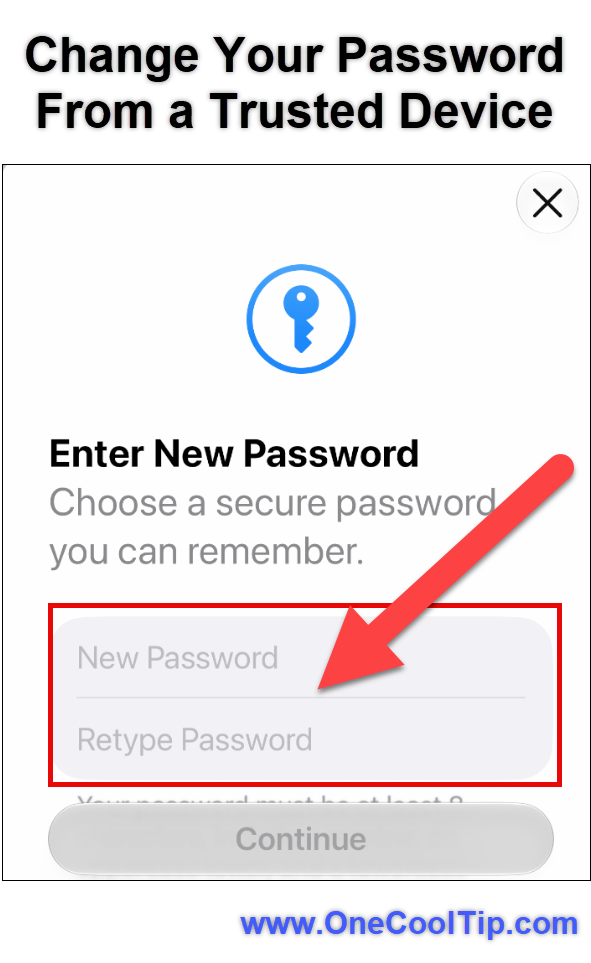
  4. Tap Change Password.
  5. Enter the passcode used to unlock the device.
  6. Follow the instructions to create a new Apple Account password.

fig. 1 - Change Your Password From a Trusted Device

A trusted device is one that is already signed in to your Apple Account and protected by a passcode.


If Stolen Device Protection applies, Apple may impose a one-hour security delay before allowing certain account changes.


macOS: Reset Your Password on a Trusted Mac


  1. Open the Apple menu.
  2. Select System Settings.
  3. Click your name.
  4. Select Sign-In & Security.
  5. Click Change Password.
  6. Enter the password used to unlock the Mac.
  7. Follow the onscreen instructions.


Web, Windows, Android, or Another Device


Apple’s browser-based process works from Windows, Android, macOS, iOS, iPadOS, or another device with a supported web browser.


  1. Go to iforgot.apple.com.
  2. Select Reset Password or follow the account-access prompt Apple presents.
  3. Enter the email address or telephone number associated with your Apple Account.
  4. Complete the identity-verification steps.
  5. Follow Apple’s instructions to reset your password, request access, or begin account recovery.


When possible, Apple may redirect the web process to a trusted device. 


Resetting a password on the web can take longer than using a trusted Apple device.


Use a Borrowed iPhone or iPad


If you do not have your own trusted device but still control your trusted telephone number, you can use the Apple Support app on someone else’s device.


  1. Open the Apple Support app on the borrowed iPhone or iPad.
  2. Scroll to Support Tools.
  3. Tap Reset Password.
  4. Tap Help Someone Else.
  5. Enter your Apple Account email address or telephone number.
  6. Follow the instructions.


Information entered through this procedure is not stored on the borrowed device.


Request Access to a Locked or Inactive Account


  1. Look for Request Access in the warning.
  2. Tap or click it.
  3. Follow Apple’s onscreen prompts.
  4. If the button is unavailable, go to iforgot.apple.com.
  5. Enter your account information and follow Apple’s access-request process.
  6. Watch for Apple’s response.


Reactivate Media & Purchases


  1. When the disabled Media & Purchases warning appears, tap Continue.
  2. Follow the reactivation instructions.


If Continue is unavailable or unsuccessful, use Apple’s online support process to request reactivation.


Cool Example


Suppose a family member repeatedly enters an old password and receives a message that the account was disabled for security reasons. 


The correct response is to stop guessing and reset the password from a trusted iPhone.


The Request Access process is intended for a different type of account restriction.


Pros and Cons


Pros:


  • Apple provides recovery methods through trusted devices, the web, and the Apple Support app.
  • A trusted iPhone, iPad, or Mac can help verify identity using its existing passcode or login password.
  • Borrowing an Apple device does not require signing its owner out of an Apple Account.
  • Separate recovery paths help protect purchases and account data from unauthorized access.


Cons:


  • Apple’s similar warning messages can be easy to confuse.
  • Account recovery can take several days or longer.
  • Apple Support cannot shorten the account recovery waiting period.
  • Access requests for locked or inactive accounts may be denied.
  • Creating another Apple Account does not automatically transfer iCloud data, subscriptions, purchases, or other content from the inaccessible account.


Privacy and Data Notes


Use only Apple’s official websites, device settings, or Apple Support app for account recovery. Password-reset messages are common phishing lures.


Apple representatives will never ask for your Apple Account password, verification codes, recovery key, or other account security details.


Never give another person your:


  • Apple Account password
  • Device passcode
  • Two-factor authentication code
  • Recovery key
  • Physical security key


When using a borrowed device, select Help Someone Else in the Apple Support app. Do not sign the other person out or add your Apple Account to their device.


Feature Access


Apple Account password resetting and account recovery are free. 


The web process can be opened from Windows, Android, macOS, iOS, iPadOS, or another system with a compatible browser.


The available recovery path depends on:


  • The exact account warning
  • Whether the device is already trusted
  • Access to a trusted telephone number
  • Two-factor authentication status
  • Stolen Device Protection
  • Whether a recovery key is enabled
  • Whether the account is personal or organization-managed
  • Apple’s ability to verify the request


Apple renamed Apple ID to Apple Account. 


Existing email addresses, telephone numbers, and passwords continue to work.


Score

Criterion |  Score (0–10) |  Justification
Value 9
These procedures can restore access to iCloud data, purchases, subscriptions, and connected devices.
Usability 7
Resetting from a trusted device is straightforward, but Apple’s similar warning messages can direct users toward different procedures.
Wow Factor 5
The recovery system is valuable, but it is a security necessity rather than an exciting feature.
Total: 21/30 | šŸ‘ Good 
Apple provides several practical recovery options, but success depends on matching the exact warning to the proper procedure.
Compared with a basic forgot-password tool, Apple’s trusted-device and account recovery processes offer stronger account protection at the cost of possible waiting periods.


Key Takeaways


Read the complete warning before selecting a recovery method.


Use a trusted Apple device whenever possible, reserve account recovery for situations where normal password resetting fails, and keep trusted telephone numbers and recovery information current.


Cool Tip Snapshot


  • Feature Name: Apple Account Access and Recovery.
  • Platform(s): iPhone, iPad, Mac, Windows, Android and Web.
  • Quick Benefit: Recover access using the procedure that matches the warning.
  • Best For: Apple users unable to sign in or access purchases.
  • Access Type: Free.
  • Difficulty: Moderate.


Try It Yourself


Review the trusted devices, telephone numbers, and recovery contacts connected to your Apple Account today. 


Share this article with family, friends, and coworkers, tell us whether you have encountered an Apple Account lock, and subscribe to the One Cool Tip newsletter for another practical technology tip every day.


READ MORE


Read the Full Cool Tip.

Check Out These Cool Tips & Tricks


  • Read Carefully: The exact warning determines whether you should reset your password, request access, or reactivate purchases. Record the entire message before closing it.


  • Use Trusted Devices: A signed-in iPhone, iPad, or Mac is usually the quickest password-reset option. Open Sign-In & Security in the device’s account settings.


  • Stop Guessing: Repeatedly entering old passwords does not improve your chances of recovering the account. Switch to Apple’s official reset process when the password is uncertain.


  • Check Your Number: An outdated trusted telephone number can complicate identity verification. Review trusted numbers under Sign-In & Security while you still have access.


  • Add Recovery Help: A recovery contact can help you regain access without seeing your account data. Add one through Settings > [name] > Sign-In & Security > Account Recovery.


  • Protect Recovery Keys: A recovery key is useful only if you can retrieve it when your devices are unavailable. Store it securely and separately from your iPhone or Mac.


  • Avoid Phishing: Search advertisements and unsolicited messages may imitate Apple recovery pages. Type Apple’s official address directly into the browser.


  • Check Recovery Status: Apple’s recovery website can display when additional information or account access will become available. Return to iforgot.apple.com using the same account information entered in the request.


  • Limit Device Activity: Activity on another signed-in device can cancel an account recovery request. Follow Apple’s device-use instructions until recovery finishes.


  • Prepare Before Travel: Account recovery becomes harder when your trusted telephone number is unreachable. Verify trusted devices, roaming access, and recovery contacts before leaving home.

ICYMI - In Case You Missed It ...

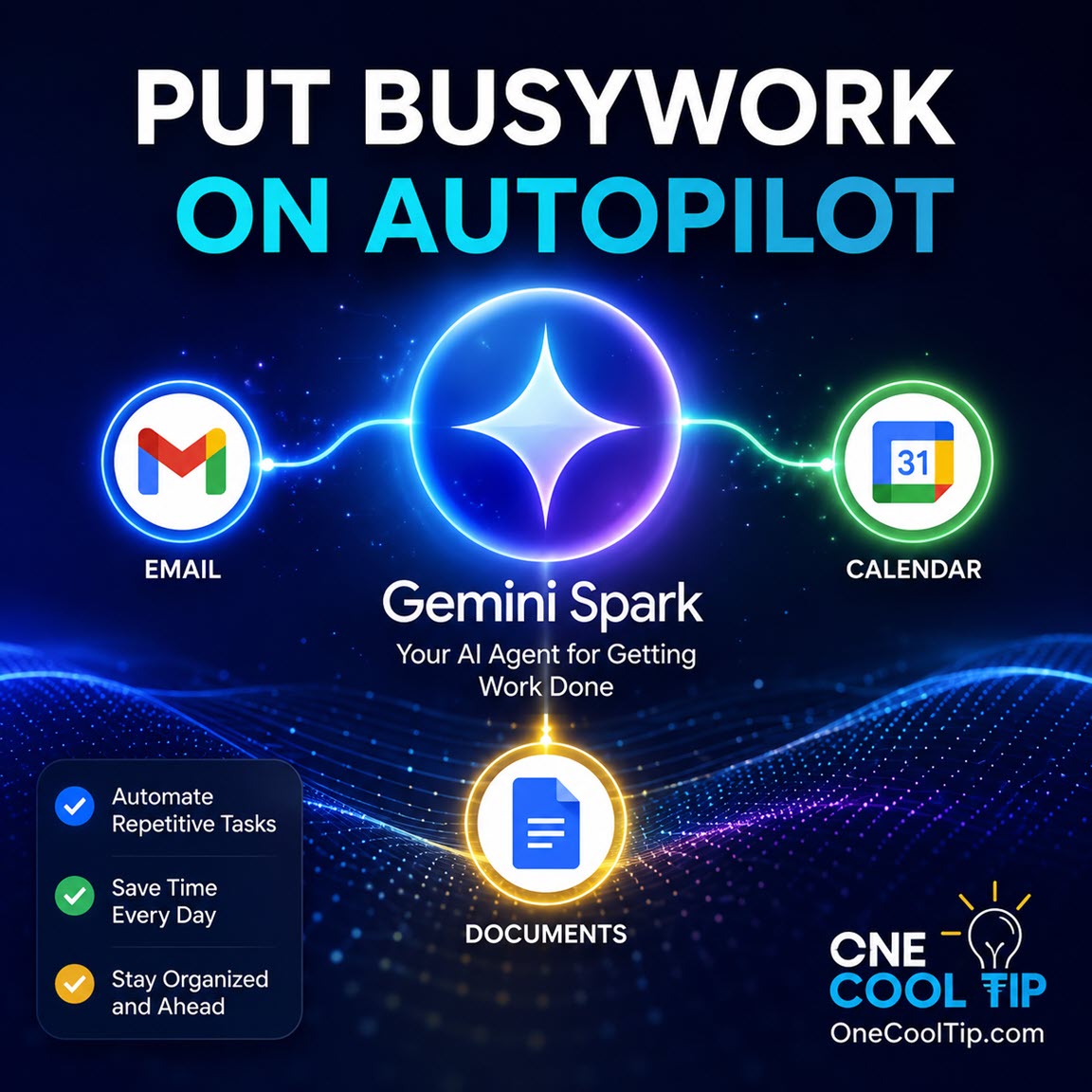
Put Google's Always-On AI Agent to Work


Google is expanding availability of Gemini Spark, its background AI agent that handles continuous tasks across apps. Users can now automate multi-step workflows without leaving browser tabs open or waiting for manual prompts.


Read the Full Version.


Read the Newsletter Version.

Looking for your next adventure?


Call Denise at Travel For You.

314.660.3039


Sign Up for the Monthly Newsletter


http://www.travelforyouvacations.com/


https://www.facebook.com/TRAVEL.FOR.U/


See You Tomorrow

Tomorrow's Cool Tip is waiting to amaze you.


Until then, go forth and conquer the tech world with your newfound knowledge!


Be sure to visit www.OneCoolTip.com for Cool Tech Tips for a Cooler Life!


And if you Like One Cool Tip, please support with TipJar!


Enjoy!


Rodger

Chief Cool Tipper

onecooltip.com@gmail.com


What Do You Think?

What do you think of today's OneCoolTip newsletter?
Positive        Neutral        Negative
X Share This Email
LinkedIn Share This Email

Connect with One Cool Tip!!

Facebook  X  Instagram  Web  Pinterest  YouTube  LinkedIn
ā€Š

As an Amazon Associate, One Cool Tip may earn a small commission from qualifying purchases.


Our media content is intended solely for informational purposes only. Please do not construe anything here as legal, tax, investment, financial, marital or other advice.


Copyright Ā© 2026 | www.OneCoolTip.com | All Rights Reserved


ā€Š