One Cool Tip Newsletter

October 11, 2026

Your daily dose of tech-savvy brilliance!

😀 Greetings! Happy Sunday, Cool Tipper!


Get ready to streamline your digital life with simple, actionable tips delivered straight to your inbox.


Cool Tip Theme: Ask Gemini in Chrome to Explain Videos


Learn how Gemini in Chrome lets you ask questions, pull summaries, and analyze key details from videos and audio tracks you have played on the web.


New here? Subscribe to the One Cool Tip Newsletter for daily updates. It's FREE!

3️⃣

If you enjoy the One Cool Tip Newsletter, please forward this newsletter to THREE friends or colleagues or share it on social media using the links below.


Leave a $$$ Tip!


Share this One Cool Tip Newsletter!

X Share This Email
LinkedIn Share This Email
Pinterest Share This Email

🚨 Ransomware Can Lock Up Your Digital Life. Take These Steps Now 🚨


Ransomware is malicious software that can lock you out of your computer, files, or network and demand payment to restore access, according to the FBI.


It can arrive through an email attachment, malicious link, online advertisement, or even a compromised website.


To reduce your risk, keep your operating system and apps updated and make sure antivirus and anti-malware tools receive automatic updates and regular scans.


The FBI also recommends backing up important data regularly and keeping those backups disconnected from the computers or networks they protect.


If ransomware does strike, the FBI advises against paying the ransom because payment does not guarantee you'll get your data back.


The Cool Tip:


A secure backup of your important photos, documents, and other files can be one of your strongest defenses when ransomware comes calling.


And don't forget to read our Ransomware Cool Tip for Windows 11.


And in Other News...


  • Free Gemini Is Changing: Here's What You Need to Know


Google Gemini is changing how people with personal accounts access its AI models starting in October 2026.


Users without a Google AI subscription will get Auto as the default setting, allowing Gemini to select the model it considers best suited for each prompt.


Most requests will be sent to the faster Flash-Lite model, while prompts requiring deeper reasoning may be routed to Flash or Pro.


If automatic model selection is turned off, free users will receive responses from Flash-Lite.


Paid Google AI plans provide higher usage limits, while demanding features such as media generation, Deep Research, Pro, and extended thinking can consume those limits faster.


The Cool Tip:


If you regularly use Gemini, check your model setting and usage limits after the change arrives so you know which AI model is answering your questions.

Cool Tip Poll

🤔 How do you usually handle long video tutorials or webinars?

Cool Deals of the Day

  • Have you tried the Upside app? Everyday cash back on gas, groceries and dining.


Help support One Cool Tip. Use this Amazon link when you shop online.


Check out these Cool Deals:

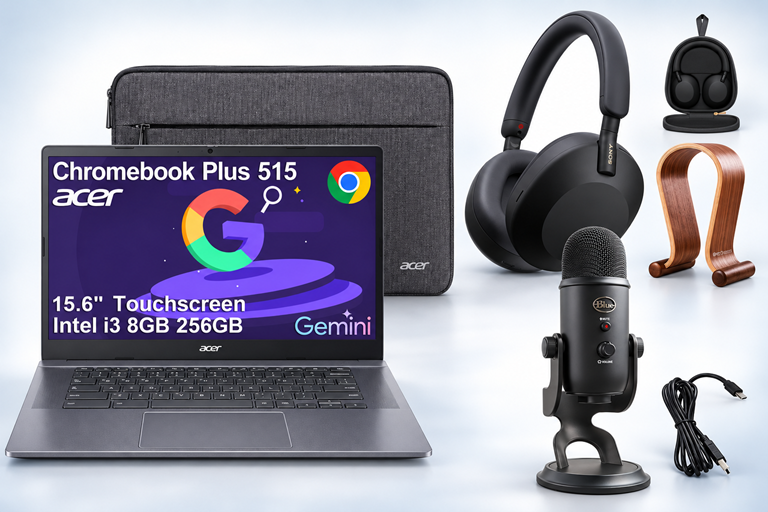
🎧 Sony WH-1000XM5 Noise Canceling Headphones: Top-tier industry noise cancellation makes transcribing, listening, and studying video lectures clear and distraction-free.

Look👀 Now $309.99. 4.7 Stars. Check it out on Amazon!


💻 Acer Chromebook Plus 515: A budget-friendly, Google-certified Chromebook Plus that provides full hardware support for built-in Gemini desktop features.

Overall Pick! Now $599.98. 4.2 Stars. Check it out on Amazon!


🎙️ Blue Yeti USB Microphone: An Amazon best-seller for recording crisp audio and crystal-clear voice notes for digital meetings and media workflows.

Save 26%. Now $103.58. 4.6 Stars. Check it out on Amazon!


*Prices accurate when originally published.

One Cool Tip may earn a commission from qualifying purchases.

Fuel Your Adventure

Try Big Mike's Jerky!


bigmikesjerky.com


Today's Cool Tip

Ask Gemini in Chrome to Explain Videos and Audio You Just Played

Gemini in Chrome can examine the video and audio content you play in your browser tabs to answer specific questions, pull quick summaries, and locate key information.


Here is how to verify your settings, ensure page sharing is active, and query multimedia content without hunting through timestamps.

By Rodger Mansfield, Technology Editor

October 11, 2026

Subscribe


You sit through a 45-minute recorded presentation or a dense technical tutorial on the web, only to realize you forgot the exact step demonstrated halfway through. 


Scrubbing through a video timeline or replaying audio clips to find a 30-second explanation drains time and breaks concentration.


Here’s a Cool Tip: Ask Gemini directly about multimedia you have already played in Chrome to get instant answers from the recording.


Google Chrome tackles this friction directly on desktop computers through Gemini in Chrome. 


Rather than requiring third-party transcription extensions or manual note-taking, the browser can interpret the media streams running inside your active tabs.


Feature Explanation


The feature allows the integrated Gemini assistant to parse audio and video playback within web pages. 


When you play media on supported web pages in Google Chrome, Gemini can review the played content to extract points, clarify spoken statements, summarize arguments, and answer contextual follow-up questions.


This capability runs inside the Chrome browser interface on desktop systems, accessible via the Ask Gemini button in the top browser toolbar or through the side panel. 


Rather than treating web pages merely as static text and HTML, Gemini incorporates the audiovisual data you stream into its active prompt context. 


It solves the problem of information lock-in, where critical knowledge is trapped inside video or podcast formats without quick searchability.


What You’ll Gain


Save time by asking targeted questions about long presentations without scrubbing video timelines manually.


Reduce confusion by obtaining immediate clarifications or transcript summaries from spoken tutorials.


Improve daily workflow by querying up to 10 background reference tabs alongside active media.


Step-by-Step Instructions


Here's how to do it.


Web/Desktop (Chrome on Windows, macOS, and Chromebook Plus):


  1. Launch Google Chrome on your computer and confirm you are signed in with a supported personal Google Account.
  2. Click the three dots menu (More) in the top right corner, select Settings, and click AI innovations (or Experimental AI) in the left sidebar to confirm Gemini in Chrome is enabled.
  3. Open any webpage hosting video or audio material (such as a lecture, webinar, or public broadcast) and play the media segment you want to analyze.
  4. Click the Ask Gemini button located in the top right Chrome toolbar (or open it from the Side Panel).
  5. Check the bottom of the Gemini side panel to verify that active page sharing is enabled for the current tab.
  6. In the prompt box, type your specific question regarding what was played, such as: "What three steps did the speaker describe for setting up the server?"
  7. Press Enter to review Gemini's extracted answer based directly on the played media.


Cool Example: 


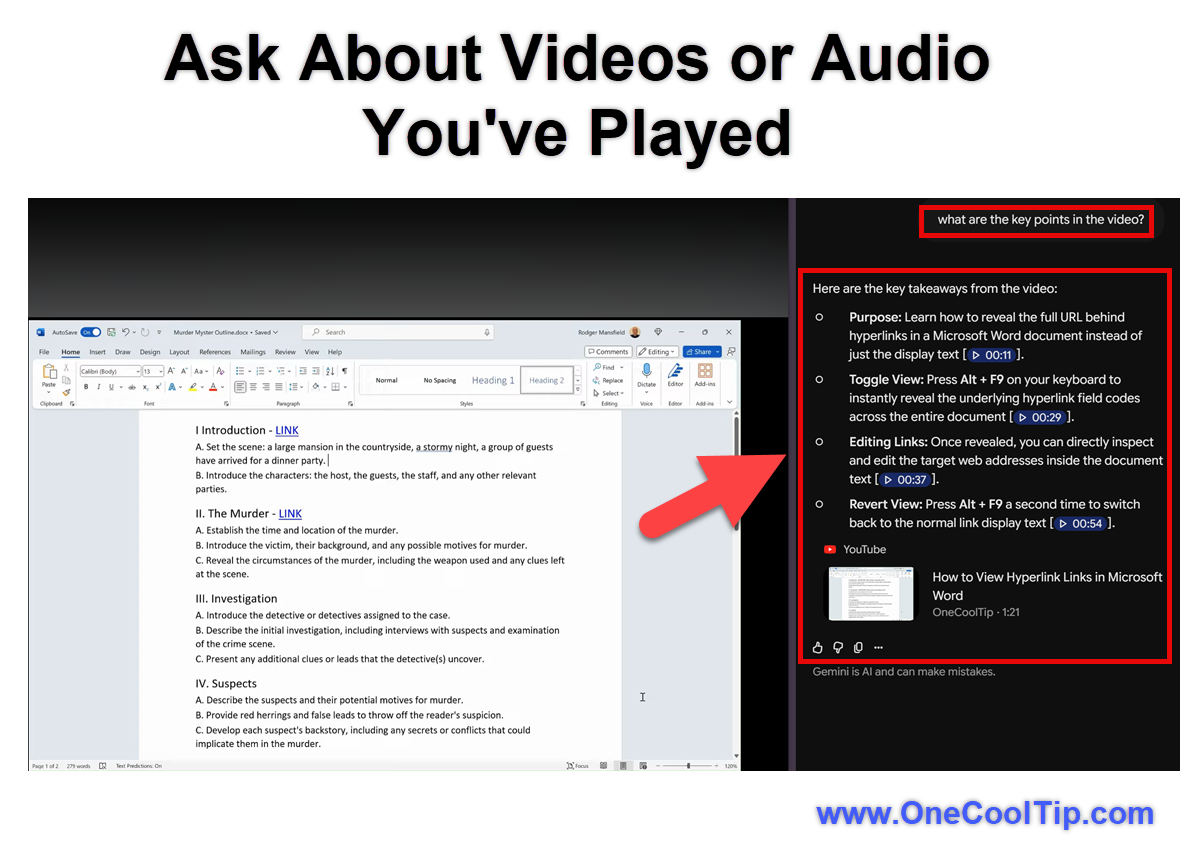
A user plays a popular One Cool Tip video, clicks Ask Gemini, and enters: "What are the key points in this video?" 


Gemini replies in seconds with bulleted details directly from the video stream.

fig. 1 - Ask About Videos or Audio You've Played

Pros and Cons


Pros:


  • Eliminates repetitive scrubbing and manual rewinding across lengthy videos and podcasts.
  • Functions natively in the browser without third-party plugins or external extensions.
  • Allows multi-tab context sharing using the @ tab command alongside media queries.


Cons:


  • Requires media playback to occur first; it does not parse unplayed segments ahead of time.
  • Restricted primarily to desktop builds of Chrome (Windows, Mac, Chromebook Plus).
  • Inactive in Incognito mode and restricted on certain work or school enterprise accounts.
  • Performance depends heavily on audio clarity and platform playback compatibility.


Who Should Skip This


  • Users who primarily browse on mobile devices (iOS or Android phones).
  • Individuals working inside strict corporate, government, or education networks where administrator policies block Gemini AI features.
  • Users who conduct browsing sessions exclusively inside Incognito windows.
  • Anyone viewing copyrighted, DRM-restricted streams that prevent browser-level canvas or audio buffer processing.


Real-World Examples


The Remote Student: A college student listening to a recorded university chemistry lecture opens Gemini in Chrome and asks: "What formula was stated right after the discussion on equilibrium?" The assistant identifies the spoken formula immediately, sparing the student a 15-minute search through the video.


The Business Analyst: A project manager attends a web conference demonstration. Instead of pausing every two minutes to write down software parameters, the manager plays the walkthrough and asks Gemini to generate an outline of every setting demonstrated.


The Web Creator: A video producer reviewing competitor clips uses Gemini in Chrome to draft a comparative checklist of audio talking points covered across two open media tabs.


Configuration Guide


  • Access Path: Open Chrome, select the three-dot menu (More) at the top right, click Settings, and choose AI innovations.
  • Default Setting: On by default once you opt in to Gemini in Chrome on a supported computer.
  • Account Requirements: Requires a signed-in personal Google Account (age 13 or older, or applicable age by jurisdiction) in a supported geographic region.
  • Enterprise Controls: Administrators managing Google Workspace environments can disable Gemini in Chrome across organizational units via Google Admin console policies.


Troubleshooting and Limitations


Problem: The Ask Gemini icon is missing from the Chrome toolbar.

Why it happens: Chrome is outdated, you are browsing in an Incognito window, or you are signed in with an unmanaged student account.

Fix or workaround: Update Chrome via Help > About Google Chrome, exit Incognito mode, and sign in with your primary personal Google Account.


Problem: Media queries fail while connected to an enterprise VPN.

Why it happens: Regional IP geolocation mismatches or corporate firewall restrictions on generative AI endpoints.

Fix or workaround: Temporarily disconnect the VPN, restart Chrome, and confirm your account is configured to a supported country and language.


Privacy and Data Notes


Gemini processes audiovisual streams and active tab content to generate its replies. 


Google isolates these interactions to active sessions, but queries and interaction data are handled according to the Gemini Apps Privacy Hub terms. 


Content from tabs opened in private Incognito windows is never shared with Gemini. 


Feature Access


Users must be 13 or older (or the applicable regional age threshold) and located in supported regions with their browser set to a supported language. 


The feature is not active in Incognito mode. 


For enterprise and education Google Workspace accounts, access depends strictly on whether domain administrators have enabled Gemini features.


Score

Criterion |  Score (0–10) |  Justification
Value |  8
Solves the persistent annoyance of scrubbing through long, unindexed web recordings to verify facts.
Usability |  7
Works natively from the browser toolbar.
Wow Factor |  8
Extracting accurate context directly out of playing media streams without external transcription feels noticeably capable.
Total: 23/30 |  👍 Good
A practical upgrade for desktop research that turns unsearchable web multimedia into searchable reference material. 
It provides a more integrated experience than copying YouTube links into standalone external chatbot windows.


Key Takeaways


Gemini in Chrome interprets played audio and video directly inside your desktop browser tabs. 


The capability requires desktop Chrome on Windows, Mac, or Chromebook Plus.


You can extract facts, outlines, and quotes without scrubbing through video timelines manually.


Cool Tip Snapshot


  • Feature Name: Media Understanding in Gemini in Chrome.
  • Platform(s): Windows, macOS, ChromeOS (Chromebook Plus).
  • Quick Benefit: Ask questions and pull summaries directly from played video and audio streams.
  • Best For: Students, researchers, and professionals who consume long online presentations.
  • Access Type: Rolling Out / Free (Requires supported personal Google Account).
  • Difficulty: Easy.


Learn More


Consult Google's official documentation to explore system requirements, tab sharing capabilities, and configuration options for Gemini in Chrome.


Use Gemini in Chrome - Computer


Try It Yourself


Open a video tutorial or recorded webinar in Chrome today, run Gemini, and ask a question about what was just discussed. 


Drop a comment below with your experience, subscribe to the One Cool Tip newsletter for Free, and share this Cool Tip with family, friends, and coworkers!


READ MORE


Read the Full Cool Tip!

Check Out These Cool Tips & Tricks


  • Pin Panel: Keep your AI assistant visible beside your active work. Click the Side Panel icon in the Chrome toolbar and pin Gemini for one-click access.


  • Reference Tabs: Query multiple open web pages simultaneously. Type the @ symbol in the Gemini prompt box to select open browser tabs to include as context.


  • Search History: Locate visited web pages using plain conversational descriptions. Ask Gemini to search your synced browsing history for topics or items you viewed previously.


  • Control Sharing: Manage whether Gemini reads your current tab contents. Click the page sharing badge at the bottom of the Gemini side panel to pause or resume access.


  • Summarize Articles: Extract key points from lengthy web documentation without reading the full text. Open an article, launch Gemini, and ask it to provide a bulleted list of main takeaways.


  • Draft Content: Compose clear messages directly inside web text fields. Right-click any text entry box on a supported page and select the AI writing assistant.


  • Review Playback: Extract facts and quotes from streaming multimedia without manual scrubbing. Play audio or video in your tab and ask Gemini specific questions about the recorded content.


  • Protect Privacy: Keep confidential or private browsing completely isolated from AI analysis. Open an Incognito window whenever you want to browse without Gemini features running.


  • Clear Context: Start a fresh topic without previous page history interfering. Click the new chat button at the top of the Gemini side panel to reset the conversation.


  • Verify Account: Ensure Gemini features load properly across your browser profile. Check that you are signed in to Chrome with an eligible personal Google Account rather than a restricted enterprise account.

ICYMI - In Case You Missed It ...

Take Ken Burns’ Free History Courses on YouTube


You can now study American history through free Ken Burns courses on YouTube, complete with classroom-ready film clips and interactive quizzes. The first lessons cover the American Revolution, while PBS LearningMedia supplies additional resources for teachers and curious learners.


Read the Full Version.


Read the Newsletter Version.

Looking for your next adventure?


Call Denise at Travel For You.

314.660.3039


Sign Up for the Monthly Newsletter


http://www.travelforyouvacations.com/


https://www.facebook.com/TRAVEL.FOR.U/


See You Tomorrow

Tomorrow's Cool Tip is waiting to amaze you.


Until then, go forth and conquer the tech world with your newfound knowledge!


Be sure to visit www.OneCoolTip.com for Cool Tech Tips for a Cooler Life!


And if you Like One Cool Tip, please support with TipJar!


Enjoy!


Rodger

Chief Cool Tipper

onecooltip.com@gmail.com


What Do You Think?

What do you think of today's One Cool Tip Newsletter?
Positive        Neutral        Negative
X Share This Email
LinkedIn Share This Email

Connect with One Cool Tip!

Facebook  X  Instagram  Web  Pinterest  YouTube  LinkedIn
 

As an Amazon Associate, One Cool Tip may earn a small commission from qualifying purchases.


Our media content is intended solely for informational purposes. Please do not construe anything here as legal, tax, investment, financial, marital or other advice.


Copyright © 2026 | www.OneCoolTip.com | All Rights Reserved