β€Š

One Cool Tip Newsletter

September 10, 2026

Your daily dose of tech-savvy brilliance!

πŸ˜€Greetings! Happy Thursday, Cool Tipper!


Get ready to streamline your digital life with simple, actionable tips delivered straight to your inbox.


Cool Tip Theme: iPhone Hardware Reset

ο»Ώ

Black screen or frozen iPhone? Follow these proven troubleshooting steps to revive your unresponsive device without losing personal data. 


New here? Subscribe to the One Cool Tip Newsletter for daily updates. It's FREE!

3️⃣

If you enjoy the One Cool Tip newsletter, please forward this newsletter to THREE friends or colleagues or share it on social media using the links below.


Leave a $$$ Tip!


Share this One Cool Tip Newsletter!

X Share This Email
LinkedIn Share This Email
Pinterest Share This Email

🚨Disaster Scams Thrive on Panic. Prepare Now.🚨


Severe weather and natural disasters can strike with little warning, but scammers are often quick to follow.


The FTC warns that fraudsters commonly pose as government officials, charities, contractors, or relief organizations after emergencies to steal money and personal information.


One of the best defenses is preparation.


Review your insurance coverage, create a household inventory with photos, and securely store digital copies of important documents in the cloud using strong passwords and multi-factor authentication.


Before disaster season arrives, research local contractors and sign up for emergency alerts in your area.


A little planning today can help you recover faster tomorrow while making it much harder for scammers to take advantage of a difficult situation.


And in Other News...


  • Apple's New Foldable iPhone Could Change How You Think About Upgrading


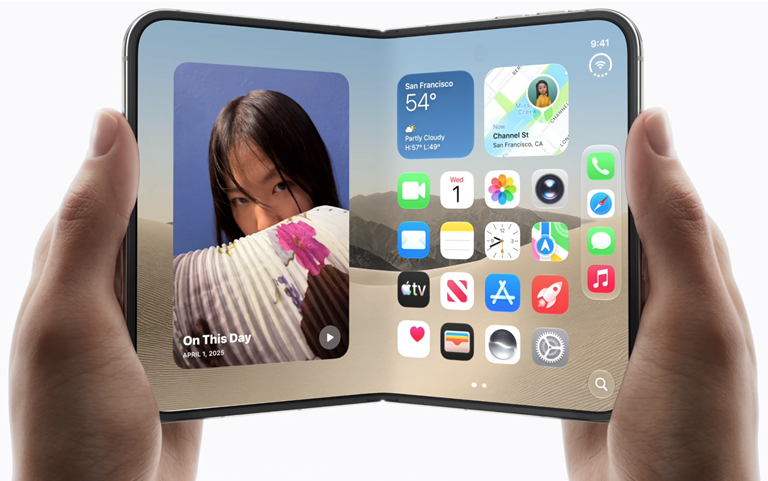
Apple has officially entered the foldable phone market with the new iPhone Duo, a device that opens into a larger 7.6-inch display while still folding down to fit in a pocket.


The design gives users more screen space for multitasking, videos, gaming, and productivity without carrying a separate tablet.


Apple is positioning the device as a bridge between a traditional smartphone and a larger-screen device.


The biggest takeaway is that foldable phones are becoming more mainstream.


If you're shopping for a new phone, it may be worth considering whether a larger, more flexible display would actually improve how you work, stream, read, or stay organized.


As with any first-generation device, it can also be smart to compare features, durability, and pricing before making the leap.


The arrival of the iPhone Duo shows that foldable technology is moving from a niche feature to a serious option for everyday users.

Photo Credit: Apple

Cool Tip Poll

πŸ€” What would you try first if your iPhone screen suddenly went black?

Cool Deals of the Day

Help support One Cool Tip. Use this Amazon link when you shop online.


Check out these Cool Deals:

Apple AirPods Pro 3 Wireless Earbuds with Active Noise Cancellation: Enjoy premium wireless audio while staying connected to the trusted Apple devices associated with your Apple Account.

Save 20%. Now $199.99. 4.4 Stars. Check it out on Amazon!


Apple Watch Series 11 [GPS 42mm]: Keep notifications and Apple services close at hand through a wearable connected to your Apple Account and paired iPhone.

LookπŸ‘‰ Now $399. 4.7 Stars. Check it out on Amazon!


Apple iPad 11-inch: A trusted iPad can provide another convenient way to manage your Apple Account, reset your password, and access Apple services.

Save 5%. Now $427. 4.7 Stars. Check it out on Amazon!


ο»Ώ*Prices accurate when originally published.

One Cool Tip may earn a commission from qualifying purchases.

Fuel Your Adventure

Try Big Mike's Jerky!ο»Ώ


bigmikesjerky.com


Now on TikTok!


Today's Cool Tipο»Ώ

How to Fix an iPhone That Won't Turn On or Respond


A black, unresponsive iPhone screen does not necessarily mean your handset is permanently broken. In most cases, a hardware button sequence or a dedicated charge cycle will get your device back up and running within minutes.


You pick up your iPhone to verify a travel booking, check a critical message, or silence an alarm, only to discover a blank screen.


Tapping the display does nothing. 


Holding the side button brings up zero signs of life. 


The immediate reaction is panic, especially when you depend on that device for work, family logistics, and two-factor security codes.


Here’s a Cool Tip: Force a hardware reset to revive your unresponsive iPhone safely without wiping your data.


A non-responsive display often indicates a system-level lockup or a deeply depleted battery rather than permanent hardware failure. 


Before booking a repair or replacing your handset, a targeted restart sequence can clear the freeze and restore full operation.


Feature Explanation


Every modern iPhone runs a hardware-level override sequence designed to interrupt power to the operating system and force a clean reboot. 


This mechanism bypasses normal touch-screen controls, which are useless when iOS crashes or freezes during background processing.


When an iPhone display remains pitch black, the processor may still be active but caught in an unrecoverable kernel loop. 


In other situations, the lithium-ion battery has entered a state known as deep discharge, where the device lacks sufficient reserve energy even to power the charging indicator icon.


The forced restart triggers a direct signal to the power management unit. 


It cuts temporary power, flushes volatile memory, and restarts the operating system cleanly. 


Because this process functions as a hard reboot rather than a factory reset, your photos, messages, apps, and account configurations remain intact.


What You’ll Gain


  • Save money by resolving standard display lockups without paying diagnostic fees.
  • Recover quickly when traveling or working remotely away from computer access.
  • Protect personal files by reviving the operating system without triggering a factory wipe.
  • Diagnose power faults clearly by isolating cable, charger, or logic board issues.


Step-by-Step Instructions


Here's how to do it.


iPhone:


Option A: iPhone 8, iPhone X, iPhone 11, 12, 13, 14, 15, 16, and newer (including iPhone SE 2nd and 3rd Generation)

ο»Ώ

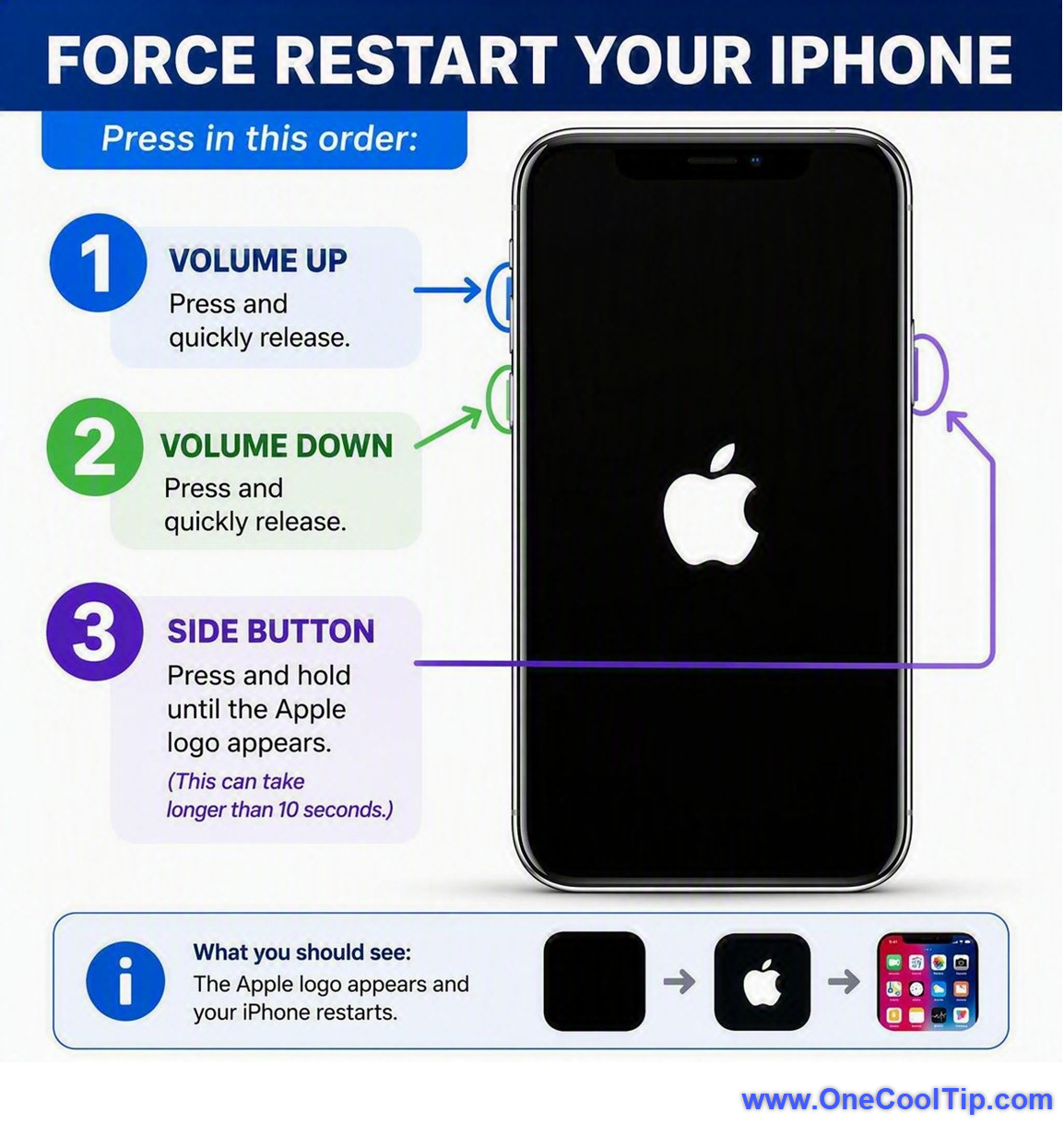
  1. Quickly click and release the Volume Up button on the left edge.
  2. Immediately click and release the Volume Down button directly beneath it.
  3. Press and hold the Side button on the right edge. Keep holding this button down firmly.
  4. Continue holding through the "Slide to Power Off" prompt if it appears. Do not release the button until the white Apple logo appears on the screen. This step can take 15 to 30 seconds.
  5. Release the Side button once the Apple logo shows, then enter your passcode when the lock screen appears.


fig. 1 -Force Restart Your iPhone

Cool Note:


  • Ensure your device is disconnected from computer cables before beginning the button sequence.


Option B: iPhone 7 and iPhone 7 Plus


  1. Press and hold both the Side (Power) button and the Volume Down button at the same time.
  2. Keep holding both buttons together for approximately 10 to 15 seconds.
  3. Release both buttons the moment the Apple logo displays on the screen.


Option C: iPhone 6s, iPhone 6s Plus, and iPhone SE (1st Generation)


  1. Press and hold both the physical Home button on the front face and the Top (or Side) button simultaneously.
  2. Hold both buttons down continuously for 10 to 15 seconds.
  3. Release both buttons as soon as the Apple logo illuminates.


Rule Out Deep Battery Discharge:


  1. If no logo appears after attempting the forced restart:
  2. Connect the phone to a known-working wall adapter and charging cable.
  3. Avoid low-power laptop USB ports for this recovery step.
  4. Leave the phone plugged in undisturbed for a full 60 minutes. Deeply discharged batteries often require 20 to 30 minutes of continuous power before activating the display circuitry.
  5. Repeat the forced restart sequence while the phone remains plugged into wall power.


Pros and Cons


Pros:


  • Zero data loss: Preserves all stored photos, messages, health metrics, and app records.
  • No computer required: Can be completed anywhere, including airports, transit, or client sites.
  • Fast execution: Takes less than 60 seconds once you understand the timing.
  • Universal coverage: Supported across every model of iPhone manufactured.


Cons:


  • Rhythm-sensitive: The button cadence for modern iPhones requires rapid presses; pausing between clicks will cause the restart attempt to fail.
  • Does not solve hardware defects: Will not resolve cracked internal OLED display panels, liquid shorts, or completely dead battery cells.
  • Temporary band-aid for bad apps: If a poorly coded third-party app caused the operating system hang, the phone may freeze again until that app is removed or updated.


Feature Access


  • Availability: Universally available on all iPhone hardware models.
  • Operating System Requirements: Functions independently of the installed iOS version, including older legacy firmware and the latest iOS platforms.
  • Account Restrictions: No Apple Account, iCloud login, or carrier activation is required to execute hardware reset sequences.
  • Enterprise Controls: Mobile Device Management (MDM) profiles and corporate management software cannot disable or block hardware-level force restart key combinations.


Score

Criterion |  Score (0–10) |  Justification
Value |  10
Solves the most common panic-inducing mobile device failure without cost or data loss.
Usability |  7
The rapid cadence on modern models confuses many users who pause too long between button presses.
Wow Factor |  6
A functional rescue utility rather than a flashy feature, though deeply satisfying when it resurrects a dead screen.
Total: 23/30 |  πŸ‘ Good
An essential hardware troubleshooting technique that every smartphone owner should commit to memory.
Similar to holding the physical power button for 10 seconds on Windows and macOS laptops to clear unresponsive hardware states.


Key Takeaways


A black screen frequently reflects a temporary software lockup or battery depletion rather than permanent device death.


The Volume Up, Volume Down, and hold Side button combination safely bypasses broken touch controls without wiping your stored files.


Leaving an unresponsive device on a wall charger for up to an hour provides the reserve power needed to revive deeply discharged batteries.


Cool Tip Snapshot


  • Feature Name: iPhone Hardware Force Restart
  • Platform(s): iOS (iPhone 6s through contemporary iPhone models)
  • Quick Benefit: Revives frozen or black-screen iPhones without erasing stored data.
  • Best For: Anyone dealing with an unresponsive smartphone screen or sudden freeze.
  • Access Type: Free (Built-in hardware function)
  • Difficulty: Easy


Try It Yourself


Take thirty seconds right now to practice the quick Volume Up, Volume Down, and Side button hand rhythm on your iPhone so you know the timing before an emergency happens. 


Did this reset sequence save your phone from a trip to the repair store? 


Drop a comment below, share this guide with friends, family, and colleagues, and make sure to subscribe to the One Cool Tip newsletter for regular, practical technology guidance.


READ MORE


Read the Full Cool Tip.

Check Out These Cool Tips & Tricks


  • Audit Storage: Keep at least 10 gigabytes of internal storage free to prevent operating system freezes and app crashes. Open Settings, tap General, select iPhone Storage, and review recommended deletions.


  • Force Close: Shut down malfunctioning apps before they exhaust system memory and lock your screen. Swipe up from the bottom edge to the center of your screen, pause, and flick the troublesome app card upward off the screen.


  • Schedule Backups: Protect your valuable personal data so you can recover quickly if your phone requires a full restore. Go to Settings, tap your name at the top, select iCloud, tap iCloud Backup, and confirm Back Up Now is active.


  • Clean Ports: Remove pocket lint from the bottom charging port to prevent intermittent power failures. Take a clean wooden or plastic toothpick and gently sweep out compacted debris from inside the charging opening.


  • Enable Offloading: Free up internal capacity automatically without deleting your existing document files. Open Settings, tap App Store, and switch the toggle for Offload Unused Apps to On.


  • Check Battery: Monitor your battery wear level to avoid spontaneous hardware shutdowns. Navigate to Settings, tap Battery, and review the percentage listed under Battery Health & Charging.


  • Update Apps: Eliminate software bugs by maintaining the latest stable patches for third-party programs. Open the App Store, select your profile icon in the upper corner, and tap Update All.


  • Toggle AirDrop: Fix hung wireless connections that cause the control center to lag or lock up. Open Control Center, press and hold the wireless network card, tap AirDrop, and toggle it to Receiving Off and back on.


  • Restart Weekly: Clear out accumulated system cache files to maintain smooth touch responsiveness. Hold the Volume Up button and Side button together, slide the power prompt off, wait 30 seconds, and turn the device back on.

ICYMI - In Case You Missed It ...

Design On-Brand Decks and Convert Them to Video with Gemini


Transforming plain notes into fully styled presentation decks and multimedia videos no longer takes hours of formatting. With Gemini integrated into Google Slides and Google Vids, you can generate structured slide decks from reference files and turn those decks into narrated videos.


Read the Full Version.


Read the Newsletter Version.

Looking for your next adventure?


Call Denise at Travel For You.

314.660.3039


Sign Up for the Monthly Newsletter


http://www.travelforyouvacations.com/


https://www.facebook.com/TRAVEL.FOR.U/


See You Tomorrow

Tomorrow's Cool Tip is waiting to amaze you.


Until then, go forth and conquer the tech world with your newfound knowledge!


Be sure to visit www.OneCoolTip.com for Cool Tech Tips for a Cooler Life!


And if you Like One Cool Tip, please support with TipJar!


Enjoy!

ο»Ώ


Rodger

Chief Cool Tipper

onecooltip.com@gmail.com


What Do You Think?

What do you think of today's OneCoolTip newsletter?
Positive        Neutral        Negative
X Share This Email
LinkedIn Share This Email

Connect with One Cool Tip!

Facebook  X  Instagram  Web  Pinterest  YouTube  LinkedIn
β€Š

As an Amazon Associate, One Cool Tip may earn a small commission from qualifying purchases.


Our media content is intended solely for informational purposes. Please do not construe anything here as legal, tax, investment, financial, marital or other advice.


Copyright Β© 2026 | www.OneCoolTip.com | All Rights Reserved


β€Š