|
Recover Deleted iPhone Photos Before They Disappear
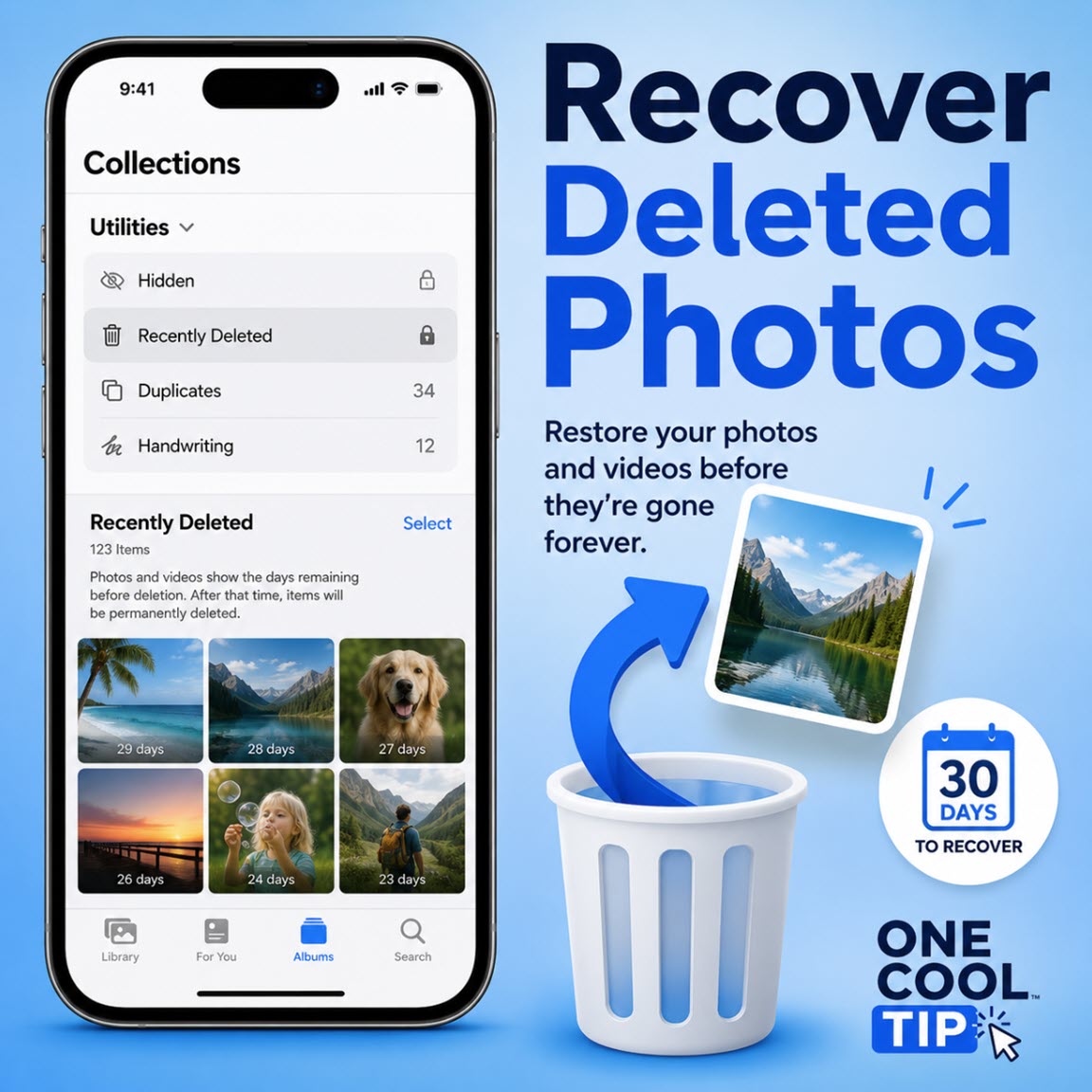
Deleted an important iPhone photo or video by mistake? The Photos app gives you a 30-day recovery window, but you need to know where to look before the item is gone for good.
It happens fast.
You are cleaning up screenshots, deleting blurry vacation shots, or clearing space on your iPhone, and one tap removes a photo or video you meant to keep.
Here’s a Cool Tip: Recover Deleted iPhone Photos.
Thankfully, most deleted iPhone photos and videos are not erased immediately.
Apple moves them to a Recently Deleted collection, where they can usually be recovered for 30 days.
Feature Explanation
The Recently Deleted collection in Apple Photos works like a short-term rescue folder for deleted photos and videos.
When you delete a photo or video in the Photos app, it moves to Recently Deleted.
During the 30-day recovery window, you can restore the item to your library or permanently delete it. After that window closes, the item is permanently removed through Apple’s Photos recovery workflow.
This is especially useful because photo cleanup often happens in batches.
You may delete dozens of screenshots, duplicate images, downloaded memes, or blurry videos at once. One good image can easily get swept away with the clutter.
The feature also matters because iCloud Photos can sync your deletion across devices.
If iCloud Photos is turned on and you delete a photo on one Apple device, that deletion can affect your other devices signed in to the same Apple Account.
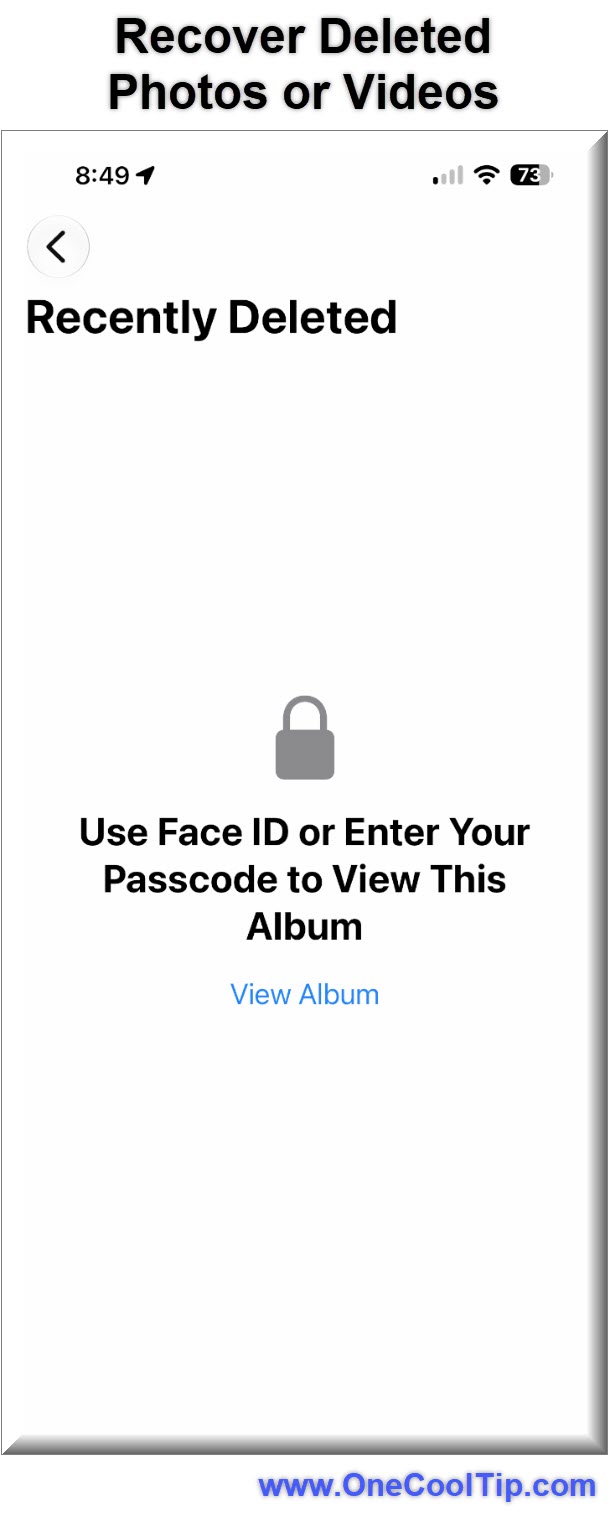
Apple also locks the Recently Deleted and Hidden collections by default.
You must unlock them with your iPhone passcode, Face ID, or Touch ID.
That extra step protects private deleted items from casual browsing if someone else has your phone.
This is not a flashy feature, but it is one of the most practical safety nets in the Photos app.
What You’ll Gain
- Recover important photos or videos before the 30-day window closes.
- Reduce panic after an accidental delete.
- Protect deleted items behind passcode, Face ID, or Touch ID.
- Understand how iCloud Photos affects deletion across your devices.
Step-by-Step Instructions
Here's how to do it.
iPhone/iPad:
-
Open the Photos app.
- Tap Collections.
-
Scroll down to Utilities.
-
Tap Recently Deleted.
-
Tap View Album.
-
Unlock the album with your passcode, Face ID, or Touch ID.
-
Tap the photo or video you want to restore.
-
Tap Recover.
-
Confirm by tapping Recover Photo or Recover Video.
|