|
One Cool Tip Newsletter
May 21, 2025
| Your daily dose of tech-savvy brilliance! | |
😀Hello Rodger, Happy Wednesday, Cool Tipper!
Get ready to streamline your digital life with simple, actionable tips delivered straight to your inbox.
Today's Cool Tip Theme: Checking Screen Time on Windows 11
IN THIS ISSUE
- 🚨 FBI Warning: Protect Yourself from Fake Websites.
- 🚀 AI for Screen Time.
- 🖼️ Cool ChatGPT AI Prompt.
- 💻 Check Screen Time on Windows 11.
- 👀 Master Productivity with Focus.
- 📸 Capture Full Pages in Edge.
- 🙋♂️ Master Snap Layouts in Windows 11.
New here? Subscribe to the One Cool Tip Newsletter for daily updates. It's FREE!
-
😂 Laugh with Us! Enjoy our Tech Joke of the Day, Haiku and Cool Tip Comics.
-
🌐 Stay Informed! Check out ICYMI, and our One Cool Tip Video.
🔔 Is your email provider (Gmail, Yahoo, Outlook...) not delivering the newsletter?
Check the Junk folder - Move the newsletter to your Inbox. And reply to this email with a “Hey, Rodger” or “I got it.” That tells your mail service you want this newsletter!
Today's Tech Trivia
Which online service, launched in the 1980s, was one of the first to offer email, news, and forums to personal computer users?
A) AOL
B) CompuServe
C) Prodigy
D) GEnie
Answer at the end of this newsletter.
| | |
3️⃣
If you enjoy the One Cool Tip newsletter, please forward this newsletter to THREE friends or colleagues or share it on social media using the links below.
Share this One Cool Tip Newsletter!
| |
🚨 FBI Warning: Beware of Fake Employee Websites! 🚨
The FBI has issued a warning that Cybercriminals are impersonating legitimate employee self-service websites to steal login credentials and financial information.
They use fraudulent search engine ads to trick users into entering sensitive data on fake sites.
🔹 How to Stay Safe:
✅ Always verify URLs before clicking on ads.
✅ Use bookmarks or direct links for important sites.
✅ Enable multi-factor authentication for added security.
✅ Report suspicious activity to the FBI’s Internet Crime Complaint Center (IC3).
Stay alert and protect your personal information! 🔒
And in Other News...
- ⚠️Update Chrome - Don't Wait!
Google issued an emergency patch to fix a flaw that could let hackers take over your accounts.
Here's how to do it:
-
Go to Settings > About Chrome and make sure have the latest version.
- Windows users should be version 136.0.7103.113 and macOS should be on 136.0.7103.114.
- 🚀 Let AI Review Your Screen Time
Let's get going with AI!
Copy/Paste this AI-powered prompt. Use with your favorite AI assistant: Gemini, Copilot, Grok, DuckAI, Meta and ChatGPT.
“I spend approximately XXX hours per day on my device. Analyze how I might be using this time and suggest realistic, personalized strategies to improve productivity, reduce digital distractions, and better manage screen time.”
| | |
🖼️ Cool ChatGPT AI Prompt of the Day: Transform Your Photos!
- Upload a portrait photo.
- Enter this prompt:
"Add a Paris skyline behind me with soft sunset lighting."
| | | |
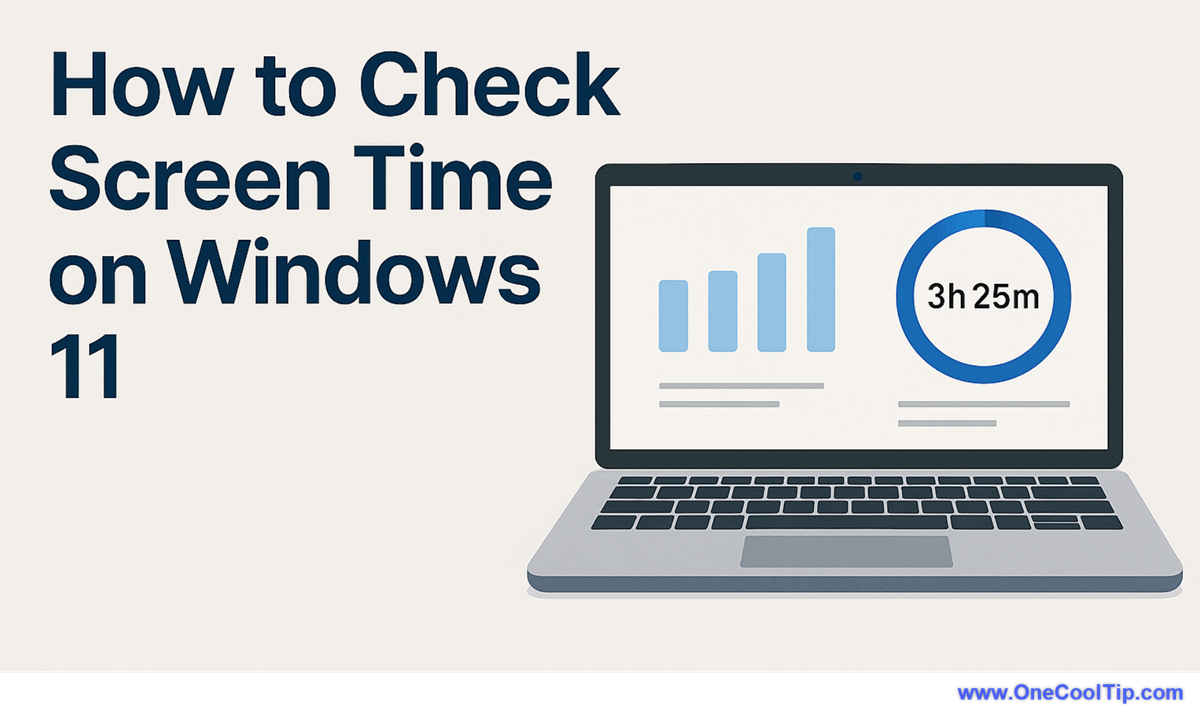
How to Check Screen Time on Windows 11
Why Tracking Screen Time Matters
In today’s digital world, screen time awareness is more important than ever.
For business professionals, understanding time spent on tasks can help optimize workflow.
Educators managing online learning sessions can monitor engagement, while productivity enthusiasts can assess habits and set intentional screen breaks.
Here's a Cool Tip: Check Your Screen Time on Windows 11.
Windows 11 makes it easy to check how long your display has been active.
What You'll Gain
-
Better time management: Gain insights into your daily PC usage.
-
Improved productivity: Identify distractions and optimize work sessions.
-
Health benefits: Encourage screen breaks to reduce eye strain.
Step-by-Step Instructions
Here's how to do it.
Windows 11 (Laptop Users)
-
Click the Start menu.
-
Select Settings.
-
Navigate to System > Power & battery in the left panel.
-
Scroll down and click Battery usage to view a detailed breakdown.
-
Below the battery level graph, you'll see screen on time, screen off time, and sleep time for the past 24 hours.
-
Switch to the Last 7 days option to check your average screen-on time for the week.
For Windows 11 (Desktop Users)
For desktop users, try this:
-
Open Task Manager app.
-
Select Performance > CPU to see how long your system has been running.
Note: This doesn’t reflect active screen time, but rather total system uptime since the last restart.
Pros and Cons
Pros
- Built-in tracking for laptops and tablets.
- Helps manage productivity and digital habits.
- Easy access via Windows Settings.
Cons
- Not available for desktops without third-party apps.
- Limited app-specific breakdowns compared to mobile devices.
- Requires additional software for advanced analytics.
Feature Access
- Available for Windows 11 laptops and tablets.
- Not built-in for desktop users (third-party apps required).
Key Takeaways
- Windows 11 offers screen-on time tracking for laptops and tablets via Battery Usage settings.
- Desktop users must rely on third-party apps or Task Manager for uptime tracking.
- Monitoring screen time helps with productivity, focus, and digital wellness.
Try It Yourself
Take control of your digital habits today!
Open Settings > Power & battery > Battery usage to explore your daily and weekly screen time stats.
READ MORE
Read the Full Cool Tip
| | |
Help support One Cool Tip. Use this Amazon link when you shop online.
Look at these Cool Products:
| | |
🆒Tell Me More
- Windows 11 tracks screen time via battery usage stats, but lacks detailed app-specific tracking.
- Microsoft Family Safety offers more advanced screen time monitoring for family accounts.
- Third-party apps like RescueTime provide deeper insights into productivity and digital habits.
- Setting screen time limits can help reduce distractions and improve focus.
- Regularly reviewing screen time helps maintain a healthy balance between work and leisure.
⏩Quick Tips
-
🕒 Check Screen Time: Use Settings > Power & Battery > Battery Usage to track your screen time.
-
⏳ Set Screen Time Limits: Use Microsoft Family Safety to manage daily usage.
-
🔋 Optimize Battery Life: Reduce screen brightness and close unused apps to extend battery life.
-
📊 Monitor App Usage: Use third-party tools like RescueTime for detailed tracking.
-
🚀 Enable Focus Mode: Activate Focus Assist to minimize distractions.
✅ More Must-Read Tech Tips.
| |
👀 How Do I Master Productivity Windows 11?
Are you struggling to stay focused in a world full of distractions?
Could your productivity benefit from a little technological assistance?
What if you could harness the power of Windows 11 to create a haven of concentration?
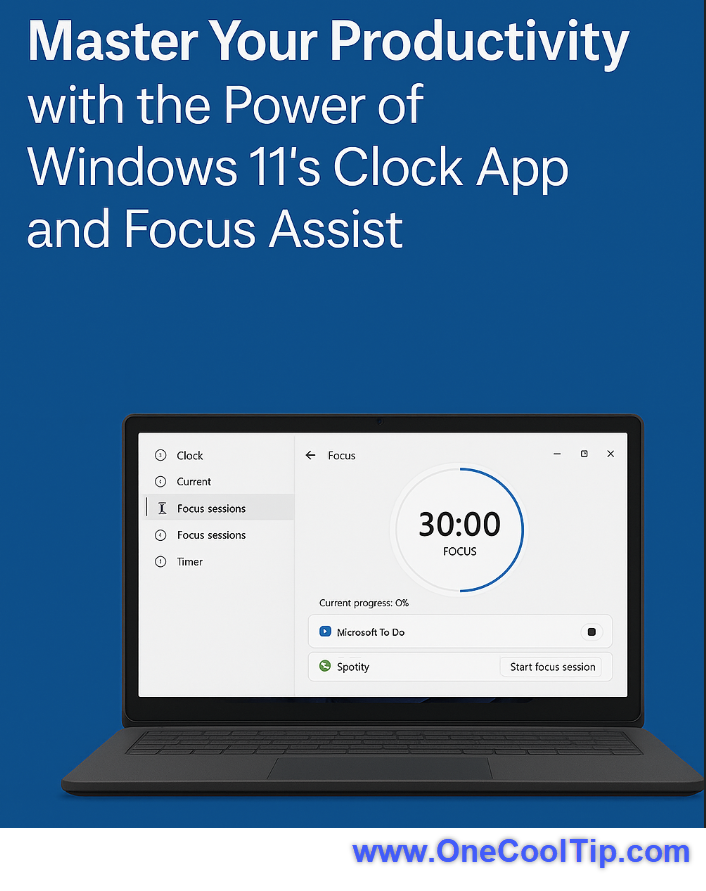
Here's a Cool Tip. Use the Focus feature in Microsoft Windows 11.
The new Focus feature in Windows 11, integrated with the Clock app, is designed to help you minimize distractions and stay on track with your tasks.
Here's how to do it.
-
Open the Clock app from the Start menu or search bar.
-
Navigate to the Focus sessions tab.
-
Set your desired focus duration and breaks.
-
Integrate with Microsoft To Do for task management.
-
Optionally, connect to Spotify for a personalized focus soundtrack.
-
Start your focus session and enjoy minimized distractions.
When you start a focus session, the following occurs:
-
A focus timer appears on your screen.
-
“Do not disturb” mode activates, silencing notifications.
-
Apps in the taskbar won’t flash for attention.
-
Badge notifications on taskbar apps are turned off.
Focus Assist is a valuable tool for anyone looking to improve their concentration and productivity while working on a PC.
Embrace the art of focused work with Windows 11’s Clock app.
By following these tips, you’ll create a productive workspace that minimizes distractions and amplifies your efficiency.
Ready to supercharge your productivity?
Activate Focus Assist today and share your success stories with us!
Discover more HERE.
| | |
Have you ever wanted to capture a screenshot of an entire webpage, but didn't know how?
Do you find yourself scrolling and taking multiple screenshots to capture the entire page?
Here's a Cool Tip: Microsoft Edge Full Page Capture
Microsoft Edge has a built-in feature that allows you to easily capture full-page screenshots in JPEG format.
Here's how to do it:
-
Open the Microsoft Edge browser on your Windows 10/11 or Mac computer
-
Go to the web page that you want to capture.
- Scroll all the way to the bottom of the page to make sure that the Web Capture feature loads all images in the article.
-
Press and hold the three dots icon in the top-right corner.
-
Click the Web Capture button from the toolbar.
-
Select the Full Page option.
-
You'll see the Web Capture menu.
-
Once you're done, click the save button (which looks like a floppy disk) from the toolbar.
-
Microsoft Edge will instantly download the full-page JPEG image to the default download folder on your computer.
That's it!
Find more HERE.
| | |
Have you ever found yourself struggling to manage multiple windows on your screen?
Have you ever wished for a more organized workspace on your computer?
Here's a Cool Tip. Windows 11 Snap Layouts.
Windows 11 introduces a feature that might just revolutionize your multitasking experience: Snap Layouts.
Snap layouts are a new feature introduced to improve productivity by allowing you to easily organize and manage your open windows.
Here's how to do it.
Using Snap Layouts
-
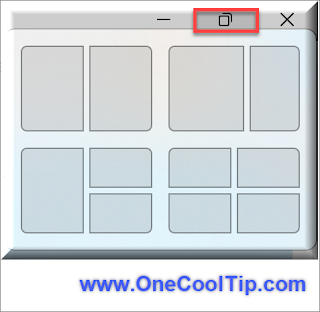
Hover over the Maximize Button: Move your cursor over the maximize button of the window you want to snap.
-
Select a Layout: A box will appear showing different layouts. Choose the one that suits your needs.
-
Snap Your Window: Click on a zone in the layout where you want to snap your window.
-
Complete Your Layout: Use Snap Assist to add more windows to other zones in your chosen layout.
With Snap Layouts, you can view and work on multiple apps simultaneously.
You can choose from various layouts depending on your screen size and orientation.
For instance, if you’re working on a project that requires research and writing, you can have your web browser and word processor app open side by side.
You can easily switch between apps without having to minimize or maximize windows.
Windows 10 also has a similar feature known as Snap Assist.
Here’s how you can use Snap Assist in Windows 10:
-
Drag to Snap: Left-click the title bar on a window and drag it to the corners or left or right edges. You’ll see a transparent overlay indicate how the window will snap.
-
Keyboard Shortcuts: Use Windows Key + Left arrow or Windows Key + Right arrow to snap an app to the left or right halves of your screen. For the smaller quadrants, use Windows Key + Right / Left, and then Windows Key + Up / Down.
- Unfortunately, Windows 10 doesn’t support vertical snapping.
- You can’t use Snap Assist to put one window on the top half and another on the bottom half. You have to do it manually.
That's it.
Start exploring Snap Layouts today and take a step towards a more organized and productive digital workspace!
Learn more HERE.
| | |
❓Did you share this newsletter with three friends yet?
⌨️Today's Cool Keyboard Shortcuts
-
⏳ Windows + I: Open Settings instantly.
-
🔋 Windows + A: Open Quick Settings (including battery info).
-
🚀 Ctrl + Shift + Esc: Open Task Manager to monitor app usage.
✍️Today's Haiku
Screens glow late at night,
Time slips through digital waves,
Balance is the key.
🔎 Do you have a Cool Tip or tech question? Email us at onecooltip.com@gmail.com.
😜 Tech Joke of the Day 😅
What do you call a monitor that loves to gossip?
A screen-ager!
| |
| 🤔 How do you manage your screen time? | | | |
Did You See These Cool Tips This Week?
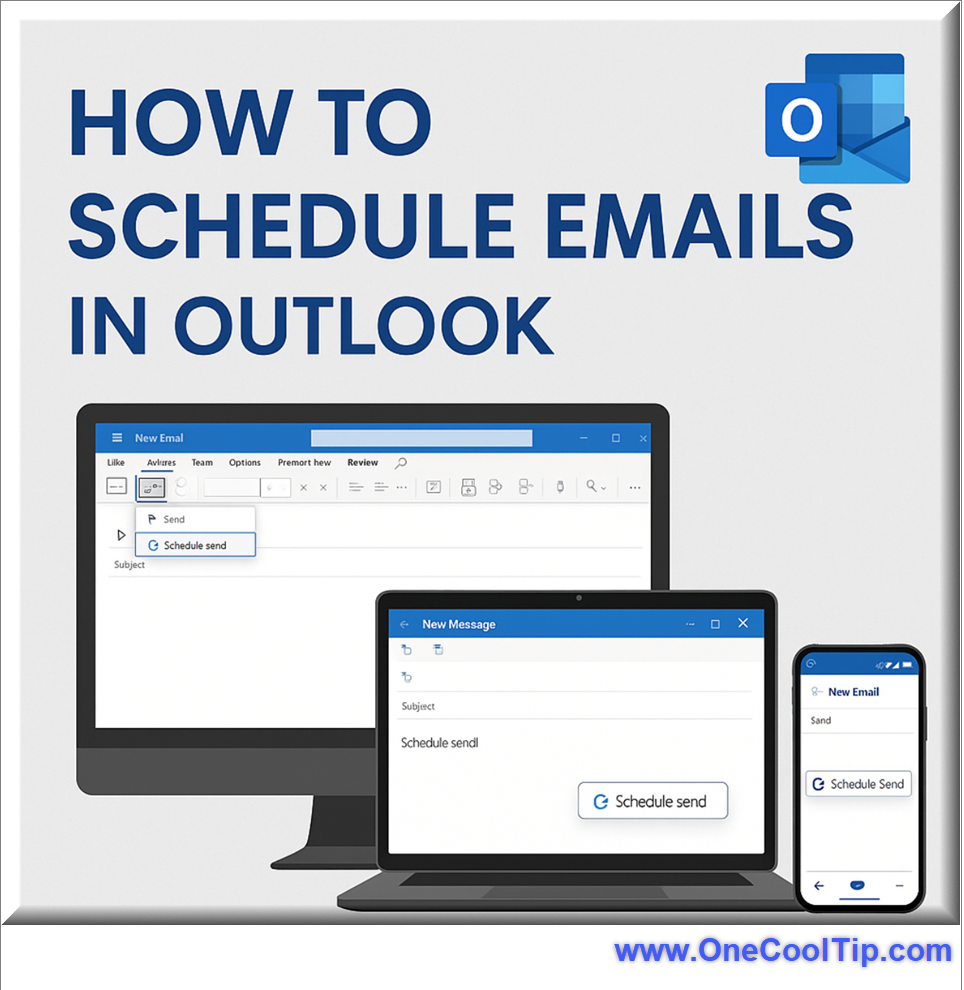
| | | | ChatGPT's Shopping Upgrade: Smarter, Faster, Ad-Free Product Discovery | Say goodbye to endless tabs and sponsored results. ChatGPT’s new shopping feature delivers personalized, ad-free product recommendations in a conversational format. | | | | How to Take Control of Your Inbox with Scheduled Emails in Outlook | Discover how to schedule emails in Microsoft Outlook to ensure timely communication without needing to be online. Whether you're coordinating global time zones, preparing future reminders, or managing productivity, this feature is a game-changer. | |
ICYMI - In Case You Missed It ...
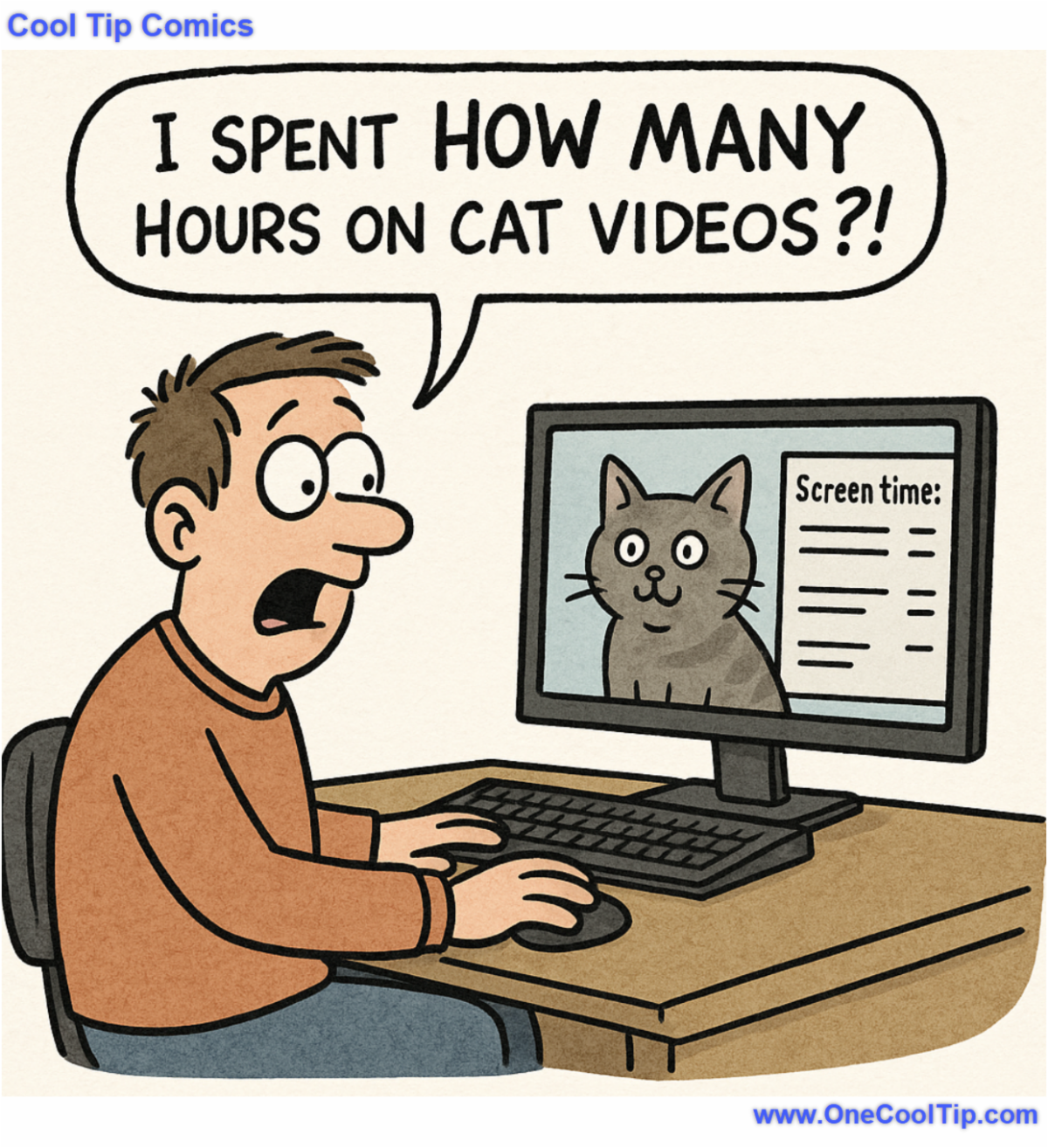
| | | | Inspect Hidden Data in Microsoft 365 Documents to Protect Your Privacy | Learn how to use Microsoft 365's Document Inspector to identify and remove hidden data and personal information from your files, ensuring privacy and professionalism when sharing documents. | | At this point, the cat should be sending you treats.🐱📦 | | |
Trivia Answer: B) CompuServe
CompuServe, founded in 1969 and popularized in the 1980s, was one of the first major online services for personal computer users.
It provided groundbreaking features like email, news, forums, and file sharing, paving the way for modern internet services.
CompuServe was especially popular among early tech enthusiasts and businesses
----------
Tomorrow's Cool Tip is waiting to amaze you.
Until then, go forth and conquer the tech world with your newfound knowledge!
And be sure to visit www.OneCoolTip.com for Cool Tech Tips for a Cooler Life!
Enjoy!
Rodger
Chief Cool Tipper
onecooltip.com@gmail.com
| |
| What do you think of today's OneCoolTip newsletter? | | | |
Please Share the One Cool Tip Newsletter!
You asked for it. You got it. There is now a One Cool Tip Newsletter archive. Did you delete a newsletter and want to read it again? Check it out HERE.
Want to help One Cool Tip grow? Please forward this email using the link above. And if you see an OCT social media post, please LIKE, COMMENT and SHARE!
Have you subscribed to the One Cool Tip YouTube channel? Subscribe HERE.
| | Connect with One Cool Tip!! | | |
|
As an Amazon Associate, One Cool Tip may earn a small commission from qualifying purchases.
Our media content is intended solely for informational purposes only. Please do not construe anything here as legal, tax, investment, financial, marital or other advice.
Copyright © 2025 | www.OneCoolTip.com | All Rights Reserved
|
| | | |