ā€Š

One Cool Tip Newsletter

November 25, 2025

Your daily dose of tech-savvy brilliance!

šŸ˜€Greetings! Happy Tuesday, Cool Tipper!


Get ready to streamline your digital life with simple, actionable tips delivered straight to your inbox.


Cool Tip Theme: Google Maps Updated Explore Tab


Enjoy today's abbreviated Cool Tip Newsletter while Cool Tip is searching the world for more Cool Tips.


New here? Subscribe to the One Cool Tip Newsletter for daily updates. It's FREE!

  • Gemini 3 Everywhere


Google has launched Gemini 3, its most advanced AI yet, now available in the Gemini app (Android), inside the Google app (iOS), and on the web at gemini.google.com.


What’s New


  • Deep Think Mode: Breaks down complex problems for more accurate answers.
  • Generative UI: Creates interactive visuals and layouts, not just text.
  • Developer Platform: Natural‑language coding and workflow automation.
  • 1M Token Context Window: Analyze massive documents or videos in one go.
  • Multimodal Intelligence: Work seamlessly across text, images, audio, video, and code.


Why It Matters


Gemini 3 makes AI more practical for everyday users and professionals alike. Whether you’re drafting a report, analyzing research, or planning a trip, Gemini now delivers richer, more contextual results across devices.


  • NATO + Google Cloud Partner on AI Sovereign Cloud


NATO has signed a multi‑million dollar deal with Google Cloud to build an AI‑enabled sovereign cloud.


The partnership is designed to strengthen secure data management, enhance collaboration across member nations, and leverage AI for defense and operational efficiency.

Check out these Cool Tips & Tricks for Google Maps:


  • Quick Recalculation: Open Maps, zoom in slightly. If you miss a turn, simply tap the Recenter button.


  • Measure Distance: Open Maps, tap and hold your starting point. Tap Measure distance, then tap additional points on the map.


  • Share ETA: Start navigation. Swipe up from the bottom and tap Share trip progress to send a link to contacts.


  • Offline Maps: Search for a city, tap its name, tap the three-dot menu, and select Download offline map.


  • Street View: Drop a blue Pegman icon onto any blue line or dot on the map.


  • Save Spots: Tap a location, then tap Save to add it to a custom list, like "To Visit."


  • Avoid Tolls: Start a route, tap the three-dot menu, go to Route Options, and check the Avoid tolls box.


  • Check Traffic: Tap the Layers icon (diamond shape) in the upper right, and select Traffic to view real-time conditions.


  • Add Stop: While navigating, tap the search icon and choose a category like Gas stations to add an intermediate stop.


  • Incognito Mode: Tap your profile icon, then tap Turn on Incognito mode to browse or search without saving to your history.

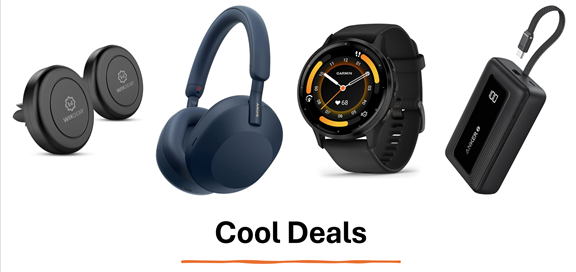
Cool Deals

Help support One Cool Tip. Use this Amazon link when you shop online.


  • šŸŽ§ Bose QuietComfort Ultra Wireless Noise Cancelling Headphones: Save 38% $248. These are essential for focusing while planning your trip or navigating a busy new area using the Maps app. Check it out on Amazon!


  • šŸ”‹ Anker Power Bank: Save 30% $29.99 Keep your phone charged while exploring all the new spots you discover with the updated Maps tab. Check it out on Amazon!


  • šŸ“± Spigen Universal Air Vent Magnetic Car Mount: Save 17% $12.45 Securely hold your phone for clear navigation to the places the Explore tab helps you find. Check it out on Amazon!


  • ⌚ Garmin Venu 3 GPS Smartwatch: Save 22% $349. Check simple navigation cues and local notifications discreetly on your wrist while you are out exploring. Check it out on Amazon!

*prices accurate when originally published.

Fuel Your Adventure

Try Big Mike's Jerky!


bigmikesjerky.com


Now on TikTok!


Today's Cool Tip

Google Maps New Explore Tab is Your Personal Local Assistant


A recent update to Google Maps’ Explore tab transforms it from a generic directory into a personalized local search engine, making it easier than ever to discover relevant points of interest. This feature is particularly useful for travelers and local explorers who want to find highly-rated, timely, and specific activities based on their current location and personal interests.


How many times have you opened a map application intending to find a quick, quality place for lunch, only to spend ten minutes scrolling through endless generic categories? 


The traditional ā€œExploreā€ function in mapping tools has always been a static, one-size-fits-all list: Restaurants, Gas Stations, Groceries. 


This approach often leaves out the crucial elements of personalization and immediacy. Finding ā€œthe best patio dining that’s open right now and not a long drive from my officeā€ required multiple searches, filters, and cross-referencing. 


Here's a Cool Tip:  Try the New Explore Tab in Google Maps.


Google recognized this pain point, giving its Explore tab a significant, necessary overhaul to become a truly useful local discovery tool.


Feature Explanation


The updated Explore tab in the Google Maps mobile app leverages sophisticated machine learning to become a dynamic, personalized guide to your surroundings. 


Instead of simply presenting broad categories, it surfaces hyper-relevant suggestions based on your location, the time of day, current local trends, and crucially, your previous searches and saved lists.


The core functionality operates by analyzing numerous data points simultaneously. 


For instance, if you are near Chicago, IL at 6:00 PM on a Tuesday, the tab might prominently feature categories like "Dinner Spots with Short Wait Times," "Live Music Tonight," or "Highly-Rated Local Breweries." 


This is a major improvement over merely showing "Restaurants."


Why does this matter? 


It shifts the focus of the map application from a tool for navigation to a tool for discovery and decision-making. 


By surfacing better, more timely information upfront, Google Maps saves users valuable time and helps them make higher-quality choices, whether they are a local resident looking for a new spot or a visitor trying to maximize a short trip. 


It also integrates smoothly with other Maps features, allowing users to save places, check prices, and jump straight into navigation.


What You’ll Gain


Eliminate decision fatigue by seeing the most relevant local options instantly.


Discover high-quality, non-tourist-trap locations based on aggregated community data.


Save time by bypassing multiple searches and filter applications.


Plan spontaneous outings with confidence, knowing hours and wait times are prioritized.


Step-by-Step Instructions


The updated Explore tab is primarily a mobile-first feature.


Here's how to do it.


iOS


  1. Ensure you have the latest Google Maps mobile app from the Apple Store.
  2. Tap the Google Maps icon on your iPhone or iPad. 
  3. Look for the Explore tab, located in the bottom menu bar of the screen. 
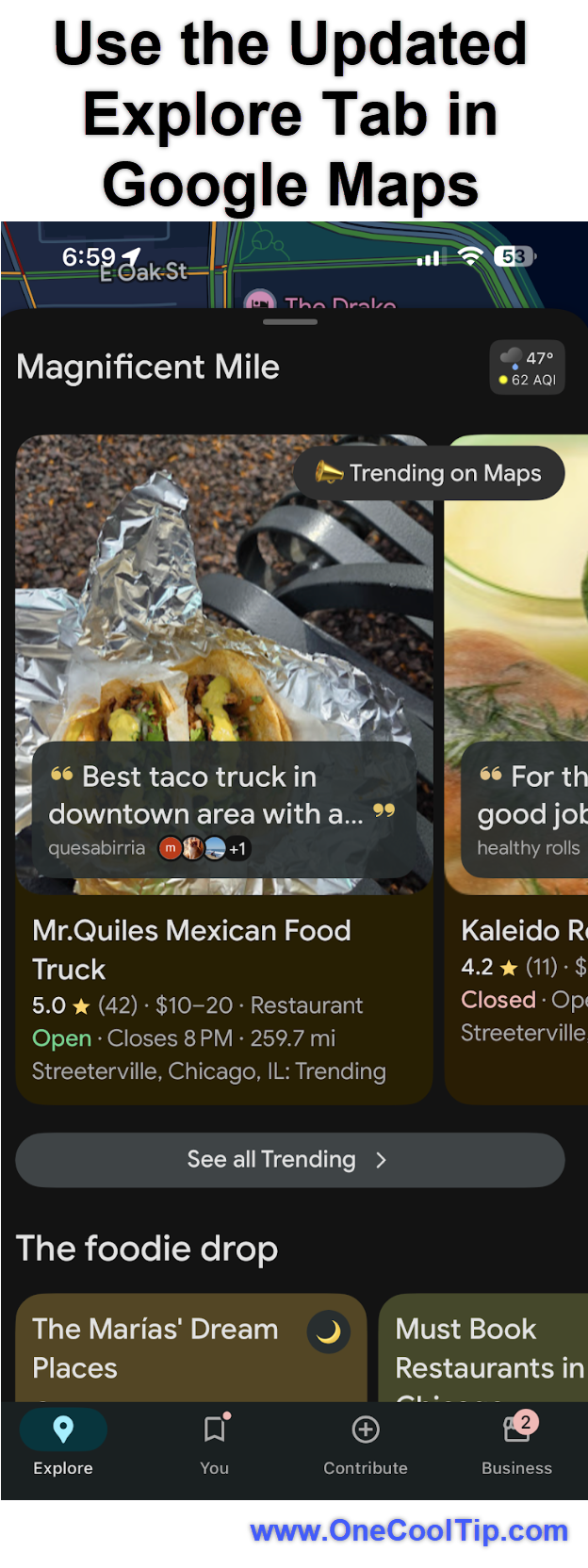
  4. The top of the screen will now display a carousel of highly personalized categories or 'Neighborhood Gems' based on the time and your location. Scroll horizontally through these suggestions.
  5. Tap a category, such as Patio Dining or Best Breakfast, to instantly filter the map and the resulting list view below with only relevant locations.
  6. After tapping a category, you can still use the traditional search bar at the top to add specific keywords, like ā€œBBQā€ or ā€œVegan,ā€ further refining the results.


fig. 1 - Use the Updated Explore Tab in Google Maps

Android


  1. Ensure you have the latest Google Maps mobile app from the Google Store.
  2. Tap the Explore icon in the persistent navigation bar at the bottom of the screen.
  3.  Review the dynamic, location-aware suggestions displayed at the top. These categories change based on the hour and what is trending locally.
  4. Tap one of the prominent suggestions, for example, Live Music or Highly Rated Coffee. This action immediately updates the map view and the list of businesses to match that filter.
  5. After applying a filter, you can still type into the search box above the map results to layer an additional search term onto the pre-filtered category.


Pros and Cons


Pros


  • Increased Discovery: The reliance on local trends and personalized data means users find hidden gems instead of just well-known chain stores. 
  • Saves Time and Effort: The dynamic categories eliminate the need to scroll through pages of general listings. 
  • Enhanced Spontaneity: By prioritizing timely information like "open now" and "short drive," it makes spur-of-moment planning frictionless. 


Cons


  • Data Privacy Concerns: The personalization relies heavily on user search history, location data, and saved places. Users concerned about data collection may find the accuracy intrusive.
  • Occasional Irrelevance: In less densely populated or unfamiliar areas, the personalized suggestions may default to broader categories, diminishing the intended "hyper-local" value.
  • Reliance on App Updates: The advanced functionality depends on having the most recent version of the Google Maps app. Users with older devices or settings may not see the full dynamic features.


Configuration Guide


The updated Explore tab is essentially a feature enhancement built into the main Google Maps mobile application. 


There are no direct on/off toggles specifically for the look of the Explore tab.


To Control Personalization: The relevancy of the suggestions is tied to your Web & App Activity settings within your Google Account. 


If you want less personalized but still dynamic results, you can pause or restrict this activity tracking.


Key Default: The Explore tab defaults to using your current location to provide local relevance. Ensure your device’s Location Services are enabled for Google Maps to receive the most accurate and timely suggestions.


Hiding/Showing: The Explore tab is a permanent fixture in the mobile app's bottom navigation bar and cannot be removed. Its content simply becomes more or less generic depending on your location and account activity settings.


Feature Access


This update to the Explore tab is a server-side change currently rolling out across both the iOS and Android mobile applications for Google Maps users globally. 


It is not dependent on a paid subscription or specific edition of Google services. 


Users should ensure their Google Maps app is updated to the latest version. 


The desktop/web version of Google Maps retains a simpler, category-based search functionality.


Score

Criterion | Score (0–10) | Justification
Value 9
Transforms the app from just navigation to essential local discovery, saving users valuable decision time.
Usability 10
The feature is intuitive, automatically showing relevant options without requiring the user to change any settings.
Wow Factor 8
The instant, relevant personalization feels like a genuine upgrade, predicting user intent better than any previous iteration.
Total: 27/30  šŸŒŸ Excellent
The new Explore tab is an excellent, intuitive refinement that makes Google Maps the undisputed leader in local search and discovery, moving beyond basic GPS functionality. It significantly outperforms the more static search categories found in competing map applications.

Key Takeaways


  • The updated Google Maps Explore tab serves up local knowledge, using your history and current context to deliver hyper-relevant suggestions instantly. 
  • This upgrade means less time filtering and searching, and more time enjoying the quality places and activities you discover around you. 
  • It truly turns the map into a proactive personal assistant for local exploration.


Cool Tip Snapshot


  • Feature Name: Updated Google Maps Explore Tab.
  • Platform(s): iOS, Android.
  • Quick Benefit: Instant, personalized local suggestions based on time and location.
  • Access Type (Free, Subscription, Beta): Free, currently rolling out.


Try It Yourself


Open your Google Maps app right now and tap the Explore tab. 


See what immediate, personalized suggestions the app serves up for your current location, then share the article with your team, family, and friends who want to find the best local spots. 


READ MORE


Read the Full Cool Tip.

ICYMI - In Case You Missed It ...

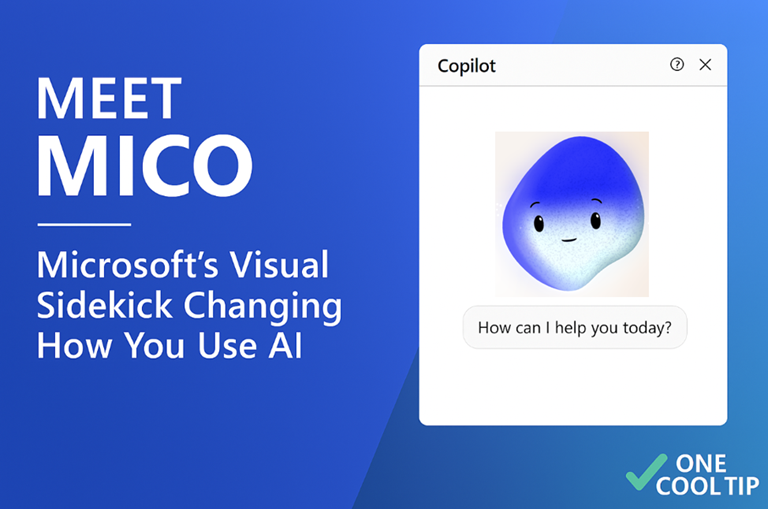
Meet Mico: Microsoft’s Visual Sidekick That’s Changing How You Use AI


Microsoft’s new visual assistant, Mico, adds a face and personality to Copilot, making AI feel more intuitive, expressive, and human-centered.


Read the Full Cool Tip.

Looking for your next adventure?


Call Denise at Travel For You.

314.660.3039


Sign Up for the Monthly Newsletter


http://www.travelforyouvacations.com/


https://www.facebook.com/TRAVEL.FOR.U/


See You Tomorrow

Tomorrow's Cool Tip is waiting to amaze you.


Until then, go forth and conquer the tech world with your newfound knowledge!


Be sure to visit www.OneCoolTip.com for Cool Tech Tips for a Cooler Life!


And if you Like One Cool Tip, please support with TipJar!


Enjoy!


Rodger

Chief Cool Tipper

onecooltip.com@gmail.com

3ļøāƒ£

If you enjoy the One Cool Tip newsletter, please forward this newsletter to THREE friends or colleagues or share it on social media using the links below.


Leave a Tip!


Share this One Cool Tip Newsletter!

X Share This Email
LinkedIn Share This Email
Pinterest Share This Email


What Do You Think?

What do you think of today's OneCoolTip newsletter?
Positive        Neutral        Negative
X Share This Email
LinkedIn Share This Email

Connect with One Cool Tip!!

Facebook  X  Instagram  Web  Pinterest  YouTube  LinkedIn
ā€Š

As an Amazon Associate, One Cool Tip may earn a small commission from qualifying purchases.


Our media content is intended solely for informational purposes only. Please do not construe anything here as legal, tax, investment, financial, marital or other advice.


Copyright Ā© 2025 | www.OneCoolTip.com | All Rights Reserved


ā€Š