|
One Cool Tip Newsletter
December 3, 2025
| Your daily dose of tech-savvy brilliance! | |
😀Greetings!, Happy Windows Wednesday, Cool Tipper!
Get ready to streamline your digital life with simple, actionable tips delivered straight to your inbox.
Today's Cool Tip Theme: Create QR Codes in Microsoft Edge
IN THIS ISSUE
- ⚠️ Security Alert: Watch Out for Reshipping Scams.
- 📰 Tech News: Windows 11 Update Fixes File Explorer Freezes.
- 🤖 AI Prompt: Help me plan a productive Wednesday.
- 📸 Copilot AI Prompt: Analyze the following image or screenshot.
- 🔗 Cool Tip: Create a QR Code in Microsoft Edge to Share Any Page Instantly.
- 📝 Quick Tips: Try these Cool Microsoft Edge quick tips (Vertical Tabs, Collections, etc.).
- 📤 Productivity Booster: How Do I Move Files Between Devices with Ease? (Drop App).
- ↔️ Hidden Feature: Have You Ever Wondered How to Split Screen in Microsoft Edge?
- 🗣️ Accessibility: Here's How to Read Aloud in Microsoft Edge.
New here? Subscribe to the One Cool Tip Newsletter for daily updates. It's FREE!
-
😂 Laugh with Us! Enjoy our Tech Joke of the Day, Haiku and Cool Tip Comics.
-
🌐 Stay Informed! Check out ICYMI, and our One Cool Tip Video.
Today's Tech Trivia
Answer at the end of this newsletter.
| |
| Which company created the first widely used QR code standard in 1994? | | | | |
🚨Watch Out for Reshipping Scams🚨
If a “job” asks you to receive packages, re-label them, and ship them out; stop.
You may be caught in a reshipping scam that involves stolen goods and identity theft.
These fake employers often lure victims with remote work offers and promise easy money.
What to do:
- Don’t accept packages from strangers.
- Never share your address or ID with unknown “employers.”
- Report suspicious activity to the FTC.
🔗 Read more from the FTC HERE.
And in Other News...
- Windows 11 Update Fixes File Explorer Freezes
Microsoft has released the KB5070311 update for Windows 11, addressing frustrating File Explorer freezes and search bar issues.
If your system has been lagging or locking up when browsing files, this patch should improve stability and responsiveness.
What to do:
- Go to Settings > Windows Update and check for updates.
- Install KB5070311 to apply the fixes.
- Restart your PC to ensure changes take effect.
| | |
🚀 Make It a Great Week!
Copy/Paste this AI-powered prompt. Try it in the One Cool Tip AI Companion (free ChatGPT account required) or Copilot, Gemini or ChatGPT:
"Help me plan a productive Wednesday. First, ask me for three tasks I must finish today. Then create a focused plan that includes:
• one high-impact task to start with,
• two quick wins I can finish fast,
• one task I should delay or delegate,
• a simple progress check for the afternoon,
• and a short wrap-up routine for the end of the day.
Keep everything realistic, clear, and easy to follow."
| | | |
Try this Cool Copilot prompt:
“Look at the image I upload and give me a clear explanation of what’s happening in it, what I might want to do next, and three optional improvements or actions I could take.
Present everything in a simple, well-organized format.
Ask me at the end if I want a follow-up version with step-by-step instructions.”
| | |
Create a QR Code in Microsoft Edge to Share Any Page Instantly
A fast, no-fuss way to send a link from your PC to a phone or print-ready flyer. No extensions. No sign-in.
Have you ever tried to get a whole room onto the same page without emailing a link?
A simple square can save the day. QR codes turn any webpage into a scannable shortcut that phones recognize immediately.
Here's a Cool Tip: Create QR Codes in Microsoft Edge.
In Edge, this power is already there, baked in and ready to use.
Feature Explanation
Microsoft Edge includes a built-in QR code generator for any webpage.
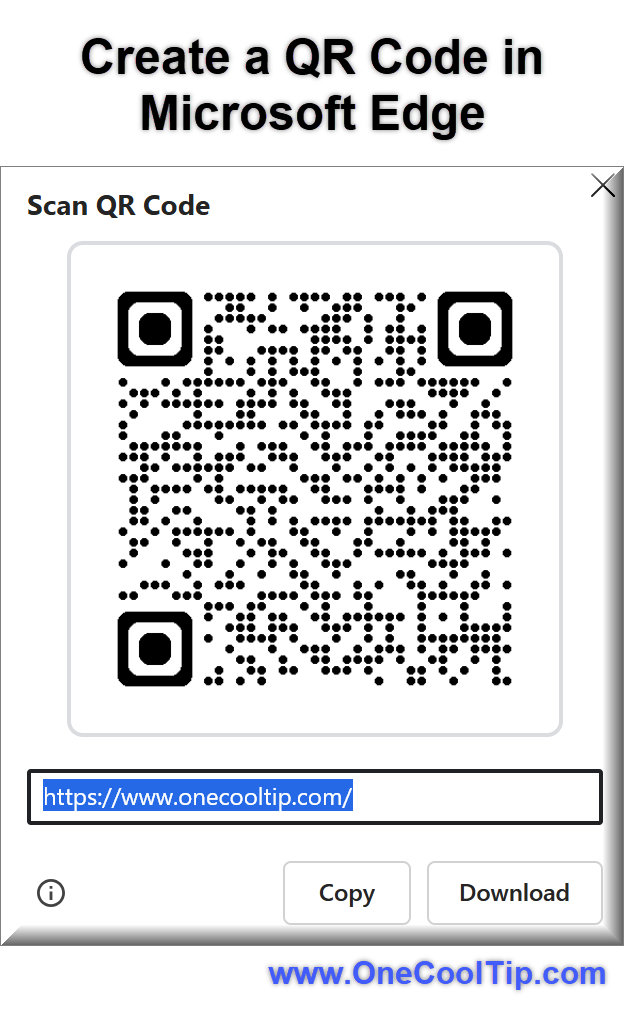
Right-click a blank area of the page and choose Create QR code for this page.
Edge renders the code on the spot, lets you download a PNG, and places a reusable QR icon in the right side of the address bar for quick access later.
You can also scan QR codes directly by clicking the camera icon in the address bar, making Edge a handy viewer as well as a generator.
Availability and behavior can vary based on device, market, and browser version.
What You’ll Gain
-
Instant sharing: Move from desktop to phone without typing.
-
Print-ready assets: Save a PNG for posters, handouts, or packaging.
-
Fewer steps: No extensions or third-party sites required.
-
Reusable access: The QR icon in the address bar helps you revisit or re-share quickly.
Step-by-Step Instructions
Here's how to do it.
Microsoft Edge/Desktop
-
Navigate to the site you want to share.
-
Right-click the page.
-
Choose Create QR code for this page.
-
Click Download to save as PNG, or use Share from Edge to distribute.
-
The QR code icon now appears on the right side of the address bar for quick re-access.
| | fig. 1 - Create a QR Code in Microsoft Edge | | |
iOS
- Open Edge on iPhone.
- Go to your desired webpage.
- Tap the menu or Share button, then look for Create QR code.
- Save the PNG to Photos or share directly via Messages or AirDrop.
- Use the camera icon in the address bar to scan QR codes where available.
- Availability and exact menu names may vary by device, region, and Edge version.
Android
- Open Edge on Android.
- Navigate to the target page.
- Tap the menu, then select Create QR code if present. Update Edge if the option is not visible.
-
Download the PNG to your device or share via your preferred apps.
- Tap the address bar camera icon to scan QR codes where available.
- Feature availability and functionality can vary by market and browser version.
Pros and Cons
Pros:
-
No extra tools: Built-in generator reduces friction for teams and events.
-
Reusable access: The address bar icon speeds repeat sharing.
-
Scan support: Edge can scan codes, useful when testing printed materials.
Cons:
-
Platform variance: Mobile menus and availability can differ by region and version.
-
PNG only: No vector export for high-scale print needs; use design tools if you require SVG.
Feature Access
-
Who gets it: Users of Microsoft Edge on desktop, with availability and functionality varying by device type, market, and browser version.
-
Mobile: iOS and Android behavior may differ, and availability is dependent on app version and market.
Score
Criterion | Score | Justification
Value 9
Built-in, fast sharing across devices without add-ons. Saves time for teams and events.
Usability 8
One context menu click and simple PNG download; minor menu variance on mobile can confuse new users.
Wow Factor 7
Not flashy, but the address bar icon and instant PNG make it pleasantly efficient.
Total: 24/30 👍 Good
A practical built-in that replaces third-party QR generators, similar in convenience to Chrome’s QR feature but better integrated with Edge’s Share workflow.
Key Takeaways
Edge’s QR code feature turns any page into a scannable shortcut in seconds.
It is built in, easy to reuse, and works for quick sharing or print-ready assets.
Cool Tip Snapshot
-
Feature Name: QR code generator
-
Platform(s): Microsoft Edge on desktop and mobile
-
Quick Benefit: Create and reuse scannable links without extensions
-
Access Type (Free, Subscription, Beta): Free
Try It Yourself
Open a page in Edge, right-click, select Create QR code for this page, then download the PNG and share it with your team.
If you enjoyed this tip, drop a comment, subscribe to the One Cool Tip newsletter, and share this article with your colleagues, family, and friends.
READ MORE
Read the Full Cool Tip.
| | |
Help support One Cool Tip. Use this Amazon link when you shop online.
Look at these Cool Products:
|
-
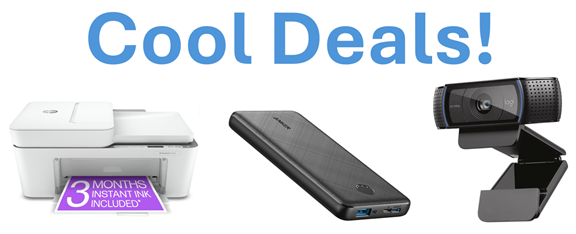
🖨️ HP DeskJet 4155e Wireless Color Printer: Perfect for printing QR codes on flyers or handouts. Compact and affordable. $99.99 Check it out on Amazon!
- 📱 Anker PowerCore 10K Portable Charger: This compact battery pack ensures your phone stays charged when scanning QR codes all day at a conference or trade show. $25.99 Check it out on Amazon!
-
💻 Logitech C920x HD Pro Webcam: Sharp 1080p video makes it ideal for Zoom, Teams, and recording tutorials. Reliable autofocus helps even in low light. Overall Pick! $69.99 Check it out on Amazon!
Prices accurate at time of publication
| | |
🆒Tell Me More
-
Edge can scan QR codes too: Click the camera icon in the address bar.
-
You can QR images: Right-click any image in Edge to generate a QR code for it.
-
PNG format only: Downloads are in PNG, not SVG or PDF.
-
Address bar shortcut: Once used, the QR icon stays visible for reuse.
-
Mobile support varies: QR generation is rolling out on iOS and Android.
⏩Quick Tips
-
📎 Right-click to create: Just right-click on a blank area of a webpage in Edge and select “Create QR code.”
-
🖼️ QR for images: Right-click directly on an image to generate a QR code for that image.
-
📥 Save as PNG: Click “Download” to save the QR code as a PNG file for printing or sharing.
-
📱 Scan with Edge: Use the camera icon in the address bar to scan QR codes directly in Edge.
-
🔄 Reuse easily: After generating a QR code, the icon stays in the address bar for quick reuse.
| | ✅ More Must-Read Tech Tips | |
|
📄 Try these Cool Microsoft Edge quick tips:
-
Vertical Tabs: Organize tabs down the side for better multitasking. Click the tab layout icon in the top-left corner and choose “Turn on vertical tabs.”
-
Collections: Save articles, images, and notes in grouped folders. Click the “Collections” icon on the toolbar and start a new collection.
-
Read Aloud: Let Edge narrate articles or PDFs to you. Right-click on a page or open the PDF, then select “Read aloud.”
-
Sleeping Tabs: Save memory by putting inactive tabs to sleep. Go to Settings > System and Performance > Turn on Sleeping Tabs.
-
Web Capture: Snap and annotate any part of a webpage. Click the camera icon or press Ctrl + Shift + S to launch Web Capture.
-
Immersive Reader: Strip distractions for focused reading. Click the book icon in the address bar when available.
-
Startup Boost: Launch Edge faster when your PC starts. Enable it under Settings > System and Performance > Startup Boost.
-
Sidebar Apps: Use Outlook, Office, or tools without leaving your tab. Click the Sidebar icon and pin your favorite apps for quick access.
| |
👀 How Do I Move Files Between Devices with Ease?
Are you tired of constantly emailing files to yourself or using a USB drive to transfer files between devices?
Look no further than the Edge browser’s drop app feature!
With this handy tool, you can easily move files from one device to another with just a few clicks.
-
Ensure you are signed in to your Microsoft Account on both devices.
-
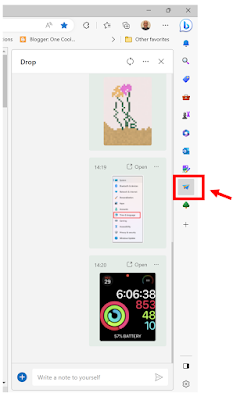
On your other machine, launch Microsoft Edge and click the Drop app button from the sidebar.
-
Click the + button to add a file or Drag the file to the Drop App section.
- The file you send and the comment (if any) will be readily available to open or download to your local machine.
-
On your local machine, open the Drop app to see your file.
-
Click the three-dot button next to the shared file or right-mouse click to view other options.
That's it!
You've moved the file between devices without using email or USB.
Discover more HERE.
| | |
🤔 Have You Ever Wondered How to Split Screen in Microsoft Edge?
Have you ever found yourself juggling between multiple tabs and wishing for a simpler way to view them all at once?
Here's a Cool Tip: Split the screens in Microsoft Edge.
Here's how to do it.
-
Open Microsoft Edge and navigate to the page you want to split.
-
Look for the Split Screen icon in the toolbar, which is usually located near the top-right corner of the browser window.
-
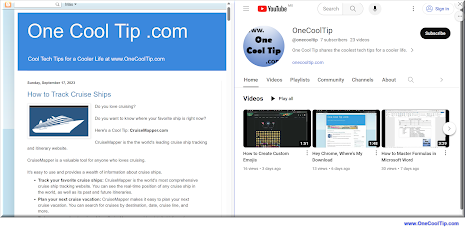
Click on the Split Screen icon to divide your current tab into two separate screens.
-
You can now navigate independently on each side of the split screen.
-
To adjust the size of the screens, simply drag the slider in the middle to your preferred position.
-
If you want to exit the split screen view, select the Close split screen (X) at the top right corner of the active screen.
Find our more HERE.
| | |
🙋♂️ Here's How to Read Aloud in Microsoft Edge.
Have you ever wished for a personal narrator to read articles, emails, or documents to you while on the go?
Here's how to do it.
-
Open Microsoft Edge and navigate to the webpage you want to be read aloud.
-
Right-click on the page and select Read Aloud from the context menu, or use the keyboard shortcut Ctrl + Shift + U.
- Alternatively, click on the Immersive Reader icon (which looks like an open book) in the browser address bar, if available.
-
Once Read Aloud starts, the screen will dim slightly, and words will be highlighted as they are read aloud.
-
You can pause, play, or skip forward/backward using the controls that appear at the top of the page.
-
To customize the reading voice and speed, select Voice options in the Read Aloud toolbar to adjust the settings to your preference.
Embrace the future of web browsing with Microsoft Edge’s Read Aloud.
Whether you’re looking to improve accessibility, multitask, or learn a new language, this feature is your key to an enhanced mobile experience.
Want to know about the mobile option? Learn more HERE.
| | |
❓Did you share this newsletter with three friends yet?
😎 Cool Facts
-
60%: Over 60% of U.S. consumers scanned a QR code in the past year. Source.
-
125+ and 140+: Microsoft Edge added QR code generation in version 125+ for desktop and 140+ for Android. Source.
-
4,296: QR codes can store up to 4,296 alphanumeric characters. Source.
⌨️Today's Cool Keyboard Shortcuts
-
Ctrl + L: Focus the address bar to access the QR icon.
-
Ctrl + P: Print the QR code once downloaded.
-
Win + Shift + S: Capture the QR code preview in case you want to drop it quickly into a document.
😜 Tech Joke of the Day 😅
What’s a QR code’s favorite pickup line?
“Scan me sometime.
🔎 Do you have a Cool Tip or tech question? Email us at onecooltip.com@gmail.com.
| | |
QR squares appear,
Edge whispers, “Share this with ease,”
Phones blink, link received.
| |
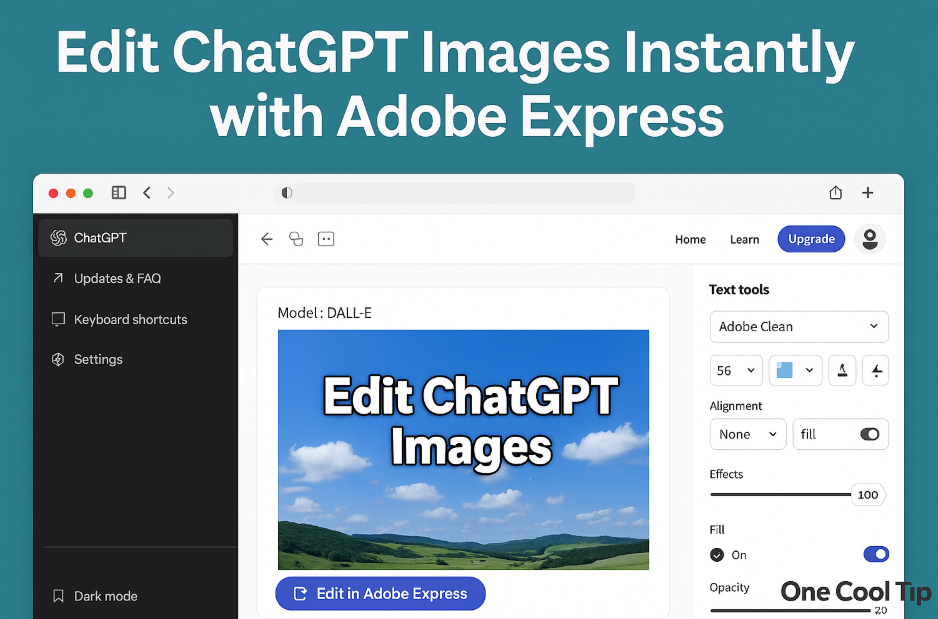
| 🤔 How do you usually share links from your PC? | | | | Did You See These Cool Tips This Week? | | | | Edit ChatGPT Images Instantly with Adobe Express | ChatGPT now includes a built-in Adobe Express editor on the web that lets you refine AI-generated images without switching apps. This streamlined workflow turns rough drafts into polished visuals in minutes. | | | | Copilot Notebooks Arrive for Microsoft 365: Save Smarter Prompts, Get Better Results | Two new words that change how you use AI: persistent prompts. Copilot Notebooks let you craft, refine, and reuse complex instructions across your Microsoft 365 life. | | ICYMI - In Case You Missed It ... | | | | How to Instantly Edit Data Label Text in Excel for the Web | Now you can edit chart data labels directly in Excel for the web with no desktop detour required. This crucial update makes your visual storytelling faster, cleaner, and more intuitive. | | |
Unleash the Power of Microsoft Edge’s Task Manager
Ever wondered why your Microsoft Edge browser is running slow?
Or which tab is consuming most of your system’s resources?
What if you could have a built-in tool within your browser that could answer all these questions?
Watch
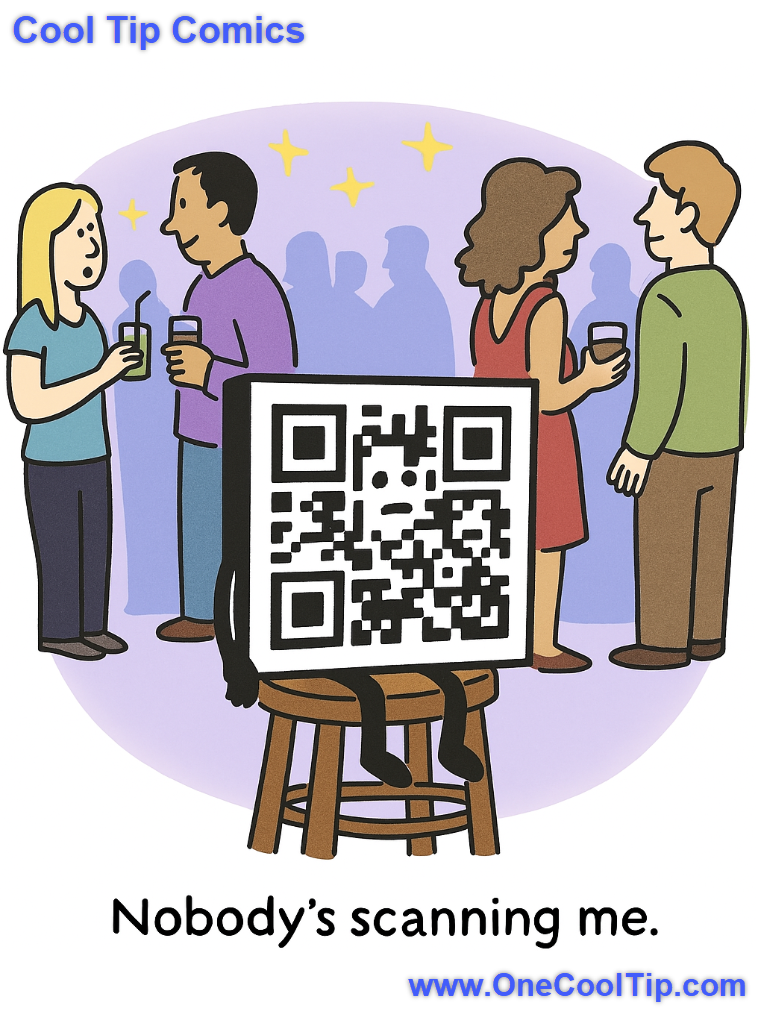
| | When even the snacks get more attention than your QR code, it might be time to rethink your networking strategy. | | |
Trivia Answer: B) Denso Wave
QR codes originated inside the automotive industry as a way to track vehicle and parts shipments more efficiently than barcodes.
Denso Wave, a subsidiary of Toyota, designed the matrix code so scanners could read information from multiple directions, dramatically improving speed and accuracy.
That core concept remains unchanged today, which is why QR codes feel both simple and enduring.
----------
Tomorrow's Cool Tip is waiting to amaze you.
Until then, go forth and conquer the tech world with your newfound knowledge!
Be sure to visit www.OneCoolTip.com for Cool Tech Tips for a Cooler Life!
And if you Like One Cool Tip, please support with TipJar!
Enjoy!
Rodger
Chief Cool Tipper
onecooltip.com@gmail.com
| | |
3️⃣
If you enjoy the One Cool Tip newsletter, please forward this newsletter to THREE friends or colleagues or share it on social media using the links below.
Leave a Tip!
Share this One Cool Tip Newsletter!
| |
| What do you think of today's OneCoolTip newsletter? | | | |
Please Share the One Cool Tip Newsletter!
You asked for it. You got it. There is now a One Cool Tip Newsletter archive. Did you delete a newsletter and want to read it again? Check it out HERE.
Want to help One Cool Tip grow? Please forward this email using the link above. And if you see an OCT social media post, please LIKE, COMMENT and SHARE!
Have you subscribed to the One Cool Tip YouTube channel? Subscribe HERE.
| | Connect with One Cool Tip!! | | |
|
As an Amazon Associate, One Cool Tip may earn a small commission from qualifying purchases.
Our media content is intended solely for informational purposes only. Please do not construe anything here as legal, tax, investment, financial, marital or other advice.
Copyright © 2025 | www.OneCoolTip.com | All Rights Reserved
|
| | | |