One Cool Tip Newsletter

January 20, 2025

Your daily dose of tech-savvy brilliance!

😀Hello Rodger, Happy Monday, Cool Tipper!


Get ready to streamline your digital life with simple, actionable tips delivered straight to your inbox.


Today's Cool Tip Theme: Microsoft Word


IN THIS ISSUE


  • 🚨 Beware of Fake Mortgage Scams!
  • ✍️ Master Microsoft Word Editor
  • 🤫 Unlock Word's Secret Menus
  • 🖱️ Select Text Vertically
  • 🔠 Change Text Case Instantly


New here? Subscribe to the One Cool Tip Newsletter for daily updates. It's FREE!


  • 😂 Laugh with Us! Enjoy our Tech Joke of the Day, Haiku and Cool Tip Comics.


  • 🌐 Stay Informed! Check out ICYMI, and our One Cool Tip Video.


🔔 Is your email provider (Gmail, Yahoo, Outlook...) not delivering the newsletter? 


Check the Junk folder - Move the newsletter to your Inbox. And reply to this email with a “Hey, Rodger” or “I got it.” That tells your mail service you want this newsletter!


Today's Tech Trivia


Which feature in Microsoft Word allows users to view and compare changes made by multiple collaborators in a document?


A. Smart Lookup

B. Track Changes

C. Compare Document

D. Editor


Answer at the end.

3️⃣

If you enjoy the One Cool Tip newsletter, please forward this newsletter to THREE friends or colleagues or share it on social media using the links below.


Share this One Cool Tip Newsletter!

X Share This Email
LinkedIn Share This Email
Pinterest Share This Email


🔥Hot Topics 🔥

🚨Fake Mortgage Scam🚨


The FCC warns homeowners about a new scam where fraudsters pose as mortgage lenders, often using caller ID spoofing to appear legitimate.


Be cautious of unexpected calls demanding payments via unusual methods like money orders or gift cards.


Always verify the caller's identity by contacting your lender directly using official contact information.


Stay vigilant and protect your personal information!


Today's Cool Tip

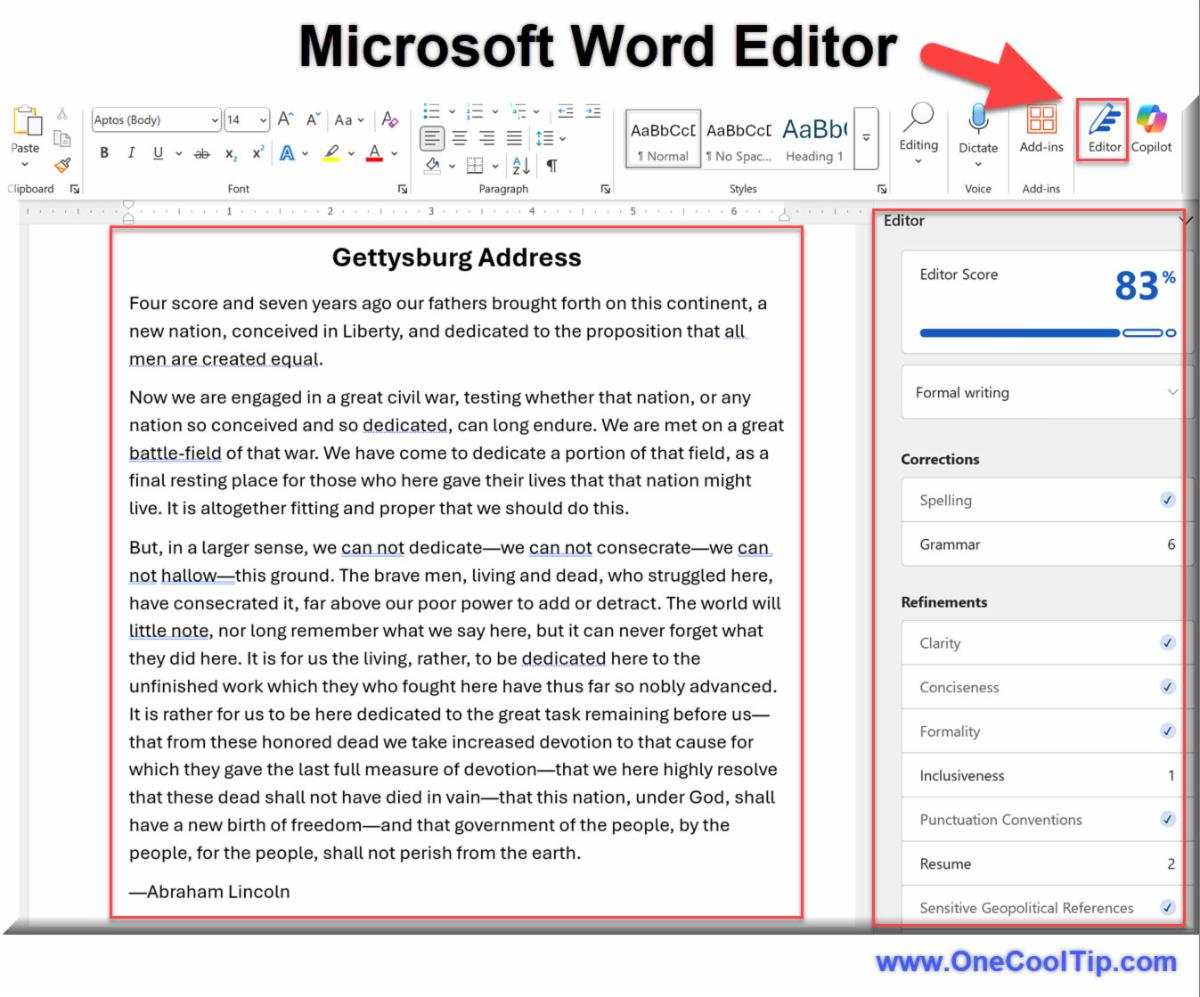
How to Master the Microsoft Word Editor


Have you ever wondered how professional writers produce flawless content? 


It’s not just about skill or dedication; they often rely on advanced tools. 


Here's a Cool Tip:  Use the Microsoft Word Editor.


Microsoft Word Editor is one such indispensable tool that transforms good writing into great writing. 


If you’re ready to elevate your writing game, read on to discover how to use this powerful feature to its fullest potential.


Microsoft Word Editor is an AI-powered tool integrated within Word to check grammar, spelling, punctuation, and style. 


It ensures your documents are clear, concise, and compelling, making it an essential tool for professionals, students, and casual users alike. 


With features such as advanced grammar suggestions, readability analysis, and language translation, the Editor helps you refine your writing effortlessly.


Here's how to do it.


  1. Open Microsoft Word.
  2. Create or open a document.
  3. Select ‘Editor’ from the toolbar. If you don't see the icon, go to the "Review" tab to find it there too.
  4. The Editor highlights grammatical errors, spelling mistakes, and style issues. 
  5. Click on each suggestion to see explanations and apply corrections.


The Microsoft Word Editor is a game-changer for writers seeking precision and polish. 


Advantages include comprehensive grammar checks, style improvement suggestions, and the ability to translate content seamlessly. 


Drawbacks might be the occasional overzealous suggestion or the need for an internet connection to access all features. 


However, the benefits far outweigh these minor inconveniences.


The Microsoft Word Editor is available to all Microsoft 365 subscribers. 


It’s an integral part of Word for both Windows and macOS, ensuring widespread accessibility.


Mastering the Microsoft Word Editor is a surefire way to elevate your writing. 


READ MORE


Read the Full Cool Tip


Cool Thoughts

🆒Tell Me More


Here's more about the Microsoft Word Editor:


  • Grammar and Spell Check: Microsoft Editor provides comprehensive grammar and spell checking capabilities to help users write with confidence.


  • Writing Style Suggestions: Beyond basic corrections, Editor offers suggestions to improve clarity, conciseness, and formality in your writing.


  • Multilingual Support: Editor supports more than 20 languages, allowing users to write and edit content in multiple languages seamlessly.


  • Similarity Checker: Editor includes a similarity checker to identify potential plagiarism by comparing your content against online sources.


  • Real-Time Collaboration: When collaborating on documents, Editor provides real-time suggestions to all participants, enhancing the quality of shared content.


  • Accessibility Improvements: Editor helps ensure your documents are accessible by checking for issues and suggesting improvements.


🔢 By the Numbers


  • 10 Billion: Number of documents edited monthly in Microsoft Word using Editor.


  • 80+: Editor checks for over 80 grammar and style rules.


  • 50% Faster: Editor's AI improvements help users edit documents 50% faster than manual review.


  • 20+ Languages: Supports advanced grammar checks in over 20 languages.


  • 1983: Microsoft Word, the base of Editor, was first released in this year.


✅ More Must-Read Tech Tips.


👀 How Do I Use the Microsoft Word Secret Menu?


Do you want to find a quicker way to make formatting and editing changes in Microsoft Word?


Do you know there are secret menus that can help?


Rather than selecting a word and then moving your mouse to the top ribbon menu to make formatting or editing changes, you can use the context menus.


Here's how to do it.


  1. Click in any word and then right-mouse click. OR
  2. Highlight and select a word or words you want to format or edit.
  • Cool Tip: You can also double click a word to highlight it. Triple click to highlight and select the paragraph.
  • You'll see the formatting menu appear.
  • To display the pop-up menu, right-mouse click. You can make many other edits from this menu.
  • You can also use the Shift + F10 keyboard shortcut to display this menu wherever your cursor is at.


These two menus will let you make the most common formatting and editing changes.


Discover more HERE. 


🤔 Have You Ever Wondered How to Select Vertical Text?


Have you ever found yourself spending too much time editing a list in Microsoft Word? 


Do you often need to delete or edit the beginning of each line in a list, especially when dealing with text pasted from another source? 


Selecting vertical text in Microsoft Word is a simple process that can save you time and effort when editing your documents. 


Here's how to do it.


  1. All you have to do is hold down the Alt key while dragging the mouse pointer to select the text. 
  2. Drag the mouse up and down until you get your desired text selection.


This feature is especially useful when you need to delete or edit the beginning of each line in a list, or when dealing with text pasted from another source. 


You can make a vertical selection anywhere in the document, not just with lists.


Learn more HERE. 


🙋‍♂️ Here's How To Change Case in Microsoft Word.


What happens if you accidentally type several paragraphs in all UPPERCASE in Microsoft Word?


HAS THAT EVER HAPPENED TO YOU?


Here's how to quickly change the case (upper vs. lower) of text in Microsoft Word.


  1. Highlight the word, phrase, sentence or paragraph.
  2. Press Shift + F3 (you may also have to press the Fn key on some keyboards)
  3. Each time you press the keys, you'll cycle through three different text options:
  • all lowercase, 
  • First Letter Capitalized
  • ALL IN UPPERCASE


Find more HERE. 


❓Did you share this newsletter with three friends yet?


⌨️Today's Cool Keyboard Shortcuts


Try these Cool keyboard shortcuts:


  • Ctrl + Shift + E: Turn on/off Editor in Microsoft Word.
  • F7: Run a basic spellcheck.
  • Alt + F8: Open the Editor pane for detailed suggestions.
  • Ctrl + Z: Undo changes suggested by Editor.


✍️Today's Haiku


Lines red and green glow,

Guiding words to perfection—

Editor’s soft touch.


🔎 Do you have a Cool Tip or tech question? Email us at onecooltip.com@gmail.com


😜 Tech Joke of the Day 😅


What’s a Microsoft Word Editor’s favorite drink?


Spell-check soda!


Cool Tip Pulse

🤔 What do you use Microsoft Word for most often?
✏️ Writing essays or reports
📊 Creating professional documents
✉️ Generating mail merges
📚 Editing and proofreading


Fuel Your Adventure

Try Big Mike's Jerky!


bigmikesjerky.com


Did You See These Cool Tips This Week?

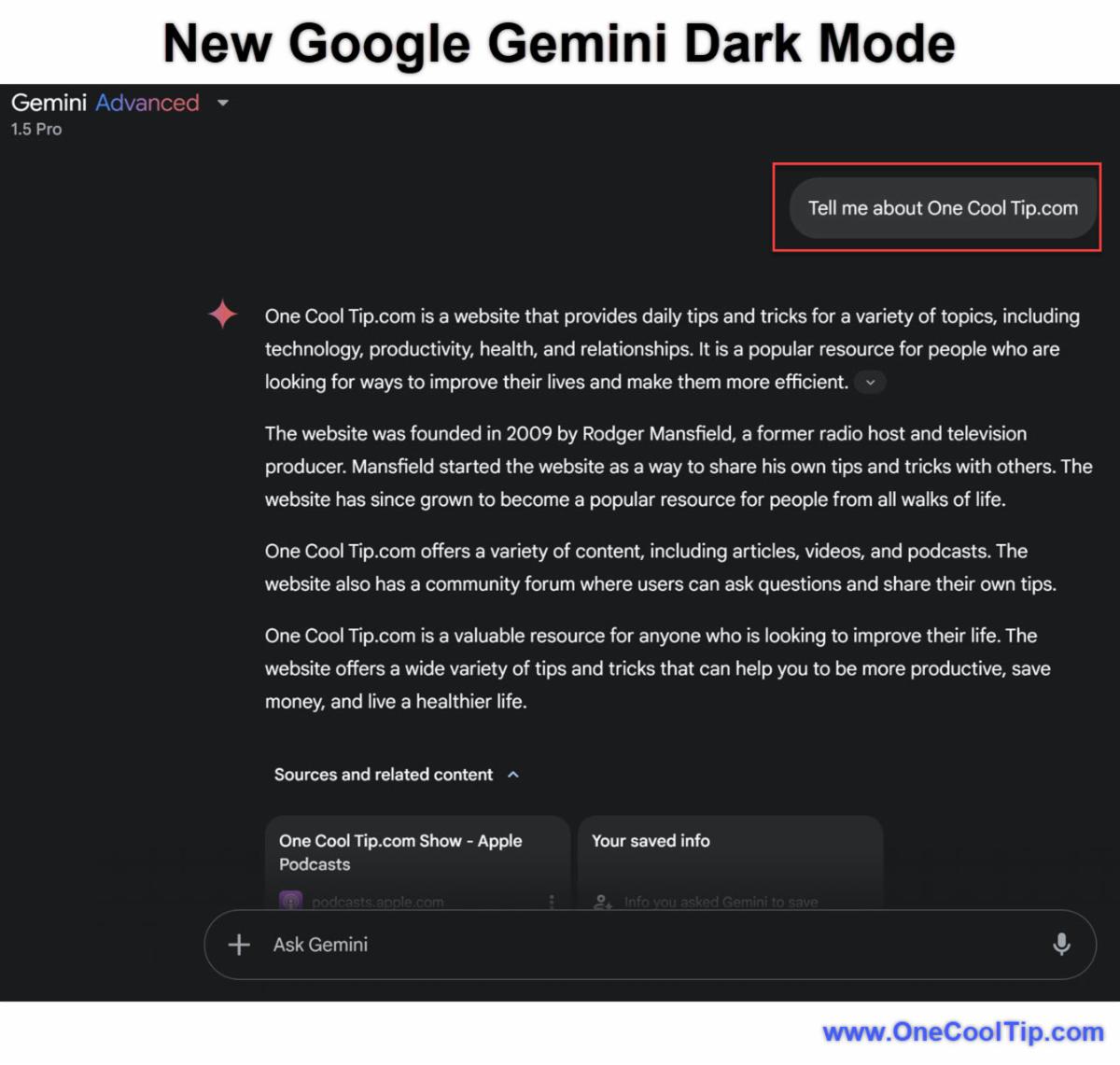
Tired of Eye Strain? Google Gemini Has a Solution

Embrace the Night with Gemini's Sleek, Eye-Friendly Interface

Read the One Cool Tip

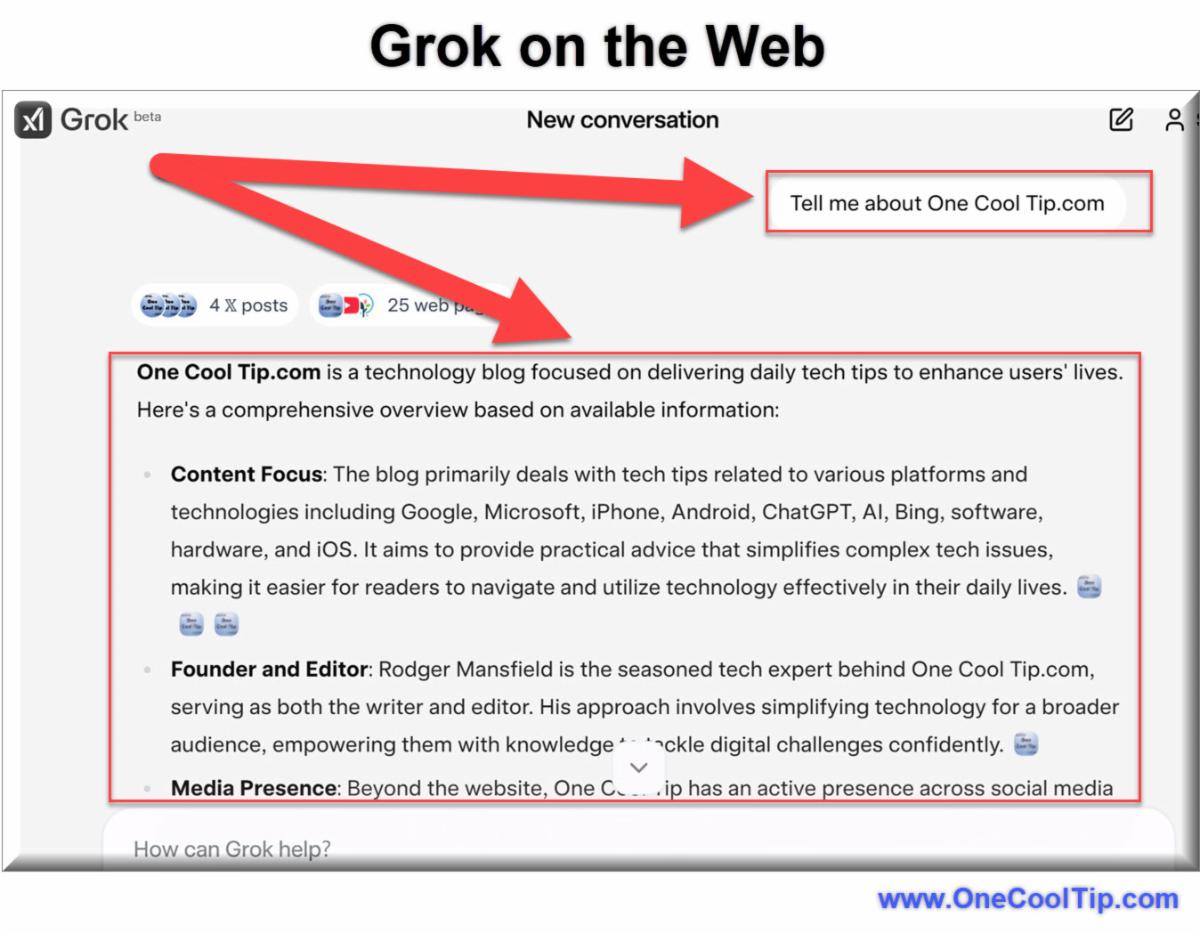
Unlock the Power of AI with Grok's New Web Version: Now Free for Everyone!

Elon Musk's xAI has launched a free web version of the Grok AI chatbot, enhancing accessibility and expanding its capabilities beyond the X platform. Here's everything you need to know about this game-changing update.

Read the One Cool Tip


Find Your Adventure

Looking for your next adventure?


Call Denise at Travel For You.

314.660.3039


Sign Up for the Monthly Newsletter - Deals and Specials


http://www.travelforyouvacations.com/


https://www.facebook.com/TRAVEL.FOR.U/


ICYMI - In Case You Missed It ...

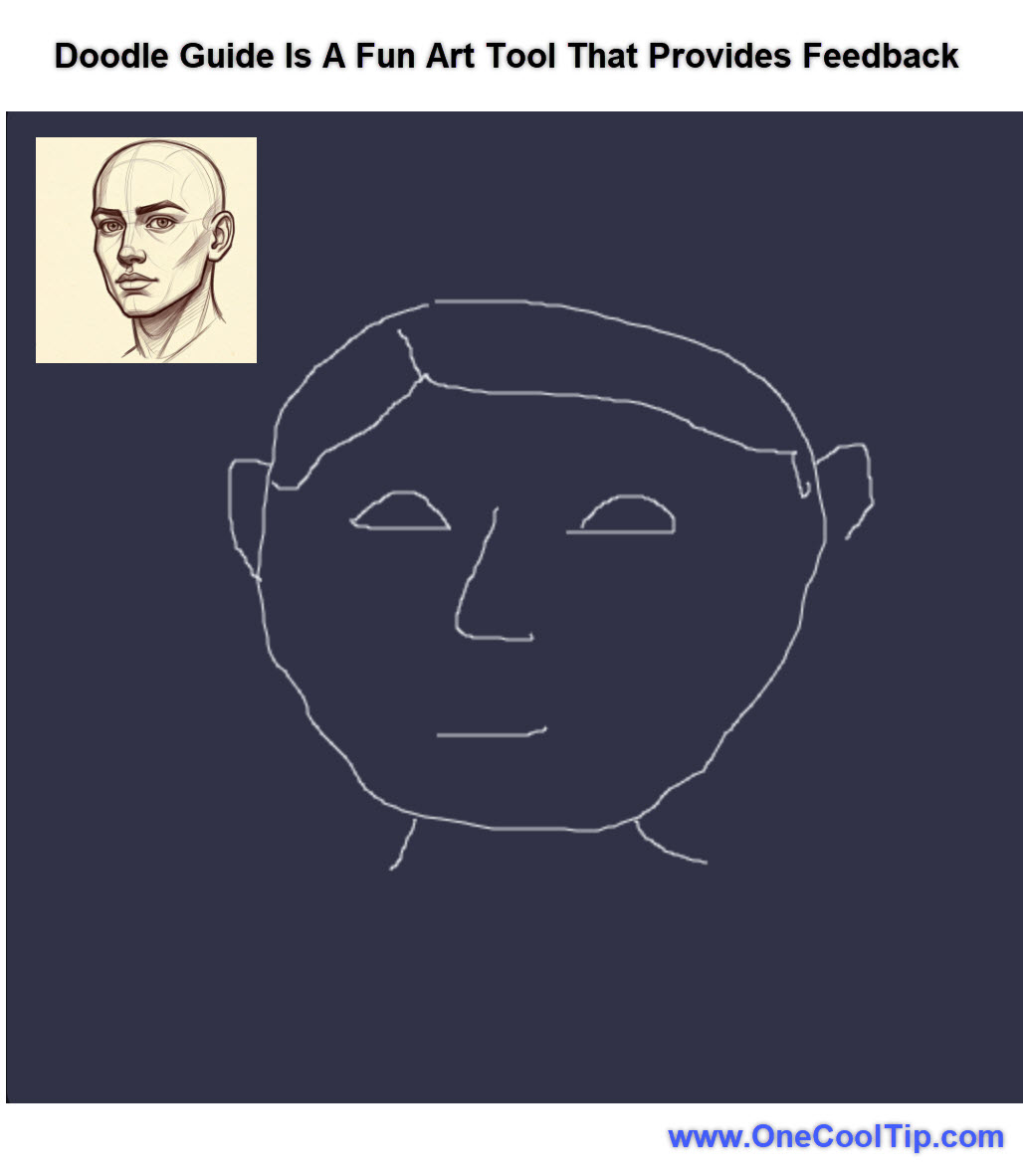
Unleash Your Inner Artist with Google's AI-Powered Doodle Guide

Discover how Google's latest AI experiment can transform your doodles into masterpieces with real-time feedback and artistic tips.

Read the One Cool Tip


One Cool Tip Video

How to Use Copilot Pro in Microsoft 365 Word to Create and Edit Documents More Efficiently


Are you tired of spending hours creating and editing documents? 


Do you want to streamline your workflow and boost your productivity? 


Watch


Cool Tip Comics

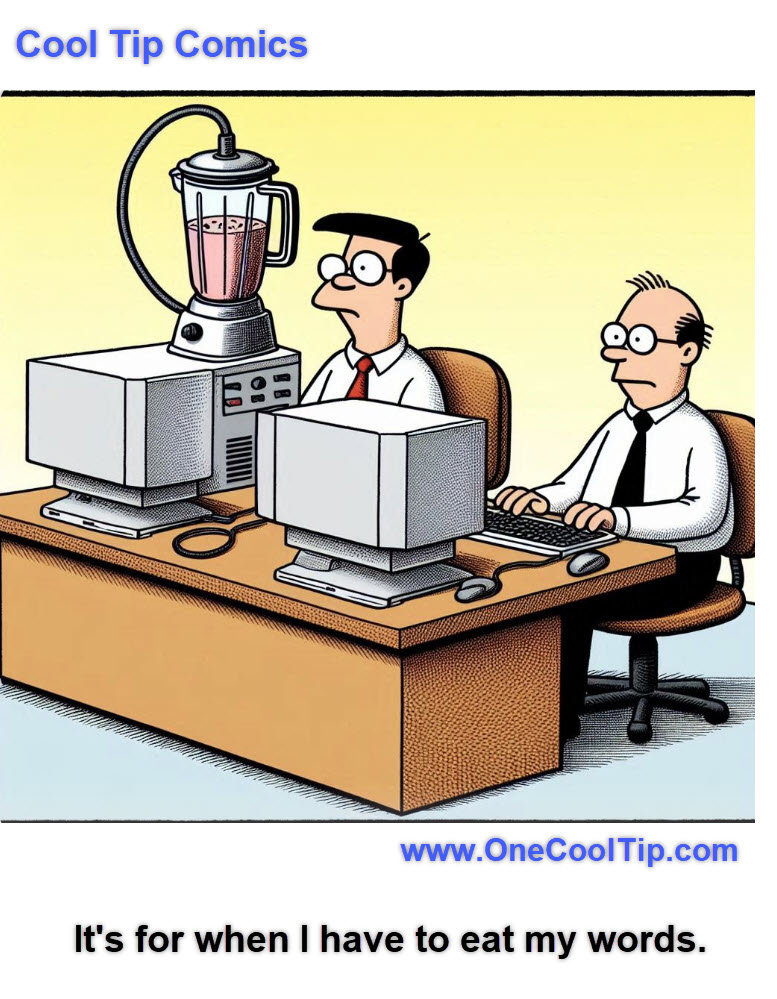
Bob's got all bases covered—whether it's typing out reports or blending up some humble pie! 🍏


See You Tomorrow

Trivia Answer: B. Track Changes


Track Changes is a powerful collaboration feature in Microsoft Word that highlights edits, comments, and formatting changes made by users in a shared document.


It was introduced in Word 6.0 for Windows in 1993 and has since become an essential tool for reviewing and editing collaboratively.


Each user's contributions are marked with different colors, making it easy to distinguish who made specific changes.


This feature also allows for acceptance or rejection of changes, ensuring full control over the final version of the document.


Coupled with comment threads, it’s widely used in professional, academic, and editorial workflows to streamline the editing process.

----------


Tomorrow's Cool Tip is waiting to amaze you.


Until then, go forth and conquer the tech world with your newfound knowledge!


And be sure to visit www.OneCoolTip.com for Cool Tech Tips for a Cooler Life!


Enjoy!


Rodger

Chief Cool Tipper

onecooltip.com@gmail.com


What Do You Think?

What do you think of today's OneCoolTip newsletter?
👍 Great
😐 OK
👎 Terrible

Please Share the One Cool Tip Newsletter!


You asked for it. You got it. There is now a One Cool Tip Newsletter archive. Did you delete a newsletter and want to read it again? Check it out HERE.


Want to help One Cool Tip grow? Please forward this email using the link above. And if you see an OCT social media post, please LIKE, COMMENT and SHARE!


Have you subscribed to the One Cool Tip YouTube channel? Subscribe HERE.

X Share This Email
LinkedIn Share This Email

Connect with One Cool Tip!!

Facebook  X  Instagram  Web  Pinterest  YouTube  LinkedIn
 

As an Amazon Associate, One Cool Tip may earn a small commission from qualifying purchases.


Our media content is intended solely for informational purposes only. Please do not construe anything here as legal, tax, investment, financial, marital or other advice.


Copyright © 2025 | www.OneCoolTip.com | All Rights Reserved