One Cool Tip Newsletter

July 8, 2026

Your daily dose of tech-savvy brilliance!

😀Greetings! Happy Wednesday, Cool Tipper!


Get ready to streamline your digital life with simple, actionable tips delivered straight to your inbox.


Cool Tip Theme: Throwback: Paint Dark Mode


Note: The tech gods really delayed yesterday's newsletter. When wifi, apache server and electrical issues say shut it down, you shut it down. So here's Windows Wednesday! lol.


New here? Subscribe to the One Cool Tip Newsletter for daily updates. It's FREE!

3️⃣

If you enjoy the One Cool Tip newsletter, please forward this newsletter to THREE friends or colleagues or share it on social media using the links below.


Leave a $$$ Tip!


Share this One Cool Tip Newsletter!

X Share This Email
LinkedIn Share This Email
Pinterest Share This Email

🚨 INTERPOL Fraud Crackdown

Shows Global Scale of Online Scams🚨


A major INTERPOL operation involving 97 countries led to 5,811 arrests and the interception of USD $293 million linked to fraud and money laundering schemes.


The investigation targeted social engineering scams, including business email compromise, romance scams, investment fraud, and impersonation schemes that exploit trust to steal money or personal information.


Authorities identified more than 142,000 victims worldwide, underscoring how widespread these scams have become.


For consumers, the takeaway is clear: be cautious of unexpected financial requests, investment opportunities, and messages that create urgency or pressure.


And in Other News...


  • Windows 11 Storage Alert: Hidden File Could Be Eating Up Your Space


If your Windows 11 PC seems to be running out of storage for no obvious reason, a Microsoft component called Capability Access Manager may be to blame.


This is related to a file, CapabilityAccessManager.db-wal, that can grow from just a few megabytes to hundreds of gigabytes on affected systems.


Microsoft has released a fix in the optional Windows 11 KB5095093 update, which improves disk space usage for the file.


Consumers experiencing unexplained storage loss should check for the update and review their storage usage to see if they are affected.

Go to System -> Windows Update.


Cool Deals of the Day

Help support One Cool Tip. Use this Amazon link when you shop online.


Check out these Cool Deals:

🎧 Anker Soundcore Life Q30 Headphones: Enjoy distraction-free editing with active noise cancellation.

Save 30%. $59.99. 4.4 Stars. Check it out on Amazon!


💡Quntis Computer Monitor Light Bar: Reduces screen glare and eye strain during long Paint editing sessions.

$39.95. 4.6 Stars. Check it out on Amazon!


🖱️ Logitech MX Master 3S Wireless Mouse: Precise scrolling and customizable buttons make image editing much faster.

$89.99. 4.6 Stars. Check it out on Amazon!


*Prices accurate when originally published.

One Cool Tip may earn a commission from qualifying purchases.

Fuel Your Adventure

Try Big Mike's Jerky!


bigmikesjerky.com


Now on TikTok!


Today's Cool Tip

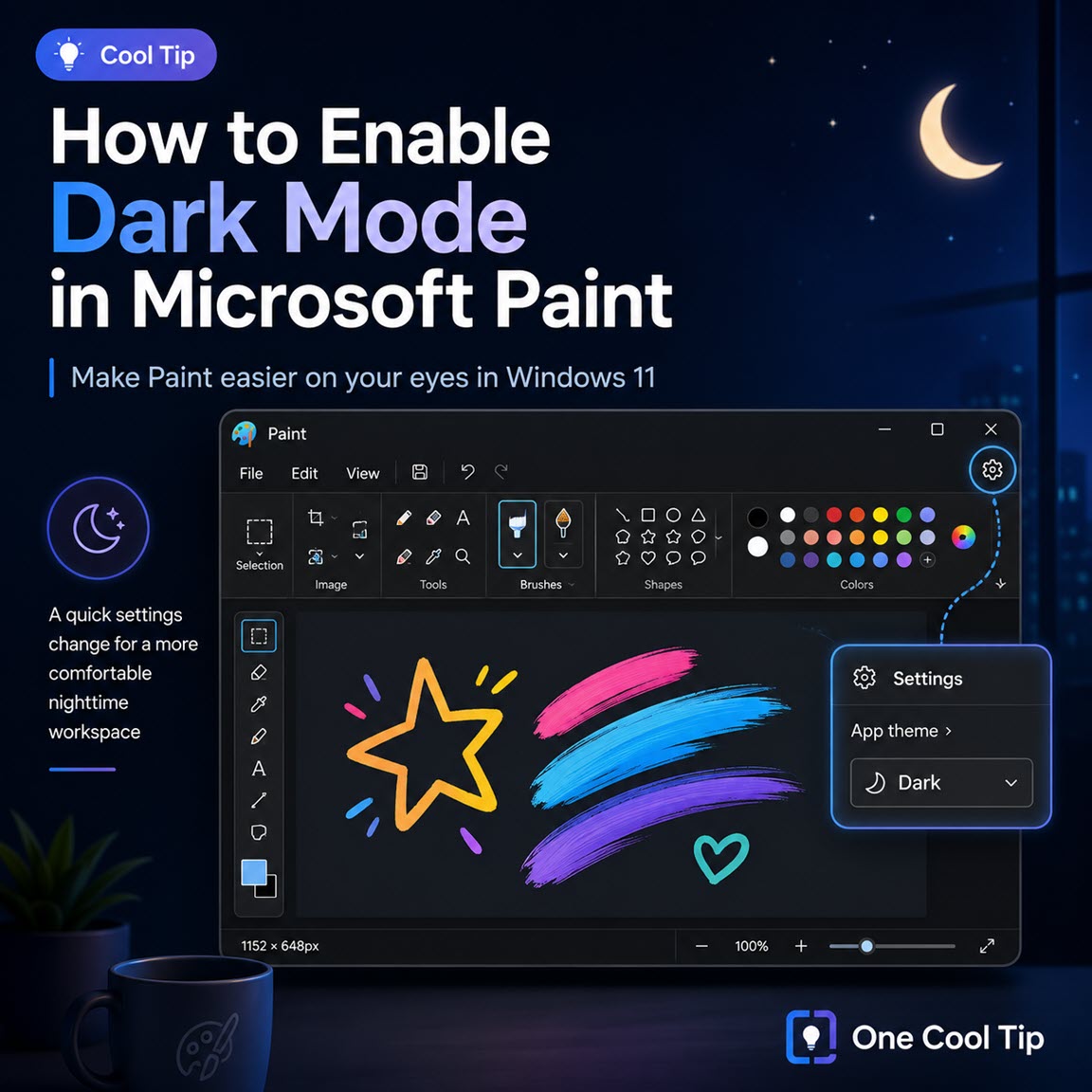
How to Enable Dark Mode in Microsoft Paint


Make Microsoft Paint easier on your eyes with Dark Mode! In just a few clicks, you can switch Paint’s bright interface to a sleek dark theme that's perfect for working at night and reducing eye strain. Learn how to enable this hidden productivity boost in Windows 11.


By Rodger Mansfield, Technology Editor

July 8, 2026 (Originally published September 6, 2023)

Subscribe | Read the Newsletter Version


Do you find yourself squinting at your screen at night while using Microsoft Paint? 


If so, you're not alone. 


The light-colored interface can be harsh on the eyes, especially in low-light conditions.


Here's a Cool Tip:  Set MS Paint to the New Dark Mode in Windows 11


This Cool Tip makes Paint easier on your eyes by inverting the colors of the interface, making it much easier to see in the dark.


Step-by-Step Instructions


Here's how to do it.


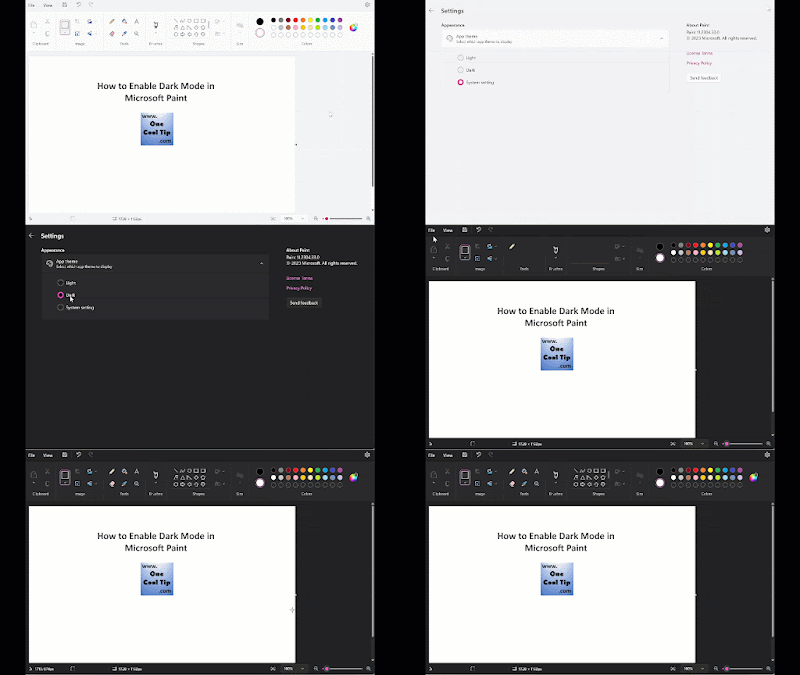
Enable Dark Mode in Microsoft Paint


  1. Ensure you have the latest version of Paint from the Microsoft App Store.
  2. Open Paint.
  3. Click on the Settings gear icon in the top-right corner.
  4. Select App theme.
  5. Choose Dark.
  6. Select the back arrow to return to the home screen.


Cool Tip:


  • You can also enable dark mode for all of your Windows apps, including Windows 10, by going to Settings > Personalization > Colors and selecting Dark under Choose your mode.


fig. 1 - How to Enable Dark Mode in Microsoft Paint

Be sure to subscribe to the One Cool Tip Newsletter!


READ MORE


Read the Full Cool Tip.

Check Out These Cool Tips & Tricks


  • Remove Backgrounds with One Click: Use Paint's AI-powered background removal feature to quickly isolate subjects from photos.


  • Work with Transparent Backgrounds: Create logos, stickers, and graphics with transparent backgrounds for a more professional result.


  • Use Layers for Better Editing: Organize elements on separate layers so you can edit without affecting the rest of your design.


  • Generate Images with AI: Try Cocreator (where available) to create unique artwork from simple text descriptions.


  • Resize Images Without Starting Over: Quickly adjust image dimensions using the Resize tool while maintaining aspect ratio.


  • Use Shapes for Clean Graphics: Create polished diagrams, callouts, and social graphics with built-in shapes and outlines.


  • Zoom for Pixel-Perfect Edits: Use the zoom controls to make precise touch-ups and detailed edits.


  • Save in Multiple Formats: Export your work as PNG, JPG, BMP, or other formats depending on your needs.


  • Use Keyboard Shortcuts to Work Faster
  • Ctrl + Z = Undo
  • Ctrl + Y = Redo
  • Ctrl + C / Ctrl + V = Copy/Paste
  • Ctrl + S = Save
  • Ctrl + A = Select All

ICYMI - In Case You Missed It ...

Transform Your Commute With the Make My Drive Fun Map


Discover how to turn boring road trips into interactive adventures using a specialized web tool. This guide shows you how to find quirky roadside attractions and hidden gems along any route.


Read the Full Cool Tip.


Read the Newsletter Version.

Looking for your next adventure?


Call Denise at Travel For You.

314.660.3039


Sign Up for the Monthly Newsletter


http://www.travelforyouvacations.com/


https://www.facebook.com/TRAVEL.FOR.U/


See You Tomorrow

Tomorrow's Cool Tip is waiting to amaze you.


Until then, go forth and conquer the tech world with your newfound knowledge!


Be sure to visit www.OneCoolTip.com for Cool Tech Tips for a Cooler Life!


And if you Like One Cool Tip, please support with TipJar!


Enjoy!


Rodger

Chief Cool Tipper

onecooltip.com@gmail.com


What Do You Think?

What do you think of today's OneCoolTip newsletter?
Positive        Neutral        Negative
X Share This Email
LinkedIn Share This Email

Connect with One Cool Tip!!

Facebook  X  Instagram  Web  Pinterest  YouTube  LinkedIn
 

As an Amazon Associate, One Cool Tip may earn a small commission from qualifying purchases.


Our media content is intended solely for informational purposes only. Please do not construe anything here as legal, tax, investment, financial, marital or other advice.


Copyright © 2026 | www.OneCoolTip.com | All Rights Reserved