|
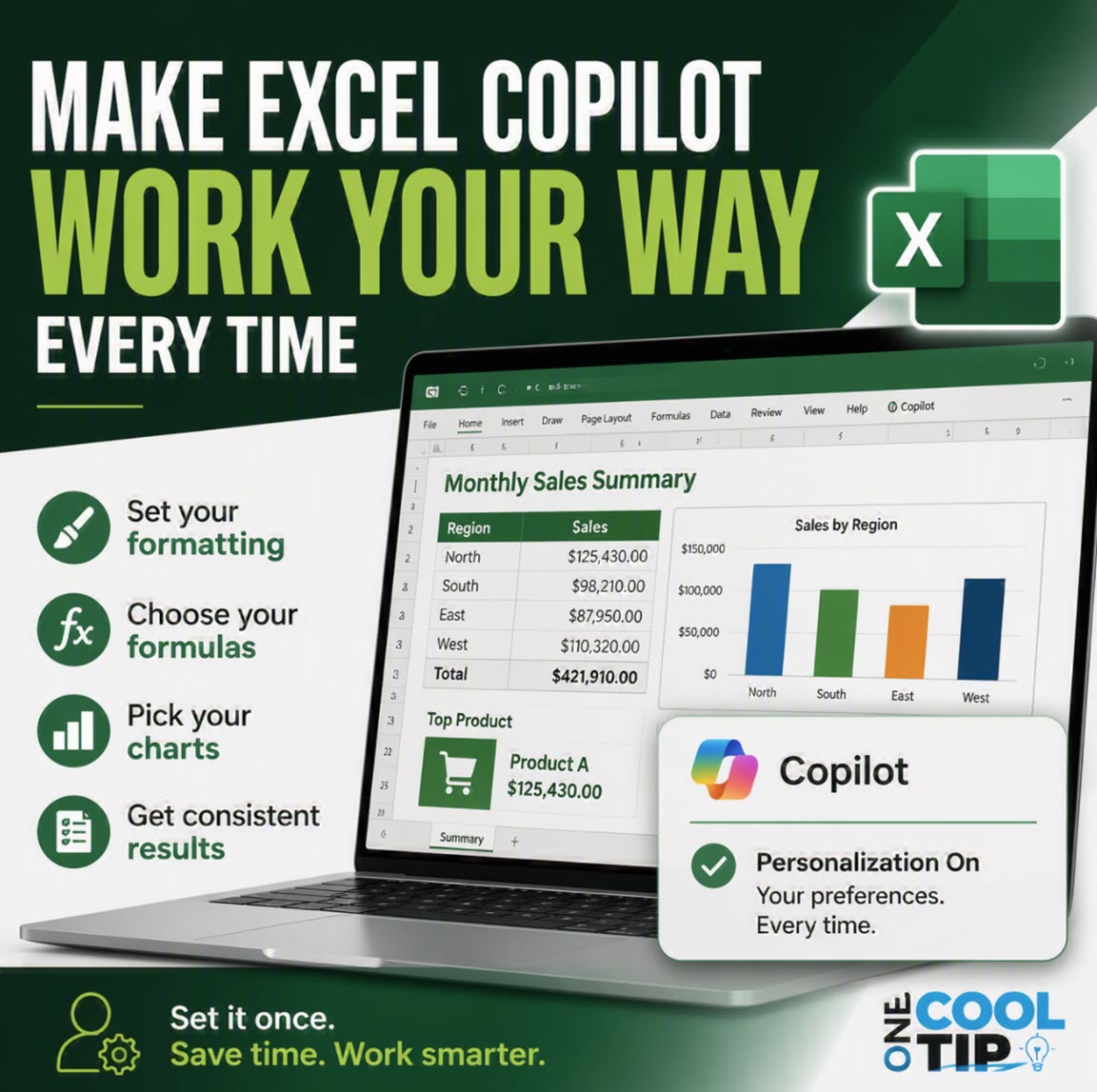
Make Excel Copilot Work Your Way Every Time
Stop repeating the same formatting instructions in Excel. Copilot personalization lets you define your preferences once and get consistent results every time.
If you use Copilot in Excel often, you have likely run into this.
You ask for a report, then spend time correcting formatting, adjusting formulas, or rewriting outputs to match your usual style.
The work still gets done, but it rarely looks the same twice.
Here’s a Cool Tip: Teach Copilot Your Style Once and Reuse It Automatically.
Microsoft is starting to close that gap with personalization.
Instead of retyping the same instructions, you can define how you want results to look and let Copilot follow those preferences automatically.
Feature Explanation
Personalization in Copilot in Excel allows you to define preferred formats, structures, and output styles.
Once saved, those preferences apply across your Copilot sessions and workbooks.
The goal is simple.
You replace repeated prompt instructions with reusable defaults.
You can control details such as:
- Currency and number formatting.
- Date formats and measurement units.
- Table styles and layout options.
- Formula preferences.
- Chart types and color choices.
- PivotTable labeling.
- Level of detail in explanations.
- Tone and wording of responses.
Preferences are entered in plain language. Once saved, they are applied to future Copilot prompts without additional effort.
This feature addresses a common problem with AI tools. Without consistency, results vary from one prompt to the next.
Personalization adds structure and predictability, especially for users who rely on repeatable reporting or analysis.
What You’ll Gain
- Save time by avoiding repeated instructions.
- Get consistent formatting across reports.
- Reduce cleanup work after Copilot responses.
- Make outputs match your workflow automatically.
Step-by-Step Instructions
Here's how to do it.
Web/Desktop (Excel with Copilot):
-
Open Excel and launch Copilot.
-
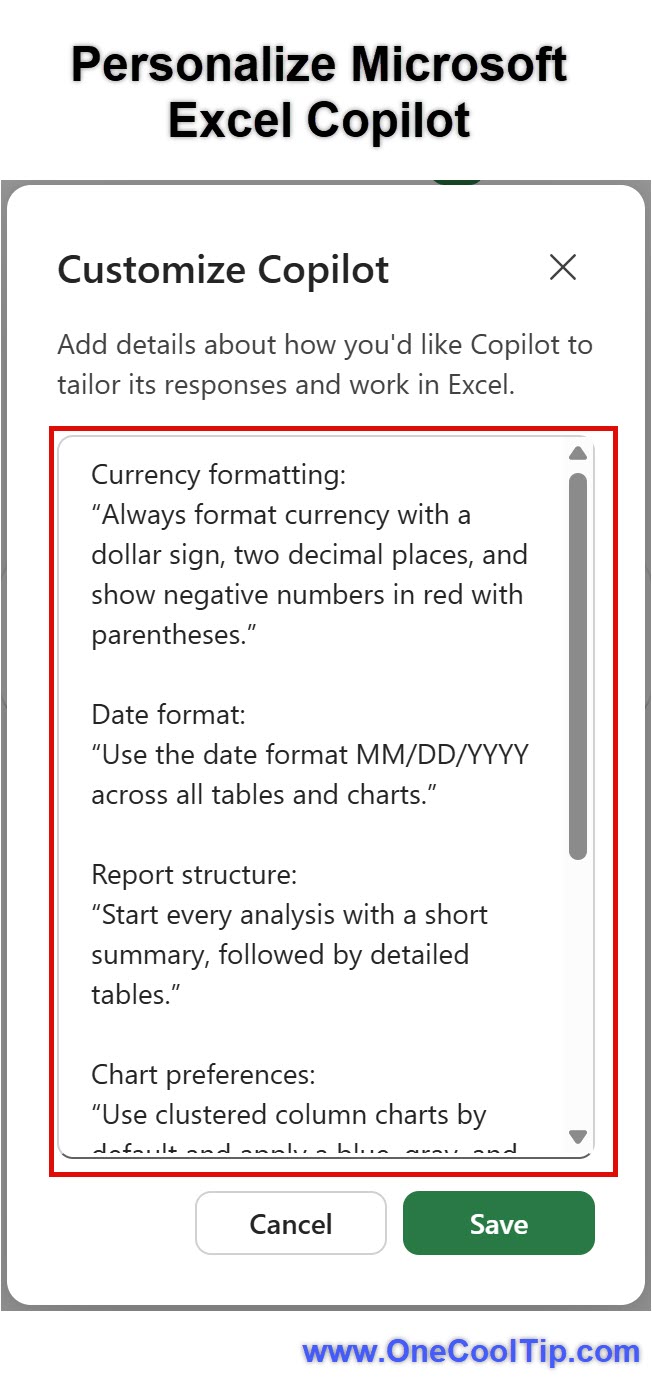
In the Copilot pane, select Settings.
-
Choose Personalization.
-
Enter your preferences in short, clear statements.
-
Example: “Always format currency with two decimal places.”
-
Select Save.
-
Run a new Copilot prompt. Your preferences apply automatically.
-
What you should see: Copilot outputs that reflect your saved formatting, layout, and explanation preferences.
|