|
One Cool Tip Newsletter
June 7, 2026
| Your daily dose of tech-savvy brilliance! | |
😀Greetings! Happy Sunday, Cool Tipper!
Get ready to streamline your digital life with simple, actionable tips delivered straight to your inbox.
Cool Tip Theme: ChatGPT Library
New here? Subscribe to the One Cool Tip Newsletter for daily updates. It's FREE!
| |
3️⃣
If you enjoy the One Cool Tip newsletter, please forward this newsletter to THREE friends or colleagues or share it on social media using the links below.
Leave a $$$ Tip!
Share this One Cool Tip Newsletter!
| | |
🚨 Wyze Solar Cam Recall – Fire Risk 🚨
If you own a Wyze Solar Cam Pan security camera, stop using it right away.
Wyze Labs has recalled about 321,000 units due to a serious fire and burn hazard.
What’s the issue?
Incorrect assembly instructions may lead users to install the solar panel with the wrong screws.
This can puncture the camera’s lithium‑ion battery, causing it to overheat, catch fire, or even explode.
Reported incidents:
- 13 overheating reports
- 6 cameras caught fire or exploded
- 6 cases of minor burns
What to do now:
- Stop using the camera immediately
- Check if your device is affected
- Request a free replacement, refund, or gift card
Start the process here: Check your device & file a claim
Important safety note:
Do not throw this camera in the trash or standard recycling.
Lithium‑ion batteries must be disposed of at approved hazardous waste facilities, check with your local disposal center first.
Product details:
- Model: WYZESCPWH (white, solar-powered outdoor camera)
- Sold: Oct 2025 – Apr 2026 for about $80 at major retailers and online
If you’re unsure how your camera was installed, err on the side of caution and check https://www.wyze.com/pages/scprecall
This recall involves a real risk of fire, so it’s important to act quickly.
And in Other News...
- When Travel Tools Fall Short
A tragic case involving a 20‑year‑old American student found dead after going missing during a family trip to Japan is a sobering reminder of the limits of modern travel technology.
The student separated from his family after an argument that included disagreements over the use of ChatGPT during the trip.
He later went out alone toward a mountainous area near Kyoto.
His movements were briefly tracked using a location‑sharing app, but his phone eventually stopped transmitting location data, leaving no clear digital trail.
Why this matters:
This case highlights a key reality for travelers. Even widely used tools like AI assistants, GPS tracking apps, and messaging services have limits.
When devices lose power, signal, or are turned off, those tools can no longer provide visibility or protection.
Key takeaways:
-
Location sharing can disappear quickly: Tracking depends on battery life, connectivity, and user settings.
-
Set clear check‑in plans: Agree on times and locations to reconnect before splitting up.
-
Prepare for offline conditions: Download maps and key information ahead of time.
-
Know local emergency steps: In Japan, families typically must contact local police directly to report someone missing.
Bottom line
Technology can make travel easier, but it cannot guarantee safety.
Preparation, communication, and awareness remain essential, especially in unfamiliar or remote environments.
| | |
Help support One Cool Tip. Use this Amazon link when you shop online.
Check out these Cool Deals:
📄 Brother ADS-1300 Compact Desktop Scanner: A compact document scanner helps turn paper records into PDFs you can organize, archive, and analyze. Check it out on Amazon!
🔌 Anker USB-C Hub with SD Card Reader: Helpful for moving files from cameras, drives, and memory cards into your computer before uploading or organizing them. Check it out on Amazon!
🗂️ SanDisk Portable SSD: A rugged portable drive is a good companion for creators and travelers who manage large images, PDFs, and project files. Check it out on Amazon!
*Prices accurate when originally published.
One Cool Tip may earn a commission from qualifying purchases.
| | |
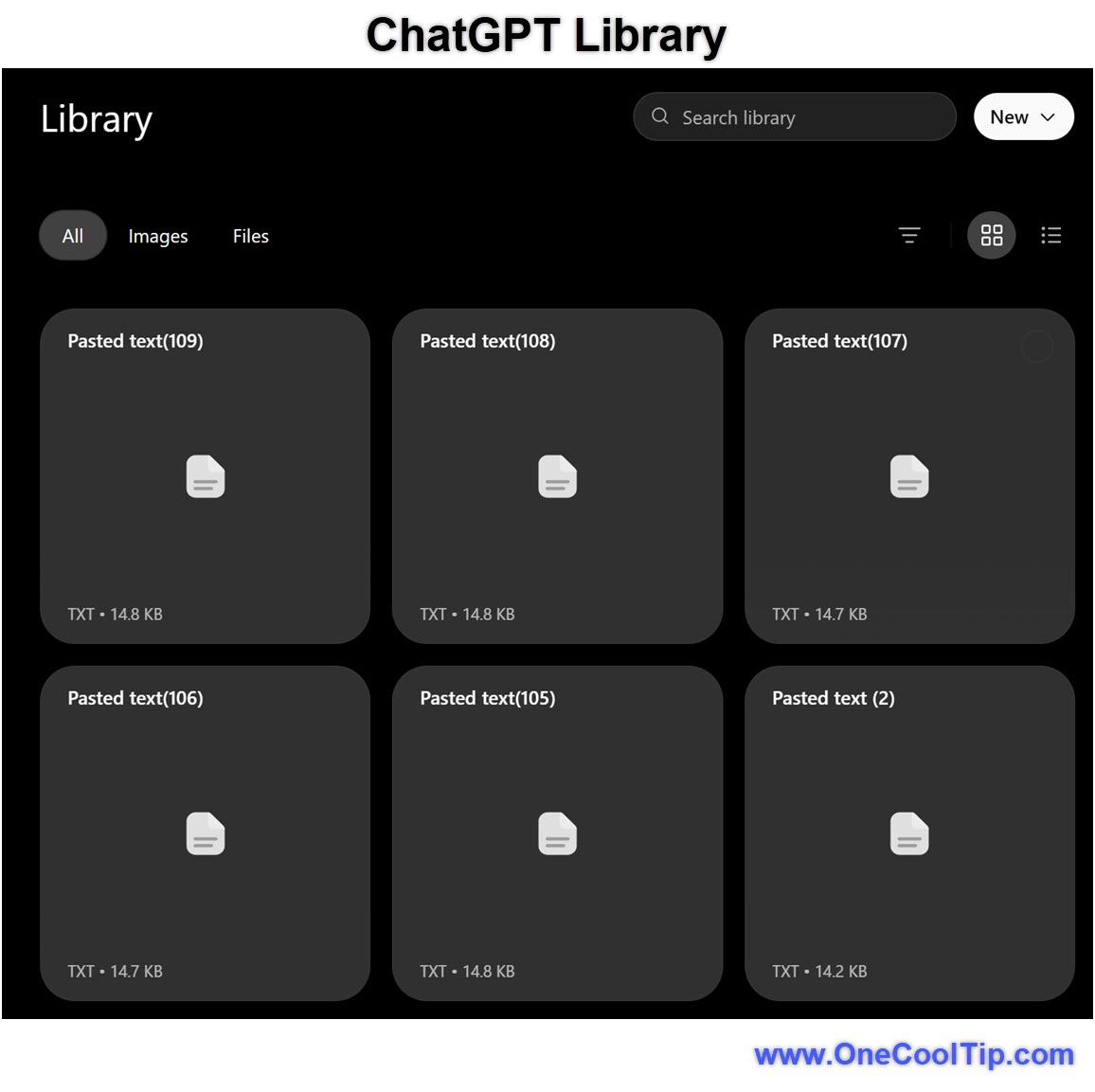
Find ChatGPT Files Faster With Library
ChatGPT’s Library gives uploaded and generated files a central home, so you do not have to dig through old chats to reuse a document, image, spreadsheet, PDF, or presentation. It is especially useful for anyone who uses ChatGPT as a daily workspace rather than a one-off chatbot.
If you use ChatGPT for real work, your files can pile up fast.
A spreadsheet here.
A PDF there.
Before long, the file you need is trapped somewhere inside a chat you barely remember.
Here’s a Cool Tip: Use Library as Your ChatGPT File Cabinet.
ChatGPT’s improved Library feature is designed to fix that problem.
Files you upload to ChatGPT and files you create in ChatGPT are now saved to Library, where you can find and reuse them later.
One important exception: files uploaded in Temporary Chats are not saved to Library.
The feature is currently available on the web, and OpenAI now says Library is available to Free, Go, Plus, Pro, and Business users, including users in the European Economic Area, Switzerland, and the United Kingdom.
Storage varies by plan, starting at 500 MB for Free users.
Feature Explanation
ChatGPT Library is a file storage area inside ChatGPT.
Instead of treating every uploaded file as something attached only to one conversation, ChatGPT now saves uploaded and created files to a dedicated Library area, so you can browse, search, reuse, download, or delete them later.
The idea is simple: ChatGPT is becoming more like a workspace.
If you upload a PDF, spreadsheet, document, presentation, or image during a chat, that file can later appear in Library.
That matters because many users are no longer asking ChatGPT only for quick answers.
They are using it to review contracts, summarize PDFs, analyze spreadsheets, polish presentations, create images, generate reports, and draft articles.
What You’ll Gain
- Save time by finding uploaded and generated files in one Library view.
- Reduce confusion when you need to reuse a file from an older chat.
- Improve file control by downloading or deleting saved files directly.
- Make daily work easier by treating ChatGPT as a reusable workspace.
Step-by-Step Instructions
Here's how to do it.
Web/Desktop
-
Open ChatGPT in a web browser, www.chatgpt.com.
- Look at the left-hand sidebar.
- Select Library.
- Browse your uploaded and generated files.
- Use the search bar to find a specific file.
- Filter results by uploaded or generated files, or by file type such as Images, Documents, Spreadsheets, Presentations, or PDFs.
- Select a file to reuse, download, or delete it.
| | |
Add a Saved File to a New Chat
-
Start a new chat in ChatGPT on the web, www.chatgpt.com.
- Open the composer menu using the attachment or add button.
- Select Add from library.
- Choose the file you want to use.
- Ask ChatGPT to summarize, compare, rewrite, analyze, or transform the file.
iPhone, iPad, and Android
- Library and Recent files in the composer are supported on iOS and Android.
- For storage management, use ChatGPT on the web and go to Settings > Storage.
Pros and Cons
Pros:
-
Better file reuse: Business users can bring a saved proposal, PDF, or spreadsheet into a new chat without re-uploading it.
-
Less chat archaeology: Home users do not need to remember which old conversation contained a receipt, travel document, or instruction sheet.
-
Useful filters: Students and educators can filter by PDFs, documents, spreadsheets, presentations, or images.
-
Download control: You can select one or more Library files and use the Download button.
-
Cleaner workflows: Creators can keep source files handy for future drafts, edits, and repurposing.
-
Available to Free users: Free ChatGPT users now get Library access with 500 MB of storage, making this feature useful beyond paid plans.
Cons:
-
Web is still the main management hub: Library and Recent files are supported on web, iOS, and Android, but storage management is currently available on web.
-
Storage varies by plan: Free users get 500 MB, Go users get 4 GB, Plus and Business users get 20 GB, and Pro users get 100 GB.
-
Manual cleanup still matters: Files remain saved until you delete them manually.
-
Deleting a chat is not enough: OpenAI says deleting a chat that contains files does not delete those files from Library.
Feature Access
Library is available to Free, Go, Plus, Pro, and Business users, including users in the European Economic Area, Switzerland, and the United Kingdom.
Library and Recent files in the composer are supported on web, iOS, and Android, while storage management is currently available on web.
Storage varies by plan: Free users get 500 MB, Go users get 4 GB, Plus and Business users get 20 GB, and Pro users get 100 GB.
Score
Criterion | Score (0–10) | Justification
Value | 9
Library solves a real problem for frequent ChatGPT users who work with documents, spreadsheets, PDFs, presentations, and images. It reduces re-uploading and makes recurring workflows easier.
Usability | 7
The feature is easy to understand, especially on the web, but storage management is still web-based and users may need to learn where Library, Recent files, and Storage settings appear.
Wow Factor | 6
This is not flashy, but it is a smart workspace improvement that makes ChatGPT feel more organized and practical.
Total: 22/30 | 👍 Good
ChatGPT Library is a practical upgrade that now matters to more users because it is available across Free and paid plans, though storage management is still web-based.
Key Takeaways
ChatGPT Library is best for people who use ChatGPT with files every week, not just once in a while.
It gives uploaded and generated files a searchable home, but users should still manage storage, delete old files, and understand that storage limits vary by plan.
Cool Tip Snapshot
-
Feature Name: ChatGPT Library
-
Platform(s): Web, iOS, and Android for Library and Recent files; web for storage management
-
Quick Benefit: Find, reuse, download, and delete ChatGPT files faster
- Best For: Business users, creators, students, educators, travelers, and frequent file uploaders
-
Access Type: Free and paid plans, storage varies by plan
- Difficulty: Easy
Try It Yourself
Open ChatGPT on the web, select Library, and see what files are already waiting for you.
Then share this Cool Tip with family, friends, and coworkers, and leave a comment with your favorite ChatGPT file workflow.
READ MORE
Read the Cool Tip on OneCoolTip.com.
| | |
Check out these Cool Tips & Tricks.
-
Name Clearly: Use descriptive file names before uploading documents to ChatGPT. Rename files on your computer first so Library search is easier later.
-
Use Filters: Narrow Library results by file type when searching. Open Library, then filter by Documents, Spreadsheets, Presentations, PDFs, or Images.
-
Clean Monthly: Remove files you no longer need. Open Library, select old files, then use Delete or the trash icon.
-
Check Storage: Keep an eye on your file storage. Go to Settings and use the Storage menu.
-
Avoid Duplicates: Do not upload the same file repeatedly unless it has changed. Use Add from library when starting a new chat.
-
Separate Sensitive Files: Treat private files with extra care. Delete sensitive documents from Library after the task is complete.
-
Skip Temporary Chat: Do not use Temporary Chat when you want a file saved. Use a regular chat so the file can appear in Library.
-
Download Copies: Keep local copies of important generated files. Select one or more files in Library, then click Download.
-
Start Fresh: Reuse a saved file in a new chat when the old conversation is cluttered. Open the composer menu and choose Add from library.
-
Create Workflows: Use Library for recurring tasks. Save monthly reports, client files, lesson plans, or travel documents, then reuse them in future chats.
| | ICYMI - In Case You Missed It ... | | | | |
How to Use iPhone Live Captions
Turn any spoken audio into real-time text on your iPhone. Ever miss something important in a video or phone call? iPhone Live Captions displays spoken words instantly, helping you follow along in any situation.
Read the Full Cool Tip.
Read the Newsletter Version.
| | |
Tomorrow's Cool Tip is waiting to amaze you.
Until then, go forth and conquer the tech world with your newfound knowledge!
Be sure to visit www.OneCoolTip.com for Cool Tech Tips for a Cooler Life!
And if you Like One Cool Tip, please support with TipJar!
Enjoy!
Rodger
Chief Cool Tipper
onecooltip.com@gmail.com
| |
| What do you think of today's OneCoolTip newsletter?
| | | | Connect with One Cool Tip!! | | |
|
As an Amazon Associate, One Cool Tip may earn a small commission from qualifying purchases.
Our media content is intended solely for informational purposes only. Please do not construe anything here as legal, tax, investment, financial, marital or other advice.
Copyright © 2026 | www.OneCoolTip.com | All Rights Reserved
|
| | | |