|
One Cool Tip Newsletter
August 19, 2026
| Your daily dose of tech-savvy brilliance! | | |
😀Greetings!, Happy Windows Wednesday, Cool Tipper!
Get ready to streamline your digital life with simple, actionable tips delivered straight to your inbox.
Today's Cool Tip Theme: Improved Bluetooth Support in Windows 11
IN THIS ISSUE
Featured Cool Tip:
- 🎧 Windows 11 Bluetooth Reliability: Recent updates improve pairing stability for AirPods, microphone performance on Beats, and headset mute synchronization.
Bluetooth troubles always show up at the worst time: right before a meeting, during a class, or when your earbuds suddenly forget they exist. Windows 11’s recent updates aim to reduce those headaches with better Bluetooth audio reliability, faster pairing behavior reported for AirPods, improved Beats Studio Pro microphone reliability, steadier LE Audio, and better mute synchronization on supported headsets.
The catch? Compatibility still matters. Your Windows version, Bluetooth adapter, headset, and manufacturer drivers all play a role. If you use wireless audio every day, this is worth checking now.
And Even More...
- ⚠️ Fake Podcast Invitations: Beware of highly personalized scam emails impersonating podcast hosts to steal credentials and account access.
- ⚖️ Meta Social Media Trial: An ongoing multi-state lawsuit focuses on youth screen time features and parental consent protections.
- 🤖 Antique Photo Restoration Prompt: Use this AI prompt to clean up scratches, stains, and fading on vintage photographs while preserving authentic details.
- 🖱️ Secret Start Menu Shortcuts: Right-click the Windows Start icon to instantly access administrative tools like Task Manager, Device Manager, and Terminal.
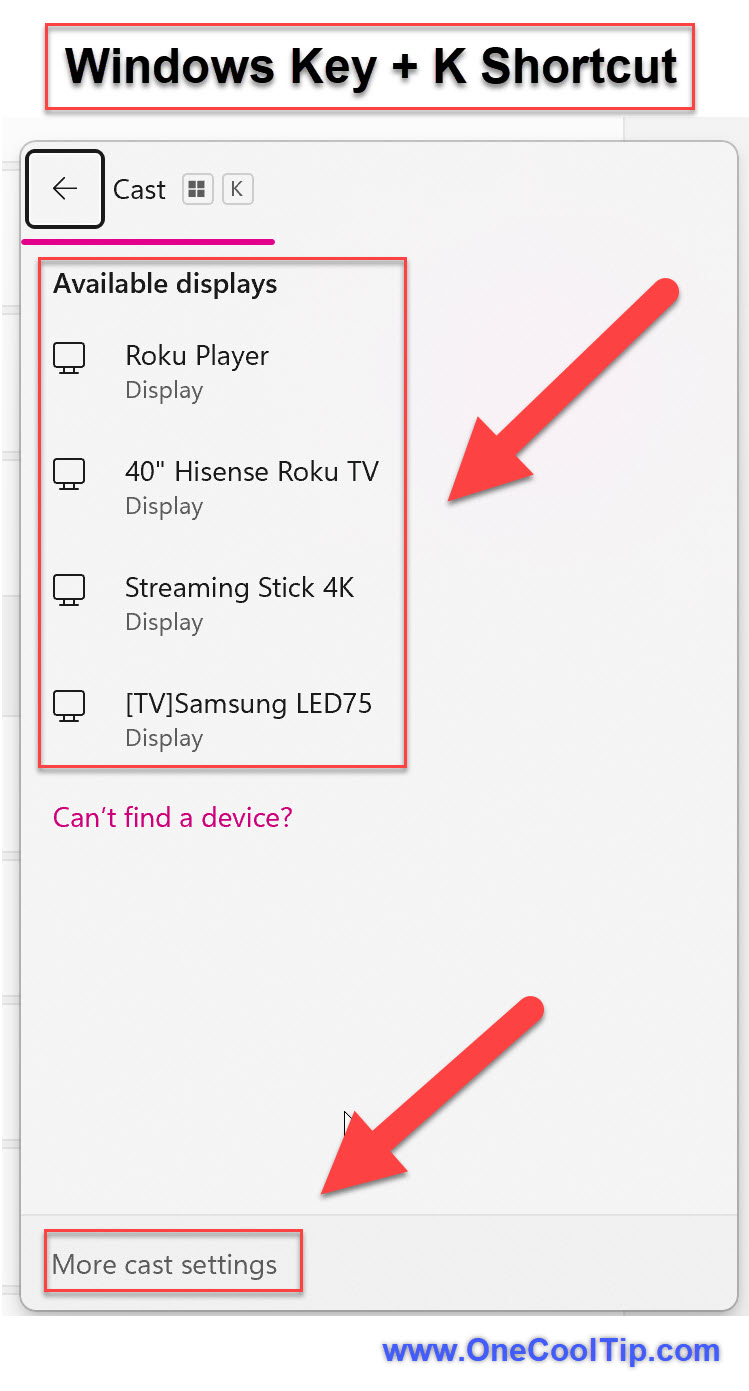
- 📺 Quick Wireless Screen Sharing: Press Windows Key + K to quickly find and cast your PC screen to wireless displays on your network.
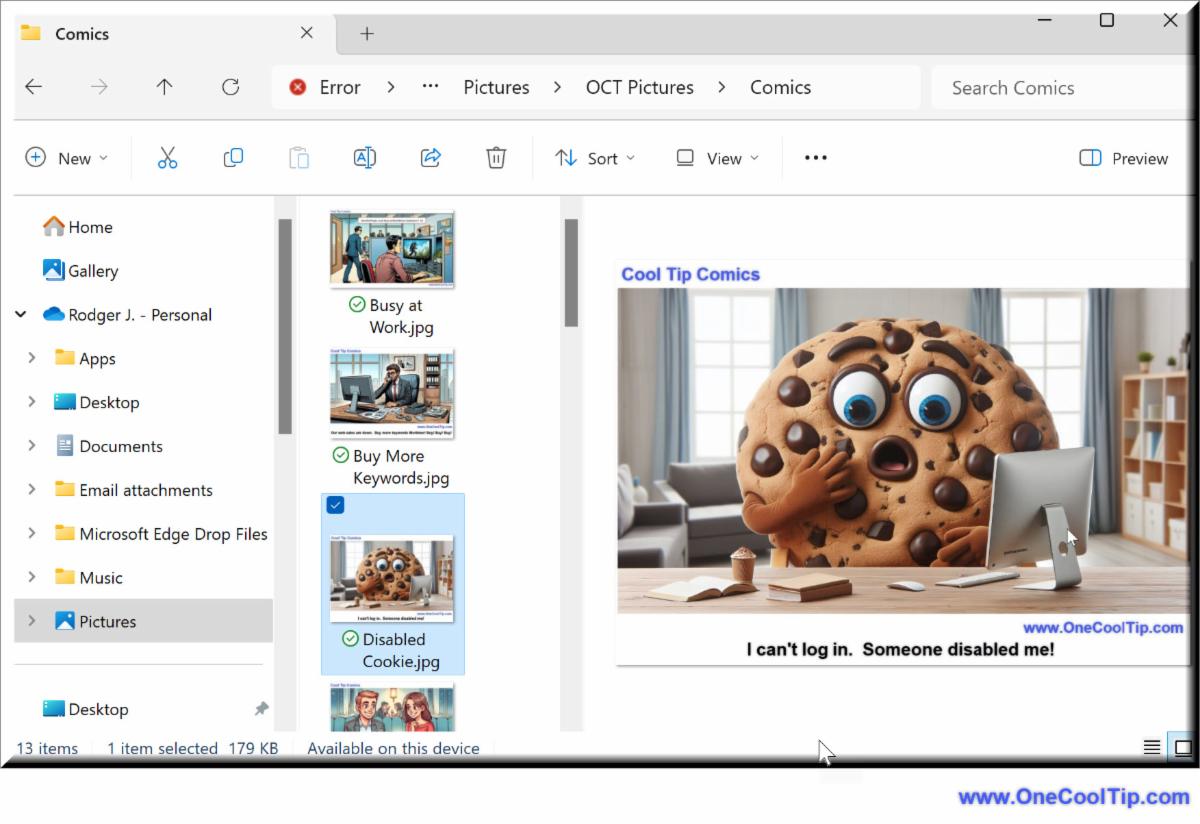
- 📁 File Explorer Preview Pane: Press Alt + P to peek at document and photo contents inside File Explorer without opening separate apps.
New here? Subscribe to the One Cool Tip Newsletter for daily updates. It's FREE!
-
😂 Laugh with Us! Enjoy our Tech Joke of the Day, Haiku and Cool Tip Comics.
-
🌐 Stay Informed! Check out ICYMI, and our One Cool Tip Video.
| | |
3️⃣
If you enjoy the One Cool Tip newsletter, please forward this newsletter to THREE friends or colleagues or share it on social media using the links below.
Leave a $$$ Tip!
Share this One Cool Tip Newsletter!
| | |
Today's Tech Trivia
Which historical figure inspired the name and logo of Bluetooth technology?
A) Leif Erikson
B) King Harald Gormsson
C) Ragnar Lothbrok
D) Sweyn Forkbeard
Answer at the end of this newsletter.
| | |
⚠️ That Podcast Invitation Might Be a Scam⚠️
Think only everyday consumers fall for online scams?
Even celebrities are getting fooled by increasingly sophisticated fraud schemes.
Scammers are impersonating well-known podcast hosts and sending highly personalized invitations that appear completely legitimate.
In some cases, the fake invitations referenced specific details about a person's career, making the messages seem authentic and trustworthy.
The goal was to trick victims into handing over money, social media access, login credentials, or other valuable information.
The lesson for all of us is simple: always verify unexpected opportunities through official channels before clicking links, sharing information, or granting account access.
In the age of AI-generated messages, a convincing email is no longer proof that it's real.
And in Other News...
Why Parents and Teens Should Pay Attention to the Meta Trial
A major court case against Meta, the parent company of Facebook and Instagram, could have significant implications for how young people use social media.
The lawsuit, brought by attorneys general from 29 states, alleges that Meta designed features that encourage children and teens to spend more time on its platforms and collected children's data without proper parental consent.
Meta denies the allegations and says it has safeguards in place to protect younger users.
For families, the case is a timely reminder to talk about healthy social media habits and review privacy settings on the apps their children use.
Parents may also want to explore screen time tools and discuss how social media platforms are designed to capture attention.
Regardless of the trial's outcome, staying informed and involved remains one of the best ways to help young users navigate the digital world safely.
| | |
Try this Cool AI prompt. Copy and paste to ChatGPT, Gemini, Claude or Copilot.
"Restore and clean up this antique photograph while preserving its original character and historical authenticity.
Remove dust, scratches, stains, creases, tears, fading, discoloration, and other age-related damage.
Carefully reconstruct missing or damaged areas using the surrounding details as a guide.
Improve sharpness, contrast, exposure, and facial clarity without making the image look artificially modern or overprocessed.
Preserve the original faces, expressions, clothing, hairstyles, objects, background, composition, and photographic style.
Do not add people, objects, or details that were not present in the original photograph. Maintain realistic skin texture and natural photographic grain.
If the photograph is black and white or sepia, preserve its original appearance unless I specifically request colorization.
The finished image should look like a professionally restored version of the original photograph, not a newly generated recreation."
| | |
Windows 11’s Latest Updates Make Bluetooth More Reliable
Windows 11’s latest updates aim to make Bluetooth audio less frustrating, especially for users who rely on wireless earbuds and headsets every day. If your headphones have been slow to pair, flaky on calls, or inconsistent with mute controls, this is one update worth checking.
Bluetooth on Windows has long had a reputation for occasional pairing glitches, dropped connections, and microphone quirks.
That can be more than annoying when you are joining a work call, taking an online class, or trying to listen privately in a busy room.
Here’s a Cool Tip: Update Windows 11, then re-test your Bluetooth headset.
Recent Windows 11 updates appear to improve several of those pain points.
Microsoft’s June 2026 optional update and July 2026 Patch Tuesday update include notable Bluetooth improvements, including faster AirPods pairing, better Beats Studio Pro microphone reliability, steadier LE Audio behavior, and improved mute synchronization on supported headsets.
Feature Explanation
Improved Bluetooth support in Windows 11 is not a flashy new app or a single toggle.
It is a set of under-the-hood reliability improvements aimed at making wireless audio devices behave more consistently.
The June 2026 optional update improved Bluetooth behavior for several audio scenarios, including AirPods pairing, Beats Studio Pro microphone reliability, Bluetooth LE Audio stability, and headset mute synchronization.
The July 2026 Windows 11 update then brought those earlier quality improvements into a broader cumulative update for Windows 11 version 24H2 and 25H2 systems.
When Bluetooth works better, the computer fades into the background, where it belongs.
The most meaningful improvement may be mute synchronization.
Windows and supported Bluetooth headsets are now better at showing the same microphone mute state, particularly with devices that support the Hands-Free Profile, or HFP.
In plain English, if you mute in Windows, your headset should be less likely to disagree about whether your mic is actually muted.
The main action for users is to install current Windows updates, confirm device compatibility, and check whether newer Bluetooth LE Audio options appear on their PC.
What You’ll Gain
- Save time by reducing pairing and reconnection headaches.
- Improve calls when using supported Bluetooth microphones.
- Reduce confusion when Windows and your headset agree on mute status.
- Make daily work, school, and travel audio more dependable.
Step-By-Step Instructions
Here's how to do it.
Windows
Check for the latest Windows 11 updates
-
Open Settings.
-
Select Windows Update.
-
Click Check for updates.
- Install available cumulative updates.
- Restart your PC if prompted.
Pair or reconnect a Bluetooth headset
- Turn on your Bluetooth headset, earbuds, speaker, mouse, keyboard, or other device.
-
Put the device into pairing mode using the manufacturer’s instructions.
-
On your Windows 11 PC, open Settings > Bluetooth & devices.
-
Make sure Bluetooth is switched On.
-
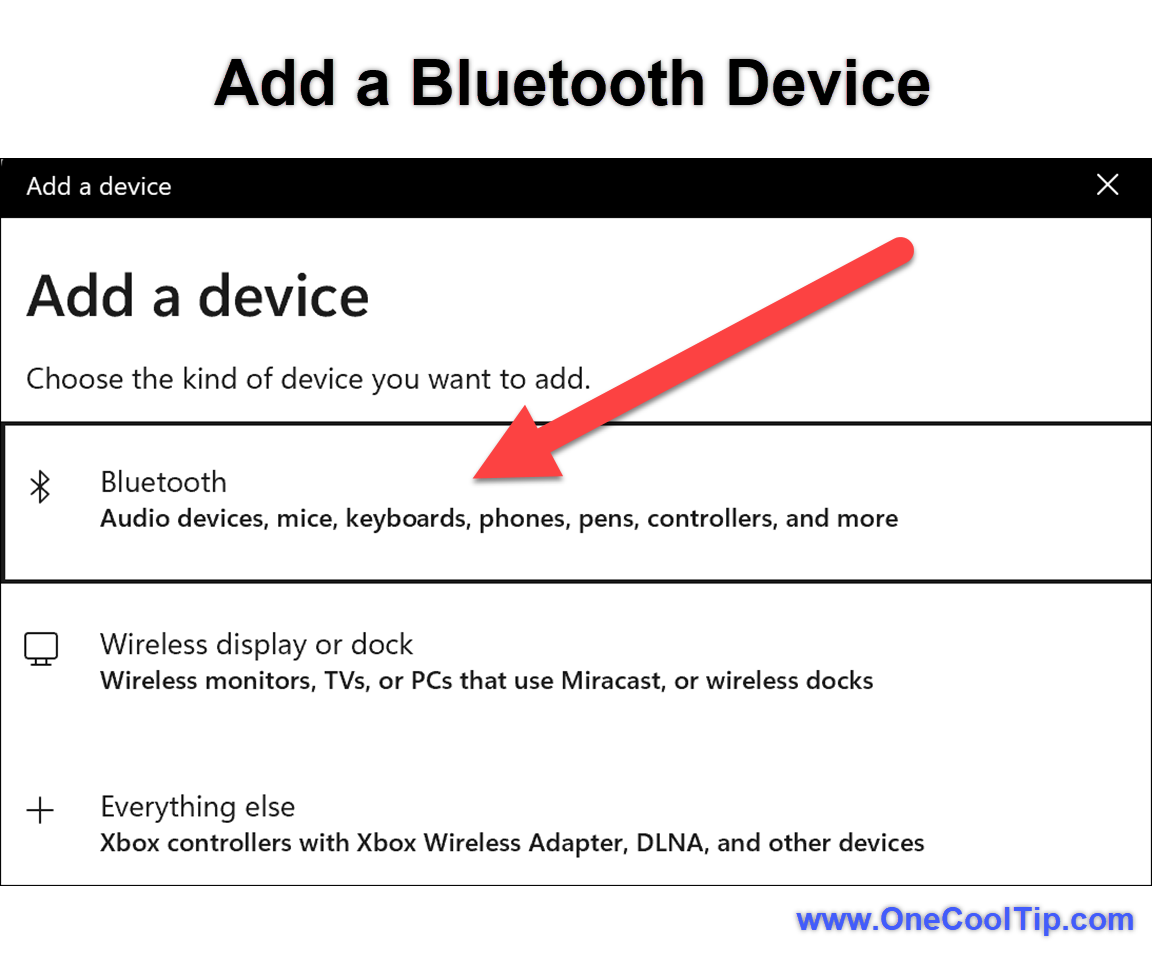
Select Add device, then choose Bluetooth.
- Pick your device from the list.
-
Follow any prompts, then select Done.
| | fig. 1 - Add a Bluetooth Device | |
Windows can pair with many kinds of Bluetooth devices, including keyboards, mice, phones, speakers, headphones, printers, and scanners.
Check whether your PC supports Bluetooth LE Audio
-
Open Settings.
-
Select Bluetooth & devices.
-
Select Devices.
-
Look under Device settings.
-
If available, turn on Use LE Audio when available.
Adjust Bluetooth LE Audio call quality, if supported
-
Pair and connect your Bluetooth LE Audio headset.
-
Open Settings > System > Sound.
-
Select the arrow next to your Bluetooth LE Audio device under Output.
-
Expand Output settings > Format.
-
Under Format when microphone is active, choose Stereo or Mono, if the option appears.
Some Windows 11 PCs can support stereo playback while the microphone is in use when running Windows 11 version 24H2 or newer with compatible Bluetooth LE hardware, compatible Bluetooth audio devices, and updated manufacturer drivers.
Pros and Cons
Pros:
- May improve everyday Bluetooth audio reliability on updated Windows 11 PCs.
- Faster AirPods pairing after installing the June 2026 optional update.
- Improved Beats Studio Pro microphone reliability.
- Better mute synchronization can reduce confusion during meetings on supported headsets.
- LE Audio support can improve call quality and wireless audio behavior when the PC, headset, and drivers support it.
Cons:
- Bluetooth LE Audio is not supported on every Windows 11 device.
- Some improvements depend on headset support, PC hardware, and manufacturer drivers.
- Microsoft’s public release notes do not provide a detailed device-by-device list of every Bluetooth improvement.
- Business and school PCs may receive updates later if IT controls Windows Update timing.
Configuration Guide
Where to enable Bluetooth
- Go to Settings > Bluetooth & devices, then turn Bluetooth on.
- Microsoft also supports turning Bluetooth on and off from Windows quick settings by selecting the network, sound, or battery area on the taskbar.
Where to disable Bluetooth
- Go to Settings > Bluetooth & devices, then turn Bluetooth off.
- You can also use quick settings from the taskbar.
Key toggles
-
Bluetooth: Turns Bluetooth connectivity on or off.
-
Use LE Audio when available: Appears only on supported Windows 11 devices.
-
Format when microphone is active: Appears only on systems that support stereo playback while the microphone is active.
Feature Access
-
Who gets it: Windows 11 users who install the relevant June or July 2026 updates may receive the broader Bluetooth improvements.
-
Supported platforms: Windows 11.
-
Supported versions: Microsoft’s July 14, 2026 KB5101650 page applies to Windows 11 OS builds 26200.8875 and 26100.8875. The update includes improvements from June 2026 updates.
-
Hardware limits: Bluetooth LE Audio requires a Windows 11 PC with compatible Bluetooth LE support, a compatible audio codec, manufacturer drivers, and a headset or earbuds that support LE Audio.
-
Subscription requirement: No subscription requirement was identified for basic Bluetooth pairing or LE Audio.
-
Availability note: Availability may vary by device, headset, region, Windows build, driver support, and update rollout timing.
Score
Criterion | Score (0–10) | Justification
Value | 8
Bluetooth reliability affects many Windows users who rely on wireless headsets and earbuds for calls, school, travel, and entertainment.
Usability | 8
Most users only need to update Windows and reconnect their devices, though LE Audio support depends on hardware and drivers.
Wow Factor | 6
This is useful and overdue, but mostly an under-the-hood reliability improvement rather than a flashy new feature.
Total: 22/30 | 👍 Good
A practical Windows 11 improvement that can reduce everyday Bluetooth frustration, especially for headset users.
Like smartphone Bluetooth reliability updates, this matters most because it removes small daily annoyances users should not have to think about.
Key Takeaways
Windows 11’s improved Bluetooth support should help some users get more reliable wireless audio, faster pairing, and fewer call-related headaches.
The biggest catch is compatibility: your PC, headset, drivers, and Windows build all matter.
Cool Tip Snapshot
-
Feature Name: Improved Bluetooth Support
-
Platform(s): Windows 11
-
Quick Benefit: More reliable Bluetooth audio and headset behavior
-
Best For: Business users, students, travelers, remote workers, and home users
-
Access Type: Rolling Out
-
Difficulty: Easy
Try It Yourself
Update your Windows 11 PC, reconnect your favorite Bluetooth headset, and see whether pairing, calls, and mute controls feel more reliable.
Leave a comment with your results, subscribe to the One Cool Tip newsletter, and share this tip with family, friends, and coworkers who use wireless audio.
READ MORE
Read the Cool Tip on One Cool Tip.com.
| | Help support One Cool Tip. Use this Amazon link when you shop online. | |
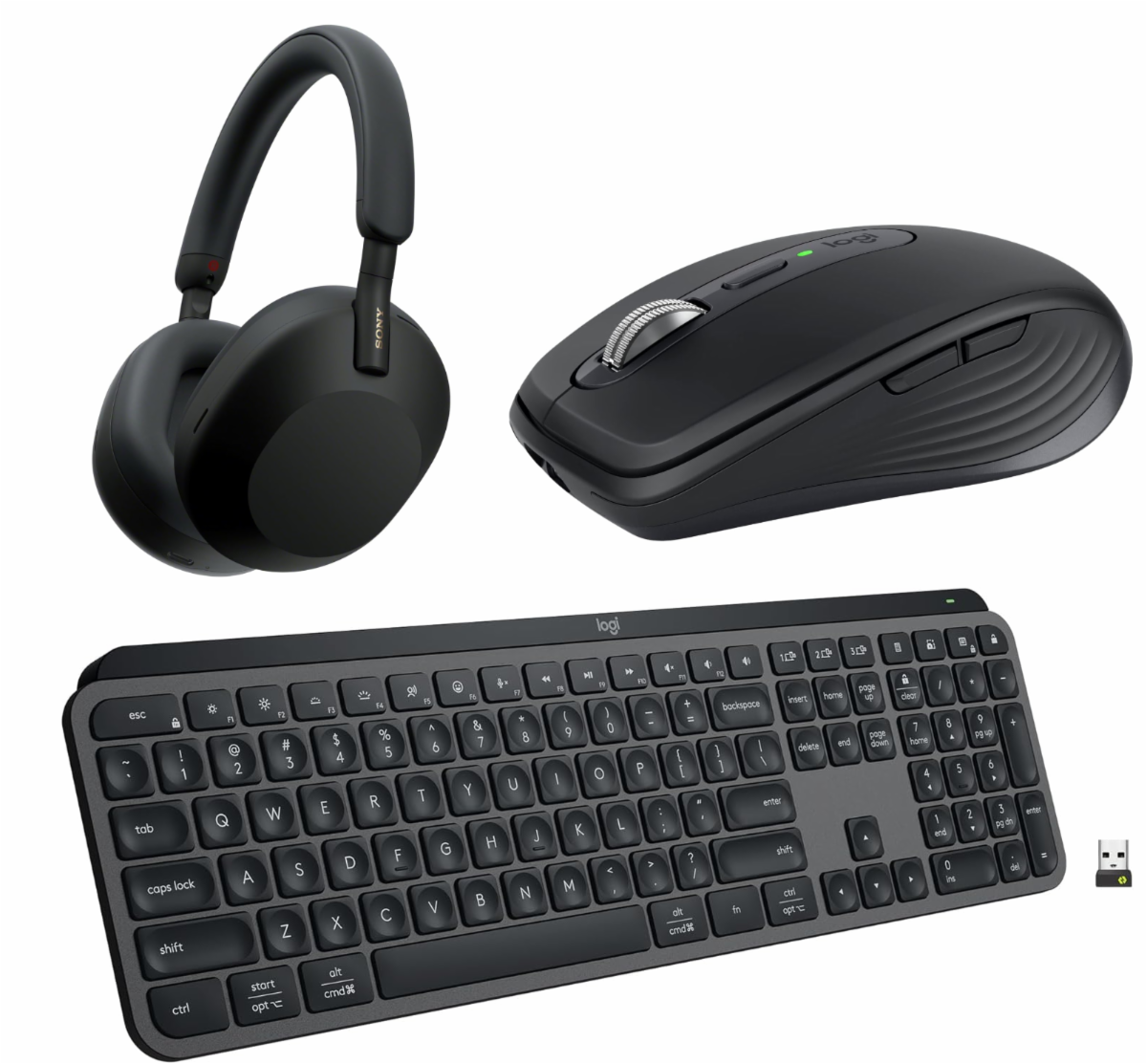
🎧 Sony WH-1000XM5 Wireless Headphones: Top-tier active noise cancellation with long battery life and multi-device Bluetooth pairing.
Save 38%. $248. 4.2 Stars. Check it out on Amazon!
🖱️ Logitech MX Master 3S Wireless Mouse: Ergonomic productivity mouse featuring multi-host Bluetooth switching across up to three computers.
LOOK! $89.99. 4.5 Stars. Check it out on Amazon!
⌨️ Logitech MX Keys S Wireless Keyboard: Quiet, responsive typing with dedicated Easy-Switch Bluetooth buttons for seamless multi-device work.
LOOK! $129.99. 4.4 Stars. Check it out on Amazon!
Prices accurate at time of publication
One Cool Tip may earn a commission from qualifying purchases.
| | |
🆒Tell Me More
- Bluetooth LE Audio is a newer Bluetooth audio approach that uses Bluetooth Low Energy instead of Classic Bluetooth audio. It can improve battery life, voice call quality, and device flexibility when supported.
- LE Audio requires support from both the Windows PC and the headset or earbuds. Compatible Bluetooth LE support, compatible audio codec support, and manufacturer drivers are required.
- If Use LE Audio when available does not appear under Settings > Bluetooth & devices > Devices, your Windows device may not currently support LE Audio.
- Some Windows 11 PCs can support stereo playback while the microphone is active, but this requires Windows 11 version 24H2 or newer, compatible Bluetooth LE hardware, compatible headphones or speakers, and updated drivers.
- The July 2026 Windows 11 update includes Bluetooth improvements from the June 2026 optional update.
⏩Quick Tips
-
🔄 Re-Pair First: If your headset acts strange after an update, remove it and pair it again. Go to Settings > Bluetooth & devices, select the device, choose Remove device, then add it back.
-
🔋 Charge Up: Low battery can cause flaky pairing and audio dropouts. Fully charge the headset before troubleshooting.
-
📍 Move Closer: Bluetooth can fail when the device is too far away or blocked. Move the headset closer to the PC and try again.
-
🪟 Check Updates: Windows updates can include Bluetooth fixes. Open Settings > Windows Update and select Check for updates.
-
🎧 Look for LE Audio: On compatible PCs, check Settings > Bluetooth & devices > Devices for Use LE Audio when available. If the toggle is missing, your PC may not support it.
| | ✅ More Must-Read Tech Tips | | |
👀 How Do I Open the Secret Start Menu?
What if I told you that a simple right-click could unlock a world of productivity?
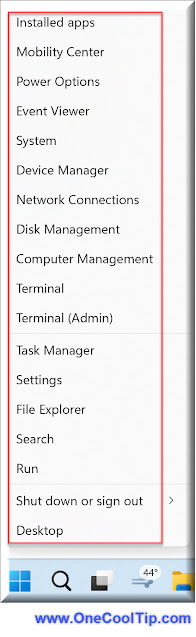
Right-clicking the Start menu in Windows 11 opens a context-sensitive menu that provides a variety of shortcuts to system utilities and settings.
Here's how to do it.
-
Right-click on the Windows Start icon to reveal a quick-access menu with options like Installed Apps, Mobility Center, and Power Options.
- Here is more information about each option:
-
Installed Apps: Quickly access the list of installed applications where you can uninstall or modify apps.
-
Mobility Center: Provides a central location for settings commonly used on laptops and tablets, like brightness and volume.
-
Power Options: Manage your power plans and adjust settings for battery and sleep options.
-
Event Viewer: View detailed logs to troubleshoot system errors and track Windows operation history.
-
System: Access system information and properties, including device specifications and Windows edition.
-
Device Manager: Manage and update hardware device drivers and troubleshoot hardware issues.
-
Network Connections: Shortcut to view and manage network adapters and settings.
-
Disk Management: Tool for managing disk partitions and storage spaces on your computer.
-
Computer Management: Provides system administrative tools to manage local or remote computers.
-
Windows Terminal: Open the advanced command-line interface for Windows, supporting multiple tabs and shells.
-
Task Manager: Monitor running applications and processes, and assess the performance of your system.
-
Settings: Direct access to the main Windows settings menu for system customization and preferences.
-
File Explorer: Opens the File Explorer, allowing you to browse files and folders on your system.
-
Search: Provides a quick way to search for files, folders, apps, settings, and more within your system.
-
Run: Opens the Run dialog box where you can execute commands or open applications by typing their names.
-
Shut down or sign out: Offers options to shut down, restart, sleep, hibernate, or sign out of your account.
-
Desktop: Minimizes all open windows and shows the desktop, providing quick access to your desktop icons and files.
Embracing the right-click menu in Windows 11’s Start Menu can significantly boost your efficiency.
Discover more HERE.
| | |
🤔 Have You Ever Wondered How To Screen Share?
Have you ever found yourself juggling multiple devices, trying to present or share media seamlessly?
The Windows Key + K shortcut is your gateway to a streamlined media-sharing experience.
Here's how to do it.
- Ensure your PC and the target device are connected to the same Wi-Fi network.
- Press the Windows Key + K to open the Connect pane.
- Your PC will search for wireless displays and audio devices.
- Select the device you want to cast to from the list.
- Follow any on-screen instructions to complete the connection.
- Once connected, your media will be displayed on the chosen device.
- Click "More Cast Settings" to open the Settings > System > Display screen for more Display settings.
Pro Cool Tip
- In the Settings app (System > Display), you can customize your projection settings, choose whether to extend your display, duplicate it, or show content on only the second screen.
Whether you're looking to improve your presentations, enhance your entertainment, or level up your productivity, this hidden gem is worth mastering.
Find out more HERE.
| | |
🙋♂️ Here's How To Unlock the Hidden Power of File Explorer.
Have you ever found yourself lost in the labyrinth of files and folders on your computer?
In Windows, pressing Alt + P toggles the display of the preview pane in File Explorer.
This allows you to view the contents of a selected file, such as an image or document, without having to open it in a separate application.
It’s a handy shortcut for quickly viewing files and managing your documents more efficiently.
Here's how to do it.
-
Open Windows File Explorer.
-
Navigate to the folder containing your files.
-
Select a file you wish to preview.
-
Press Alt+P to toggle the Preview Pane.
-
The selected file’s preview will appear on the right side of the window.
Enjoy!
Learn more HERE.
| | |
❓Did you share this newsletter with three friends yet?
😎 Cool Facts
33 Feet: Most Class 2 consumer Bluetooth devices maintain a standard operating range of approximately 10 meters (33 feet). Source.
3 Mbps: Traditional Bluetooth Enhanced Data Rate (EDR) provides a raw data rate of 3 megabits per second, with real-world throughput averaging around 2.1 Mbps. Source.
1998: The Bluetooth Special Interest Group (SIG) was formally established in May 1998, by Ericsson, Intel, Nokia, Toshiba, and IBM. Source.
7: In classic Bluetooth piconet architecture, a single central device can actively communicate with up to seven peripheral devices at the same time. Source.
⌨️Today's Cool Shortcuts
-
Windows + A opens Quick Settings for fast Bluetooth access.
-
Windows + I opens Settings, where Bluetooth devices and sound controls are managed.
-
Windows key, then type “Bluetooth” searches directly for Bluetooth settings and troubleshooting options.
-
Windows + Ctrl + V opens the sound output selector on supported Windows 11 versions.
-
Windows + R, then enter ms-settings:bluetooth opens Bluetooth & devices directly.
😜 Tech Joke of the Day 😅
Why did the Bluetooth headset break up with the laptop?
Too many connection issues.
🔎 Do you have a Cool Tip or tech question? Email us at onecooltip.com@gmail.com.
| | |
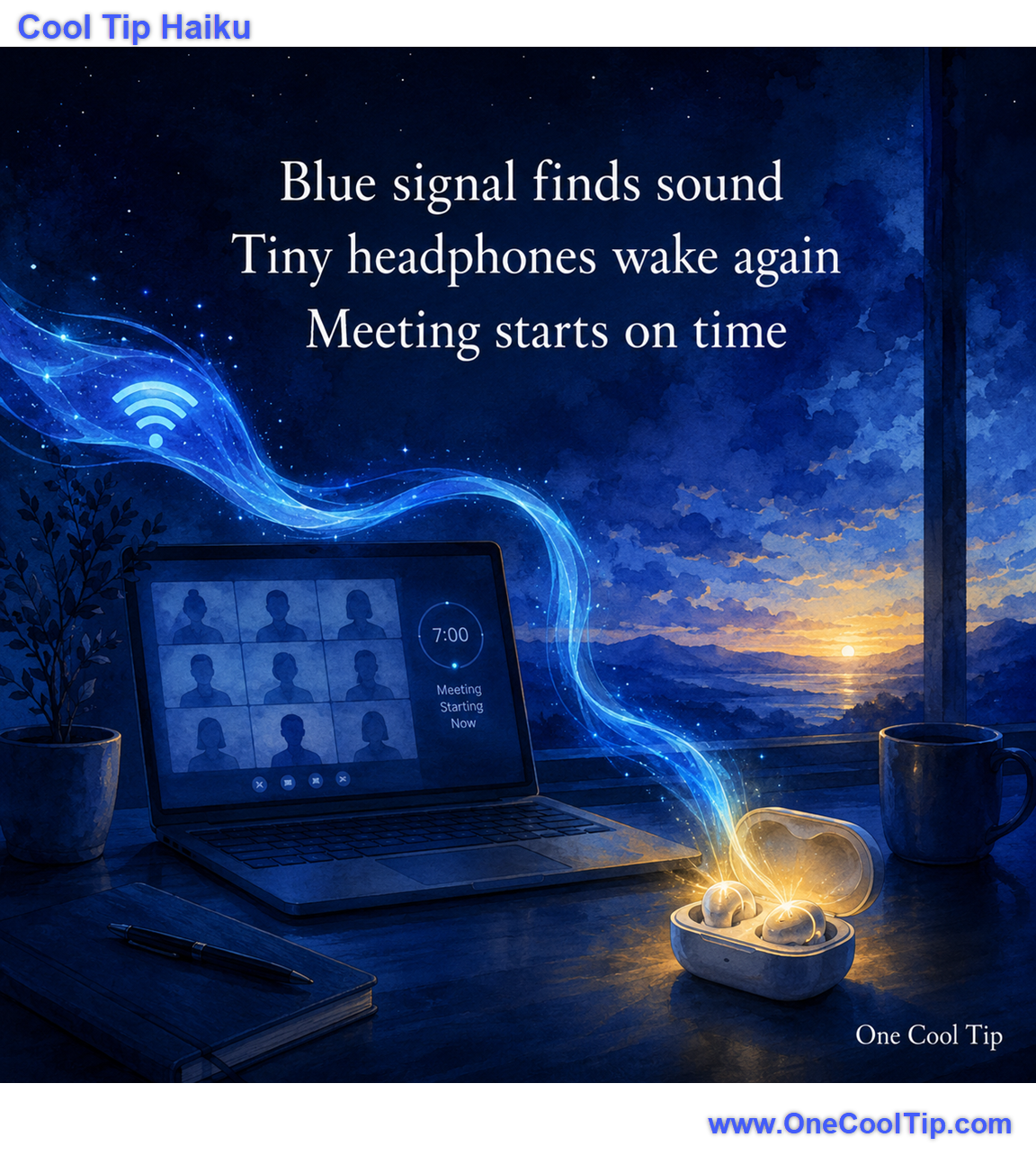
Blue signal finds sound
Tiny headphones wake again
Meeting starts on time
| |
| 🤔 What is your biggest Bluetooth frustration? | | | | Did You See These Cool Tips This Week? | | | | Connect Everyday Apps to Google Gemini and Cut Daily Task Friction | |
Connecting third-party apps directly to Google Gemini lets you book tickets, discover local events, review meeting notes, and manage files without hopping between separate tabs.
Read the Newsletter Version.
| | | | Let a ChatGPT Pet Keep Watch Over Your Work | |
The ChatGPT Pets feature adds an animated companion that can show when work is running, waiting for input, ready, or blocked. Here is how to choose a pet, wake it, create a custom character, and understand what works in the desktop app, on the web, and in Codex CLI.
Read the Newsletter Version.
| |
ICYMI - In Case You Missed It ...
| | | | Watch YouTube With Fewer Ads | |
DuckDuckGo’s free browser can now block most advertisements that play before and during YouTube videos. You can continue using the familiar YouTube website without installing a separate ad-blocking extension or paying for a subscription.
Read the Newsletter Version.
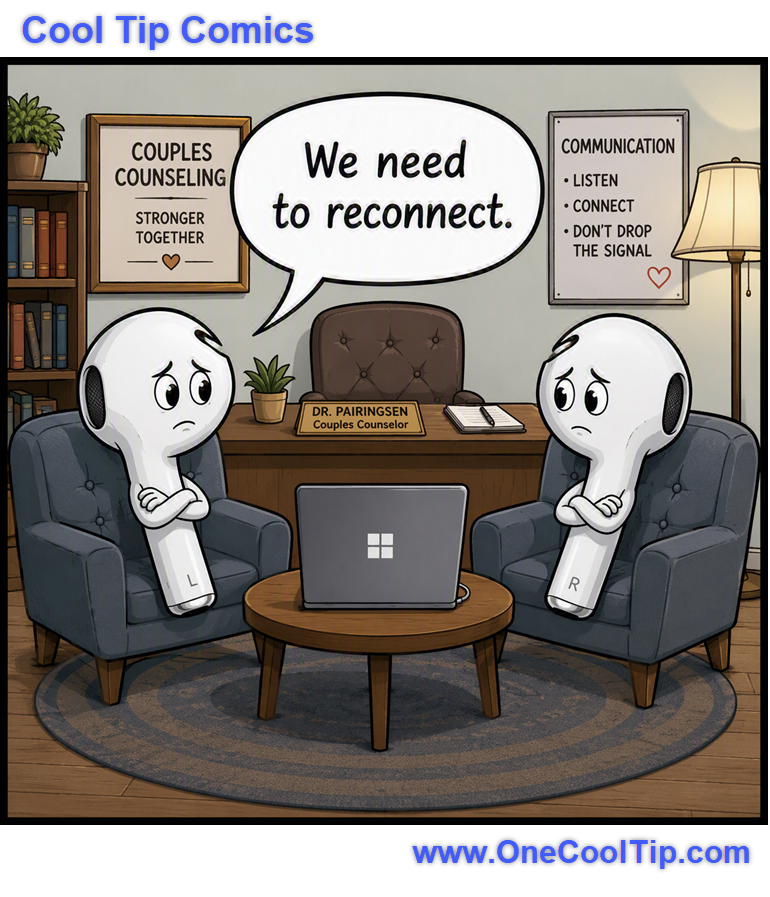
| | The counselor's first question: 'Have you tried turning the relationship off and back on again?' | | |
Trivia Answer: B) King Harald "Bluetooth" Gormsson
In 1997, Intel engineer Jim Kardach suggested the temporary code name "Bluetooth" after reading about King Harald "Bluetooth" Gormsson, a 10th-century Scandinavian monarch famous for uniting warring tribes in Denmark and Norway.
The concept was that the new radio protocol would unite diverse communication protocols across computers and mobile devices.
The iconic Bluetooth logo is also a direct historical tribute.
It combines the Younger Futhark runic initials for Harald Bluetooth: the Hagall rune (ᚼ) representing "H" and the Bjarkan rune (ᛒ) representing "B."
What started as a placeholder project name became the permanent global brand.
----------
Tomorrow's Cool Tip is waiting to amaze you.
Until then, go forth and conquer the tech world with your newfound knowledge!
Be sure to visit www.OneCoolTip.com for Cool Tech Tips for a Cooler Life!
And if you like One Cool Tip, please support with TipJar!
Enjoy!
Rodger
Chief Cool Tipper
onecooltip.com@gmail.com
| |
| What do you think of today's OneCoolTip newsletter? | | | |
Please Share the One Cool Tip Newsletter!
You asked for it. You got it. There is now a One Cool Tip Newsletter archive. Did you delete a newsletter and want to read it again? Check it out HERE.
Want to help One Cool Tip grow? Please forward this email using the link above. And if you see an OCT social media post, please LIKE, COMMENT and SHARE!
Have you subscribed to the One Cool Tip YouTube channel? Subscribe HERE.
| | Connect with One Cool Tip!! | | |
|
As an Amazon Associate, One Cool Tip may earn a small commission from qualifying purchases.
Our media content is intended solely for informational purposes only. Please do not construe anything here as legal, tax, investment, financial, marital or other advice.
Copyright © 2026 | www.OneCoolTip.com | All Rights Reserved
|
| | | |