|
One Cool Tip Newsletter
November 2, 2026
| Your daily dose of tech-savvy brilliance! | | |
😀 Greetings!, Happy Back-to-Work Monday, Cool Tipper!
Get ready to streamline your digital life with simple, actionable tips delivered straight to your inbox.
Today's Cool Tip Theme: Name Excel Tables at Creation
Excel now lets you name tables while creating them on Windows and Mac, making complex workbooks easier to understand, organize and manage.
IN THIS ISSUE
- ⚠️ Spot a Phishing Scam Before It Gets You
- 📋 Excel Won’t Paste? Microsoft Says the Fix Is Here
- 🤖 Microsoft Copilot Just Got a Serious Finance Upgrade
- 📊 AI Prompt: Create a Visual Excel Dashboard
- 🗂️ Name Excel Tables at Creation
- 📈 Boost Your Excel Productivity with the Status Bar
- 🤔 How To Create a Series in Microsoft Excel
- 🙋♂️ The Ultimate Excel Keyboard Shortcut
New here? Subscribe to the One Cool Tip Newsletter for daily updates. It's FREE!
-
😂 Laugh with Us! Enjoy our Tech Joke of the Day, Haiku, and Cool Tip Comics.
-
🌐 Stay Informed! Check out ICYMI and our One Cool Tip Video.
| | |
3️⃣
If you enjoy the One Cool Tip newsletter, please forward this newsletter to THREE friends or colleagues or share it on social media using the links below.
Leave a $$$ Tip!
Share this One Cool Tip Newsletter!
| | |
Today's Tech Trivia
What name does Excel traditionally assign to the first table you create in a workbook?
A) SheetTable
B) Data1
C) Table1
D) ExcelTable
Answer at the end of this newsletter.
| | |
⚠️ Think Before You Click: Spot a Phishing Scam Before It Gets You ⚠️
Phishing scams are designed to look like legitimate emails, websites, and text messages so criminals can steal passwords, financial information, and other personal data.
Before clicking a link, check whether the message was unexpected and look closely at the sender's address and destination URL.
Be especially suspicious of messages asking for personal information or telling you to enable macros, change security settings, or install an app.
Typos, mismatched sender information, and websites that look slightly wrong are also warning signs.
The Cool Tip:
If you're unsure, skip the link and contact the company through a website, phone number, or other channel you already trust.
A few seconds of caution can help keep a convincing fake from turning into a real headache.
And in Other News...
- Excel Won’t Paste? Microsoft Says the Fix Is Here
If you’ve tried to paste something into Microsoft Excel and nothing happened, you may have encountered a known bug.
Microsoft says the problem could cause a paste operation to fail silently, leaving the destination unchanged without displaying an error message.
The issue affected Excel 2016, 2019, 2021, 2024, and Excel Online in Office Online Server.
The good news is that Microsoft says the problem is now fixed in all affected versions.
Because the fix might not install automatically, Microsoft recommends installing the latest Office updates.
The Cool Tip:
If you still run into the problem, try Home > Paste > Paste Special as a workaround.
- Microsoft Copilot Just Got a Serious Finance Upgrade
Microsoft is giving finance professionals more ways to put Copilot to work, adding more than 25 new finance skills and partner-built plugins.
The new tools cover accounting, capital markets, and broader finance work, with tasks ranging from reconciling accounts to analyzing financial performance.
Excel is also embedded directly into the Copilot app, letting users analyze, edit, and co-author workbooks without leaving Chat or Cowork.
Some of the new accounting capabilities can help draft journal entries, identify discrepancies, and prepare financial reporting for review.
Availability varies, however, with some accounting features currently offered through Microsoft's Frontier early-access program.
The Cool Tip:
If you work in finance, check Copilot before starting your next spreadsheet-heavy task because the AI assistant may now have a purpose-built skill for it.
| | |
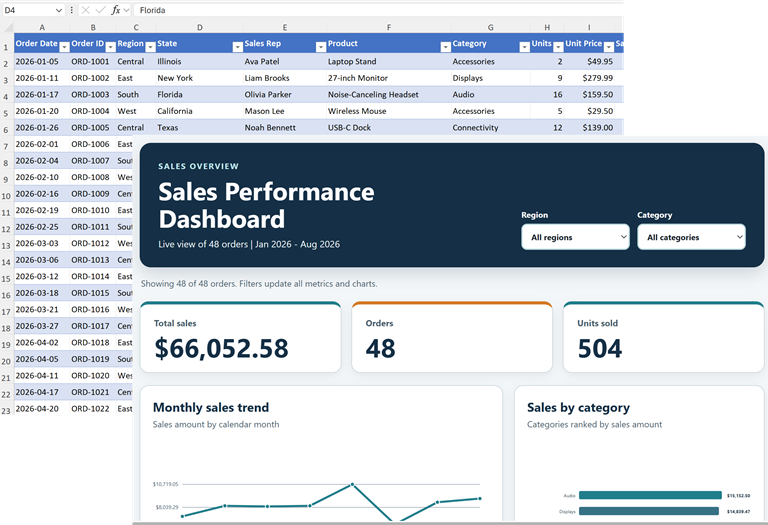
Try this Cool AI prompt. Copy and paste to ChatGPT, Gemini, Claude or Copilot.
Create a clean, professional visual dashboard using the data in my Excel workbook.
Show three key performance indicators at the top, a monthly trend chart, and a bar chart comparing the most relevant categories.
Add descriptive titles and use a consistent color scheme.
If the available tools support an interactive dashboard, use that format; otherwise, create the closest supported Excel charts and summary tables.
Do not invent data. Include a short summary of three important findings.
| | Name Excel Tables as You Create Them and Stay Organized | | |
Excel has quietly fixed one of those little annoyances that becomes a big one in a busy workbook.
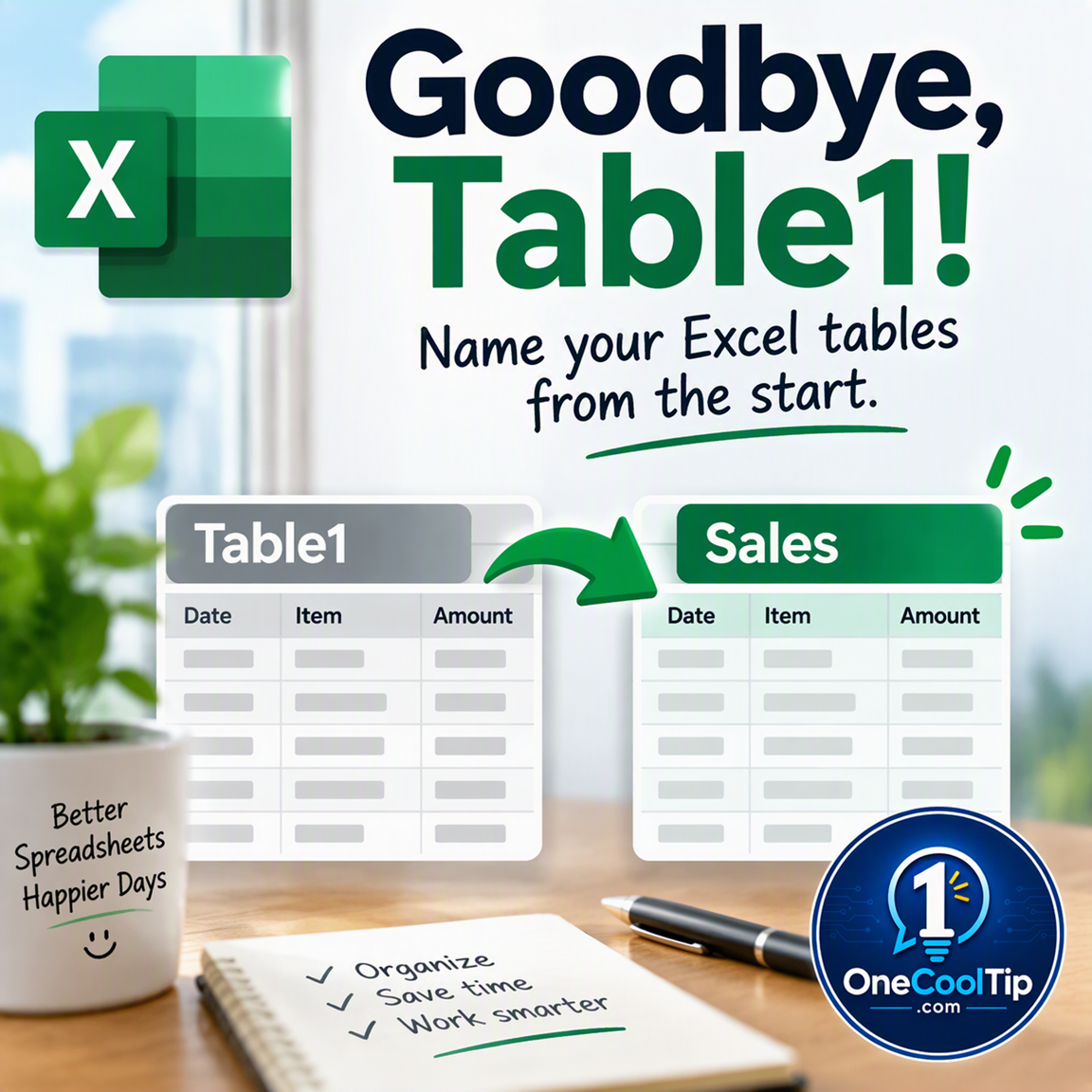
You can now give a table a meaningful name while you create it instead of starting with generic names such as Table1 or Table2.
| | |
By Rodger Mansfield, Technology Editor
November 2, 2026
Subscribe
Create enough tables in Excel and the names start piling up: Table1, Table2, Table3.
Those defaults work, but they tell you almost nothing about the data inside them.
Microsoft has made that workflow smarter.
In its Oct. 27, 2026, Excel update, Excel for Windows and Excel for Mac now let users give tables meaningful names when they create them.
That sounds like a tiny change, and it is.
But descriptive table names become particularly helpful when a workbook contains several tables or formulas that reference those tables.
Here’s a Cool Tip: Name your Excel table while you create it.
Feature Explanation
An Excel table is more than a range of cells with formatting.
Tables organize related data and can include header rows with filtering and sorting, calculated columns, total rows and structured references.
Traditionally, Excel assigns each new table a generic name such as Table1, Table2 or Table3.
You can rename the table later, but that adds another step.
Now, you can name the table as you create it.
Microsoft introduced the capability to Insiders before announcing in October that it was available to Excel for Windows and Excel for Mac users.
Why bother?
Excel formulas can use table and column names through structured references instead of traditional cell references such as C2:C7.
Those references adjust when data is added to or removed from a table.
A workbook containing tables named Expenses, Inventory and CustomerOrders is much easier to understand than one filled with Table1, Table2 and Table3.
That's especially useful for people building reports, budgets, project trackers, inventories or recurring spreadsheets.
What You’ll Gain
- Reduce confusion by naming tables according to the data they contain.
- Skip a cleanup step by choosing the name during table creation.
- Make formulas easier to understand when structured references use descriptive table and column names.
- Organize complex workbooks containing several tables.
Step-by-Step Instructions
Here's how to do it.
Windows
-
Select the data you want to place in a table.
-
Create the table using Excel's table command. Use Ctrl+T as a shortcut for creating an Excel table.
-
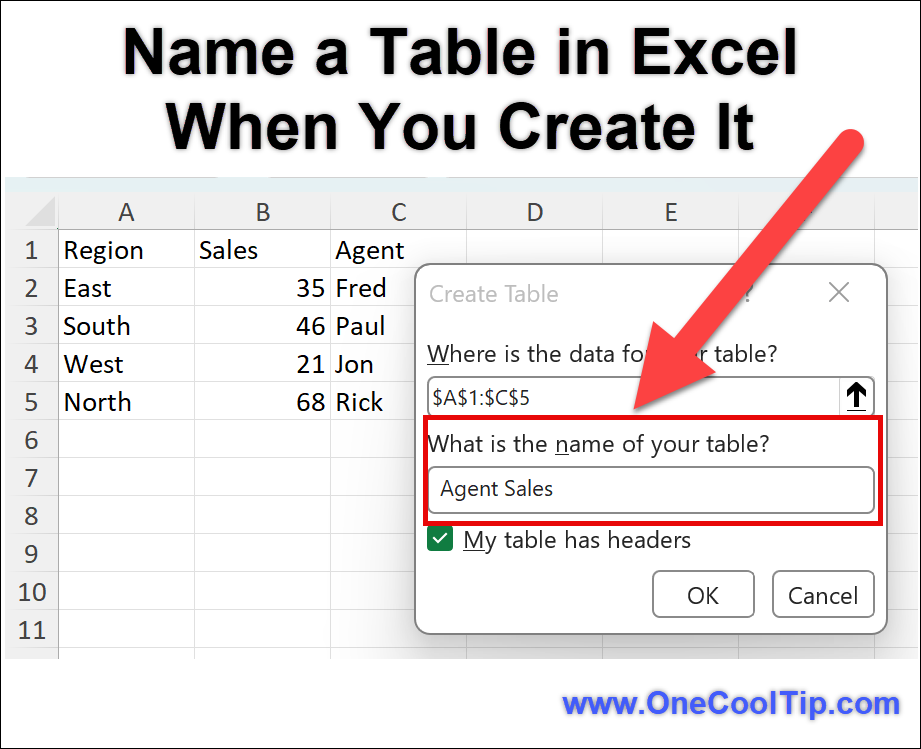
In the table-creation experience, give your table a descriptive name using the new naming option.
-
Confirm the table creation.
| | fig. 1 - Name Excel Table When You Create It | |
macOS
-
Open a workbook and select a cell within your data.
-
Select Insert > Table.
-
Confirm the data range and header settings in the Create Table dialog.
-
Enter a descriptive table name in the new name field.
-
Select OK.
Pros and Cons
Pros:
- Names tables correctly from the beginning.
- Reduces generic Table1 and Table2 names in larger workbooks.
- Makes tables easier to identify.
- Works well with structured references that use table and column names.
- Helps make complicated workbooks easier to understand.
Cons:
- It's a convenience improvement rather than a major new Excel capability.
- Microsoft's October announcement lists the feature for Windows and Mac, but not Excel for the web.
- Excel's normal table-naming rules still apply. Names must be unique, cannot contain spaces and cannot duplicate cell references.
- Users with only one simple table may see little practical benefit.
Troubleshooting and Limitations
Problem: The naming option doesn't appear.
-
Why it happens: Microsoft's October announcement confirms the feature for Windows and Mac but does not specify a minimum build number.
-
Fix or workaround: Create the table normally and rename it afterward using Excel's existing Table Name control.
Problem: Excel rejects your table name.
-
Why it happens: Excel applies naming rules to tables. Names cannot contain spaces or duplicate another table name or cell reference.
-
Fix or workaround: Start with a letter, underscore or backslash, and use a name such as Sales2026 or Sales_2026.
Problem: Your workbook already contains Table1, Table2 and other generic names.
-
Why it happens: Excel traditionally assigns default names in that sequence when tables are created.
-
Fix or workaround: Select each existing table and replace its generic name with a descriptive one.
Feature Access
- Microsoft announced Name tables at creation on Oct. 27, 2026, for Excel for Windows and Excel for Mac users.
- The feature had been highlighted as an Insider feature the previous month and is now available to Windows and Mac users.
Score
Criterion | Score (0–10) | Justification
Value | 8
Descriptive table names reduce confusion, particularly in workbooks containing multiple tables.
Usability | 9
Moving table naming into the creation process removes a separate cleanup step.
Wow Factor | 5
It's clever and useful, but this is a workflow improvement rather than a major Excel capability.
Total: 22/30 | 👍 Good
A small Excel improvement that removes an unnecessary step and encourages better-organized workbooks.
Compared with renaming a table afterward, the new approach puts the naming decision where it makes the most sense: when you create the table.
Key Takeaways
Giving Excel tables meaningful names can make busy workbooks easier to understand and maintain.
Microsoft's new Windows and Mac feature saves a step by allowing users to choose that name when the table is created.
Small improvement?
Absolutely. But it's the kind of little improvement that can make everyday Excel work cleaner.
Cool Tip Snapshot
-
Feature Name: Name tables at creation
-
Platforms: Excel for Windows and Excel for Mac
-
Quick Benefit: Give tables descriptive names from the start
-
Best For: Business users, students, educators and anyone managing multiple Excel tables
-
Access Type: Available
-
Difficulty: Easy
Learn More
Microsoft's official October 2026 Excel announcement confirms availability of Name tables at creation for Excel for Windows and Mac and explains where the feature fits among the month's other Excel updates.
Microsoft also provides official guidance explaining how to rename existing Excel tables and the rules governing table names.
Try It Yourself
The next time you create an Excel table, skip Table1 and give it a name you'll recognize six months from now.
Try the tip, tell us what you named your table in the comments, subscribe to the One Cool Tip Newsletter for FREE and share this Cool Tip with family, friends and coworkers who live in spreadsheets.
READ MORE
Read the Cool Tip on One Cool Tip.com.
| | Help support One Cool Tip. Use this Amazon link when you shop online. |
🖱️ Logitech Lift Vertical Ergonomic Mouse: A comfortable mouse can make long spreadsheet sessions easier, particularly when you're selecting cells and moving across large worksheets.
Save 21%. $62.99. 4.4 Stars. Check it out on Amazon!
⌨️ Logitech MX Keys S: A full-size keyboard is a practical companion for Excel users who rely heavily on shortcuts and numerical entry.
Look! $129.99. 4.4 Stars. Check it out on Amazon!
🔌 UGREEN Revodok Pro USB-C Hub: A USB-C hub can add useful connectivity to a laptop workstation, particularly when you're connecting external displays and peripherals.
Save 27%. $16.14. 4.4 Stars. Check it out on Amazon!
Prices accurate at time of publication
One Cool Tip may earn a commission from qualifying purchases.
| | |
🆒Tell Me More
-
🏷️ Names have rules. Excel table names cannot contain spaces and must begin with a letter, underscore or backslash.
-
🔁 No duplicates. Excel requires table names within a workbook to be unique and does not distinguish upper- and lowercase versions when checking for duplicates.
-
🧮 Names help formulas. Using defined names can make formulas easier to understand, update, audit and maintain.
-
🔎 There's a manager for that. Formulas > Name Manager gives you one place to review, edit and delete defined names and table names.
⏩Quick Tips
-
🏷️ Name Early: Give each table a meaningful name before the workbook becomes complicated. Use something descriptive such as MonthlySales instead of accepting a generic label.
-
🚫 Skip Spaces: Excel does not allow spaces in table names. Try CustomerOrders, Customer_Orders or Customer.Orders instead.
-
🔍 Check Names: A complex workbook can accumulate plenty of names. Open Formulas > Name Manager to review them in one place.
-
✍️ Rename Later: Made a naming mistake? Select an existing table and change its name through Excel's table controls. Microsoft documents Table Tools > Design > Properties > Table Name on Windows and Table > Table Name on Mac.
-
🧠 Think Ahead: Choose names that will still make sense months from now. CustomerOrders will probably be more useful than Data2.
| | ✅ More Must-Read Tech Tips | | |
How Do I Boost My Excel Productivity with the Status Bar?
Are you looking for ways to improve your Excel productivity and efficiency?
The status bar in Excel is a powerful tool that can help you quickly calculate and analyze data.
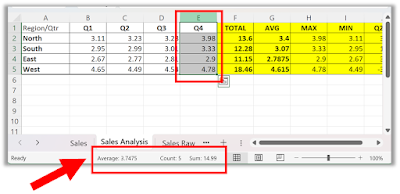
It displays a variety of information about your worksheet, including the average, count, and sum of selected cells.
Here's how to do it.
-
Select the range of cells you want to analyze.
-
Look at the status bar at the bottom of the window to see the average, count, and sum of these cells.
-
To quickly change the workbook view, use the three view shortcuts on the status bar.
-
You can also customize your status bar by right-clicking anywhere on it
-
Select the items you want to see.
- For example, minimum and maximum.
Discover more HERE.
| | |
🤔 Have You Ever Wondered How To Create a Series in Microsoft Excel?
Are you tired of manually entering data into your Excel spreadsheets?
Creating a series in Excel is a simple and straightforward process.
Here's how to do it:
-
Ensure Excel’s AutoFill Options is turned on by going to File > Options > Advanced and checking the box next to Enable fill handle and cell drag-and-drop.
-
Select the cell where you want to start your series.
-
Type the first few values of your series.
-
Select the fill handle at the bottom right corner of the selected cell.
-
Drag the fill handle in the direction you want to extend your series.
-
Release the mouse button to create your series.
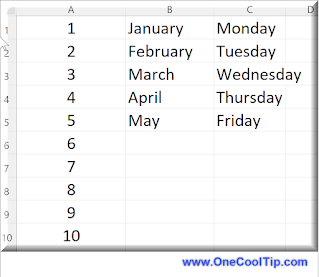
For example, if you want to create a series of numbers from 1 to 10, you would type 1 into the first cell and 2 into the second cell, select the fill handle, and drag it down until you reach 10.
Excel will automatically fill in the rest of the numbers for you.
You can also create a series of dates or days of the week by following the same steps.
Simply type the first month or day into the first cell, select the fill handle, and drag it down or across to create your series.
Save time and effort when entering data into your spreadsheets!
Watch the Cool Tip video!
Find out more HERE.
| | |
Do you get lost in large Excel spreadsheets?
This Cool Tip is your key to getting to where you need to be quickly.
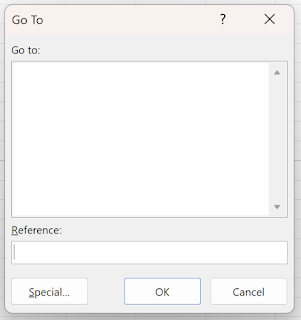
Ctrl+G is a handy shortcut that opens up the 'Go To' dialog box, allowing users to quickly navigate through a workbook.
This feature lets you quickly jump to a specific cell, range, or even named ranges within your workbook.
The Go To dialog box can also be accessed by pressing F5 or navigating to the Home tab and clicking on Find & Select > Go To.
-
Press Ctrl+G to open the 'Go To' dialog box.
-
Enter the cell reference or range you want to navigate to, such as A1 or A1:B10.
-
Click OK or press Enter to navigate to the specified location.
Learn more HERE.
| | |
❓Did you share this newsletter with three friends yet?
😎 Cool Facts
-
255 characters: An Excel table name can contain up to 255 characters. You probably don't need all of them. Source.
-
Table1, Table2, Table3: That's the sequence Excel traditionally uses for default table names. Source.
-
255 characters again: Name Manager also allows descriptive comments of up to 255 characters for names. Source.
⌨️Today's Cool Shortcuts
-
Ctrl+T: Opens the Create Table dialog for the selected cells.
-
Ctrl+L: Microsoft also documents this as a shortcut for opening the Create Table dialog.
-
Ctrl+S: Saves the workbook.
-
Ctrl+Z: Undoes the most recent action. Handy when spreadsheet experimentation gets a little too experimental.
😜 Tech Joke of the Day 😅
I renamed Table1 to Budget.
Now at least I know exactly which table I'm avoiding.
🔎 Do you have a Cool Tip or tech question? Email us at onecooltip.com@gmail.com.
| | |
Tables have new names
Columns know where they belong
Table One retires
| |
| 🤔 What do your Excel table names usually look like? | | | | Did You See These Cool Tips This Week? | | | | WhatsApp Calls Just Got Easier: No Account Needed! | |
WhatsApp now lets you invite people to voice and video calls, even if they don't have a WhatsApp account. With free, encrypted calls, browser-based guest access and no time limits, connecting with friends, family and coworkers just got easier.
Read the Newsletter Version.
| | | | Tour Creepy Fine Art in Google's Virtual Museum of Frights | |
Discover centuries of haunted history, spooky masterpieces, and chilling global lore packaged into an interactive digital exhibit. Google's seasonal online project lets you tour world-famous museum collections right from your web browser or phone.
Read the Newsletter Version.
| |
ICYMI - In Case You Missed It ...
| | | | Can You Draw a Perfect Circle? Try This Fun Browser Challenge | |
Turn a simple circle into a surprisingly tricky Friday challenge with Neal.fun’s Perfect Circle game. Learn the basic controls, try a steadier drawing technique, and invite someone to beat your score.
Read the Newsletter Version.
| | After years of being just another number, Table1 finally found its true calling: Retirement! | | |
Trivia Answer: C) Table1
Excel assigns table names sequentially using Table1, Table2, Table3 and so on.
Users can replace those generic labels with meaningful names, which becomes particularly useful in workbooks containing many tables.
The October 2026 improvement makes that organizational habit easier by letting Windows and Mac users name tables when they create them.
----------
Tomorrow's Cool Tip is waiting to amaze you.
Until then, go forth and conquer the tech world with your newfound knowledge!
Be sure to visit www.OneCoolTip.com for Cool Tech Tips for a Cooler Life!
And if you like One Cool Tip, please support with TipJar!
Enjoy!
Rodger
Chief Cool Tipper
onecooltip.com@gmail.com
| |
| What do you think of today's OneCoolTip newsletter? | | | |
Please Share the One Cool Tip Newsletter!
You asked for it. You got it. There is now a One Cool Tip Newsletter archive. Did you delete a newsletter and want to read it again? Check it out HERE.
Want to help One Cool Tip grow? Please forward this email using the link above. And if you see an OCT social media post, please LIKE, COMMENT and SHARE!
Have you subscribed to the One Cool Tip YouTube channel? Subscribe HERE.
| | Connect with One Cool Tip!! | | |
|
As an Amazon Associate, One Cool Tip may earn a small commission from qualifying purchases.
Our media content is intended solely for informational purposes. Please do not construe anything here as legal, tax, investment, financial, marital, or other advice.
Copyright © 2026 | www.OneCoolTip.com | All Rights Reserved
|
| | | |