|
Lock It Before You Share It
Keep your layout on lock - literally! Try this easy trick to protect your design and your sanity.
Ever sent a beautifully designed template to students only to find parts of it deleted or moved? Use Lock & Replace in Adobe Express to protect your layout while still allowing for personalization. Locking an object keeps it fixed in place, while Lock: Allow Text Replace or Lock: Allow Image Replace lets students update content without altering the design.
Why this matters:
It keeps your templates consistent, prevents accidental edits, and saves you time fixing formatting issues. Students can still make it their own—without breaking a carefully crafted layout. Plus, it’s a great way to model clean, purposeful design for students learning to create their own digital projects.
Pro Tip:
When creating a slide or graphic, lock headers, footers, and logos completely, but use Lock with Replace on areas where students should add their own text or images. This balance of structure and creativity gives students voice and choice while keeping the final results polished and easy to manage.
Learn more at helpx.adobe.com.
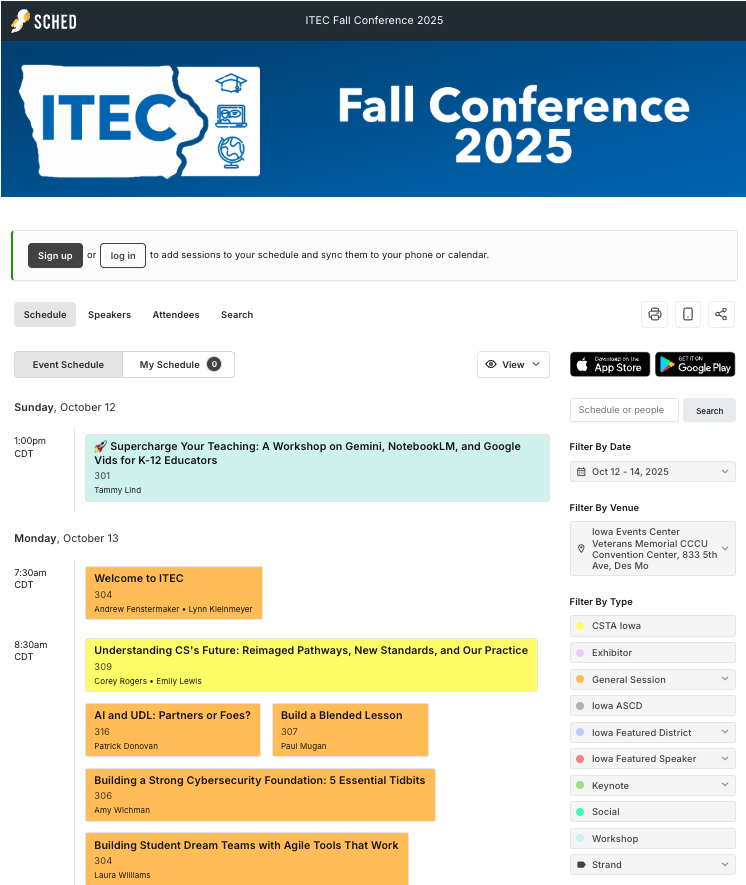
Don't forget to check out one of our Adobe Express sessions at the ITEC conference next week!
|