|
News and Updates
September 2026
| |
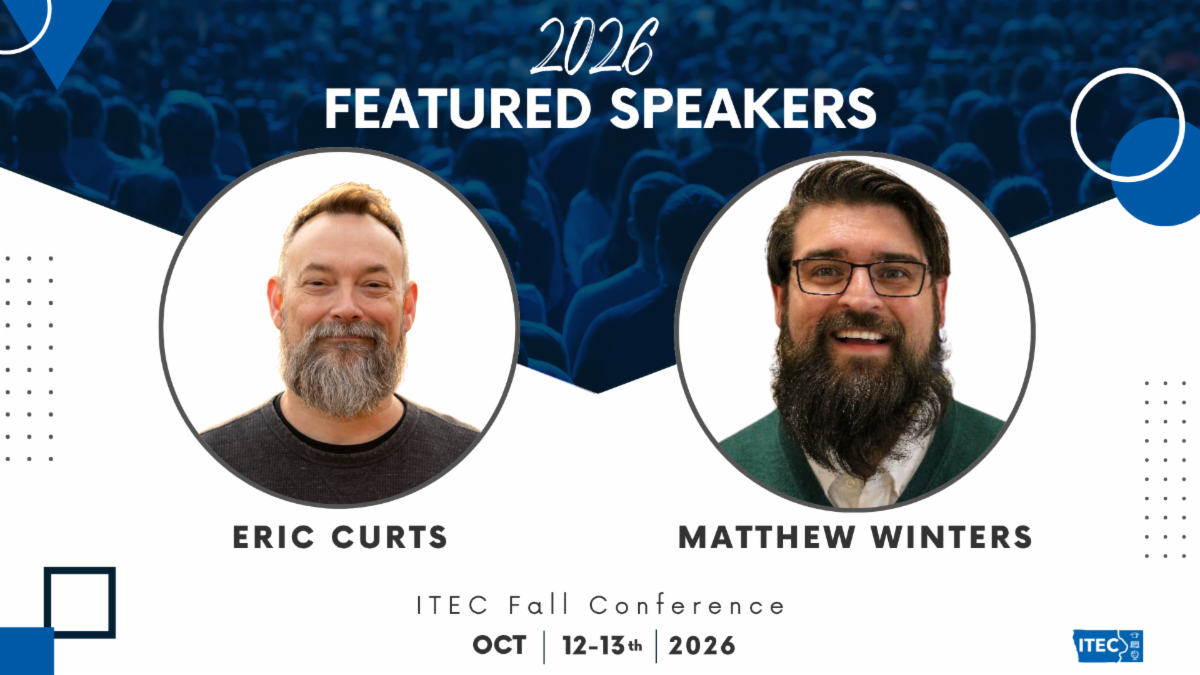
| ITEC is dedicated to bringing fresh insights and best practices to support educators! Join us on October 12–13 as featured speakers Eric Curts and Matthew Winters open up their personal playbooks. Beyond exploring smart classroom tech and AI integration like Google Gemini, their sessions cover accessible learning tools, digital safety, data privacy, and student podcasting. Don’t miss this dynamic lineup designed to help you engage every learner! | |
🗓️ Dates on Deck:
ITEC Fall Conference
October 12-13, 2026
Iowa Event Center
(add to Google Calendar)
Digital Equity in Iowa Schools Webinars with SAI
(3 Part Series)
September 14: 9:30-10:30 AM
September 28: 9:30-10:30 AM
October 5: 9:30-10:30 AM
Register
| |
ITEC's Annual Fall Conference is taking place October 12-13 at the Iowa Events Center in Des Moines, IA. Don't miss out! Get registered before early bird registration ends on
September 30th.
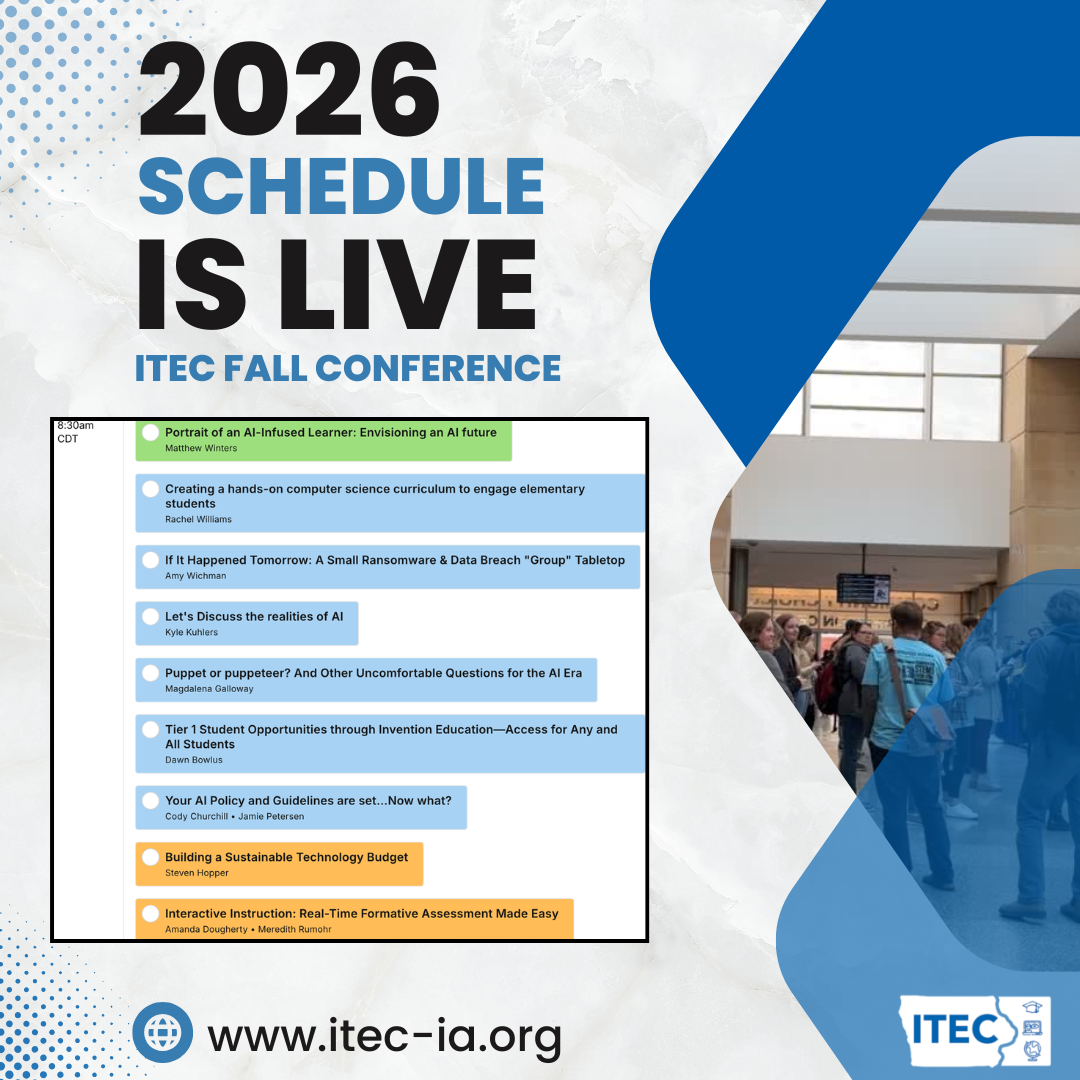
| The official schedule for the 2026 ITEC Fall Conference is now live! Visit our schedule page to explore the full session lineup and start planning your day. This year’s conference features a diverse range of topics tailored for educators and tech leaders, including sessions on AI policies and future-focused learning, hands-on elementary computer science curriculum, real-time formative assessments, cybersecurity preparedness, and sustainable tech budgeting. Browse the complete schedule today to map out your personalized itinerary and make the most of your conference experience. | Nominations are officially open for the 2026 Sypersma Leadership and Innovation Award! Who do you know that deserves recognition for their outstanding contributions and transformative leadership in education technology? Head over to our annual aware page today to submit your nomination and help us honor the exceptional educators and leaders making a real difference in our community. | Tip / Strategy To Try Out |
Gmail: Templates
Whether you’re responding to recurring parent questions, sharing weekly office hours, or sending assignment follow-ups, typing repetitive emails eats up valuable planning time.
With Gmail Templates, you can save pre-written responses directly in your compose window and insert them with two clicks.
- In Gmail, go to Settings → See all settings → Advanced.
- Find Templates and click Enable → Save Changes.
- Draft your routine message in a new email, click the three dots at the bottom, and select Templates > Save draft as template.
| Challenging Students to Learn & Create | |
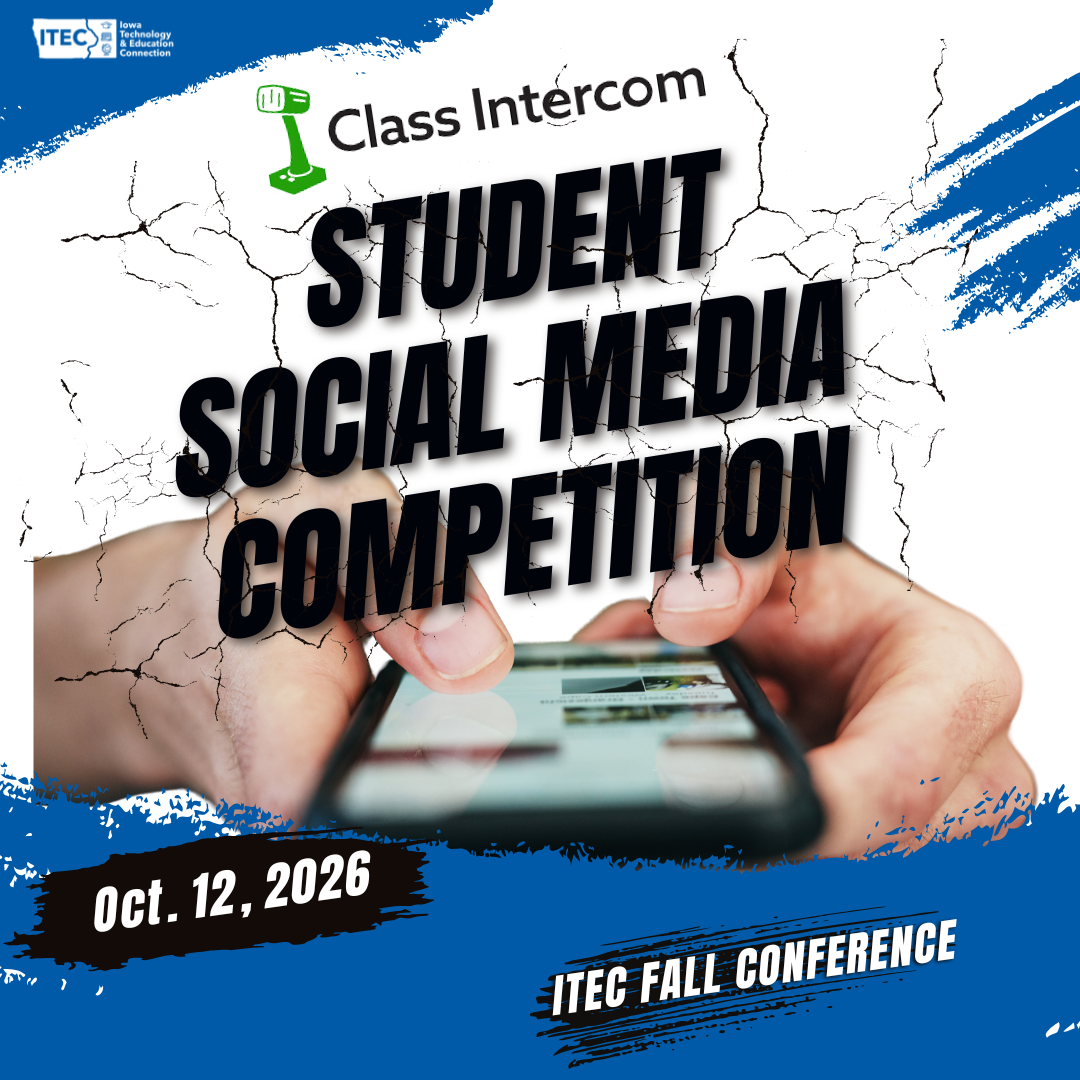
ITEC’s Live Student Contest (powered by Class Intercom) provides student teams from schools across Iowa with a unique chance to compete. Student teams execute a series of social media content creation challenges, putting their creativity and collaborative storytelling skills to the test as they work to convey ideas, share information, and create compelling content in a timed, on-site format during ITEC’s Fall Conference. The result is a uniquely collaborative and challenging environment that reflects the learning, growth, and innovation happening through student content creation in unique ways.
Deadline to register a student team is October 6th.
| |
Gemini: Storybook Gem
If you're looking for an effortless way to create custom, visual reading materials tailored to your classroom, check out Storybook Gem inside Google Gemini. This tool transforms simple prompts, uploaded text, or images into fully illustrated 10-page books with custom artwork, customizable themes, and read-aloud audio narration.
Classroom Highlights:
- Showcase & Publish Student Writing: While students don't have direct access to Gems on their accounts, teachers can paste student drafts, poetry, or summaries into Storybook Gem to transform their words into a professionally illustrated digital book to project for the class or print for the school library.
- Custom Social Stories & Routines: Quickly build personalized behavioral or social-emotional stories (e.g., transitions, group work expectations, or navigating field trips) tailored to specific students' needs or classroom routines.
- Instant Differentiated Reading: Easily adapt materials for ELL or struggling readers by adjusting reading levels or target vocabulary (e.g., "Create a 2nd-grade level story explaining photosynthesis") without starting from scratch.
- Built-in Accessibility: Features a "Listen" audio read-aloud function and printable PDF export options, making it ideal for independent learning centers, audio support, or physical classroom libraries.
Storybook Gem bridges creative writing and visual storytelling, making it easy to empower student authors and craft personalized learning materials in minutes.
|
Use Built-In Heading Styles for Accessibility
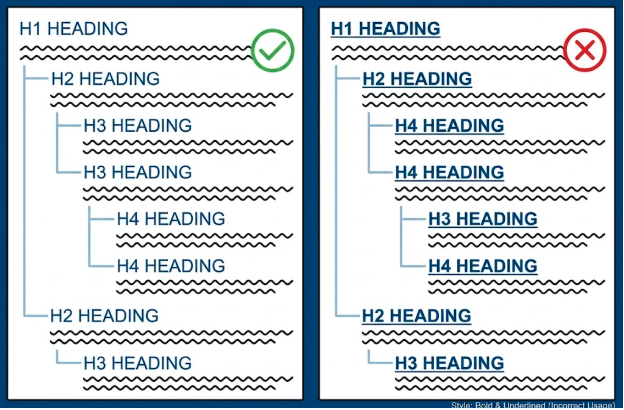
When creating documents, web pages, or email newsletters, it is tempting to make section titles by manually selecting text and increasing the font size, adding bold, or applying an underline. However, visual formatting alone does not tell assistive technologies that a piece of text is a section title.
To make your content truly accessible, always use your editor's built-in Heading styles (such as Heading 1, Heading 2, and Heading 3 in Word, Google Docs, Canvas, or web builders) instead of styling text by hand.
Why Built-In Headings Matter
- Screen Reader Navigation: Screen readers use the underlying structural tags generated by built-in heading tools to skip directly to specific sections. Manually bolding or enlarging plain text leaves screen readers seeing it as a standard paragraph.
- Logical Hierarchy: Built-in heading menus help you maintain a clear outline (Heading 1 for main titles, Heading 2 for major sections, Heading 3 for subsections) without skipping levels.
- Automatic Formatting: Changing a built-in heading style updates every matching section heading across your document instantly.
Key Best Practices:
- Use Built-In Tools, Not Formatting Controls: Highlight your title and select Heading 1, Heading 2, or Heading 3 from the visual style menu rather than using font size and bold buttons.
- Reserve Underlines for Hyperlinks: Avoid underlining headings or standard text for emphasis. Readers expect underlined text to be a clickable link, and underlining headings creates unnecessary visual clutter.
- Do Not Skip Levels: Move sequentially down your document outline (Heading 1 $\rightarrow$ Heading 2 $\rightarrow$ Heading 3) so screen readers can maintain a clear mental map of your page layout.
By relying on native heading tools rather than manual formatting, you build content that is clean, professional, and accessible to everyone.
|
Is Technology Adding Value?
As schools navigate Iowa’s updated expectations around student screen time, we’re adding a new Screen Time Tip to the newsletter. Each month, we’ll share a quick idea or strategy for thinking intentionally about when and how technology supports teaching and learning.
To start, consider a simple question: What value is technology adding to the teaching and learning experience?
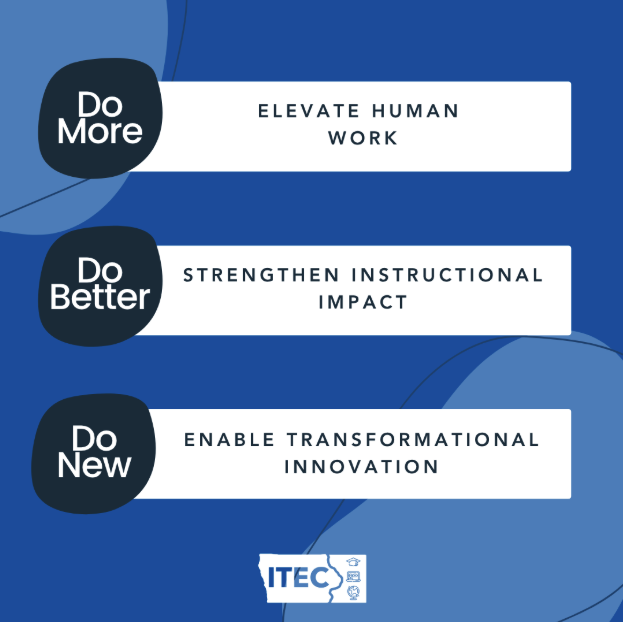
The Value Add of Technology on Teaching (VATT) framework from Leading Educators helps educators identify the value technology brings to teaching and learning. It organizes that value into three categories: Do More, Do Better, and Do New.
Do More
- Does technology increase capacity or make something more efficient, creating more time and attention for higher-value work?
Do Better
- Does technology strengthen teaching and learning by making it more effective, responsive, accessible, or personalized?
Do New
- Does technology make a meaningful learning experience possible that would be difficult or impossible without it?
Technology doesn’t need to check every box, but it should add meaningful value somewhere. If we can’t identify what technology is adding, it may be worth asking whether the screen is needed at all.
Try it: The next time you’re planning to use technology, ask yourself, “What value is the technology adding to this learning experience?”
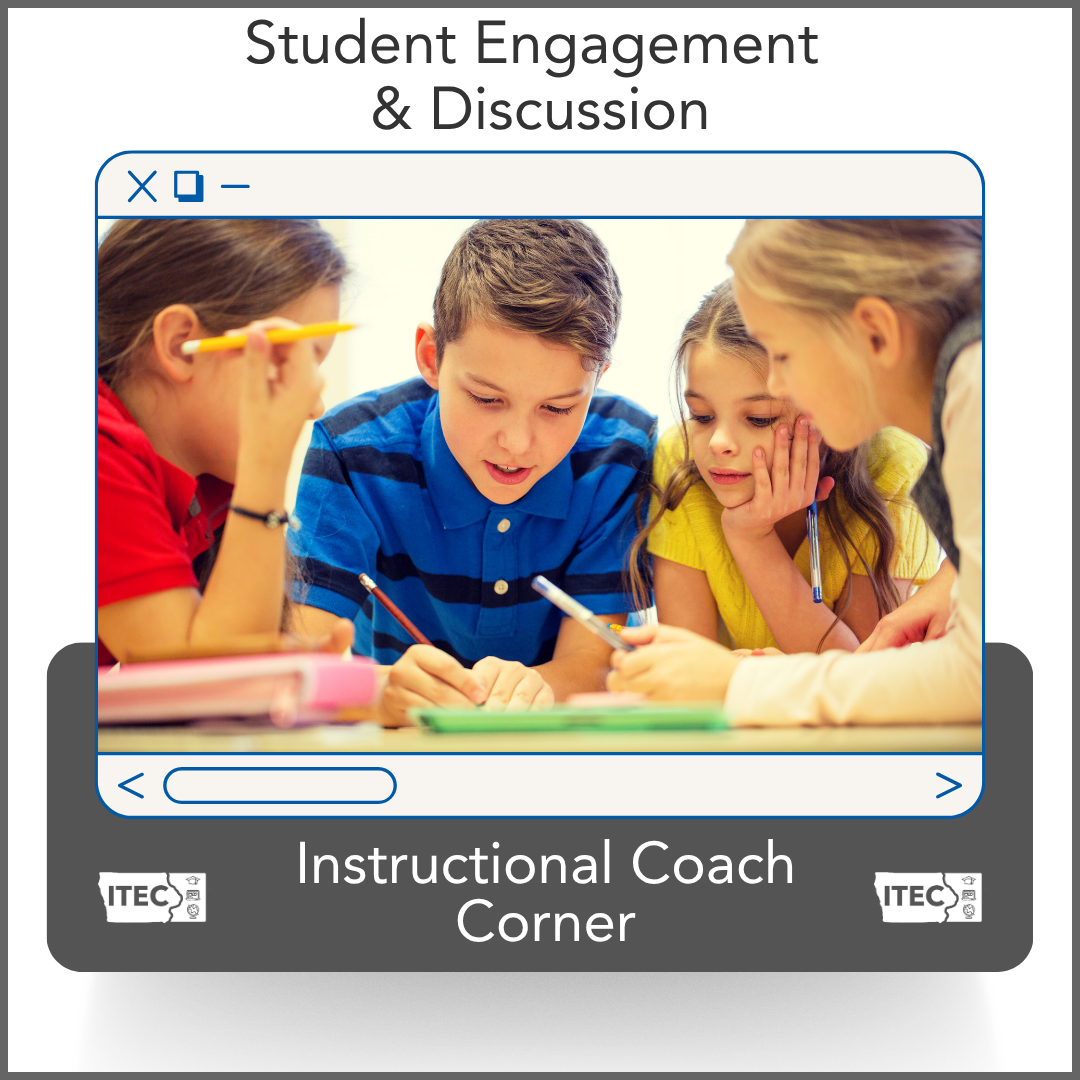
| | Instructional Coach Corner | | In the ever-evolving landscape of Iowa education, we know the "tech coach" role is shifting, often landing on the plates of dedicated Instructional Coaches. To support you in this transition, ITEC is launching the Instructional Coach Corner. Each month, we’ll tackle a specific "Problem of Practice" with a focus on pedagogy first. We’re bridging the gap between traditional teaching and digital integration by offering low-lift, high-impact strategies, both analog and digital, to help you lead meaningful coaching cycles in your buildings. | | Student Engagement & Discussion | | |
The Problem:
Classroom discussions are often dominated by a few vocal students, while quieter or processing-heavy learners remain passive, making it difficult to gauge full-class comprehension or foster equitable participation.
The Pivot:
Structure discussions using silent processing strategies before opening the floor to verbal dialogue.
- Analog: Implement a "Think-Pair-Share" or a silent "Graffiti Wall" chart paper exercise where every student must write a thought or response before speaking.
- Digital: Use a collaborative digital board (like Padlet, Canva Whiteboards, or a shared Google Slides deck) where every student submits a text or visual response simultaneously. Alternatively, leverage AI tools to generate engaging discussion starters or varied perspective prompts. This ensures 100% participation and gives every student time to formulate a response before group discussion begins.
The Prompt(s):
- In your current class discussions, what percentage of students actively contribute, and how do you capture the thinking of those who remain silent?
- How might incorporating a brief, silent processing step impact the depth and equity of student participation?
- What tools or strategies could help create a safe entry point for students who hesitate to speak up in front of the whole class?
| | | | |