|
One Cool Tip Newsletter
November 9, 2026
| Your daily dose of tech-savvy brilliance! | | |
😀 Greetings!, Happy Back-to-Work Monday, Cool Tipper!
Get ready to streamline your digital life with simple, actionable tips delivered straight to your inbox.
Today's Cool Tip Theme: Clean Up Excel Data with Copilot
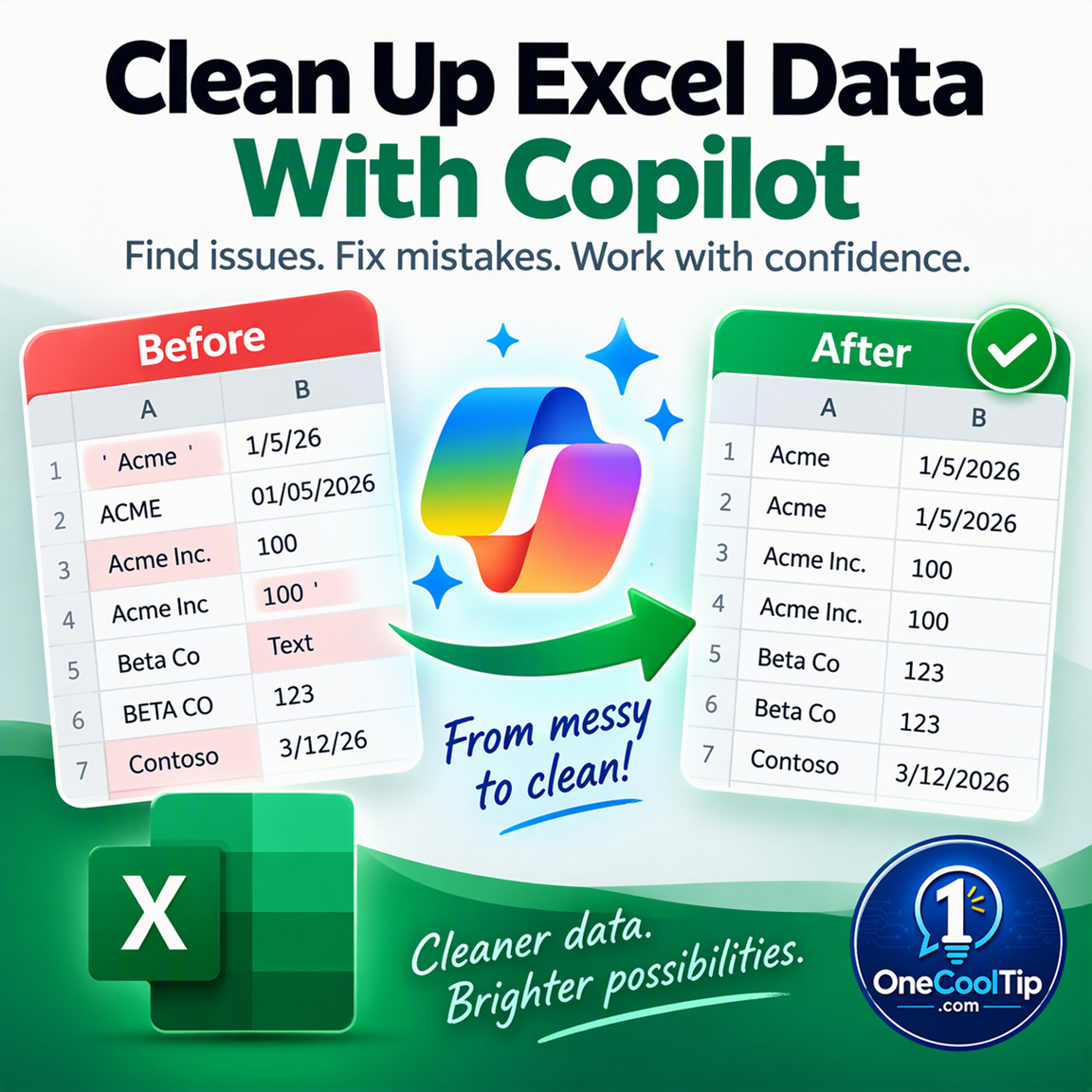
Microsoft Excel's Copilot Clean Data skill finds formatting problems, duplicates and data inconsistencies, then lets you review proposed fixes.
IN THIS ISSUE
- ⚠️ Fake FBI Facebook Pages: Learn how to spot and report scam pages posing as the FBI or other government agencies to protect your sensitive information.
- 🕶️ Free AI Glasses for Veterans: Meta is partnering with the Blinded Veterans Association to donate 130,000 Ray-Ban Meta AI smart glasses to blind and low-vision veterans to assist with everyday tasks.
- 🤖 AI Data-Checking Prompt: Use our featured AI prompt in ChatGPT, Gemini, Claude, or Copilot to safely review spreadsheets for data-quality issues before you start analyzing.
- 🧹 Clean Data in Excel with Copilot: Discover how to use the new @clean-data skill to automatically identify, explain, and propose fixes for formatting errors and duplicates in your workbooks.
- ✂️ Excel Text-to-Columns: Find out how to use the Text-to-Columns wizard on the Data tab to easily separate jumbled text into neat, organized columns.
- ⏪ Jump Back in Word: Press the Shift + F5 shortcut in Microsoft Word to instantly return to your last three edit points and speed up your workflow.
- ⌨️ Office Ribbon Shortcut: Press the ALT key in Office applications like Word, Excel, PowerPoint, and Outlook to quickly access and navigate the Ribbon menu using only your keyboard.
New here? Subscribe to the One Cool Tip Newsletter for daily updates. It's FREE!
-
😂 Laugh with Us! Enjoy our Tech Joke of the Day, Haiku, and Cool Tip Comics.
-
🌐 Stay Informed! Check out ICYMI and our One Cool Tip Video.
| | |
3️⃣
If you enjoy the One Cool Tip newsletter, please forward this newsletter to THREE friends or colleagues or share it on social media using the links below.
Leave a $$$ Tip!
Share this One Cool Tip Newsletter!
| | |
Today's Tech Trivia
Before Microsoft settled on the name Excel, what was the spreadsheet project's original codename?
A) Matrix
B) Multiplan 2
C) Odyssey
D) Formula One
Answer at the end of this newsletter.
| | |
⚠️ Fake FBI Page on Facebook? Report It Before Someone Gets Scammed ⚠️
Scammers can create Facebook pages that look like legitimate organizations, including government agencies such as the FBI.
If you spot a suspicious page, don’t message it, follow its instructions, or provide personal or financial information.
Instead, use Facebook’s reporting tools to alert the platform that something may be wrong.
If the page claims to represent the FBI, you can also compare it with the agency’s official online presence before trusting anything it posts.
The Cool Tip:
When a Facebook page asks for money, passwords, verification codes, or sensitive information, stop and verify the organization independently before responding.
Reporting a convincing fake could also help protect someone else from falling for it.
And in Other News...
- Free AI Glasses Are Helping Blind Veterans
Meta is donating 130,000 Ray-Ban Meta AI glasses to blind and low-vision veterans across the United States.
The smart glasses can help users read documents, identify objects, and handle everyday tasks more independently.
The Blinded Veterans Association is pairing the glasses with specialized training to help recipients make the most of the technology.
Blind and low-vision veterans interested in receiving a pair can apply for free BVA membership, although new requests are currently being placed on a waitlist because of high demand.
Veterans who cannot attend an in-person distribution event can still receive their glasses by mail.
The Cool Tip:
If you know a blind or low-vision veteran, share this program with them because a free pair of AI glasses could offer some valuable everyday assistance.
| | |
Try this Cool AI prompt. Copy and paste to ChatGPT, Gemini, Claude or Copilot.
“Review this spreadsheet for data-quality problems before I analyze it.
Look for inconsistencies such as extra spaces, mismatched date or number formats, possible duplicate values and incorrect data types.
Explain each issue you find before proposing a correction.
Do not remove or change data unless I approve the proposed fix.”
| | Clean Up Messy Excel Data With One Copilot Prompt | | |
Messy spreadsheet data can quietly interfere with formulas, lookups, PivotTables, reports and AI-generated insights.
Microsoft's new Clean Data skill for Copilot in Excel can inspect your data, explain potential problems and propose corrections for you to review.
| | |
By Rodger Mansfield, Technology Editor
November 9, 2026
Subscribe
A date entered differently in a few rows or a customer name with an extra space may look harmless.
In Excel, those little inconsistencies can cause much bigger headaches when you build formulas, PivotTables, lookups or reports.
Microsoft is giving Copilot a more direct way to help.
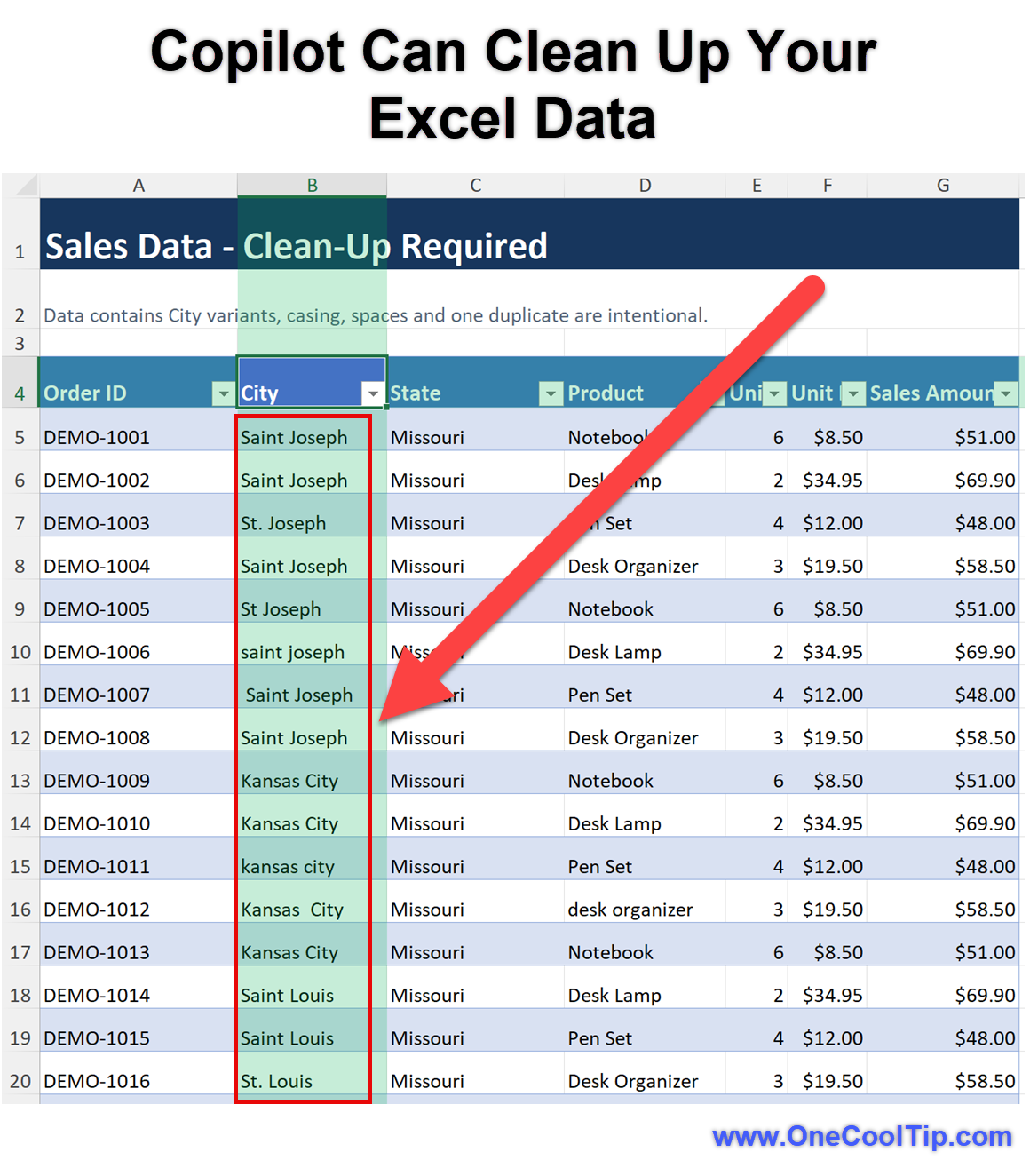
The new Clean Data skill examines relevant spreadsheet data for problems including extra spaces, inconsistent text and number formats, inconsistent dates, duplicate values and values stored as the wrong data type.
It explains what it finds and proposes corrections in the workbook.
You review those recommendations and decide which changes to apply.
That last part matters.
Cleaning a spreadsheet isn't simply about making everything look uniform.
A duplicate customer name, for example, might indicate a mistake, or it might represent perfectly legitimate data. Context still counts.
Here’s a Cool Tip: Type @clean-data and let Copilot spot the spreadsheet mess, then review the fixes yourself.
Feature Explanation
Microsoft calls the capability clean-data.
It's a Copilot in Excel skill designed to find and correct data-quality problems.
@clean-data is the direct way to invoke it.
You can also find available skills by opening Copilot, selecting Add > Choose plugins and skills, and choosing an available skill.
What makes Clean Data particularly useful is its review-first approach.
Copilot identifies potential trouble, explains what it found and why it matters, then proposes corrections.
You decide which changes should be applied to the workbook.
Clean Data checks for issues such as:
- Extra spaces
- Inconsistent text formats
- Inconsistent number formats
- Inconsistent dates
- Duplicate values
- Values stored as the wrong data type
These problems can affect formulas, lookups, PivotTables, reports and AI-generated insights.
That makes the skill particularly appealing when you've inherited someone else's spreadsheet, imported information or combined data from several sources.
Instead of manually hunting through column after column, you can ask Copilot to perform the initial inspection.
What You’ll Gain
-
Find hidden inconsistencies: Spot extra spaces, conflicting formats, inconsistent dates and duplicate values.
-
Catch problems before analysis: Identify issues that could affect formulas, lookups, PivotTables and reports.
-
Stay in control: Review proposed corrections and decide which changes to apply.
-
Reduce tedious checking: Let Copilot perform an initial inspection for common data-quality problems.
Step-by-Step Instructions
Here's how to do it.
Windows, Mac and Web:
-
Open the workbook you want to check in Excel.
-
Open Copilot.
-
In the Copilot prompt, type @clean-data.
-
Tell Copilot which data you want it to examine.
- Review the issues Copilot identifies and its explanation of why they matter.
-
Review the proposed corrections.
-
Select the changes you want to apply.
-
Check important records, formulas and totals before relying on the cleaned data.
| | fig. 1 - Copilot Can Clean Up Your Excel Data | |
Pros and Cons
Pros:
- Finds several common data-quality problems within one workflow.
- Explains what it found and why the problem matters.
- Lets you choose which proposed corrections to apply.
- Could save time when preparing data for formulas, PivotTables, reports or AI analysis.
- The @clean-data command is simple and easy to remember.
Cons:
- Clean Data is still rolling out, so some users may not have it yet.
- Copilot availability can depend on your Microsoft 365 subscription and organization settings.
- AI-generated recommendations still require human judgment.
Who Should Skip This
If your spreadsheet is small, carefully controlled or already validated, manually checking the data may be faster.
You may also want to skip Clean Data if you don't have access to Copilot in Excel, your organization restricts Copilot or the feature hasn't reached your account yet.
If Copilot doesn't appear in Excel, it may not be included with your Microsoft 365 subscription or could be unavailable because of your organization's settings.
For important financial, academic or business records, treat Copilot's proposed corrections as recommendations to review rather than changes to accept without checking.
Real-World Examples
Small Business
A shop owner combines customer or inventory lists from several sources. Clean Data can inspect the information for documented problems such as inconsistent formatting, duplicate values and values stored as the wrong data type before that information is used for analysis.
Business User
A manager inherits a large workbook and wants to create a PivotTable. Running Clean Data first can identify data-quality problems that can interfere with PivotTables and reports.
Student
A student combines survey responses into one Excel sheet. Clean Data could flag formatting inconsistencies or duplicate values, but the student still needs to decide whether an apparent duplicate is actually an error.
Troubleshooting and Limitations
Problem: Clean Data doesn't appear.
-
Why it happens: The capability is rolling out to general availability.
-
Fix or workaround: Check for the Clean Data skill again as Microsoft's rollout progresses and consult the current Microsoft support documentation.
Problem: Copilot itself is missing.
-
Why it happens: Copilot might not be included with your Microsoft 365 subscription or could be unavailable because of your organization's settings.
-
Fix or workaround: Check your subscription and Copilot access. With an organization-managed account, contact your administrator.
Problem: Clean Data is disabled.
-
Why it happens: Copilot skills can be turned on or off.
-
Fix or workaround: Open Settings (...) > Manage plugins & skills. A disabled skill can still be invoked with a direct @mention.
Problem: A suggested correction doesn't look right.
-
Why it happens: Spreadsheet context matters. A legitimate value might appear inconsistent with surrounding data.
-
Fix or workaround: Don't apply the proposed change until you've checked the underlying information.
Privacy and Data Notes
Clean Data works with relevant data in your Excel workbook, so use appropriate caution with personal, financial, proprietary or confidential information.
The broader Copilot in Excel experience can edit and analyze the contents of a workbook. Microsoft emphasizes that the workbook remains editable and that users retain control over modifications.
For sensitive or organization-managed information, follow your organization's data-handling and AI policies.
A good practical rule applies to any AI-assisted spreadsheet task: Review, edit and verify important output before relying on it.
Feature Access
Microsoft's October 2026 Excel update lists Clean Data for Excel for Windows, Mac and web.
Access to Copilot itself may depend on your Microsoft 365 subscription or organization settings.
Because the feature is rolling out, availability should not be characterized as universal.
Score
Criterion | Score (0–10) | Justification
Value | 9
Data-quality problems can interfere with everyday Excel work, and Clean Data provides a useful check before analysis.
Usability | 8
@clean-data is simple to remember, although the ongoing rollout means some users may not have the feature yet.
Wow Factor | 7
Data cleanup isn't new, but combining detection, explanations and proposed corrections inside Copilot makes the process more useful.
Total: 24/30 | 👍 Good
Clean Data tackles an everyday Excel headache while keeping users in control of which proposed corrections are applied.
Compared with manually inspecting columns for inconsistencies, Clean Data can check for several documented categories of data-quality problems and explain what it finds.
Key Takeaways
Clean Data is most useful as an initial check before you rely on a spreadsheet for formulas, PivotTables, reporting or other analysis.
Its biggest benefit isn't that AI blindly cleans a spreadsheet for you.
It's that Copilot can surface potential problems, explain why they matter and let you decide what actually needs fixing.
Cool Tip Snapshot
-
Feature Name: Copilot in Excel: Clean Data
-
Platform(s): Windows, Mac and web
-
Quick Benefit: Finds common data-quality problems and proposes corrections
-
Best For: Imported lists, inherited workbooks and data being prepared for analysis
-
Access Type: Rolling Out
-
Difficulty: Easy
Learn More
Use built-in skills with Copilot in Excel explains Microsoft's current Copilot skills, including how to invoke Clean Data using @clean-data.
Try It Yourself
Open an Excel workbook that could use a cleanup and try @clean-data in Copilot. Review what it finds, check its proposed corrections and see whether it catches something you missed.
Then tell us what happened in the comments.
Subscribe to the One Cool Tip newsletter for more useful technology tips, and share this Cool Tip with family, friends and coworkers who spend too much time cleaning up spreadsheets.
READ MORE
Read the Cool Tip on One Cool Tip.com.
| | Help support One Cool Tip. Use this Amazon link when you shop online. | |
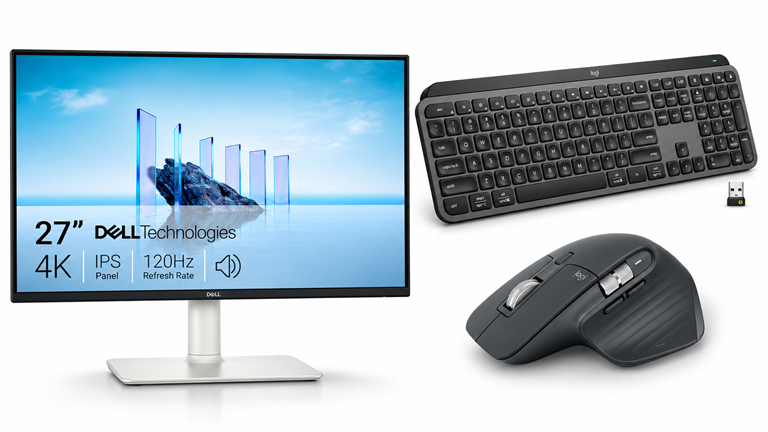
⌨️ Logitech MX Keys Advanced Wireless Keyboard: Type comfortably for hours while managing your spreadsheets and writing emails.
👀Look! $129.99. 4.4 Stars. Check it out on Amazon!
🖱️ Logitech MX Master 3S Wireless Mouse: Scroll through massive datasets quickly with the MagSpeed wheel.
Save 20%. $79.99. 4.6 Stars. Check it out on Amazon!
🖥️ Dell UltraSharp 27-inch 4K Monitor: View multiple Excel workbooks side by side with crystal clear resolution.
Save 7%. $279.99. 4.2 Stars. Check it out on Amazon!
Prices accurate at time of publication
One Cool Tip may earn a commission from qualifying purchases.
| | |
🆒Tell Me More
-
🧹 Clean Data checks several kinds of mess: Microsoft lists extra spaces, inconsistent text and number formats, inconsistent dates, duplicate values and values stored as the wrong data type.
-
👀 Copilot doesn't simply make undisclosed fixes: The Clean Data workflow explains what it finds and proposes corrections that you review and select.
-
📊 Dirty data can reach beyond appearance: Microsoft says these inconsistencies can affect formulas, lookups, PivotTables, reports and AI-generated insights.
-
🤖 There's a shortcut to the skill: Enter @clean-data directly in your Copilot prompt to invoke it.
-
⚙️ Clean Data is enabled by default: The skill is enabled by default in Copilot in Excel, although it is still rolling out and may not be available to every customer.
⏩Quick Tips
-
🧹 Clean First: Check your data before creating an important report or analysis. Open Copilot and enter @clean-data to invoke the skill.
-
👀 Review Fixes: Don't assume every inconsistency is a mistake. Read Copilot's explanation and review each proposed correction before deciding what to apply.
-
📅 Watch Dates: Dates that aren't formatted consistently are among the problems Clean Data can catch. Run @clean-data and inspect any date issues Copilot identifies.
-
👯 Check Duplicates: Duplicate values aren't always errors, but they're worth investigating. Clean Data can flag them for review so you can decide what belongs.
-
🔢 Check Data Types: Sometimes a number isn't really a number as far as Excel is concerned. Clean Data checks for values stored as the wrong data type and can propose corrections.
| | ✅ More Must-Read Tech Tips | | |
👀 How Do I Use Excel's Text-to-Columns Feature?
Ever found yourself staring at a jumbled mess of data in an Excel spreadsheet, wishing you could magically separate it into neat, individual columns?
Text to columns in Excel is a method that is used to separate a text into different columns based on some delimited or a fixed width.
Here's how to do it.
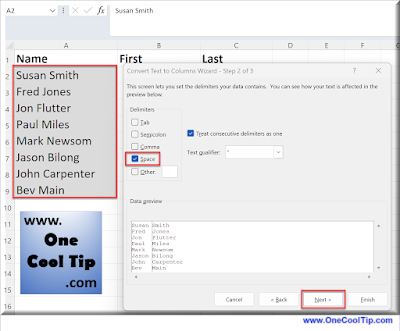
- Click on the column or select the area that contains the data you want to separate.
-
Navigate to the Data tab on the Ribbon,
-
Click on Text to Columns.
- A wizard will pop up.
- Choose Your Data Type:
-
You’ll be asked if your data is Delimited or Fixed Width.
-
Delimited means your data is separated by characters such as commas or tabs.
-
Fixed Width means the data is separated by a fixed number of spaces.
-
Choose the option that fits your data.
6.Set Delimiters or Column Breaks:
-
If you chose Delimited, you’ll need to specify the delimiters (comma, space, tab, etc.).
-
If you chose Fixed Width, you’ll set where the column breaks should be.
Excel’s Text-to-Columns feature is a powerful tool that can save you time and frustration when dealing with complex data sets.
Discover more HERE.
| | |
🤔 Have You Ever Wondered How To Go Back in Microsoft Word?
Have you ever found yourself lost in a sea of text while working on a document in Microsoft Word?
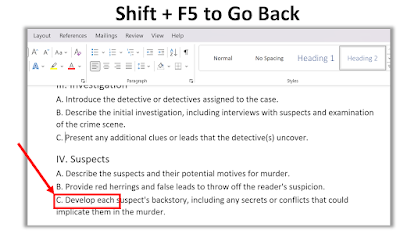
Here's a Cool Tip: Shift + F5.
This handy shortcut allows you to quickly jump back to your last edit point, saving you time and frustration.
With Shift + F5, you can easily pick up right where you left off.
This shortcut has even more functionality.
Pressing Shift + F5 multiple times allows you to cycle through your last three edit points, giving you even more control over your workflow.
Next time you’re working in Microsoft Word, use the Shift + F5 shortcut to revolutionize your workflow and increase your productivity.
Find out more HERE.
| | |
🙋♂️ Here's How to Access The Ribbon Menu Bar in Word, Excel, PowerPoint and Outlook.
When using Microsoft Office products such as Excel, Word, PowerPoint and Outlook, you can save time with a very cool keyboard shortcut.
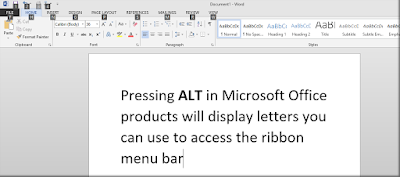
Press the ALT key to access any Ribbon command.
Block letters will appear next to each command on the Ribbon bar.
Pressing a subsequent letter such as H will display the Home submenu.
Select the command you want by pressing the desired letter key.
To go back one level, press the ESC key. And press ALT key to turn off this function.
Learn more HERE.
| | |
❓Did you share this newsletter with three friends yet?
😎 Cool Facts
-
1985: Excel makes its debut. Microsoft released the original Excel for the Apple Macintosh in September 1985.
-
1987: Excel comes to Windows. The Windows version arrived after the original Macintosh release.
⌨️Today's Cool Shortcuts
-
Ctrl + T: Turn a selected range into an Excel table.
-
Ctrl + E: Use Flash Fill to repeat a detected text pattern.
-
Ctrl + Shift + L: Turn AutoFilter on or off.
-
Ctrl + 1: Open Format Cells to change numbers, dates and more.
-
Ctrl + Z: Undo the most recent change.
😜 Tech Joke of the Day 😅
Copilot found duplicate rows in my budget.
Sadly, neither one contained extra money.
🔎 Do you have a Cool Tip or tech question? Email us at onecooltip.com@gmail.com.
| | |
Messy cells grow still
Copilot sweeps through the rows
Numbers breathe again
| |
| 🤔 Would you trust Copilot to clean your Excel data? | | | | Did You See These Cool Tips This Week? | | | | Make Animated GIFs With ChatGPT Images 2.6 | |
ChatGPT Images 2.6 lets you create animated GIFs using simple text prompts or existing pictures. Learn how to bring characters, photos and creative ideas to life without complicated animation software.
Read the Newsletter Version.
| | | | Gemini Notebook Adds Hundreds of Free Textbooks for AI-Powered Studying | |
Google recently added hundreds of free textbooks directly into the Gemini Notebook workspace. Students and educators can now instantly transform massive volumes of academic material into tailored study guides and practice quizzes.
Read the Newsletter Version.
| |
ICYMI - In Case You Missed It ...
| | | | Turn Your Browser Into a Jigsaw Puzzle Table | |
Jigsaw Explorer gives you a puzzle table inside your browser, with adjustable difficulty and the option to solve together from different locations. Try a mystery puzzle, invite a friend, or make a favorite photograph the next challenge.
Read the Newsletter Version.
| | That awkward moment when Copilot shows up with cleaning supplies and your spreadsheet suddenly remembers all those duplicates you promised to fix. | | |
Trivia Answer: C) Odyssey
The project that eventually became Microsoft Excel initially carried the codename"Odyssey."
Development of the project began in 1983 as Microsoft worked on the spreadsheet that would become Excel.
Don't confuse Odyssey with Multiplan, Microsoft's earlier spreadsheet product.
Microsoft's own history specifically distinguishes Multiplan from the new project and identifies Odyssey as Excel's initial codename.
----------
Tomorrow's Cool Tip is waiting to amaze you.
Until then, go forth and conquer the tech world with your newfound knowledge!
Be sure to visit www.OneCoolTip.com for Cool Tech Tips for a Cooler Life!
And if you like One Cool Tip, please support with TipJar!
Enjoy!
Rodger
Chief Cool Tipper
onecooltip.com@gmail.com
| |
| What do you think of today's OneCoolTip newsletter? | | | |
Please Share the One Cool Tip Newsletter!
You asked for it. You got it. There is now a One Cool Tip Newsletter archive. Did you delete a newsletter and want to read it again? Check it out HERE.
Want to help One Cool Tip grow? Please forward this email using the link above. And if you see an OCT social media post, please LIKE, COMMENT and SHARE!
Have you subscribed to the One Cool Tip YouTube channel? Subscribe HERE.
| | Connect with One Cool Tip!! | | |
|
As an Amazon Associate, One Cool Tip may earn a small commission from qualifying purchases.
Our media content is intended solely for informational purposes. Please do not construe anything here as legal, tax, investment, financial, marital, or other advice.
Copyright © 2026 | www.OneCoolTip.com | All Rights Reserved
|
| | | |