One Cool Tip Newsletter

November 4, 2024

Your daily dose of tech-savvy brilliance!

😀Hello Rodger, Happy Monday, Cool Tipper!


Get ready to streamline your digital life with simple, actionable tips delivered straight to your inbox.


Today's Cool Tip Theme: Microsoft 365


IN THIS ISSUE


  • 🚨 Watch Out for "Quishing": The Latest QR Code Scam
  • ♿ Create Inclusive Content with Microsoft 365's Accessibility Checker
  • 🚀 Boost Productivity by Customizing Your Microsoft Word Status Bar
  • 🎙️ Dictate Your Masterpiece in Microsoft Word
  • 📈 Check Performance of Microsoft Excel Worksheets


New here? Subscribe to the One Cool Tip Newsletter for daily updates. It's FREE!


🔔 Is your email provider (Gmail, Yahoo, Outlook...) not delivering the newsletter? 


Check the Junk folder - Move the newsletter to your Inbox. And reply to this email with a “Hey, Rodger” or “I got it.” That tells your mail service you want this newsletter!


Today's Tech Trivia


Which Microsoft 365 app first introduced the feature of co-authoring in real-time, allowing multiple users to collaborate on a document simultaneously?


A. Excel

B. OneNote

C. Word

D. PowerPoint


Answer at end.

3️⃣

If you enjoy the One Cool Tip newsletter, please forward this newsletter to THREE friends or colleagues or share it on social media using the links below.


Share this One Cool Tip Newsletter!

X Share This Email
LinkedIn Share This Email
Pinterest Share This Email


🔥Hot Topics 🔥

⚠️Watch Out for "Quishing": The Latest QR Code Scam⚠️


QR codes are everywhere these days, but this convenience comes with a new risk: quishing. This phishing scam uses fraudulent QR codes to steal your financial information.


How it works:


  • Scammers send emails with QR codes embedded in PDF attachments.
  • These emails often bypass security filters designed to catch suspicious links.
  • The QR codes lead to fake websites that look like legitimate banking or payment sites.
  • When you scan the code and enter your details, criminals capture your information.


What to look out for:


  • Suspicious emails: Be wary of unsolicited emails with QR codes, especially from unknown senders.
  • Check the URL: Before scanning, hover your phone's camera over the code to preview the link. If it looks suspicious, don't scan it.
  • Beware of stickers: Scammers are placing fake QR code stickers over legitimate ones in public places like parking meters and EV charging stations.
  • Monitor your accounts: Regularly check your bank and credit card statements for any unauthorized activity.


Stay vigilant and protect yourself from this emerging threat!


Today's Cool Tip

How to Use the Accessibility Checker in Microsoft 365 to Create Inclusive Content


Ever wondered if your documents, spreadsheets, or presentations are accessible to all users?


Accessibility isn't just a buzzword—it's a crucial aspect of creating inclusive content that everyone can use, regardless of their abilities. 


Here's a Cool Tip:  Use the Accessibility Checker in Microsoft 365 apps.


With Microsoft 365's Accessibility Checker, you can ensure your content meets accessibility standards and provides a seamless experience for all users.


The Accessibility Checker in Microsoft 365 apps like Word, Excel, PowerPoint, Outlook and OneNote is designed to help users create content that is accessible to everyone, including people with disabilities. 


It scans your documents for potential accessibility issues and offers suggestions on how to fix them. 


This tool is essential for ensuring that your content is usable by a broader audience and compliant with accessibility standards, which is particularly important in professional and educational settings.


Here's how to do it.


  1. Open your document in Word, Excel, PowerPoint or OneNote.
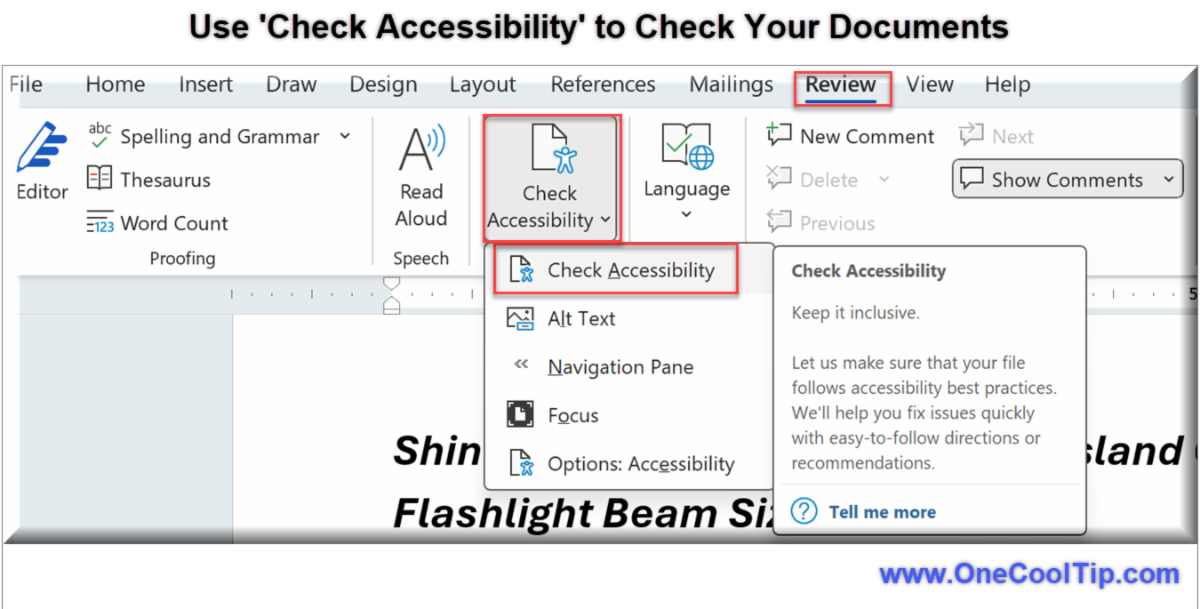
  2. Go to the Review tab.
  3. Click on Check Accessibility. This will open the Accessibility Checker pane on the right side of the screen.
  4. Review the findings under Inspection Results. The checker lists any errors and warnings, along with recommendations on how to fix them.
  5. Apply the recommended actions to address each issue. Select an issue, view the recommended actions, and apply the fix directly from the pane.


Note: In Outlook, the Accessibility Checker runs automatically in the background when you're composing an email. If the Accessibility Checker detects accessibility issues, a MailTip provides a convenient nudge to review and correct the issues before sending your email.


Accessibility Checker helps create content that is accessible to everyone and provides clear instructions and fixes for accessibility issues.


To enable real-time accessibility notifications:

  1. Go to File > Options > Accessibility
  2. Select the option to show "Keep accessibility checker running while I work."


The Accessibility Checker in Microsoft 365 is a powerful tool for creating inclusive content. 


By ensuring that your documents, spreadsheets, and presentations are accessible to everyone, you can provide a better user experience and meet accessibility standards. 


Using this tool helps create a more inclusive environment, benefiting everyone.


Have you tried using the Accessibility Checker in Microsoft 365? 


Share your thoughts and experiences in the comments below, and don't forget to share this article on your social media to spread the word!


READ MORE


Read the Full Cool Tip


Cool Thoughts

🆒Tell Me More


The Accessibility Checker in Microsoft 365 apps is a powerful tool designed to help users create content that is accessible to everyone, including people with disabilities. Here are some key features:


  • Identifies Accessibility Issues: The checker scans your documents, spreadsheets, presentations, and emails for potential accessibility issues.


  • Provides Recommendations: It offers suggestions on how to fix identified issues, ensuring your content meets accessibility standards.


  • Real-Time Notifications: You can enable real-time notifications to get immediate feedback while you work.


  • Supports Multiple Apps: It works across Word, Excel, PowerPoint, Outlook, and OneNote.


  • User-Friendly Interface: The Accessibility Checker pane opens on the right side of the screen, making it easy to review and address issues.


  • Compliance: Helps ensure your content is compliant with accessibility standards, which is crucial for professional and educational settings.


🔢 By the Numbers


  • Over 1 billion people worldwide live with some form of disability, representing about 15% of the global population. Source.


  • In the United States, approximately 1 in 4 adults has a disability. Source.


  • The Accessibility Checker can identify over 40 different types of accessibility issues. Source.


✅ Must-Read Tech Tips.


👀 How Do I Customize My Microsoft Word Status Bar for Increased Productivity?


Are you tired of constantly scrolling through menus to find the information you need while working on a document in Microsoft Word? 


Did you know that you can customize Microsoft Word to display the information you need at a glance? 


The Status Bar is located at the bottom of the document window and displays information about your document, such as what page you are currently viewing, how many words are in your document, and whether any proofing errors were found. 


You can easily customize the Status Bar by adding or removing information from it.


Here’s how to customize the Status Bar in Microsoft Word:


  1. Right-click anywhere on the Status Bar.
  2. A “Customize Status Bar” menu will open.
  3. Items that have check marks next to them display on the Status Bar.
  4. Click the tick-box to select the items you want to see in the status bar.
  5. Click to deselect the items you want to remove.
  6. The status bar immediately reflects your choice.


Some useful options to consider adding to your Status Bar include:


  • Vertical Page Position: shows you precisely where the cursor is at any given moment.
  • Track Changes: shows whether Track Changes is On or Off.
  • Line Number: helps in some large documents, or when collaborating with someone who wants to direct your attention to a specific place in the document.
  • Collaborative tools: for those using later versions, or free versions of Word, which allow for synchronous or real-time editing among several authors.


Customizing the Status Bar can help you work more efficiently and effectively in Microsoft Word. 


Give it a try and see how it can improve your productivity!


Discover more HERE.


🤔 Have You Ever Wondered How to Dictate Your Masterpiece in Microsoft Word?


 Are you a poor typist or need extra assistance when typing?  


Microsoft 365 offers the ability to use your voice to type into its applications.

Here's how to do it in Microsoft Word:


  1. Open Microsoft Word 365
  2. Tap the Dictate icon from the Home menu
  3. Wait for the Dictate function to be ready.
  4. Start speaking!


Note: You need to use a mic-enabled device. Headphones with a mic work best but even using the mic on a laptop brings good results.


Besides Word, you can dictate in other 365 apps. Just look for the Dictate command.


Besides typing words, you can also issue commands for punctuation. For example, you can say period (full stop), comma, question mark or similar other punctuation marks. 


You can also edit by saying backspace [1 - 100], delete [word or phrase], insert space or undo.


Finally, you can say Select word, characters, para, or select [phrase] to navigate and select.


Learn more HERE.


🙋‍♂️ Here's How to Check Performance of Microsoft Excel Worksheets.


Is Your Excel Workbook Feeling Sluggish?


We’ve all been there. 


You’re working on a critical spreadsheet, and suddenly, 


Excel starts dragging its feet. Cells take forever to recalculate, and opening the workbook feels like waiting for a slow elevator. 


Frustrating, right?


Here's a Cool Tip.  Use Excel's Check Performance feature.


Microsoft recently introduced the “Check Performance” feature for Windows—a game-changer for anyone who relies on Excel. 


What Is “Check Performance”?


“Check Performance” is Excel’s secret weapon against workbook bloat. It identifies and eliminates unnecessary formatted cells, streamlining your file and making it more responsive. 


Think of it as a digital detox for your spreadsheets.


Here's how to do it.


  1. Open Excel (make sure you’re using Excel for the Web or Excel for Windows).
  2. Open the workbook that’s been giving you grief.
  3. Select Review> Check Performance.
  4. If your workbook contains size bloat, Excel will kindly notify you with a business bar.
  5. Click on the “Check Performance” button. It’s your ticket to a leaner, meaner workbook.
  6. As you optimize, watch your workbook transform. Those pesky formatted cells vanish, and your file size shrinks.


Remember, “Check Performance” is your secret weapon. 


Use it regularly to keep your workbooks in top shape. Say goodbye to sluggishness and hello to productivity. 


Ready to boost your Excel workflow? 


Try Check Performance now!


Get more HERE.


❓Did you share this newsletter with three friends yet?


⌨️Today's Cool Keyboard Shortcuts


To open Accessibility Checker: ALT+R, A1, A


✍️Today's Haiku


Ensuring access,

Microsoft tools pave the way,

Inclusive for all.


🔎 Do you have a Cool Tip or tech question? Email us at onecooltip.com@gmail.com


😜 Tech Joke of the Day 😅


Why was the spreadsheet always in a good mood?


It had no accessibility issues!


Cool Deals of the Day

🆒 Looking for cool new things?


Shop Amazon with One Cool Tip! - Help Keep One Cool Tip FREE!

Use this link to shop on Amazon.


**********************************************************************


Cool Tip Pulse

🤔 How often do you use the Accessibility Checker in Microsoft 365?
📧 Regularly
🔍 Occasionally
🚫 Rarely
🤷‍♂️ Never used it


Fuel Your Adventure

Try Big Mike's Jerky!


bigmikesjerky.com


Cool News Around the Web

Check out these news links:


Did You See These Cool Tips This Week?

Shine a Light on iOS 18: Dynamic Island Controls Flashlight Beam Size

Apple's iOS 18 introduces a game-changing flashlight feature controlled by the Dynamic Island, allowing users to adjust the beam size with a simple swipe. This article explores this innovative functionality and provides a step-by-step guide on how to use it.


Read the One Cool Tip

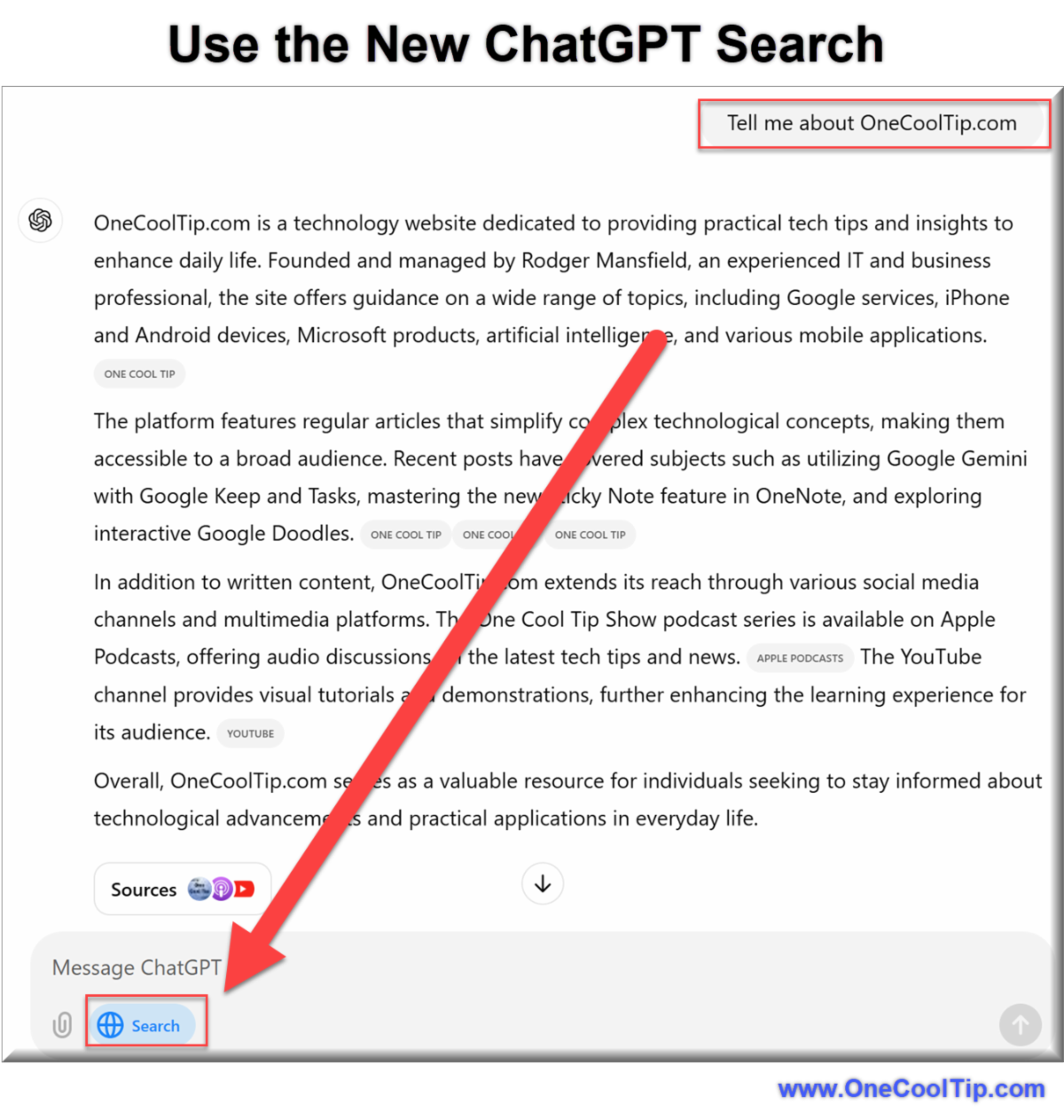
Stay Ahead with ChatGPT’s New Web Search For Real-Time AI Answers

Learn how to leverage the new ChatGPT Search feature to optimize your information-gathering process, stay ahead of current trends, and gain faster insights—all within a seamless chat experience.

Read the One Cool Tip


Find Your Adventure

Looking for your next adventure?


Call Denise at Travel For You.

314.660.3039


http://www.travelforyouvacations.com/


https://www.facebook.com/TRAVEL.FOR.U/


One Cool Tip Favorite Thing

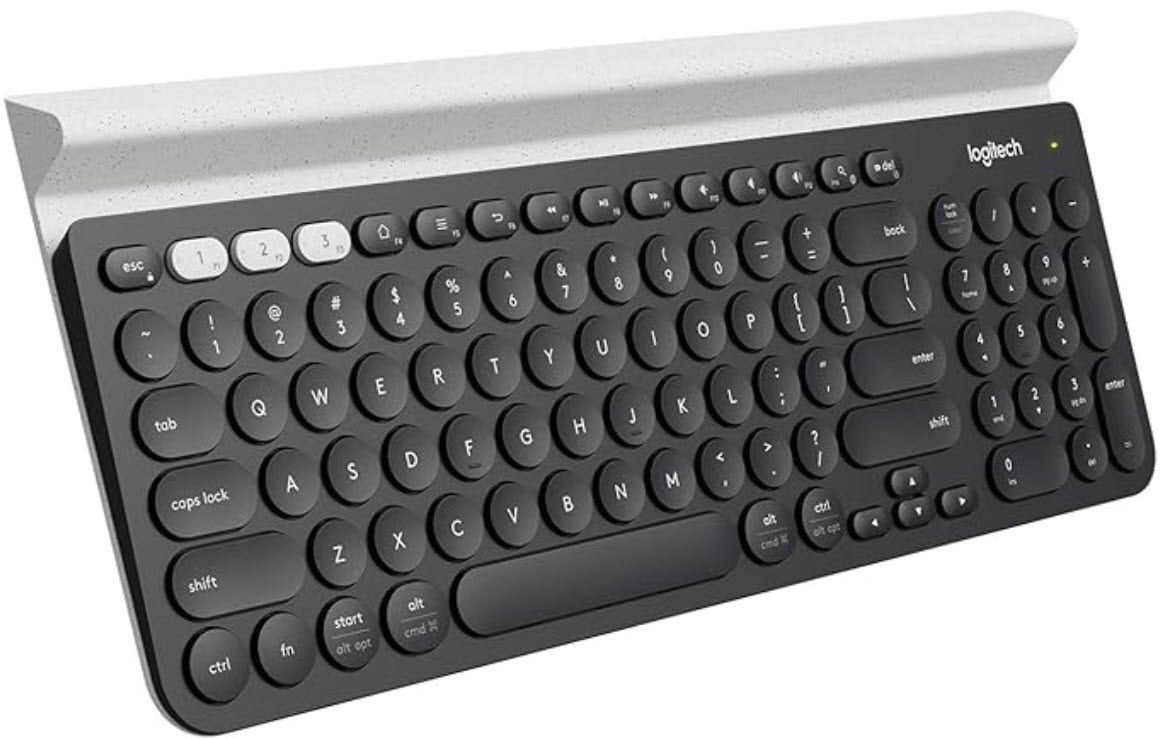
Logitech K780 Multi-Device Wireless Keyboard for Computer, Phone and Tablet

Tired of juggling multiple keyboards for your devices?


The Logitech K780 Multi-Device Wireless Keyboard is the answer to your productivity prayers. 


Don't miss out on this game-changing keyboard! 


Click here to upgrade your workspace and simplify your digital life: https://amzn.to/3Y4ZqFJ


Check Out These Cool Things!


ICYMI - In Case You Missed It ...

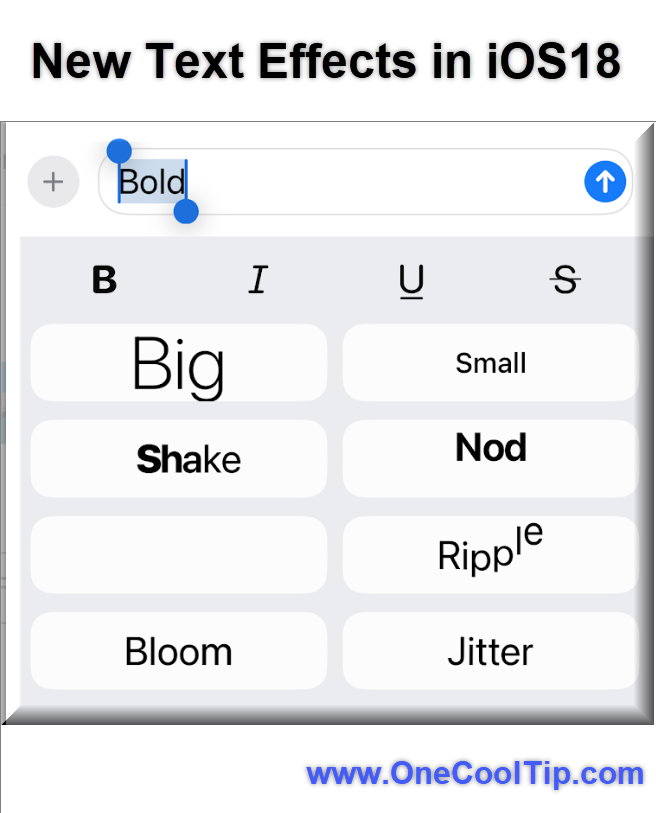
Make Your Messages POP! A Guide to iOS 18's New Text Effects

iOS 18 has arrived, and with it, a whole new way to express yourself in Messages! Learn how to use the exciting new text effects to add flair and personality to your conversations.

Read the One Cool Tip


One Cool Tip Video

Windows Super Secret Keyboard Shortcuts to Open Microsoft Applications


Do you think you know Windows?


Do you know the super secret keyboard shortcuts to open Microsoft Applications?


Watch


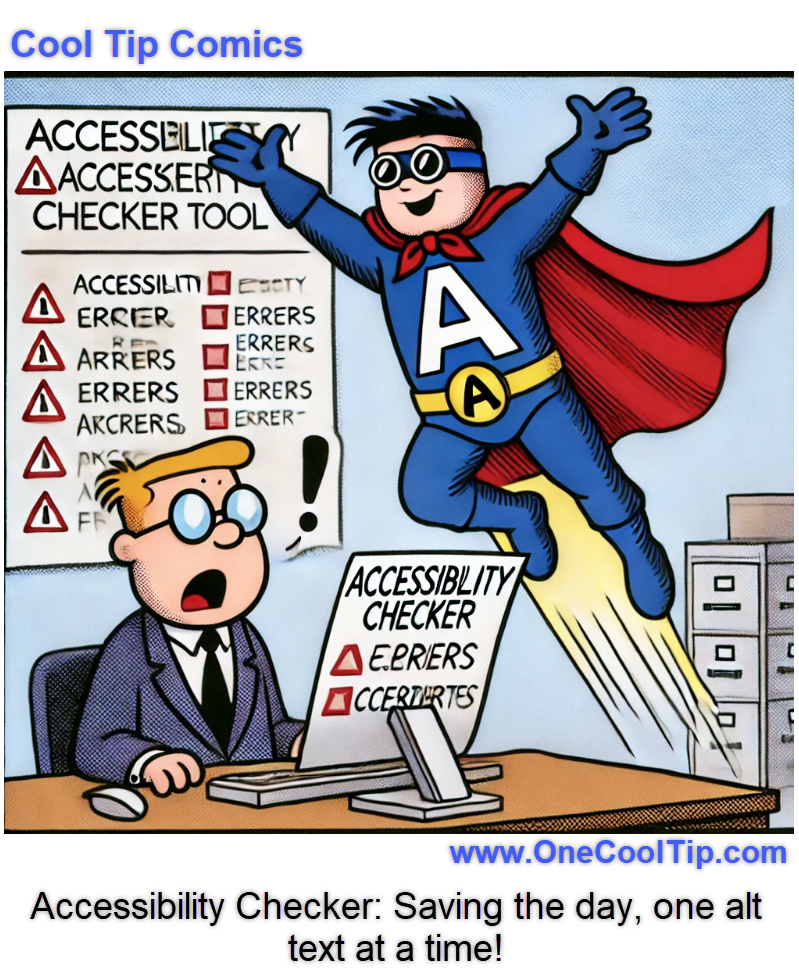
Cool Tip Comics

"Looks like someone forgot to 'check' their work—good thing Accessibility Checker is here to save the day (and the document)!


See You Tomorrow

Trivia Answer: C. Word


Word was the first Microsoft 365 app to introduce real-time co-authoring, a feature that has transformed the way teams collaborate on documents by allowing multiple users to work on the same document simultaneously.


This feature promotes seamless teamwork and increases productivity.


----------


Tomorrow's Cool Tip is waiting to amaze you.


Until then, go forth and conquer the tech world with your newfound knowledge!


And be sure to visit www.OneCoolTip.com for Cool Tech Tips for a Cooler Life!


Enjoy!


Rodger

Chief Cool Tipper

onecooltip.com@gmail.com


What Do You Think?

What do you think of today's OneCoolTip newsletter?
👍 Great
😐 OK
👎 Terrible

Please Share the One Cool Tip Newsletter!


You asked for it. You got it. There is now a One Cool Tip Newsletter archive. Did you delete a newsletter and want to read it again? Check it out HERE.


Want to help One Cool Tip grow? Please forward this email using the link above. And if you see an OCT social media post, please LIKE, COMMENT and SHARE!


Have you subscribed to the One Cool Tip YouTube channel? Subscribe HERE.

X Share This Email
LinkedIn Share This Email

Connect with One Cool Tip!!

Facebook  X  Instagram  Web  Pinterest  YouTube  LinkedIn
 

As an Amazon Associate, One Cool Tip may earn a small commission from qualifying purchases.


Our media content is intended solely for informational purposes only. Please do not construe anything here as legal, tax, investment, financial, marital or other advice.


Copyright © 2024 | www.OneCoolTip.com | All Rights Reserved