|
One Cool Tip Newsletter
May 18, 2026
| Your daily dose of tech-savvy brilliance! | |
😀Greetings! Happy Back-to-Work Monday, Cool Tipper!
Get ready to streamline your digital life with simple, actionable tips delivered straight to your inbox.
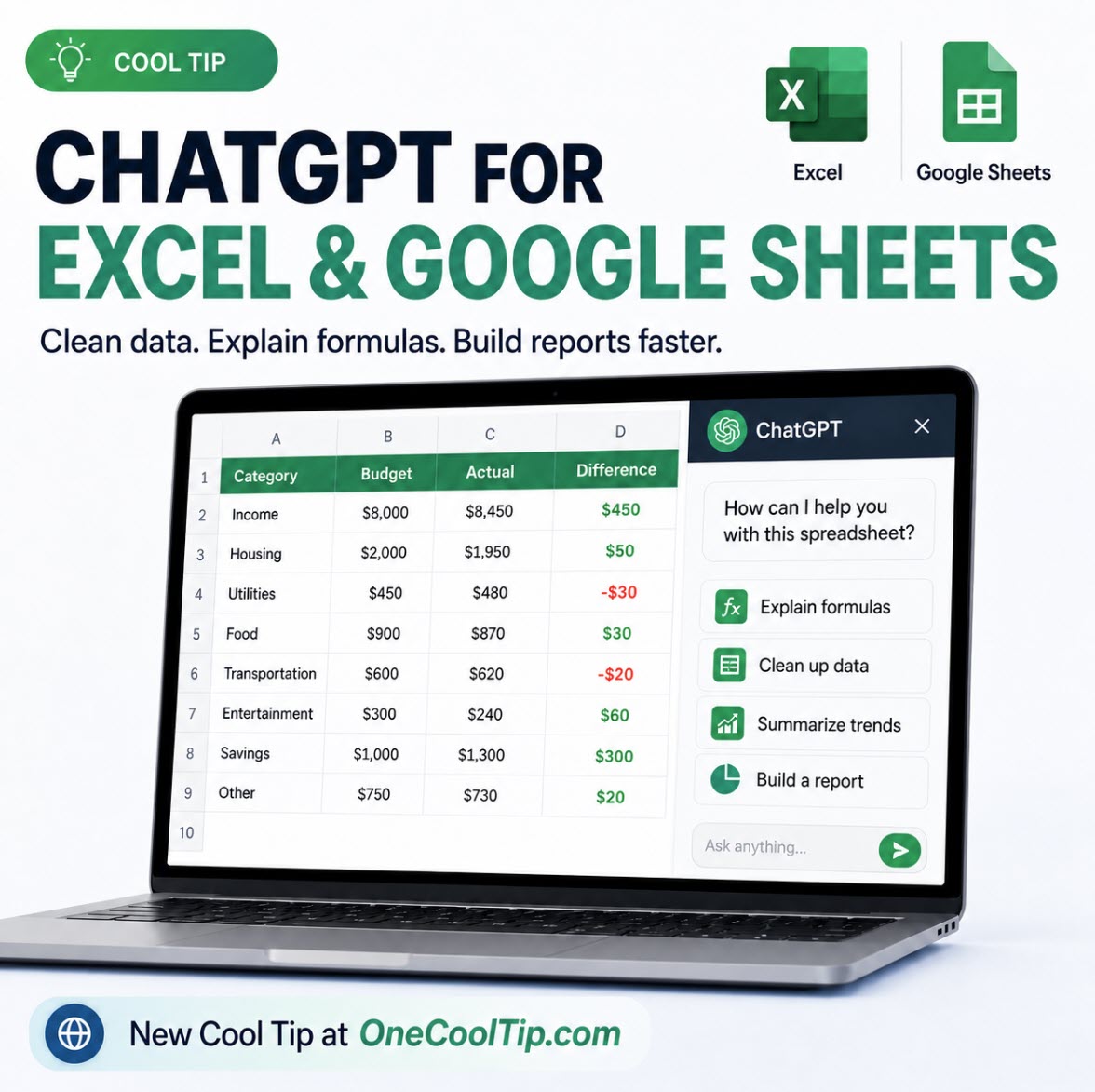
Cool Tip Theme: ChatGPT for Excel and Google Sheets
New here? Subscribe to the One Cool Tip Newsletter for daily updates. It's FREE!
| |
3️⃣
If you enjoy the One Cool Tip newsletter, please forward this newsletter to THREE friends or colleagues or share it on social media using the links below.
Leave a $$$ Tip!
Share this One Cool Tip Newsletter!
| | |
🚨Watch for These Amazon Impersonation Scams🚨
Amazon is warning customers about a rise in impersonation scams that try to trick you into sharing personal information, installing software, or paying fake fees.
Scammers often create false urgency, send unexpected order notices, or claim there’s a problem with your Prime membership or account status.
Here are the top scam types Amazon highlights:
-
Order Confirmation Scams: Messages about purchases you never made, urging you to “confirm” or “cancel.” These often push you to share payment info or install remote‑access tools.
-
Tech Support Scams: Fake support sites pretending to fix Amazon devices or accounts. Amazon says to go directly to its help pages, not search‑engine ads.
-
Prime Membership Scams: Claims that your membership is expiring or needs payment to “reinstate.” Amazon will never ask for payment info over the phone.
-
Account Suspension Scams: Threats that your account will be deleted unless you click a link or provide credentials. Amazon never asks for passwords or sensitive info on external sites.
-
Fake Recall/Refund Scams: Messages claiming a recent purchase has a safety issue and requires immediate action.
How to protect yourself:
- Check your Message Center for real Amazon emails.
- Verify orders only through Your Orders.
- Never pay with gift cards, wire transfers, or third‑party payment links.
- Avoid clicking links in unexpected messages.
- Report suspicious emails to reportascam@amazon.com.
Amazon also partners with the Better Business Bureau Scam Tracker so you can look up reported scam messages by phone number, email, or URL.
And in Other News...
- Malta Becomes First Country to Offer Free ChatGPT Plus for a Year
Malta has launched a first‑of‑its‑kind national partnership with OpenAI to give every eligible citizen and resident one year of ChatGPT Plus at no cost, once they complete a government‑backed AI literacy course.
The required AI for All course was developed with the University of Malta and teaches practical, responsible AI use.
After finishing the training, participants can activate their free ChatGPT Plus subscription through Malta’s digital identity system, with distribution managed by the Malta Digital Innovation Authority.
The offer also extends to Maltese citizens living abroad, and the program begins rolling out this month.
Why it matters:
This is the first national‑scale partnership of its kind, positioning Malta as a test case for how governments might provide premium AI tools as a public benefit rather than a consumer purchase.
| | |
Help support One Cool Tip. Use this Amazon link when you shop online.
Check out these Cool Deals:
🖥️ Dell 27 Monitor SE2725HM: A second monitor is one of the fastest ways to make spreadsheet work easier, especially when reviewing ChatGPT suggestions beside Excel or Google Sheets. Save 8% $129. Check it out on Amazon!
⌨️ Logitech Wave Keys Wireless Ergonomic Keyboard: The compact wave design and cushioned palm rest make it a strong pick for users who spend long sessions entering data, editing formulas, or reviewing reports. Save 14% $59.99 Check it out on Amazon!
🔌 Anker USB-C Hub 8-in-1: This is useful for laptop users who want to connect a monitor, keyboard, mouse, external drive, and network cable while working in Excel or Google Sheets. Save 36% $31.99 Check it out on Amazon!
💾 Samsung T7 Portable SSD, 1TB: A portable SSD is a smart companion for spreadsheet users who keep local copies of reports, budget files, client workbooks, or backup exports. Overall Pick! $287.99 Check it out on Amazon!
*Prices accurate when originally published.
One Cool Tip may earn a commission from qualifying purchases.
| | |
Let ChatGPT Do the Spreadsheet Heavy Lifting
ChatGPT can now work directly inside Excel and Google Sheets, helping users build, clean, explain, and update spreadsheets without leaving the workbook. It is especially useful for budgets, reports, trackers, financial models, messy data, and formulas that need a second look.
Few productivity tasks create more quiet frustration than opening a spreadsheet you did not build.
The formulas are buried. The labels are inconsistent.
Three tabs seem important, two tabs appear abandoned, and one cell is throwing an error that breaks the whole report.
That is exactly where ChatGPT for Excel and Google Sheets becomes useful.
OpenAI’s spreadsheet add-ins place ChatGPT in a sidebar inside Excel or Google Sheets, where it can help build, update, clean, and explain spreadsheet work using plain-language instructions.
OpenAI says the feature is available globally to ChatGPT Free, Go, Plus, Pro, Business, Enterprise, Edu, and K-12 users, with usage limits depending on plan type.
Here’s a Cool Tip: Use ChatGPT as your spreadsheet co-pilot before you touch the formulas.
Feature Explanation
ChatGPT for Excel and Google Sheets is a spreadsheet-native AI assistant that runs inside your workbook or sheet.
Instead of copying data into a separate ChatGPT conversation, you can ask questions and request edits from a sidebar while staying in Excel or Google Sheets.
The Excel and Google Sheets versions are separate experiences that support similar workflows, including creating spreadsheets, asking questions about existing spreadsheets, and making updates using natural language.
That distinction matters.
This is not the same as pasting a table into ChatGPT and asking for advice.
The feature is designed to understand spreadsheet structure, including tabs, formulas, references, and assumptions.
OpenAI says it can help with large, multi-tab files, formula explanations, scenario work, cleanup tasks, and reporting workflows.
The strongest use case is not replacing spreadsheet expertise.
It is reducing the tedious work around spreadsheet expertise.
What You’ll Gain
-
Save time by asking ChatGPT to build or clean a spreadsheet instead of starting from a blank grid.
-
Reduce confusion by asking ChatGPT to explain formulas, tabs, assumptions, and errors.
-
Improve accuracy by having ChatGPT summarize what changed before you share a report.
-
Make spreadsheet work easier by using plain English instead of hunting through menus and formula syntax.
Step-by-Step Instructions
Here's how to do it.
Microsoft Web/Desktop:
- Open Microsoft Excel on the desktop or web.
- Go to Home.
- Select Add-ins.
- Search for ChatGPT.
- Add the ChatGPT add-in.
- Open ChatGPT from the Excel ribbon.
- Sign in with a supported ChatGPT account.
- Open a workbook and ask a specific question, such as: “Explain the formula error in cell B145 and suggest a fix before changing anything.”
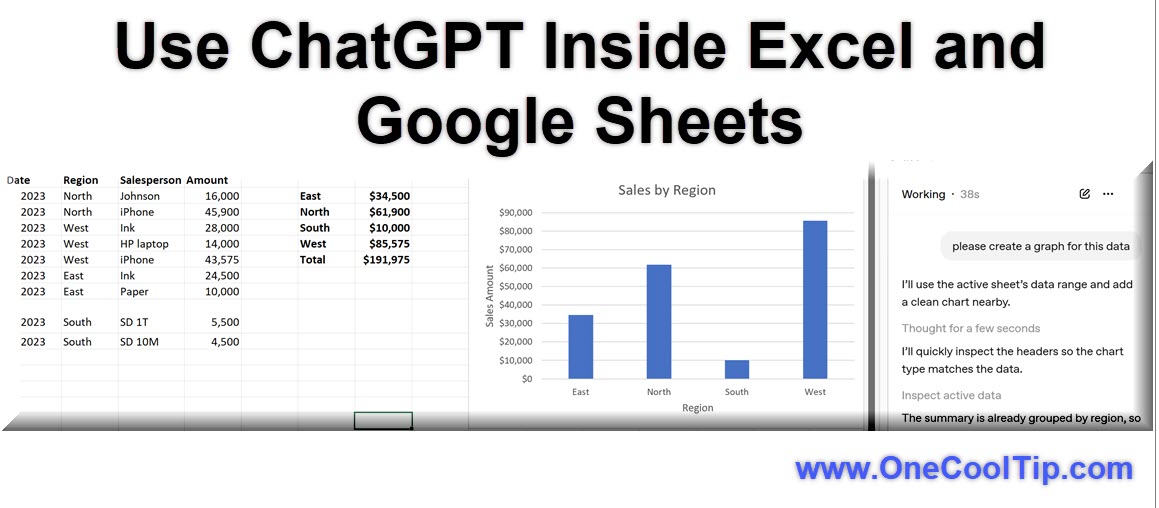
| | fig. 1 - Use ChatGPT Inside Excel and Google Sheets | | |
Google Workspace:
-
Install ChatGPT from the Google Workspace Marketplace.
- Open Google Sheets.
- Go to Extensions.
- Open ChatGPT from the Extensions menu.
- Sign in with a supported ChatGPT account.
- Ask ChatGPT to analyze, clean, explain, or update the sheet.
Pros and Cons
Pros:
-
Works where spreadsheet users already work: ChatGPT runs inside Excel or Google Sheets, reducing copy-and-paste friction.
-
Great for messy files: It can help standardize labels, remove duplicates, fix inconsistent formatting, and explain formula chains.
-
Useful for analysis: Users can ask for trend summaries, KPI tables, scenario tabs, and sensitivity tables.
-
Helpful for inherited spreadsheets: ChatGPT can explain assumptions, drivers, and key formulas when you are trying to understand someone else’s workbook.
-
Supports Skills and apps: OpenAI says Skills can provide reusable spreadsheet playbooks, while apps can connect approved data sources depending on plan, permissions, and admin settings.
Cons:
-
Outputs still need review: OpenAI warns that outputs may be incomplete or incorrect and recommends reviewing formulas, calculations, citations, and changed cells.
-
Spreadsheet chats are separate: OpenAI says spreadsheet chats do not sync with your main ChatGPT chat history and do not have access to ChatGPT memory.
-
Advanced features may be limited: VBA and macros may not be fully supported.
-
Usage limits apply: Free and Go users have limited access, while Plus, Pro, Business, Enterprise, Edu, and K-12 usage depends on plan rules, agentic limits, credits, or preview terms.
Privacy and Data Notes
- This feature processes spreadsheet context, prompts, attachments, and relevant workbook data so ChatGPT can respond, update the workbook, or provide analysis.
- Data is stored locally in the product, and users can delete or download data from Settings, while some logs may be stored with OpenAI for 30 days for safety and integrity purposes.
- There is also a Microsoft or Google layer:
- ChatGPT for Excel runs in Microsoft Excel and ChatGPT for Google Sheets runs in Google Sheets, so use of those products is governed by the user’s agreements with Microsoft or Google.
- Microsoft may have the ability to read Excel workbook content, attachments, and prompts.
Cool Tips:
- Do not use this on confidential, regulated, client-sensitive, or financial decision files until your organization has approved the workflow.
- For personal use, duplicate important files before asking ChatGPT to make edits.
Feature Access
OpenAI says ChatGPT for Excel and Google Sheets is available globally to ChatGPT Free, Go, Plus, Pro, Business, Enterprise, Edu, and K-12 users.
Free and Go users receive limited usage access, while Plus and Pro access is subject to plan agentic usage limits.
Availability may still vary in managed business, education, or enterprise environments because admins can block add-ins, restrict apps, or control connected data-source permissions.
Score
Criterion | Score (0–10) | Justification
Value 9
Spreadsheet work is common, repetitive, and error-prone. This feature solves real problems around formula explanation, cleanup, modeling, and reporting.
Usability 8
The sidebar approach is easy to understand, but setup depends on add-ins, extensions, supported accounts, and possible admin controls.
Wow Factor 8
Natural-language spreadsheet editing inside Excel and Google Sheets is impressive, especially for multi-tab workbooks and scenario analysis.
Total: 25/30 🌟 Excellent
ChatGPT for Excel and Google Sheets earns an Excellent rating because it brings AI assistance directly into one of the most widely used productivity workflows.
Compared with uploading a spreadsheet into a regular ChatGPT chat, this is more convenient because the work happens inside the spreadsheet itself.
Key Takeaways
ChatGPT for Excel and Google Sheets can save serious time for users who build, clean, review, or explain spreadsheets.
The best approach is to ask for a plan first, review every proposed change, and treat the output as a smart draft rather than a final answer.
Cool Tip Snapshot
-
Feature Name: ChatGPT for Excel and Google Sheets
-
Platform(s): Microsoft Excel, Google Sheets
-
Quick Benefit: Build, clean, explain, and update spreadsheets using plain-language prompts
-
Best For: Business users, analysts, students, educators, small businesses, and spreadsheet-heavy households
-
Access Type: Free, Subscription, Enterprise, Education, Generally Available with usage limits
-
Difficulty: Easy to Moderate
Try It Yourself
Open a spreadsheet and ask ChatGPT:
“Review this workbook before I share it. Identify broken formulas, inconsistent labels, duplicate rows, and the three biggest things I should fix first.”
Subscribe to the One Cool Tip Newsletter and share this Cool Tip with your family, friends, and coworkers!
READ MORE
Read the Cool Tip on OneCoolTip.com.
| | |
Check out these Cool Tips & Tricks.
-
Start Small: Ask ChatGPT to review one tab or one data range before giving it the entire workbook.
-
Ask First: Have ChatGPT explain what it plans to change before it edits your spreadsheet.
-
Check Formulas: Use ChatGPT to explain confusing formulas in plain English.
-
Find Errors: Let ChatGPT look for broken formulas, odd totals, or inconsistent entries.
-
Clean Labels: Standardize messy category names, column headers, and repeated labels.
-
Remove Duplicates: Use ChatGPT to identify duplicate rows that may distort totals or reports.
-
Summarize Trends: Turn rows of spreadsheet data into a quick business summary.
-
Build Reports: Ask ChatGPT to create a simple summary table from raw data.
-
Protect Originals: Always duplicate important spreadsheets before asking AI to make edits.
-
Verify Results: Treat ChatGPT’s spreadsheet output as a draft, not the final answer.
| | ICYMI - In Case You Missed It ... | | | | |
New Chrome Shortcuts: How to Send Active Tabs to Gemini in Two Clicks
Stop wasting time copying and pasting text from websites when you can now send entire browser tabs directly to Gemini for instant summaries and analysis. These new shortcuts in the Chrome interface streamline your desktop workflow by connecting your research directly to Google's most powerful AI tool.
Read the Full Cool Tip.
Read the Newsletter Version.
| | |
Tomorrow's Cool Tip is waiting to amaze you.
Until then, go forth and conquer the tech world with your newfound knowledge!
Be sure to visit www.OneCoolTip.com for Cool Tech Tips for a Cooler Life!
And if you Like One Cool Tip, please support with TipJar!
Enjoy!
Rodger
Chief Cool Tipper
onecooltip.com@gmail.com
| |
| What do you think of today's OneCoolTip newsletter?
| | | | Connect with One Cool Tip!! | | |
|
As an Amazon Associate, One Cool Tip may earn a small commission from qualifying purchases.
Our media content is intended solely for informational purposes only. Please do not construe anything here as legal, tax, investment, financial, marital or other advice.
Copyright © 2026 | www.OneCoolTip.com | All Rights Reserved
|
| | | |