|
One Cool Tip Newsletter
June 8, 2026
| Your daily dose of tech-savvy brilliance! | |
😀Greetings! Happy Monday, Cool Tipper!
Get ready to streamline your digital life with simple, actionable tips delivered straight to your inbox.
Cool Tip Theme: Microsoft 365 Copilot Agent Mode
New here? Subscribe to the One Cool Tip Newsletter for daily updates. It's FREE!
| |
3️⃣
If you enjoy the One Cool Tip newsletter, please forward this newsletter to THREE friends or colleagues or share it on social media using the links below.
Leave a $$$ Tip!
Share this One Cool Tip Newsletter!
| | |
🚨 Beware the “CAPTCHA” Scam 🚨
There's a growing scam that mimics the familiar “I’m not a robot” checks used online.
But these look‑alike CAPTCHAs can trick you into infecting your own device with malware.
How the Scam Works
You may encounter what appears to be a routine CAPTCHA while browsing.
Instead of asking you to select images or type characters, the fake prompt instructs you to enter a series of keyboard commands (for example, opening a run box and pasting code).
Following those steps can secretly install malicious software.
Once installed, scammers may steal login credentials, banking information, and other sensitive data.
Big RED flag
Real CAPTCHAs never ask you to run commands, download files, or paste text into your computer.
If you spot a CAPTCHA or pop-up that you think is trying to spread malware, report it to the FTC at ReportFraud.ftc.gov.
------
So What's a CAPTCHA?
CAPTCHA stands for Completely Automated Public Turing test to tell Computers and Humans Apart.
It is a security test used by websites to verify that a user is a real person and not an automated robot or script (bot).
And in Other News...
- Microsoft 365 Copilot Gets a Major Redesign
Microsoft has unveiled a sweeping redesign of its Microsoft 365 Copilot experience, aiming to make the AI assistant faster, simpler, and more integrated into everyday work.
According to Microsoft’s official announcement, the update shifts Copilot from a basic chat box into a more “task‑aware workspace.”
Users now get a larger prompt area to describe what they need, while helpful tools and suggested actions appear automatically based on the task at hand.
The redesign also introduces a cleaner, more streamlined interface and a single entry point for Copilot across apps like Word, Excel, and Outlook, helping users move between tasks without losing context.
Behind the scenes, Microsoft focused heavily on improving speed, clarity, and the quality of AI-generated outputs, emphasizing that better results, not just a better interface, are key to productivity.
Why it matters:
This update signals a shift from AI as a side tool to AI as a built‑in workflow layer, meaning Copilot may feel less like a chatbot and more like an everyday assistant embedded across their apps.
| | |
Help support One Cool Tip. Use this Amazon link when you shop online.
Check out these Cool Deals:
🎤 Logitech R500s Presentation Remote: A reliable presenter remote is still useful when Copilot builds the deck but you need to deliver it confidently. Save 17% Now $37.45 Check it out on Amazon!
🔌 Anker USB-C Hub with HDMI: Useful for connecting a laptop to a conference room display, projector, or external monitor during a presentation. Save 20% Now $19.99 Check it out on Amazon!
💾 SanDisk Ultra Dual Drive USB-C Flash Drive: Handy for keeping backup copies of PowerPoint decks, PDFs, speaker notes, and presentation images. $46.99 Check it out on Amazon!
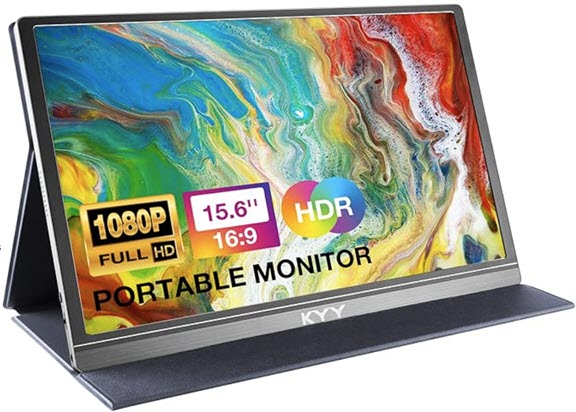
🖥️ Portable Monitor: Useful for viewing speaker notes, source material, or a second screen while editing or rehearsing a presentation. $69.99 Check it out on Amazon!
*Prices accurate when originally published.
One Cool Tip may earn a commission from qualifying purchases.
| | |
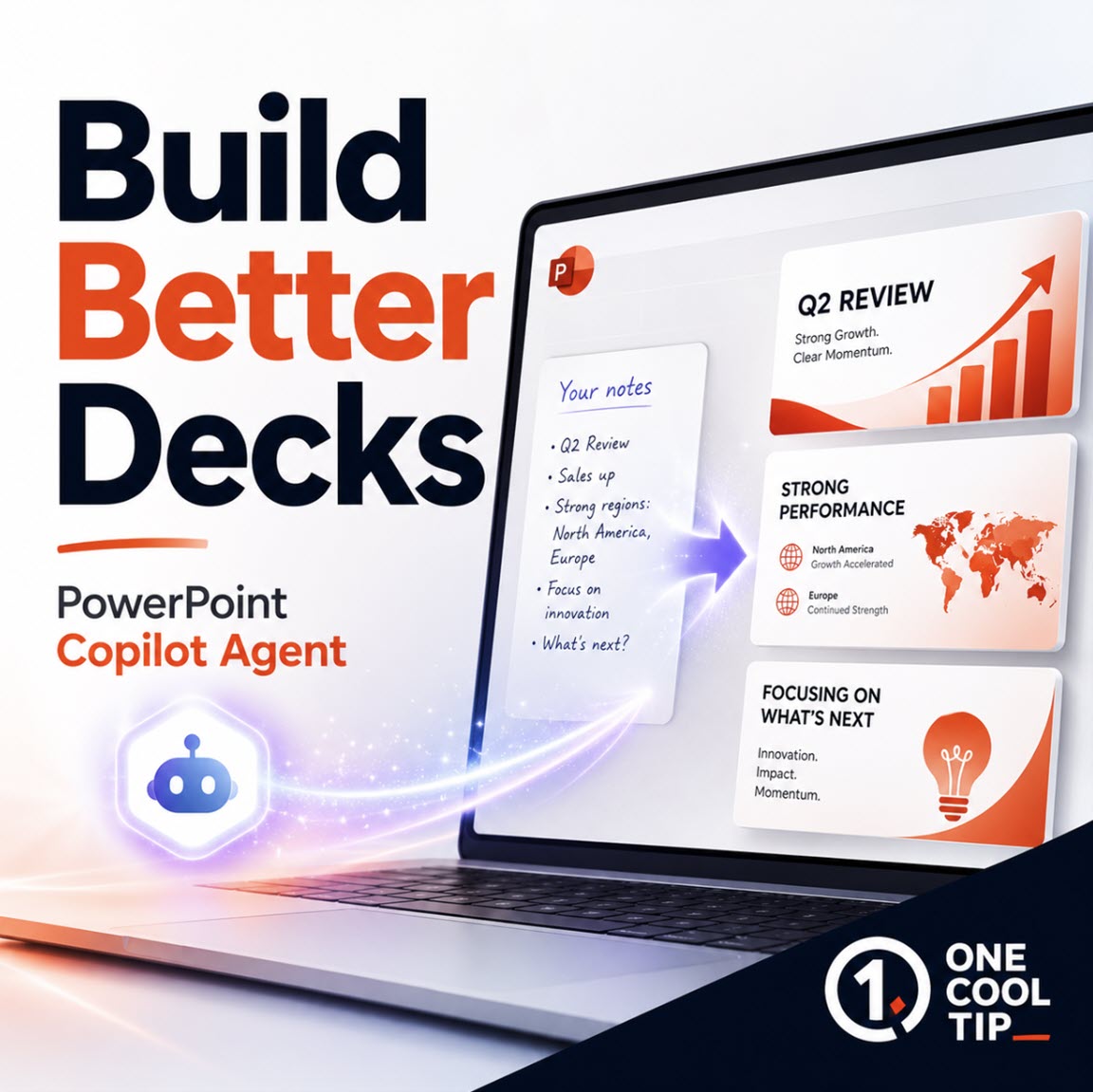
Let Copilot Build Better PowerPoint Decks
Microsoft PowerPoint’s Copilot Agent features can help you turn a prompt into a polished presentation, then refine slides, visuals, tone, and structure without starting over. The real trick is knowing where the feature appears, who can access it, and how to guide it with better prompts.
A blank PowerPoint deck can still stop a smart person cold.
You know the topic.
You know the audience.
You may even have the data.
But turning that into a clean, well-structured presentation takes time, judgment, and more slide cleanup than anyone wants to admit.
Here's a Cool Tip: Microsoft PowerPoint Copilot Agent.
Microsoft is trying to reduce AI friction with Copilot in PowerPoint.
The feature has appeared in Microsoft documentation under names such as Agent Mode and Edit with Copilot, but the direction is clear.
Copilot is becoming more than a chat helper. It can help create, revise, reorganize, summarize, and improve presentations inside PowerPoint.
That does not mean you should let AI deliver your final deck.
It means you can use Copilot to get past the blank page, build a stronger first draft, and spend your time improving the message instead of wrestling with slide structure.
Feature Explanation
You can ask Copilot to summarize a presentation, answer questions about the content, and help identify the key message.
That is useful when you inherit a long presentation and need to understand it quickly.
This is not just “make me slides.”
The better use case is iterative editing.
Ask Copilot to shorten titles.
Then ask it to turn a bullet list into a timeline.
The practical benefit is simple: PowerPoint becomes less of a blank canvas and more of a collaborative drafting room.
What You’ll Gain
- Save time by turning a topic, outline, or rough idea into a structured deck.
- Improve clarity by asking Copilot to rewrite titles, tighten bullets, and adjust tone.
- Reduce design friction by asking for timelines, visuals, summaries, and cleaner slide flow.
- Stay in control by reviewing and refining Copilot’s work before you share it.
Step-by-Step Instructions
Here's how to do it.
Web (Microsoft 365 Copilot App)
-
Go to the Microsoft 365 Copilot web app, m365.cloud.microsoft.com and sign in with your Microsoft 365 account.
- In the left sidebar, click Agents or Tools (label may vary by version).
- Click PowerPoint Agent from the list to launch a presentation-focused Copilot experience.
- A chat-style interface will open with a prompt box and sometimes suggested prompts.
- Enter a goal-based prompt: Describe the full presentation you want to create.
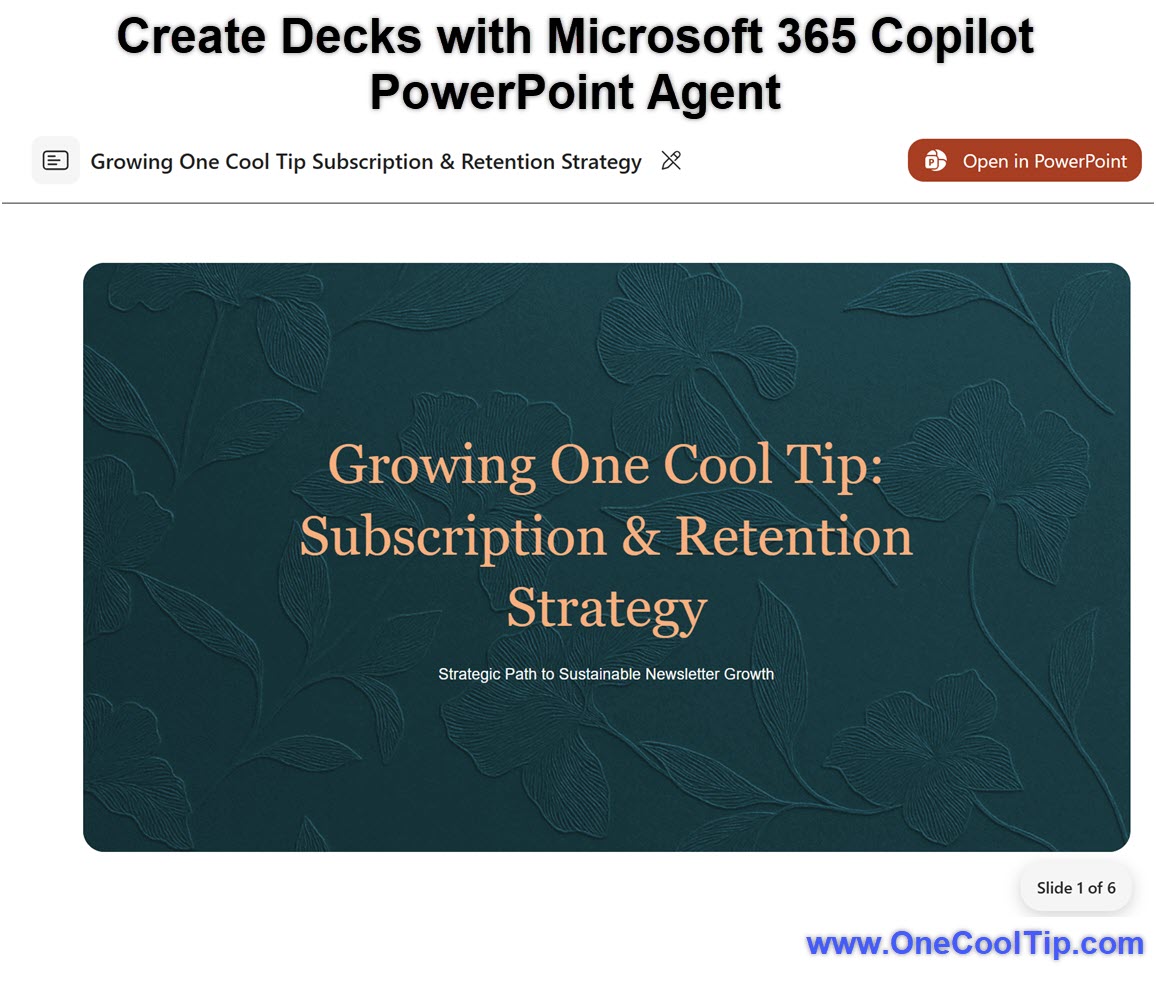
- For example: “Create a presentation on growing and retaining One Cool Tip subscribers.”
- The agent may ask for details such as audience, tone, or slide count to refine the output before generating content.
- Press Enter or select Generate to create the presentation.
- Review the generated output.
- Open and edit in PowerPoint: When satisfied, open the generated file in PowerPoint (web or desktop) to finalize design, visuals, and formatting.
| | fig. 1 - PowerPoint Agent Example | | |
Pros and Cons
Pros:
-
Fast first drafts: Business users can turn a meeting topic into an executive briefing without starting from a blank deck.
-
Better editing loop: Students and educators can ask Copilot to simplify dense slides or adapt content for different audiences.
-
Useful for messy decks: Small businesses can use it to reorganize old sales decks, sharpen titles, and improve slide flow.
-
Possible model choice: Some commercial Microsoft 365 Copilot users may see model options when editing with Copilot in PowerPoint.
-
Brand support for some organizations: Microsoft documents Brand kit support for PowerPoint Copilot, which can help enterprise users work with approved logos, guidelines, and image assets.
Cons:
-
Availability varies: Access may depend on license, account type, organization settings, app version, region, and rollout status.
-
Naming is confusing: Microsoft documentation has used “Agent Mode,” “Edit with Copilot,” and PowerPoint Agent language in related contexts.
-
Not a final reviewer: Copilot can create plausible slides that still need fact-checking, style review, and audience tuning.
Feature Access
Available in PowerPoint for Microsoft 365 on Windows, Mac, and the web.
Availability may vary by account, subscription, organization settings, region, app version, and rollout status.
Some newer presentation options, including length, tone, presentation style, and image preferences, may appear first for Frontier or Microsoft 365 Insider users before reaching broader availability.
Score
Criterion | Score (0–10) | Justification
Value | 8
This solves a real productivity problem by helping users create and refine decks faster. It is especially useful for business users, educators, creators, and anyone who builds recurring presentations. |
Usability | 7
The feature is easy once visible, but naming changes, license requirements, preview rollouts, and admin settings can make it confusing to find. |
Wow Factor | 8
The ability to create, restructure, rewrite, summarize, and visually improve slides from inside PowerPoint feels meaningfully advanced. |
Total: 23/30 👍 Good
PowerPoint Copilot Agent features are highly useful, but availability and naming confusion keep this from being effortless for every user.
Compared with Google Slides Gemini features, Microsoft’s advantage is its deep connection to PowerPoint workflows, templates, Microsoft 365 context, and enterprise controls.
Key Takeaways
PowerPoint Copilot Agent features can help you move from idea to outline to editable slides faster, especially when you give it a clear audience, slide count, tone, and purpose.
The best results come when you treat Copilot as a first-draft partner, not a final editor.
Cool Tip Snapshot
-
Feature Name: Microsoft PowerPoint Copilot Agent / Edit with Copilot in PowerPoint
-
Platform(s): PowerPoint for Microsoft 365 on Windows, Mac, and web
-
Quick Benefit: Create, edit, summarize, and refine presentations with AI help
-
Best For: Business users, educators, students, creators, and productivity users
-
Access Type: Subscription, Preview, Rolling Out
-
Difficulty: Moderate
Try It Yourself
Open PowerPoint, launch Copilot, and ask it to build a short deck from a real task you already need to finish today.
Then comment with your best prompt, and share this article with family, friends, and coworkers who still wrestle with blank slides.
READ MORE
Read the Cool Tip on OneCoolTip.com.
| | |
Check out these Cool Tips & Tricks.
-
Prompt Clearly:Tell Copilot the audience, goal, tone, and slide count before it starts. Use a prompt such as “Create a 6-slide executive update for non-technical managers with risks and next steps.”
-
Start Small: Ask for an outline before generating the full deck. Use “Draft only the slide titles and structure first.”
-
Use Templates: Start from your approved PowerPoint template when brand consistency matters. Open the template first, then ask Copilot to build inside that file.
-
Tighten Titles: Slide titles should make a point, not just label a topic. Ask Copilot, “Rewrite each slide title as a clear takeaway.”
-
Reduce Bullets: Copilot can help turn dense bullet slides into cleaner visuals. Ask, “Convert this bullet list into a timeline, table, or three-part framework.”
-
Change Audience: A deck for executives should not read like a deck for engineers. Ask, “Rewrite slides 4 through 6 for a senior leadership audience.”
-
Add Notes: Speaker notes make AI-created decks easier to present. Ask, “Add concise speaker notes to each slide.”
-
Check Facts: AI can make confident mistakes. Verify names, dates, numbers, prices, and claims before sharing.
-
Compare Models: If your account supports model switching, try available models for different editing styles. Use the model selector in PowerPoint editing mode when available.
-
Keep Control: Copilot is best as a drafting partner, not the final reviewer. Read every slide, adjust the story, and remove anything that sounds generic.
| | ICYMI - In Case You Missed It ... | | | | |
Transform Your Commute With the Make My Drive Fun Map
Discover how to turn boring road trips into interactive adventures using a specialized web tool. This guide shows you how to find quirky roadside attractions and hidden gems along any route.
Read the Full Cool Tip.
Read the Newsletter Version.
| | |
Tomorrow's Cool Tip is waiting to amaze you.
Until then, go forth and conquer the tech world with your newfound knowledge!
Be sure to visit www.OneCoolTip.com for Cool Tech Tips for a Cooler Life!
And if you Like One Cool Tip, please support with TipJar!
Enjoy!
Rodger
Chief Cool Tipper
onecooltip.com@gmail.com
| |
| What do you think of today's OneCoolTip newsletter?
| | | | Connect with One Cool Tip!! | | |
|
As an Amazon Associate, One Cool Tip may earn a small commission from qualifying purchases.
Our media content is intended solely for informational purposes only. Please do not construe anything here as legal, tax, investment, financial, marital or other advice.
Copyright © 2026 | www.OneCoolTip.com | All Rights Reserved
|
| | | |