|
Let a ChatGPT Pet Keep Watch Over Your Work
The ChatGPT Pets feature adds an animated companion that can show when work is running, waiting for input, ready, or blocked. Here is how to choose a pet, wake it, create a custom character, and understand what works in the desktop app, on the web, and in Codex CLI.
When ChatGPT is handling several tasks, the hard part is not always starting the work.
It is noticing which chat finished, which one needs a decision, and which one ran into trouble.
Here’s a Cool Tip: Wake a ChatGPT Pet to keep an eye on active work.
The Pets feature turns routine status checking into a playful visual shortcut.
In the desktop app, an animated companion can float above other windows and reflect activity across your chats.
Select the pet to return to ChatGPT, or select an item in its activity tray to open the chat that needs attention.
On the web, the pet stays inside supported ChatGPT Work chats and serves mainly as a visual companion.
The feature is optional, and changing the pet does not change ChatGPT's intelligence, personality, answers, or task performance.
It changes the presentation of activity, not the underlying work.
What Is a ChatGPT Pet?
A ChatGPT Pet is an animated companion available on supported ChatGPT interfaces.
In the desktop app, the pet can sit above other app windows and communicate four task states:
- Running,
- Needs input,
- Ready, and
- Blocked.
Running means a chat is actively working.
Needs input means a chat is waiting for an approval, answer, or decision.
Ready means a chat has finished and contains unread activity.
Blocked means a chat failed or encountered a system error.
If several chats have activity, ChatGPT prioritizes items needing input, followed by blocked, ready, and running work.
That ordering is the feature's practical value.
A user running research, document editing, and image work in separate chats can glance at the pet instead of repeatedly opening the app.
Selecting the pet returns the user to ChatGPT, while its activity tray can open a specific chat.
The web version is more limited.
It appears inside supported ChatGPT Work chats and does not include the desktop app's floating overlay, multiple-chat activity tray, or /pet command.
Codex CLI has a separate terminal implementation for supported terminal software.
What You’ll Gain
- Notice when a ChatGPT task needs your answer or approval.
- Return to completed or blocked work with fewer status checks.
- Add personality without changing how ChatGPT completes tasks.
- Create or upload a custom pet when the supplied characters do not fit your style.
Step-by-Step Instructions
Here's how to do it.
ChatGPT Desktop App:
-
Open the profile menu at the bottom of the ChatGPT desktop app and select Settings > Pet.
-
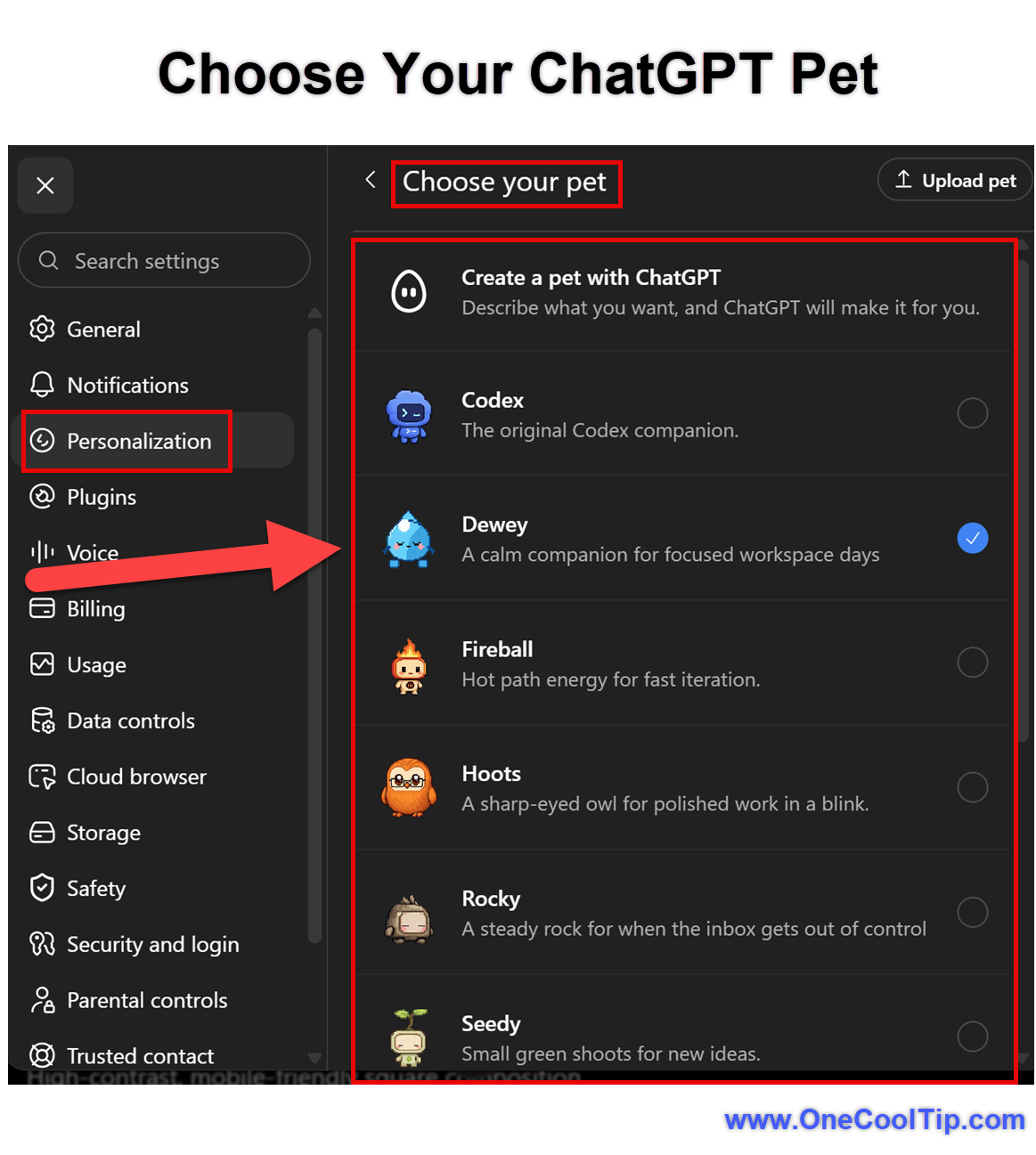
Choose a built-in pet or a compatible custom pet.
-
Type /pet in a chat, or open the command menu and select Wake Pet.
-
Move the pet to a convenient place on the screen. The app preserves the selected pet and its position when you reopen it.
-
To hide it, open Settings > Pets and select Tuck Away Pet, choose the same command from the command menu, or type /pet again.
ChatGPT on the Web:
-
Navigate to and log in to www.chatgpt.com.
-
Open Settings > Personalization.
- Find Pet, then choose Select pet.
-
Pick a built-in pet. Choose Default if you want to remove the pet.
-
If available, select Upload pet to add a compatible custom sprite sheet.
-
The web pet appears only inside supported ChatGPT Work chats. It does not float over other windows, provide an activity tray, or respond to /pet.
|