One Cool Tip Newsletter

July 22, 2026

Your daily dose of tech-savvy brilliance!

😀Greetings! Happy Wednesday, Cool Tipper!


Get ready to streamline your digital life with simple, actionable tips delivered straight to your inbox.


Cool Tip Theme: Windows 11 Shared Audio


New here? Subscribe to the One Cool Tip Newsletter for daily updates. It's FREE!

3️⃣

If you enjoy the One Cool Tip newsletter, please forward this newsletter to THREE friends or colleagues or share it on social media using the links below.


Leave a $$$ Tip!


Share this One Cool Tip Newsletter!

X Share This Email
LinkedIn Share This Email
Pinterest Share This Email

🚨 The Payment Method Could Be the Scam🚨


The FTC is warning consumers to pay attention to how someone asks for money.


If an unexpected caller, texter, or email sender says you must pay using a bank transfer, wire transfer, cryptocurrency, a payment app, or gift cards, it is likely a scam.


Scammers often impersonate government agencies or well-known companies and pressure people into using payment methods that are difficult to reverse.


The FTC says people reported more than $4 billion in losses last year from scams involving bank transfers and cryptocurrency.


Before sending money, research the person or company and look for reviews, complaints, or scam reports.


When possible, pay by credit card, which offers stronger fraud protections and dispute options.


And in Other News...


Xbox Brings Classic Games to PC


Microsoft has launched Xbox Backward Compatibility on PC, allowing players to enjoy select original Xbox games on Windows PCs and supported handheld devices for the first time.


The feature debuts with four classics, including Crimson Skies: High Road to Revenge and Conker: Live and Reloaded, with more titles planned over time.


Existing digital owners can carry their licenses between console and PC, and the games are also included with Xbox Game Pass.


The initiative is part of a broader effort to preserve gaming history while adding modern enhancements like improved graphics options and future Achievement support.


Browser Features

🤔 🎧 How do you most often listen to audio on your devices?

Cool Deals of the Day

Help support One Cool Tip. Use this Amazon link when you shop online.


Check out these Cool Deals:

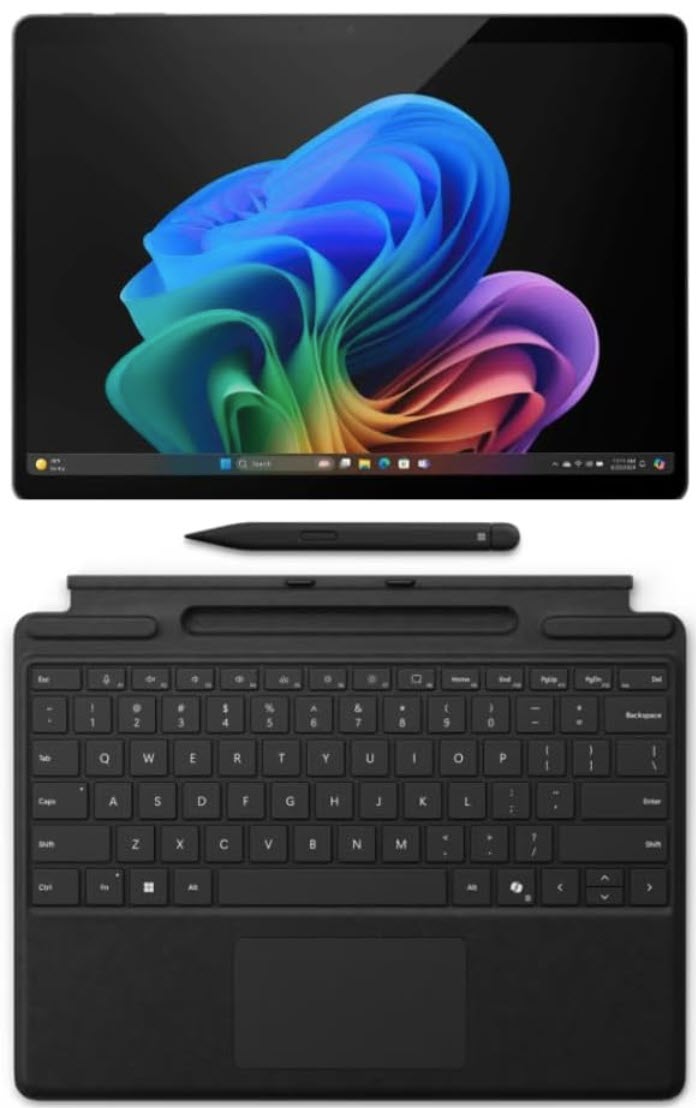
💻 Microsoft Surface Pro 11: A premium Windows 11 device ready for the latest audio features.

$1,599.99. 4.7 Stars. Check it out on Amazon!


🎧 Samsung Galaxy Buds 4 Pro: Excellent Bluetooth LE audio support for crisp sound.

Overall Pick. $249.99. 4.6 Stars. Check it out on Amazon!


🎧 Sony WH-1000XM6 Wireless Headphones: Premium over-ear headphones with strong noise cancellation and long-wear comfort.

$458. 4.5 Stars. Check it out on Amazon!


*Prices accurate when originally published.

One Cool Tip may earn a commission from qualifying purchases.

Fuel Your Adventure

Try Big Mike's Jerky!


bigmikesjerky.com


Now on TikTok!


Today's Cool Tip

Listen Together: Windows 11 Shared Audio Explained


Learn how Windows 11 Shared Audio allows compatible PCs to share audio with two Bluetooth LE Audio devices, making listening together easier.


Whether you're traveling with a friend, studying with a classmate, or reviewing content with a client, sharing audio from a laptop has traditionally involved compromises. 


Most PCs connect audio to a single Bluetooth device at a time, leaving users searching for splitters, adapters, or awkward workarounds.


Here's a Cool Tip: Share One Audio Stream with Two Listeners Using Windows 11 Shared Audio.


Microsoft recently released an update with Shared Audio, a Windows 11 feature designed for compatible devices that support Bluetooth LE Audio. 


The feature allows users to broadcast the same audio stream to two supported listening devices from a single PC.


For people who frequently share videos, music, presentations, or training content, it offers a more convenient way to listen together without additional accessories.


Feature Explanation


Shared Audio is a Windows 11 feature that allows supported PCs to send audio to two compatible Bluetooth LE Audio devices simultaneously.


The feature is designed to make shared listening easier. 


Instead of passing around earbuds or relying on wired splitters, users can connect compatible Bluetooth devices and listen to the same content together.


The practical benefit is straightforward. 


Whether you're watching a movie during a flight, reviewing educational content with a classmate, or sharing a presentation with a colleague, everyone can hear the same audio directly through their own headphones or earbuds.


Shared Audio may be especially useful for:


  • Travelers
  • Students
  • Families
  • Educators
  • Content creators
  • Business professionals


Because the feature relies on Bluetooth LE Audio technology, both the Windows device and the connected audio accessories must support the necessary standards. 


Availability may also vary depending on Windows version, hardware compatibility, and rollout status.


What You'll Gain


  • Listen to audio together without sharing earbuds.
  • Reduce the need for headphone splitters and adapters.
  • Enjoy a more comfortable experience when traveling or studying with others.
  • Take advantage of newer Bluetooth LE Audio capabilities built into supported Windows devices.


Step-by-Step Instructions


Here's how to do it.


Windows


The exact experience may vary depending on your Windows version, Bluetooth hardware, and rollout status.


  1. Open: Settings > Bluetooth & devices.  Ensure your compatible Bluetooth LE Audio devices are paired and connected.
  2. Press Windows + A to open Quick Settings.
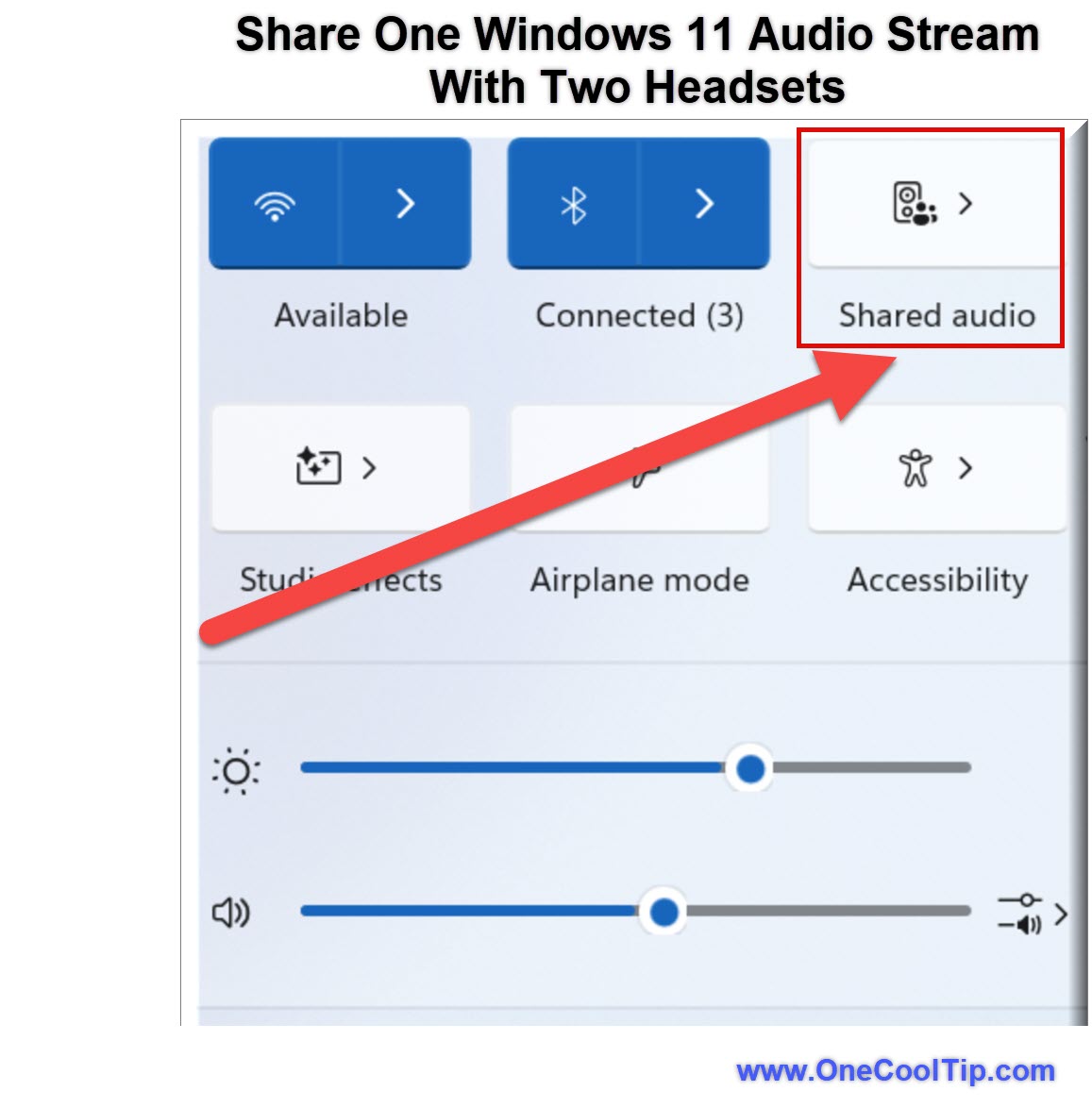
  3. Locate Shared Audio.  If Shared Audio is available on your device, it should appear within Quick Settings after compatible devices are connected.
  4. Select Your Listening Devices: Choose the compatible audio devices you want to use for shared listening.
  5. Begin playback of music, video, or other audio content.  Both selected devices should receive the same audio stream.
  6. Return to Shared Audio and end the session when you're finished.


fig. 1 - Share One Windows 11 Audio Stream With Two Headsets

Cool Example:


A student and a study partner are reviewing a recorded lecture in a library.


Both connect compatible Bluetooth earbuds to a Windows 11 laptop and listen without disturbing others nearby.


Pros and Cons


Pros:


  • Lets two users listen to the same audio from a single PC.
  • Reduces the need for headphone splitters and wired accessories.
  • Built directly into Windows, eliminating the need for third-party software.
  • Useful for travel, education, entertainment, and collaboration.
  • Takes advantage of modern Bluetooth LE Audio technology.


Cons:


  • Requires compatible Bluetooth LE Audio hardware.
  • Availability may vary depending on Windows version and device support.
  • Older Bluetooth headphones may not be supported.
  • Some users may need updated drivers or firmware before the feature appears.


Feature Access


Shared Audio is intended for supported Windows 11 devices that include Bluetooth LE Audio support.


Availability may depend on:


  • Device hardware
  • Bluetooth chipset support
  • Driver versions
  • Windows version
  • Rollout status


Score

Criterion | Score (0–10) | Justification
Value 8
Solves a common shared-listening problem without requiring extra accessories.
Usability 7
Easy to use once available, but hardware and compatibility requirements may limit access.
Wow Factor 7
Broadcasting audio to two listeners from a single PC is a useful and modern capability.
Total: 22/30 |  👍 Good
Shared Audio is a practical Windows 11 enhancement that makes watching, learning, and listening together significantly easier for users with compatible hardware.
Comparison: Similar in concept to audio-sharing experiences found on some mobile platforms, but built directly into supported Windows PCs.


Key Takeaways


Windows 11 Shared Audio removes one of the most common frustrations of shared listening by allowing compatible PCs to stream audio to two Bluetooth LE Audio devices simultaneously. 


While hardware support remains the biggest requirement, the feature offers a simple and convenient way for friends, families, students, and coworkers to enjoy content together.


READ MORE


Read the Full Cool Tip.

Check Out These Cool Tips & Tricks


  • Update First: Current software reduces compatibility problems and closes known security gaps. Open the application’s Help or Settings menu and select its update option before troubleshooting.


  • Learn Shortcuts: Keyboard shortcuts can turn repeated multistep actions into a single command. Open the software’s shortcut reference and learn two or three commands you use every day.


  • Use Search: Built-in search is often faster than browsing through several menu levels. Press the application’s search shortcut and enter the feature, command, or file name you need.


  • Pin Favorites: Frequently used files and commands are easier to reach when pinned. Right-click the item and select Pin, Add to Favorites, or the closest available option.


  • Review Permissions: Applications sometimes retain access to microphones, cameras, files, or locations they no longer need. Open the operating system’s Privacy settings and disable unnecessary permissions.


  • Create Profiles: Separate profiles keep work, personal, and shared settings from becoming mixed together. Open the application’s account or profile menu and create a profile for each major use.


  • Automate Repetition: Templates, rules, macros, and reusable actions can eliminate routine manual work. Identify one repeated task and check whether the software includes an automation or template feature.


  • Back Up Data: Important application data should not depend on a single computer or account. Enable the software’s backup or export function and store a second copy in a trusted location.


  • Test Changes: Major configuration changes are safer when tried on a copy of the original file. Duplicate the file or create a restore point before changing settings, formulas, or layouts.


  • Export Regularly: Proprietary formats can make it difficult to leave an application later. Periodically export important information to a common format such as PDF, CSV, TXT, JPEG, or MP4.

ICYMI - In Case You Missed It ...

Make Excel Copilot Work Your Way Every Time


Stop repeating the same formatting instructions in Excel. Copilot personalization lets you define your preferences once and get consistent results every time.


Read the Full Cool Tip.


Read the Newsletter Version.

Looking for your next adventure?


Call Denise at Travel For You.

314.660.3039


Sign Up for the Monthly Newsletter


http://www.travelforyouvacations.com/


https://www.facebook.com/TRAVEL.FOR.U/


See You Tomorrow

Tomorrow's Cool Tip is waiting to amaze you.


Until then, go forth and conquer the tech world with your newfound knowledge!


Be sure to visit www.OneCoolTip.com for Cool Tech Tips for a Cooler Life!


And if you Like One Cool Tip, please support with TipJar!


Enjoy!


Rodger

Chief Cool Tipper

onecooltip.com@gmail.com


What Do You Think?

What do you think of today's OneCoolTip newsletter?
Positive        Neutral        Negative
X Share This Email
LinkedIn Share This Email

Connect with One Cool Tip!!

Facebook  X  Instagram  Web  Pinterest  YouTube  LinkedIn
 

As an Amazon Associate, One Cool Tip may earn a small commission from qualifying purchases.


Our media content is intended solely for informational purposes only. Please do not construe anything here as legal, tax, investment, financial, marital or other advice.


Copyright © 2026 | www.OneCoolTip.com | All Rights Reserved