One Cool Tip Newsletter

April 18, 2026

Your daily dose of tech-savvy brilliance!

😀Greetings! Happy Saturday, Cool Tipper!


Get ready to streamline your digital life with simple, actionable tips delivered straight to your inbox.


Cool Tip Theme: Share Chrome Tabs with Google Gemini


New here? Subscribe to the One Cool Tip Newsletter for daily updates. It's FREE!

3️⃣

If you enjoy the One Cool Tip newsletter, please forward this newsletter to THREE friends or colleagues or share it on social media using the links below.


Leave a $$$ Tip!


Share this One Cool Tip Newsletter!

X Share This Email
LinkedIn Share This Email
Pinterest Share This Email

🚨“Expiring Reward Points” Texts Are a Scam🚨


Scammers are sending fake texts claiming your reward points are about to expire.


The message urges you to click a link to “save your points,” but the link can steal personal information or install harmful software.


How to stay safe:


  • Don’t click links. Go directly to the company’s official website or app to check your points.
  • Keep your phone updated. Security patches help protect you if you accidentally tap a bad link.
  • Use filters or call‑blocking tools. They can reduce unwanted texts and spam.
  • Report junk messages. Both Apple and Android phones have built‑in options to flag and report spam.


Source: FTC

And in Other News...


🤖 One Cool Tip AI Companion


I often get many tech questions.


Some are simple and others are difficult to resolve.


That's why I built this custom AI: One Cool Tip AI Companion, powered by ChatGPT.


Readers often tell me it is a real life-saver during the day when they have frustrating tech questions.


So try it today!


It's also linked in the right column of www.OneCoolTip.com


Cool Deals of the Day

Help support One Cool Tip. Use this Amazon link when you shop online.


Check out these Cool Deals:


  • 🖱️ Logitech MX Master 3S Wireless Mouse: The ultimate productivity mouse with specialized buttons that make right-clicking and navigating tabs a breeze. Save 11% Now $79.99 Check it out on Amazon!


  • 💻 Sceptre 24" Professional Thin 75Hz Monitor: Extra screen real estate makes side by side research with Gemini much easier. Just $79.97 Check it out on Amazon!


  • ⌨️ Logitech MX Keys S Wireless Keyboard: Perfect for those quick prompts and fluid typing during AI research. Save 8% Now $119.99 Check it out on Amazon!


*Prices accurate when originally published.

One Cool Tip may earn a commission from qualifying purchases.

Fuel Your Adventure

Try Big Mike's Jerky!


bigmikesjerky.com


Now on TikTok!


Today's Cool Tip

New Chrome Shortcuts: How to Send Active Tabs to Gemini in Two Clicks


Stop wasting time copying and pasting text from websites when you can now send entire browser tabs directly to Gemini for instant summaries and analysis. These new shortcuts in the Chrome interface streamline your desktop workflow by connecting your research directly to Google's most powerful AI tool.


Have you ever found yourself with twenty open tabs, trying to synthesize information for a report or a project, only to feel buried under a mountain of digital clutter? 


The traditional "copy, switch window, paste, repeat" dance is a productivity killer. As the web becomes more complex, the tools we use to navigate it must become more intuitive. 


Here's a Cool Tip:  Share Tabs with Gemini in the Google Chrome Browser.


Google recently addressed this friction for web users by introducing seamless shortcuts to share your active Chrome tabs with Gemini. 


Instead of manually moving data or typing complex commands, you can now point the AI toward your open windows with a simple click. 


This feature represents a significant shift in how we interact with browser content, transforming Chrome from a simple viewer into an active collaborator in your research process.


Feature Explanation


The "Share Tabs with Gemini" feature is a deep integration between the Google Chrome desktop browser and the Gemini AI interface. 


When enabled, it allows users to grant Gemini temporary access to the content of their active browser tabs through dedicated UI elements. 


Users can initiate this via a new "Ask Gemini" icon located in the address bar or through a simple right-click context menu on any open tab. 


Once a tab is shared, Gemini can process the text, data, and structure of that page to answer questions, create summaries, or extract specific data points like pricing or dates. 


This matters because it eliminates the context switching that often leads to errors and lost focus. 


Your AI assistant no longer lives in a vacuum; it has eyes on the specific information you are currently viewing on your screen.


What You’ll Gain


  • Instant Synthesis: Get summaries of long-form articles without leaving your research flow.
  • Data Extraction: Quickly pull tables, lists, or contact info from a webpage into a chat.
  • Streamlined Workflow: Eliminate the need to manually open the Gemini website and paste URLs.


Step-by-Step Instructions


Here's how to do it.


Chrome Desktop (Windows/Mac/ChromeOS)


Using the Address Bar Icon:


  1. Navigate to the website you want to analyze in Google Chrome.
  2. Look for the Ask Gemini icon (the sparkle logo) in the right side of the address bar (Omnibox).
  3. Click the icon to automatically open Gemini in a side panel or new tab with that page already referenced.


Using the Right-Click Menu:


  1. Right-click on the Tab at the top of your Chrome window.
  2. Select Share with Gemini from the context menu.
  3. A Gemini window will open, ready to accept your questions about that specific page.


Executing the Prompt:


  1. Type your request, such as "What are the main arguments in this article?" or "Summarize this page in three bullets."


Note: Start a prompt with @ to add more tabs!


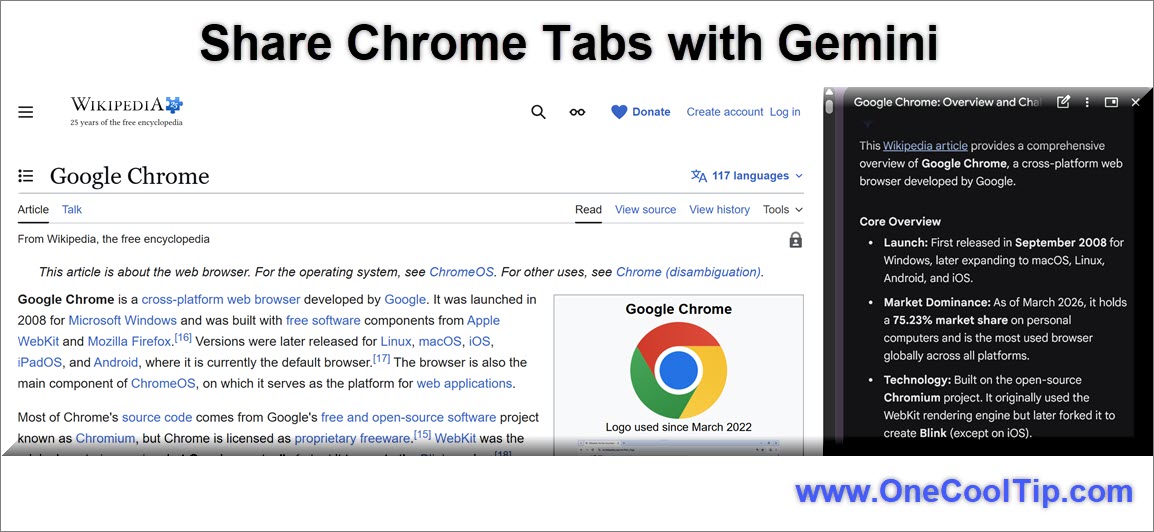
fig. 1 - Share Chrome Tabs with Gemini Example

Pros and Cons


Pros:


  • Incredible speed for researchers who need to jump between multiple sources quickly.
  • Reduced cognitive load since the "sharing" happens at the system level rather than through manual input.
  • Privacy considerations require users to be mindful of sharing tabs containing sensitive or personal account information.


Cons:


  • Currently works best with public-facing text; pages behind heavy paywalls or complex logins may struggle to render fully for the AI.


Feature Access


This feature is currently available to users with a personal Google account and users with a Google Workspace subscription that has Gemini enabled. 


It requires the desktop version of Google Chrome. 


Availability is currently rolling out globally.


Score

Criterion | Score (0–10) | Justification
Value | 9 
It solves a fundamental friction point in digital research and data gathering.
Usability | 10 
Right-clicking a tab is a natural browser habit, making this incredibly easy to adopt.
Wow Factor | 7 
Seeing the AI instantly "read" your active window feels like a significant jump in browser intelligence.
Total: 26/30 |  🌟 Excellent
These UI shortcuts make Gemini feel like a native part of the web browsing experience rather than a separate tool.


Key Takeaways


Sharing tabs with Gemini via the "Ask Gemini" icon or right-click menu turns your browser into a smart research assistant that understands context with a single click. 


This integration reduces the "copy-paste tax" and allows for faster, more accurate data synthesis directly from your active browser windows.


Cool Tip Snapshot


  • Feature Name: Chrome Tab Sharing UI (Web)
  • Platform(s): Windows, macOS, ChromeOS
  • Quick Benefit: Analyze or summarize any open webpage via a simple right-click or address bar icon.
  • Access Type: Free (with Google Account)


Try It Yourself


Open a complex article you have been meaning to read, right-click the tab, and select "Share with Gemini." 


It is the fastest way to stay informed without the information overload. 


If you found this tip helpful, please share this article with your team and friends to help them boost their productivity too.


READ MORE


Read the Cool Tip on OneCoolTip.com.

Check out these Cool Tips & Tricks.


  • Extension Activation: Enable the Google Workspace extension first. Go to Gemini settings and toggle on Workspace to allow Chrome shortcuts to function.


  • Sparkle Shortcut: Use the address bar icon. Click the sparkle icon in the Omnibox for the fastest way to analyze a page.


  • Right-Click Power: Share via tabs. Right-click any open tab at the top of your browser to find the "Share with Gemini" option.


  • Speedy Summaries: Ask for bullet points. Prompt Gemini to "summarize this shared tab in five bullets" for the fastest reading experience.


  • Multi-Tab Analysis: Chain your shares. Open multiple tabs, share them one by one, and ask Gemini to synthesize the data from all of them.


  • PDF Analysis: Open PDFs in Chrome. Since Chrome can view PDFs, you can right-click a PDF tab to share it with Gemini for document analysis.


  • Privacy First: Check your tab content. Ensure no sensitive bank or password data is visible on a page before sharing the tab with Gemini.


  • Language Translation: Translate entire pages. Share a foreign language tab and ask Gemini to explain the content in English.


  • Citation Help: Generate instant citations. Ask Gemini to provide a citation for the page currently shared via the tab shortcut.


  • Refresh Connection: Re-share for updates. If the webpage content changes, click the Ask Gemini icon again to ensure the AI sees the latest version.


ICYMI - In Case You Missed It ...

A Faster Way to Search Images in Windows 11 With the Edge Search Bar


The Edge Search Bar in Windows 11 now includes a simple way to search the web using any image. This quick tip shows how to use the new "Search images" option to identify objects, find similar photos, and explore visual matches without opening a full browser window.


Read the Full Cool Tip.


Read the Newsletter Version.

Looking for your next adventure?


Call Denise at Travel For You.

314.660.3039


Sign Up for the Monthly Newsletter


http://www.travelforyouvacations.com/


https://www.facebook.com/TRAVEL.FOR.U/


See You Tomorrow

Tomorrow's Cool Tip is waiting to amaze you.


Until then, go forth and conquer the tech world with your newfound knowledge!


Be sure to visit www.OneCoolTip.com for Cool Tech Tips for a Cooler Life!


And if you Like One Cool Tip, please support with TipJar!


Enjoy!


Rodger

Chief Cool Tipper

onecooltip.com@gmail.com


What Do You Think?

What do you think of today's OneCoolTip newsletter?
Positive        Neutral        Negative
X Share This Email
LinkedIn Share This Email

Connect with One Cool Tip!!

Facebook  X  Instagram  Web  Pinterest  YouTube  LinkedIn
 

As an Amazon Associate, One Cool Tip may earn a small commission from qualifying purchases.


Our media content is intended solely for informational purposes only. Please do not construe anything here as legal, tax, investment, financial, marital or other advice.


Copyright © 2026 | www.OneCoolTip.com | All Rights Reserved