One Cool Tip Newsletter

September 16, 2026

Your daily dose of tech-savvy brilliance!

😀Greetings! Happy Windows Wednesday, Cool Tipper!


Get ready to streamline your digital life with simple, actionable tips delivered straight to your inbox.


Cool Tip Theme: Windows 11 Emergency Fix


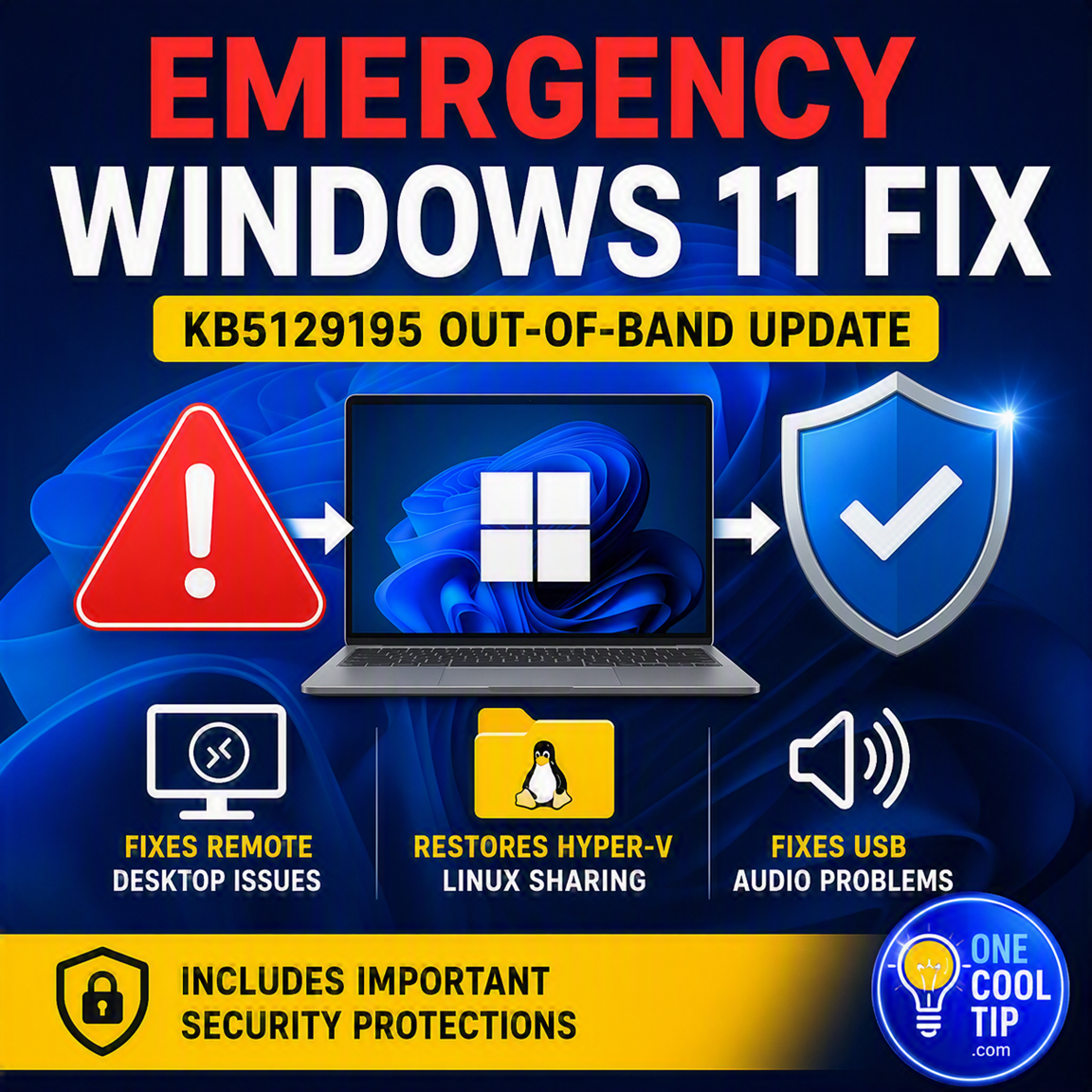
Microsoft’s emergency Windows 11 update fixes Remote Desktop, Hyper-V, and USB audio problems. See who needs KB5129195 and how to get it.


New here? Subscribe to the One Cool Tip Newsletter for daily updates. It's FREE!

3️⃣

If you enjoy the One Cool Tip newsletter, please forward this newsletter to THREE friends or colleagues or share it on social media using the links below.


Leave a $$$ Tip!


Share this One Cool Tip Newsletter!

X Share This Email
LinkedIn Share This Email
Pinterest Share This Email

🚨That Great Deal Online Could Be a Very Expensive Scam🚨


The FTC is warning consumers about scammers who impersonate legitimate businesses and advertise products that don't actually exist.


In one recent scheme, fraudsters posed as farm equipment dealers, created convincing ads and invoices, collected payment, and then disappeared without delivering the product.


The lesson applies far beyond farm equipment.


Before making a major purchase online, research the company, search for complaints, and verify that you're dealing with the real business.


Be especially cautious with sponsored search results and social media ads, which may not always be thoroughly vetted.


Most importantly, never send money by wire transfer, gift card, cryptocurrency, or other hard-to-recover payment methods when buying from an unfamiliar seller.


A few minutes of verification can help you avoid losing thousands of dollars to an impersonation scam.


And in Other News...


  • Could AI Ever Deserve Rights? A New Debate Is Emerging


As artificial intelligence becomes more advanced, a growing debate is taking shape around a surprising question: should AI systems ever be treated as if they have rights, feelings, or interests of their own?


In a recent essay, Mustafa Suleyman (Microsoft AI Chief) argues that today's AI systems are not conscious and warns that training them to act as if they have emotions or personal interests could create new safety and control challenges.


At the same time, some researchers believe it is worth exploring these questions now, especially as AI becomes more capable and human-like in its interactions.


The discussion highlights just how quickly AI is evolving and how many important questions remain unresolved.


Supporters see AI as a powerful tool that could help solve major problems, while critics emphasize the need for caution, transparency, and strong safeguards.


The good news is that experts across the spectrum agree on one thing: these conversations should happen openly before the technology becomes even more deeply embedded in our lives.


  • Tuesday's One Cool Tip Newsletter


If you didn't correctly receive Tuesday's newsletter, here's a link:


Turn Your Scattered Digital Day into Custom Illustrated Stories

Google Labs has opened Dreambeans to all U.S. accounts. Learn how this proactive AI tool connects your daily apps into custom illustrated digests.

Cool Tip Poll

🤔 Has the latest Windows 11 emergency update fixed a problem for you?

Cool Deals of the Day

Help support One Cool Tip. Use this Amazon link when you shop online.


Check out these Cool Deals:

🔌 APC BE600M1 UPS Battery Backup

 This 600VA/330W UPS provides battery-backed power for equipment such as a computer, router, or network-storage device, reducing the risk of an outage interrupting an update.

Look👉 Now $83.99. 4.5 Stars. Check it out on Amazon!


*Prices accurate when originally published.

One Cool Tip may earn a commission from qualifying purchases.

Fuel Your Adventure

Try Big Mike's Jerky!


bigmikesjerky.com


Now on TikTok!


Today's Cool Tip

Microsoft’s Emergency Windows 11 Fix Tackles Major Problems


Microsoft has released an emergency Windows 11 update to repair Remote Desktop, Hyper-V file-sharing, and multichannel USB audio problems. The cumulative update also includes protection against an elevation-of-privilege vulnerability, making it an important release for affected users and IT teams.


A Windows update can quickly become a business problem when remote employees cannot sign in, virtual machines lose access to shared folders, or specialized audio equipment stops working correctly.


Here’s a Cool Tip: Check Windows Update now if Remote Desktop, Hyper-V, or USB audio recently stopped working.


Microsoft released KB5129195 on September 14, 2026, outside its regular update schedule. 


The cumulative out-of-band update applies to Windows 11 versions 25H2 and 24H2 and brings those systems to OS builds 26200.9457 and 26100.9457, respectively.


The update addresses several issues introduced or exposed by the September 2026 Windows security updates. 


The failures affected Remote Desktop Services, host-folder sharing with certain Linux virtual machines, and some multichannel USB audio configurations. 


It also includes protections documented under CVE-2026-62721, a Windows User-Mode Power Service elevation-of-privilege vulnerability.


Feature Explanation


KB5129195 is a cumulative out-of-band update. 


“Cumulative” means it includes applicable fixes from earlier releases along with the newly added security and reliability improvements. 


“Out-of-band” means Microsoft released it outside the company’s normal monthly update schedule.


The most urgent correction concerns Remote Desktop Services. 


After installation of the September 2026 Windows security update, affected environments could experience failed Remote Desktop connections, sign-in failures, or servers becoming unresponsive during Remote Desktop configuration. 


Related tools, including Microsoft Management Console, RDS Licensing Diagnoser, File Explorer, and the Windows Update page, could also stop responding.


The Hyper-V correction is more specialized but important to developers and administrators. 


Some applications using Host Compute System-managed virtual machines could not share a Windows host folder with a Linux guest through Plan9. 


The shared folder might not appear or could remain inaccessible inside the virtual machine.


Microsoft also fixed failures affecting some USB Audio Class 1.0 devices. 


These devices could work in standard stereo but fail when users selected 8-channel or 3D audio modes. 


USB audio symptoms remain unresolved, so this update should not be treated as a universal audio repair.


For home users, the update may have little visible effect unless they use the affected hardware or services. 


For businesses running Remote Desktop or virtualized Linux workloads, however, the repair can restore access to essential systems.


What You’ll Gain


  • Restore Remote Desktop connections and sign-ins in affected environments.
  • Recover access to Windows folders shared with certain Linux virtual machines.
  • Restore supported multichannel modes on affected USB Audio Class 1.0 devices.
  • Receive the security protections included with the cumulative update.


Step-by-Step Instructions


Here's how to do it.


Windows


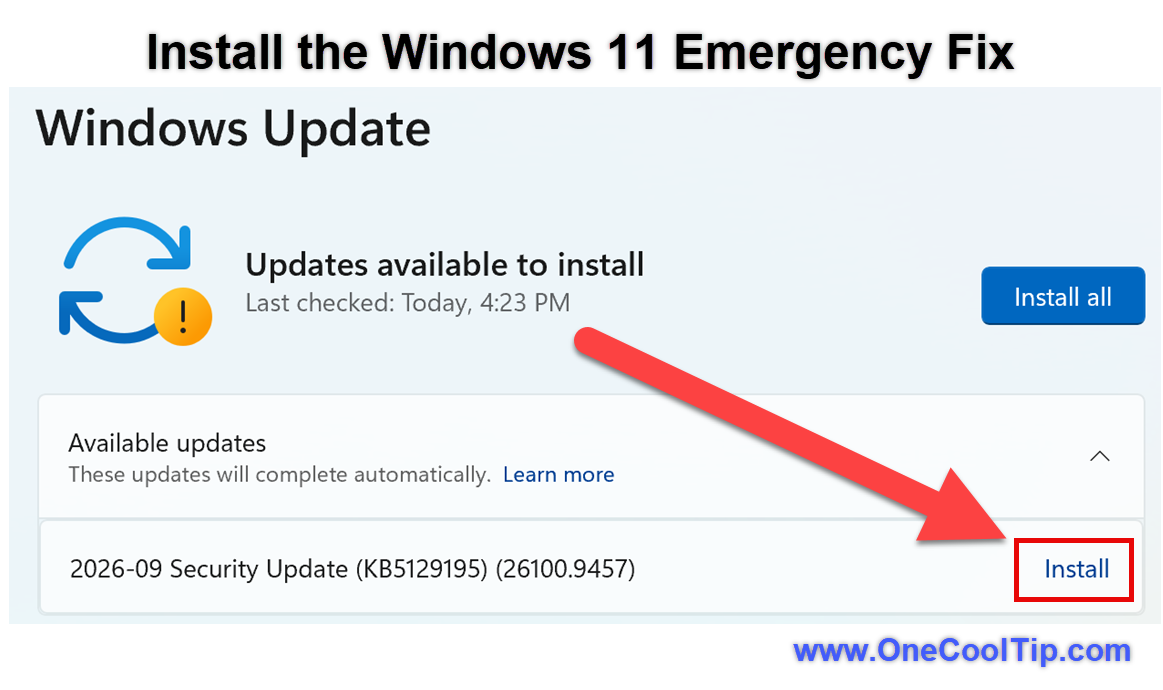
  1. Open Start and select Settings.
  2. Select Windows Update.
  3. Click Check for updates.
  4. Allow Windows to download and install the available cumulative update.
  5. Restart the computer if Windows requests it.
  6. Return to Settings > Windows Update > Update history.
  7. Look for KB5129195 and confirm that Windows lists it as successfully installed.


fig. 1 - Install the Windows 11 Emergency Fix

Pros and Cons


Pros:


  • Fixes Remote Desktop connection and sign-in failures that can interrupt business operations.
  • Repairs Plan9 folder sharing for affected Hyper-V-based Linux environments.
  • Restores certain 8-channel and 3D audio configurations.
  • Includes protections related to CVE-2026-62721.
  • Installs automatically through regular Windows Update channels on eligible systems.


Cons:


  • Applies specifically to supported Windows 11 versions and builds.
  • Requires normal Windows update installation and may require a restart.
  • Does not resolve every reported USB Audio Class 1.0 symptom.
  • Business deployment timing may depend on Windows Update for Business, WSUS, or other administrative policies.


Feature Access


  • Who gets it: Eligible devices running Windows 11 version 24H2 or 25H2.
  • Supported platform: Windows 11.
  • Consumer delivery: Windows Update and Microsoft Update.
  • Availability note: Deployment timing on managed devices depends on organizational policies.


Score

Criterion | Score (0–10) | Justification
Value | 9
The update repairs problems that can block remote access, disrupt development environments, or disable specialized audio configurations. It also adds security protections.
Usability | 9
Eligible devices can receive the update automatically through Windows Update, although enterprise deployment and manual catalog installation require additional care.
Wow Factor | 5
This is an important repair rather than an exciting new feature. Its impact is substantial for affected users, but largely invisible elsewhere.
Total: 23/30 | 👍 Good 
KB5129195 is a practical and important update for affected Windows 11 users, especially businesses relying on Remote Desktop and developers working with Linux virtual machines.
Compared with a routine cumulative update, this release is more urgent because Microsoft issued it outside the regular schedule to correct several known problems.


Key Takeaways


Microsoft’s emergency Windows 11 update repairs specific Remote Desktop, Hyper-V, and multichannel USB audio failures while adding an important security protection. 


Eligible users can receive it through Windows Update, but managed computers may need administrator approval or deployment.


Cool Tip Snapshot


  • Feature Name: KB5129195 Out-of-Band Update.
  • Platform(s): Windows 11 version 24H2 and 25H2.
  • Quick Benefit: Repairs Remote Desktop, Hyper-V sharing, and multichannel USB audio problems.
  • Best For: Businesses, IT teams, developers, creators, and affected home users.
  • Access Type: Free.
  • Difficulty: Easy.


Try It Yourself


Open Settings > Windows Update, check for updates, and confirm whether KB5129195 is installed. 


Tell us whether it solved your Windows problem, subscribe to the One Cool Tip newsletter, and share this Cool Tip with family, friends, and coworkers who depend on Windows 11.


READ MORE


Read the Full Cool Tip.

Check Out These Cool Tips & Tricks


  • Back Up First: Protect important documents before installing major operating-system updates. Copy essential files to OneDrive or an external drive before beginning.


  • Check Your Version: Confirm that an update applies to your edition of Windows before searching for it manually. Go to Settings > System > About and review the Windows specifications.


  • Use Update History: Verify whether a Windows patch installed successfully instead of relying on memory. Open Settings > Windows Update > Update history and search for its KB number.


  • Schedule Restarts: Prevent Windows from restarting during an important task. Open Settings > Windows Update > Advanced options > Active hours and set your normal working period.


  • Test Remote Access: Confirm Remote Desktop functionality before an employee needs it urgently. After updating, connect from an approved remote device and complete a test sign-in.


  • Create Recovery Media: Keep a bootable recovery option available for serious startup problems. Search Windows for Recovery Drive, connect a suitable USB drive, and follow the prompts.


  • Pause Carefully: Pause updates only when troubleshooting a known conflict or following IT guidance. Use Settings > Windows Update > Pause updates, then resume protection as soon as practical.


  • Restart Fully: A shutdown may not always provide the same update-completion behavior as a restart. Select Start > Power > Restart after installing an update when prompted.


  • Check Known Issues: Read Microsoft’s release notes before assuming a patch fixes every related symptom. Search the official support page for the KB number and review its Known issues section.


  • Follow IT Policy: Avoid manually installing catalog packages on a managed business computer. Contact your administrator and allow the organization’s approved update system to handle deployment.

ICYMI - In Case You Missed It ...

Let a ChatGPT Pet Keep Watch Over Your Work


The ChatGPT Pets feature adds an animated companion that can show when work is running, waiting for input, ready, or blocked. Here is how to choose a pet, wake it, create a custom character, and understand what works in the desktop app, on the web, and in Codex CLI.


Read the Full Version.


Read the Newsletter Version.

Looking for your next adventure?


Call Denise at Travel For You.

314.660.3039


Sign Up for the Monthly Newsletter


http://www.travelforyouvacations.com/


https://www.facebook.com/TRAVEL.FOR.U/


See You Tomorrow

Tomorrow's Cool Tip is waiting to amaze you.


Until then, go forth and conquer the tech world with your newfound knowledge!


Be sure to visit www.OneCoolTip.com for Cool Tech Tips for a Cooler Life!


And if you Like One Cool Tip, please support with TipJar!


Enjoy!


Rodger

Chief Cool Tipper

onecooltip.com@gmail.com


What Do You Think?

What do you think of today's OneCoolTip newsletter?
Positive        Neutral        Negative
X Share This Email
LinkedIn Share This Email

Connect with One Cool Tip!

Facebook  X  Instagram  Web  Pinterest  YouTube  LinkedIn
 

As an Amazon Associate, One Cool Tip may earn a small commission from qualifying purchases.


Our media content is intended solely for informational purposes. Please do not construe anything here as legal, tax, investment, financial, marital or other advice.


Copyright © 2026 | www.OneCoolTip.com | All Rights Reserved