One Cool Tip Newsletter

August 24, 2026

Your daily dose of tech-savvy brilliance!

😀Greetings! Happy Monday, Cool Tipper!


Get ready to streamline your digital life with simple, actionable tips delivered straight to your inbox.


Cool Tip Theme: Microsoft Word's Link to Location


Microsoft Word's new Link to Location feature lets you send colleagues directly to specific content in shared documents and save time reviewing files.


New here? Subscribe to the One Cool Tip Newsletter for daily updates. It's FREE!

3️⃣

If you enjoy the One Cool Tip newsletter, please forward this newsletter to THREE friends or colleagues or share it on social media using the links below.


Leave a $$$ Tip!


Share this One Cool Tip Newsletter!

X Share This Email
LinkedIn Share This Email
Pinterest Share This Email

🚨Veterans, Don't Be Fooled by This Simple Scam🚨


A new scam is targeting veterans that claims recipients may qualify for extra monthly benefits through a so-called “Veterans Savings Program.”


The FTC warns that this program does not exist and is being used to trick people into sharing sensitive information.


Scammers may include references to real VA benefits and create a sense of urgency to make the offer seem legitimate.


If you receive a notice like this, do not call the number listed or provide personal details such as your Social Security number or bank account information.


Instead, contact the Department of Veterans Affairs directly using a trusted phone number, such as the VA Benefits Hotline at 1-800-827-1000.


A few minutes of verification can help protect your identity and your finances.


And in Other News...


  • Most Excel Users Won't Notice This AI Change


Microsoft is retiring an experimental Excel feature called =COPILOT(), which allowed select preview users to generate spreadsheet content using natural language.


The feature was available only through Microsoft's Insider and Frontier testing programs and was never widely released to all Excel users.


The good news is that Copilot is not going away.


Excel users can continue using AI-powered tools through the Copilot side pane, which offers many of the same capabilities, including summarizing text, generating content, and helping with data-related tasks.


The takeaway: Microsoft's AI features in Excel are still expanding, but the company is focusing on integrating them into a single, streamlined Copilot experience.

Cool Tip Poll

🤔 How would you most likely use Microsoft Word's new "Link to Location" feature?

Cool Deals of the Day

Help support One Cool Tip. Use this Amazon link when you shop online.


Check out these Cool Deals:

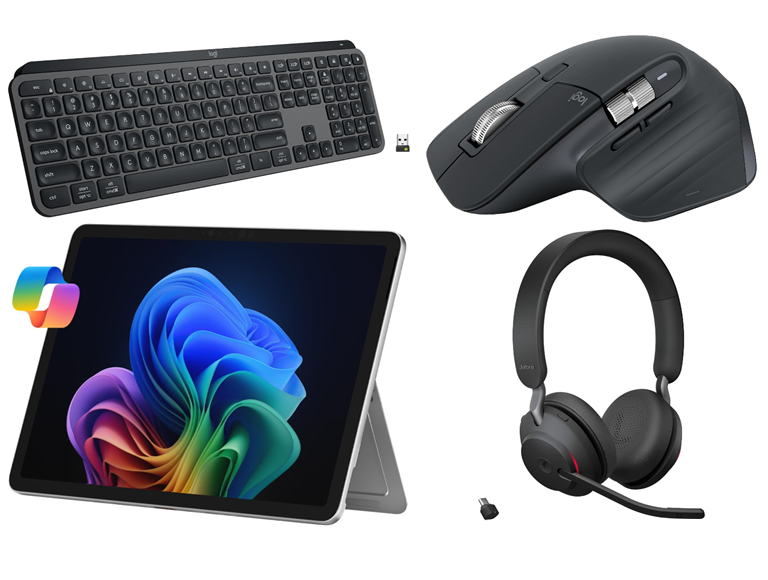
🖥️ Logitech MX Keys S Keyboard: Excellent for Word power users and heavy document editing.

Save 15%. Now $110.49. 4.4 Stars. Check it out on Amazon!


🖱️ Logitech MX Master 3S Mouse: Makes navigating large documents and multitasking easier.

Save 20%. Now $79.99. 4.5 Stars. Check it out on Amazon!


💻 Microsoft Surface Pro: Combines tablet flexibility with desktop Word productivity.

Save 10%. Now $949.99. 4.2 Stars. Check it out on Amazon!


🎧 Jabra Evolve2 Headset: Ideal for document reviews and collaborative meetings.

Save 27%. Now $208.89. 4.4 Stars. Check it out on Amazon!


*Prices accurate when originally published.

One Cool Tip may earn a commission from qualifying purchases.

Fuel Your Adventure

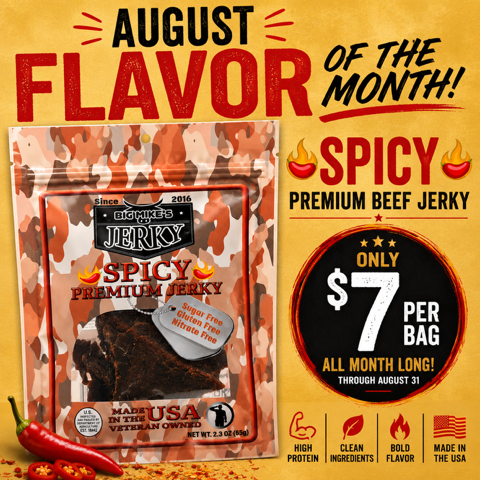
Try Big Mike's Jerky!


bigmikesjerky.com


Now on TikTok!


Today's Cool Tip

Word's New Link to Location Feature Ends the "Scroll Down" Problem


Microsoft Word now lets you create a direct link to a specific location inside a document. If you work with long reports, proposals, research papers, or shared team documents, this feature can eliminate a surprising amount of friction.


If you've ever reviewed a long Word document with coworkers, clients, or classmates, you've probably heard some version of this request:


"Scroll down a little farther."


"No, keep going."


"You're almost there."


Finding a specific paragraph in a lengthy document often takes longer than discussing the content itself.


Here's a Cool Tip: Share the exact paragraph, not the page number.


Microsoft is trying to solve that problem with a new feature called Link to Location.


Instead of telling someone where to look, you can create a direct link to a specific section of a Word document. 


When an authorized recipient opens the link, Word takes them straight to the content you selected. 


The feature is designed to make reviewing, discussing, and collaborating on documents easier.


For anyone who spends their day reviewing reports, policies, proposals, contracts, or research papers, this is one of those small improvements that can remove a recurring annoyance.


Feature Explanation


Microsoft's new Link to Location feature allows users to create a shareable link that points to a specific location within a Word document. 


Instead of directing someone to a page, chapter, heading, or section title, you can generate a link that opens directly to the content you want them to see.


The feature is particularly valuable for:


  • Business professionals reviewing reports and proposals.
  • Educators providing feedback on assignments.
  • Students collaborating on group projects.
  • Project managers coordinating document revisions.
  • Legal, compliance, and policy teams working with lengthy documents.


What You'll Gain


  • Find important content faster in lengthy documents.
  • Reduce confusion during reviews and approval cycles.
  • Make conversations in Teams and email more precise.
  • Spend less time explaining where information is located.


Step-by-Step Instructions


Here's how to do it.


Windows


  1. Open a supported Microsoft Word document stored in the cloud.
  2. Select the text or content you want to reference.
  3. Right-click the selection.
  4. Choose Copy Link to Location. 
  5. Paste the generated link into email, Teams, chat, or another collaboration tool.
  6. Recipients with access can open the document at the specified location. 


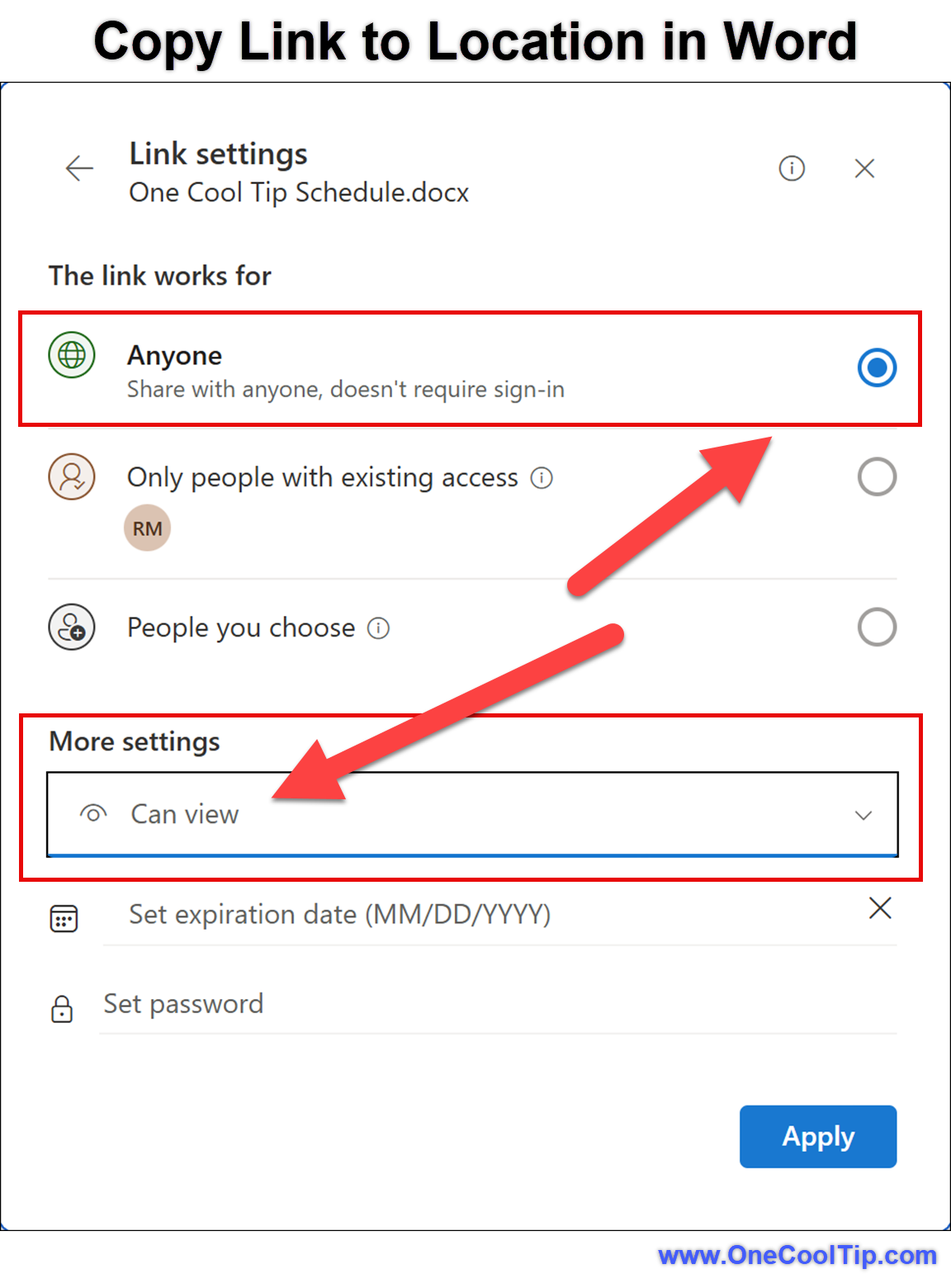
Cool Permission Tip: 


  • Before sharing a Link to Location, review the document's sharing settings. 
  • Select Share and open Link Settings (if available) to choose who can access the document, such as specific people, people in your organization, or anyone with the link. 
  • You can also choose whether recipients can edit the document or view only. 
  • Available options may vary based on your Microsoft 365 account, organizational policies, and sharing configuration.


fig. 1 - Copy Link to Location in Word

macOS


  1. Open a supported Word document.
  2. Highlight the desired section.
  3. Right-click the selected content.
  4. Select Copy Link to Location.
  5. Share the generated link with collaborators.
  6. Recipients should be taken directly to the referenced content.


Pros and Cons


Pros:


  • Eliminates the need to manually direct users to specific pages.
  • Speeds up document reviews and feedback cycles.
  • Works well for large reports, proposals, and research papers.
  • Makes Teams and email conversations more precise.
  • Requires very little training because it's built into the right-click menu.


Cons:


  • Microsoft currently documents the feature for Word on Windows and Mac.
  • Recipients must already have access to the document.
  • Availability may vary depending on application version and deployment timing.
  • Organizations with strict sharing policies may limit how links are used.


Feature Access


  • Word for Windows: Version 2605 (Build 20011.20000) or later.
  • Word for Mac: Version 16.109 (Build 26051019) or later.
  • Supported Platforms: Windows, macOS
  • Rollout Status: Available in supported versions of Word for Windows and Mac. Availability may vary depending on update channel, organization policies, account type, deployment schedule, and app version.


Score

Criterion | Score (0–10) |  Justification
Value |  8
Solves a common collaboration problem and reduces document review friction.
Usability |  9
Easy to discover, simple to use, and built directly into Word's context menu.
Wow Factor |  5
Helpful and practical, but more of a quality-of-life improvement than a breakthrough feature.
Total: 22/30 |  👍 Good
Link to Location won't change how you write documents, but it can significantly improve how teams discuss and review them. The experience feels similar to sharing direct links to comments or sections in Google Docs, but tailored to Word's document collaboration workflow.


Key Takeaways


Microsoft's new Link to Location feature removes one of the most common frustrations in document collaboration: telling people where to look. 


By allowing users to share direct links to specific content, Word makes reviews, approvals, and feedback conversations faster and more efficient. 


For teams working in large documents every day, the time savings can add up quickly.


Cool Tip Snapshot


  • Feature Name: Link to Location
  • Platform(s): Microsoft Word for Windows, Microsoft Word for Mac
  • Quick Benefit: Jump directly to specific content inside a document
  • Best For: Business users, students, educators, project teams
  • Access Type: Rolling Out / Supported Versions Required
  • Difficulty: Easy


Try It Yourself


Open a long Word document today, create your first Link to Location, and see how much easier document collaboration becomes. 


Share your experience in the comments, subscribe to the One Cool Tip newsletter, and share this article with family, friends, and coworkers.


READ MORE


Read the Full Cool Tip.

Check Out These Cool Tips & Tricks


  • Use Styles: Apply Word’s built-in heading styles so the Navigation pane can organize long documents. Select a heading and choose a style from Home > Styles.


  • Open Navigation: Use the Navigation pane to jump between headings without scrolling. Select View > Navigation Pane.


  • Add Bookmarks: Create a permanent named destination for internal links and cross-references. Select the destination and choose Insert > Bookmark.


  • Link Internally: Turn text into a link to an existing heading or bookmark. Select the text, press Ctrl+K, and choose Place in This Document.


  • Share Carefully: Check document permissions before sending a location link. Select Share and review the people, groups, and access level listed.


  • Use Comments: Attach a question directly to a passage when you need feedback instead of only directing someone to it. Select the text and choose Review > New Comment.


  • Track Changes: Record edits during a collaborative review. Select Review > Track Changes before revising the document.


  • Compare Versions: Identify differences between two copies of a document. Choose Review > Compare > Compare and select the original and revised files.


  • Update Word: Install current builds when a newly announced command is missing. On Windows, use File > Account > Update Options > Update Now.


  • Test Links: Open a newly created location link before distributing it widely. Paste it into a private browser window or send it to a test account with the intended permission level.

ICYMI - In Case You Missed It ...

Paint Abstract AI Masterpieces With Google Splash Canvas


Create digital masterpieces using playful sea creatures as your paintbrushes. Google Arts and Culture Splash Canvas brings fluid physics and artificial intelligence together for a highly interactive creative experience.


Read the Full Version.


Read the Newsletter Version.

Looking for your next adventure?


Call Denise at Travel For You.

314.660.3039


Sign Up for the Monthly Newsletter


http://www.travelforyouvacations.com/


https://www.facebook.com/TRAVEL.FOR.U/


See You Tomorrow

Tomorrow's Cool Tip is waiting to amaze you.


Until then, go forth and conquer the tech world with your newfound knowledge!


Be sure to visit www.OneCoolTip.com for Cool Tech Tips for a Cooler Life!


And if you Like One Cool Tip, please support with TipJar!


Enjoy!


Rodger

Chief Cool Tipper

onecooltip.com@gmail.com


What Do You Think?

What do you think of today's OneCoolTip newsletter?
Positive        Neutral        Negative
X Share This Email
LinkedIn Share This Email

Connect with One Cool Tip!!

Facebook  X  Instagram  Web  Pinterest  YouTube  LinkedIn
 

As an Amazon Associate, One Cool Tip may earn a small commission from qualifying purchases.


Our media content is intended solely for informational purposes only. Please do not construe anything here as legal, tax, investment, financial, marital or other advice.


Copyright © 2026 | www.OneCoolTip.com | All Rights Reserved