One Cool Tip Newsletter

April 2, 2025

Your daily dose of tech-savvy brilliance!

😀Hello Rodger, Happy Wednesday, Cool Tipper!


Get ready to streamline your digital life with simple, actionable tips delivered straight to your inbox.


Today's Cool Tip Theme: Back to Work Monday with Microsoft Word


IN THIS ISSUE


  • 🚨 FBI Warning: Violent Online Blackmail.
  • 📱 iPhone App Issue.
  • 🚀 Maximize Midweek Productivity.
  • 💾 Windows Storage Sense.
  • 🛠️ Unlock Windows PowerToys.
  • ✍️ Control Windows Autocorrect.
  • 🖱️ Quickly Resize Desktop Icons.


New here? Subscribe to the One Cool Tip Newsletter for daily updates. It's FREE!


  • 😂 Laugh with Us! Enjoy our Tech Joke of the Day, Haiku and Cool Tip Comics.


  • 🌐 Stay Informed! Check out ICYMI, and our One Cool Tip Video.


🔔 Is your email provider (Gmail, Yahoo, Outlook...) not delivering the newsletter? 


Check the Junk folder - Move the newsletter to your Inbox. And reply to this email with a “Hey, Rodger” or “I got it.” That tells your mail service you want this newsletter!


Today's Tech Trivia


Which version of Windows first introduced Storage Sense as a feature?


A. Windows 7

B. Windows 8.1

C. Windows 10

D. Windows 11


Answer at the end.

3️⃣

If you enjoy the One Cool Tip newsletter, please forward this newsletter to THREE friends or colleagues or share it on social media using the links below.


Share this One Cool Tip Newsletter!

X Share This Email
LinkedIn Share This Email
Pinterest Share This Email


🔥Hot Topics 🔥

🚨Violent Blackmail🚨


Stay vigilant against online threats targeting vulnerable populations.


The FBI warns of violent online networks exploiting minors and individuals with mental health challenges.


These networks use manipulation, blackmail, and extortion to coerce victims into harmful activities, including self-harm and sharing explicit content.


Protect yourself and loved ones by monitoring online interactions, educating about risks, and reporting suspicious activity to the Internet Crime Complaint Center.


Awareness is key to prevention!


Stay safe and scam-free!


And in Other News...


  • iPhone Zombie Apps


Some users are reporting that iOS 18.4 is reinstalling previously deleted apps on their iPhones. If you notice this issue, check your App Store settings and ensure automatic downloads are disabled. You can also manually remove any unwanted apps that reappear.


  • 🚀 Boost Your Wednesday Productivity!


Copy/Paste this AI-powered productivity prompt to stay focused and organized with your favorite AI assistant: Gemini, Copilot, Grok, DuckAI, Meta and ChatGPT.


"It's Wednesday, and I want to maximize my productivity to set myself up for a strong end to the week. Here are my main tasks and meetings for today:

  • [List your tasks, e.g., Draft project X report]
  • [List another task, e.g., Prepare slides for Friday meeting]
  • [Mention meetings, e.g., Team sync at 1 PM]
  • [Add any other obligations]

Analyze this list and suggest the top 3 most impactful tasks I should focus on completing today. Explain why these are the priorities based on potential impact or deadlines."


Today's Cool Tip

Unlock the Power of Microsoft Windows Storage Sense


Ever wondered why your computer slows down or runs out of space at the most inconvenient times?


Here's a Cool Tip:  Turn on Windows Storage Sense.


Microsoft Windows Storage Sense acts as your silent assistant, automatically freeing up drive space and ensuring your device runs smoothly. 


But how does it work, and why should you care? Let’s explore.


What is Storage Sense?


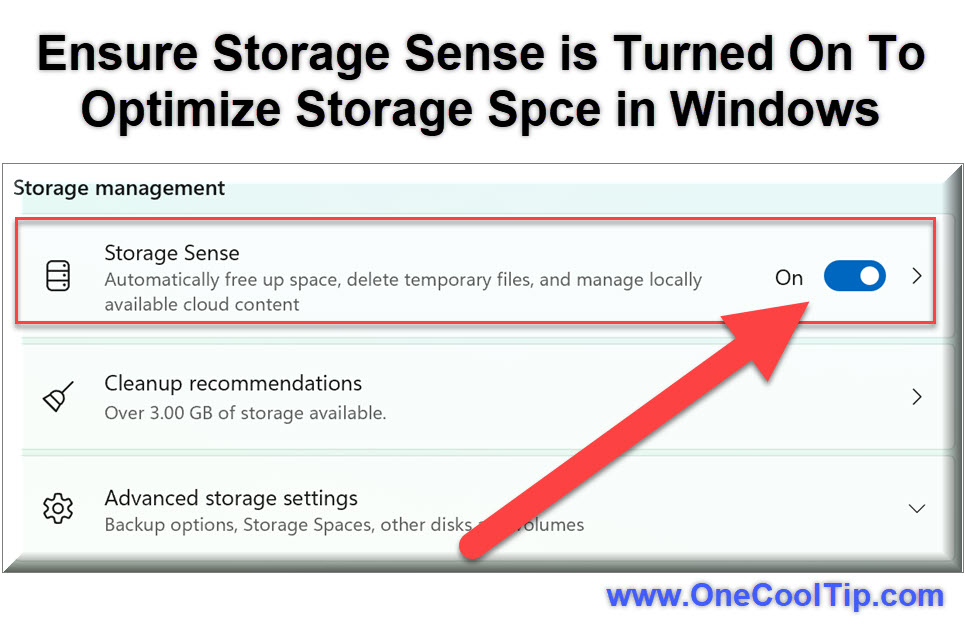
Storage Sense is a feature designed to optimize your system’s storage by automatically removing unnecessary files, such as temporary files and items in the Recycle Bin. 


It works exclusively on your system drive (usually labeled as C:) and can be customized to suit your needs.


Key Functions and Benefits


Storage Sense provides valuable benefits:


  • Automatic Cleanup: Deletes temporary files and old Recycle Bin items to free up space.
  • Cloud Integration: Manages locally available OneDrive files, making them online-only when not in use.
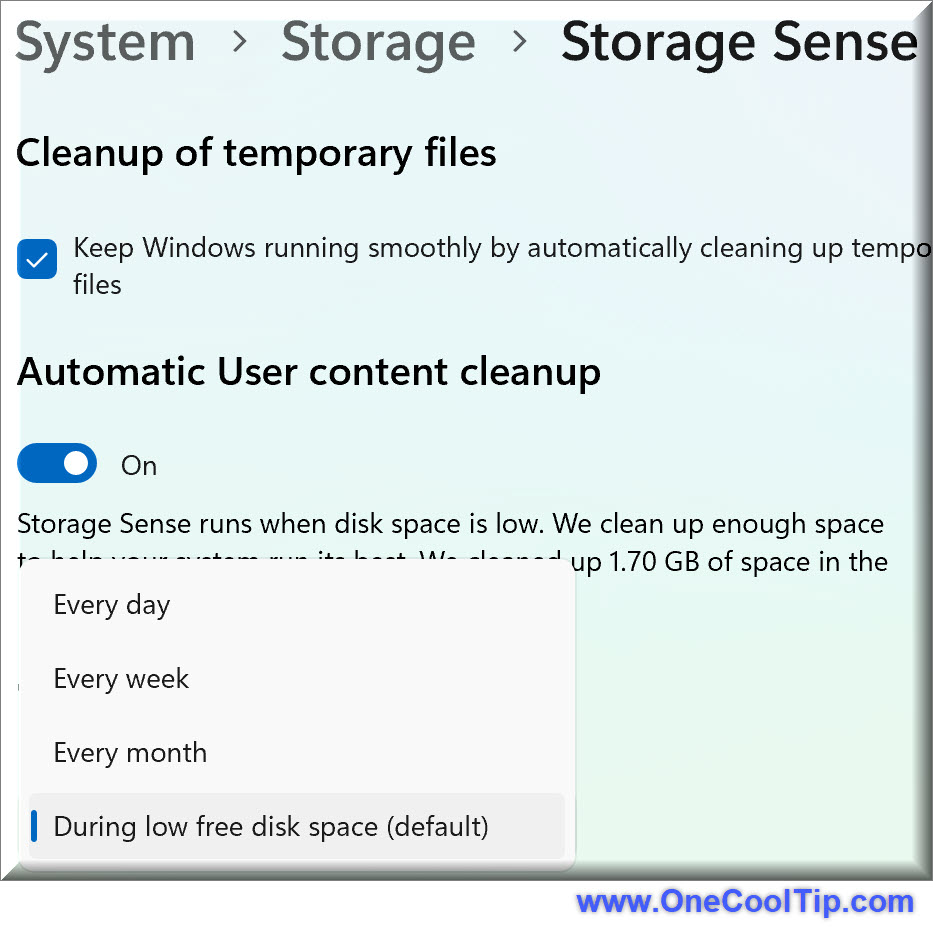
  • Customizable Settings: Allows users to choose when and how Storage Sense runs.
  • Improved Performance: Keeps your device running efficiently by preventing storage-related slowdowns.


Here's how to do it.


  1. Go to Start > Settings > System > Storage.
  2. Toggle Storage Sense to "On."
  3. Click  Storage Sense.
  4. Choose how often Storage Sense runs and what files to clean up.


Pro Cool Tip: Run Storage Sense manually at least once by clicking "Run Storage Sense Now" after configuring it. This ensures everything is cleaned according to your selected options and gives you immediate benefits.


Microsoft Windows Storage Sense is a game-changer for anyone struggling with limited drive space. 


By automating cleanup tasks and optimizing storage, it ensures your device runs efficiently and reliably. 


Don’t let storage woes slow you down—embrace the power of Storage Sense today.


What are your thoughts on Storage Sense? 


Share your experiences in the comments below, subscribe for more tech tips, and spread the word by sharing this article on social media.


READ MORE


Read the Full Cool Tip

Cool Thoughts

🆒Tell Me More


  • Storage Sense works silently in the background to free up space on your system drive.


  • It can be customized to delete files from specific locations, like the Downloads folder.


  • The feature integrates with OneDrive to manage locally available cloud content.


  • You can schedule Storage Sense to run at regular intervals.


  • It’s available on Windows 10 and later versions.


⏩Quick Tips


  • 🛠 Enable Storage Sense: Go to Start > Settings > System > Storage and toggle Storage Sense to "On."


  • 🗑️ Customize Cleanup: Choose what files Storage Sense should delete by adjusting settings under "Configure Storage Sense."


  • 📅 Schedule Cleanup: Set Storage Sense to run daily, weekly, or monthly in the settings menu.


  • 🌐 Manage Cloud Content: Use Storage Sense to make unused OneDrive files online-only.


  • 🔍 Check Disk Space: Monitor your drive space by navigating to Start > Settings > System > Storage.


✅ More Must-Read Tech Tips.


👀 How Do I Use Windows PowerToys?


Have you ever felt that your Windows 11 experience could be more efficient? 


Are you looking to boost your productivity with tools designed by power users for power users?


Struggling with cluttered desktops and inefficient workflows? 


Here's a Cool Tip for the tech-savvy.  Use PowerToys for Windows 11.


PowerToys for Windows 11 is a collection of utilities designed to enable power users to tune and streamline their Windows experience for greater productivity. 


These utilities offer a variety of features such as advanced window management, key remapping, bulk file renaming, and more, allowing users to customize their system to better suit their workflow. 


PowerToys is available for both x64 and ARM64 system architectures and can be installed via the Microsoft Store or directly from GitHub.


In the fast-paced digital world, efficiency isn’t just a luxury; it’s a necessity. 


PowerToys for Windows 11 isn’t just a toolset; it’s a game-changer for the way we interact with our PCs.


Here's how to do it.


  1. Navigate to the Microsoft Store to download and install PowerToys.
  2. Access the PowerToys settings through the system tray to customize each utility.
  3. Explore utilities like FancyZones for advanced window management, PowerRename for bulk file renaming, and Keyboard Manager for key remapping.


PowerToys offers a suite of utilities that can significantly enhance your Windows 11 experience. 


Here are some popular PowerToys utilities for Windows 11.


  • Always On Top: This feature allows you to keep any window at the top. To activate it, simply select the desired window and press Ctrl + Windows key + T.
  • Keep your most important application, like your email client or calendar, in view at all times, ensuring you never miss an important notification while multitasking.


  • Awake: With Awake, you can prevent your PC or monitor from going to sleep and ignore PC sleep settings.
  • Ensure long-running tasks, such as large file downloads or video renders, are not interrupted by preventing your PC from going into sleep mode.


  • Peek: With Peek, you can preview any file simply by using Ctrl + Space shortcut.
  • Quickly preview files without opening them fully, saving time when searching for specific documents or images.


  • PowerRename: With this feature, you can rename multiple files easily. Simply select the files, right-click them, and choose the PowerRename option from the menu.
  • Rename batches of files in one go, such as organizing photos from an event or reformatting document names for a project, saving time and maintaining consistency.


Each of these utilities has its own set of features and customization options that can significantly enhance your productivity on Windows 11.


However, it requires a learning curve and may not be necessary for casual users.


PowerToys is an essential toolkit for anyone looking to optimize their Windows 11 experience. 


By following our guide, you can unlock new levels of efficiency and productivity.


Discover more HERE. 


🤔 Have You Ever Wondered How to Autocorrect in Windows?


Are you tired of constantly correcting your typos and misspelled words? 


Do you want to save time and increase your productivity? 


Look no further than Windows 11 autocorrect! 


With just a few simple steps, you can set up autocorrect and text suggestions to help you type faster and more accurately. 


Or conversely, turn it off!


Here's how to do it:


  1. Open the Settings app (or press Windows + I on the keyboard)
  2. From the left navigation column, select Time & language.
  3. From there, on the right, click on Typing.
  4. Turn on the toggles that say Autocorrect misspelled words and Highlight misspelled words.


That's it!


Find more HERE. 


🙋‍♂️ Here's How To Change Your Windows Desktop Icon Size.


Are your Windows desktop icons too small?


Maybe they are too big?


Here's a Cool Tip to make them just right: Use Your Mouse.


Here's how to do it.


  1. Click your desktop background.
  2. Hold the CTRL key on your keyboard and scroll your mouse wheel up or down,
  3. Keep scrolling the mouse wheel to increase or decrease the size of your icons until the icons are the size you want.


Find more HERE. 


❓Did you share this newsletter with three friends yet?


⌨️Today's Cool Keyboard Shortcuts


  • 🖱️ Windows Key + E: Open File Explorer to check storage.


  • 🔍 Alt + Enter: View file properties.


✍️Today's Haiku


Files fade away fast,

Storage Sense clears the clutter,

Space breathes once again.


🔎 Do you have a Cool Tip or tech question? Email us at onecooltip.com@gmail.com


😜 Tech Joke of the Day 😅


My Recycle Bin and I broke up.


Turns out it just kept bringing up old trash.


Cool Tip Pulse

🤔 How Do You Free Up Space on Your PC?
🧹 I use Storage Sense
📁 I delete files manually
🧽 I use third-party cleaning tools
💾 I just buy more storage


Fuel Your Adventure

Try Big Mike's Jerky!


bigmikesjerky.com


Did You See These Cool Tips This Week?

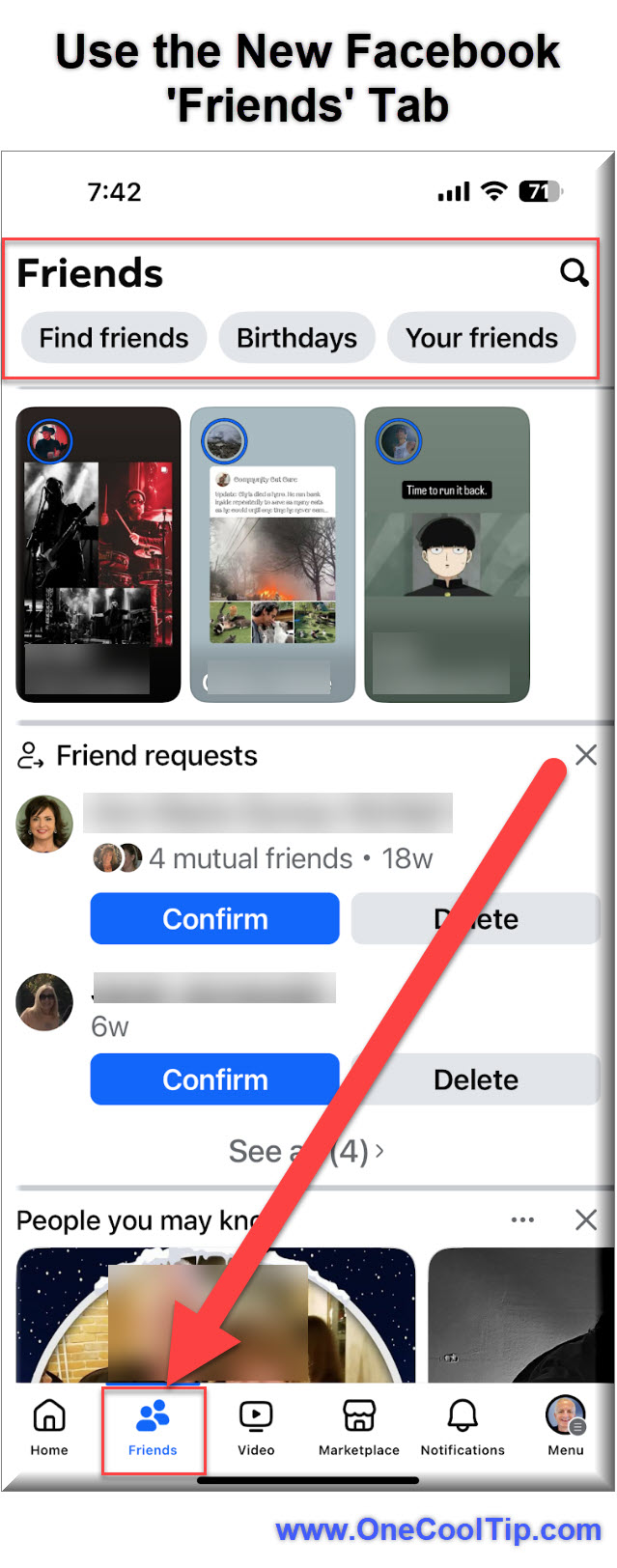
Facebook's New Friends Tab: A Better Way to Stay Connected

Facebook is putting friendships front and center again with its new Friends Tab, a feature designed to rekindle meaningful connections in an increasingly crowded digital world.

Read the One Cool Tip

Add Custom Tables to Word for Android and iOS

Discover how Microsoft Word's latest feature empowers users to create custom tables effortlessly on Android and iOS devices, enhancing productivity and document precision.

Read the One Cool Tip


Find Your Adventure

Looking for your next adventure?


Call Denise at Travel For You.

314.660.3039


Sign Up for the Monthly Newsletter - Deals and Specials


http://www.travelforyouvacations.com/


https://www.facebook.com/TRAVEL.FOR.U/


ICYMI - In Case You Missed It ...

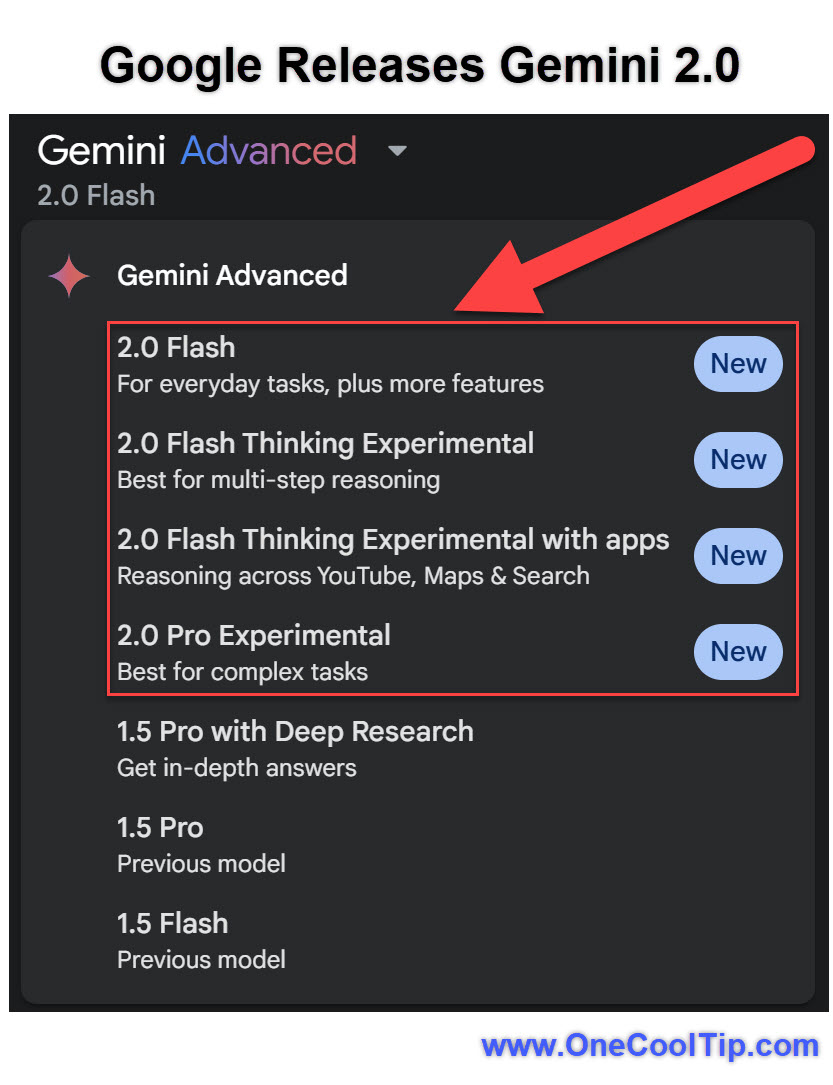
How to Use Google Gemini 2.0 Flash Thinking That Supercharges Your Apps

Explore how Google Gemini 2.0's Flash Thinking is revolutionizing app interactions, allowing seamless integration with YouTube, Search, and Maps, enhancing user experience and productivity.

Read the One Cool Tip


One Cool Tip Video

How to Enable Dark Mode in Microsoft Paint


Do you find yourself squinting at your screen at night while using Microsoft Paint? 


Watch


Cool Tip Comics

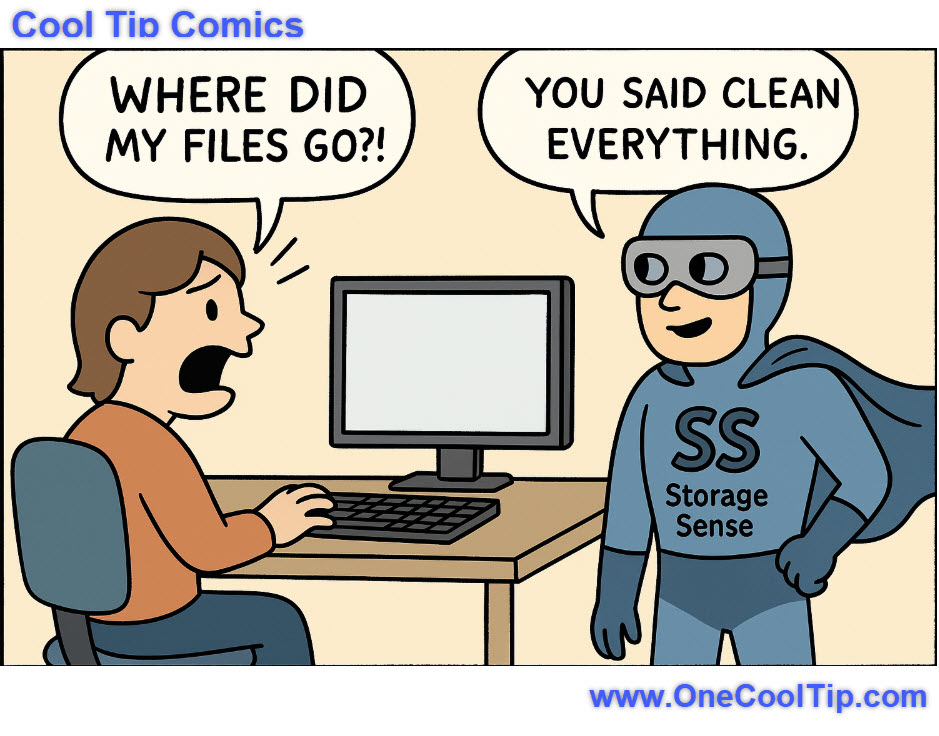
When Storage Sense takes your 'clean sweep' a little too literally—guess it's time to redefine 'everything'! 😅🧹💻


See You Tomorrow

Trivia Answer: C. Windows 10


Storage Sense made its debut in Windows 10 as an evolution of the older Disk Cleanup tool.


It introduced a more proactive and automated way to manage disk space, particularly with temporary files and cloud-managed OneDrive content.


Windows 11 expanded on this by integrating it more deeply into system settings and default behaviors.


----------


Tomorrow's Cool Tip is waiting to amaze you.


Until then, go forth and conquer the tech world with your newfound knowledge!


And be sure to visit www.OneCoolTip.com for Cool Tech Tips for a Cooler Life!


Enjoy!


Rodger

Chief Cool Tipper

onecooltip.com@gmail.com


What Do You Think?

What do you think of today's OneCoolTip newsletter?
👍 Great
😐 OK
👎 Terrible

Please Share the One Cool Tip Newsletter!


You asked for it. You got it. There is now a One Cool Tip Newsletter archive. Did you delete a newsletter and want to read it again? Check it out HERE.


Want to help One Cool Tip grow? Please forward this email using the link above. And if you see an OCT social media post, please LIKE, COMMENT and SHARE!


Have you subscribed to the One Cool Tip YouTube channel? Subscribe HERE.

X Share This Email
LinkedIn Share This Email

Connect with One Cool Tip!!

Facebook  X  Instagram  Web  Pinterest  YouTube  LinkedIn
 

As an Amazon Associate, One Cool Tip may earn a small commission from qualifying purchases.


Our media content is intended solely for informational purposes only. Please do not construe anything here as legal, tax, investment, financial, marital or other advice.


Copyright © 2025 | www.OneCoolTip.com | All Rights Reserved