|
By Rodger Mansfield, Technology Editor
November 5, 2026
Subscribe
Give Your AirPods a Sound Makeover
Ever listen to your favorite song and wish it had a little more bass? Or struggle to hear the voices in a podcast because the music seems too loud?
Your AirPods may have a solution.
Apple's Custom EQ feature gives owners of compatible AirPods more control over how their music, podcasts and other audio sound.
Instead of relying exclusively on Apple's recommended audio settings, you can adjust bass, midrange and treble to suit your preferences.
Even better, your adjustments are stored on your AirPods, so they carry over when you connect to other paired devices.
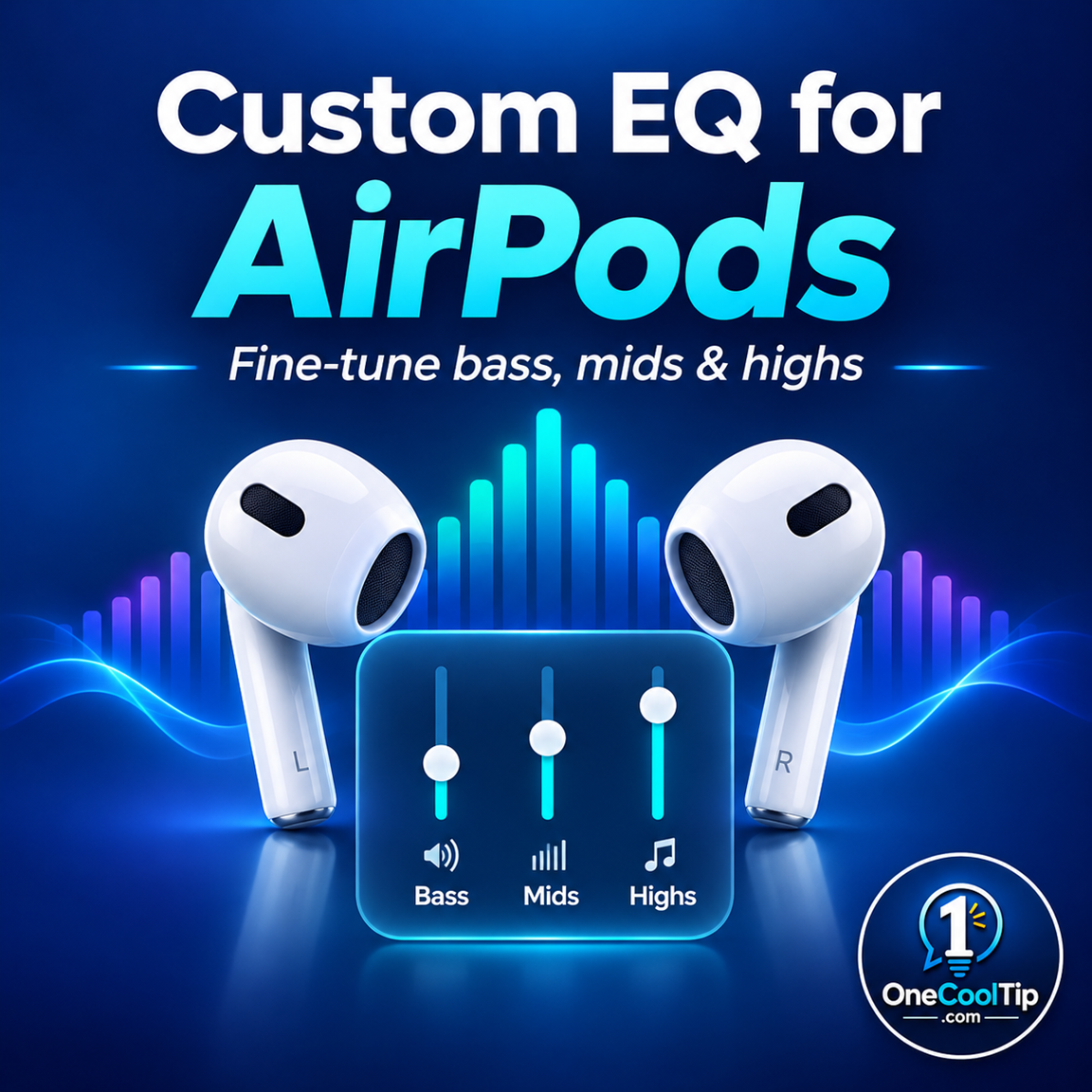
Here's a Cool Tip: Customize your AirPods' sound with the built-in equalizer in iOS 27.
What Is Custom EQ?
Custom EQ is a feature that lets you adjust the balance of different sound frequencies on supported AirPods.
EQ stands for equalization. In simple terms, an equalizer changes how prominent certain frequencies sound when you listen to audio.
Apple's Custom EQ provides three adjustable controls:
Low (Bass): Adjusts deeper sounds, such as drums, bass guitars and low-frequency effects.
Mid (Midrange): Adjusts frequencies associated with vocals, dialogue and many musical instruments.
High (Treble): Adjusts higher-frequency sounds, including cymbals and some details in speech.
For example, you might increase the Low setting when listening to dance music or experiment with Mid to make a podcast host's voice more prominent.
The adjustments are a matter of personal preference. More bass or treble doesn't necessarily mean better sound.
What's New?
Apple introduced Custom EQ through AirPods firmware update 9A348.
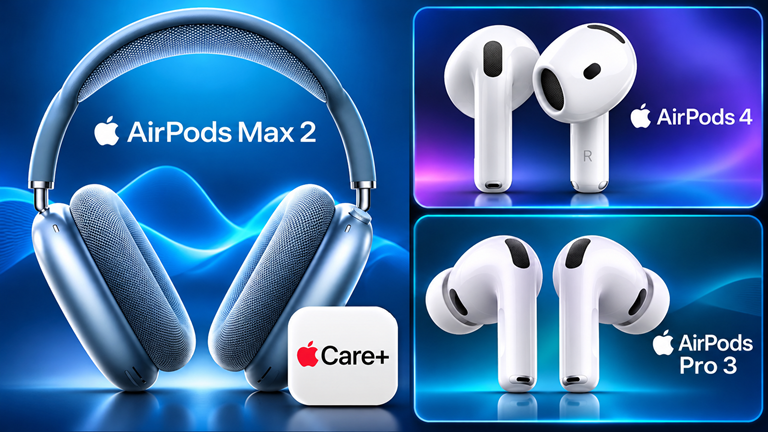
The feature is available on AirPods 4 and later, AirPods Pro 2 and later, and AirPods Max 2 when used with compatible Apple devices and software.
Unlike an equalizer that's limited to a particular music app, Custom EQ settings are stored on the AirPods themselves.
That means your preferred settings can follow you when you switch between paired devices.
What You'll Gain
-
Personalized Sound: Adjust bass, midrange and treble to match your listening preferences.
-
Better Listening Control: Experiment with settings for music, podcasts, videos and other audio.
-
Consistent Preferences: Keep your Custom EQ settings when switching between paired devices.
-
Easy Adjustments: Return to Apple's Recommended setting whenever you want.
Step-by-Step Instructions
Here's how to do it.
You'll need compatible AirPods connected to an iPhone, iPad or Mac running supported software.
On iPhone or iPad
-
Put your AirPods in your ears and make sure they're connected to your device.
-
Open the Settings app.
-
Tap the name of your AirPods near the top of the screen.
-
Tap Audio & Routing.
-
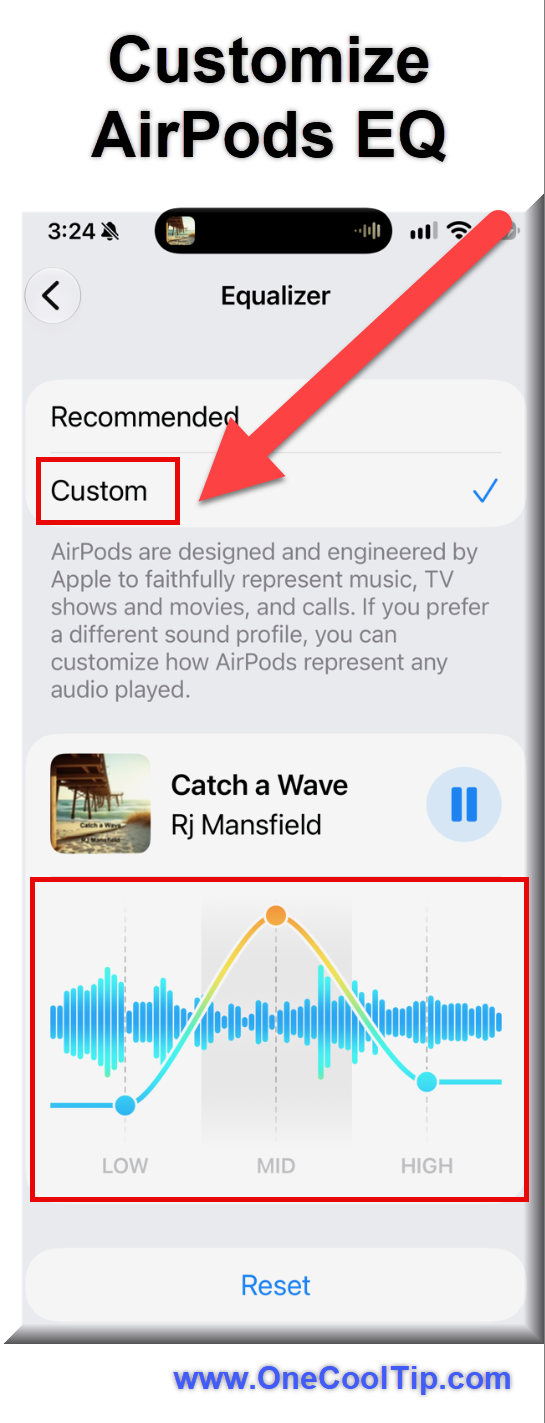
Select Equalizer.
-
Tap Custom.
-
Drag the Low, Mid and High sliders up or down to adjust the sound.
-
Play a familiar song or podcast while experimenting with the controls.
Cool Tips:
- Try making small adjustments and comparing the results.
- You may discover that a subtle change produces a more pleasing sound than a dramatic one.
|