|
One Cool Tip Newsletter
September 1, 2025
| Your daily dose of tech-savvy brilliance! | |
😀Greetings! Happy Labor Day Monday, Cool Tipper!
Get ready to streamline your digital life with simple, actionable tips delivered straight to your inbox.
Today's Cool Tip Theme: Microsoft Word Auto-Save to the Cloud
IN THIS ISSUE
- 🚨 Social Media Scam Alert.
- 📞 Voice Phishing Warning.
- ✍️ AI Prompt for Labor Day.
- 🤖 Satya Nadella's Copilot Prompts.
- 💾 Word's New Auto-Save.
- ¶ Show/Hide Format Marks.
- 🗣️ Word's Read Aloud Feature.
- 🎯 Word's Focus Feature.
New here? Subscribe to the One Cool Tip Newsletter for daily updates. It's FREE!
-
😂 Laugh with Us! Enjoy our Tech Joke of the Day, Haiku and Cool Tip Comics.
-
🌐 Stay Informed! Check out ICYMI, and our One Cool Tip Video.
🔔 Is your email provider (Gmail, Yahoo, Outlook...) not delivering the newsletter?
Check the Junk folder - Move the newsletter to your Inbox. And reply to this email with a “Hey, Rodger” or “I got it.” That tells your mail service you want this newsletter!
Today's Tech Trivia
What year did Microsoft first introduce the AutoSave feature in Word, designed to automatically save documents to the cloud for seamless collaboration and recovery?
A) 2010
B) 2014
C) 2017
D) 2020
Answer at the end of this newsletter.
| | |
3️⃣
If you enjoy the One Cool Tip newsletter, please forward this newsletter to THREE friends or colleagues or share it on social media using the links below.
Leave a Tip!
Share this One Cool Tip Newsletter!
| |
🚨Watch Out for “Too Good to Be True” Social Media Deals🚨
Spotted a flashy ad on social media offering huge discounts on brand-name tech or gear? Pause before you click.
The FTC warns that scammers are impersonating real companies, luring users to fake websites with tempting prices. You might end up with a counterfeit product—or nothing at all.
Quick Cool Tips:
- Always verify the seller before buying.
- Search the company name with words like “scam” or “review,” and use a credit card for added protection.
Stay sharp, stay safe.
And in Other News...
- Voice Phishing Targets Google Cloud Users
Google has uncovered a sophisticated voice phishing (vishing) campaign targeting enterprise users. Attackers posed as IT staff, tricking victims into granting access to sensitive tools, leading to data theft and extortion attempts.
Quick Cool Tip:
- Enable multi-factor authentication (MFA), limit access privileges, and train your team to verify unexpected calls, even if they sound official.
Remember: Real IT support won’t pressure you to bypass security protocols.
Stay alert, stay protected.
| | |
🚀 Make It a Great Week!
Copy/Paste this AI-powered prompt. Use with your favorite AI assistant: Gemini, Copilot, Grok, DuckAI, Meta and ChatGPT.
"It’s Labor Day. Help me make the most of it both personally and professionally. Suggest:
- Three meaningful ways I can recharge and enjoy the holiday with family, friends, or solo time.
- Two reflective exercises to appreciate my career journey so far and set intentions for the months ahead.
- One practical professional task I can complete today (lightweight but impactful) that sets me up for success this week.
Keep the suggestions specific, creative, and realistic for a single day."
| | | |
🖼️ Cool ChatGPT AI Prompt of the Day:
Satya Nadella, Chairman and CEO at Microsoft, shared these five Copilot prompts on X that he uses every day. How many can you use? And Copilot uses ChatGPT 5!
-
Based on my prior interactions with [/person], give me 5 things likely top of mind for our next meeting.
-
Draft a project update based on emails, chats, and all meetings in [/series]: KPIs vs. targets, wins/losses, risks, competitive moves, plus likely tough questions and answers.
-
Are we on track for the [Product] launch in November? Check eng progress, pilot program results, risks. Give me a probability.
-
Review my calendar and email from the last month and create 5 to 7 buckets for projects I spend most time on, with % of time spent and short descriptions.
-
Review [/select email] + prep me for the next meeting in [/series], based on past manager and team discussions.
| | |
Stop Losing Docs:
Word Now Auto-Saves New Files to the Cloud
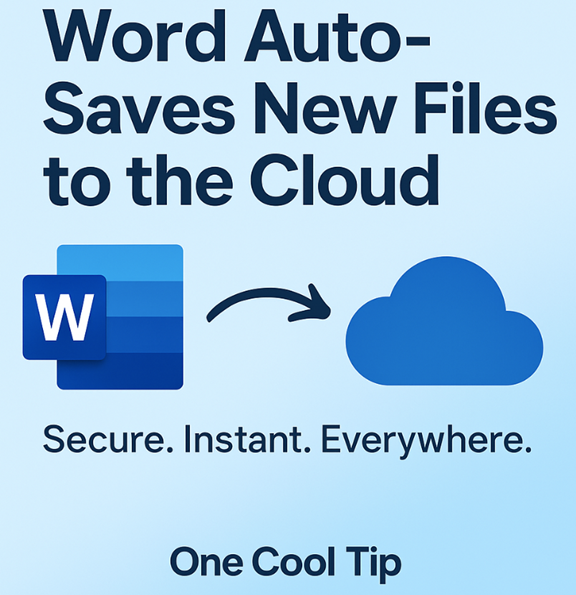
Microsoft Word now saves new files directly to the cloud by default. There are no extra clicks and no forgotten saves. This small change can make a big difference in how you work, collaborate, and protect your content.
What if your next great idea never got lost?
You open Word, start typing, and forget to hit Save.
Hours pass.
Maybe you close the file without thinking.
That moment of panic?
It’s gone.
Here's a Cool Tip: Don't Worry. Microsoft Saves New Word Files to the Cloud!
Microsoft has quietly introduced a feature that changes how Word for Windows handles new documents.
They’re now saved automatically to the cloud.
No setup required.
Just open, write, and relax.
What the Feature Does and Why It Matters
Starting with Word for Windows Version 2509 (Build 19221.20000), new documents are saved to OneDrive or your preferred cloud location by default.
AutoSave is turned on automatically, and the file gets a timestamped name like “2025-09-01_10-15” until you rename it.
Here’s why this matters:
- You don’t lose progress.
- Every keystroke is backed up.
- Files are instantly available across devices.
- You can collaborate in real time without emailing attachments.
- Security and compliance are built in from the start.
- Copilot and other intelligent features are ready to go as soon as you start.
It’s like having a safety net that catches your work before you even think to save it.
What You'll Gain
- Real-time backup and version control.
- Seamless access across devices.
- Instant collaboration with AutoSave.
Step-by-Step Instructions
Here's how to do it.
Word for Windows
-
Open Word and start a new document.
-
AutoSave is already turned on.
-
To rename or change location, press Ctrl + S or click Save.
-
Choose your cloud folder, rename the file, and confirm.
fig. 1 - Microsoft Word for Windows Now Auto-Saves
iOS and Android
-
Files created in Word for Windows will appear automatically in your OneDrive mobile app (iOS / Android).
- Open the app, locate the file, and continue editing or sharing.
Pros and Cons
Pros
- Prevents the loss of unsaved work
- Encourages cloud-first workflows and collaboration
- Simplifies access across devices
Cons
- Users who prefer local storage may find the default behavior intrusive
- Known bugs include issues with multiple Word sessions or when the Start screen is disabled
Configuration Guide
To adjust the feature:
-
Go to File > Options > Save.
-
Check or uncheck “Create new files in the cloud automatically”.
Feature Access
- This feature is available to Microsoft 365 users running Word for Windows Version 2509 (Build 19221.20000) or later.
- A Microsoft 365 subscription is required.
- Copilot features need a separate license.
Score
Criterion | Score| Justification
Value: 9/10
Solves a real problem and adds meaningful utility for remote teams and solo users.
Usability: 8/10
Works out of the box, though some users may want to tweak settings.
Wow Factor: 7/10
Not flashy, but quietly transformative. The kind of feature that earns trust over time.
Total Score: 24/30 👍 Good. Worth adopting for most users.
Key Takeaways
Microsoft Word’s new cloud-first save behavior protects your work, simplifies collaboration, and makes your documents more mobile.
If you’re using Word for Windows, this feature is already working for you.
Try It Yourself
Open Word, start typing, and let the cloud do the rest.
Share this tip with your team, subscribe to the One Cool Tip newsletter, and let us know how it’s working for you.
READ MORE
Read the Full Tip.
| | |
Help support One Cool Tip. Use this Amazon link when you shop online.
Look at these Cool Products:
|
-
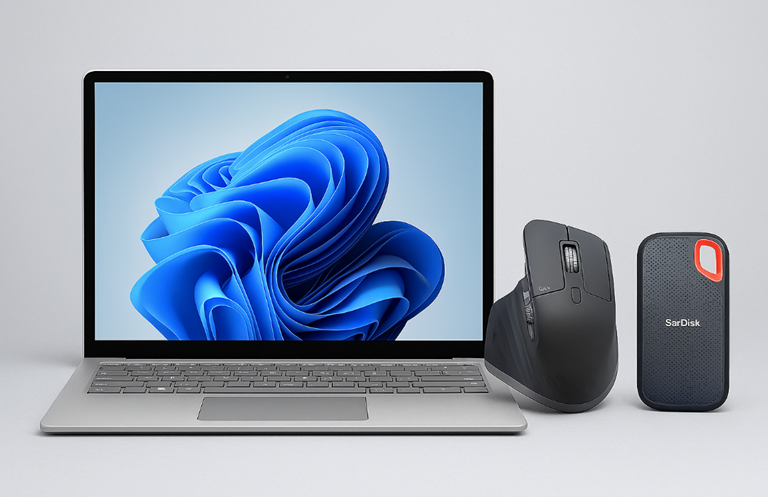
Microsoft Surface Laptop 5: A sleek productivity laptop optimized for Microsoft 365 apps, including Word. 👉 Check it out on Amazon!
-
Logitech MX Master 3S Mouse: Ergonomic mouse with customizable buttons for workflow shortcuts. 👉 Check it out on Amazon!
-
SanDisk 1TB Extreme Portable SSD: Complement Word's cloud saves with this fast, rugged external drive for local backups. Overall Pick. Save 23% 👉 Check it out on Amazon!
| | |
🆒Tell Me More
- AutoSave is now enabled by default for new Word documents created in Word for Windows.
- Files are named with a timestamp until you rename them manually.
- You can change the default save location by right-clicking a folder and selecting “Set as Default Location.”
- Copilot features are available immediately if you have the right license.
- Similar functionality is coming soon to Excel and PowerPoint.
⏩Quick Tips
-
💾 AutoSave is On: New Word files are saved to the cloud automatically. → Just open Word and start typing, AutoSave is already active.
-
🗂 Rename Easily: You can rename your file anytime. → Press Ctrl + S or click Save to change the name and location.
-
📍Set Your Default Folder: Choose where new files go. → Right-click a cloud folder and select “Set as Default Location.”
-
📱 Access Anywhere: Your files sync across devices. → Open OneDrive on mobile or browser to continue editing.
-
🧠 Use Copilot Instantly: AI tools are ready from the start. → If licensed, start using Copilot as soon as the file is created.
| | ✅ More Must-Read Tech Tips | |
👀 How Do I Show or Hide Microsoft Word Format Marks?
One criticism of Word has always been that there are so many features that it can be easy to miss very useful ones because they get lost in the sea of menu options.
And so it is with the Show/Hide Format Marks function.
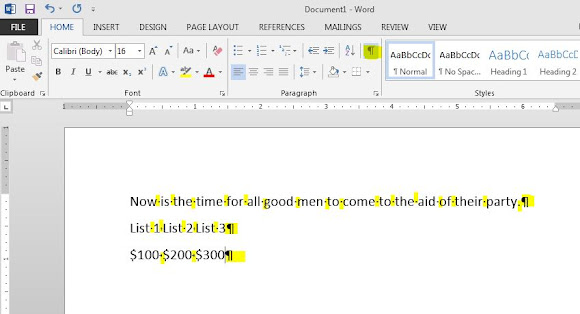
When you toggle on the Show Hidden Marks, you can see the specific format marks within a document, such as paragraphs, periods, and tabs.
Are those spaces or a tab?
To toggle the Show/Hide function on or off, use the Control+Shift+8 keyboard command.
In addition, the menu bar also has a ¶ option that can be toggled to Show or Hide formatting marks.
Discover more HERE.
| | |
Do you proof read the documents you create in Microsoft Word to ensure everything sounds right?
Maybe after writing your great novel you are just too tired or worn out.
Let Microsoft Word read it!
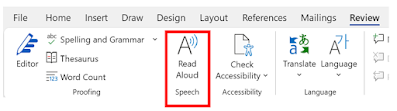
The Read Aloud feature in Microsoft 365 will read all or part of your Word document to you in a natural-sounding voice.
Here’s how to do it.
-
Open a document: To get started, open a document in Microsoft Word. You can either create a new document or open an existing one.
-
Select the text you want to read: Once you have a document open, select the text you want to have read to you. This can be a single sentence, a paragraph, or the entire document. If you don't select anything, the whole document will be read.
-
Launch the Read Aloud feature: To launch the Read Aloud feature, click the "Review" tab in the Word ribbon, then select the "Read Aloud" button.
-
Customize the reading experience: After Reading Aloud starts, you can customize the reading experience by selecting a voice and adjusting the reading speed. You can also skip to the next paragraph or sentence or go to the previous one.
The Read Aloud feature can help you get more out of your writing and reading experience.
Find more HERE.
| | |
🙋♂️ Here's How to Stay Focused and Productive with Microsoft Word.
Do you get distracted when trying to use Microsoft Word?
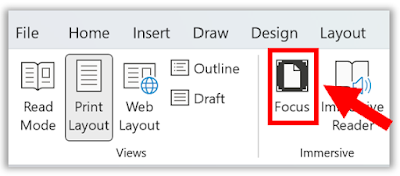
The Focus feature in Microsoft Word is a tool that allows you to focus on the content you are working on by hiding everything else.
When you use the Focus feature, everything except the content you are working on will be grayed out, making it easier for you to concentrate on what you are doing.
How to use the Focus feature in Microsoft Word:
-
Open the Microsoft Word document you want to work on.
-
Click on the View tab in the ribbon at the top of the screen.
-
Click on the Focus button.
-
The Focus feature will be activated, and everything except the section you selected will be grayed out.
-
To exit the Focus feature, click on the Close Focus button in the top right corner of the screen.
The Focus feature in Microsoft Word is a useful tool that can help you to concentrate on the content you are working on, reduce distractions, and improve editing.
Learn more HERE.
| | |
❓Did you share this newsletter with three friends yet?
😎 Cool Facts
-
345 Million: Microsoft 365 has over 345 million paid subscribers globally. Source. (note: other source often list more than 400 million).
-
10 Minutes: OneDrive syncs files automatically every 10 minutes in the background. Source.
-
300+ Million: Microsoft 365 has over 300 million active users globally, a user base that benefits from OneDrive as a central file‑storage component. Source.
⌨️Today's Cool Keyboard Shortcuts
Cool Keyboard shortcuts:
-
Ctrl + S: Save your document (Windows)
-
Cmd + S: Save (Mac)
-
Alt + F, T: Open Word Options (Windows)
-
Ctrl + W: Close document (Windows)
😜 Tech Joke of the Day 😅
Why did the Word document go to therapy?
It had abandonment issues from never being saved.
🔎 Do you have a Cool Tip or tech question? Email us at onecooltip.com@gmail.com.
| | |
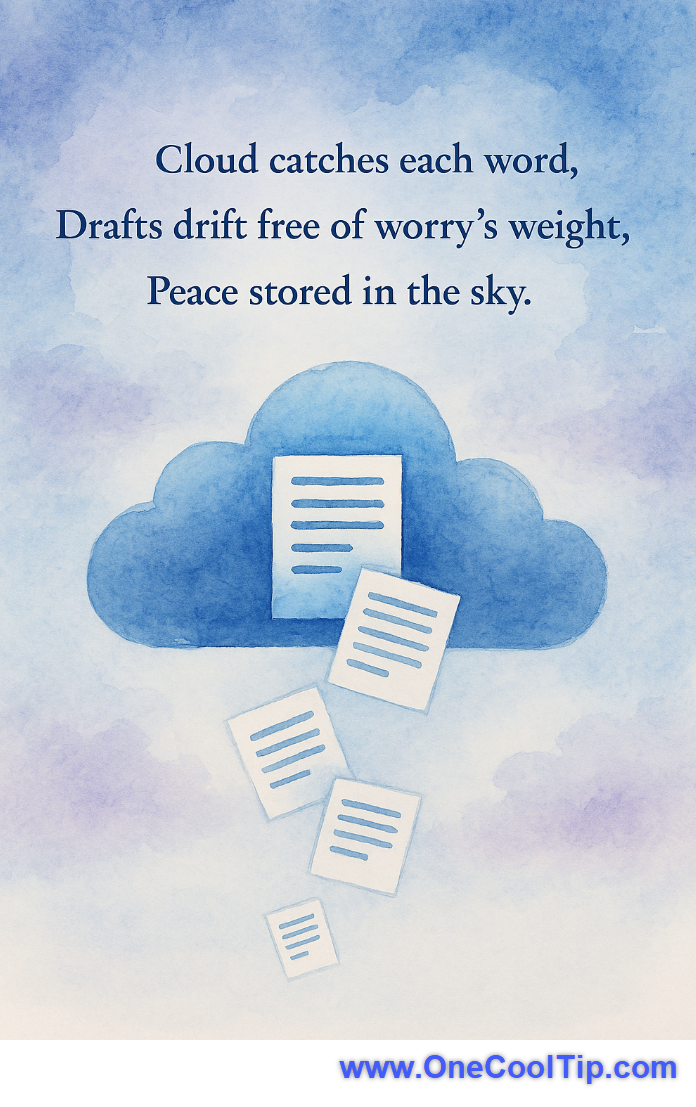
Cloud catches each word,
Drafts drift free of worry’s weight,
Peace stored in the sky.
| |
| 🤔 How do you usually save your Word documents? | | | |
Did You See These Cool Tips This Week?
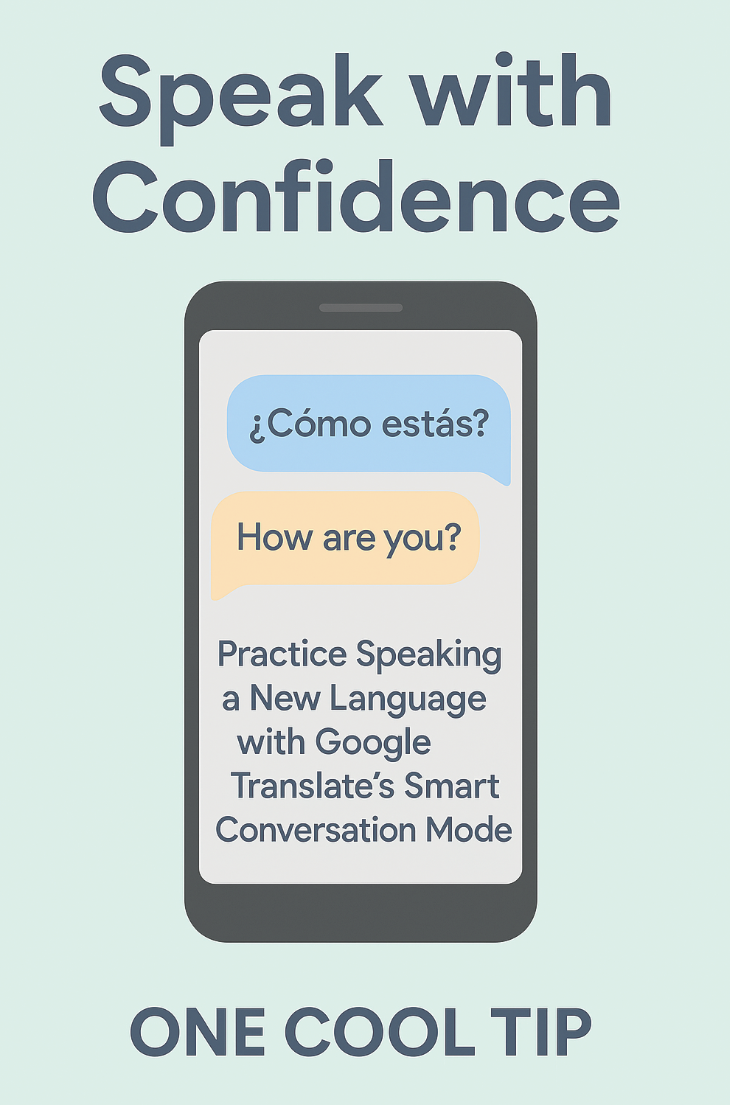
| | | | Google Gemini’s Image Editing is a Game Changer | Google Gemini’s latest image model blends prompts, edits, and styles while keeping faces and objects consistent. The result is faster, more natural editing that feels made for everyday use. | | | | Your New AI Language Tutor is Hiding in Plain Sight | Google Translate is no longer just for quick conversions—a new, AI-powered update has transformed it into a powerful tool for practicing language, making it feel less like a utility and more like a personal tutor. | |
ICYMI - In Case You Missed It ...
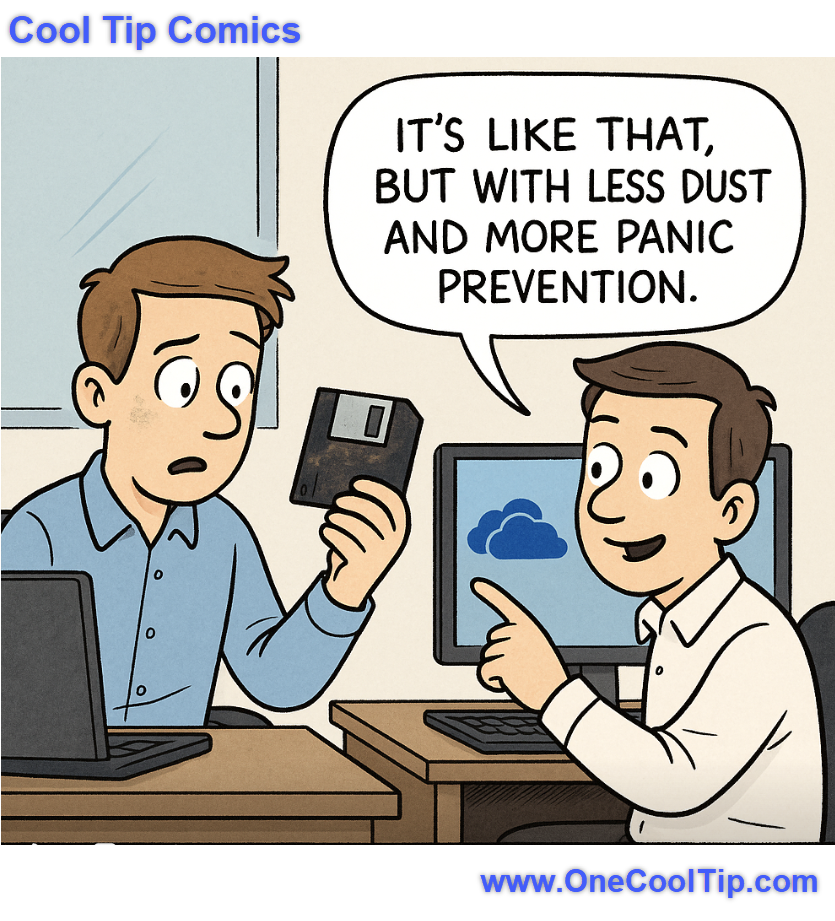
| | | | How to Listen to Emergency Radio | From sirens to skies hear what’s really happening in your world, live. Discover how to use emergency radio app Broadcastify to monitor real-time emergency communications safely and legally. | | When your backup plan still smells like the 80s, but your coworker’s already floating on a cloud. | | |
Trivia Answer: C) 2017
AutoSave was rolled out as part of Microsoft 365 (then known as Office 365) to address common frustrations like data loss from crashes or forgotten saves, marking a shift toward cloud-centric productivity tools.
This feature built on earlier AutoRecover tech but added real-time cloud syncing, reflecting Microsoft's push into hybrid work environments where files needed to be accessible across devices.
It quickly became a staple, reducing recovery time by up to 90% in many scenarios, according to early user feedback.
----------
Tomorrow's Cool Tip is waiting to amaze you.
Until then, go forth and conquer the tech world with your newfound knowledge!
Be sure to visit www.OneCoolTip.com for Cool Tech Tips for a Cooler Life!
And if you Like One Cool Tip, please support with TipJar!
Enjoy!
Rodger
Chief Cool Tipper
onecooltip.com@gmail.com
| |
| What do you think of today's OneCoolTip newsletter? | | | |
Please Share the One Cool Tip Newsletter!
You asked for it. You got it. There is now a One Cool Tip Newsletter archive. Did you delete a newsletter and want to read it again? Check it out HERE.
Want to help One Cool Tip grow? Please forward this email using the link above. And if you see an OCT social media post, please LIKE, COMMENT and SHARE!
Have you subscribed to the One Cool Tip YouTube channel? Subscribe HERE.
| | Connect with One Cool Tip!! | | |
|
As an Amazon Associate, One Cool Tip may earn a small commission from qualifying purchases.
Our media content is intended solely for informational purposes only. Please do not construe anything here as legal, tax, investment, financial, marital or other advice.
Copyright © 2025 | www.OneCoolTip.com | All Rights Reserved
|
| | | |