One Cool Tip Newsletter

September 5, 2026

Your daily dose of tech-savvy brilliance!

😀Greetings! Happy Saturday, Cool Tipper!


Get ready to streamline your digital life with simple, actionable tips delivered straight to your inbox.


Cool Tip Theme: Google Pics


Google Pics brings AI image generation and surgical object editing directly to Docs and Slides. Here is how to create, edit text, and tweak visuals.


New here? Subscribe to the One Cool Tip Newsletter for daily updates. It's FREE!

3️⃣

If you enjoy the One Cool Tip newsletter, please forward this newsletter to THREE friends or colleagues or share it on social media using the links below.


Leave a $$$ Tip!


Share this One Cool Tip Newsletter!

X Share This Email
LinkedIn Share This Email
Pinterest Share This Email

🚨Your Driver's License Data May Be Worth More Than You Think🚨


A recent security report highlights concerns about online services that allegedly sell access to large databases of driver's license information, underscoring how valuable personal data has become to criminals.


Information from a driver's license can be used for identity theft, financial fraud, account takeovers, and other scams.


Even if you have never lost your license, your information may have been exposed through a data breach or third-party service.


To protect yourself, monitor your credit reports regularly, be cautious about sharing photos of your license online, and watch for unexpected financial accounts or verification requests in your name.


Consider placing a fraud alert on your credit file if you believe your personal information may have been compromised.


The more valuable your personal data becomes, the more important it is to treat it like cash and guard it carefully.


And in Other News...


  • Your AI Music Studio Just Got a Major Upgrade


Creating custom music with AI is getting easier and sounding better.


Google has added its new Lyria 3.5 music generation model to the Gemini app, giving users access to more expressive vocals, richer musical arrangements, and higher-quality audio.


Users can describe a genre, choose vocal or instrumental styles, and even use templates to create everything from birthday songs to background music for videos.


The update also lets users generate tracks in different lengths, making it easier to create music that fits specific projects.


Whether you need a personalized ringtone, a podcast intro, or a fun song for a special occasion, AI-powered music tools are becoming more accessible to everyday users.


Best of all, the feature is available globally in the Gemini web and mobile apps.

Cool Tip Poll

🤔 When working with AI-generated images, what is your biggest frustration?

Cool Deals of the Day

Help support One Cool Tip. Use this Amazon link when you shop online.


Check out these Cool Deals:

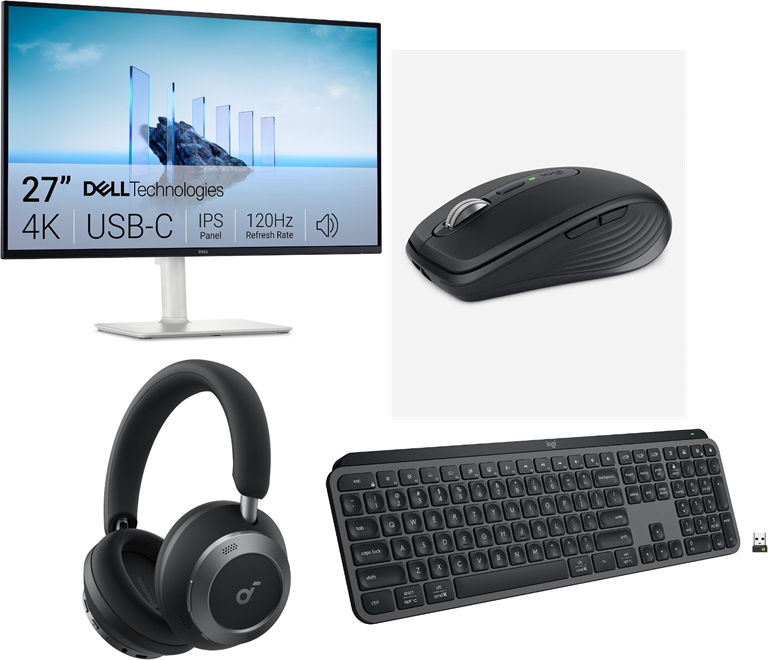
🖥️ Dell 27 4K USB-C Monitor: Superior color accuracy and IPS Black contrast make reviewing and editing visual assets much easier on the eyes.

Save 14%. Now $299.99. 4.3 Stars. Check it out on Amazon!


🖱️ Logitech MX Master 3S Wireless Performance Mouse: Precision scrolling and an ergonomic thumb wheel allow accurate object selection and lasso adjustments when editing graphic elements.

Save 11%. Now $79.99. 4.5 Stars. Check it out on Amazon!


⌨️ Logitech MX Keys S Advanced Wireless Keyboard: Tactile, quiet keys streamline typing rapid-fire AI prompts and editing text overlays without disrupting office environments.

Save 8%. Now $119.99. 4.4 Stars. Check it out on Amazon!


🎧 Anker Soundcore Space One Pro Headphones: Block out open-office noise and stay locked into your creative flow while designing presentations and documents.

Save 15%. Now $169.98. 4.5 Stars. Check it out on Amazon!


*Prices accurate when originally published.

One Cool Tip may earn a commission from qualifying purchases.

Fuel Your Adventure

Try Big Mike's Jerky!


bigmikesjerky.com


Now on TikTok!


Today's Cool Tip

Edit and Refine Workspace Images with Precision Using Google Pics


Google Pics eliminates the frustration of starting over with AI image prompts by letting you modify specific objects, text, and regions directly inside your documents. Here is how to access this visual editor at pics.new or right inside Google Docs and Slides.


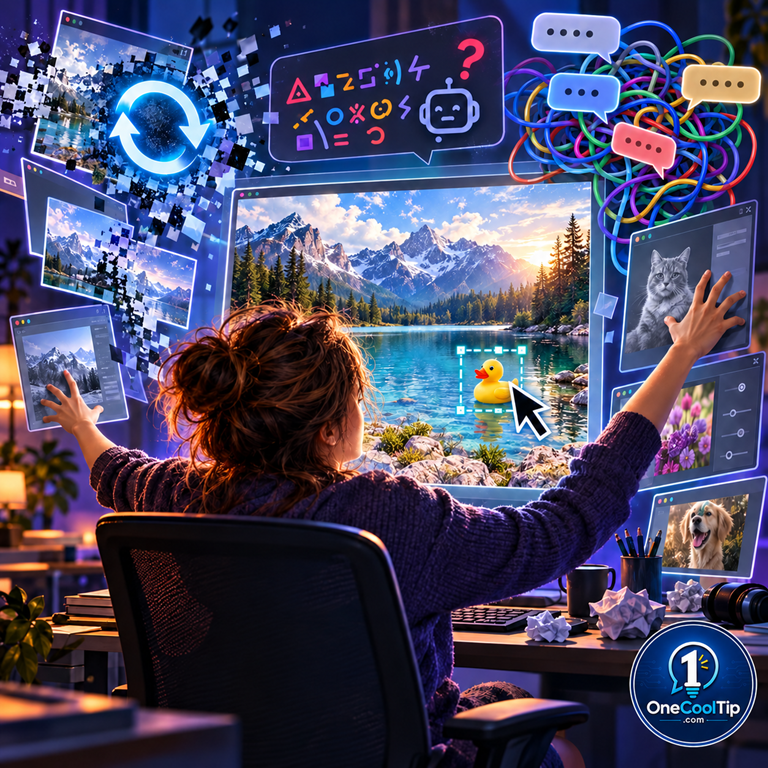
Most AI image generators force you into an exhausting cycle: you type a prompt, get an image that is almost perfect, spot one odd detail, and press regenerate only to lose everything you liked about the original. 


Swapping between a web generator, an external graphics suite, and your presentation slide deck just to fix a single misplaced prop or misspelled word drains your focus.


Here’s a Cool Tip: Use Google Pics to isolate and edit single objects in your visuals without regenerating the entire scene.


Google tackled this workflow bottleneck on September 1, 2026, by launching Google Pics. 


Built on the company's Imagen 3 and Gemini foundation models, Pics is a dedicated creative canvas that integrates directly into Google Docs and Google Slides. 


Instead of treating images as flat, unchangeable blocks, it gives you precision control over individual elements, background regions, and even in-image text without altering the rest of your composition.


Feature Explanation


Google Pics is an AI image generation and precision editing application built specifically for productivity workflows. 


It operates in two environments: as a dedicated standalone web editor located at pics.new and as an inline editing overlay inside core Google Workspace applications.


The application addresses the biggest weakness of traditional generative art tools: lack of localized control. 


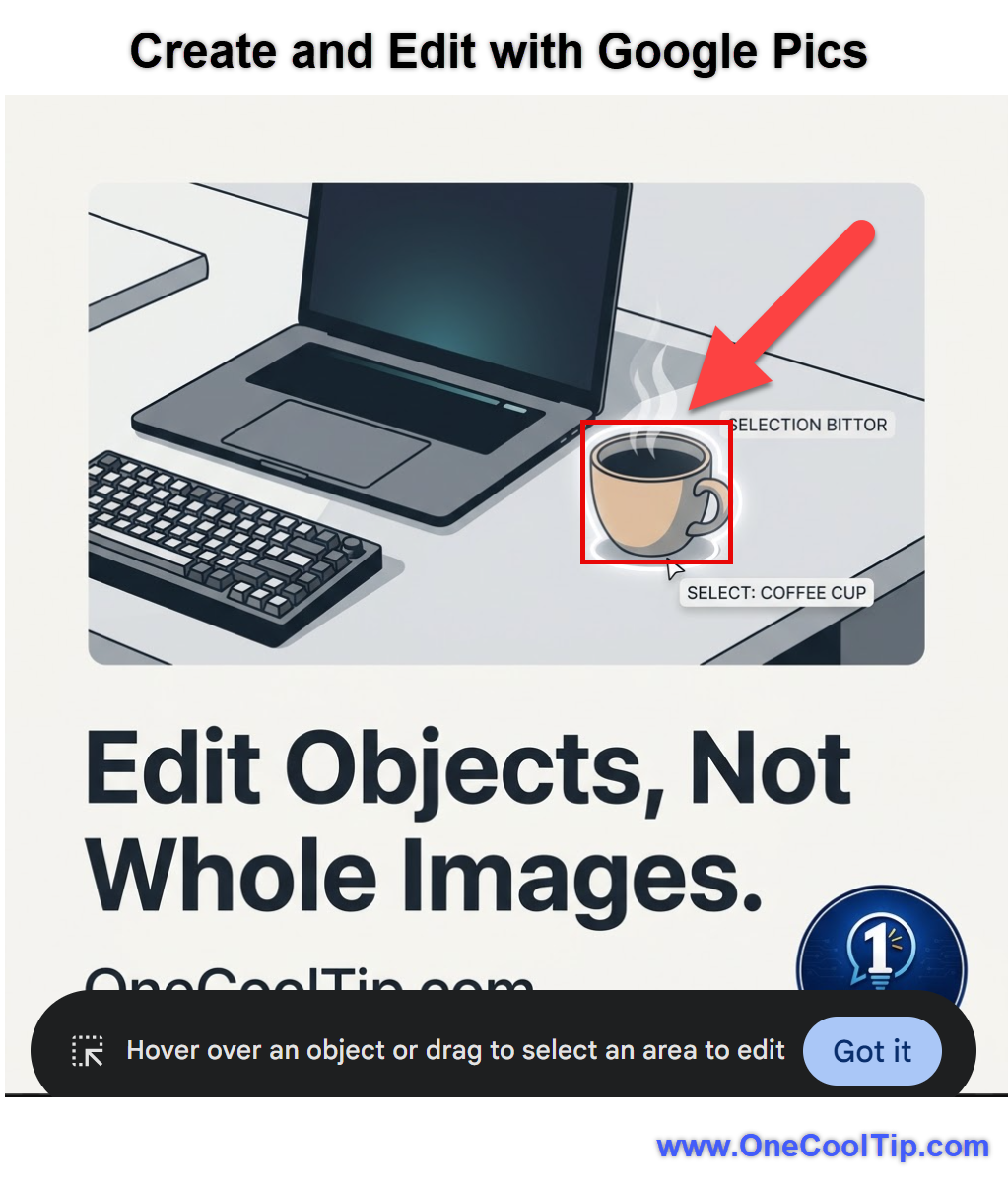
When you load an existing graphic or generate a new concept, Google Pics automatically detects individual objects within the frame. 


You can click a single item, such as a coffee mug on a desk or a person's jacket, and issue a plain-language prompt to modify, recolor, or remove that specific element while leaving the surrounding scene intact.


In addition to object segmentation, Google Pics solves another persistent AI issue by offering direct in-image text replacement and translation. 


If an AI visual renders a sign with garbled lettering or you need to localize marketing text into another language, you can select the text area, type the correct wording, and preserve the original typography and lighting.


Because Google built Pics for collaborative environments, files live in Google Drive and support multi-user sharing, allowing teams to iterate on visuals together rather than emailing static mockups back and forth.


What You’ll Gain


Save time by making targeted fixes to visual elements without starting your prompts from scratch.


Eliminate tab switching by creating and editing graphics directly inside Google Docs and Google Slides.


Fix text errors instantly with native in-image text editing and automatic translation.


Improve team collaboration by sharing editable AI visual drafts via Google Drive links.


Step-by-Step Instructions


Google Pics is available via modern desktop web browsers for eligible Workspace and personal AI subscription tiers. Mobile editing apps have not yet launched.


Here's how to do it.


Web/Desktop (Standalone Editor):


  1. Open your desktop browser, navigate to pics.new. 
  2. Sign in with your eligible Google account.
  3. In the central prompt box, describe the visual you want to create, or click Upload to bring in an existing image from your computer, Google Drive, or Google Photos.
  4. Review the multiple generated variations displayed in the preview panel and select your preferred image to open the main workspace.
  5. Hover your mouse cursor over the image. Notice how specific items highlight automatically. 
  6. Click the object you want to alter, or click and drag a custom bounding box around a specific area.
  7. In the pop-up instruction field, type your specific modification (for example, "change color to navy blue" or "replace with a laptop") and click Apply.
  8. Click Save to Drive in the upper-right corner or click Export to download your finalized image asset.


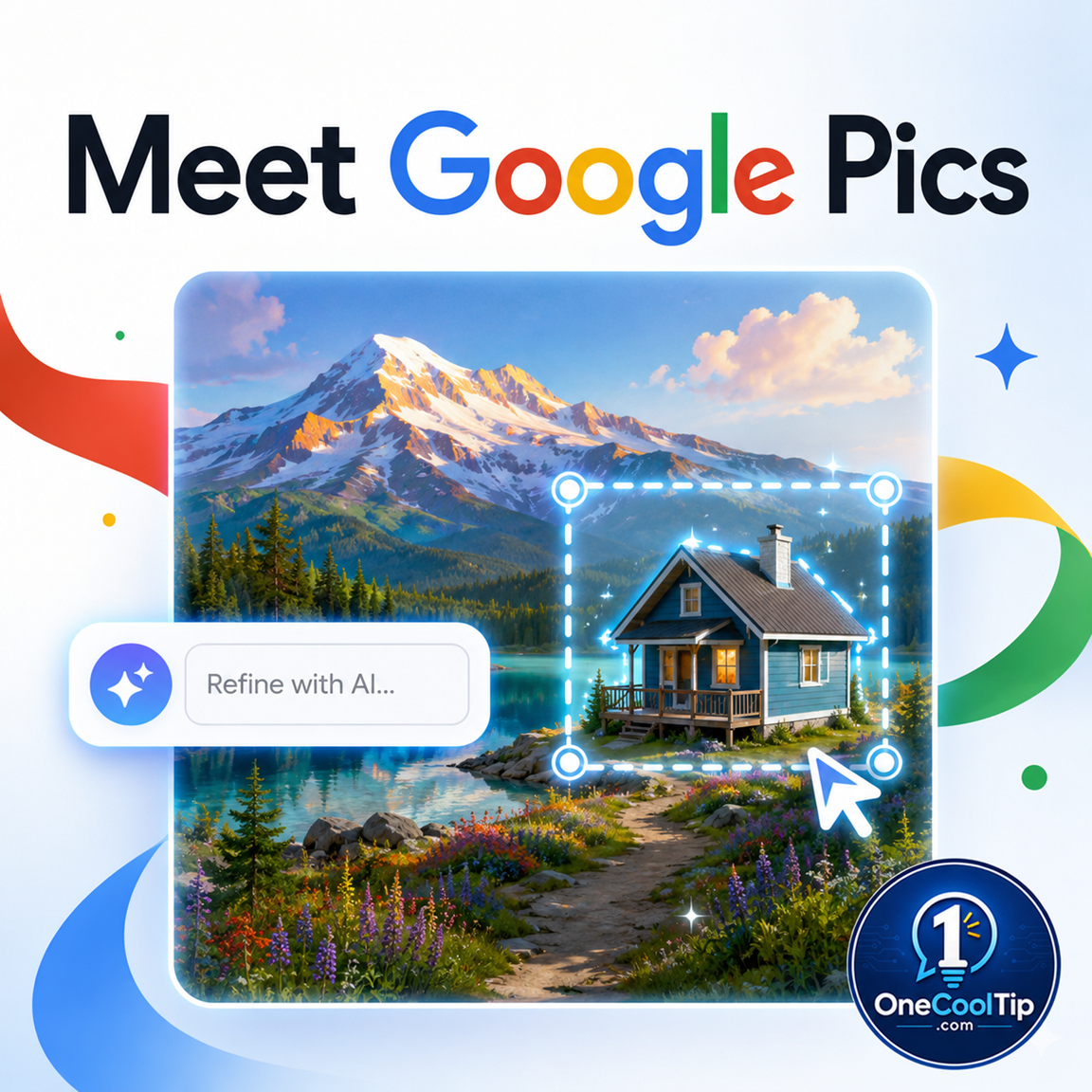
fig. 1 - Create and Edit with Google Pics

Google Workspace (Docs and Slides Integration):


  1. Open an existing presentation in Google Slides or a document in Google Docs on your desktop computer.
  2. Click Insert in the top menu bar, hover over Image, and choose Create with Pics (or select an existing image in your document.)
  3. Click the Pics Edit button on the floating toolbar.
  4. Enter your visual concept in the sidebar panel and click Generate.
  5. Double-click the inserted graphic to open the precision editing overlay.
  6. Highlight any text inside the image to retype wording or choose Translate from the floating context menu.
  7. Click Done to commit your edits directly to the slide or page.


Cool Scenario: 


A marketing manager generates an illustration of a trade show booth in Google Slides. 


The generated banner contains placeholder text.


Using Google Pics, she clicks the banner text, types her company's actual slogan, changes the banner color from green to brand-standard blue, and finishes the slide in two minutes.


Mobile Platforms (iOS and Android):


  • Not currently available on Android or iOS.
  • Mobile users can view resulting images embedded in Docs or Slides files, but full object-level editing requires a desktop browser.


Pros and Cons


Pros:


  • Precise element editing: Object segmentation prevents the common frustration of AI altering areas you wanted to preserve.
  • Deep Workspace integration: Edits take place right inside Docs and Slides, preventing wasted time exporting files back and forth.
  • Functional in-image typography: Solves the classic problem of garbled text while adding instant translation for global teams.
  • Batch iteration queue: You can queue up to five localized element adjustments simultaneously before rendering.


Cons:


  • Tier-restricted availability: Excludes free Google accounts, Google AI Plus, Google Workspace Business Starter, and Enterprise Starter tiers.
  • Desktop only: No native mobile app or tablet optimization at launch.
  • No full layer stack: Lacks true Photoshop-style layer masks or advanced graphic design controls such as vector bezier curves.
  • Temporary capacity limits: Higher-tier generation speeds and allowances are scheduled under introductory allocations through February 28, 2027.


Feature Access


  • Launch Date: Announced and began initial rollout on September 1, 2026.
  • Eligible Business Tiers: Google Workspace Business Standard, Business Plus, Enterprise Standard, Enterprise Plus, and AI Pro for Education.
  • Eligible Consumer Tiers: Google AI Pro and Google AI Ultra subscribers.
  • Excluded Accounts: Standard free consumer Google accounts, Google Workspace Business Starter, Enterprise Starter, and Google AI Plus.
  • Rollout Schedule: Rapid Release domains received access beginning September 1, 2026; Scheduled Release domains begin rollouts on September 15, 2026, with full availability taking up to 15 business days.
  • Platform Availability: Web browsers on desktop (Chrome, Edge, Safari, Firefox). Docs and Slides integration is live now, with standalone Drive right-click actions rolling out in the weeks following launch.


Score

Criterion |  Score (0–10) |  Justification
Value |  9
It eliminates the single biggest frustration with AI graphics by allowing surgical, localized edits to existing assets.
Usability |  8
Direct integration into Docs and Slides makes it easy to adopt, though lack of mobile support limits on-the-go utility.
Wow Factor |  8
Isolated object segmentation and accurate in-image text translation feel remarkably practical compared to generic image generators.
Total: 25/30 |  🌟 25–30 Excellent
Google Pics transforms generative AI from an unpredictable toy into a dependable, everyday workplace productivity tool. It matches the convenience of Canva while delivering far superior localized element control.


Key Takeaways


Google Pics removes the need to throw away almost-perfect images by giving users precise control over individual objects and text. 


Because it lives directly inside Google Docs and Slides, you can finish professional visual layouts without constantly bouncing between separate software applications. 


While access requires a qualifying Workspace or AI subscription tier, the time saved makes it an essential tool for daily document creation.


Cool Tip Snapshot


  • Feature Name: Google Pics
  • Platform(s): Web, Google Workspace (Docs, Slides, Drive)
  • Quick Benefit: Modify specific objects and text inside images without regenerating the whole picture.
  • Best For: Business professionals, educators, and creators who need fast, precise presentation graphics.
  • Access Type: Subscription, Rolling Out
  • Difficulty: Easy


Try It Yourself


Give this a try today: open a Google Slide deck or visit pics.new to experiment with isolating and tweaking a single visual element without starting over. 


Have you tried object editing in Google Pics yet? 


Drop your thoughts in the comments, share this guide with your coworkers and friends, and subscribe to the One Cool Tip newsletter for practical tech advice delivered straight to your inbox!


READ MORE


Read the Full Cool Tip.

Lost Like Robinson - RJ Mansfield

Lost Like Robinson


https://www.rjmansfieldmusic.com/2026/09/lost-like-robinson.html


“Lost Like Robinson” is an original song about the loneliness of losing someone you still love and the hope that somehow they might find their way back to you.


I wrote this song around the image of being stranded like Robinson Crusoe, surrounded by memories and sending signals into the distance, hoping someone is still watching.


The lyrics turn heartbreak into an emotional island, where old photographs become sunrises, miles feel like oceans, and every wave brings the past back to shore.


At its heart, it’s a song about refusing to give up on a love that still feels worth saving, even when you’re not sure anyone can hear you calling.


If you’ve ever felt lost without someone or kept a light burning for a love you couldn’t quite let go, I hope this song speaks to you. 


I’d love to hear what “Lost Like Robinson” means to you in the comments.


Thank you for listening and supporting my music.

Check Out These Cool Tips & Tricks


  • Launch Quickly: Open a blank canvas in seconds using Google's direct shortcut. Type pics.new into any desktop web browser address bar to load the editor instantly.


  • Select Specific Objects: Modify individual elements without touching the background scene. Hover over your image, click the highlighted item, and describe your replacement in the prompt box.


  • Batch Your Edits: Save processing time when making multiple small revisions. Queue up to five separate object modifications before pressing the final render button.


  • Correct Image Text: Clean up gibberish or misspelling on generated signs. Click any detected text area inside the visual, type your desired wording, and let the model match the existing font style.


  • Translate Global Graphics: Localize promotional posters for international audiences without graphic designers. Highlight the text block inside your image and select the target language from the Translate dropdown menu.


  • Use Manual Lasso: Grab tricky or tiny elements that automatic hover detection misses. Select the Lasso tool from the top toolbar and drag a freehand outline around the exact region you want changed.


  • Edit Inside Slides: Refine presentation visuals without leaving your current slide. Click any graphic on your slide canvas and select the Pics Edit button on the contextual action bar.


  • Import Drive Assets: Upgrade existing sketches and screenshots with modern generative fills. Click the Upload button and select any image stored in your Google Drive folders to start editing.


  • Collaborate with Teams: Get real-time feedback on visual mockups from colleagues. Click the Share button in the top corner to send an editable Google Drive link to team members.


  • Export Transparent PNGs: Prepare logos and props for document layouts effortlessly. Use the background removal toggle before downloading your finalized asset to keep the background transparent.

ICYMI - In Case You Missed It ...

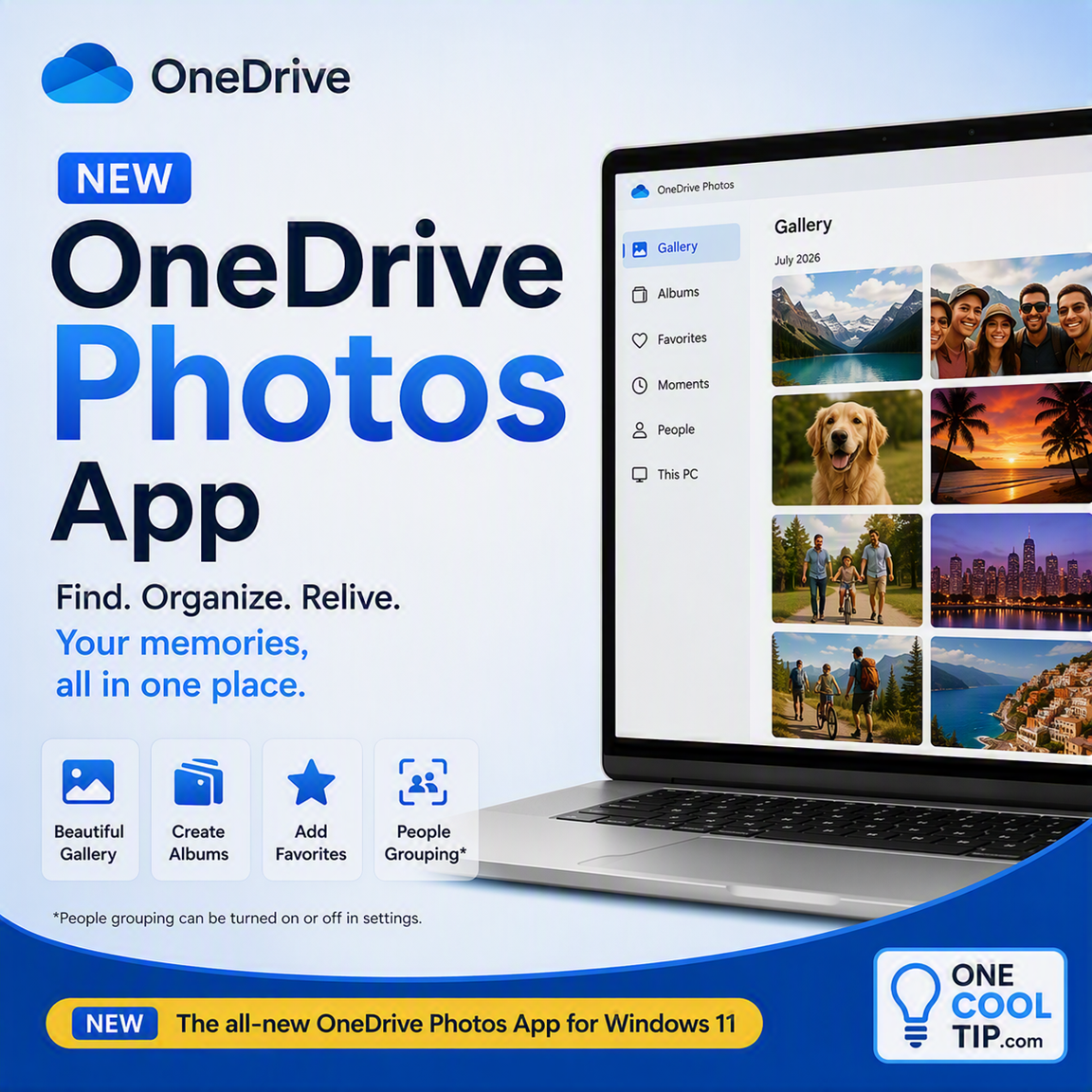
New OneDrive Photos App Makes Finding Old Pictures Much Easier


Microsoft is introducing a dedicated OneDrive Photos app experience that helps users organize, rediscover, and manage pictures stored locally and in the cloud. If your photo collection has become a maze of folders, screenshots, and backups, this new tool could save you a surprising amount of time.


Read the Full Version.


Read the Newsletter Version.

Looking for your next adventure?


Call Denise at Travel For You.

314.660.3039


Sign Up for the Monthly Newsletter


http://www.travelforyouvacations.com/


https://www.facebook.com/TRAVEL.FOR.U/


See You Tomorrow

Tomorrow's Cool Tip is waiting to amaze you.


Until then, go forth and conquer the tech world with your newfound knowledge!


Be sure to visit www.OneCoolTip.com for Cool Tech Tips for a Cooler Life!


And if you Like One Cool Tip, please support with TipJar!


Enjoy!


Rodger

Chief Cool Tipper

onecooltip.com@gmail.com


What Do You Think?

What do you think of today's OneCoolTip newsletter?
Positive        Neutral        Negative
X Share This Email
LinkedIn Share This Email

Connect with One Cool Tip!!

Facebook  X  Instagram  Web  Pinterest  YouTube  LinkedIn
 

As an Amazon Associate, One Cool Tip may earn a small commission from qualifying purchases.


Our media content is intended solely for informational purposes only. Please do not construe anything here as legal, tax, investment, financial, marital or other advice.


Copyright © 2026 | www.OneCoolTip.com | All Rights Reserved