|
One Cool Tip Newsletter
June 3, 2026
| Your daily dose of tech-savvy brilliance! | | |
😀Greetings!, Happy Windows Wednesday, Cool Tipper!
Get ready to streamline your digital life with simple, actionable tips delivered straight to your inbox.
Today's Cool Tip Theme: Notepad Markdown Strikethrough & Nested Lists
IN THIS ISSUE
- 🚨 FTC ID Scam Alert.
- 🌐 Microsoft Build Developer Update.
- 🤖 Markdown Prompt.
- 🪟 Notepad Strikethrough and Nested Lists.
- ✍️ Rewrite in Notepad.
- 🤔 Notepad Spellcheck.
- 🙋♂️ Notepad Character Count.
New here? Subscribe to the One Cool Tip Newsletter for daily updates. It's FREE!
-
😂 Laugh with Us! Enjoy our Tech Joke of the Day, Haiku and Cool Tip Comics.
-
🌐 Stay Informed! Check out ICYMI, and our One Cool Tip Video.
| | |
3️⃣
If you enjoy the One Cool Tip newsletter, please forward this newsletter to THREE friends or colleagues or share it on social media using the links below.
Leave a $$$ Tip!
Share this One Cool Tip Newsletter!
| | |
Today's Tech Trivia
What is Markdown mainly designed to do?
A) Encrypt private text files
B) Format plain text using simple characters
C) Replace Microsoft Word
D) Compress documents into smaller files
Answer at the end of this newsletter.
| | |
⚠️Fake “FTC Agents” are Texting IDs⚠️
The FTC is warning about a new twist on impersonation scams: criminals pretending to be FTC employees and texting photos of fake ID badges to look legitimate.
How the scam works:
- You get an unexpected text or message from someone you don’t know.
- They claim to be an FTC “agent” offering to help recover money you lost in a scam.
- To gain your trust, they send a photo of an employee ID or badge.
- Then they try to get your money, financial details, or account access .
What to know (key red flags):
- The FTC will not contact you by text or messaging apps.
- A real FTC employee will never send a photo ID to “prove” who they are.
- The FTC doesn’t help people recover losses by asking for money or account info.
What to do:
- Ignore unexpected messages claiming to be from the FTC.
- Never share personal or financial information.
- If you’re unsure, verify through official channels; not the message.
-
Report it at ReportFraud.ftc.gov .
Bottom line:
If someone texts you claiming to be the FTC and sends a badge or ID, it’s a scam, no matter how official it looks.
And in Other News...
Microsoft Build 2026 Goes “All‑In” on AI agents
Microsoft’s Build 2026 developer conference just kicked off, and one message is clear: AI is moving from helpful assistant → to autonomous digital worker.
🤖 1. Copilot is evolving into “do-it-for-you” AI
Microsoft is pushing beyond chat-style helpers and building AI agents that can take action on your behalf, not just answer questions.
🪟 2. Windows is becoming an “AI platform”
Microsoft is redesigning Windows to run and manage AI agents directly on your device and in the cloud.
🧠 3. New AI models (Microsoft goes more independent)
Microsoft introduced multiple in‑house AI models and technologies to power Copilot and other services.
🔗 4. “AI everywhere” across apps and data
A new system (often referred to as a unified intelligence layer) ties together:
- Your work data.
- Web information.
- App context.
💻 5. New AI‑focused devices and hardware
Microsoft previewed hardware and platforms designed for heavy AI use, including:
- High‑power AI developer PCs.
- New chips and improvements in computing (even early quantum progress.
🧾 Bottom line
Microsoft Build 2026 isn’t just about new features, it’s a shift toward AI that can act, not just assist.
- More automation in everyday apps.
- Smarter Windows experiences.
- Increasing reliance on AI to manage tasks behind the scenes.
| | |
Try this Cool AI prompt. Copy and paste to ChatGPT, Gemini or Copilot.
“Explain Markdown in plain English for a casual Windows user.
Then show me how to use it in Windows Notepad for a to-do list, a meeting outline, and a short blog draft.
Include examples with headings, bullets, nested lists, links, and strikethrough.
Finish with a simple troubleshooting checklist for when formatting does not look right.”
| | |
Turn Simple Notes Into Organized Lists in Notepad
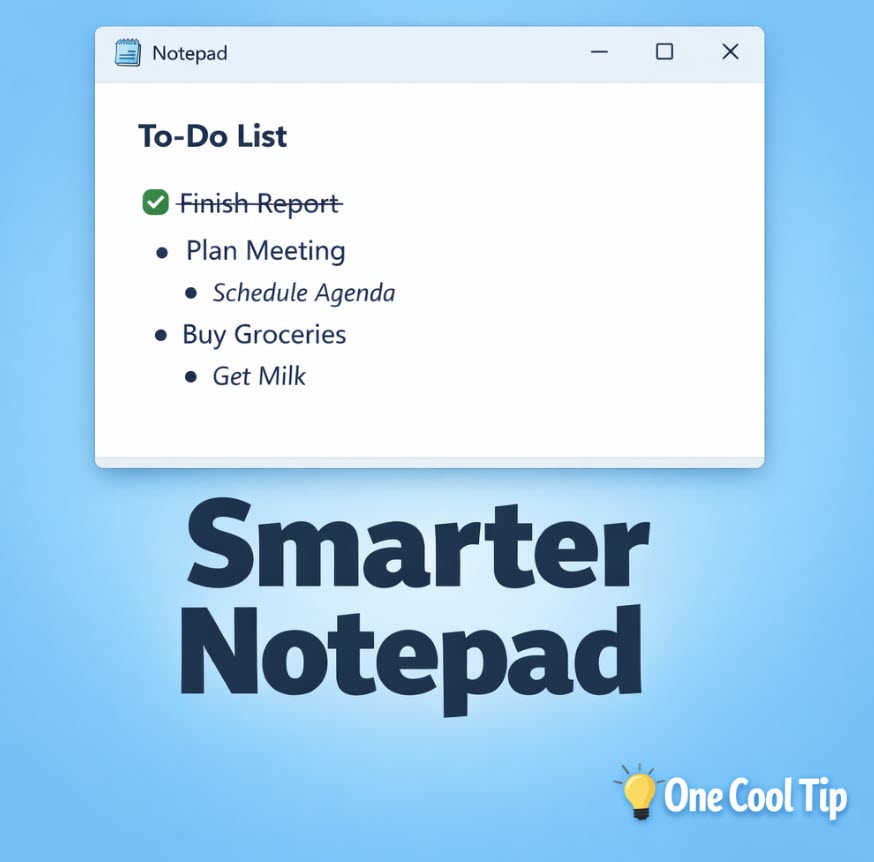
Windows Notepad is evolving from a plain-text tool into a lightweight Markdown editor. New support for Strikethrough and Nested Lists makes everyday notes easier to organize and manage.
Notepad has always been the simplest app on Windows.
Open it, type something, close it, done.
No formatting, no structure, no distractions.
That simplicity worked until you needed to organize anything more complex than a short list.
Project notes, task lists, outlines, even grocery planning quickly turned messy.
Here’s a Cool Tip: Use Notepad like a Structured Note-Taking Tool.
With recent updates, Notepad is starting to behave more like a lightweight Markdown editor, including support for strikethrough text and properly nested lists.
Feature Explanation
The latest update to Windows Notepad adds support for two familiar Markdown features:
-
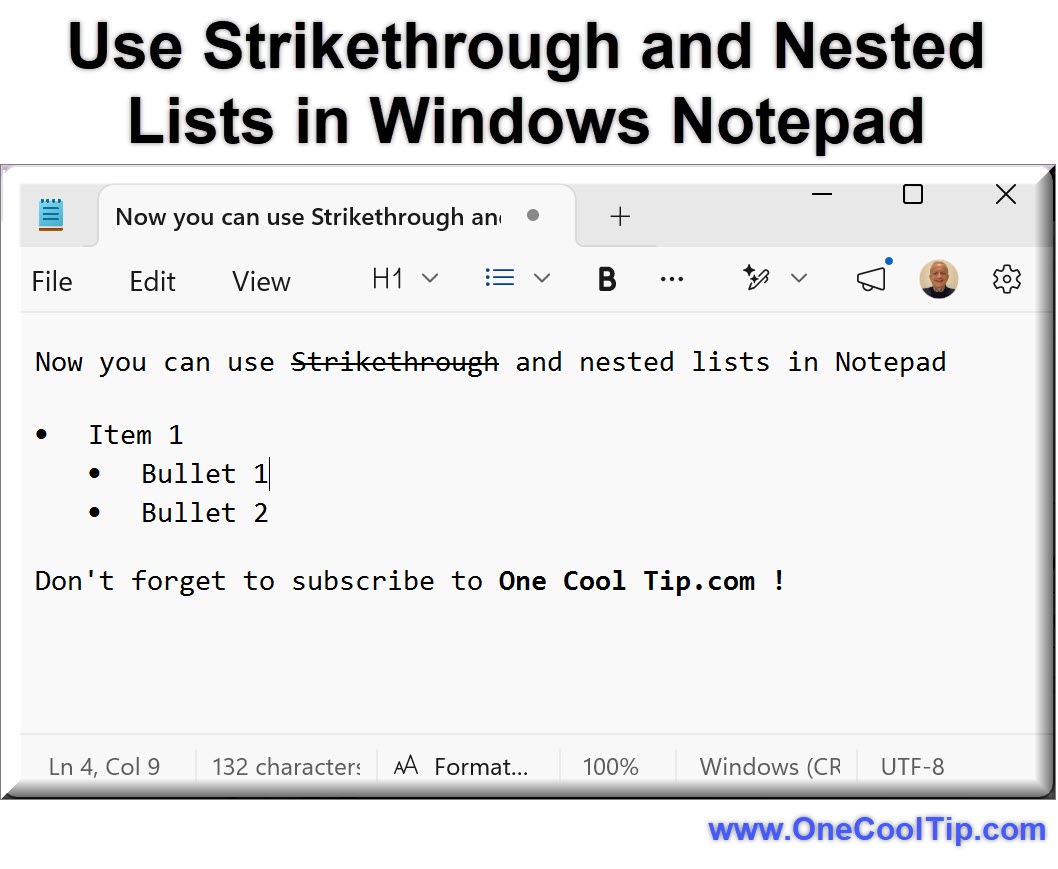
Strikethrough: Lets you cross out text without deleting it.
-
Nested lists: Allows multi-level bullet or numbered lists for better structure.
These additions build on the Markdown support introduced in 2025, which included headings, bold, italics, links, and basic lists.
It still remains a plain-text editor underneath.
Formatting is layered on top, so your files stay lightweight and portable.
Who Benefits Most
- Students taking structured notes.
- Professionals tracking tasks or meeting notes.
- Anyone who prefers fast, distraction-free tools.
What You’ll Gain
- Organize notes with multi-level lists.
- Track completed tasks without deleting them.
- Keep files lightweight and portable.
- Replace simple note apps with built-in tools.
Step-by-Step Instructions
Here's how to do it.
Windows:
-
Open Notepad on a Windows 11 PC.
-
Ensure Formatting is enabled.
-
Go to Settings > Formatting.
- Click to ON.
-
Start typing your content.
Create a nested list:
-
Select the text to list.
-
Go to the list icon on the toolbar.
-
Select Numbered or Bulleted list
-
Enter text on new line then Tab to create a nested bullet.
Add Strikethrough:
-
Type text.
-
Highlight text and then select Strikethrough on the formatting toolbar
| | fig. 1 - Use Strikethrough and Nested Lists Example | |
Pros and Cons
Pros:
- Simple way to organize notes without leaving Notepad.
- No extra apps needed for light task tracking.
- Works with standard Markdown syntax.
- Keeps files compatible with other editors.
Cons:
- Still limited compared to full Markdown editors.
- Feature is currently tied to newer versions of Notepad.
- Some functionality may still be rolling out.
- AI features may require Microsoft account sign-in.
Feature Access
-
Platform: Windows 11.
-
Availability: Currently rolling out.
-
Version: Notepad 11.2512.10.0+.
-
Account: Not required for formatting features.
Score
Criterion | Score (0–10) | Justification
Value | 8
Adds practical note organization with minimal effort.
Usability | 8
Easy to use with toolbar or simple Markdown syntax.
Wow Factor | 6
Useful improvement, but expected compared to modern editors.
Total: 22/30 👍 Good
A smart upgrade that makes Notepad surprisingly useful for everyday structured notes.
Compared to apps like Notepad++ or VS Code, it’s simpler but easier for quick tasks.
Key Takeaways
Notepad is no longer just a plain-text tool.
With Strikethrough and Nested Lists, it becomes a practical option for lightweight note-taking and task management.
For everyday use, that’s often all you need.
Cool Tip Snapshot
-
Feature Name: Markdown Strikethrough & Nested Lists
-
Platform(s): Windows 11
-
Quick Benefit: Organize and track notes inside Notepad
-
Best For: Students, professionals, and casual users
-
Access Type: Rolling Out
-
Difficulty: Easy
Try It Yourself
Open Notepad, turn on formatting, and build your next to-do list using Nested Lists and Strikethrough.
READ MORE
Read the Cool Tip on One Cool Tip.com.
| | Help support One Cool Tip. Use this Amazon link when you shop online. | |
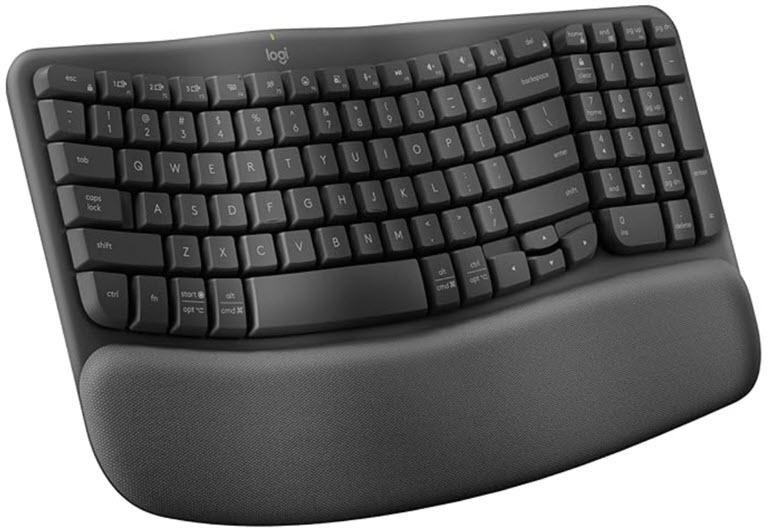
⌨️ Logitech K380 Bluetooth Keyboard: A compact keyboard makes quick writing sessions more comfortable, especially if you draft notes on more than one device. Great for people who write often and like a lighter setup. Save 14% $59.99 Check it out on Amazon!
💾 Samsung T7 Portable SSD: If you keep local markdown notes, drafts, and archives, a portable SSD is a simple way to back them up without relying only on cloud storage. Fast, durable, and broadly useful. $287.99 Check it out on Amazon!
📘 The Markdown Guide: A beginner-friendly Markdown reference can help readers move from basic bullets to cleaner, more portable writing habits. Handy if this Notepad update sparks a bigger plain-text workflow. Kindle: $4.99 | Paperback: $7.99 Check it out on Amazon!
Prices accurate at time of publication
One Cool Tip may earn a commission from qualifying purchases.
| | |
🆒Tell Me More
- The concept of Markdown text editing relies entirely on plain text characters to indicate bold styles, links, and structure, which allows writing professionals to compose formatted drafts without lifting their hands from the keyboard.
- Microsoft added a new welcome experience in Notepad. If you close it, you can reopen it later from the megaphone icon in the upper-right corner of the toolbar.
- Notepad’s first Markdown rollout began in May 2025 with headings, bold, italics, links, simple lists, and the option to switch between formatted Markdown and syntax view.
- Microsoft says AI features like Write, Rewrite, and Summarize now show streaming results sooner, but they still require you to sign in with a Microsoft account.
⏩Quick Tips
-
✅ Use strikethrough for real progress: Mark completed tasks instead of deleting them. In Markdown, wrap text with double tildes like ~~done~~ so you keep a visible record of what got finished.
-
📋 Make nested lists for cleaner notes: Break a big list into sub-steps by indenting child items under a main bullet. This works especially well for travel checklists, project plans, and shopping lists.
-
👀 Switch views when you get confused: If formatting starts looking odd, toggle between formatted and syntax views so you can see what is really in the file. That helps you catch missing symbols fast.
-
🧹 Keep plain text when needed: If you want zero formatting, turn lightweight formatting off in Notepad settings and use it like classic Notepad again.
-
🗂️ Draft in Notepad, publish elsewhere: Use Notepad to sketch headings, bullets, and links in Markdown, then paste that structure into a blog editor, team wiki, or AI prompt.
| | ✅ More Must-Read Tech Tips | | |
👀 How Do I Rewrite in Notepad?
Have you ever wished for a personal editor to refine your writing with just a click?
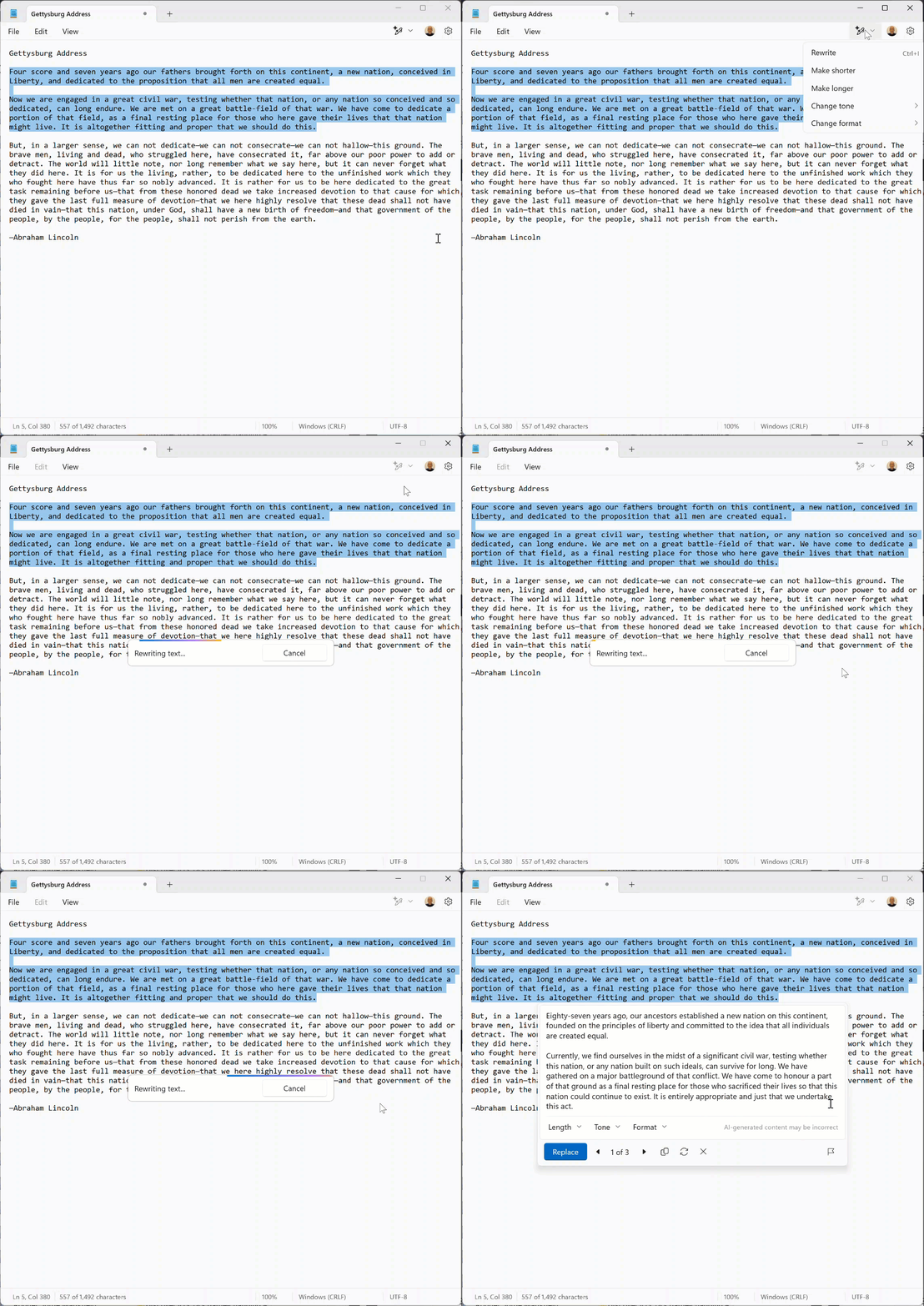
Rewrite in Notepad is an AI-powered feature in Notepad for Windows 11.
This feature leverages a powerful AI model to help refine and enhance your text.
Whether you want to rephrase sentences, adjust the tone, or modify the length of your content, Rewrite makes it easy to improve your writing with just a few clicks.
Here's how to do it.
-
Launch the Notepad app on your Windows 11 device.
-
Ensure you are signed in with your Microsoft account.
- Highlight the text you want to rewrite.
- Select the writing tools icon.
-
Click the Rewrite option or use the Ctrl + D keyboard shortcut.
- Select from various rewrite options such as making the text shorter, longer, changing the tone, or adjusting the format.
-
Notepad generates rewritten text.
- Click on "Replace" to apply the changes directly to your document.
Ultimately, the decision to use Rewrite will depend on your needs and willingness to invest in a Microsoft 365 subscription.
Discover more HERE.
| | |
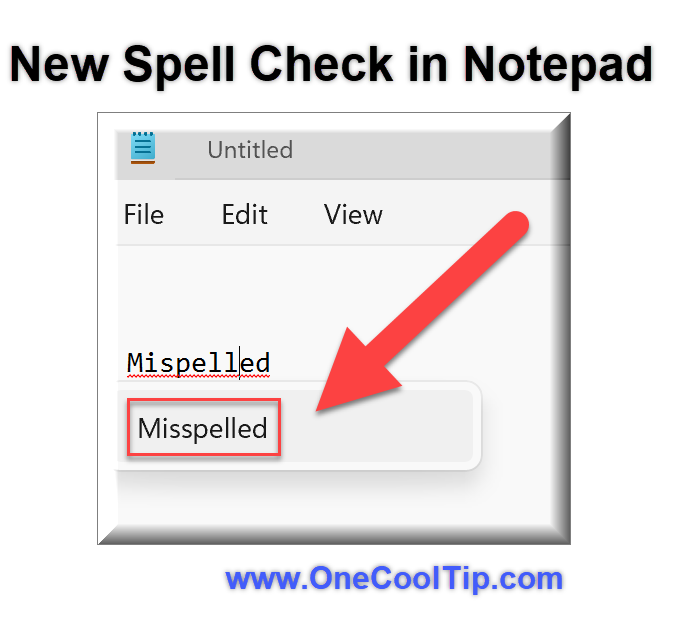
🤔 Have You Ever Wondered How to Use Spell Check in Notepad?
Do you need help with spelling when you type?
Have you ever wished Notepad could catch those pesky spelling errors as you type?
Microsoft has finally added a spell check feature to Notepad, making it easier than ever to write confidently.
Here's how to do it.
-
Launch the Notepad app on your Windows 11 computer.
-
Click the gear icon in the Notepad toolbar to open the settings page.
-
Turn on the “Spell check” toggle switch.
-
Enable the “Autocorrect” toggle switch to automatically fix common misspellings.
Embrace this long-awaited enhancement and elevate your writing experience!
Find out more HERE.
| | |
🙋♂️ Here's How to Write Better with Windows 11 Notepad’s Character Count Feature.
Have you ever wondered how many characters are in your text file?
Windows 11 Notepad, the simple and handy text editor that comes with every Windows operating system, has a built-in feature that can help you with that.
Here's how to do it.
-
Open Windows 11 Notepad by clicking on the Start menu and typing “Notepad” in the search box.
-
Alternatively, you can press the Windows key + R and type “notepad” in the Run dialog box.
-
Create a new text file or open an existing one by clicking on the File menu and choosing New or Open.
-
Type or paste your text in the Notepad window.
-
Edit, format, or save your text as usual.
-
When text is selected, the status bar shows the character count for both the selected text and the entire document.
-
When no text is selected, the character count for the entire document is displayed, ensuring you always have a clear view of your document’s length.
The Character Count feature in Windows 11 Notepad is a useful tool for anyone who works with text files.
Learn more HERE.
| | |
❓Did you share this newsletter with three friends yet?
😎 Cool Facts
- Plain text files saved with standard encoding require less than one kilobyte of drive storage room for every few hundred words composed, making them thousands of times lighter than a traditional docx file container.
- The default execution speed of lightweight text tools allows them to render text documents almost instantly on consumer hardware, outperforming heavy cloud based document software configurations.
- The standard keyboard layouts for plain text applications have remained largely unchanged for over thirty years, preserving global user typing habits across completely different generations of tech hardware.
⌨️Today's Cool Shortcuts
-
Ctrl + M: Summarize selected text in Notepad, when the AI feature is available.
-
Ctrl + D: Open Rewrite for selected text in Notepad, when the AI feature is available.
-
Ctrl + C: Copy selected text so you can move Markdown notes into email, docs, or another app.
-
Ctrl + V: Paste copied text into Notepad or out of it.
-
Windows key + . : Open the emoji and symbols panel if you want quick visual markers in notes or plain-text lists.
😜 Tech Joke of the Day 😅
How many programmers does it take to change a text file layout?
None, they will just tell you it is an unlisted background feature and that you should leave it alone.
🔎 Do you have a Cool Tip or tech question? Email us at onecooltip.com@gmail.com.
| | |
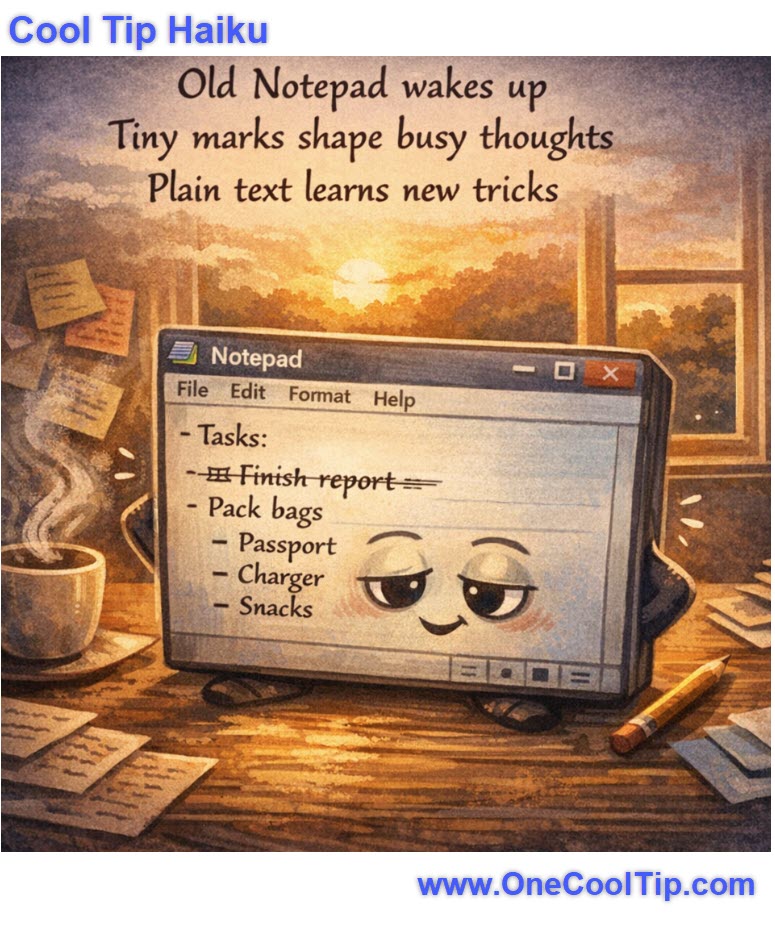
Old Notepad wakes up
Tiny marks shape busy thoughts
Plain text learns new tricks
| |
| 🤔 How do you use Notepad most often? | | | | Did You See These Cool Tips This Week? | | | | Wake Up to an Organized Day with Gemini Daily Brief | |
Stop wasting your morning sorting through messy email threads and scattered calendar invites. The new Google Gemini Daily Brief automatically rounds up your top priorities, unread messages, and daily schedule into one simple, personalized plan.
Read the Newsletter Version.
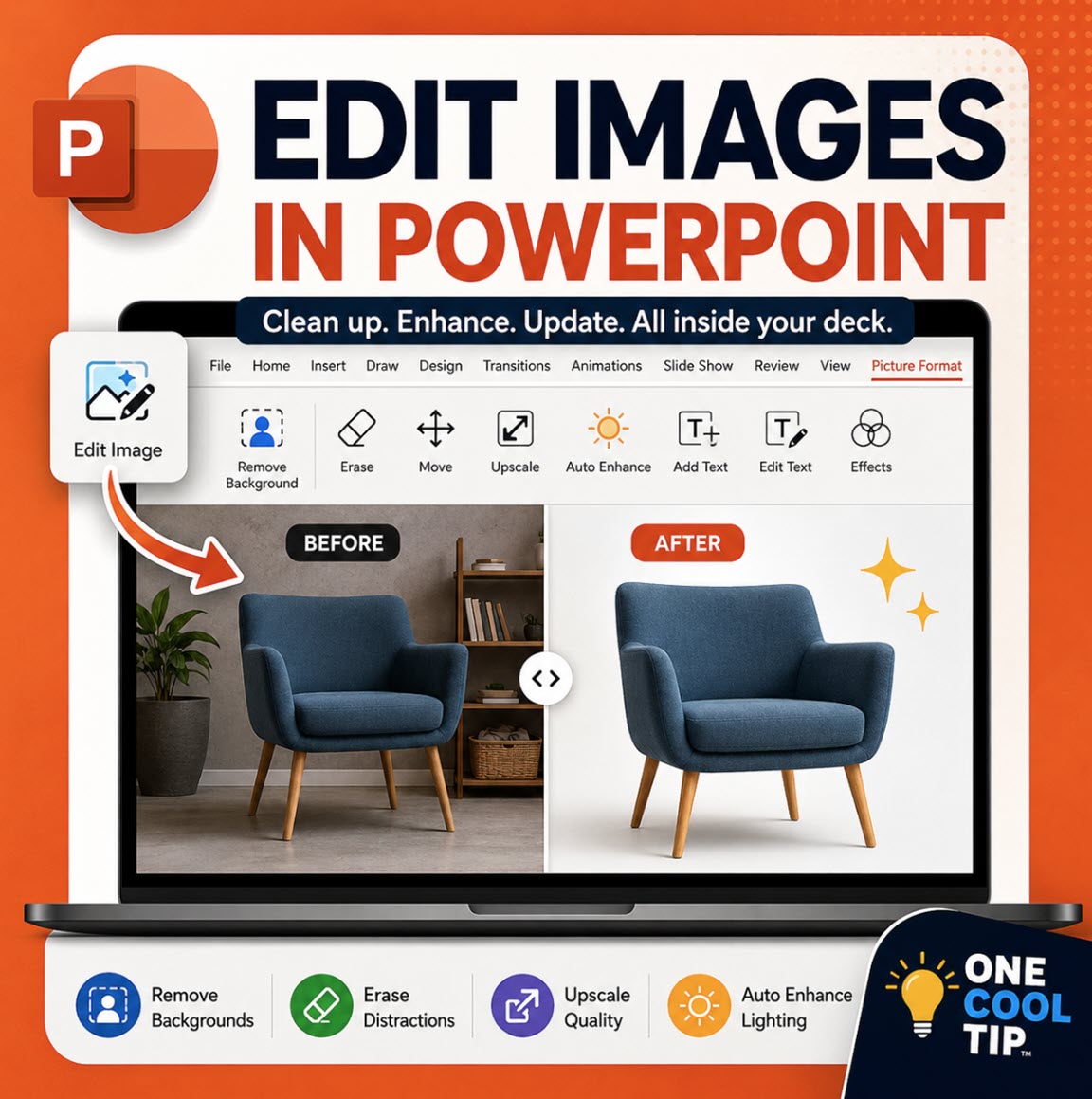
| | | | Edit PowerPoint Images Without Leaving Your Deck | |
PowerPoint now includes a stronger built-in image editor that helps you clean up photos, screenshots, and slide visuals without switching apps. Use Edit Image to remove backgrounds, erase objects, upscale low-resolution pictures, enhance lighting, and update the image directly on your slide.
Read the Newsletter Version.
| |
ICYMI - In Case You Missed It ...
| | | | Unlock Secret Fast Food Orders Like a Pro | |
Discover hidden fast food items and order like an insider with one simple website. Ever wondered if there’s more to your favorite fast food menu than meets the eye? Hack the Menu reveals secret items you can order today if you know how to ask.
Read the Newsletter Version.
| | |
Unleash the Power of Microsoft Edge’s Task Manager
Ever wondered why your Microsoft Edge browser is running slow?
Or which tab is consuming most of your system’s resources?
What if you could have a built-in tool within your browser that could answer all these questions?
Watch
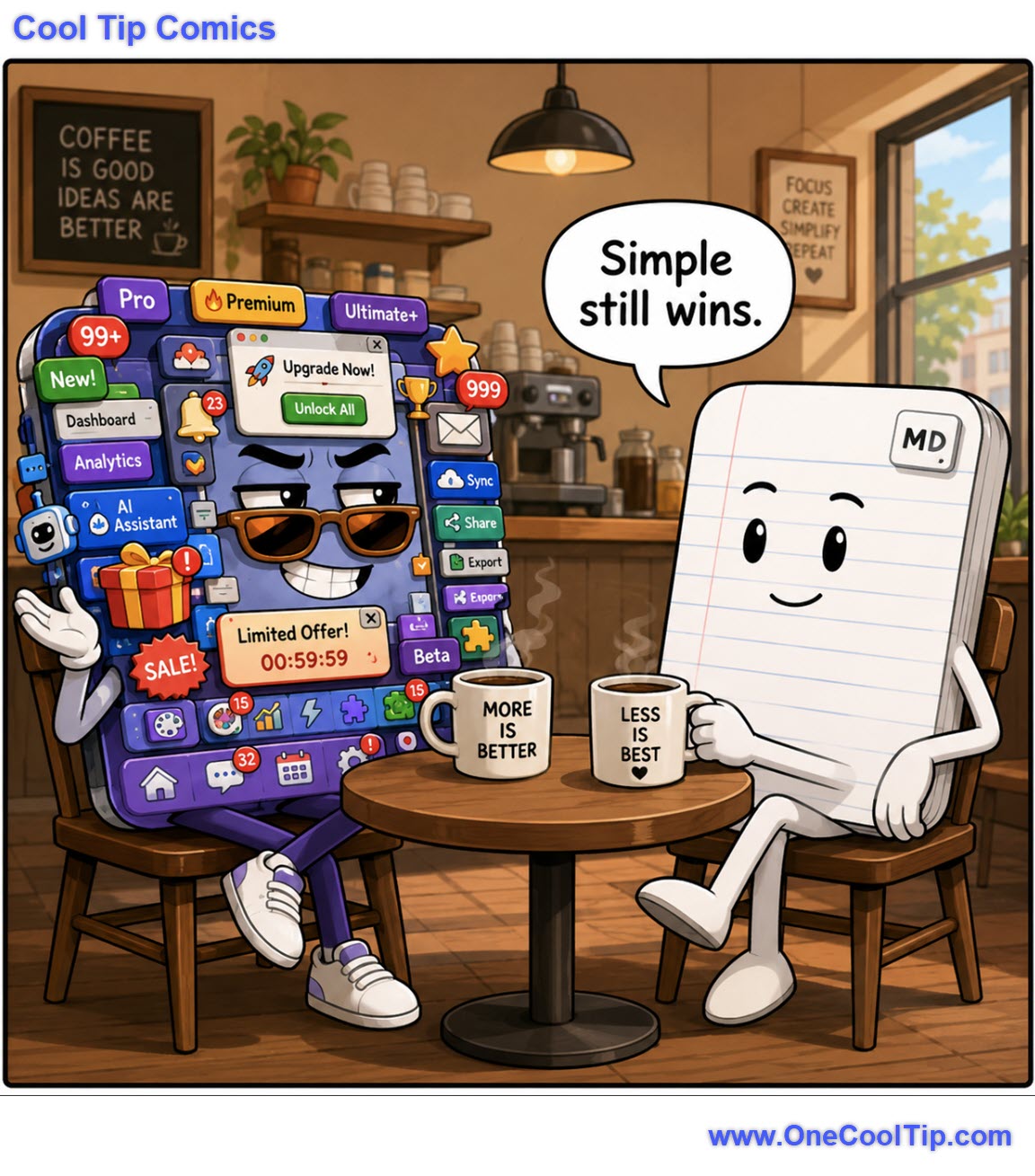
| | When your entire personality fits in one clean page… and still outperforms the app that needs 99+ notifications just to feel important. | | |
Trivia Answer: B) Format plain text using simple characters
Markdown is a lightweight markup language that lets users add formatting with simple plain-text symbols.
For example, hashtags can mark headings, hyphens can create lists, and double tildes can mark strikethrough text.
That is why Markdown works so well in lightweight editors.
The file remains readable as plain text, but many apps can display it with formatting.
----------
Tomorrow's Cool Tip is waiting to amaze you.
Until then, go forth and conquer the tech world with your newfound knowledge!
Be sure to visit www.OneCoolTip.com for Cool Tech Tips for a Cooler Life!
And if you Like One Cool Tip, please support with TipJar!
Enjoy!
Rodger
Chief Cool Tipper
onecooltip.com@gmail.com
| |
| What do you think of today's OneCoolTip newsletter? | | | |
Please Share the One Cool Tip Newsletter!
You asked for it. You got it. There is now a One Cool Tip Newsletter archive. Did you delete a newsletter and want to read it again? Check it out HERE.
Want to help One Cool Tip grow? Please forward this email using the link above. And if you see an OCT social media post, please LIKE, COMMENT and SHARE!
Have you subscribed to the One Cool Tip YouTube channel? Subscribe HERE.
| | Connect with One Cool Tip!! | | |
|
As an Amazon Associate, One Cool Tip may earn a small commission from qualifying purchases.
Our media content is intended solely for informational purposes only. Please do not construe anything here as legal, tax, investment, financial, marital or other advice.
Copyright © 2026 | www.OneCoolTip.com | All Rights Reserved
|
| | | |