|
One Cool Tip Newsletter
September 2, 2026
| Your daily dose of tech-savvy brilliance! | | |
😀Greetings!, Happy Windows Wednesday, Cool Tipper!
Get ready to streamline your digital life with simple, actionable tips delivered straight to your inbox.
Today's Cool Tip Theme: OneDrive Personal Vault.
Secure sensitive files with OneDrive Personal Vault. Learn how it works, who can use it, and how to set it up across supported devices.
IN THIS ISSUE
- ⚠️ Consent Phishing Alert: The FBI warns against a rising scam that tricks you into approving account access permissions, bypassing your password completely.
- 🛑 Opt Out of OneDrive Backups: Windows 11 rolls out a permanent opt-out setting so you can stop recurring prompts to back up files to the cloud.
- 🏆 Top August Tip: Catch up on the month's biggest tip covering ChatGPT dropping text chat limits for free-tier users.
- 🤖 AI Prompt of the Day: A ready-to-use prompt to turn any recipe into a clean, illustrated recipe card using your favorite AI assistant.
- 🔒 OneDrive Personal Vault Deep Dive: Protect passports, tax forms, and IDs with secondary authentication, auto-locking, and zero link-sharing.
- 🧹 Windows Storage Sense Setup: Clean up drive clutter automatically and free up disk space on Windows with a few quick settings tweaks.
- 📸 Instant Screenshot Organization: Automatically save screen captures directly into your Windows 11 Pictures directory without losing track of files.
- 📍 Locate Lost Windows PCs: Set up and use the built-in "Find My Device" tool to pinpoint your laptop's location on a map.
New here? Subscribe to the One Cool Tip Newsletter for daily updates. It's FREE!
-
😂 Laugh with Us! Enjoy our Tech Joke of the Day, Haiku and Cool Tip Comics.
-
🌐 Stay Informed! Check out ICYMI, and our One Cool Tip Video.
| | |
3️⃣
If you enjoy the One Cool Tip newsletter, please forward this newsletter to THREE friends or colleagues or share it on social media using the links below.
Leave a $$$ Tip!
Share this One Cool Tip Newsletter!
| | |
Today's Tech Trivia
Which cloud storage service was originally launched by Microsoft in 2007 before undergoing multiple rebrandings and ultimately becoming OneDrive?
A) SkyDrive
B) Windows Live Folders
C) Live Mesh
D) MSN Storage
Answer at the end of this newsletter.
| | |
⚠️ This Phishing Scam Can Bypass Your Password⚠️
The FBI is warning consumers about a growing threat called consent phishing, a scam that tricks people into granting access to their accounts instead of stealing their passwords.
These attacks often arrive through email, text messages, or messaging apps and may appear to come from trusted organizations, event planners, media contacts, or government officials.
When users click the link and approve access, they can unknowingly give scammers permission to read emails, access sensitive data, and even send messages on their behalf.
What makes this scam especially dangerous is that changing your password may not immediately remove the access you granted.
Before approving any request to connect an app to your account, verify who sent it and only authorize applications you trust.
If something feels suspicious, stop and investigate before clicking "Allow."
And in Other News...
- Tired of OneDrive Reminders? Windows 11 Finally Listened
If you've ever felt like Windows 11 keeps asking you to back up your files to OneDrive, there's good news.
Microsoft is quietly rolling out a new "Opt out of backup" option that lets users permanently decline OneDrive backup prompts instead of repeatedly clicking "Remind me later."
The change does not remove OneDrive or affect files already stored there.
It simply gives users a clearer way to say they do not want to use OneDrive Backup.
This means fewer interruptions and more control over how files are stored and protected.
If cloud backup is not part of your workflow, Windows will finally be able to take "no" for an answer.
The top new Cool Tip for August was ChatGPT Removes Text Chat Limits for Free Users.
Did you read it?
| | |
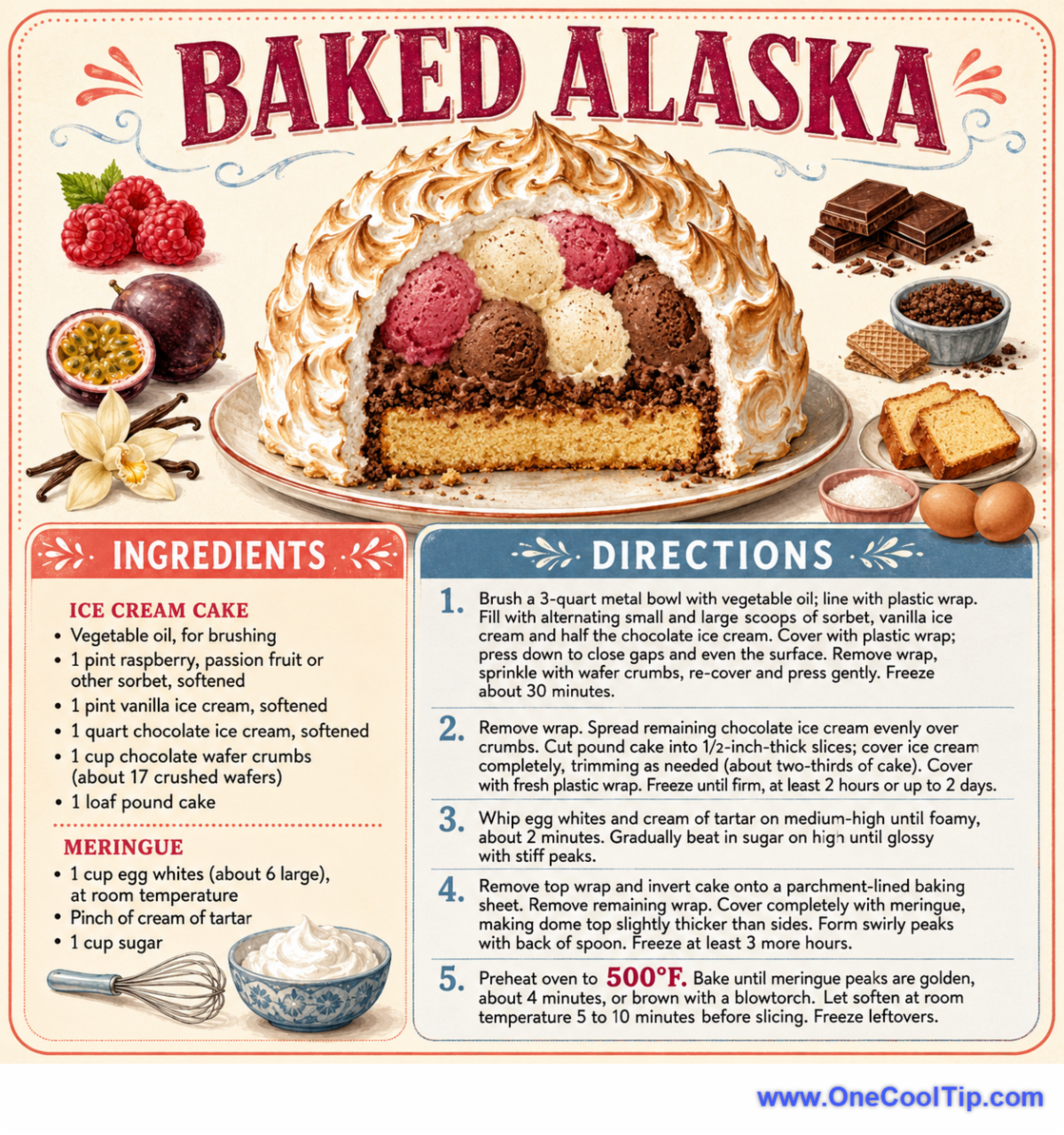
Try this Cool AI prompt. Copy and paste to ChatGPT, Gemini, Claude or Copilot.
Create a polished illustrated recipe card for “[RECIPE NAME].”
Include clearly labeled sections for ingredients and numbered preparation steps using the recipe information below.
Add an appetizing image of the finished dish, small illustrations of key ingredients, and a clean, cheerful kitchen-inspired design.
Use a square 1:1 layout, large readable lettering, strong visual hierarchy, and correctly spelled text.
Do not invent ingredients, quantities, cooking temperatures, or instructions.
Recipe:
| | |
Give Sensitive Documents Extra Protection in OneDrive
Your vacation photos and passport scan probably should not receive identical treatment.
Yet that is what can happen when everything lands in the same cloud storage account.
Your files may be protected by your Microsoft account, but an unlocked computer, shared device, or compromised session can still create an opportunity for someone to see more than you intended.
Here’s a Cool Tip: Move your most sensitive documents into Personal Vault, then lock it as soon as you finish using them.
OneDrive Personal Vault adds another checkpoint.
Before opening the protected folder, you must verify your identity using an available method such as a fingerprint, face, PIN, Microsoft Authenticator code, email code, or text message.
The vault also locks after inactivity, so its contents do not remain indefinitely accessible.
This is not a separate storage service or a replacement for good account security.
It is a protected area inside a personal OneDrive account, designed for files that deserve more care.
Feature Explanation
Personal Vault is a special folder in OneDrive protected by an additional identity-verification step.
It is a place for important or sensitive documents and photos.
Good candidates include:
- Passport and driver’s license copies.
- Tax returns and supporting records.
- Insurance policies.
- Birth certificates.
- Financial documents.
- Vehicle and property records.
- Emergency travel information.
Personal Vault automatically locks after inactivity. On the web, Microsoft documents a 20-minute inactivity period.
On mobile devices, the documented default is three minutes, with an option to select a different interval.
The Windows OneDrive client also provides a setting for its lock wait time.
Files in the vault cannot be shared while they remain there. To share one, you must move it out first. Microsoft also says Personal Vault items do not appear in OneDrive search results.
That creates a sensible tradeoff: slightly more friction in exchange for less accidental exposure.
What You’ll Gain
- Add another identity check before sensitive files can be opened.
- Reduce the chance of accidentally sharing a protected document.
- Keep important records available through supported OneDrive devices.
- Automatically relock files after a period of inactivity.
Step-by-Step Instructions
Here's how to do it.
Microsoft says Personal Vault must be set up separately on each device where you intend to use it. Button names may appear as Next or Continue, depending on the device.
Web/Desktop
-
Visit OneDrive.com and sign in with your personal Microsoft account.
-
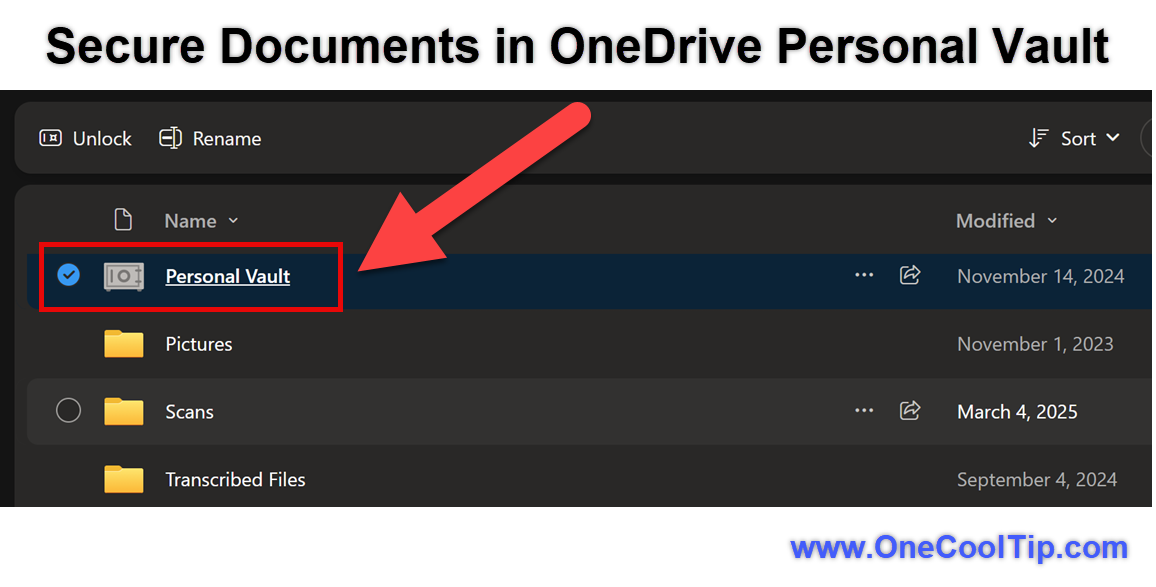
Select the Personal Vault folder.
-
Select Get started, followed by Next or Continue.
-
In the Verify your identity dialog, confirm the displayed account information and select Verify.
-
Choose an available verification method and complete the requested steps.
-
Open Personal Vault, select the files you want to protect, and use Move to > Personal Vault. You can also drag supported items into the vault.
-
When finished, open Personal Vault and select Lock.
| | fig. 1 - Secure Documents in OneDrive Personal Vault | |
Cool Example
- Before traveling, create digital copies of your passport, travel insurance policy, and emergency contact sheet.
- Upload them directly to Personal Vault, confirm that each file opens, and then lock the vault.
- Keep the physical documents secure as well because cloud copies are backups, not replacements.
Windows
-
Select the OneDrive cloud icon in the Windows notification area.
-
Open OneDrive and select Personal Vault from the file list. Microsoft notes that it appears as a shortcut in the file list rather than the folder list.
-
Select Get started if setup has not been completed.
-
Verify your identity using an available method.
-
Move files into the opened vault.
-
When finished, select the Personal Vault folder and choose Lock.
To adjust the lock wait time, open the OneDrive cloud icon, select Help and Settings > Settings, open the Account tab, and find the Personal Vault lock-wait setting.
iPhone/iPad
-
Open the OneDrive mobile app and sign in.
-
Select Personal Vault in the folder list.
-
Select Get started, Next, or Continue as prompted.
-
Complete identity verification using a method available on the device.
- Upload, scan, or move a document into the vault.
-
Confirm that the item appears inside Personal Vault.
The mobile app can scan a document directly into Personal Vault, helping keep that scan out of the device’s camera roll.
Android
-
Open the OneDrive app and sign in.
-
Select Personal Vault.
-
Follow the setup prompt.
-
Verify your identity.
-
Upload, scan, or move the files you want to protect.
-
Confirm the documents appear in the opened vault.
To change the mobile lock interval, go to Me > Settings > Personal Vault, then select Auto-lock or Inactivity lock, depending on the app version.
Pros and Cons
Pros:
- Adds identity verification before sensitive files can be opened.
- Automatically locks after inactivity.
- Prevents sharing while a file remains inside the vault.
- Lets mobile users scan documents directly into the protected folder.
- Fits naturally into an existing personal OneDrive workflow.
Cons:
- Personal Vault is not available in OneDrive for work or school.
- Users without Microsoft 365 Personal or Family can place no more than three files in the vault.
- Additional verification creates intentional friction.
- Documents can be edited in Personal Vault only on a PC or the web. Mobile users can view documents but must move them out to edit them.
Privacy and Data Notes
Personal Vault adds access controls, but its files are still stored in OneDrive and consume the account’s cloud storage.
Personal Vault files cannot be shared while they are in the vault.
However, opening a vault file in a Windows application may place its name in that application’s recent list or elsewhere in Windows.
Open particularly sensitive files through OneDrive.com to avoid this behavior.
A vault is not a complete backup strategy.
Keep recovery information current, use strong Microsoft account protection, secure your devices, and retain an additional protected backup of irreplaceable records.
Feature Access
Microsoft currently documents Personal Vault for:
- Windows 11.
- Windows 10 version 1903 or newer.
- Android 6 or newer.
- iOS 11.3 or newer.
- Current versions of Microsoft Edge, Google Chrome, and Mozilla Firefox.
Because Microsoft’s official pages conflict on the iOS minimum, readers should use the latest OneDrive version supported by their device and check the current app-store requirement.
Personal Vault is not available in OneDrive for work or school.
Microsoft 365 Personal or Family is required to store more than three files.
Score
Criterion | Score (0–10) | Justification
Value | 8
Personal Vault addresses a genuine privacy need and blocks accidental sharing, although it does not replace account security or a proper backup.
Usability | 8
Setup is straightforward, but repeated verification and device-specific settings add some friction.
Wow Factor | 7
It is not new or flashy, but direct mobile scanning, automatic locking, and OneDrive integration make it unusually practical.
Total: 23/30 | 👍 Good
OneDrive Personal Vault is a valuable, low-effort privacy upgrade for anyone keeping sensitive personal records in OneDrive.
Unlike an ordinary OneDrive folder, it requires additional verification, automatically locks, and prevents files from being shared while they remain inside.
Key Takeaways
Personal Vault gives sensitive documents more protection without requiring a separate cloud-storage service.
Use it selectively for the records that would create the greatest risk or disruption if exposed, and remember that extra authentication does not replace device security, strong account protection, or backups.
Cool Tip Snapshot
-
Feature Name: OneDrive Personal Vault.
-
Platform(s): Windows 11, supported Windows 10 versions, iPhone/iPad, Android, and supported web browsers.
-
Quick Benefit: Requires extra identity verification before opening sensitive files.
-
Best For: Families, travelers, students, freelancers, older adults, and home users.
-
Access Type: Free with limits; Subscription for more than three files.
-
Difficulty: Easy.
Try It Yourself
Open Personal Vault, protect one important document, and lock it when you are done.
Share your experience in the comments, subscribe to the One Cool Tip newsletter, and send this Cool Tip to family, friends, and coworkers who keep sensitive records online.
READ MORE
Read the Cool Tip on One Cool Tip.com.
| | Help support One Cool Tip. Use this Amazon link when you shop online. | |
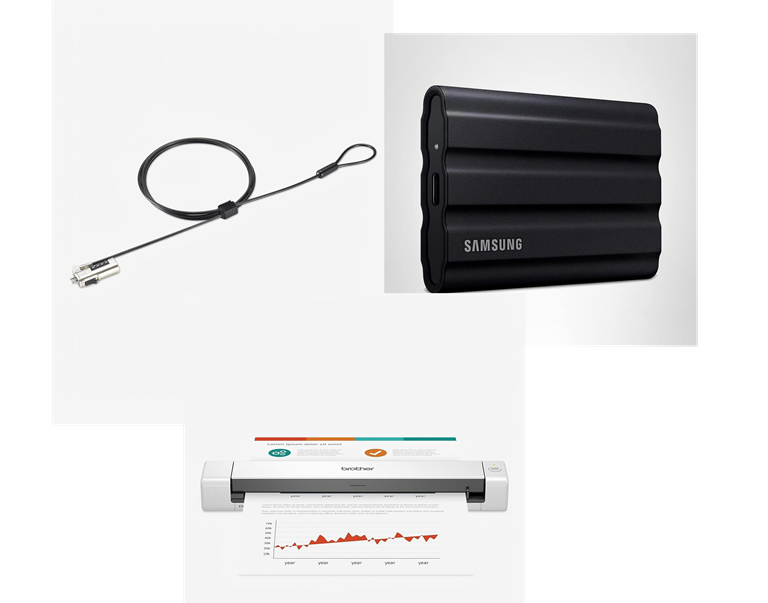
🛡️ Kensington Laptop Cable Lock: Deter physical workstation theft in public spaces and shared offices to keep unlocked sessions secure.
Look! $12.71. 4.0 Stars. Check it out on Amazon!
💾 Samsung T7 Portable SSD: A portable SSD is useful for maintaining an additional copy of important files outside of cloud storage.
Look! $279.06. 4.7 Stars. Check it out on Amazon!
📠 Brother DS-640 Mobile Scanner: A portable scanner makes it easy to digitize important documents before storing them securely.
Save 10%. $134.99. 4.3 Stars. Check it out on Amazon!
Prices accurate at time of publication
One Cool Tip may earn a commission from qualifying purchases.
| | |
🆒Tell Me More
- 📄 Files stored in Personal Vault do not appear in OneDrive search results, helping limit accidental discovery.
- 📱 The OneDrive mobile app can scan documents directly into Personal Vault.
- 🔐 Personal Vault supports additional verification methods including PINs, biometrics, email codes, and SMS codes depending on device capabilities.
- 🚫 Files cannot be shared while they remain inside Personal Vault.
- 💻 Personal Vault is available for personal OneDrive accounts and is not available in OneDrive for work or school.
⏩Quick Tips
-
🔒 Lock It: Don't wait for auto-lock. Manually lock Personal Vault when you're finished reviewing sensitive documents.
-
📱 Scan Directly: Use the OneDrive mobile scanner to save important paperwork directly into Personal Vault.
-
✅ Check Recovery Info: Make sure your Microsoft account phone number and backup email are current.
-
📂 Store Only Important Files: Reserve Personal Vault for high-value documents rather than everyday files.
-
💾 Keep a Backup: Personal Vault improves protection but should not be your only copy of important records.
| | ✅ More Must-Read Tech Tips | | |
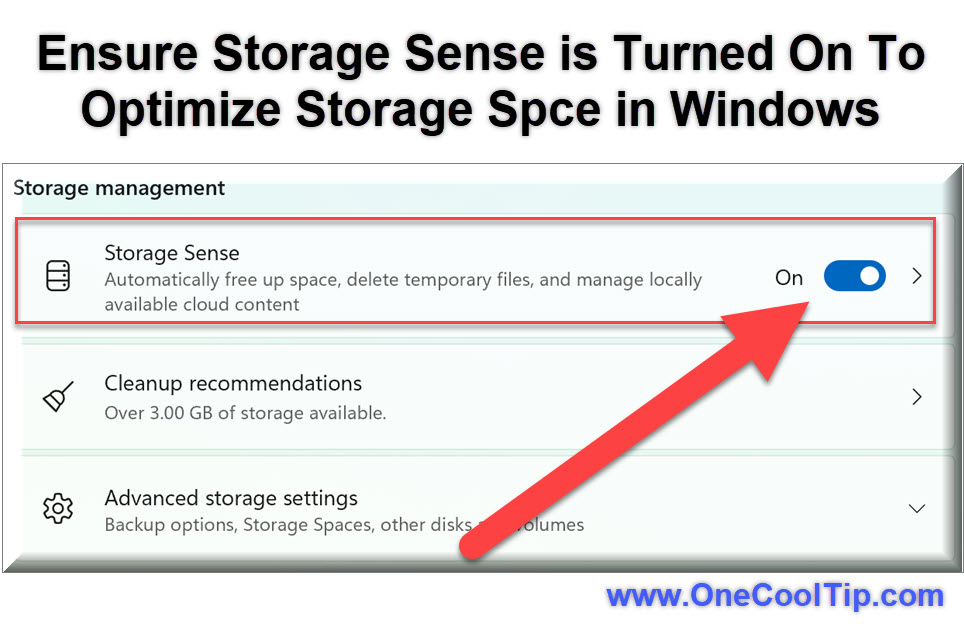
👀 How Do I Unlock the Power of Microsoft Windows Storage Sense?
Ever wondered why your computer slows down or runs out of space at the most inconvenient times?
Microsoft Windows Storage Sense acts as your silent assistant, automatically freeing up drive space and ensuring your device runs smoothly.
Here's how to do it.
-
Go to Start > Settings > System > Storage.
-
Toggle Storage Sense to "On."
-
Click Storage Sense.
- Choose how often Storage Sense runs and what files to clean up.
Pro Cool Tip:
Run Storage Sense manually at least once by clicking "Run Storage Sense Now" after configuring it. This ensures everything is cleaned according to your selected options and gives you immediate benefits.
Microsoft Windows Storage Sense is a game-changer for anyone struggling with limited drive space.
Discover more HERE.
| | |
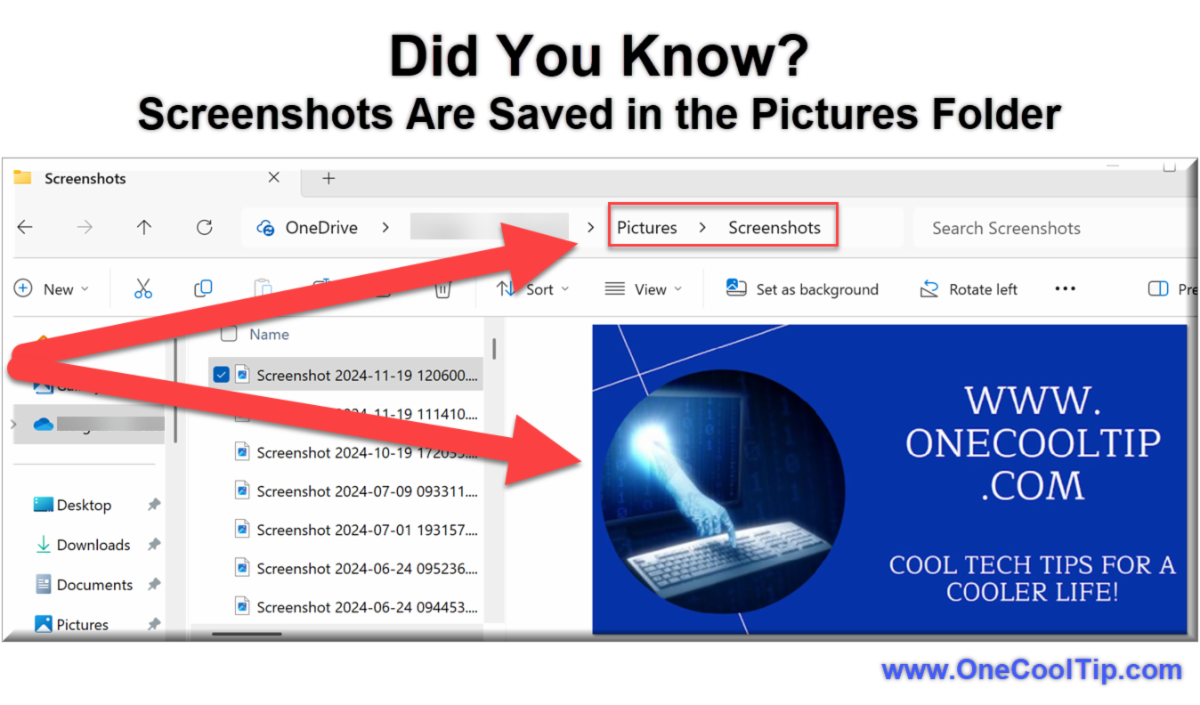
🤔 Have You Ever Wondered How Windows 11 Automatically Saves Your Screenshots ?
Have you ever taken a screenshot, only to scramble trying to find where it was saved?
Did you know that Windows 11 can automatically save your screenshots to a dedicated folder?
This feature is crucial for enhancing productivity and organization.
Here's how to do it.
-
Press Windows + Shift + S.
-
Capture a screenshot.
-
Open File Explorer.
-
Navigate to the Pictures folder.
-
Find the Screenshots subfolder.
-
That's it! Your screenshot is automatically saved in the Screenshots subfolder within your Pictures directory.
Incorporating the automatic screenshot-saving feature in Windows 11 can significantly enhance your productivity and organization.
Find out more HERE.
| | |
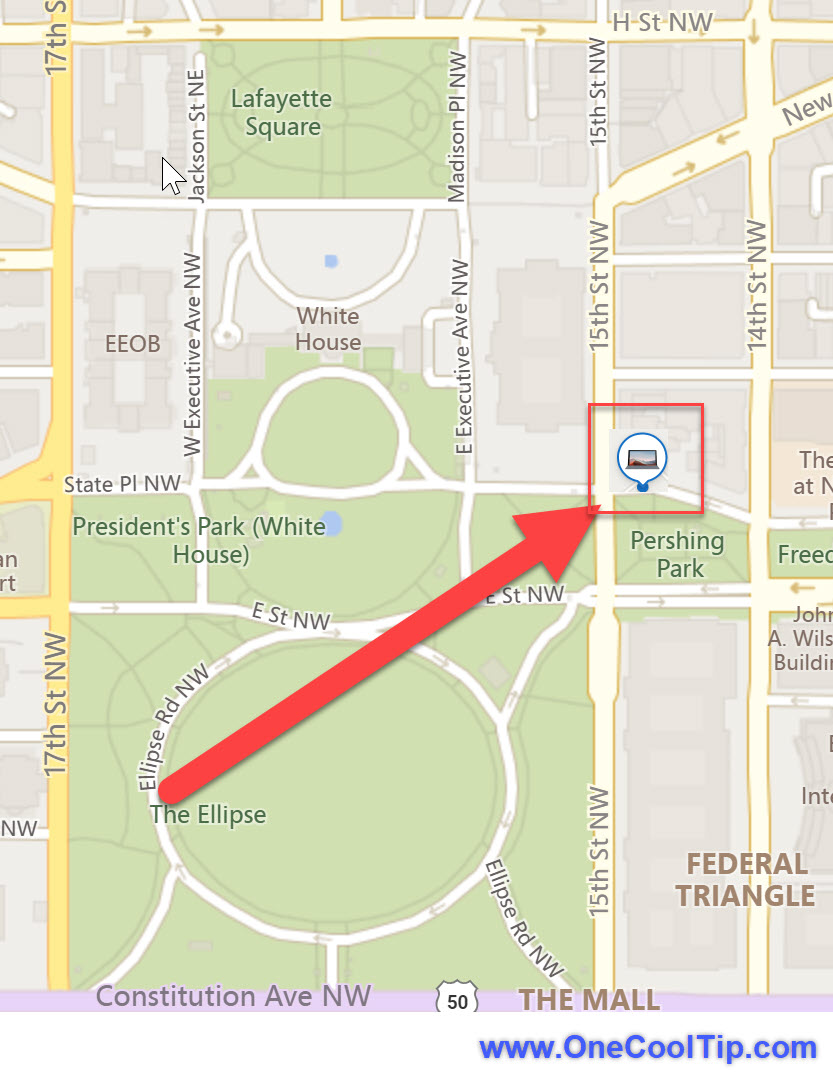
🙋♂️ Here's How To Find Your Windows Device.
Find My Device is a built-in feature in Windows 10/11 that allows you to track your PC’s location.
Think of it as Windows’ counterpart to Apple’s Find My feature.
Once enabled, you can use your Microsoft account to locate your Windows PC on a map.
Here's how to do it.
Turn On “Find My Device”
-
Select "Start".
-
Select "Settings".
-
Click on "Privacy & Security".
-
Navigate to "Find My Device".
-
Toggle the switch to On.
- Done! Your device is now trackable.
Find Your Windows Device:
-
Visit account.microsoft.com/devices.
-
Sign in with your Microsoft account.
-
Select the lost device from the list.
-
Click Find to see its last known location on a map.
Enable it, track your lost Windows device, and rest easy knowing you’re in control.
Learn more HERE.
| | |
❓Did you share this newsletter with three friends yet?
😎 Cool Facts
-
3 Files: Free 5 GB OneDrive accounts and standalone 100 GB basic tiers are limited to storing a maximum of 3 files in Personal Vault. Source.
-
20 Minutes: The default inactivity timeout for Personal Vault on OneDrive web and Windows PC clients before it automatically locks. Source.
-
3 Minutes: The default auto-lock time on the iOS OneDrive mobile app when the app switches to the background. Source.
-
2019: The year Microsoft rolled out OneDrive Personal Vault worldwide to consumer accounts. Source.
⌨️Today's Cool Clickpaths
-
🪟 Windows: OneDrive icon → Help & Settings → Settings → Account → Personal Vault
-
☁️ OneDrive Web: OneDrive → Personal Vault → Get Started
-
📱 Mobile: OneDrive → Personal Vault
-
📱 Mobile Lock Timing: Me → Settings → Personal Vault → Auto-lock
-
📄 Move File: Personal Vault → Move To → Personal Vault
😜 Tech Joke of the Day 😅
OneDrive has two kinds of folders: “fine if the kids see it” and “please Face ID first.”
🔎 Do you have a Cool Tip or tech question? Email us at onecooltip.com@gmail.com.
| | |
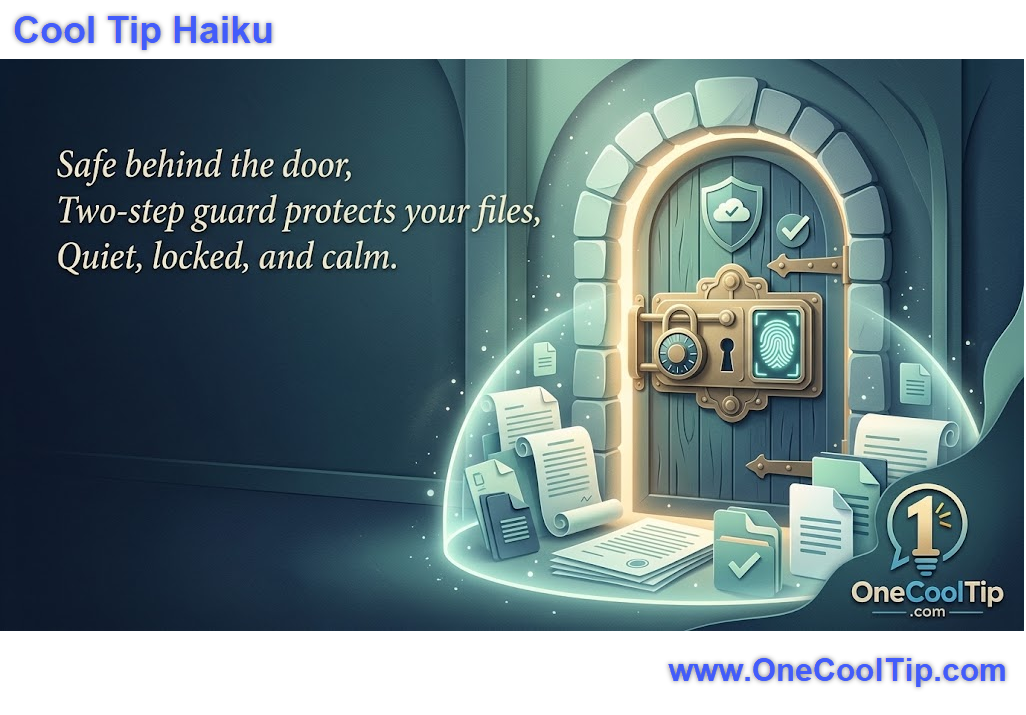
Safe behind the door,
Two-step guard protects your files,
Quiet, locked, and calm.
| |
| 🤔 Where do you keep your most important personal documents? | | | | Did You See These Cool Tips This Week? | | | | Put Your Google Drive Files to Work in ChatGPT | |
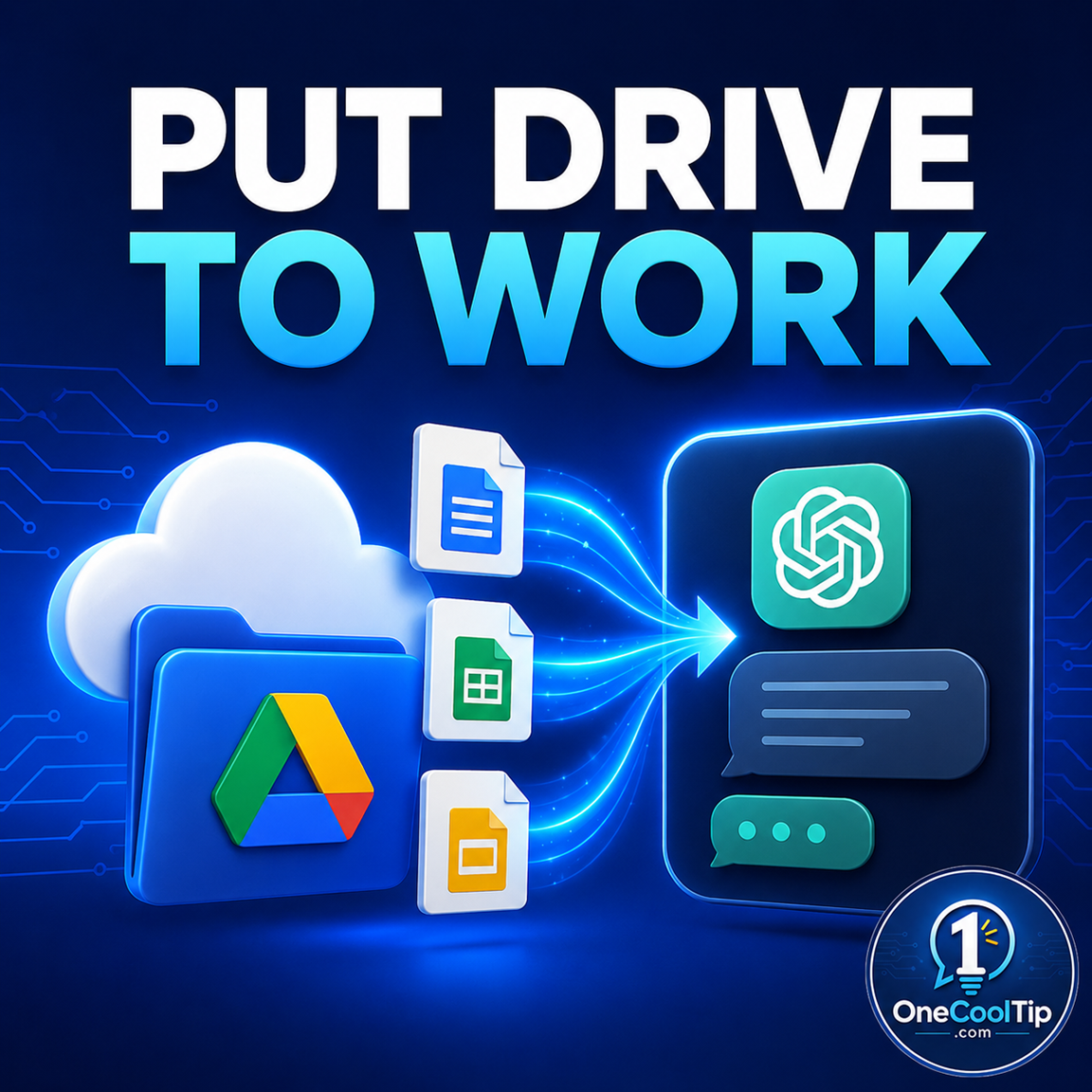
ChatGPT can work with accessible files in Google Drive, including Docs, Sheets, and Slides, without making you upload the same material for every task. Connect the Google Drive plugin, name the source you want, and turn stored information into summaries, comparisons, analyses, or new files.
Read the Newsletter Version.
| | | | Turn Spreadsheet Rows into Interactive Apps with Sheets Canvas | |
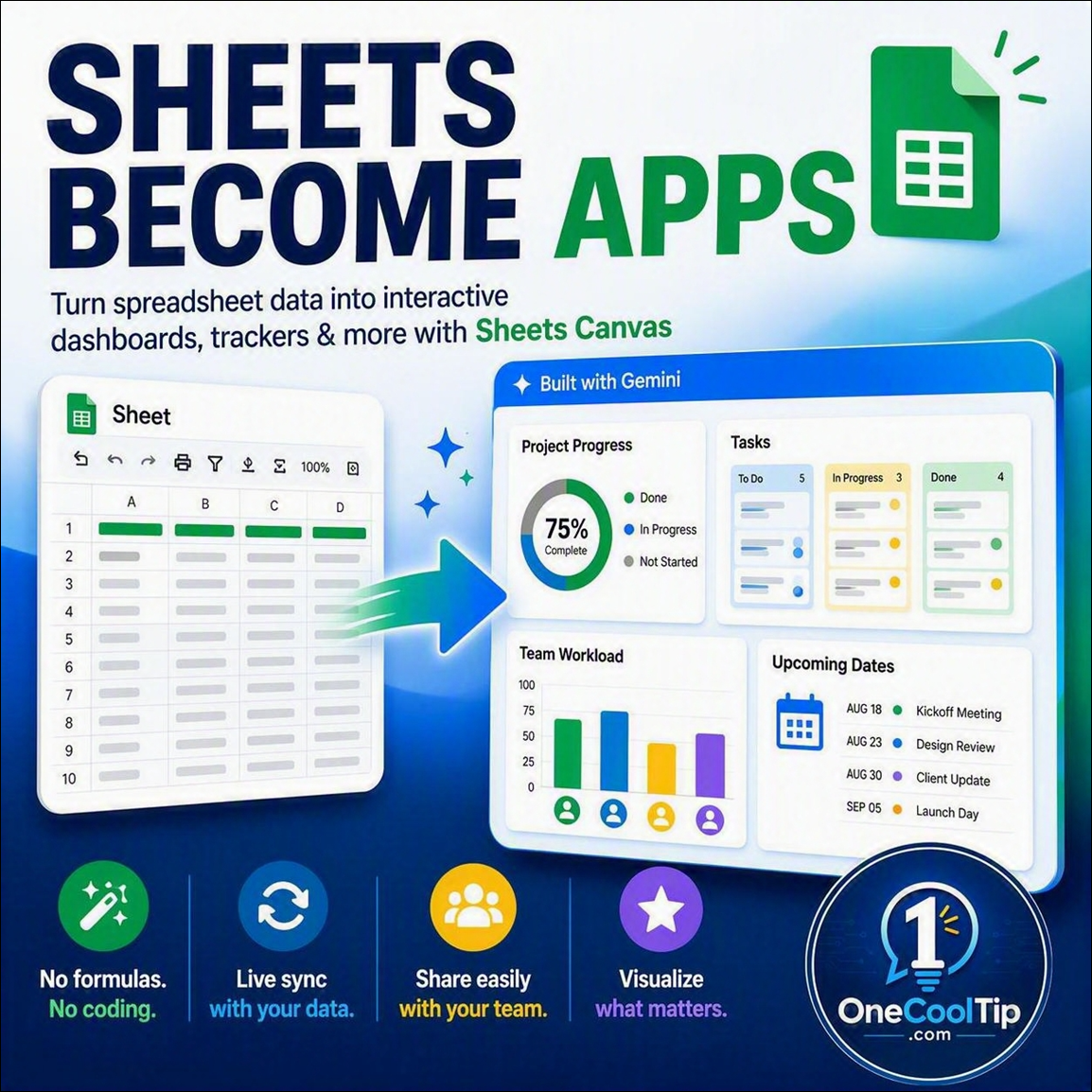
Google Sheets now allows you to convert traditional rows and columns into interactive mini-apps using plain language prompts. Discover how Sheets canvas helps you build dynamic visual dashboards, assignment trackers, and event plans without writing a single formula.
Read the Newsletter Version.
| |
ICYMI - In Case You Missed It ...
| | | | Transform Everyday Clips with Google Photos Video Remix | |
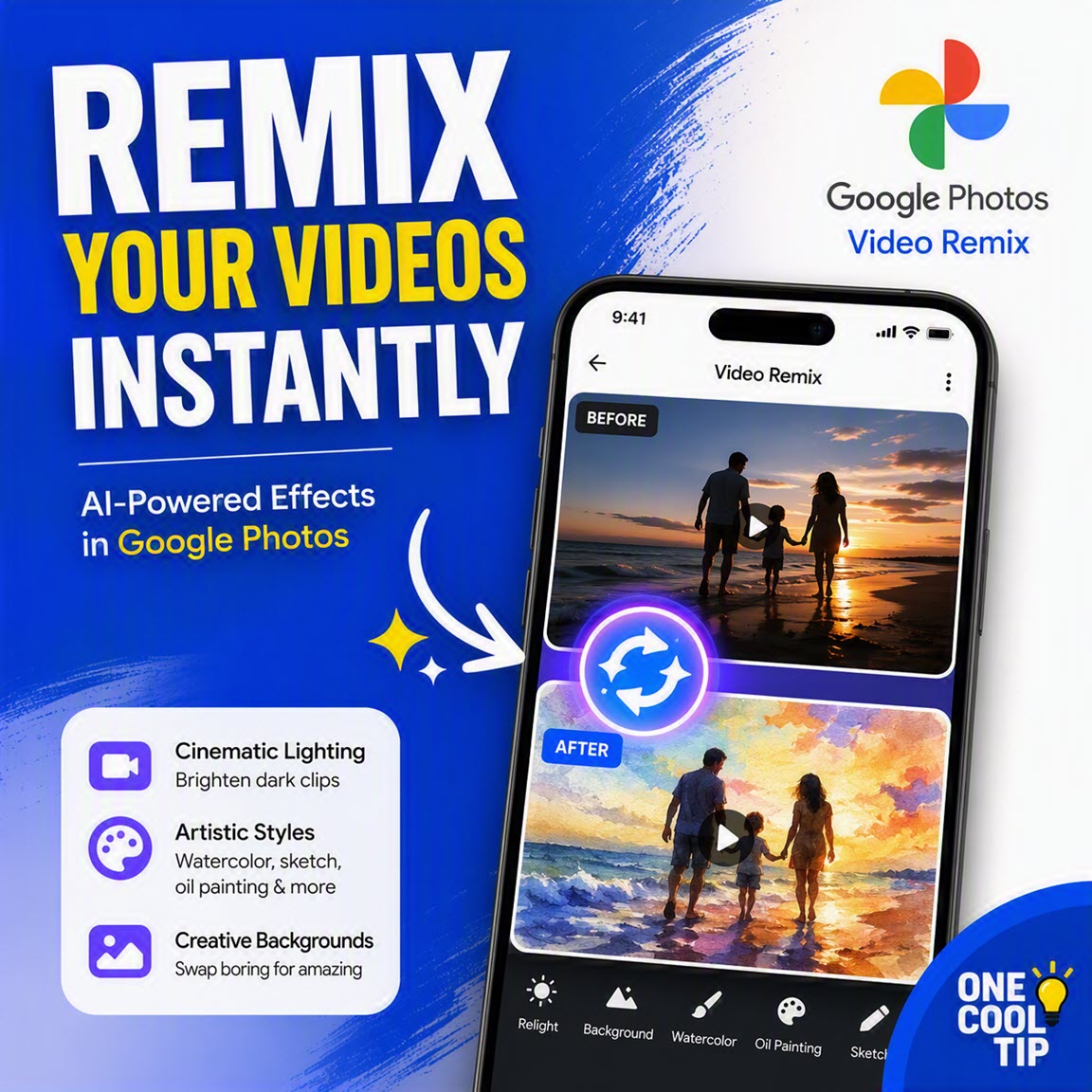
Google Photos now lets you restyle short video clips instantly using generative artificial intelligence. You can adjust lighting, swap out plain backgrounds, and apply artistic effects without needing complex editing software.
Read the Newsletter Version.
| | |
How to Unlock the Power of the Windows Character Map
Have you ever needed to type a special character, such as the British pound sign (£), but didn’t know how to do it on your keyboard?
What about other special characters?
How do you insert characters that don't appear on the regular keyboard?
Watch
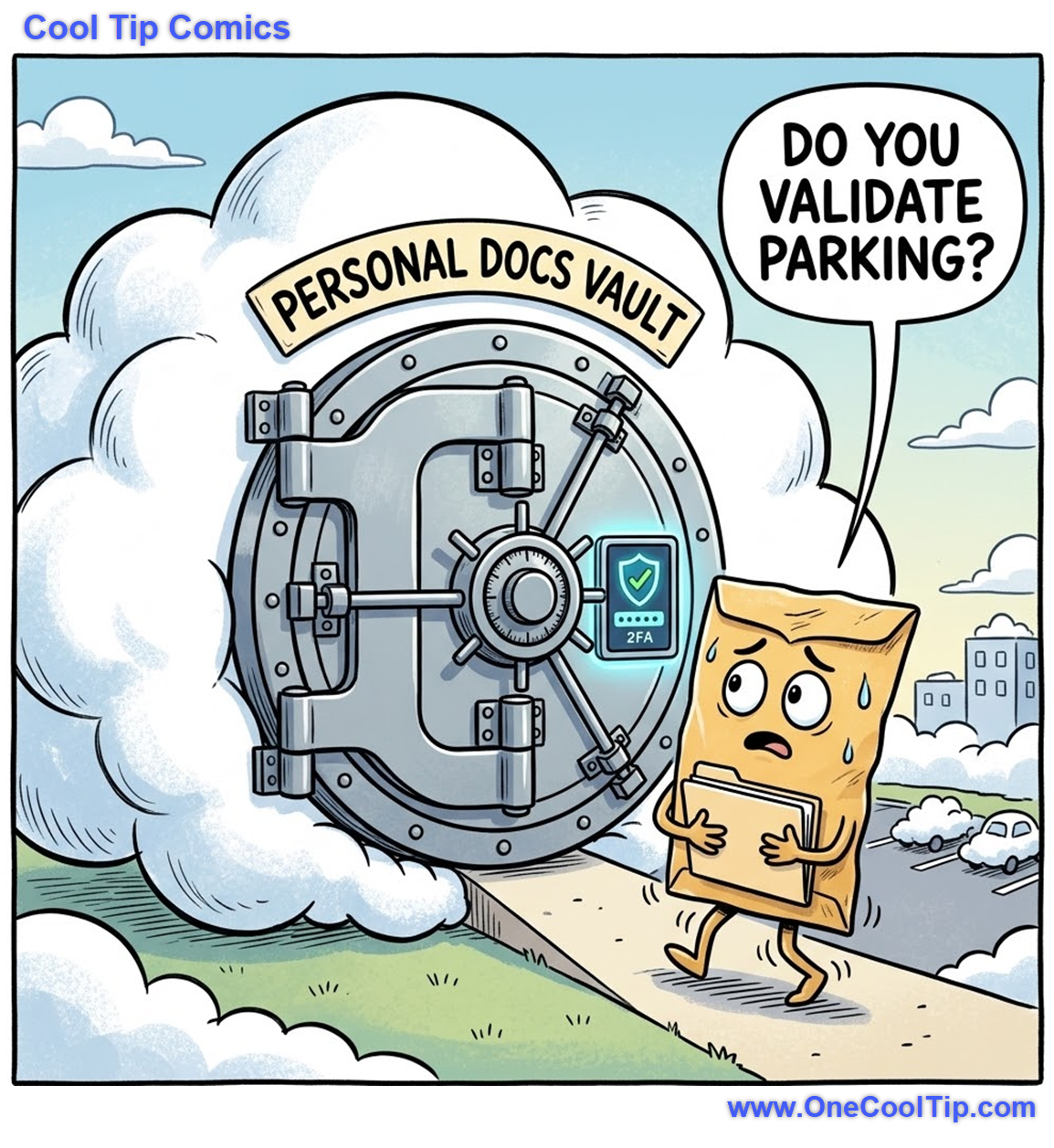
| | Even your files have to pay for cloud parking. | | |
Microsoft initially launched the service in 2007 under the name Windows Live Folders during its beta testing phase, before expanding it internationally as Windows Live SkyDrive.
In 2014, following a trademark dispute with the British broadcaster British Sky Broadcasting (BSkyB), Microsoft officially renamed the platform to OneDrive.
----------
Tomorrow's Cool Tip is waiting to amaze you.
Until then, go forth and conquer the tech world with your newfound knowledge!
Be sure to visit www.OneCoolTip.com for Cool Tech Tips for a Cooler Life!
And if you like One Cool Tip, please support with TipJar!
Enjoy!
Rodger
Chief Cool Tipper
onecooltip.com@gmail.com
| |
| What do you think of today's OneCoolTip newsletter? | | | |
Please Share the One Cool Tip Newsletter!
You asked for it. You got it. There is now a One Cool Tip Newsletter archive. Did you delete a newsletter and want to read it again? Check it out HERE.
Want to help One Cool Tip grow? Please forward this email using the link above. And if you see an OCT social media post, please LIKE, COMMENT and SHARE!
Have you subscribed to the One Cool Tip YouTube channel? Subscribe HERE.
| | Connect with One Cool Tip!! | | |
|
As an Amazon Associate, One Cool Tip may earn a small commission from qualifying purchases.
Our media content is intended solely for informational purposes only. Please do not construe anything here as legal, tax, investment, financial, marital or other advice.
Copyright © 2026 | www.OneCoolTip.com | All Rights Reserved
|
| | | |