|
Create and Code with Gemini Canvas
Google recently introduced a significant update to Gemini that changes how you interact with AI by moving beyond the simple chat box into a split-screen interactive editor. This new feature allows users to refine drafts and debug code in real-time without losing the context of their original conversation.
Have you ever felt the frustration of asking an AI to tweak just one sentence in a 1,000-word essay, only to have it spit out the entire document again?
It is a common digital headache that turns a quick edit into a tedious game of copy and paste.
In the fast-paced world of software development and content creation, that friction costs more than just time; it breaks your creative flow. Google is addressing this exact pain point with a new interface called Gemini Canvas.
By separating the brainstorming chat from the working document, Gemini is evolving from a chatbot into a legitimate collaborative workstation.
Feature Explanation
Gemini Canvas is a dedicated, side-by-side editing window that opens automatically when the AI detects a task that requires more than a simple text response.
Think of it as a hybrid between a chat interface and a document editor like Google Docs or VS Code.
When you ask Gemini to write a blog post or generate a Python script, the content appears in a separate panel on the right.
You can highlight specific sections of text to ask for targeted changes, adjust the reading level, or even find and fix bugs in a block of code.
This matters because it eliminates the all-or-nothing nature of AI responses.
You are no longer just a recipient of information; you are an active editor working on a live canvas.
What You’ll Gain
-
Precise Editing: Modify specific paragraphs or lines of code without regenerating the entire output.
-
Streamlined Workflow: Reduce the need to jump between browser tabs and external text editors.
-
Contextual Tools: Access specialized shortcuts for length, tone, and formatting directly within the workspace.
Step-by-Step Instructions
Web and Desktop
-
Open your browser and navigate to the Gemini website, gemini.google.com.
-
Select Tools.
-
Select Canvas.
-
Enter a prompt that requires a long-form response. For example: "Create a full-function HTML Space Invaders game."
-
Observe the Canvas window opening on the right side of the screen as the text generates.
-
Highlight a specific sentence you want to change. A small menu will appear with options like "Rephrase" or "Shorten."
-
Use the floating action button in the bottom right corner to adjust the overall tone or length of the entire document.
Android and iOS
-
Open the Gemini app (iOS / Android) on your mobile device.
-
Use a prompt to generate code or a long document.
-
Tap the "Open in Canvas" icon if the response is lengthy.
-
Use touch gestures to highlight code snippets for optimization suggestions.
Pros and Cons
Pros:
- Excellent for business users who need to polish professional emails or reports with granular control.
- Developers benefit from specialized coding tools that can explain specific logic blocks or suggest performance improvements.
Cons:
- Currently in a rollout phase, so some users may experience slight lag when switching between the chat and the canvas view.
- Advanced formatting options are still more robust in dedicated apps like Google Docs or Microsoft Word.
Real-World Examples
1. Coding: The Retro Arcade Prototype
-
The Canvas is a powerhouse for "vibe coding." You can build and test web-based games instantly without leaving the browser.
-
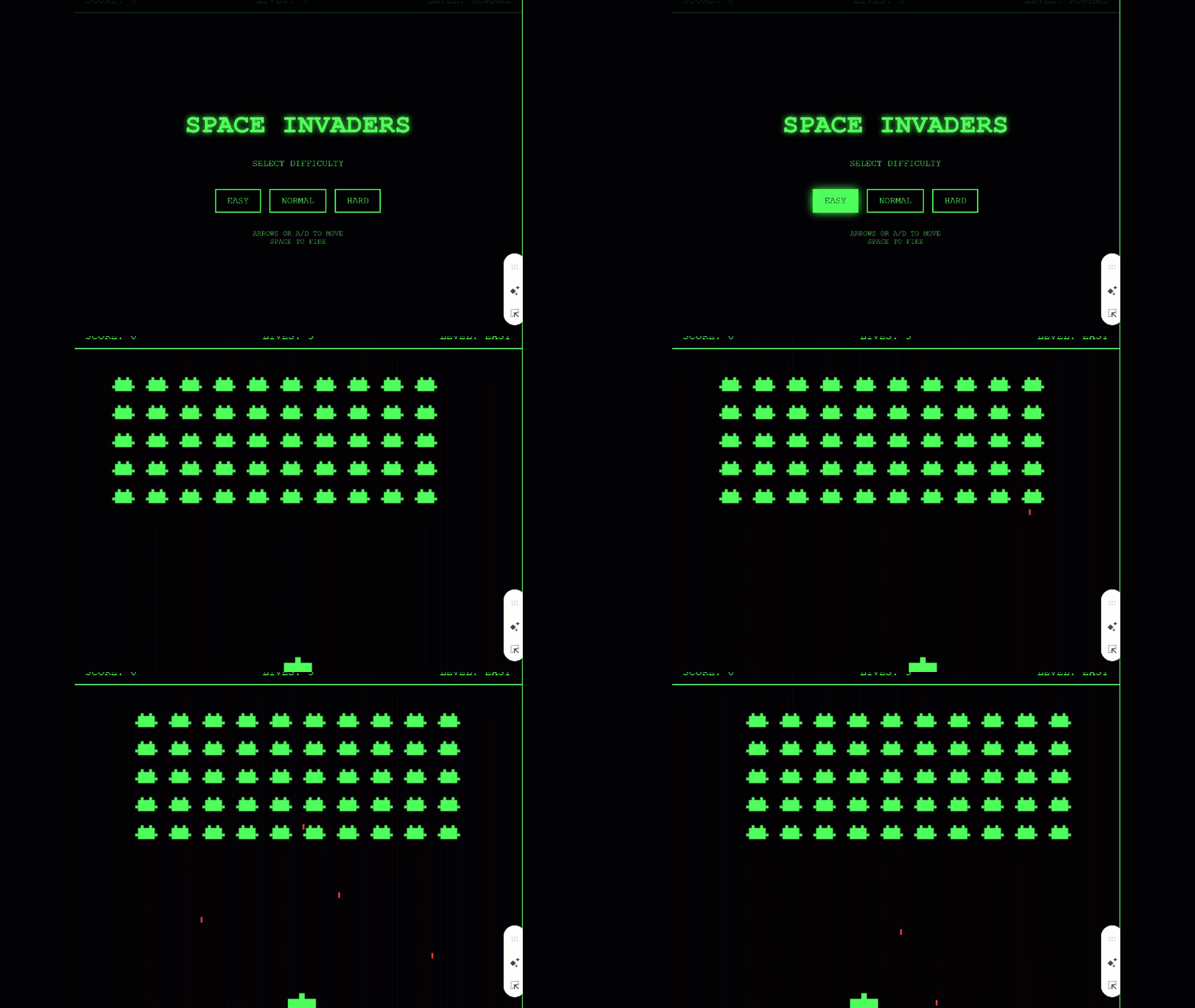
Scenario: Use the prompt, "Build a fully functional, single-file HTML Space Invaders game using CSS and JavaScript. Include a scoring system, three levels of difficulty, and a classic green-and-black arcade aesthetic."
-
Canvas Utility: Once the code is in the Canvas, you can highlight the player's ship movement logic and ask Gemini to "Make the ship move 20% faster." You can also highlight the "Game Over" screen and request a "High Score" leaderboard that saves to the browser local storage.
|