|
Send iPhone Photos Faster with One Hidden Messages Setting
Waiting for iPhone photos to send can be frustrating, especially when you are on cellular data, traveling, or sharing several images at once. A built-in Messages setting called Send Low Quality Photo Previews can help recipients see image previews faster before the full-resolution images arrive.
You snap a great photo, tap Send, and then watch the progress circle crawl across the screen.
That delay may not matter when you are at home on fast Wi-Fi, but it can be annoying when you are at a ballgame, on vacation, at a conference, or trying to send several pictures to family.
Apple includes a small Messages setting that helps with this problem.
It does not change how you take photos, and it does not require a third-party app.
Here’s a Cool Tip: Turn on Low-Quality Photo Previews in Messages.
Feature Explanation
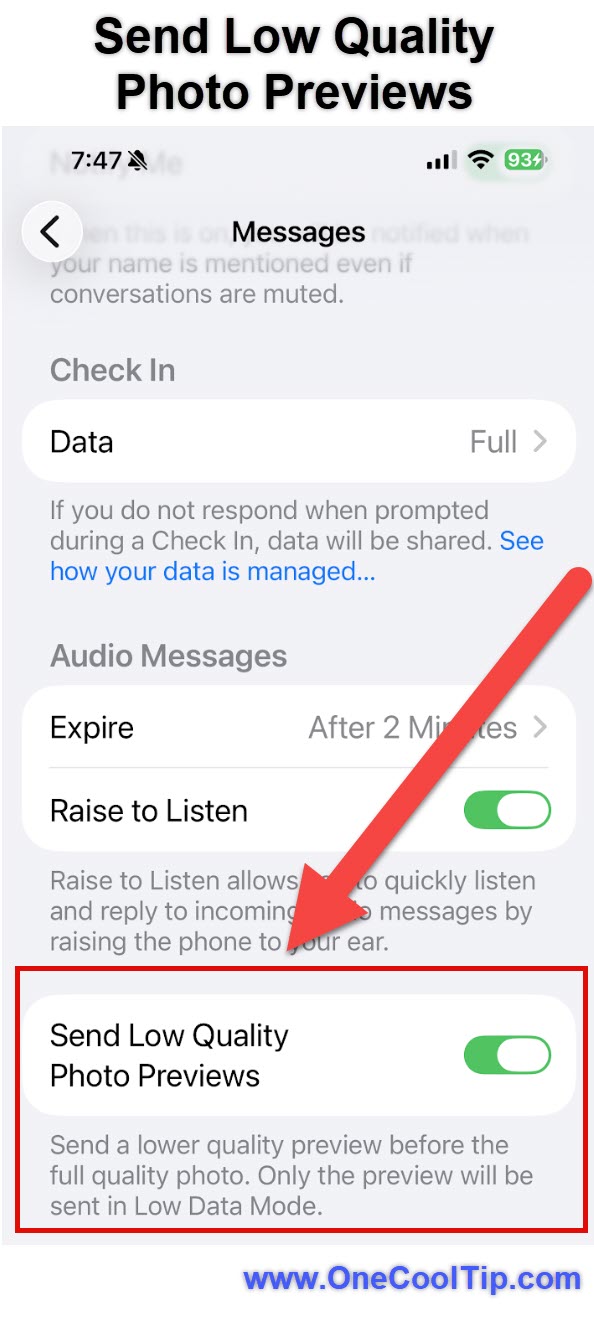
The feature is called Send Low Quality Photo Previews, and it lives inside the Messages settings on iPhone.
When enabled, Messages sends smaller-sized image previews first so recipients can see them right away, before the full-resolution images arrive.
This can make photo sharing feel faster, especially when network conditions are weak, busy, or inconsistent.
This is useful because modern iPhone photos can be large.
A single image may be easy enough to send, but a batch of vacation photos, school event pictures, worksite photos, or family snapshots can slow down a conversation.
A preview-first approach makes Messages feel more responsive.
There is one important catch.
When Low Data Mode is on, only the preview is sent.
That means this setting is helpful, but it is not always the right choice when image quality matters.
Carriers may set attachment size limits, and iPhone may compress photo and video attachments when necessary.
What You’ll Gain
-
Send faster: Help recipients see photo previews more quickly in Messages.
-
Reduce waiting: Make photo-heavy conversations feel less stalled.
- Improve travel sharing: Share images more easily when cellular service is weak or busy.
-
Use data wisely: Pair with Low Data Mode when you want to reduce cellular usage, but remember that only the preview is sent in Low Data Mode.
Step-by-Step Instructions
Here's how to do it.
iPhone:
-
Open the Settings app on your iPhone.
-
Tap Apps.
-
Tap Messages.
-
Turn on Send Low Quality Photo Previews.
|