One Cool Tip Newsletter

January 20, 2026

Your daily dose of tech-savvy brilliance!

😀Greetings! Happy Tuesday, Cool Tipper!


Get ready to streamline your digital life with simple, actionable tips delivered straight to your inbox.


Cool Tip Theme: Google Translate Model Picker


New here? Subscribe to the One Cool Tip Newsletter for daily updates. It's FREE!

3️⃣

If you enjoy the One Cool Tip newsletter, please forward this newsletter to THREE friends or colleagues or share it on social media using the links below.


Leave a Tip!


Share this One Cool Tip Newsletter!

X Share This Email
LinkedIn Share This Email
Pinterest Share This Email

Watch Out for Fake Weight‑Loss Product Sites


The BBB warns that many fraudulent weight‑loss offers look polished and trustworthy, but the goal is to capture your credit card number or lock you into hidden recurring charges. These scams often appear in search results, social media ads, and influencer‑style videos.


Red Flags to Watch For


  • Too‑good‑to‑be‑true claims: “Lose 30 pounds in 10 days” or “clinically proven miracle formula.”
  • Fake celebrity endorsements: scammers misuse photos of actors, doctors, or TV hosts.
  • “Free trial” offers requiring a credit card: small shipping fees that turn into large monthly charges.
  • Unfamiliar brand names: no company address, no customer service number, no refund policy.
  • Pressure to buy immediately: countdown timers, “only 3 bottles left,” or aggressive pop‑ups.


How to Protect Yourself


  • Research the product and company: search for reviews plus the word “scam.”
  • Avoid ads that redirect through multiple sites: a common sign of fraud.
  • Use trusted retailers: stick to well‑known stores with clear return policies.
  • Monitor your statements: dispute unauthorized charges right away.


Cool Deals

Help support One Cool Tip. Use this Amazon link when you shop online.


Check out this Cool Deal:


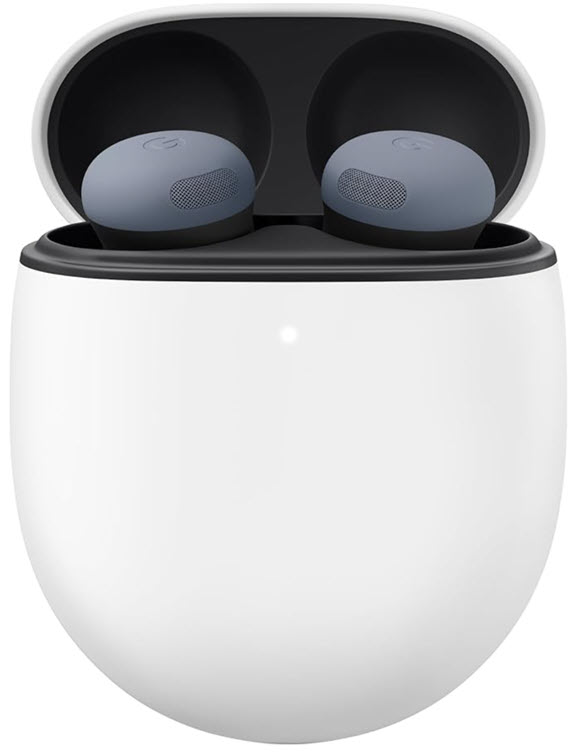
Google Pixel Buds Pro 2

Experience real-time conversation translation directly in your ear.


Overall Pick! $229.

Check it out on Amazon!


*Prices accurate when originally published.

One Cool Tip may earn a commission from qualifying purchases.

Fuel Your Adventure

Try Big Mike's Jerky!


bigmikesjerky.com


Now on TikTok!


Today's Cool Tip

Google Translate Now Lets You Choose: Classic Speed or Gemini Precision?


Google Translate now offers a "Model Picker" that lets you toggle between instant "Classic" results and nuanced "Advanced" translations powered by Gemini. Discover how this new feature works and when to switch modes to avoid awkward phrasing in your professional and personal communications.


Have you ever used a translation app and ended up with a phrase that was technically correct but socially awkward? 


Here's a Cool Tip:  Pick Your Model in Google Translate.


Google Translate is solving this problem by giving you a choice between raw speed and AI-powered nuance.


Feature Explanation


For years, translation apps have been a "one size fits all" tool. 


You typed text, and the app gave you the quickest literal translation it could find. 


This worked for asking where the bathroom is, but it often failed at capturing the tone of a business email or the humor in a casual text.


Google has introduced a new Model Picker feature within the mobile app. 


This toggle allows you to switch between a Classic model, which works like the previous standard version, and an Advanced model powered by Gemini. 


The Advanced model doesn't just swap words. 


It analyzes context, local idioms, and intent to provide a translation that sounds like something a native speaker would actually say.


What You’ll Gain


  • Contextual Accuracy: Understands slang and idioms rather than translating them word-for-word.
  • Tone Control: Better distinguishes between formal business language and casual chat.
  • Flexibility: You decide when you need instant results versus when you need high quality.


Step-by-Step Instructions


Android and iOS


  1. Ensure you have the latest version of the app installed from the Google Play Store or Apple App Store.
  2. Choose a supported language pair (e.g., English to Spanish).
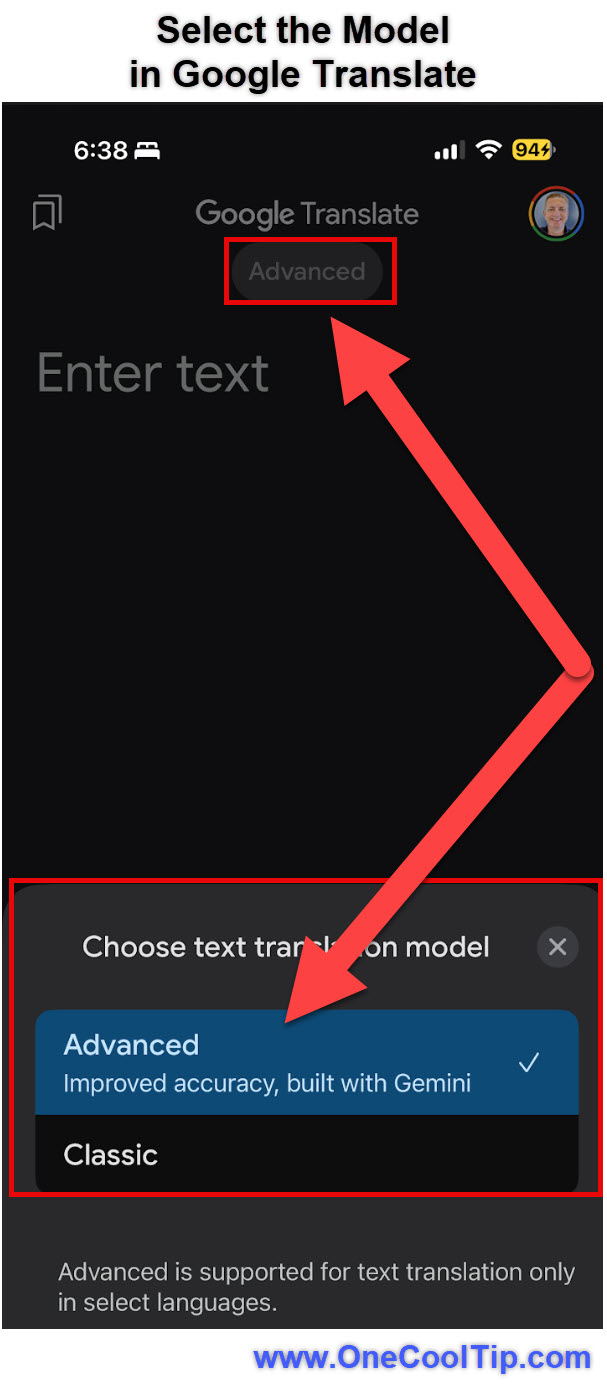
  3. At the top, select the pill-shaped button labeled Advanced (the default) or Classic.
  4. This opens the "Choose text translation model" menu.
  5. Select the Model:
  • Choose Advanced for important communications where detail matters. (default)
  • Choose Classic for quick, on-the-go translations where speed is priority.


fig. 1 - Select the Model in Google Translate Example

Pros and Cons


Pros


  • Higher Quality: The Gemini-powered Advanced model significantly reduces awkward phrasing in complex sentences.
  • User Control: You are no longer forced to use a heavy AI model when you just need a quick definition.
  • Seamless User Interface (UI): The toggle is unobtrusive and easy to access without digging through settings menus.


Cons


  • Limited Languages: Currently, the Advanced model only supports major pairs like English, Spanish, Hindi, Chinese, Japanese, and German.
  • Text Only: The feature does not yet apply to the camera or conversation (voice) modes.
  • Requires Data: The Advanced model relies on cloud processing, so it may not work as well offline as the Classic model.


Feature Access


  • Availability: Currently rolling out globally to Android and iOS users.
  • Cost: Free for all users. No Gemini Advanced subscription is currently required for this specific feature.
  • Region: Rolling out in phases, starting with the US and India, then expanding to other regions throughout 2026.


Score

Criterion | Score (0–10) | Justification
Value 9
Solving the "context problem" is the biggest hurdle in translation tech.
Usability 8
The toggle is intuitive, though limited language support brings the score down slightly.
Wow Factor 8
Seeing a translation shift from "robot" to "human" in real-time is impressive.
Total: 25/30 🌟 Excellent
This is a massive upgrade for anyone who relies on translation for professional or meaningful personal communication. It effectively kills the "lost in translation" bug for supported languages.


Key Takeaways


  • Switch for Quality: Use the "Advanced" setting for emails, documents, and complex chats.
  • Stick to Classic for Speed: Use "Classic" for quick sign reading or simple word lookups.
  • Gemini Inside: This brings Google's best AI directly into your pocket without a separate app.


Cool Tip Snapshot


  • Feature Name: Translation Model Picker
  • Platform(s): Android, iOS
  • Quick Benefit: Instantly toggle between Classic translations and high-accuracy Advanced AI translations.
  • Access Type: Free


Try It Yourself


Open your Google Translate app right now, select English to Spanish, type an idiom like "it's raining cats and dogs," and see if the Advanced model correctly translates the meaning rather than the literal words (animals). 


Let me know in the comments if it worked!


Don't forget to share this article with your team, family, and friends!


READ MORE


Read the Full Cool Tip.

Check out these Cool Tips & Tricks for Using Google Translate:


  • Conversation Mode: Tap the microphone icon twice to enable auto-language detection for fluid back-and-forth chat.


  • Offline Packages: Download language packs in settings to translate without a data connection.


  • Camera Translation: Point your camera at a menu to see the text transform instantly on your screen.


  • Handwriting Input: Use the pen icon to draw characters for languages like Chinese or Japanese.


  • Tap to Translate: Enable this in settings to translate text in any app just by copying it.


  • Save Phrases: Star important translations to create a custom phrasebook for quick access.


  • Full Screen: Turn your phone sideways after a translation to show the text in large, readable type.


  • History View: Swipe down on the main screen to see and reuse your recent translations.


  • Account Sync: Sign in to your Google account to sync your saved phrases across devices.


  • Reverse Translate: Tap the arrows between languages to quickly double-check if the translation makes sense.

ICYMI - In Case You Missed It ...

ChatGPT Pinned Chats: Keep Your Most Important Conversations Front and Center


Ever lose track of a critical ChatGPT conversation right when you need it most? Pinned Chats brings order to your AI workspace by letting you lock essential threads in place so they are always one click away.


Read the Full Cool Tip.

Read the Newsletter Version.

Looking for your next adventure?


Call Denise at Travel For You.

314.660.3039


Sign Up for the Monthly Newsletter


http://www.travelforyouvacations.com/


https://www.facebook.com/TRAVEL.FOR.U/

RJ Mansfield Music


Check out my latest music!


www.RJMansfieldMusic.com


See You Tomorrow

Tomorrow's Cool Tip is waiting to amaze you.


Until then, go forth and conquer the tech world with your newfound knowledge!


Be sure to visit www.OneCoolTip.com for Cool Tech Tips for a Cooler Life!


And if you Like One Cool Tip, please support with TipJar!


Enjoy!


Rodger

Chief Cool Tipper

onecooltip.com@gmail.com


What Do You Think?

What do you think of today's OneCoolTip newsletter?
Positive        Neutral        Negative
X Share This Email
LinkedIn Share This Email

Connect with One Cool Tip!!

Facebook  X  Instagram  Web  Pinterest  YouTube  LinkedIn

As an Amazon Associate, One Cool Tip may earn a small commission from qualifying purchases.


Our media content is intended solely for informational purposes only. Please do not construe anything here as legal, tax, investment, financial, marital or other advice.


Copyright © 2026 | www.OneCoolTip.com | All Rights Reserved