|
Speed Up Windows 11: 3 Easy Ways to Disable Startup Apps
Too many startup apps can slow down your PC before you even begin working. Here are three simple ways to stop unnecessary programs from launching automatically in Windows 11 and improve startup performance.
You turn on your PC expecting to get to work, but Windows spends the next few minutes launching apps you didn't even open.
If your computer feels sluggish immediately after sign-in, startup programs may be the reason.
Many applications automatically configure themselves to launch whenever you log into Windows.
While some are genuinely helpful, others consume memory, processor resources, and storage activity before you've even opened a browser.
Here's a Cool Tip: Disable high-impact startup apps you rarely use.
Startup applications can affect both startup speed and overall system performance.
By managing which apps launch automatically, you can reduce unnecessary background activity and create a cleaner, faster experience.
The good news is that Windows 11 includes several built-in tools that make startup management easy.
Feature Explanation
Startup programs are applications configured to launch automatically when you sign into Windows.
Typical startup apps include:
- Microsoft Teams
- Spotify
- Discord
- Adobe Creative Cloud
- Game launchers
- Cloud sync utilities
While some startup apps provide important background services, others simply use resources while sitting idle in the background.
Windows 11 currently supports configuring startup applications through:
- Settings
- Task Manager
- Startup folders for applications that are not listed in standard startup controls
Startup management has been part of Windows for years, but many users never revisit these settings after installing new software.
Windows 11 makes the process easier by displaying startup impact ratings in Task Manager and offering simple on/off controls in Settings.
This feature is especially valuable for:
- Home users with aging PCs.
- Students using budget laptops.
- Remote workers.
- Small businesses.
- Anyone frustrated by slow boot times.
What You'll Gain
- Start Windows faster by reducing unnecessary background launches.
- Free up memory and processor resources.
- Improve laptop battery life by limiting background activity.
- Make it easier to focus on the apps you actually use.
Step-by-Step Instructions
Here's how to do it.
Windows
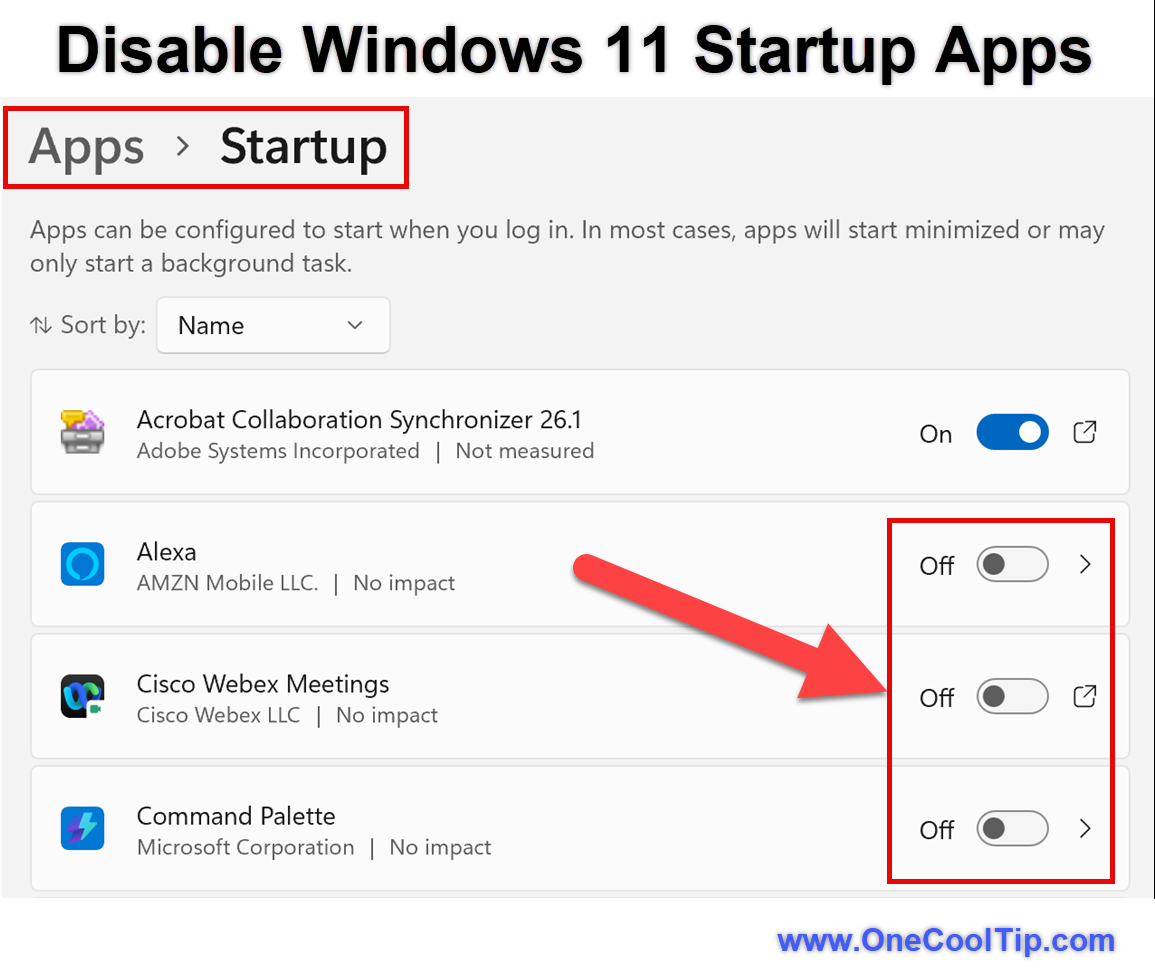
Method 1: Disable Startup Programs from Settings
-
Open Start > Settings.
-
Select Apps.
-
Click Startup.
-
Review the list of startup applications.
-
Toggle Off any application you do not want launching automatically.
-
After completing these steps, Windows will no longer launch those apps when you sign in.
|