|
One Cool Tip Newsletter
March 9, 2026
| Your daily dose of tech-savvy brilliance! | |
😀Greetings!, Happy Back-To-Work Monday, Cool Tipper!
Get ready to streamline your digital life with simple, actionable tips delivered straight to your inbox.
Today's Cool Tip Theme: Create Videos with Clipchamp.
IN THIS ISSUE
- 🚨 Permit Scam Alert: Learn how to spot and report highly convincing fake permit fee emails impersonating local officials.
- 🤖 Video Script Prompt: Use our specialized prompt to let AI script and plan your next professional video from start to finish.
- 🎬 Microsoft Clipchamp: Discover why the built-in Windows video editor is finally the "Goldilocks" solution for your editing needs.
- ✨ Bing Video Creator: Transform simple text prompts into engaging short videos with this powerful AI tool.
- 📊 PowerPoint Video Editing: Master the secret editing features already hiding inside your favorite presentation software.
- 📸 Copy Video Frame: Learn the Chromium browser trick to capture high-quality still images from any video with just two clicks.
New here? Subscribe to the One Cool Tip Newsletter for daily updates. It's FREE!
-
😂 Laugh with Us! Enjoy our Tech Joke of the Day, Haiku and Cool Tip Comics.
-
🌐 Stay Informed! Check out ICYMI, and our One Cool Tip Video.
| | |
3️⃣
If you enjoy the One Cool Tip newsletter, please forward this newsletter to THREE friends or colleagues or share it on social media using the links below.
Leave a Tip!
Share this One Cool Tip Newsletter!
| | |
Today's Tech Trivia
Answer at the end of this newsletter.
| |
| Before it was a video editor, what was the original goal of the startup that created Clipchamp? | | | | |
⚠️ New Scam Targets Permit Applicants: Criminals Impersonating Local Official ⚠️
Criminals are sending highly convincing emails that impersonate city and county planning and zoning officials to trick individuals and businesses into paying fake permit fees.
These messages include real permit details, accurate case numbers, and official names pulled from public records, making them unusually hard to spot.
What’s Happening
- Victims receive emails with legitimate-looking zoning data, professional formatting, and fake invoices.
- Payment is demanded via wire transfer, P2P apps, or cryptocurrency.
- Emails often use non‑government domains (example: “@usa.com”).
- PDFs instruct victims to email for payment instructions, discouraging phone verification.
- Messages stress urgency and threaten delays in the permitting process.
How to Protect Yourself
- Don’t trust emails just because they look official.
- Verify the sender’s domain against the actual city or county website.
- Call the planning office using the phone number on the official site, not the email.
- Check for posted impersonation warnings on your local government website.
If You’re Targeted
Report the scam to the FBI’s Internet Crime Complaint Center at IC3.gov and include:
- Sender email, dates, and any phone numbers
- Your permit hearing date (if applicable)
- Invoice amount, requested payment method, and any bank details provided
| | |
Try this Cool AI prompt. Copy and paste to ChatGPT, Gemini or Copilot.
I want to create a short video in Microsoft Clipchamp about XXXX.
Help me plan it from start to finish. Ask me what kind of video I’m making, who it’s for, and where I will publish it.
Then give me:
1. a 30-second script
2. a shot list
3. suggested on-screen text
4. caption ideas
5. a simple editing sequence for Clipchamp
6. a checklist for export settings and thumbnail ideas
Keep it practical and easy for a beginner.
| | |
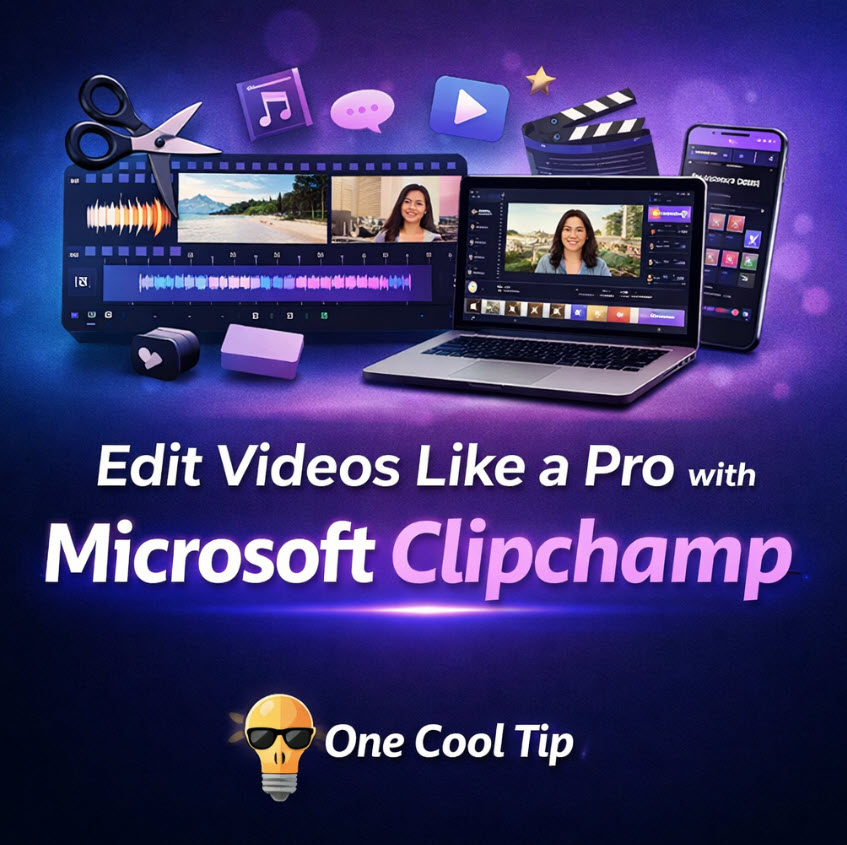
Clipchamp: The Built-In Windows Video Editor That’s Finally Worth Using
Short on time, long on video ideas? Clipchamp turns your Windows PC into a surprisingly capable editor without extra software. If you have Windows 11, you probably already own a solid video tool and just haven’t opened it yet.
Have you ever skipped a video project because you assumed you needed expensive, complicated software to make it look decent?
For many Windows users, Clipchamp has been hiding in plain sight, quietly evolving into a real editor that can handle social clips, training videos, and quick promos without a steep learning curve.
Here's a Cool Tip: Try Microsoft Clipchamp.
Clipchamp started life as a web-first editor and is now integrated into the Microsoft ecosystem, with a dedicated Windows app and a freemium model that covers most everyday needs.
The result is a tool that feels approachable for beginners yet fast enough for busy professionals who just want to trim, caption, and publish.
Feature Explanation
Clipchamp is a timeline-based video editor from Microsoft that runs as both a Windows app and a browser experience.
You can import clips from your PC or OneDrive, drop them onto a familiar timeline, and layer video, audio, text, and effects. It is designed for creators, educators, and business users who need polished results without mastering a pro-grade editing suite.
On Windows 11, Clipchamp is available as the default video editor and can be launched directly from the Start menu.
Windows 10 users can install it from the Microsoft Store.
Key capabilities include:
-
Easy editing: Trim, split, and resize clips, with presets for common social formats like 16:9, 9:16, and 1:1.
-
Stock and templates: Access royalty-free stock videos, images, and music, plus ready-made templates for social posts, slideshows, and promos.
-
AI helpers: Use AI auto cut, noise suppression, silence removal, AI voiceovers, and automatic subtitles to speed up production and improve clarity.
-
Cloud-friendly workflow: Connect OneDrive to pull in media and save exports without filling your local drive.
For many users, the standout detail is that the free tier supports watermark-free exports up to 1080p, which is more than enough for YouTube, internal training, and social media.
What You’ll Gain
-
Faster publishing: Go from raw footage to shareable video in minutes, not hours.
-
Professional polish: Add captions, music, and effects that make your content feel intentional, not improvised.
-
Lower costs: Use the free tier for HD exports before you consider any paid tools.
-
Simpler workflows: Keep everything inside the Microsoft ecosystem with OneDrive and Windows integration.
Step-by-Step Instructions
Here's how to do it.
Microsoft Web/Desktop (Windows 11 and Windows 10)
- On Windows 11, open the Start menu and search for “Clipchamp.”
-
On Windows 10, install Clipchamp from the Microsoft Store if you have not already.
-
Click “Create a new video."
-
Click “Import media” and choose your screen recording or video files from your PC or OneDrive.
-
Drag your main clip onto the timeline.
-
Use the trim handles at the edges of the clip to remove dead time at the beginning and end.
-
Select “Text” to add a title card or lower third with your name or team.
-
Adjust font, color, and position so it matches your brand.
-
Add background music from the stock library, then lower the volume so it does not overpower your voice.
-
Optionally apply a filter or light color correction for consistency.
-
Click “Export,” choose 1080p, and save to your PC or OneDrive.
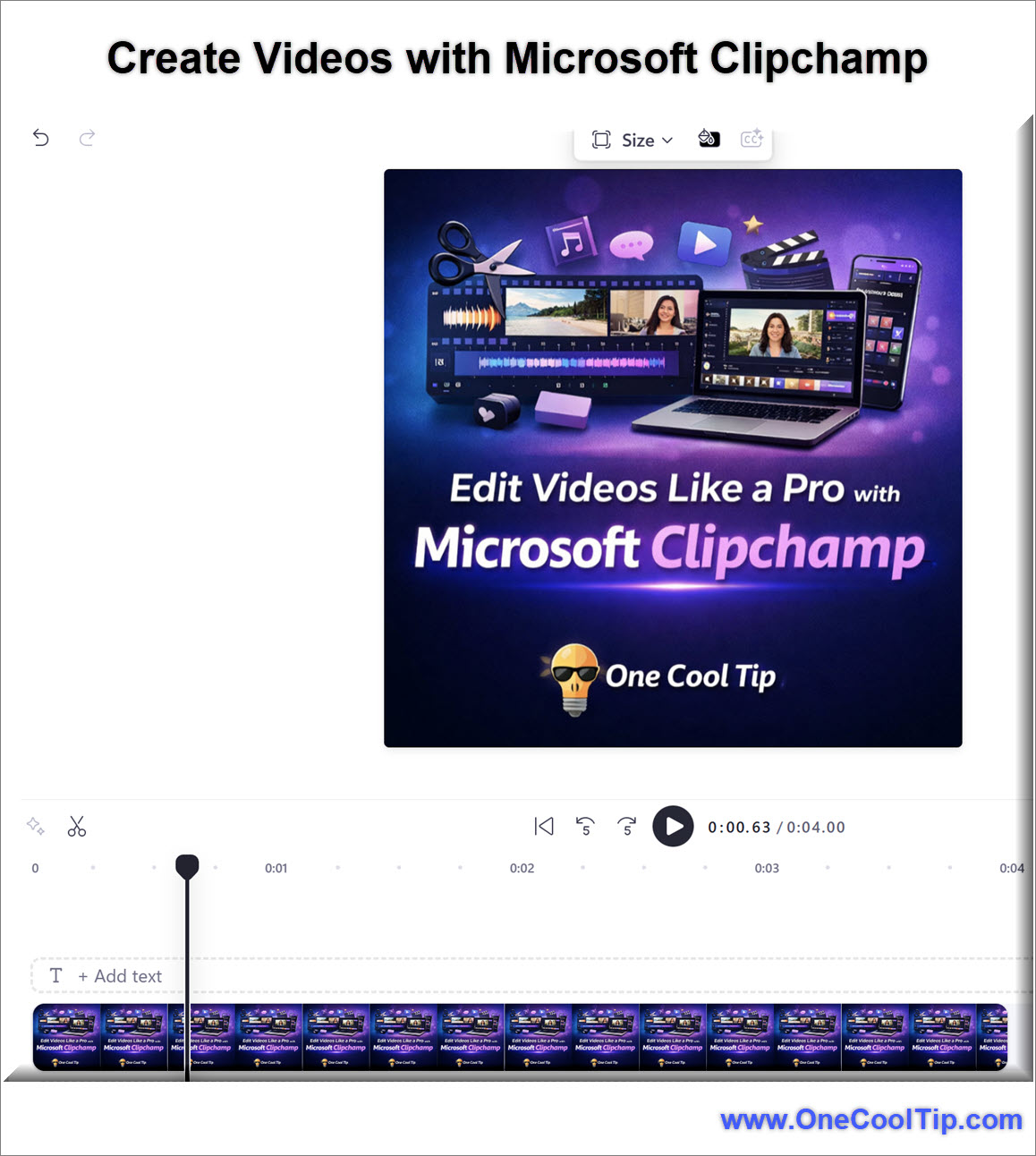
| | fig. 1 - Create Videos with Clipchamp | |
iOS
- Install Clipchamp.
- Sign in with your Microsoft account to sync with your existing projects and OneDrive.
- Tap “New video,” choose a 9:16 aspect ratio, and import your clip from the Photos app.
- Use the timeline to cut out mistakes and tighten pacing.
- Add text overlays for key points your viewers should remember.
- Add captions and export.
Android
- Not yet available.
Pros and Cons
Pros
-
Accessible pricing: Free tier with HD exports makes Clipchamp viable for many users before any upgrade.
-
Beginner friendly: Timeline layout and templates reduce the learning curve for non-video professionals.
-
AI time-savers: Auto cut, noise suppression, and subtitles reduce manual editing work.
-
Microsoft integration: OneDrive and Windows 11 integration simplify file management and access.
Cons
-
Advanced users may outgrow it: Power editors may still prefer full NLEs for complex color grading or multi-cam workflows.
-
Mobile availability varies: Not all regions or devices have the same mobile app access yet.
-
Browser performance limits: Very large projects can feel slower in a browser compared to native pro tools.
Feature Access
-
Clipchamp is available as a free and paid video editor for individuals, businesses, and education customers, with multiple Microsoft 365 plans that unlock additional features such as brand kits and premium stock.
-
Windows 11: Preinstalled personal version, accessible from the Start menu.
-
Windows 10: Available as a downloadable app from the Microsoft Store.
-
Web: Accessible via browser with a Microsoft account.
-
Mobile: Only available for iOS.
Score
Criterion | Score (0–10) | Justification
Value 9
Generous free tier with 1080p exports covers most everyday needs before any upgrade.
Usability 8
Friendly interface, templates, and AI helpers make editing approachable for non-experts.
Wow Factor 7
AI tools and built-in Windows presence are impressive, though not as flashy as high-end suites.
Total: 24/30 👍 Good
Clipchamp is a strong everyday editor that can replace many third-party tools for quick business, education, and personal projects, especially if you already live in the Microsoft 365 world.
Key Takeaways
Clipchamp turns Windows into a practical, built-in video workstation for everyday creators.
You get HD exports, AI helpers, and tight Microsoft integration without a steep learning curve or new subscription.
For many users, it is the “good enough” editor that finally makes video part of the daily workflow.
Cool Tip Snapshot
-
Feature Name: Microsoft Clipchamp Video Editor.
-
Platform(s): Windows 11, Windows 10, Web, Android not yet available.
-
Quick Benefit: Quickly turn raw clips into polished, shareable videos with AI-powered helpers and templates.
-
Access Type (Free, Subscription, Beta): Free tier with optional paid Microsoft 365 plans for advanced features.
Try It Yourself
Open Clipchamp on your Windows PC today, create a 60-second video using one template and AI subtitles, then share it with your team or family.
If you find this useful, drop a comment, and share the article with your colleagues, friends, and anyone who keeps saying they “should really start making videos.”
READ MORE
Read the Full Cool Tip.
| | Help support One Cool Tip. Use this Amazon link when you shop online. | |
-
🎥 Logitech C920x HD Pro Webcam: Sharp video quality for recording talking-head clips. Save 14% $59.99 Check it out on Amazon!
-
💡 Neewer 18-inch Ring Light Kit: Even lighting for professional-looking videos. Save 36% $89.99 Check it out on Amazon!
Prices accurate at time of publication
One Cool Tip may earn a commission from qualifying purchases.
| | |
🆒Tell Me More
- Clipchamp supports 1080p exports on the free tier.
- You can use AI to auto-generate subtitles and remove silence.
- Templates include formats for TikTok, Instagram, and YouTube.
- OneDrive integration allows cloud-based editing and storage.
- Brand kits are available for business users on paid plans.
⏩Quick Tips
-
🎞️ Use Templates: Start with a prebuilt layout to save time. How: Choose a template from the home screen.
-
📐 Set Aspect Ratio Early: Avoid awkward crops later. How: Select your canvas size before adding clips.
-
🧠 Use AI Subtitles: Improve accessibility and engagement. How: Enable subtitles from the video track options.
-
🔊 Reduce Noise: Clean up background audio. How: Use noise suppression in audio settings.
-
☁️ Sync with OneDrive: Keep files organized and accessible. How: Connect your Microsoft account in Clipchamp settings.
| | ✅ More Must-Read Tech Tips | | |
👀 How Do I Use Bing Video Creator?
Creating professional-grade videos has historically required expensive software, specialized skills, and hours of editing.
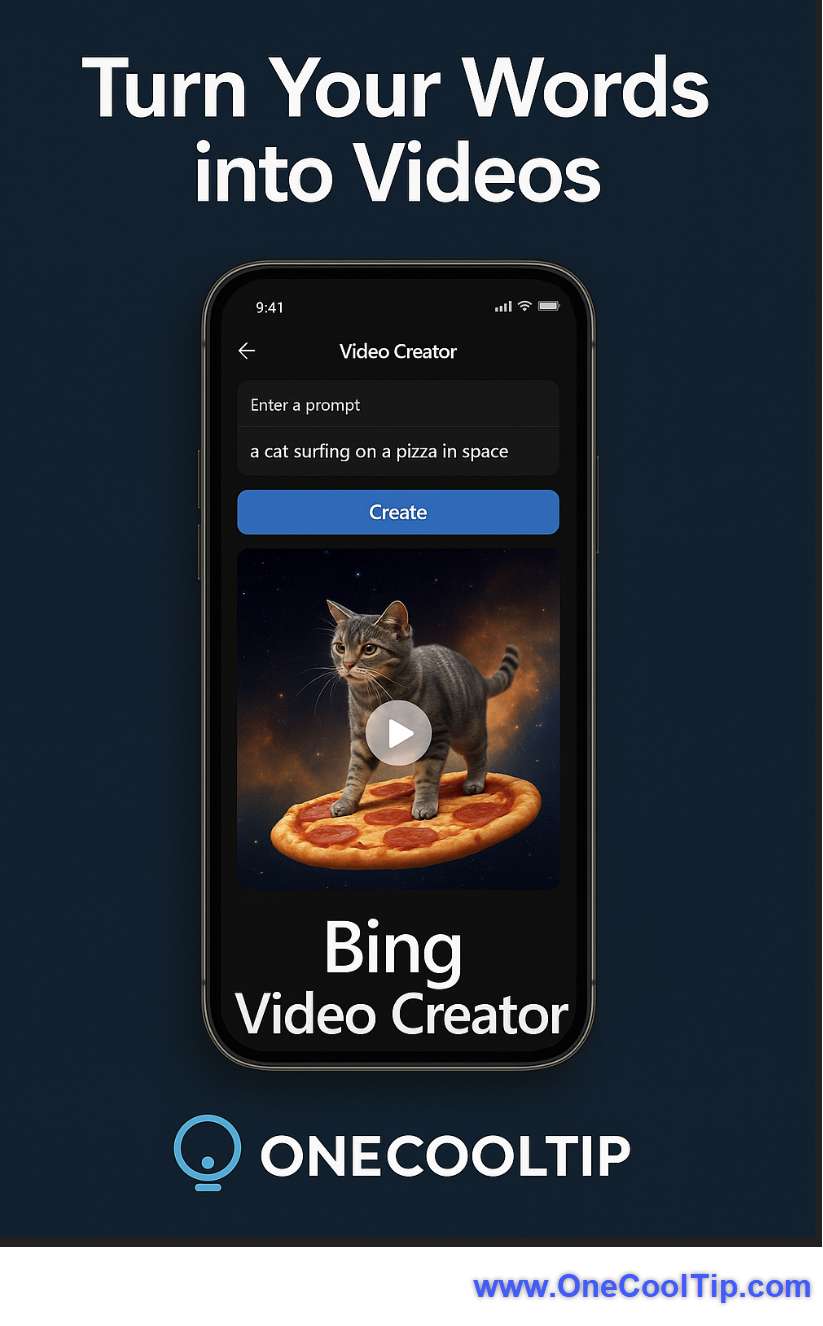
But now, with Bing Video Creator, anyone can generate engaging short videos simply by entering text prompts; no editing experience needed.
Here's how to do it.
Microsoft Web/Desktop
-
Visit Bing Video Creator.
-
Sign in with your Microsoft account.
-
Enter a detailed text prompt describing your video concept.
- In the example below, I created a prompt for an "older female orange and white tabby cat looking in the window".
-
Preview the AI-generated video and make adjustments.
-
Export and download or share directly from the platform.
Ready to transform simple ideas into stunning videos? Try Bing Video Creator today!
Discover more HERE.
| | |
🤔 Have You Ever Wondered How to Use PowerPoint's Video Editor?
Have you ever found yourself wishing for a simple way to edit videos for your presentations?
Use PowerPoint, your go-to for slide shows, to edit videos.
Here's how to do it.
-
Create a new PowerPoint or open an existing file.
-
Add your video to the desired slide.
-
Insert from Device.
-
Insert from Stock.
-
Insert from Online.
-
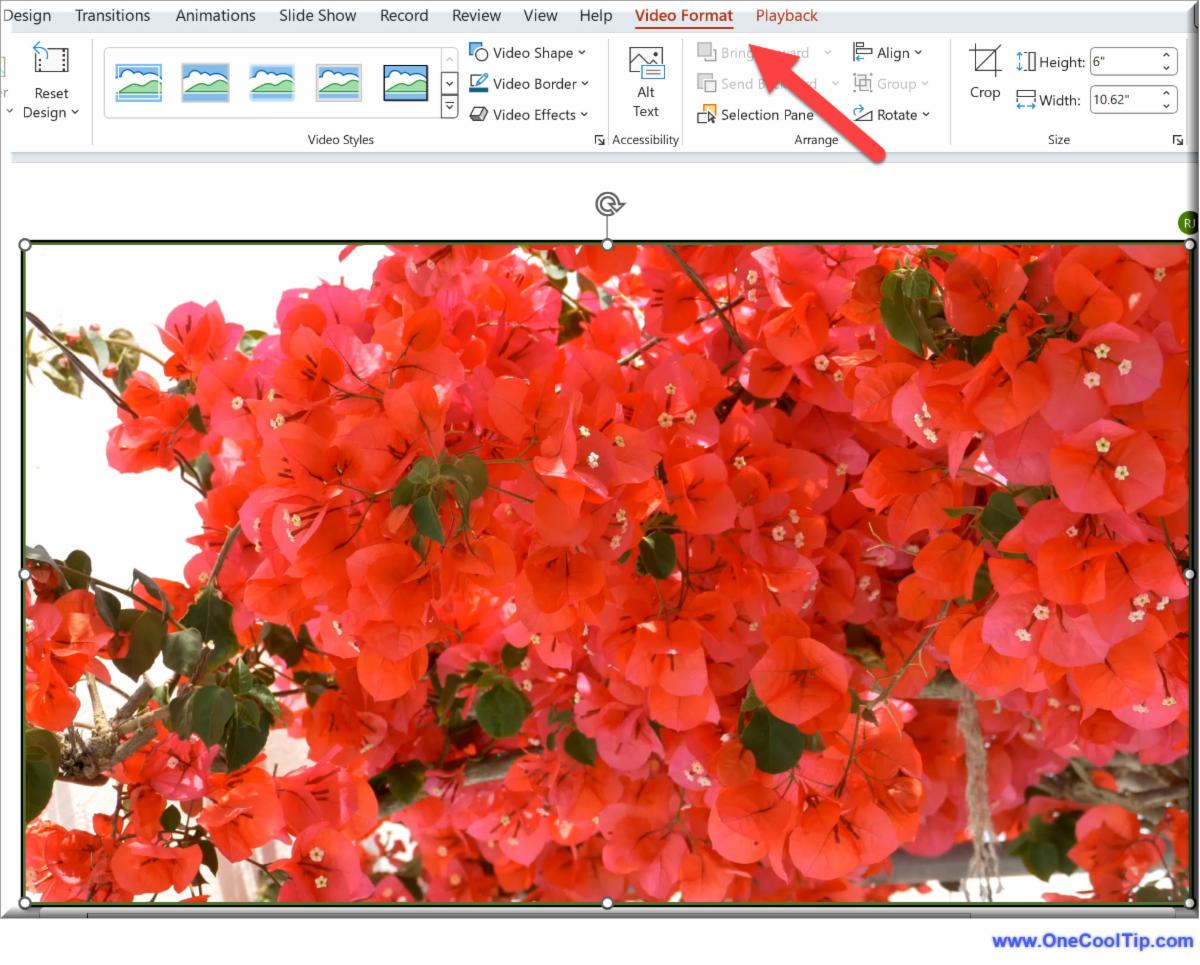
Use the built-in trim feature to cut out any unnecessary parts.
-
Apply video styles, borders, and effects to match your presentation’s theme.
-
Customize how your video plays during the presentation, like setting it to loop or play full-screen.
-
Overlay text or shapes to provide additional context or highlight key points.
Using video editing in PowerPoint allows editing without leaving PowerPoint.
Embrace the simplicity and power of PowerPoint’s video editing capabilities and take your presentations to the next level.
Find out more HERE.
| | |
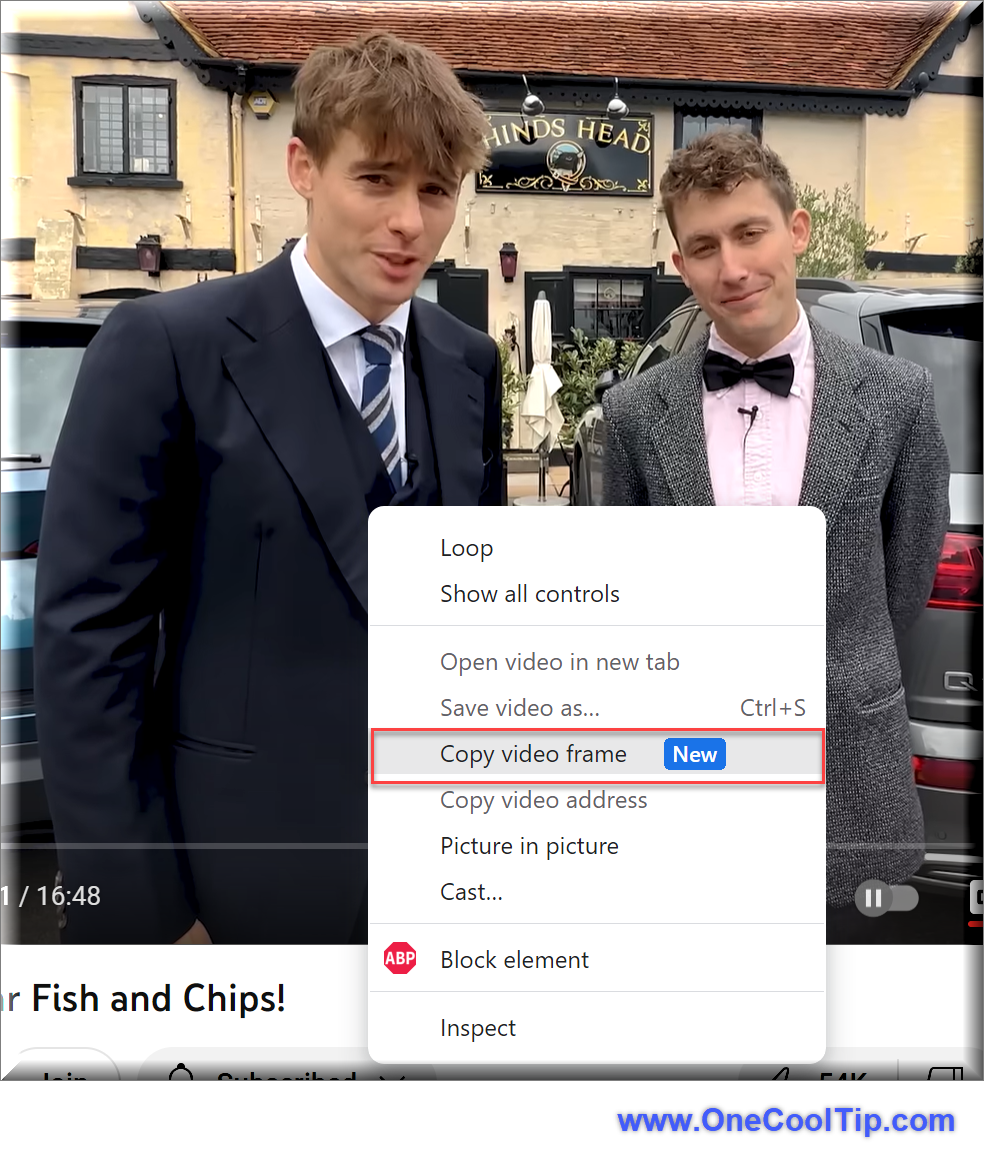
🙋♂️ Here's How to Use Copy Video Frame Feature.
Have you ever wanted to capture a specific frame from a video?
Maybe you're taking notes on a lecture video, or you want to share a funny moment with your friends.
Use the new Copy Video Frame feature.
This new feature works in Chromium browsers such as Google Chrome and Microsoft Edge.
Here's how to do it:
- Open the video you want to capture a frame from in Google Chrome or Microsoft Edge.
- Pause the video at the frame you want to capture.
-
Right-click on the video and select Copy Video Frame.
-
If you are capturing from YouTube, you need to right-click twice to see the option.
The frame will be copied to your clipboard.
You can then paste it into any document or image editor.
Here are some additional tips for using the Copy Video Frame feature:
- The feature works on YouTube and other websites that use the YouTube player.
- The frame will be copied in the same resolution as the video.
- You can also use the Copy Video Frame feature to capture frames from videos that are embedded in other websites.
Learn more HERE.
| | |
❓Did you share this newsletter with three friends yet?
😎 Cool Facts
-
82%: Video content is projected to account for 82% of all internet traffic by the end of 2025. Source.
-
14 Million: Before the Microsoft acquisition, Clipchamp had already reached a milestone of 14 million registered users worldwide. Source.
-
34%: AI-powered video tools are estimated to save editors approximately 34% of their total production time by automating repetitive tasks. Source.
⌨️Today's Cool Shortcuts
- Windows: Ctrl + S: Save your project manually.
- Windows: S: Split a clip at the playhead.
- Windows: Delete: Remove selected clip from timeline.
😜 Tech Joke of the Day 😅
Why did the video editor break up with the timeline?
It felt too cut up.
🔎 Do you have a Cool Tip or tech question? Email us at onecooltip.com@gmail.com.
| | |
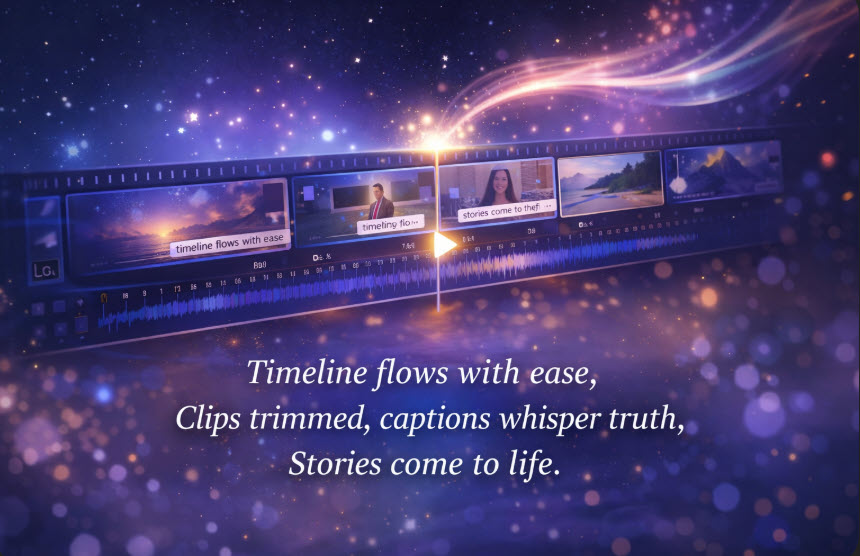
Timeline flows with ease,
Clips trimmed, captions whisper truth,
Stories come to life.
| |
| 🤔 What’s your biggest video editing challenge? | | | | Did You See These Cool Tips This Week? | | | | ChatGPT 5.4: What’s Changed, What You Can Do, and Why It Matters for Web and Mobile Users | |
OpenAI’s GPT 5.4 represents the company’s most capable foundation model yet, improving accuracy, reasoning, business productivity, and long-context workflows across web and mobile platforms. This update sets a new baseline for real-world AI tasks in both home and business settings.
Read the Newsletter Version.
| | | | Create and Code with Gemini Canvas | |
Google recently introduced a significant update to Gemini that changes how you interact with AI by moving beyond the simple chat box into a split-screen interactive editor. This new feature allows users to refine drafts and debug code in real-time without losing the context of their original conversation.
Read the Newsletter Version.
| |
ICYMI - In Case You Missed It ...
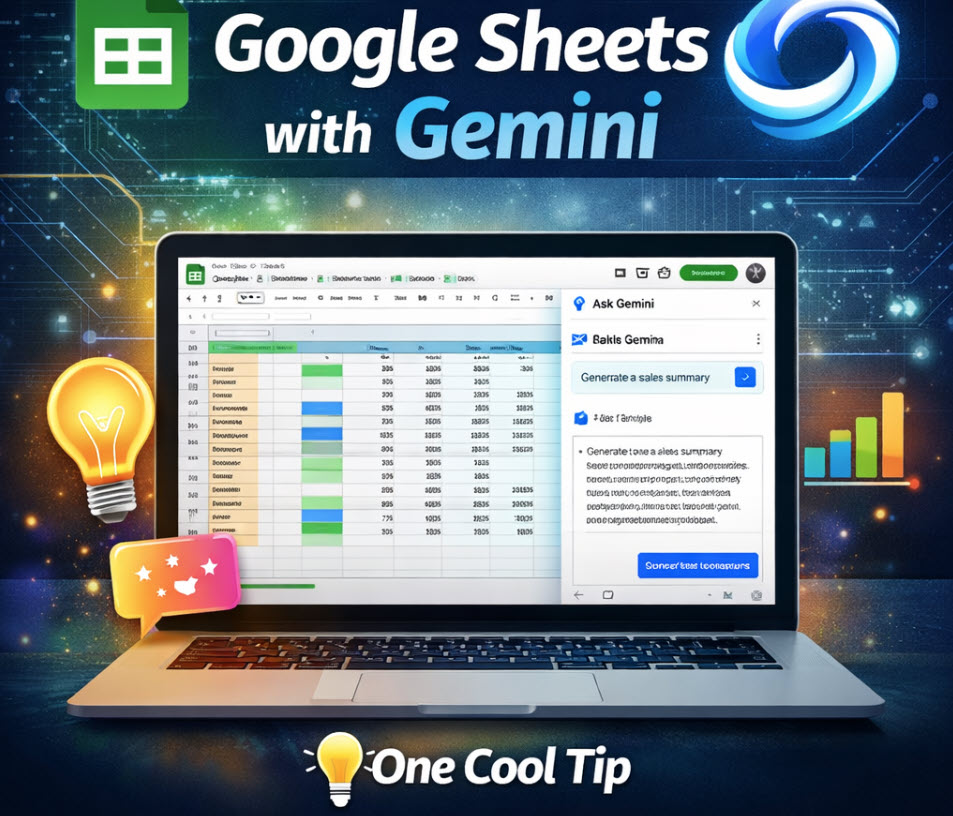
| | | | Supercharge Your Spreadsheets with Gemini in Google Sheets | |
Stop struggling with complex formulas and manual data entry; let Google’s AI build your trackers, write your syntax, and analyze your data for you. Google Gemini in Sheets transforms your static spreadsheets into an intelligent data partner that can build tables, write formulas, and clean data through simple conversation.
Read the Newsletter Version.
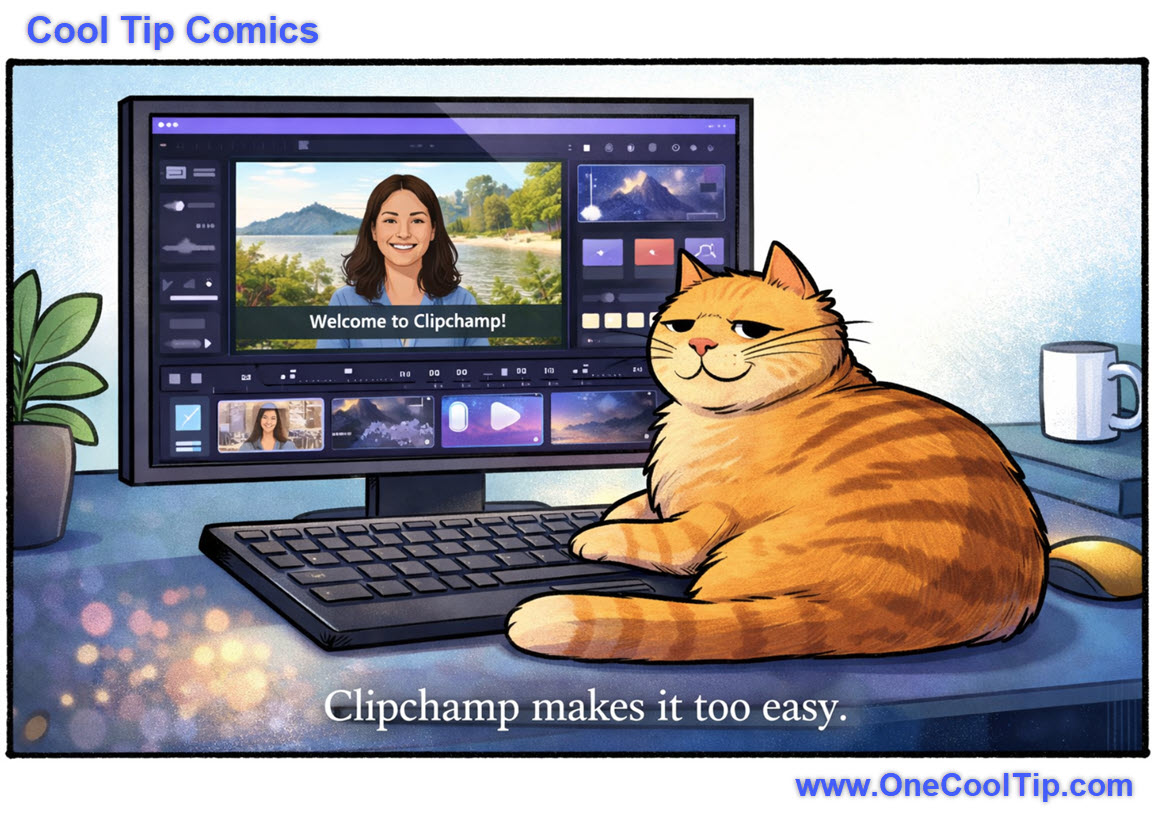
| | Proof that even a cat can edit like a pro… as long as it naps on the keyboard. 🐾 | | |
Trivia Answer: B) A distributed supercomputer
In 2013, the founders of Clipchamp in Brisbane, Australia, were actually trying to build an enormous, distributed supercomputer.
When that project hit a wall, they pivoted to the underlying technology they had developed for video compression and conversion.
This pivot eventually led to the browser-based editor we know today, which was acquired by Microsoft in 2021.
----------
Tomorrow's Cool Tip is waiting to amaze you.
Until then, go forth and conquer the tech world with your newfound knowledge!
Be sure to visit www.OneCoolTip.com for Cool Tech Tips for a Cooler Life!
And if you Like One Cool Tip, please support with TipJar!
Enjoy!
Rodger
Chief Cool Tipper
onecooltip.com@gmail.com
| |
| What do you think of today's OneCoolTip newsletter? | | | |
Please Share the One Cool Tip Newsletter!
You asked for it. You got it. There is now a One Cool Tip Newsletter archive. Did you delete a newsletter and want to read it again? Check it out HERE.
Want to help One Cool Tip grow? Please forward this email using the link above. And if you see an OCT social media post, please LIKE, COMMENT and SHARE!
Have you subscribed to the One Cool Tip YouTube channel? Subscribe HERE.
| | Connect with One Cool Tip!! | | |
|
As an Amazon Associate, One Cool Tip may earn a small commission from qualifying purchases.
Our media content is intended solely for informational purposes only. Please do not construe anything here as legal, tax, investment, financial, marital or other advice.
Copyright © 2026 | www.OneCoolTip.com | All Rights Reserved
|
| | | |